Zoho CRM integration with Hiver Omni
Zoho CRM is an integrated platform that helps teams manage sales, track leads, and maintain customer relationships from one place. It gives a clear overview of every interaction and automates routine tasks so your team can stay organized and close deals more efficiently.
When you connect Zoho with Hiver Omni, your team can see contact and deal information directly inside Gmail. You do not need to switch tabs or move between tools. Your data appears next to your emails, which helps you respond faster and work with better context.
Why integrate Zoho with Hiver
Connecting Zoho with Hiver helps your team:
- View customer context instantly: Access contact and deal details alongside your conversations.
- Save time: Eliminate tab-switching and ensure your responses include accurate customer information.
- Improve team coordination: Sales, support, and account managers can view shared customer history.
What you can do with the Zoho integration
With the Zoho CRM integration enabled, you can:
- View Zoho contact, account, and deal details inside Gmail.
- Check key fields for the record associated with the email you’re viewing.
- Open the full record in Zoho from the Apps panel.
- See only the fields and cards your admin has allowed through visibility settings.
Prerequisites
Before you begin, make sure you have:
- Admin access in Hiver.
- A Zoho account with administrator permissions.
- An active Zoho subscription.
Setting up the Zoho integration
You'll start by connecting your Zoho account, then select inboxes and team members should have access to the Zoho data.
Step 1: Connect Zoho CRM to Hiver
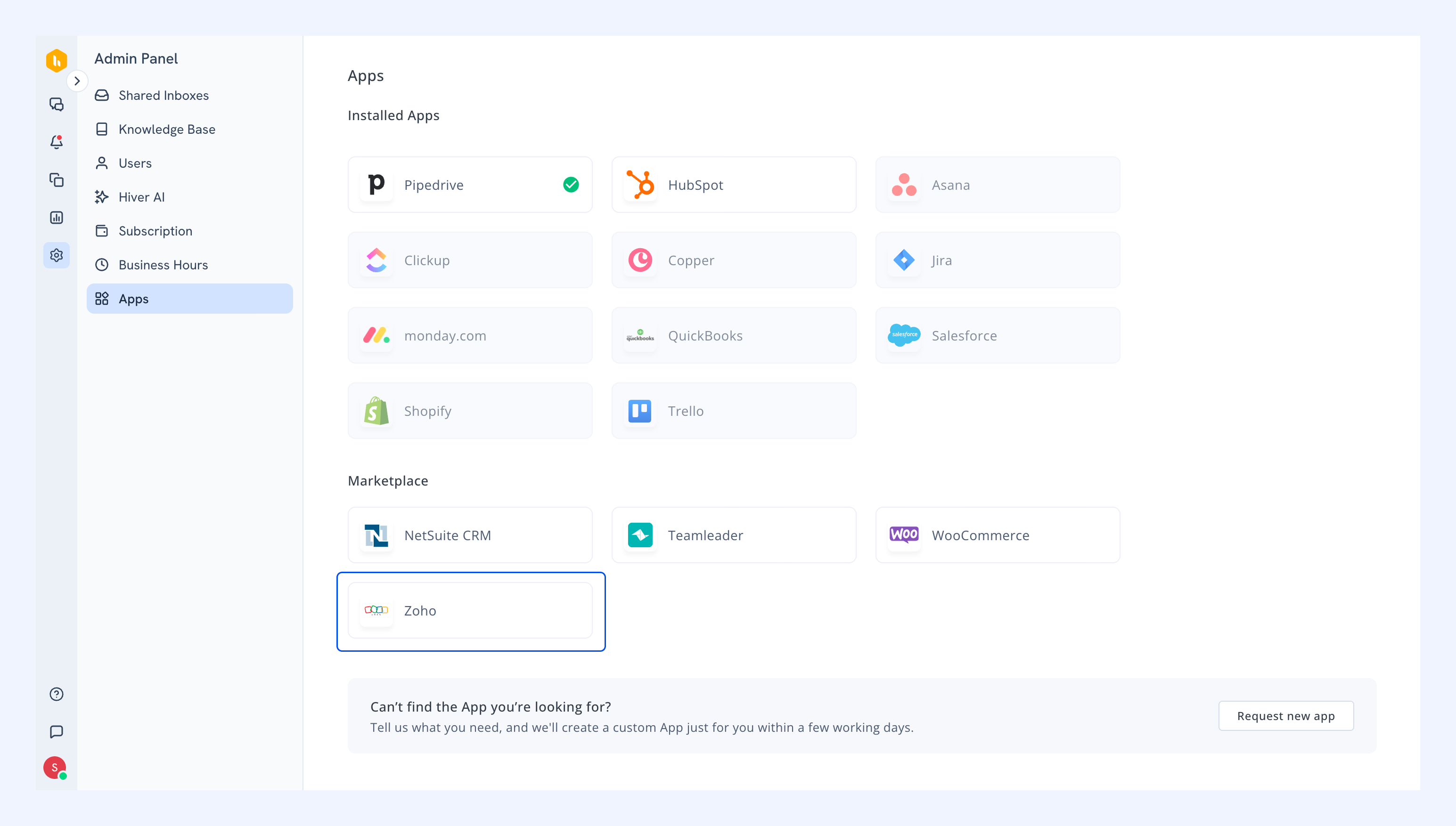
1. In Hiver, go to Admin Panel → Apps.
2. Find and click Zoho.
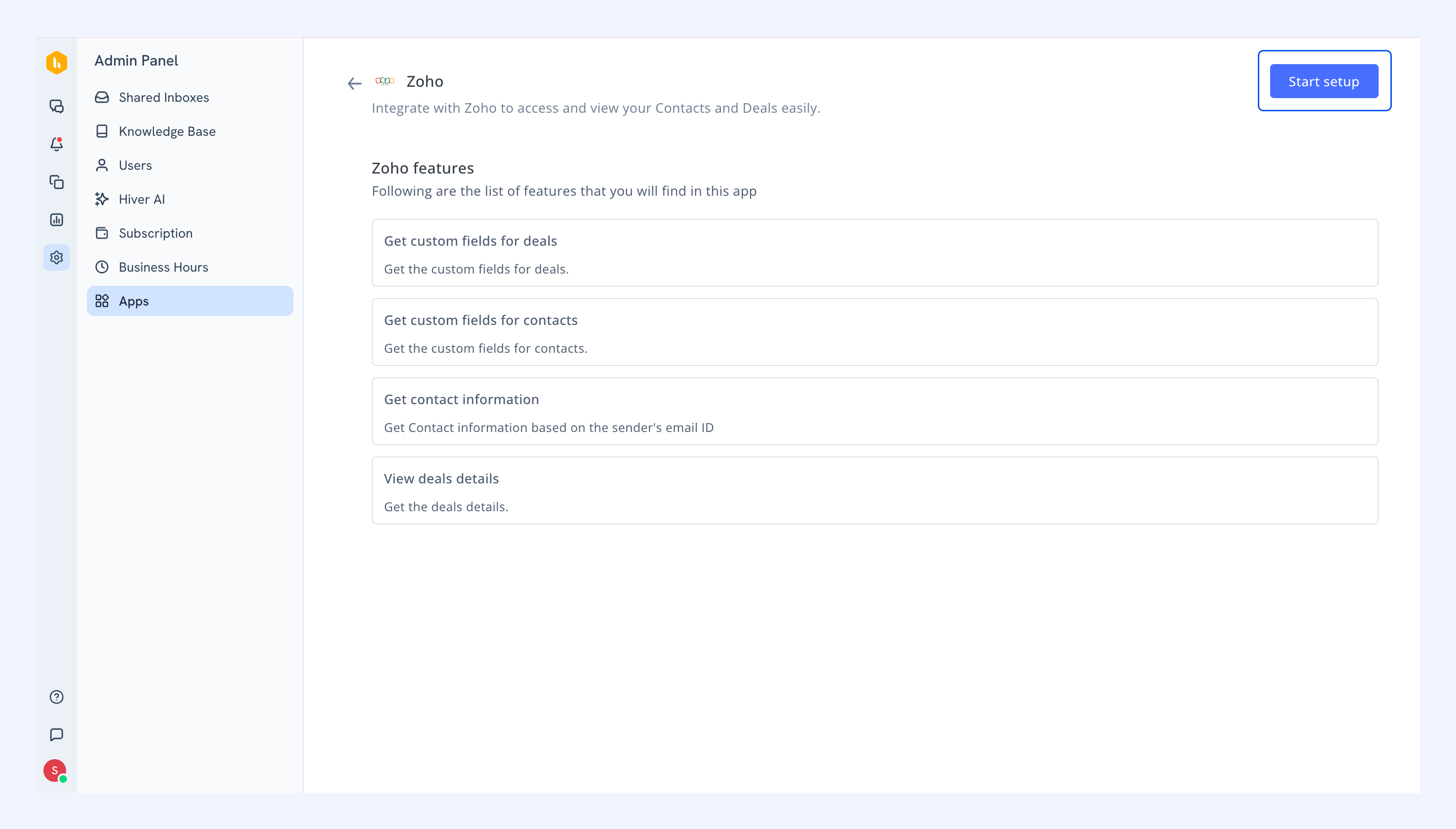
3. Review the integration features and click Start setup.
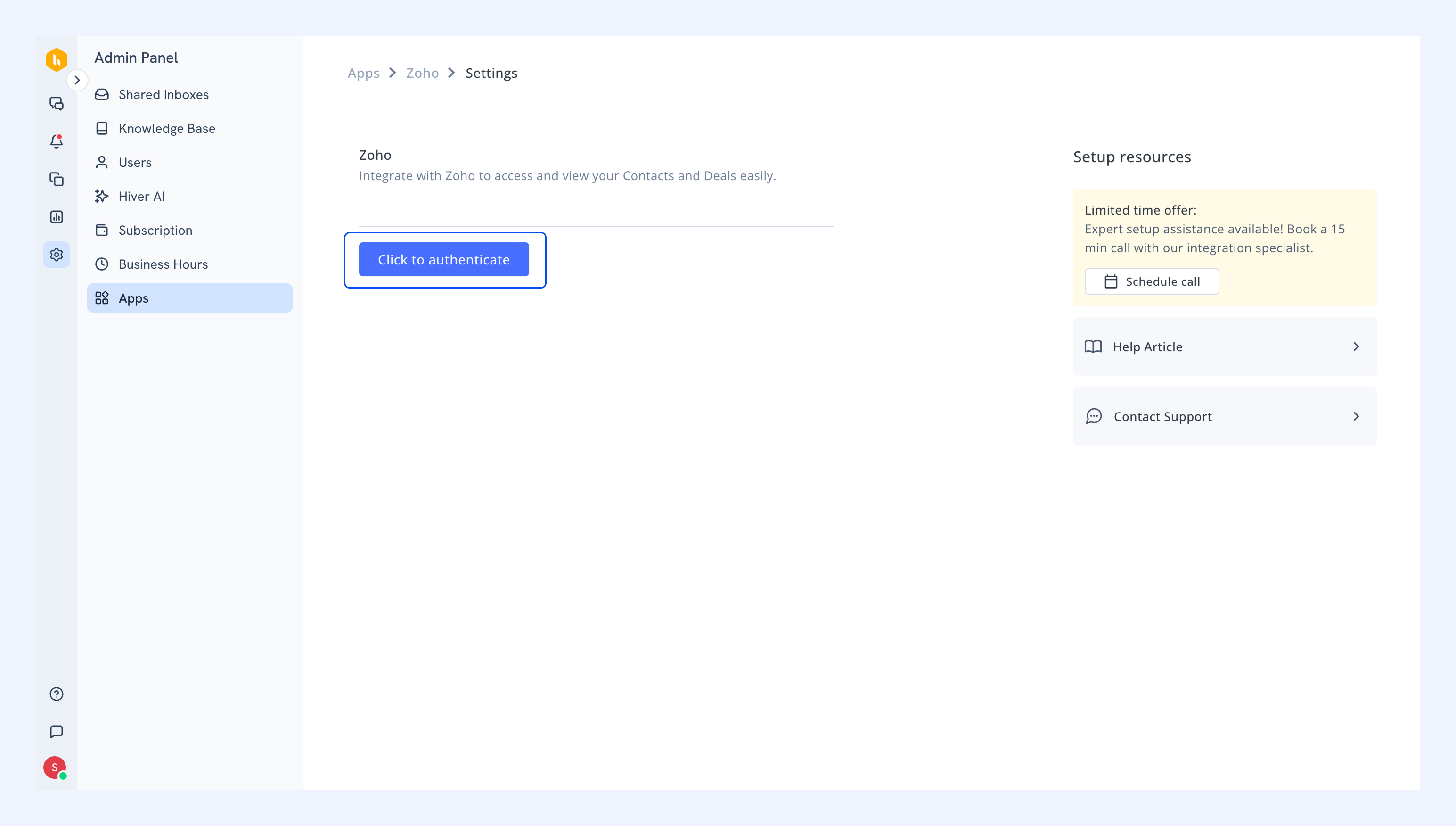
4. On the setup page, select Click to authenticate.
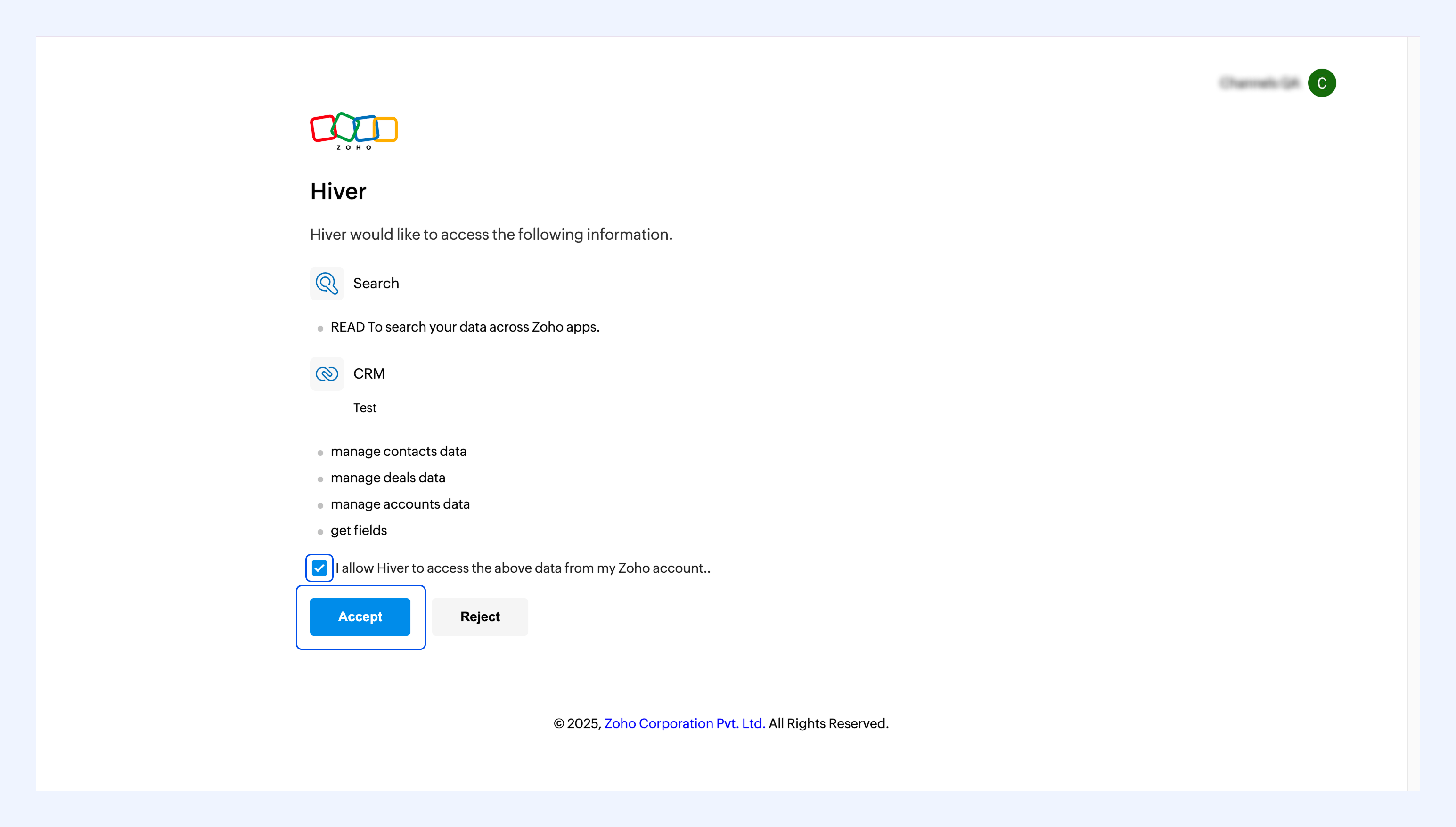
5. A new tab will open for you to sign in to your Zoho account.
6. Read the permissions, mark the consent box, and click Accept.
7. After authentication, you'll return to the Apps page in Hiver.
The Zoho app will appear in your list as inactive.
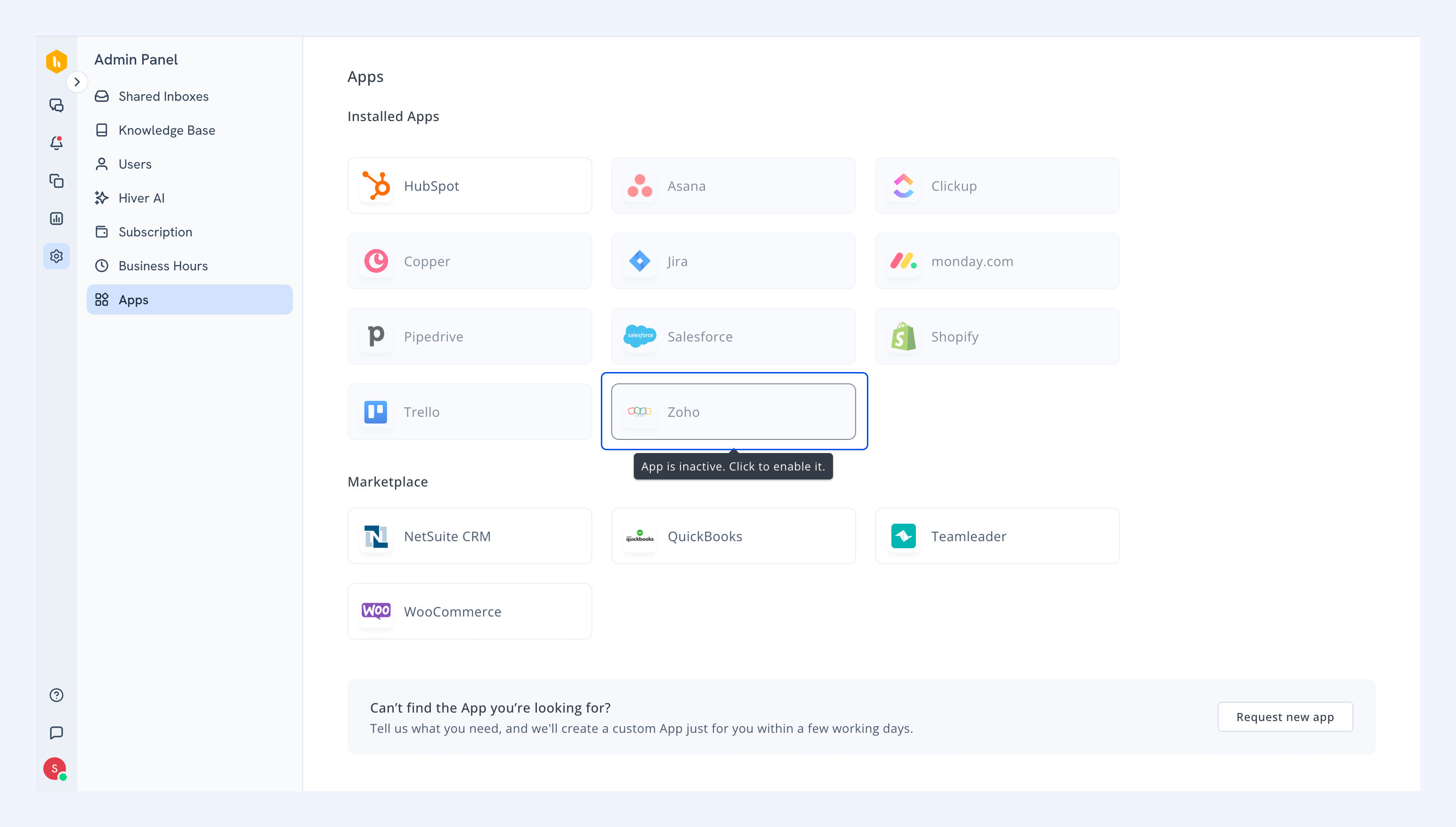
Step 2: Configuring visibility settings
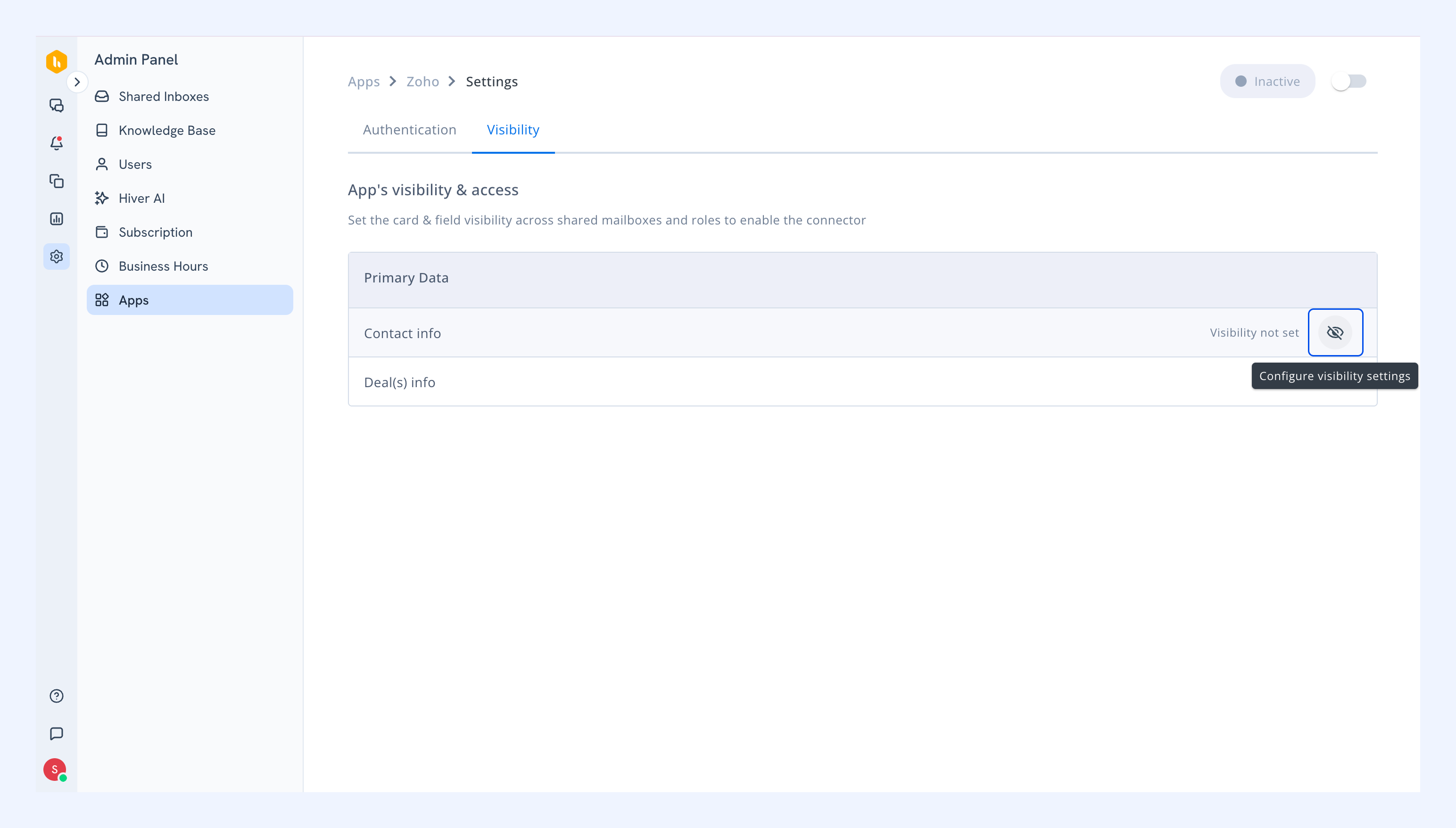
1. Click on the Zoho app.
2. Click the eye icon next to the data cards to manage visibility settings.
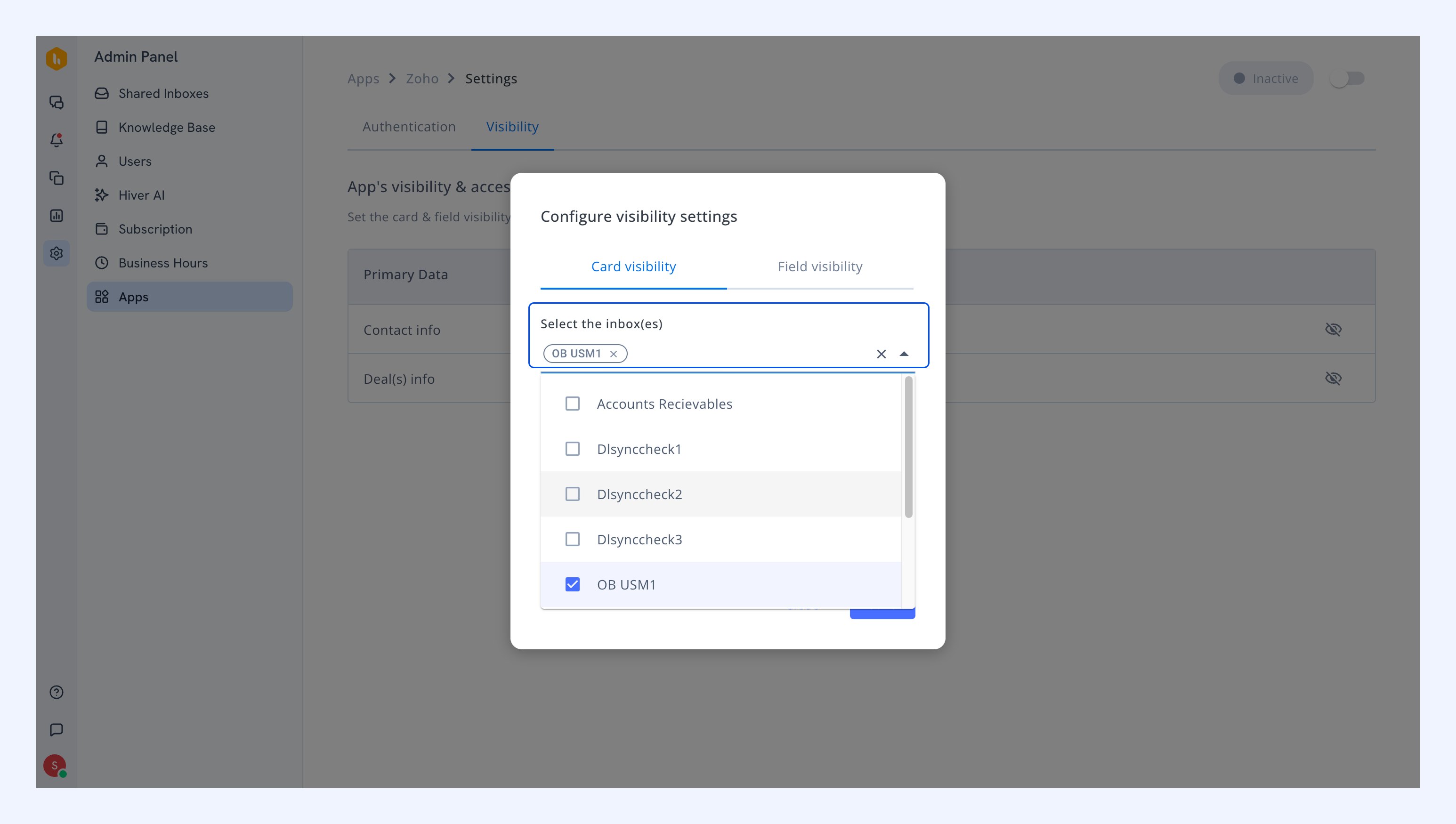
3. In Card visibility, select the Shared Inboxes that should display Zoho data.
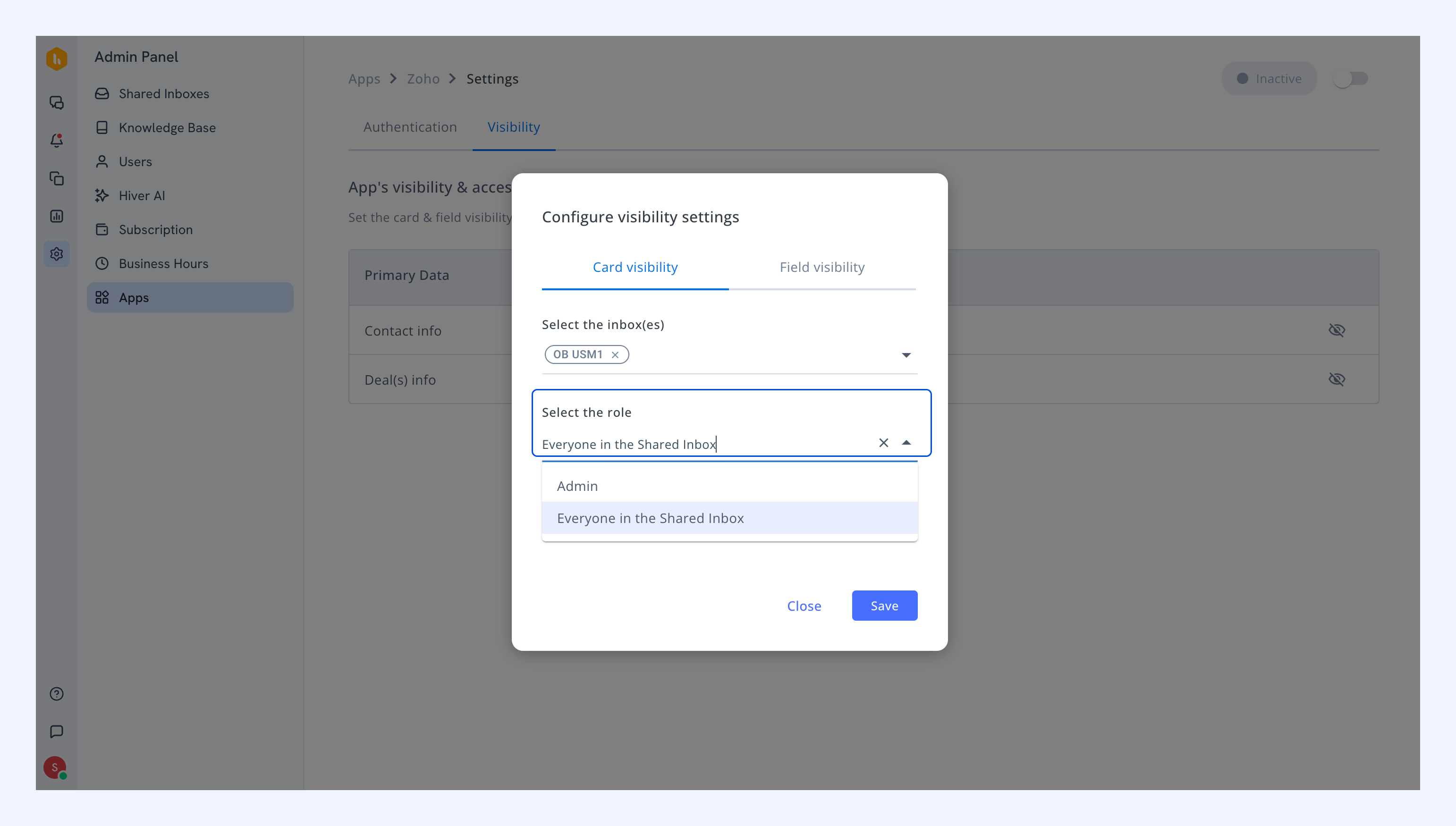
4. Choose which user roles can access the Zoho data.
5. In Field visibility, select which data fields your team can see.
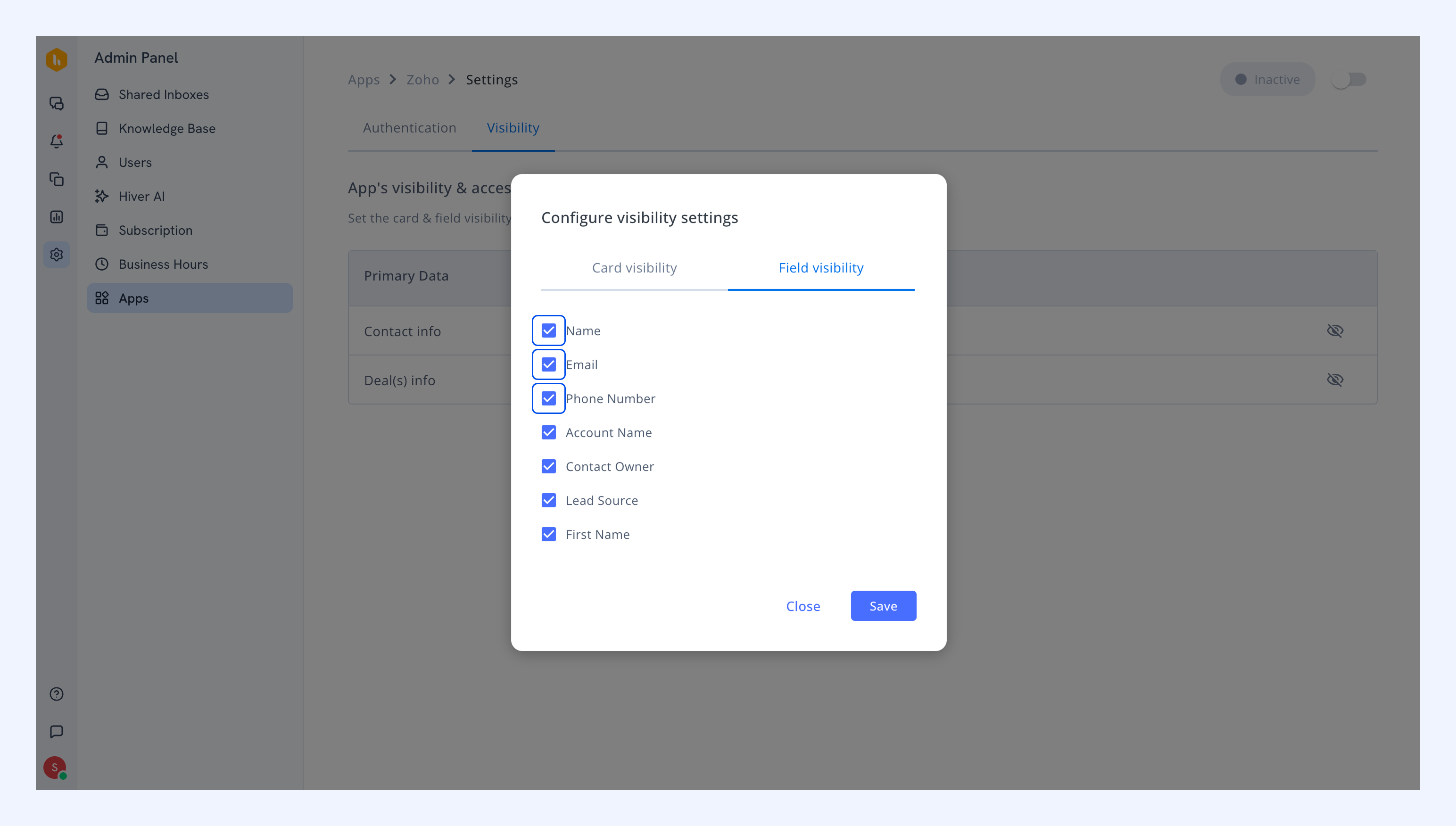
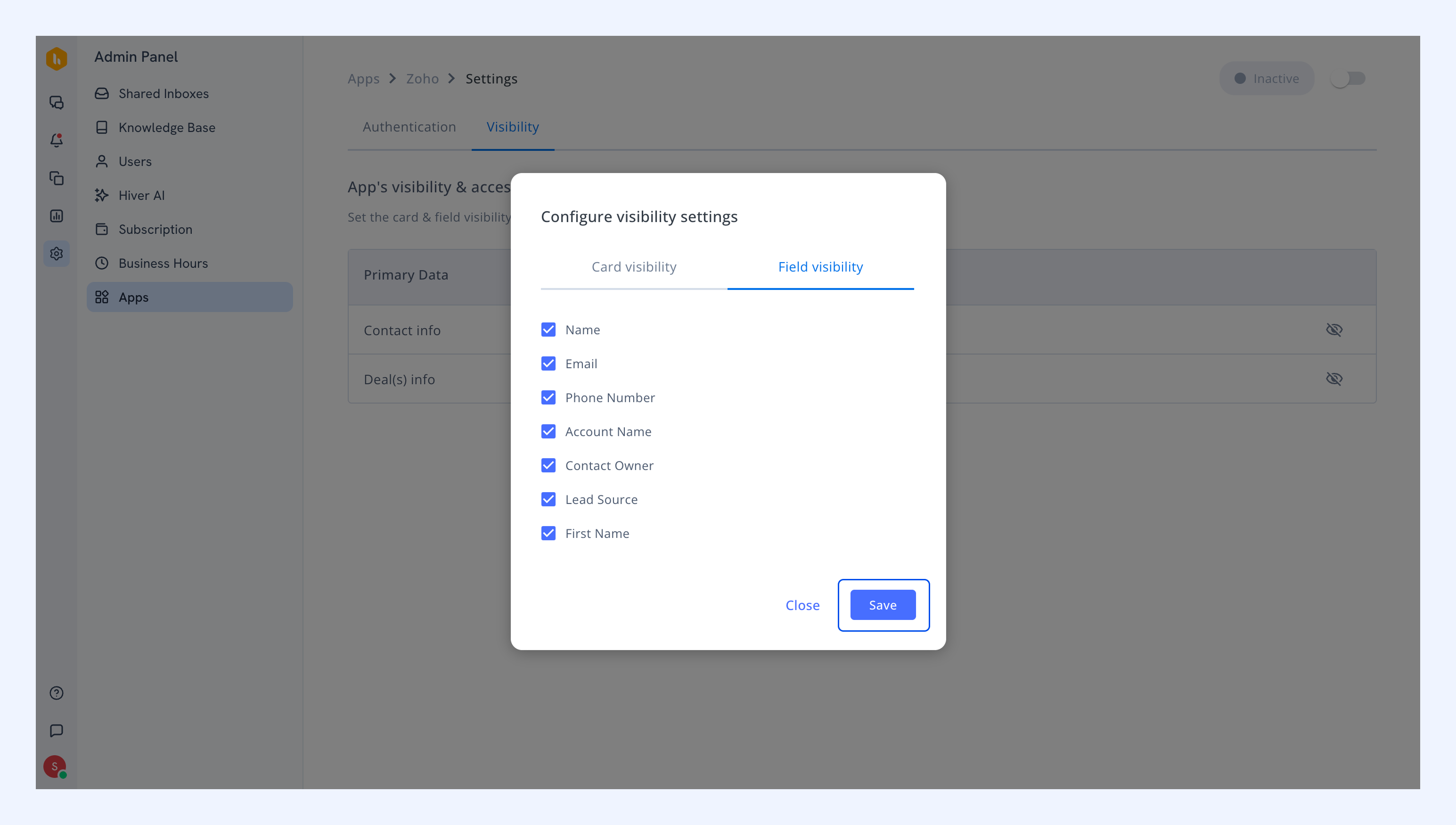
6. Click Save.
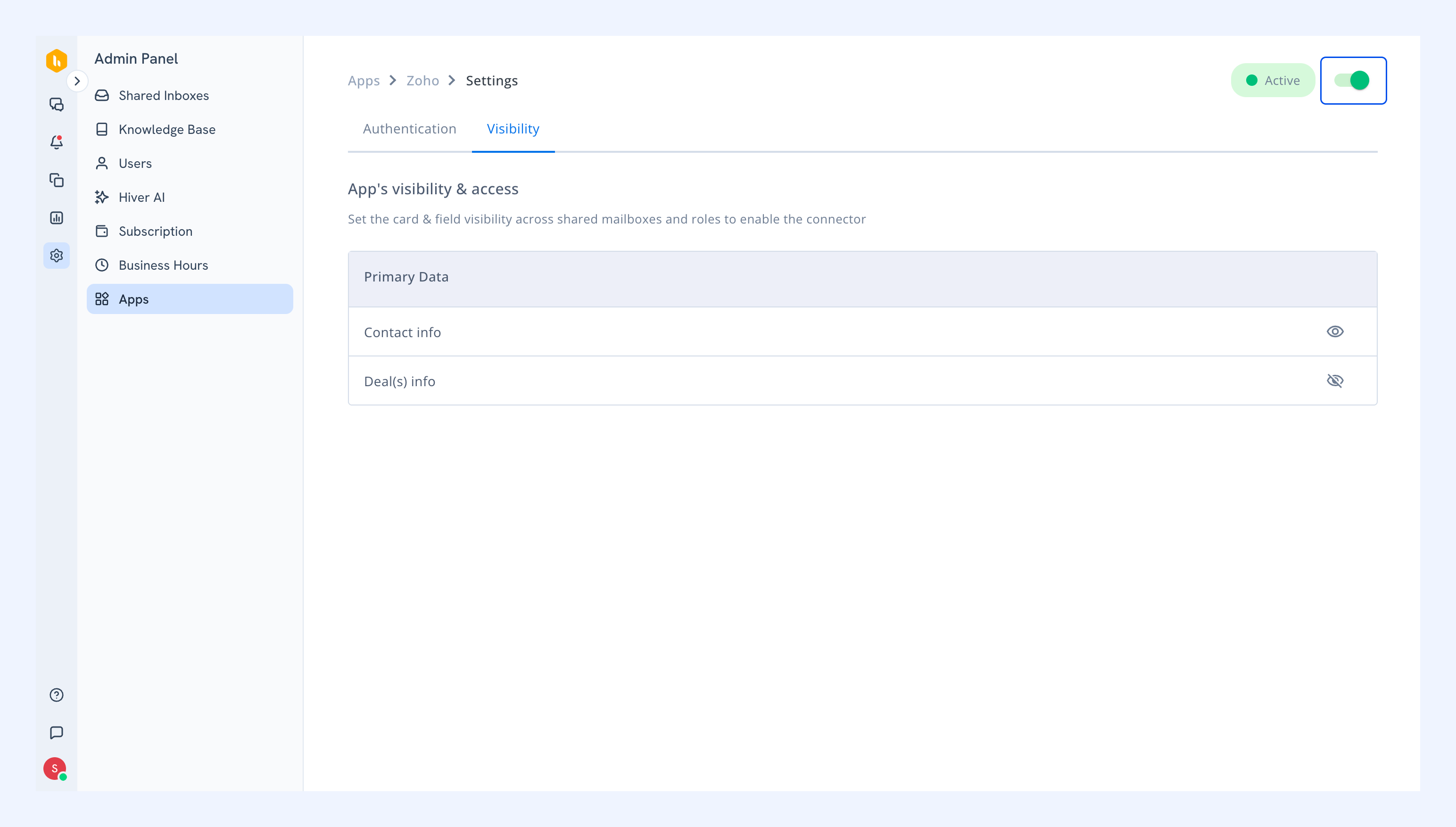
7. Enable the app using the toggle.
Using the Zoho integration in Hiver Omni
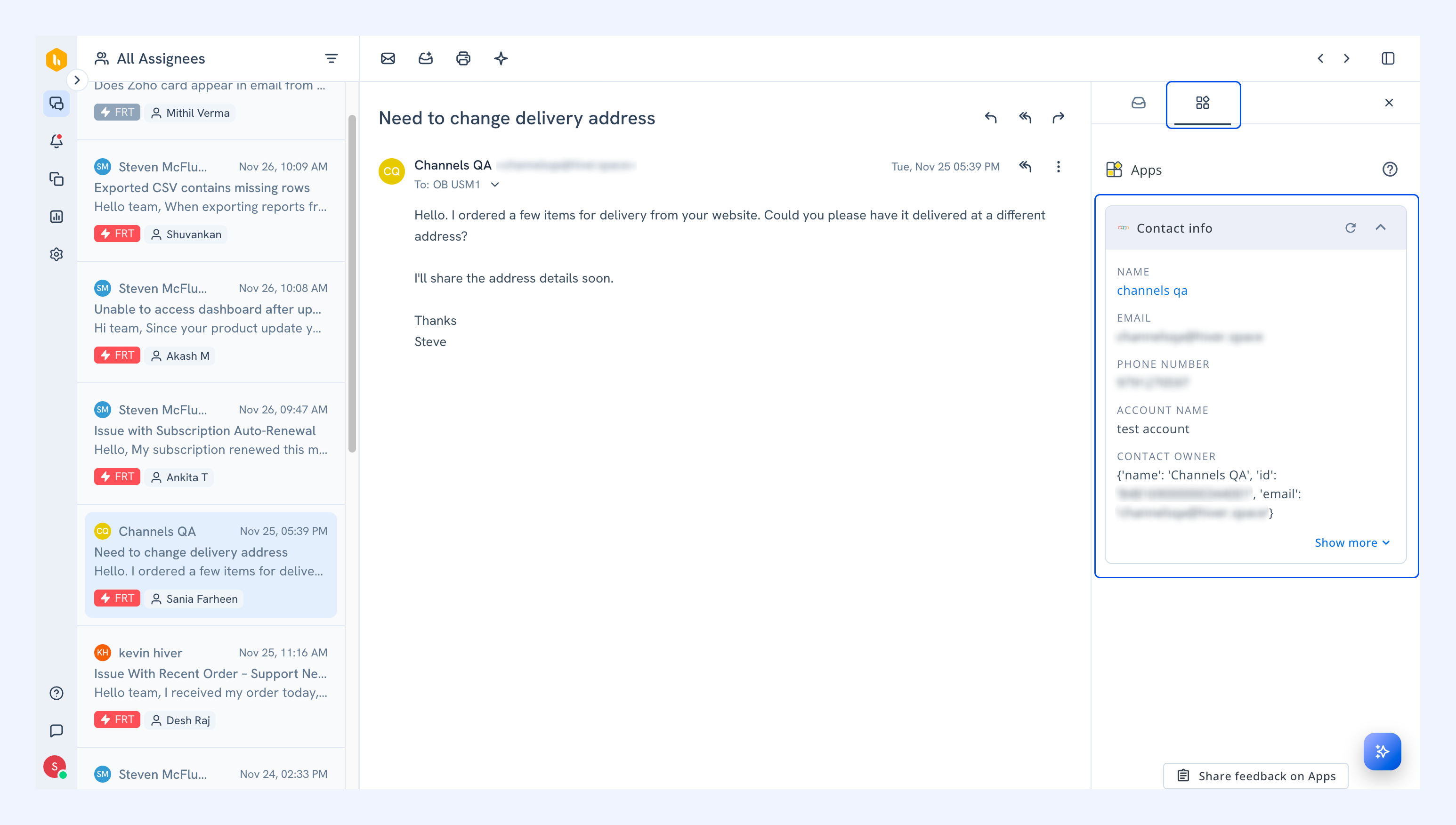
Once setup is complete, your team can access Zoho information directly within Hiver in the Apps tab.
The integration shows your selected Zoho contact, account, and deal details, along with links to the record in Zoho.
Related articles
Shopify integration in Hiver Omni