Setting up Business Hour Templates
Business Hour Templates let you define the working hours and holidays for your Shared Inboxes. These templates help your team:
- Ensure accurate SLA tracking: SLAs only run during active business hours, preventing false “Overdue” alerts. Learn more about SLA policies.
- Set up auto-responders: Send tailored messages to customers during or outside business hours to set clear response expectations. Learn more about auto-responders.
- Get consistent reporting: Drill down analytics and reports using business hours instead of full calendar hours for more realistic performance insights.
For inboxes that operate on different schedules, you can create separate templates for each. If multiple Shared Inboxes follow the same schedule, you can assign one business hour template to all of them.
Prerequisites
- Business hour templates are available on Pro and Elite plans only.
- Only Admins and Shared Inbox Admins can create and configure business hour templates.
Accessing business hour templates
Go to Hiver settings → Admin Panel → Settings → Business Hour Templates. You’ll see a list of all existing templates and the Shared Inboxes each template is applied to.
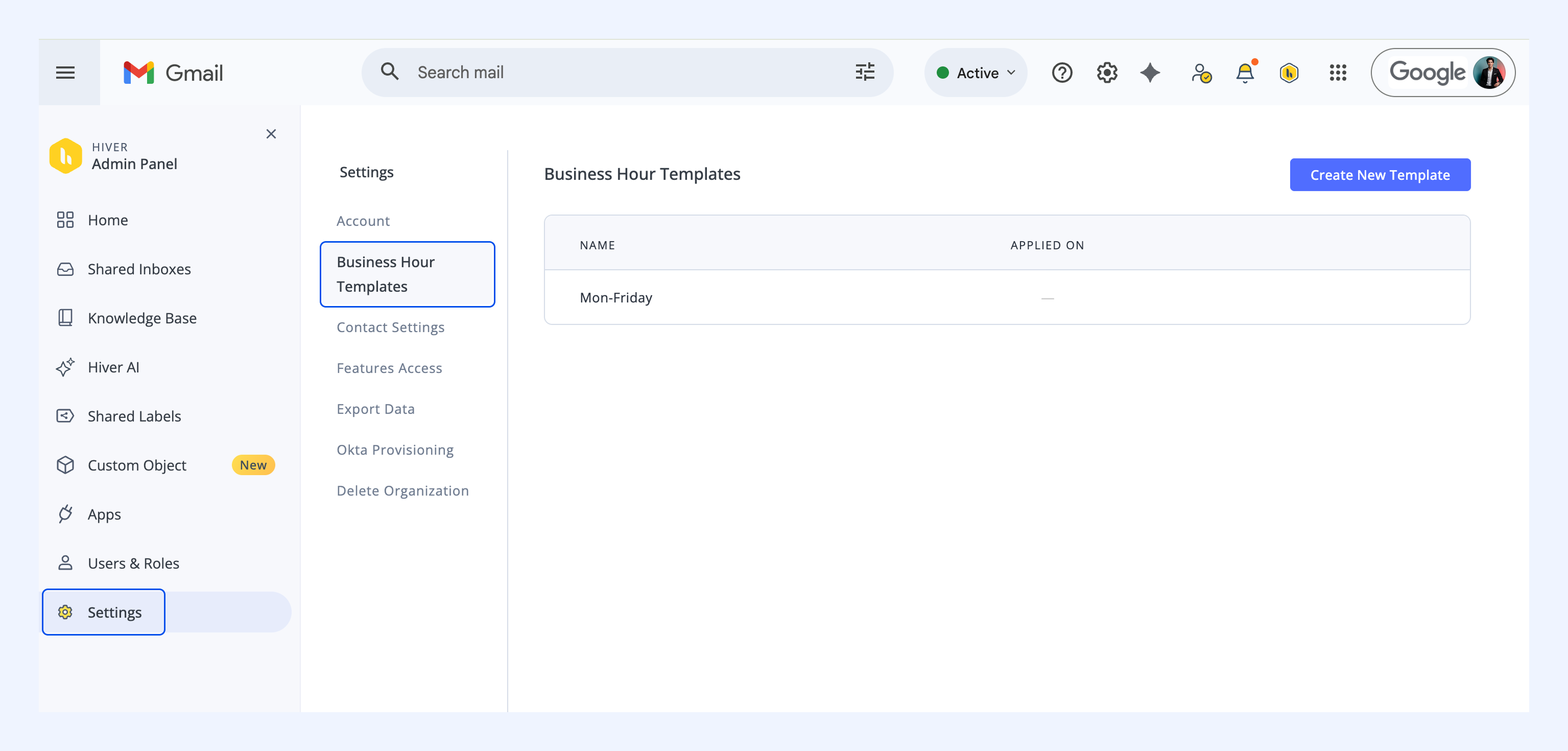
Creating a new business hour template
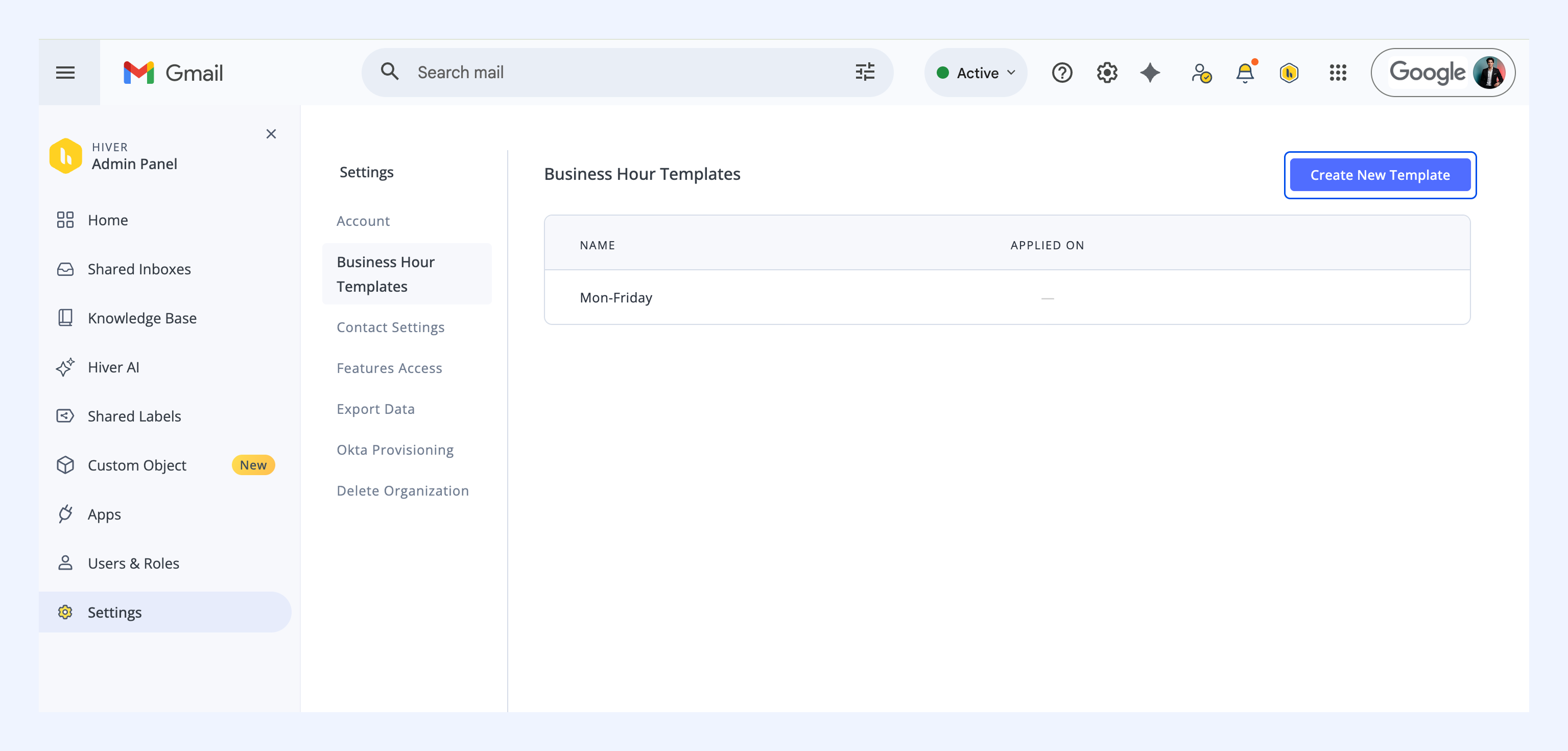
1. In the Business Hour Templates section, click Create New Template.
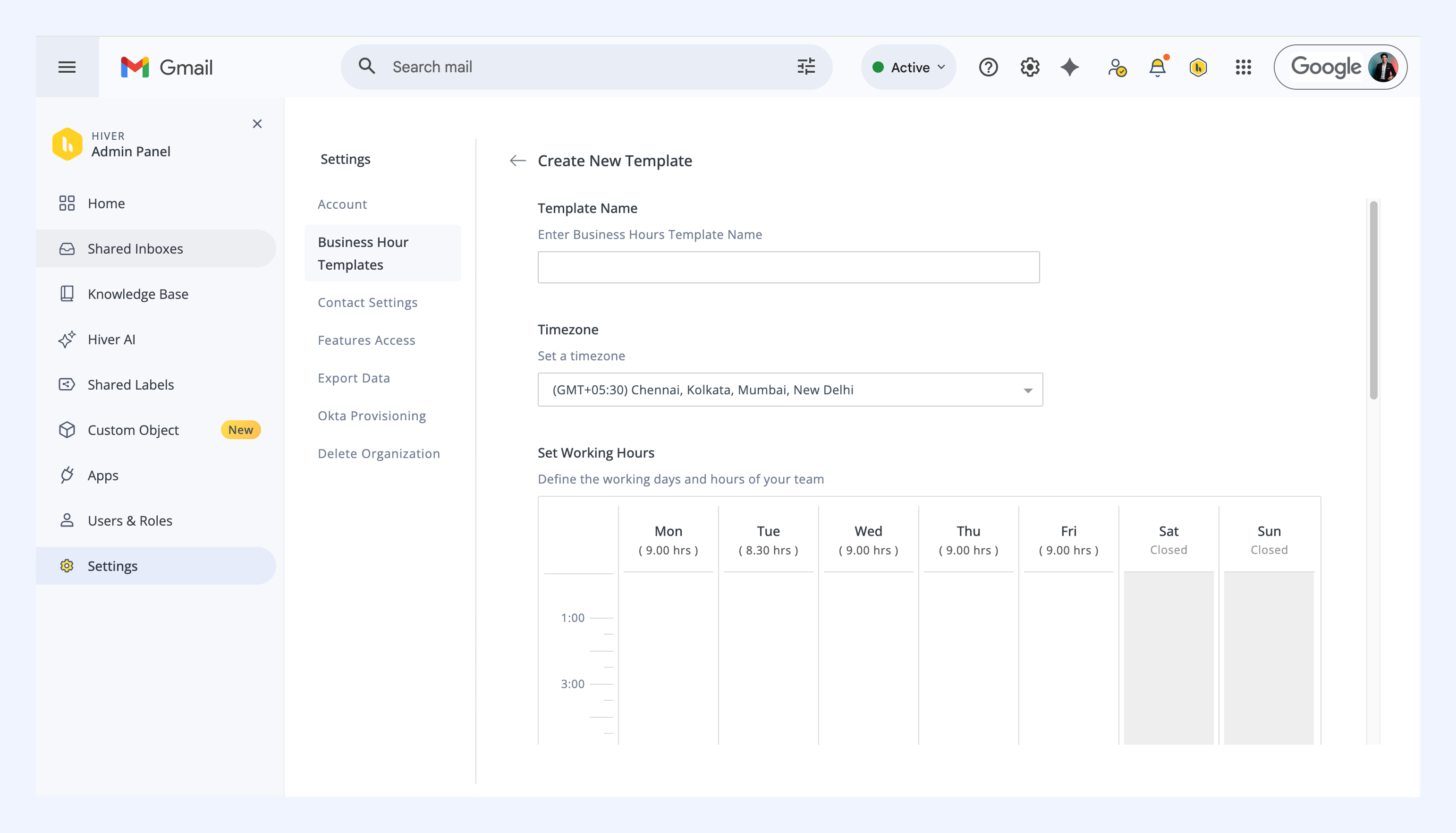
2. Enter a Template Name.
3. Choose the correct Timezone from the dropdown.
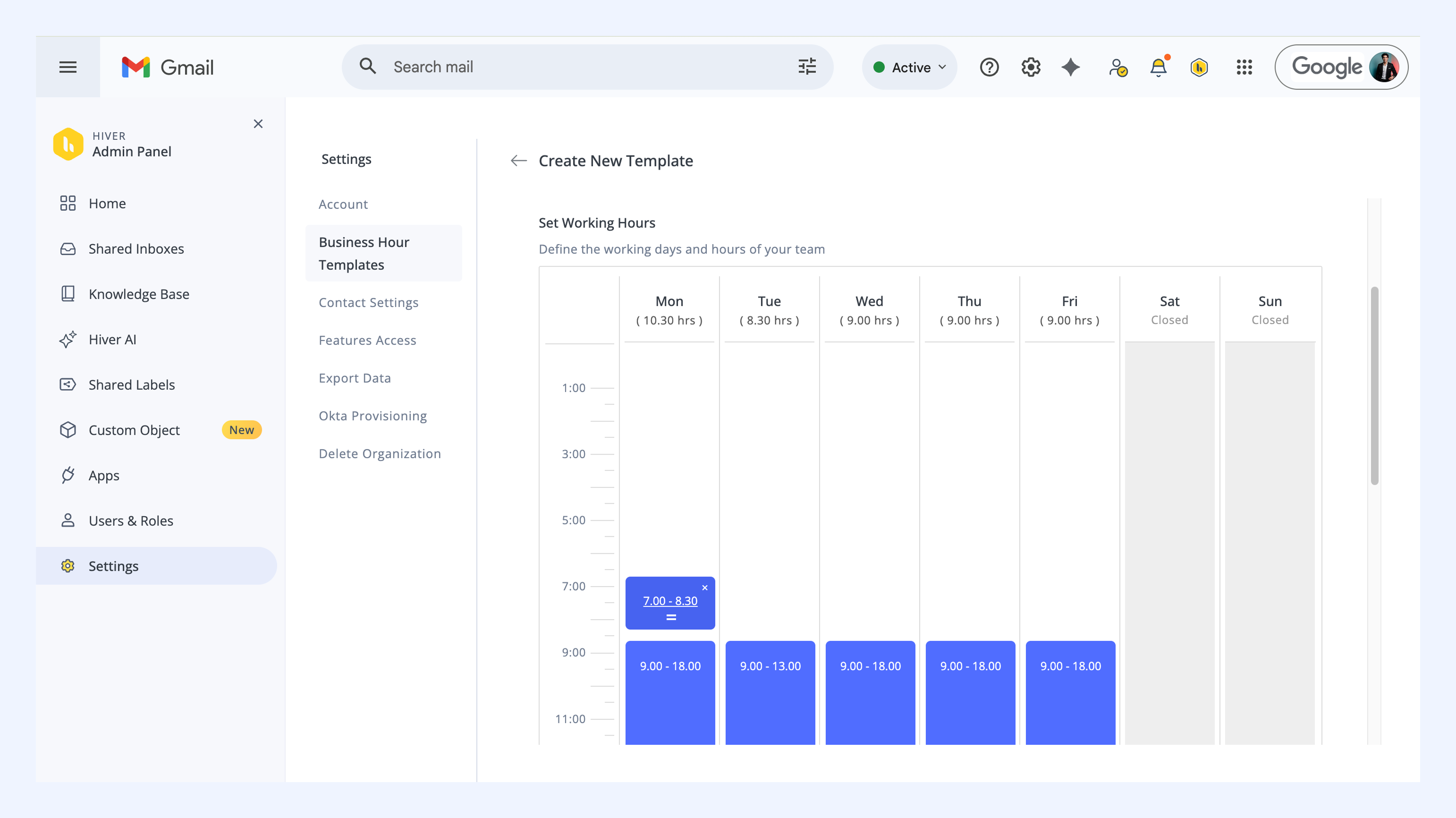
4. Define your team's working hours by selecting the start and end times for each day.
- To adjust timings, drag the top or bottom edges of the time block.
- To remove hours from a day, click the X icon on the time block.
- To add hours to a day, click anywhere on that day's column and drag to set the block.
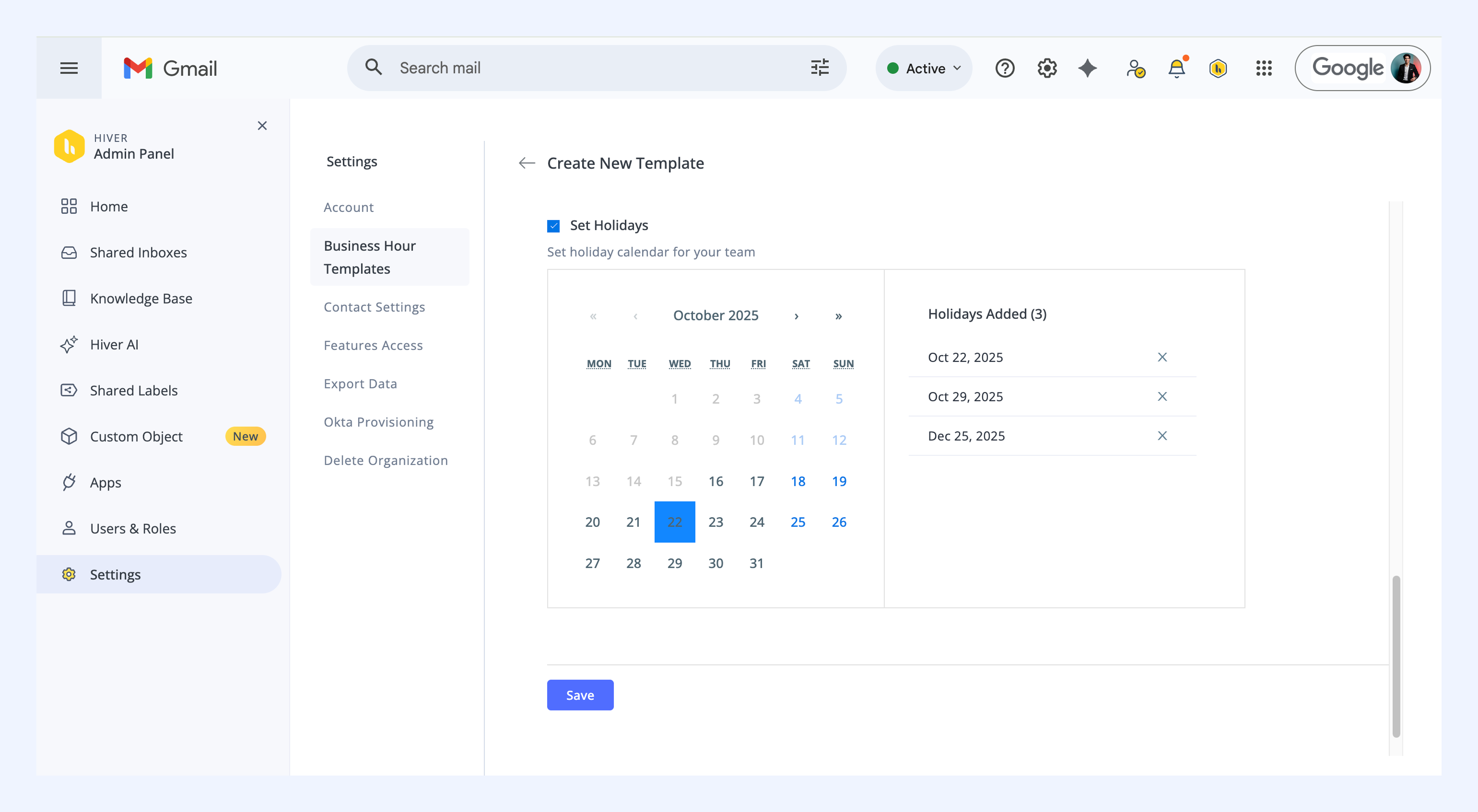
5. Select the Set Holidays checkbox to mark holidays for the year.
- Click any date in the calendar to add it as a holiday.
- The selected dates appear in a list beside the calendar.
- Click the X next to a date to remove it.
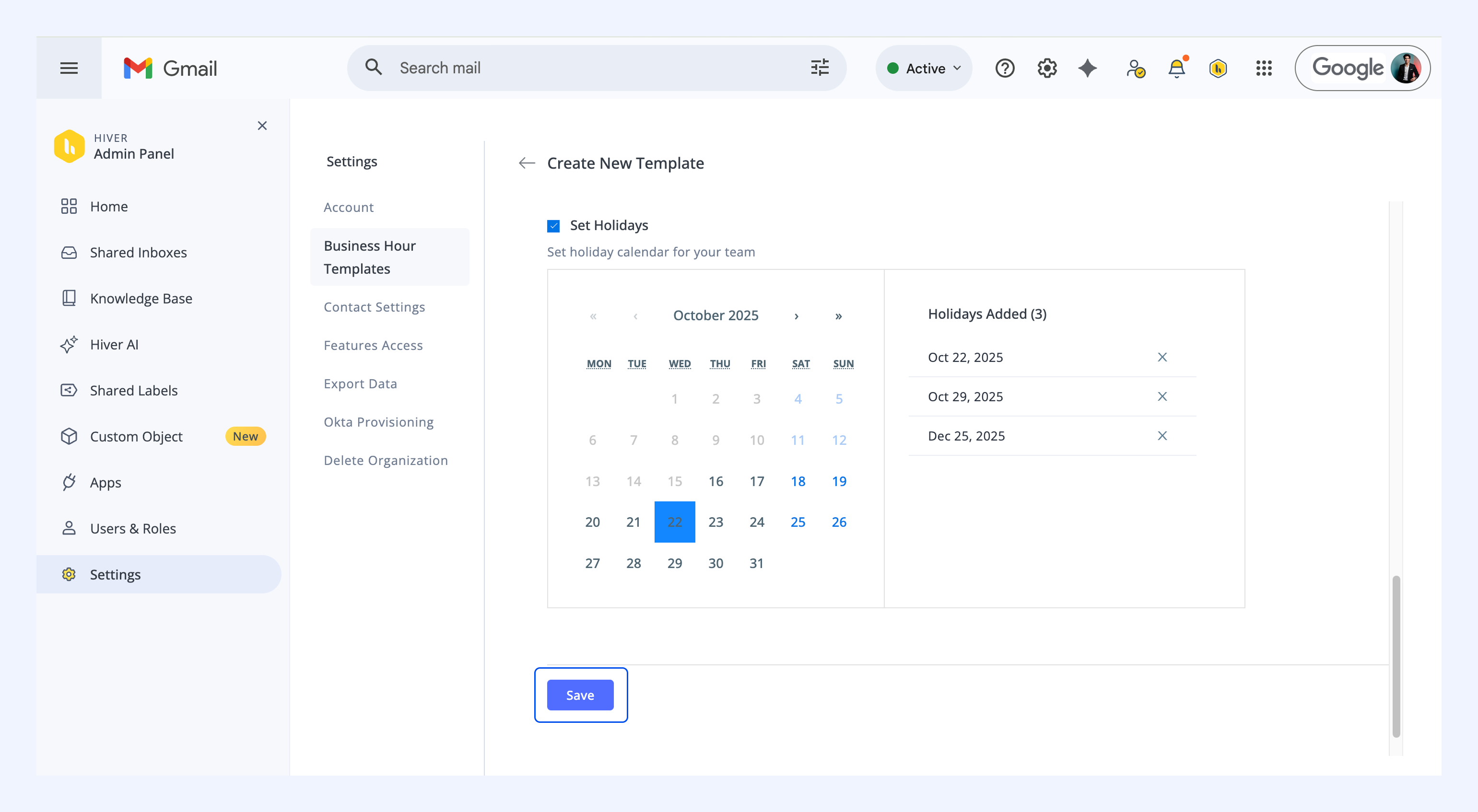
6. Click Save to save the template.
Assigning a business hour template to a Shared Inbox
1. In Gmail, click the Hiver settings icon and open the Admin Panel.
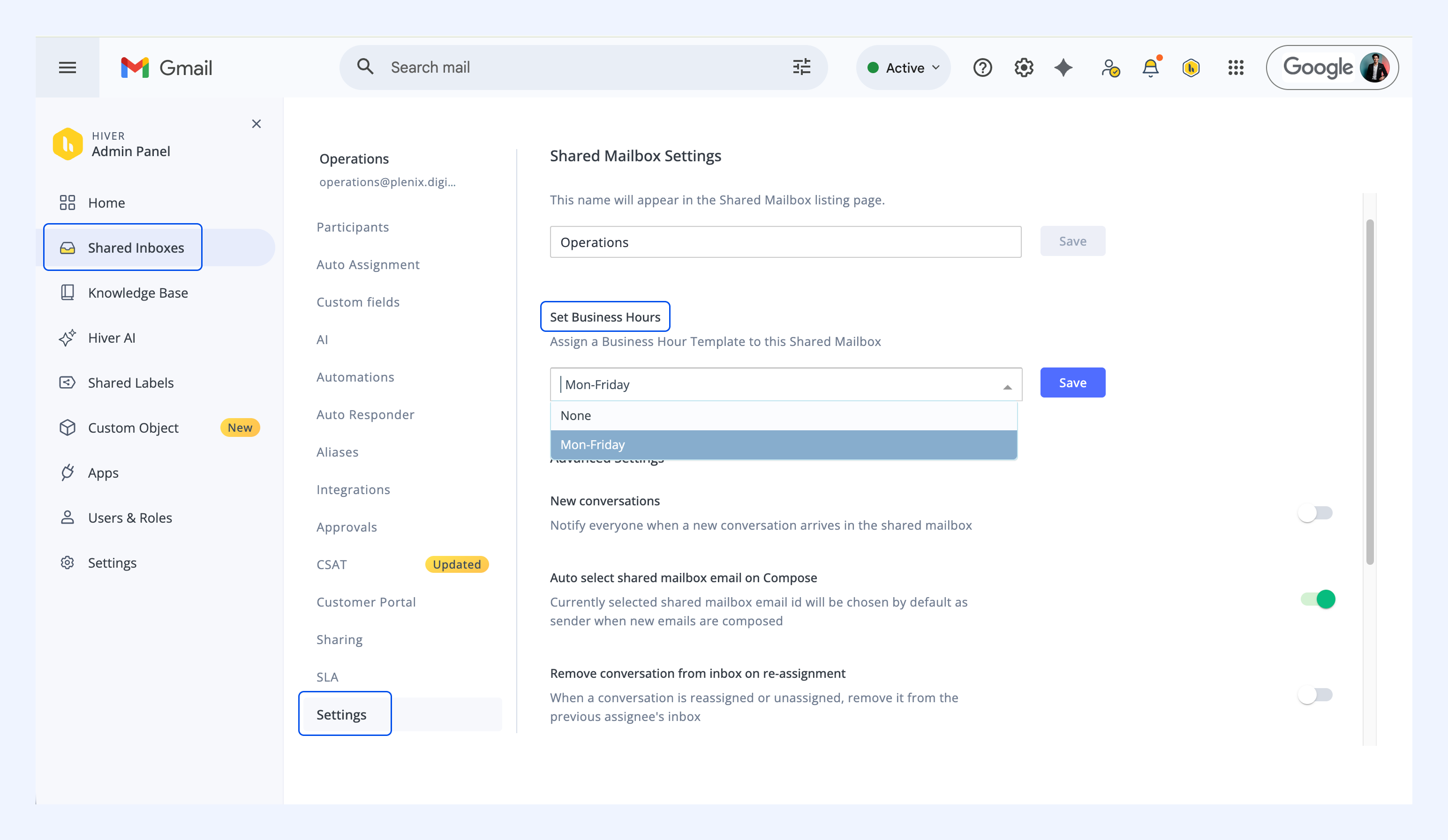
2. Go to Shared Inboxes → select an inbox → Settings → Set Business Hours.
3. From the dropdown, select the Business Hour Template to apply.
4. Click Save.
What happens when a business hour template is deleted
Deleting a business hour template can affect certain features:
- Auto-responder: When a business hour template is deleted, any auto-responder linked to it will lose its time restrictions and start triggering for all incoming emails.
- SLA tracking: SLAs for first response and resolution will use full calendar hours instead of defined business hours, which may cause inaccurate “Due soon” or “Overdue” alerts.