Enabling external collaboration
Teams across support, sales, finance, and operations rely on Hiver Shared Inboxes to stay aligned. But what happens when you need input from a coworker who isn’t part of your Shared Inbox, or even from someone who doesn’t actively use Hiver?
That’s where Hiver Collaborators come in.
With Collaborators, you can invite any colleague to securely join a customer conversation by tagging their work email in a Hiver Note. They’ll gain access to a dedicated Collaboration Space where they can view the conversation and exchange notes with your team.
With Collaborators, you can:
- Involve the right people without adding them permanently to a Shared Inbox.
- Eliminate messy CCs, forwards, and reply-all loops.
- Keep customer conversations secure with email-based access.
- Speed up resolution by centralizing context in one place.
Enable Collaborators in a Shared Inbox
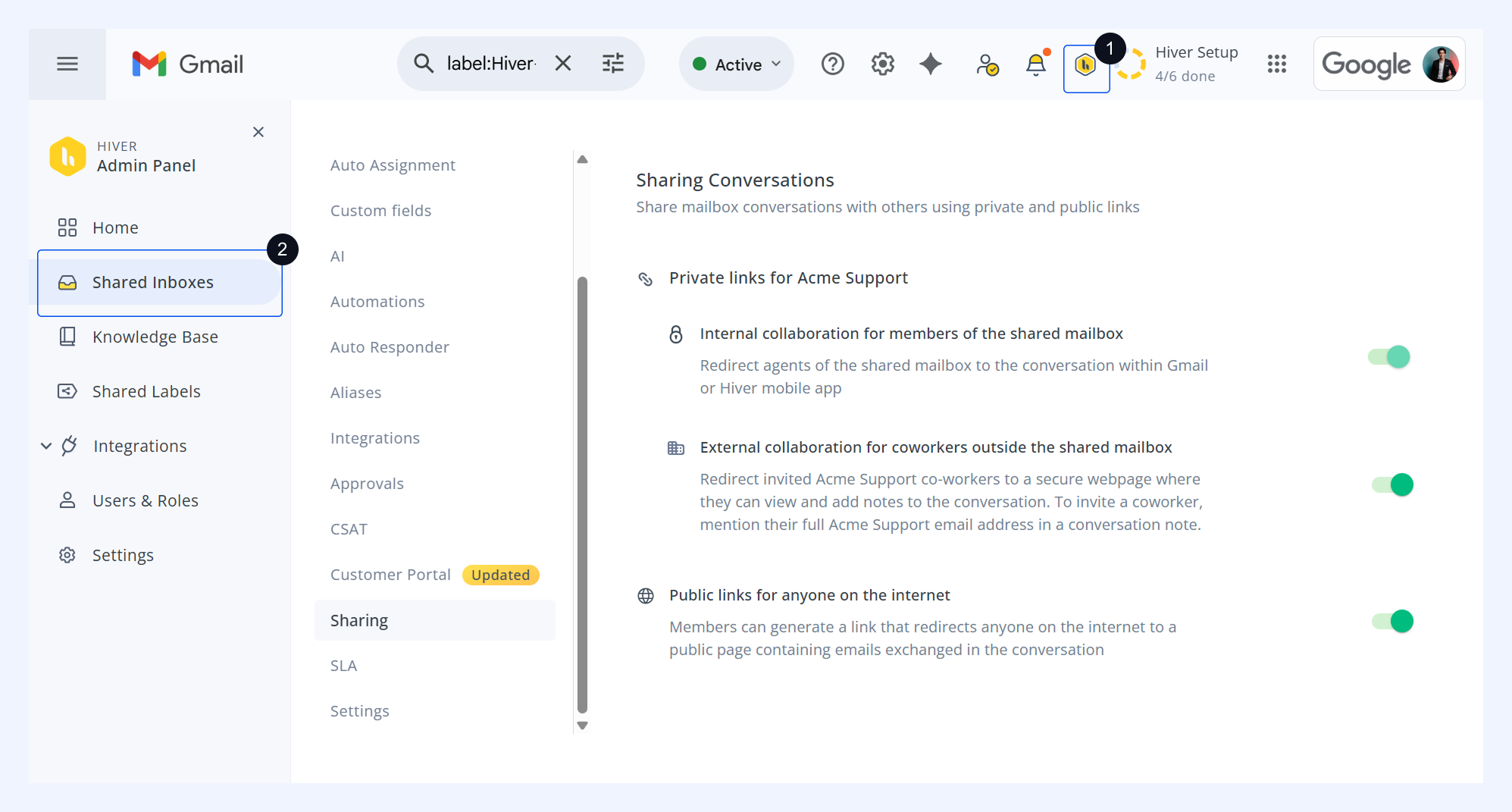
1. To enable Collaborators, go to Admin Panel → Shared Inboxes → select a shared inbox → Sharing.
2. Locate the External collaboration for coworkers outside the shared mailbox option and toggle it on.
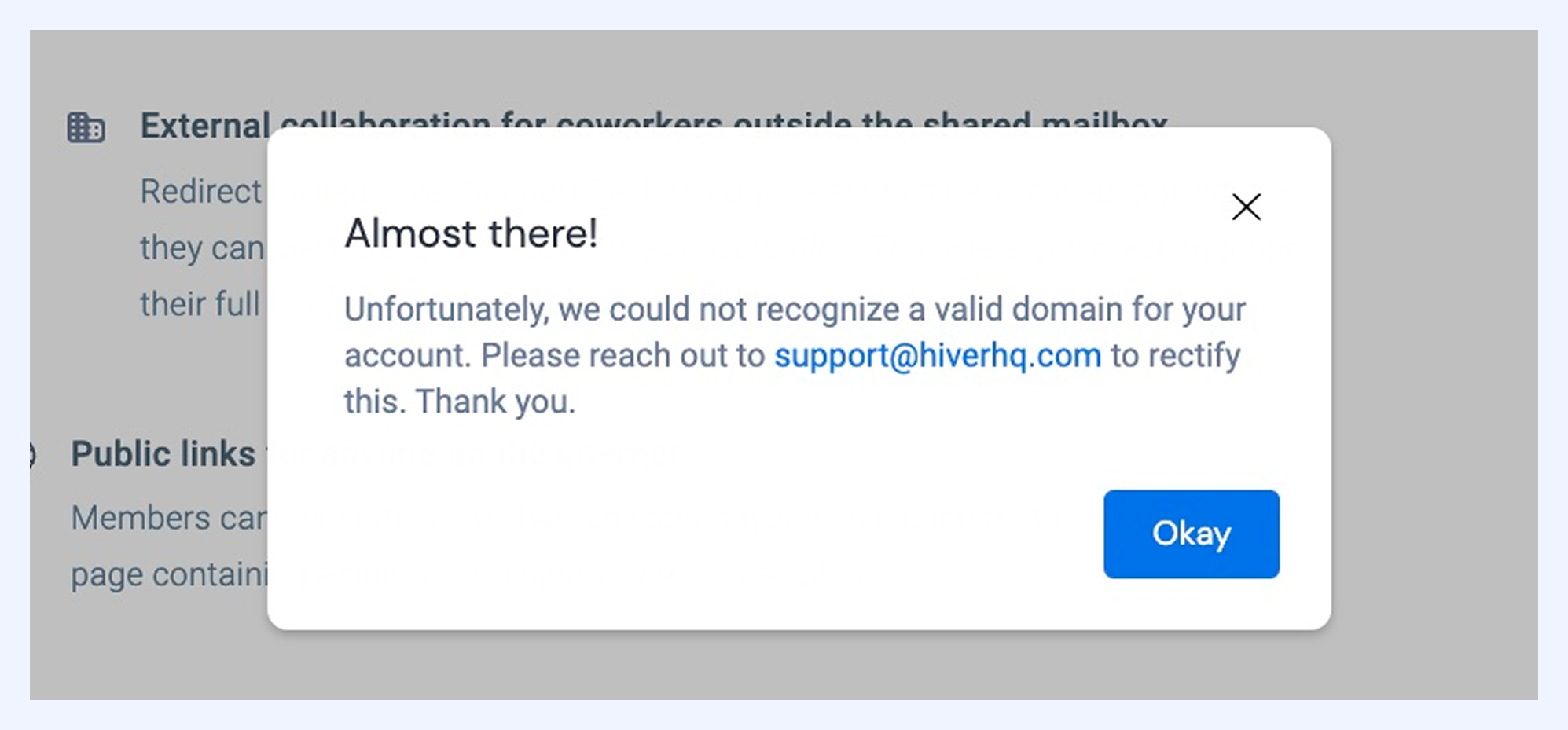
If you can’t enable Collaborators
Sometimes, Hiver may have detected that your registered domain isn’t a valid work email domain. In such cases, contact support@hiverhq.com to update your domain details.
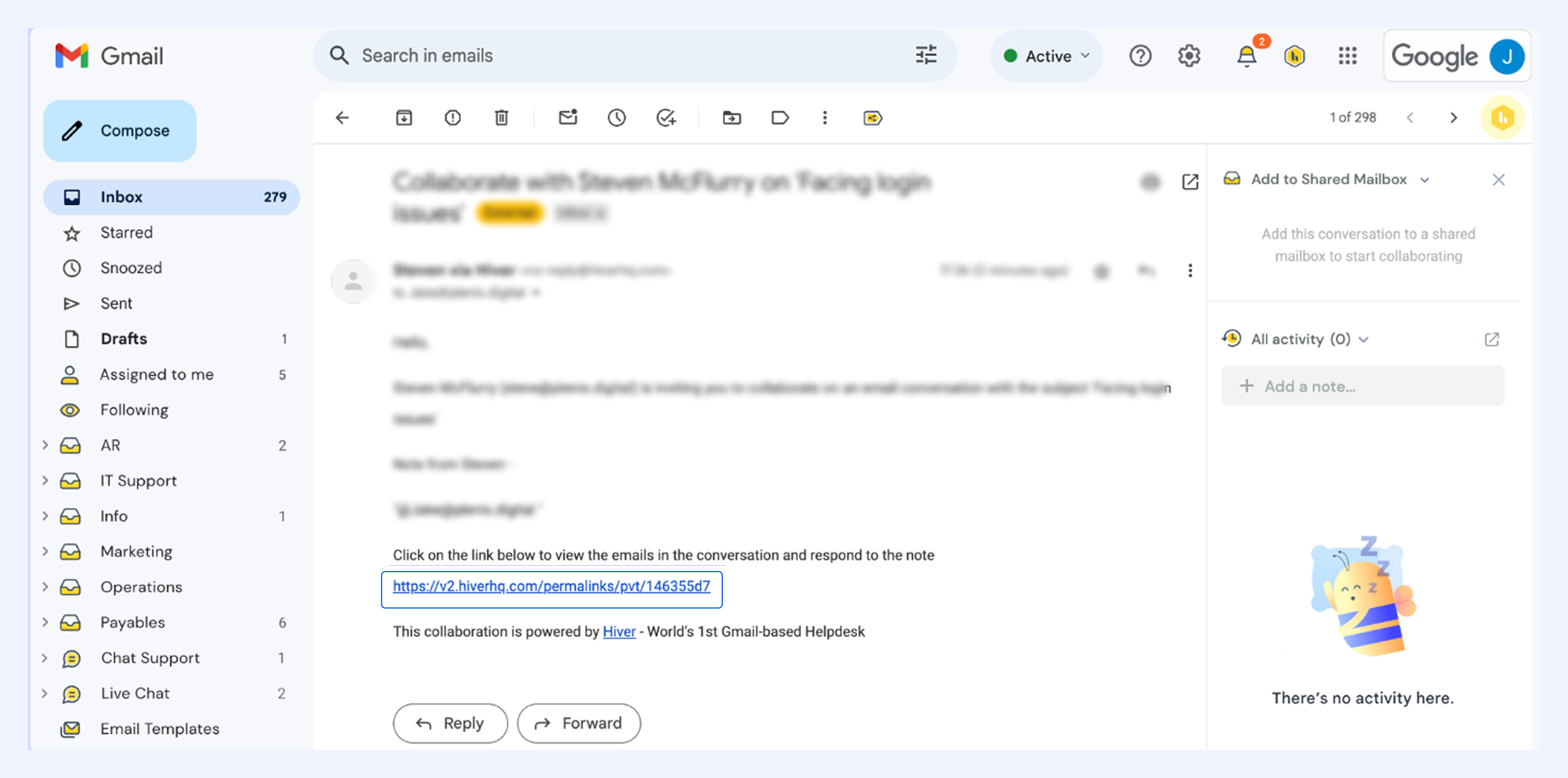
Accessing the Collaboration Space
When you invite a Collaborator, they’ll receive an email with:
- The subject of the conversation.
- The note where they were tagged.
- A private shared link to the Collaboration Space.
By clicking the link, they’ll be asked to sign in with the same work email that received the invite. Hiver verifies their status before granting access. Collaborators keep access until they’re removed from the conversation or the conversation is deleted.
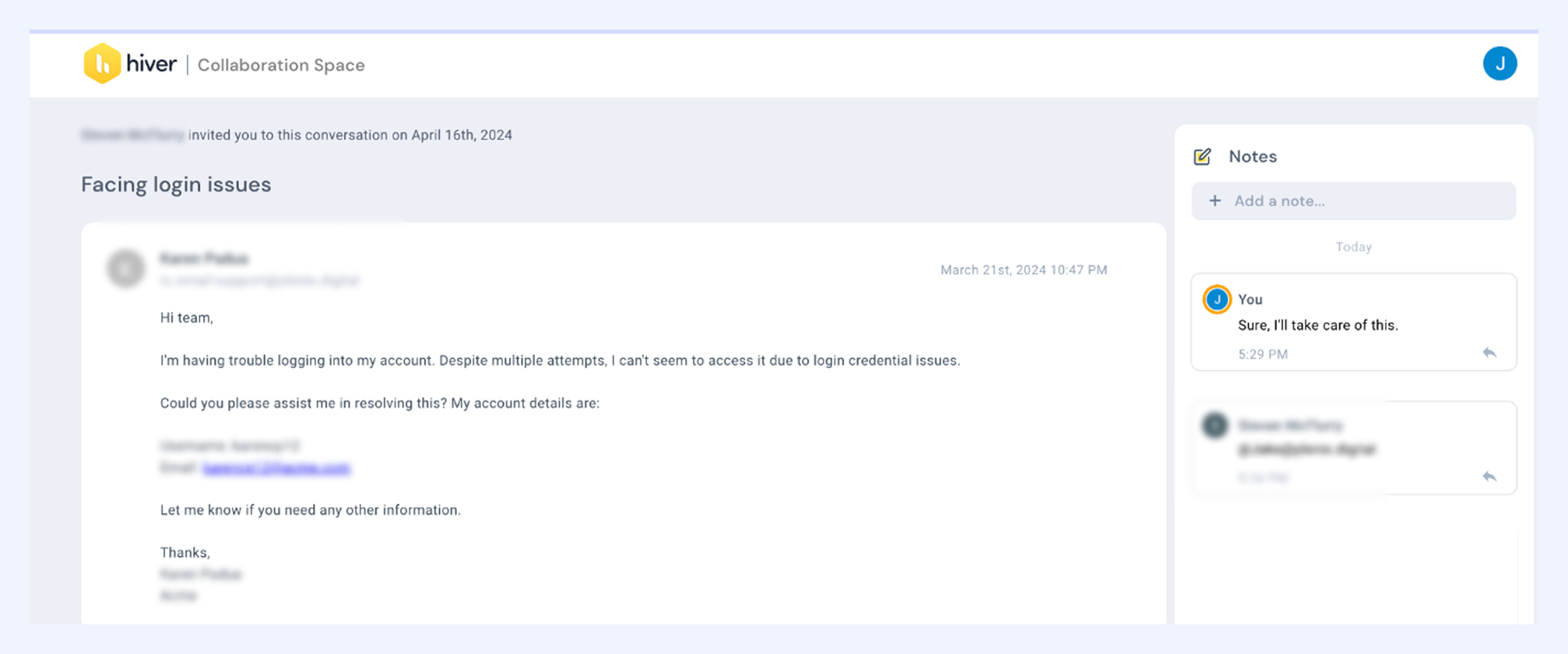
Working in the Collaboration Space
Collaborators can:
- View the conversation thread
- Add or reply to notes
- Mention mailbox members and other Collaborators
Note: Collaborators cannot view attachments added to the thread.
While collaborating,
- Mentioned agents and Collaborators receive notifications when tagged.
- The assignee always receives notifications for new notes from Collaborators.
Removing a Collaborator
To remove a Collaborator:
- Open the conversation and scroll to the Activity panel.
- Find the timestamp of their invite.
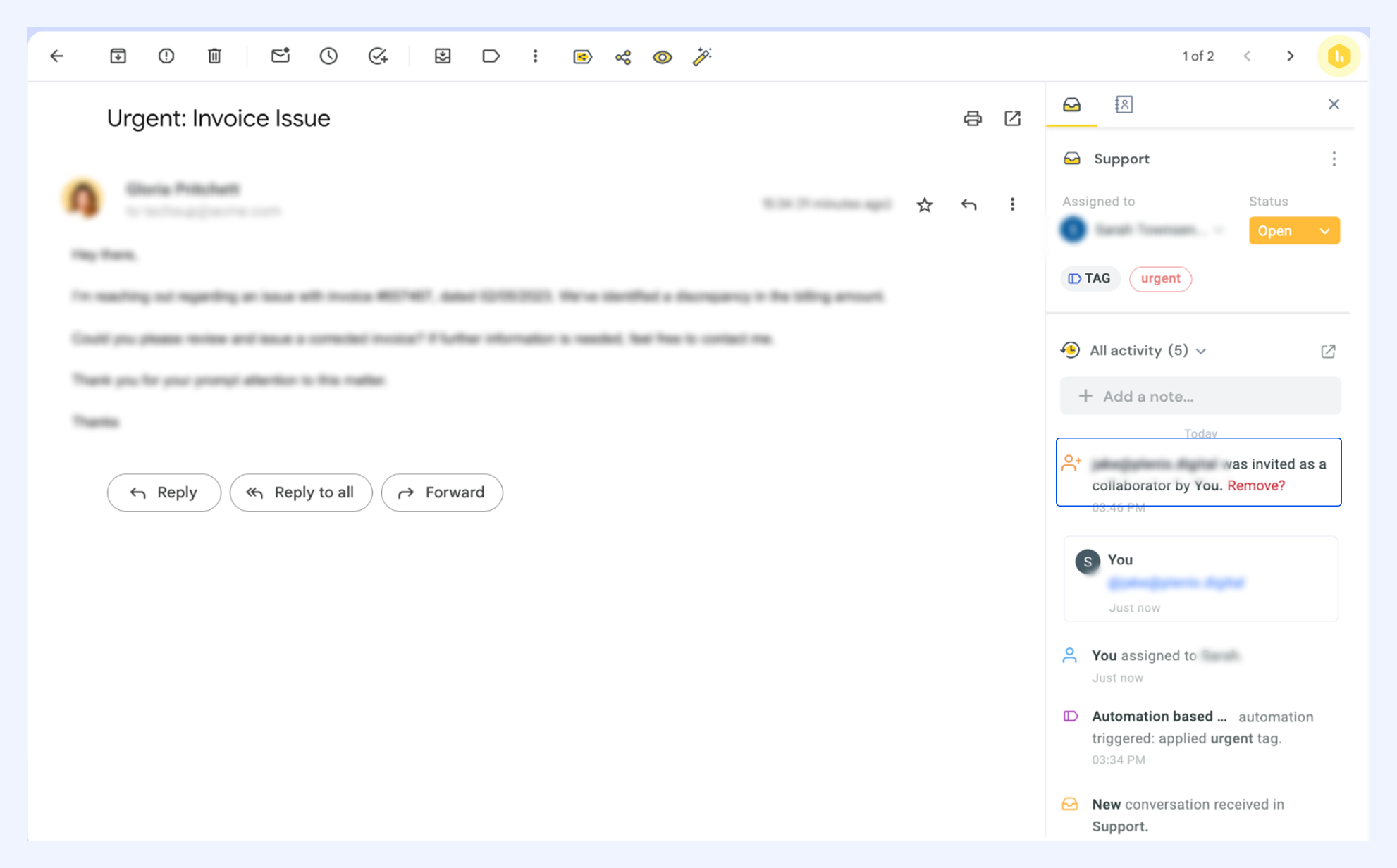
3. Select Remove (in red) and confirm.
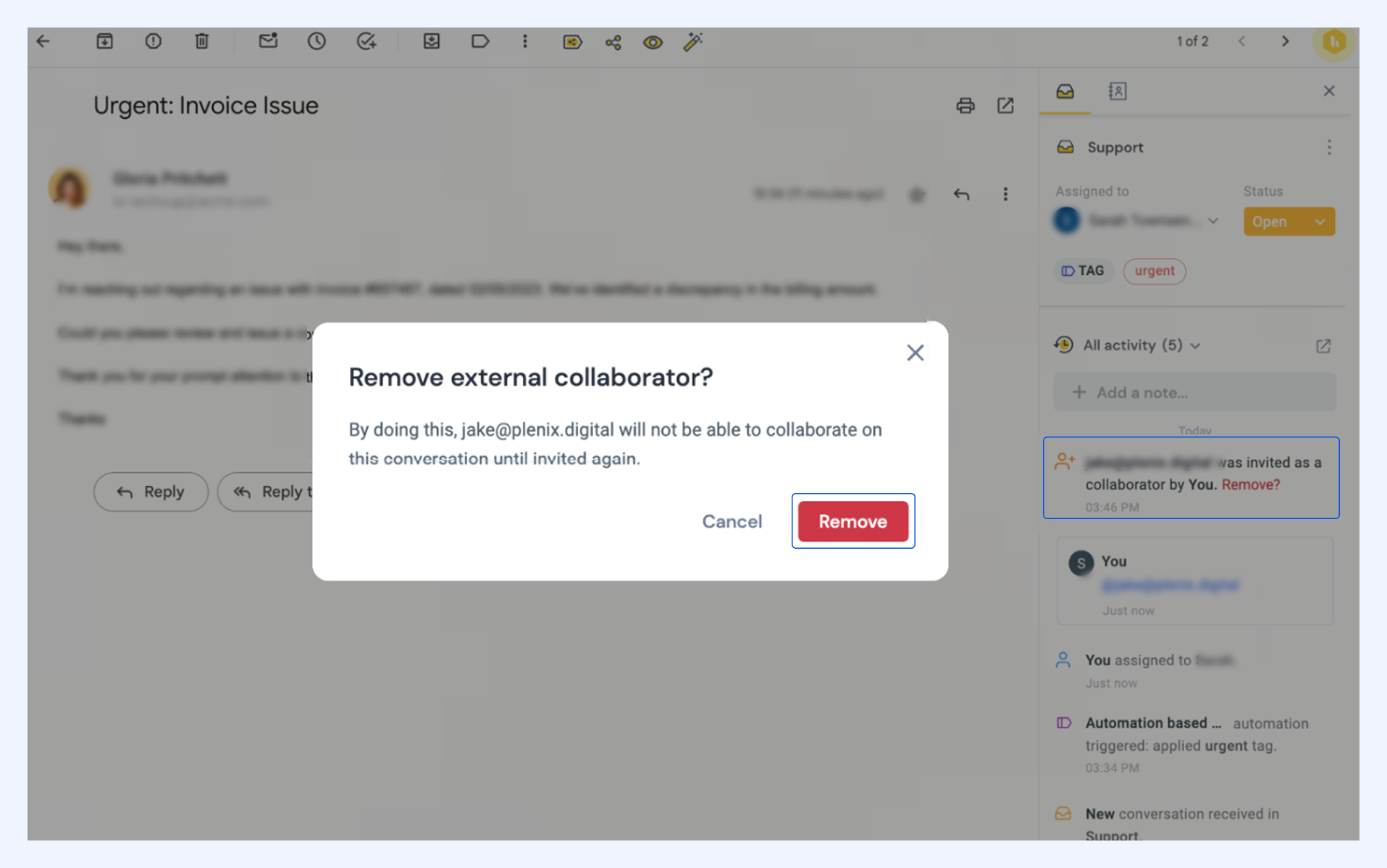
Once removed, the Collaborator immediately loses access to the Collaboration Space. The Activity feed updates to reflect the removal.