Collaborating on Slack from Hiver
When a customer conversation needs input from another team, such as product, engineering, or finance, you can start a discussion with them on Slack with Hiver.
With the Slack app, you can:
- Start a discussion in an existing Slack channel or create a new channel from Hiver.
- Link a Slack channel or thread where your team is already discussing the issue.
- View and reply to Slack messages, without switching tools.
- Get notified about new messages or mentions in linked Slack discussions.
This guide covers how to set up the Slack app and discuss customer issues on Slack from Hiver.
Prerequisites
Before you start, make sure you have:
- Admin access in Hiver.
- Access to the Slack workspace you want to connect.
Set up the Slack app
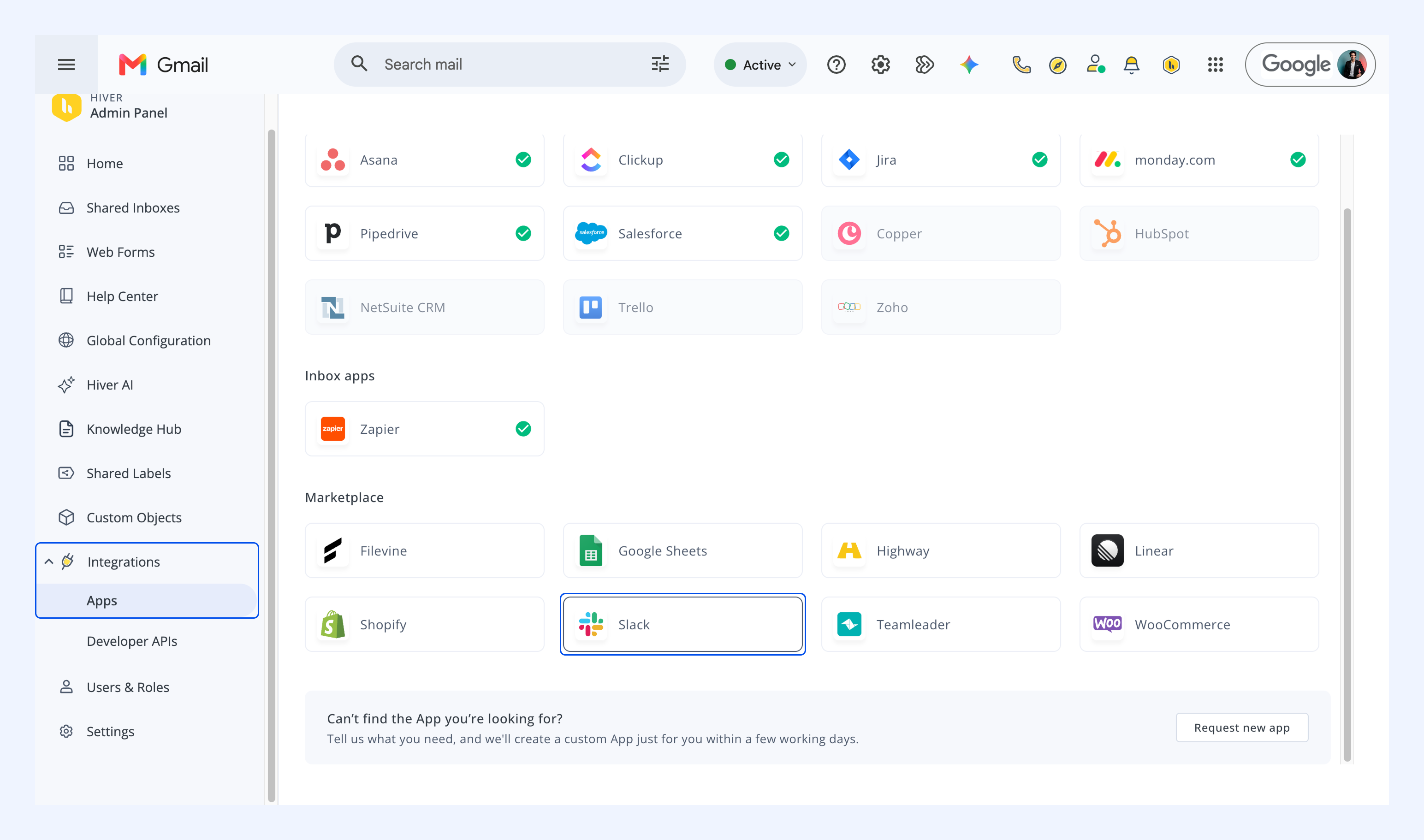
1. Go to Admin Panel → Integrations → Apps.
2. Find and select Slack.
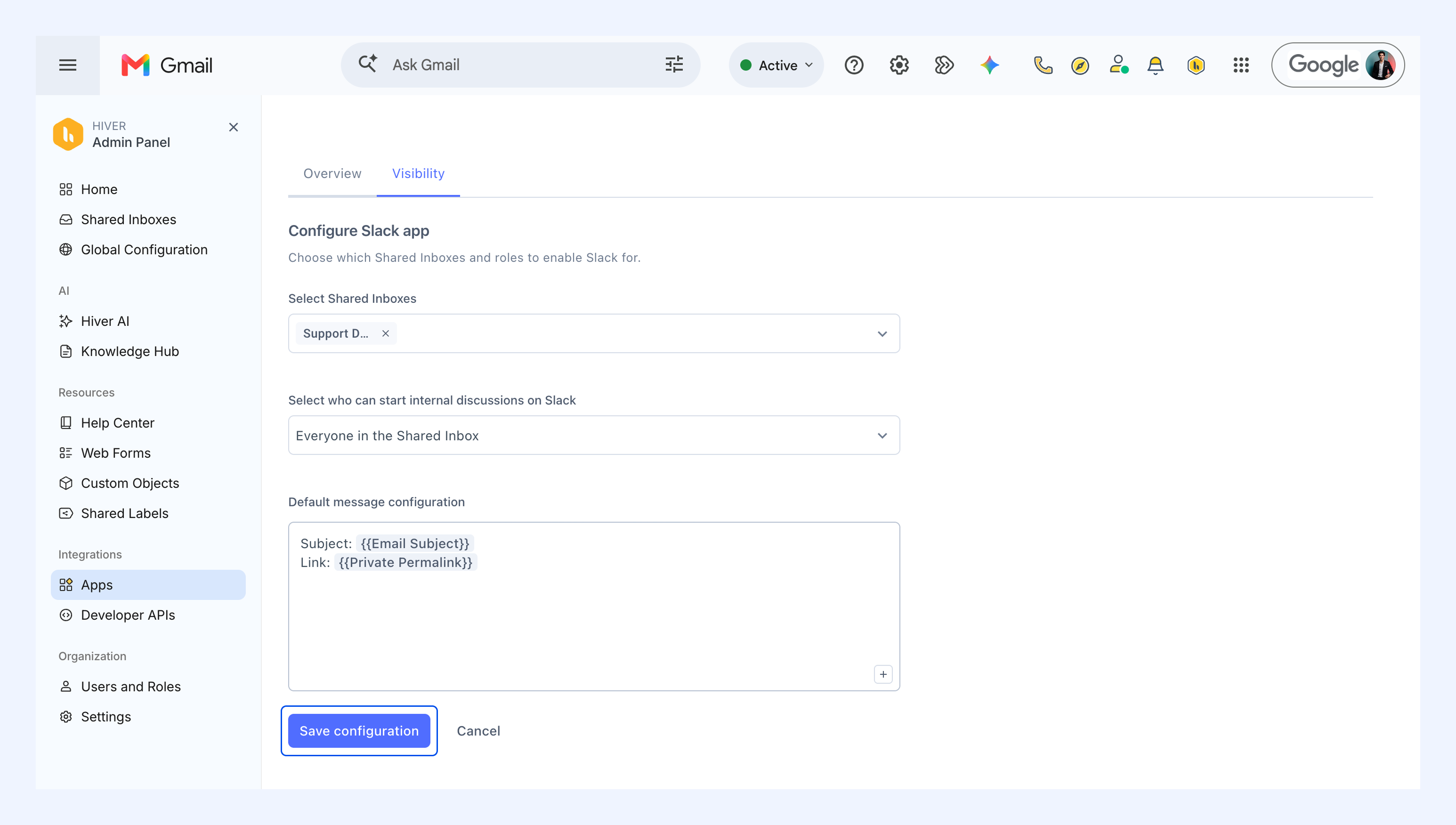
3. Go to Visibility and select the Shared Inboxes where the Slack app should be available.
4. Under Select who can start internal discussions on Slack, choose who can use it.
5. Optionally, set a default message Hiver fills in when you start a Slack discussion. Add variables such as {{Email Subject}} and {{Private Permalink}} to pull in details from the conversation.
6. Click Save configuration.
7. Turn on the toggle to enable the app.
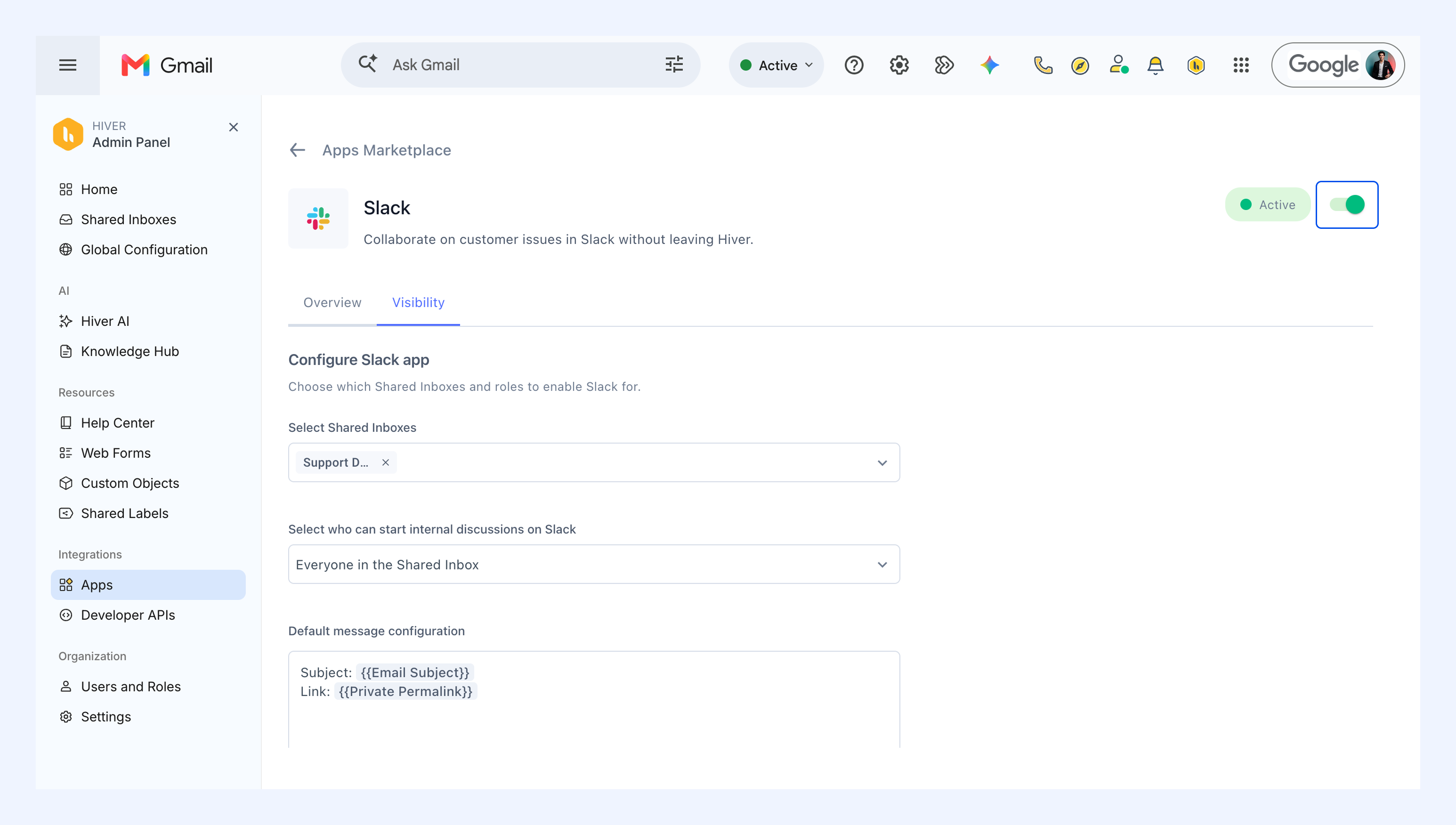
Slack is now enabled in all the selected Shared Inboxes and roles.
Connect your Slack account
Once the Slack app is enabled, each team member who wants to use it needs to connect their own Slack account.
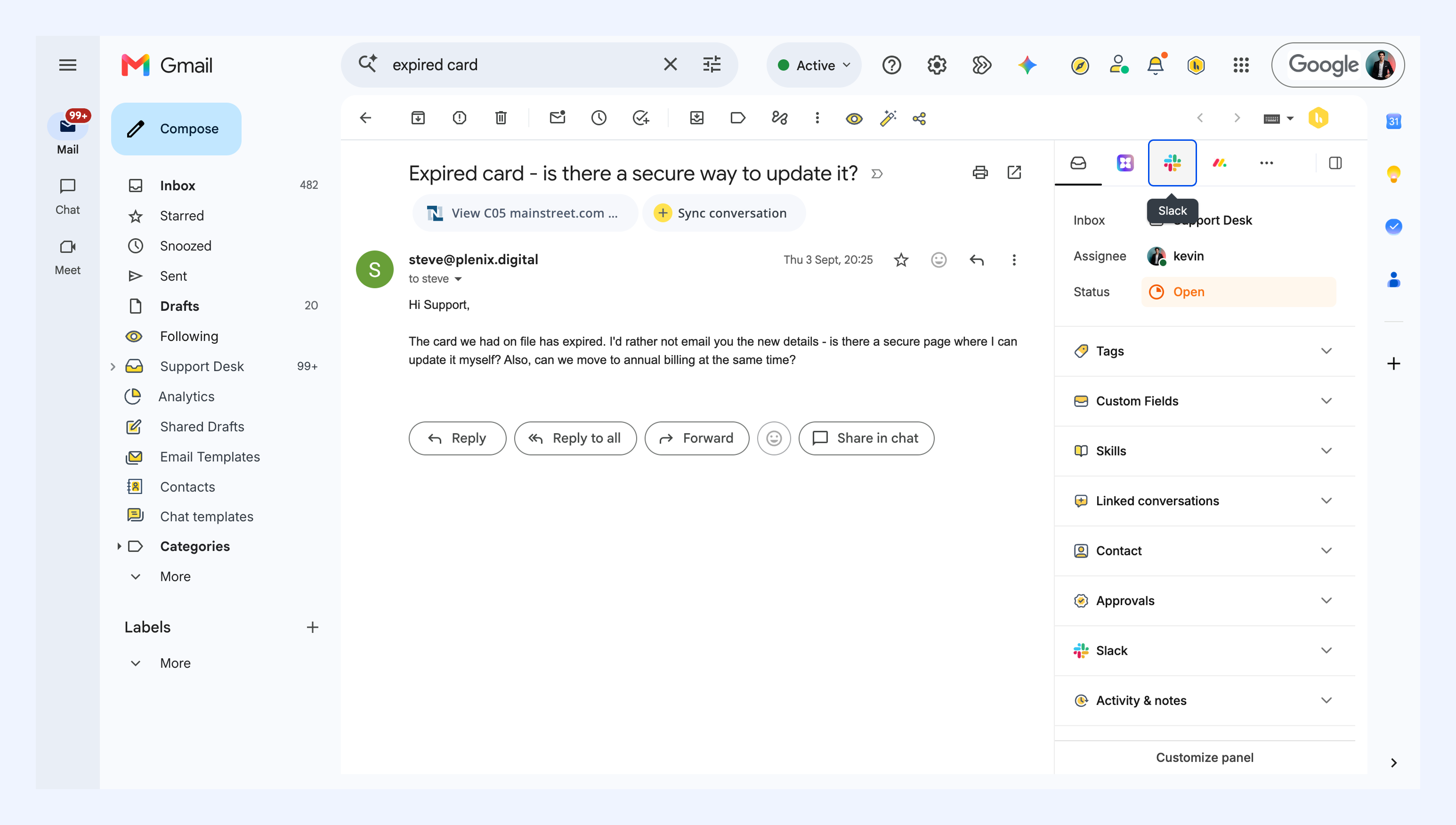
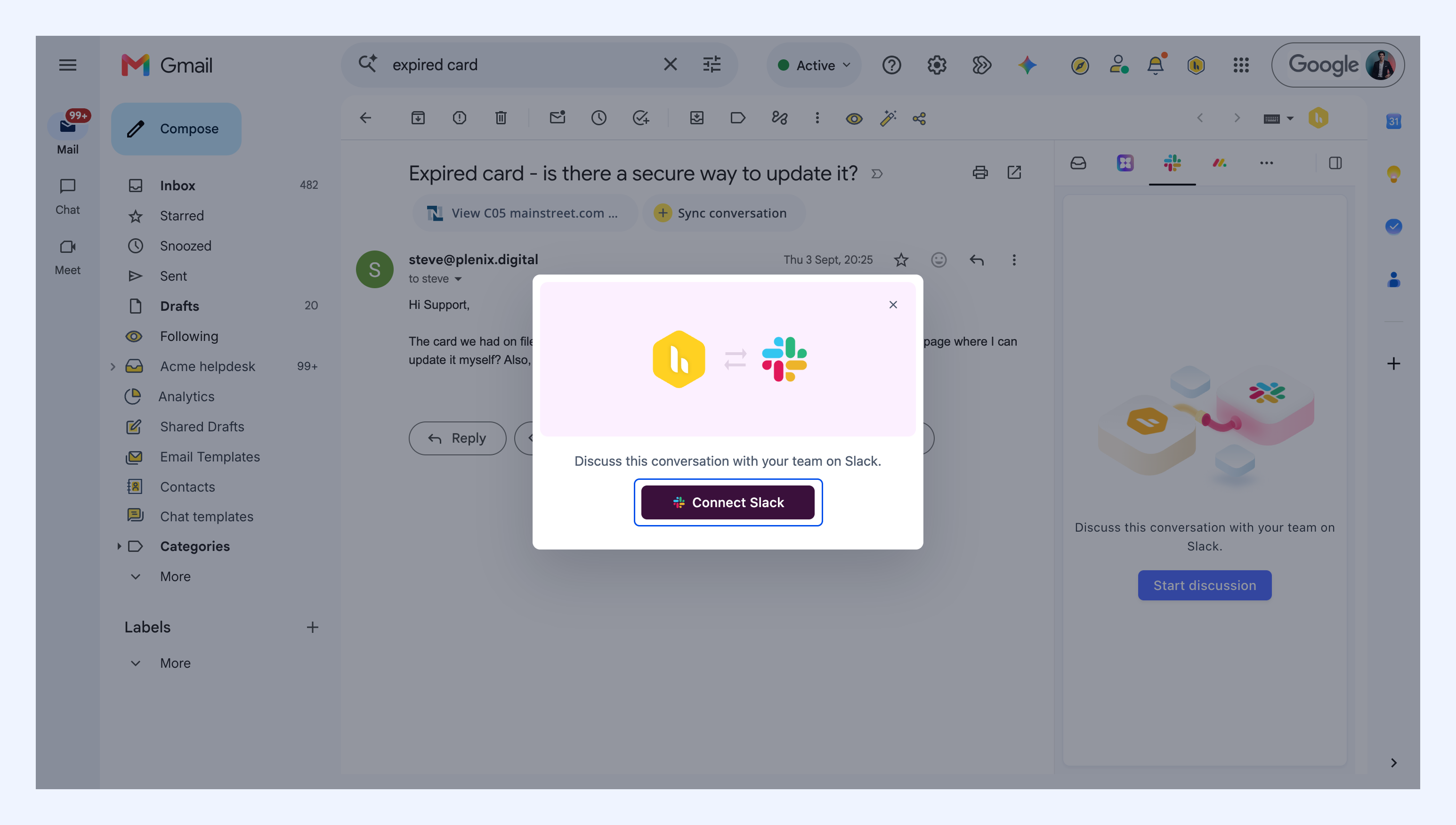
1. Open a conversation and click the Slack icon in the right panel.
2. Click Connect Slack.
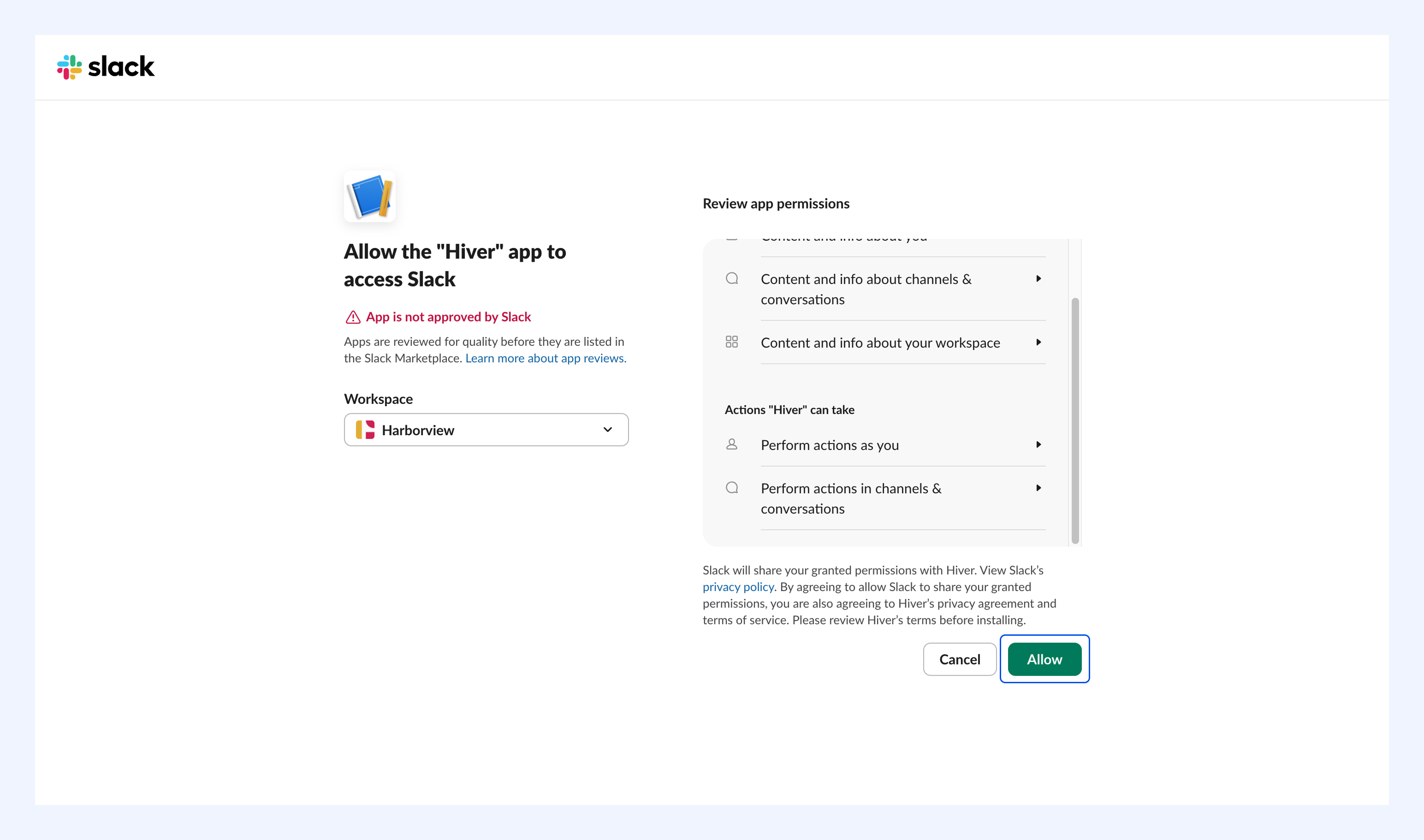
3. In the new tab that opens, sign in to your Slack account.
4. Choose your workspace and review the permissions. Click Allow.
Once connected, you can start discussions in Slack from Hiver.
Start a Slack conversation
When you need input from another team, you can either start a discussion in an existing Slack channel or a new one.
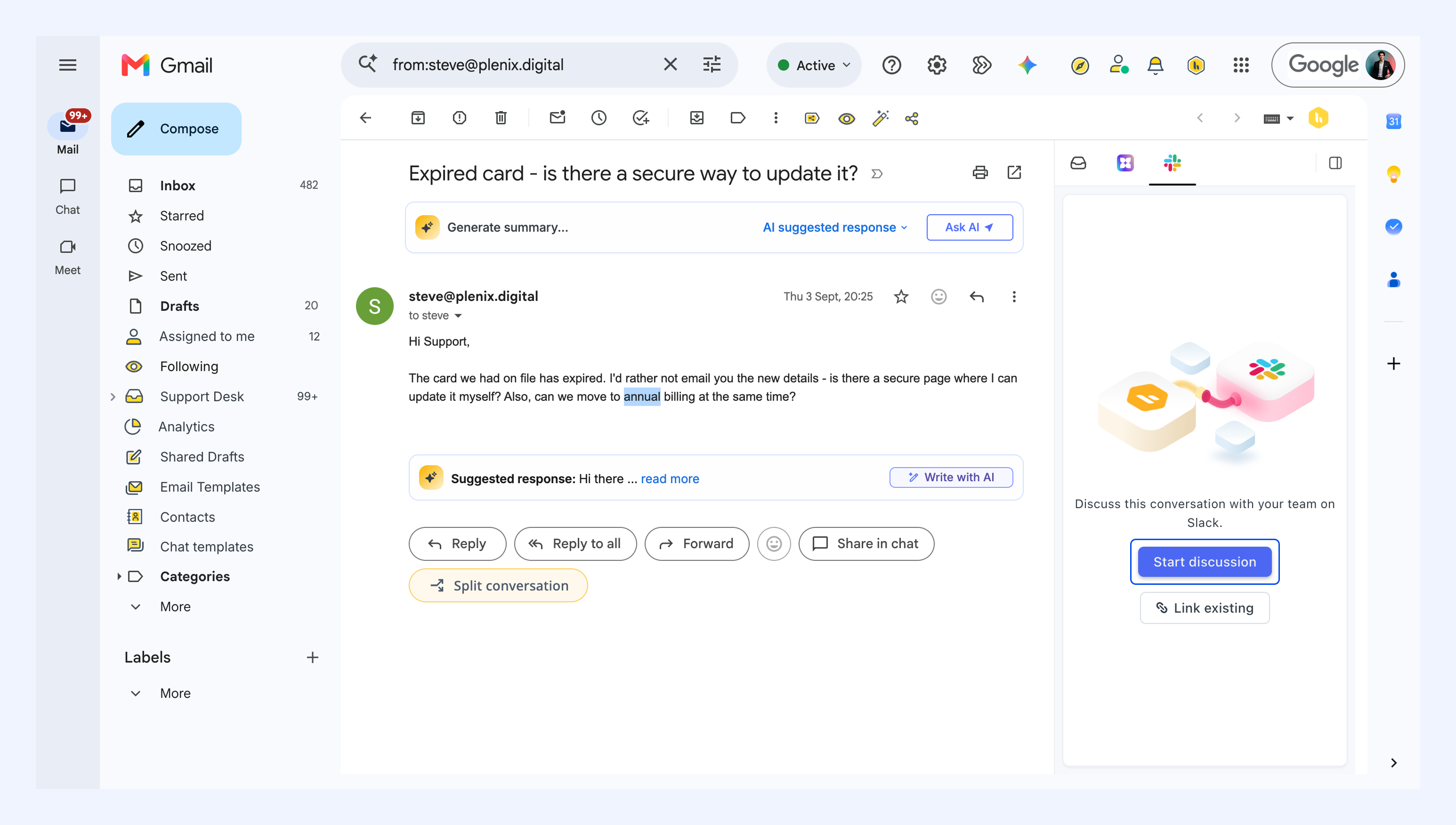
1. Open a conversation and go to Slack in the right panel.
2. Click Start discussion.
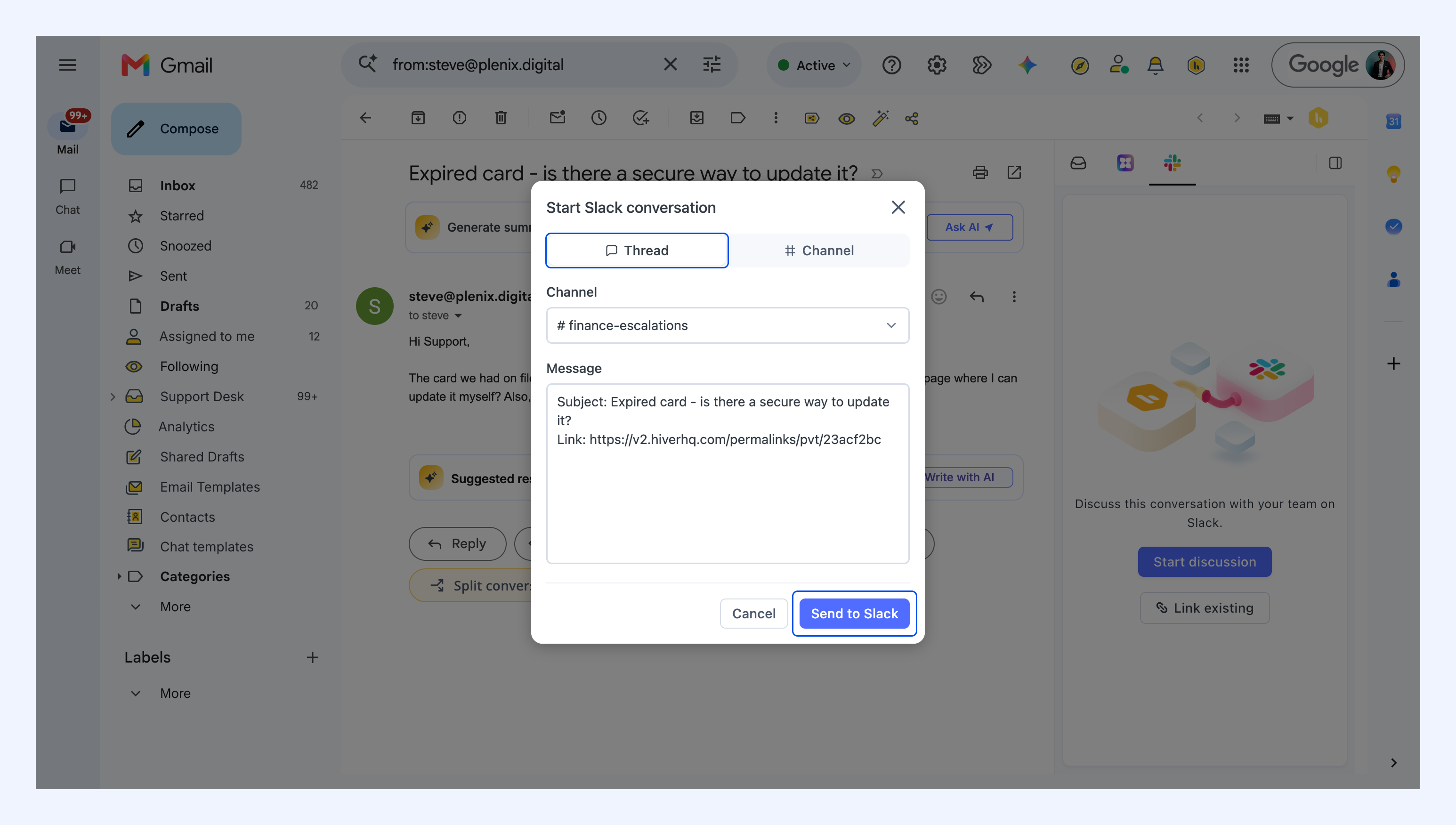
3. Choose how you want to start the discussion.
- Thread: Start the discussion in an existing Slack channel.
- Select a channel and write the message you want to send.
- Click Send to Slack.
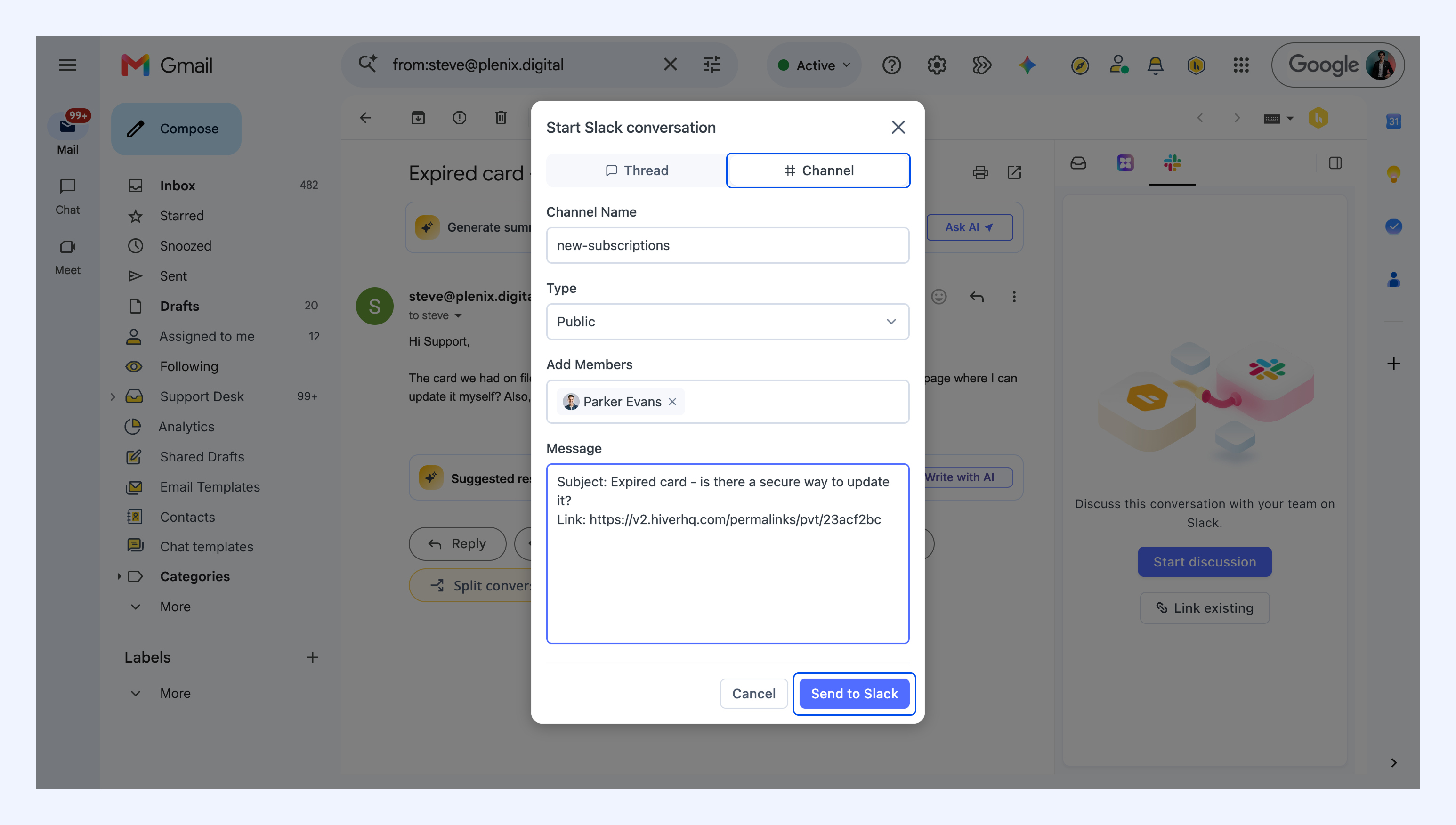
- Channel:
- Enter a channel name.
- Set the type to public or private.
- Add people under Add Members.
- Write your message.
- Click Send to Slack.
Link an existing Slack conversation
If your team is already discussing the issue in Slack, you can link that conversation to the Hiver conversation instead of starting a new one.
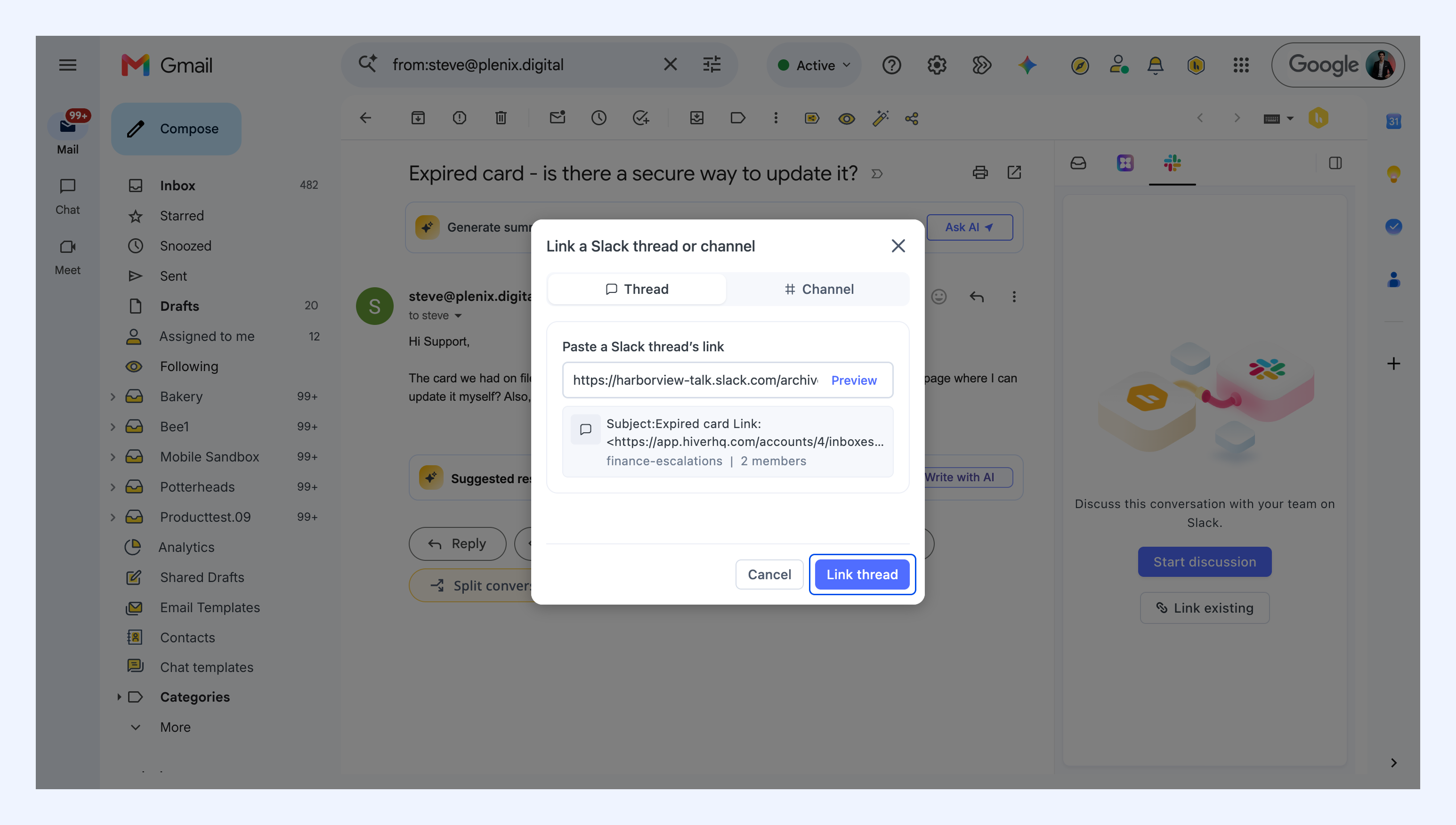
1. Open a conversation and go to Slack in the right panel. Click Link existing.
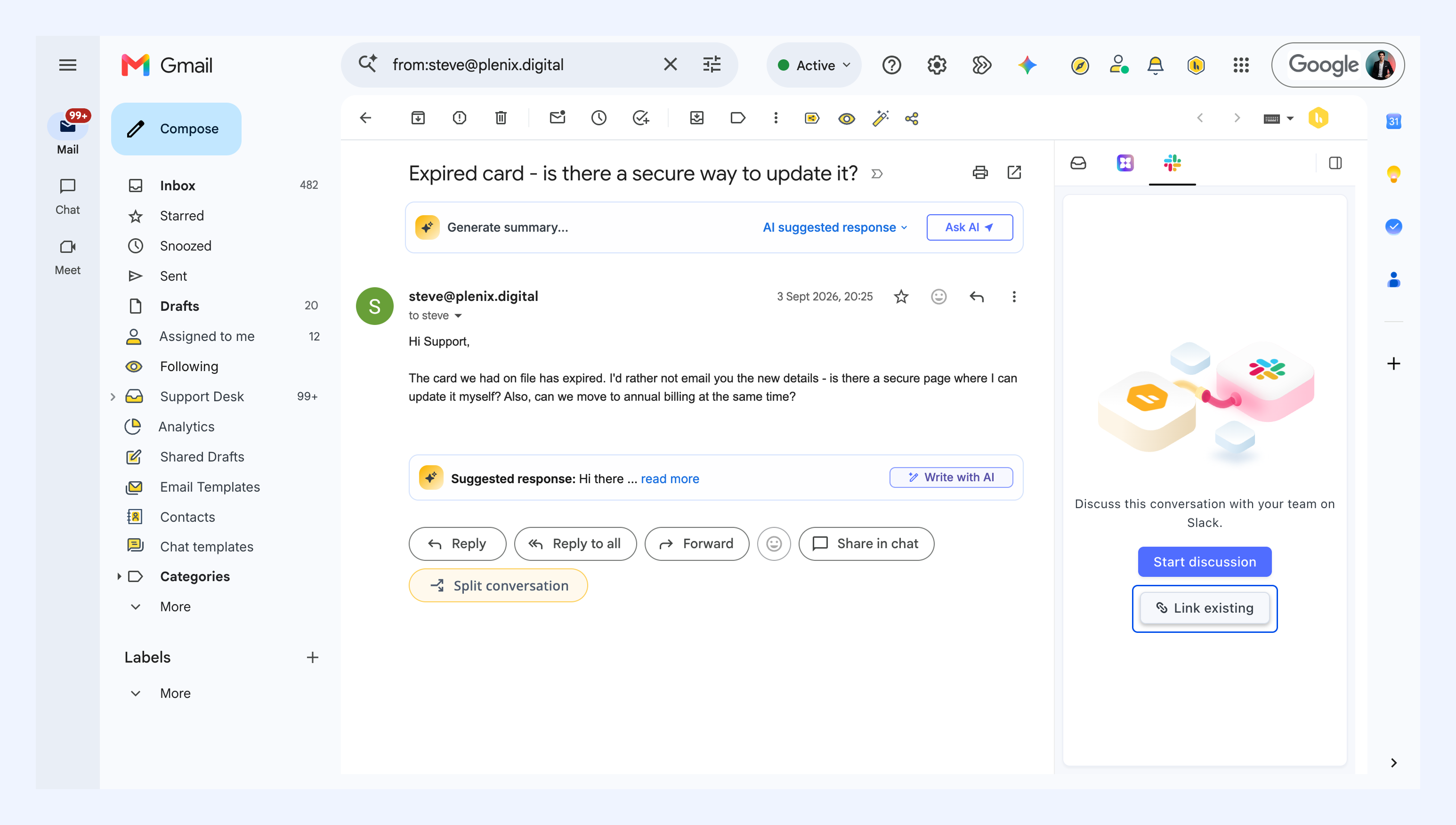
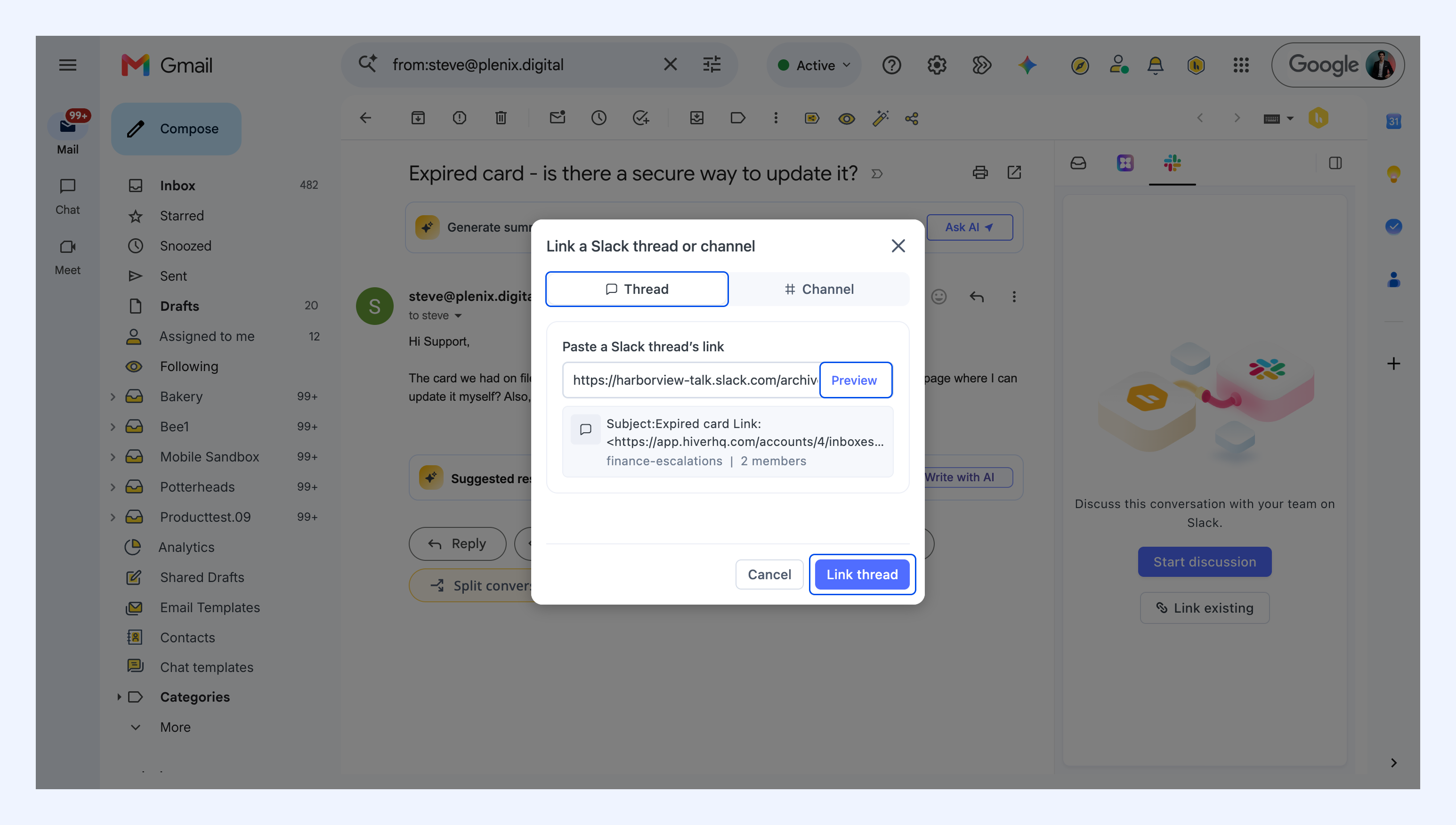
2. Choose what you want to link:
- Thread: Paste the link to the Slack message and click Preview.
- Channel: Search for the channel by name and select it.
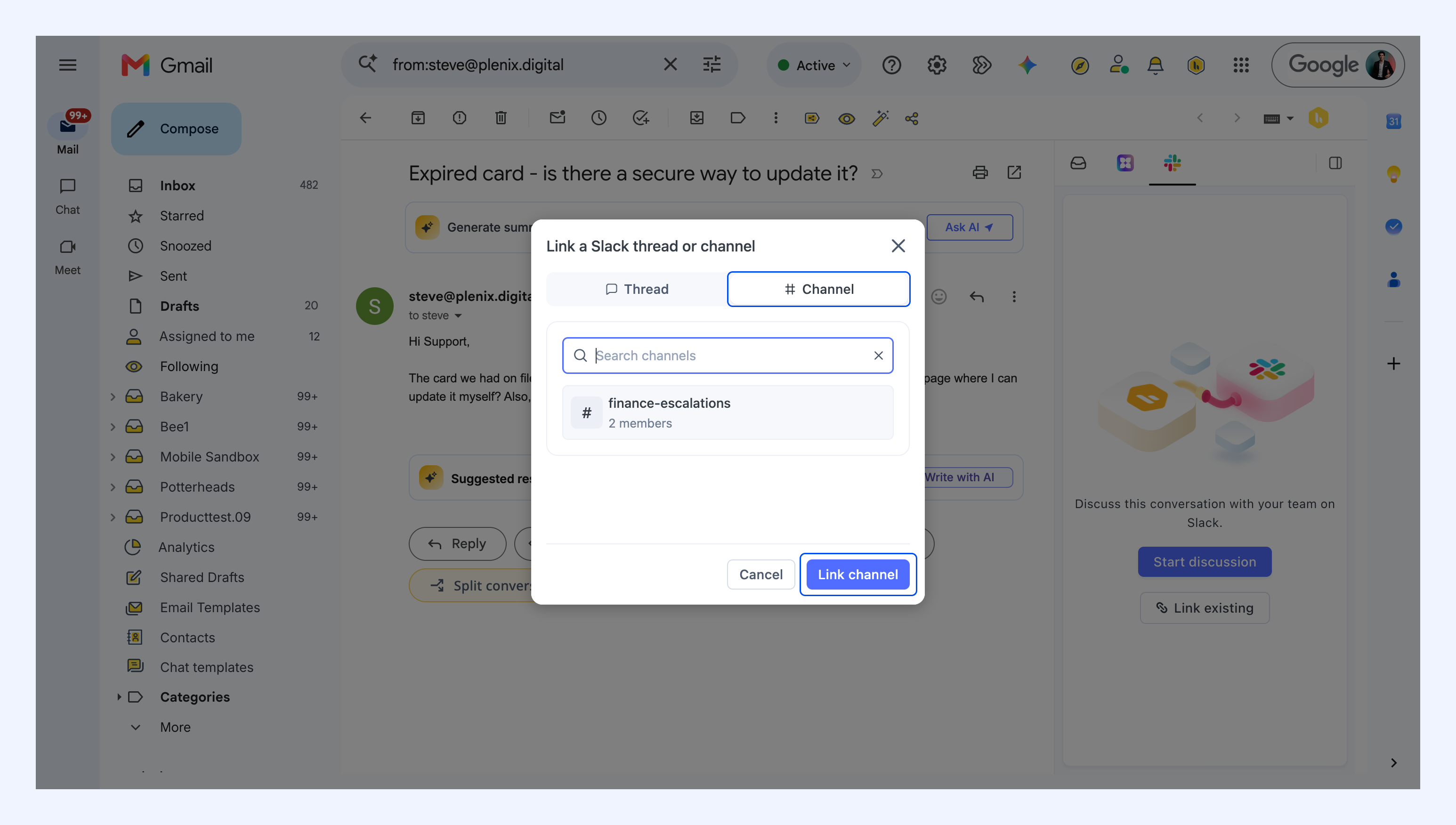
3. Click Link thread.
Note: You can link up to 4 Slack conversations to the same Hiver conversation.
Unlink a Slack conversation
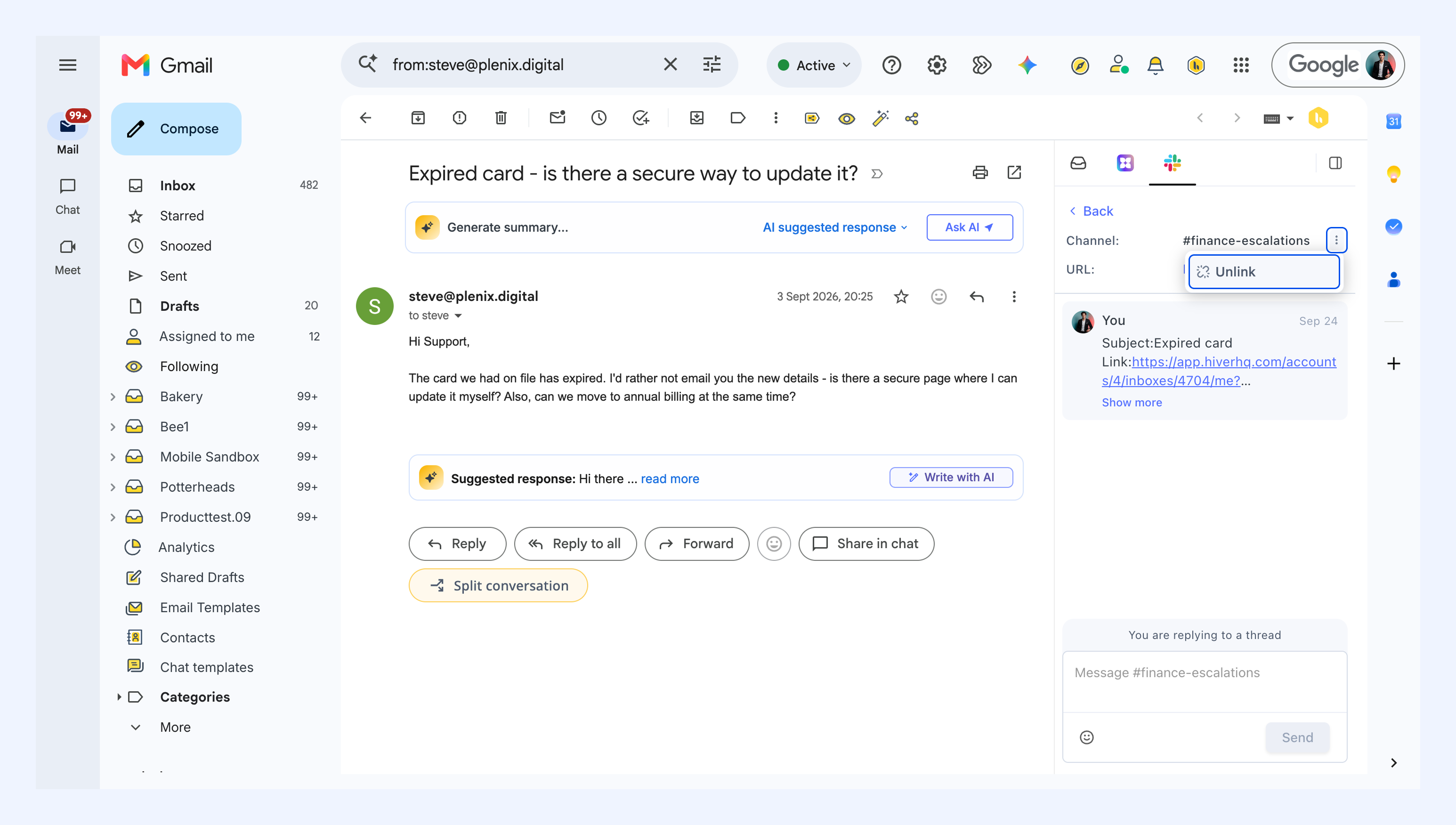
When a discussion is finished, you can unlink it from the right panel. Click the three dot icon, select Unlink and confirm.
Unlinking removes the connection between the Hiver conversation and the Slack channel. It doesn't delete the channel or thread in Slack.
View and reply to Slack messages
Once a Slack discussion is linked, you can follow new messages and reply directly from Hiver.
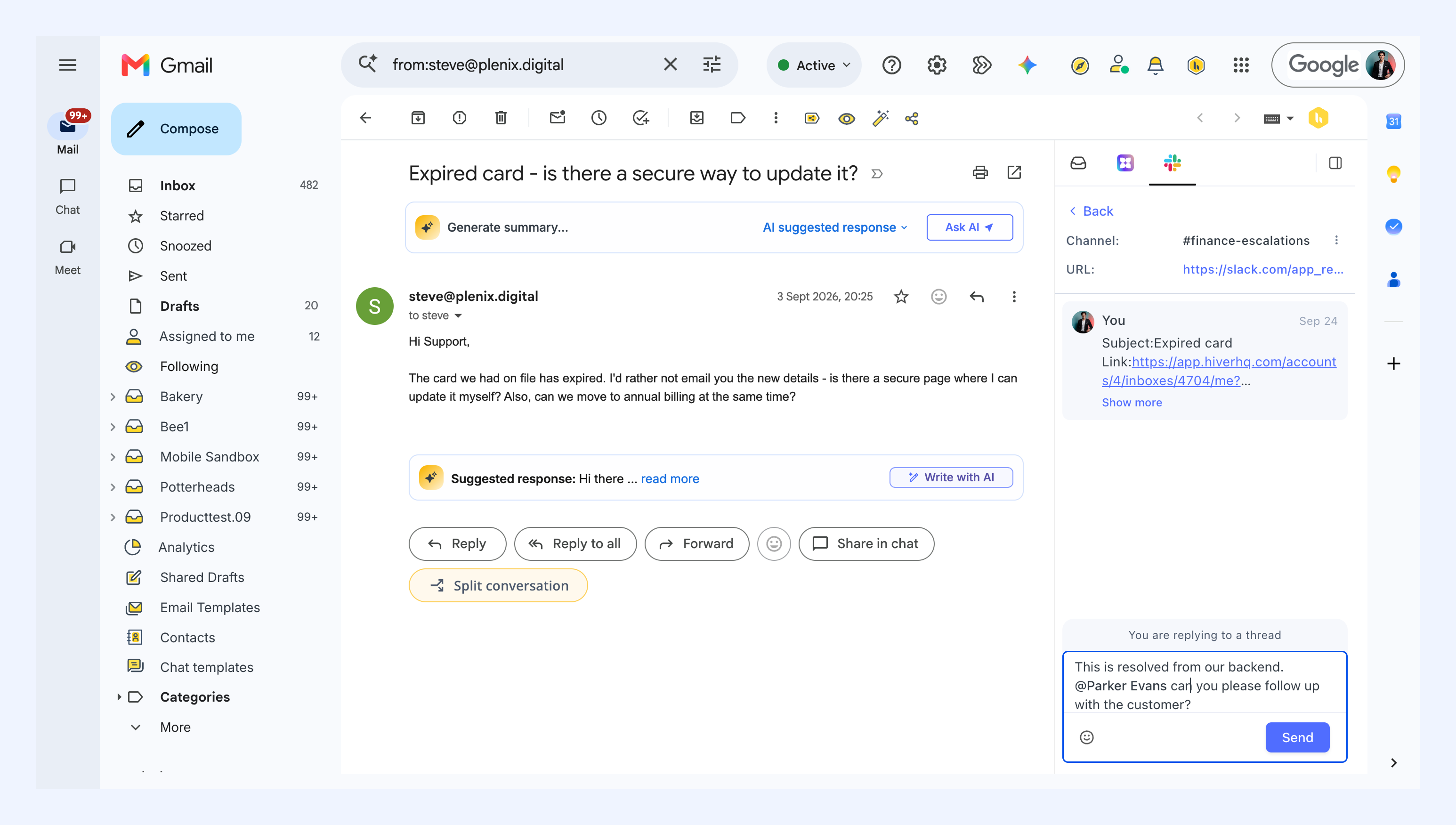
1. In the right panel, click the channel or thread you want to open.
2. To respond, write your reply and click Send. Your reply is posted back to Slack.
Note: Hiver notifies the conversation's assignee when someone posts a new message or @mentions them in the linked thread or channel.
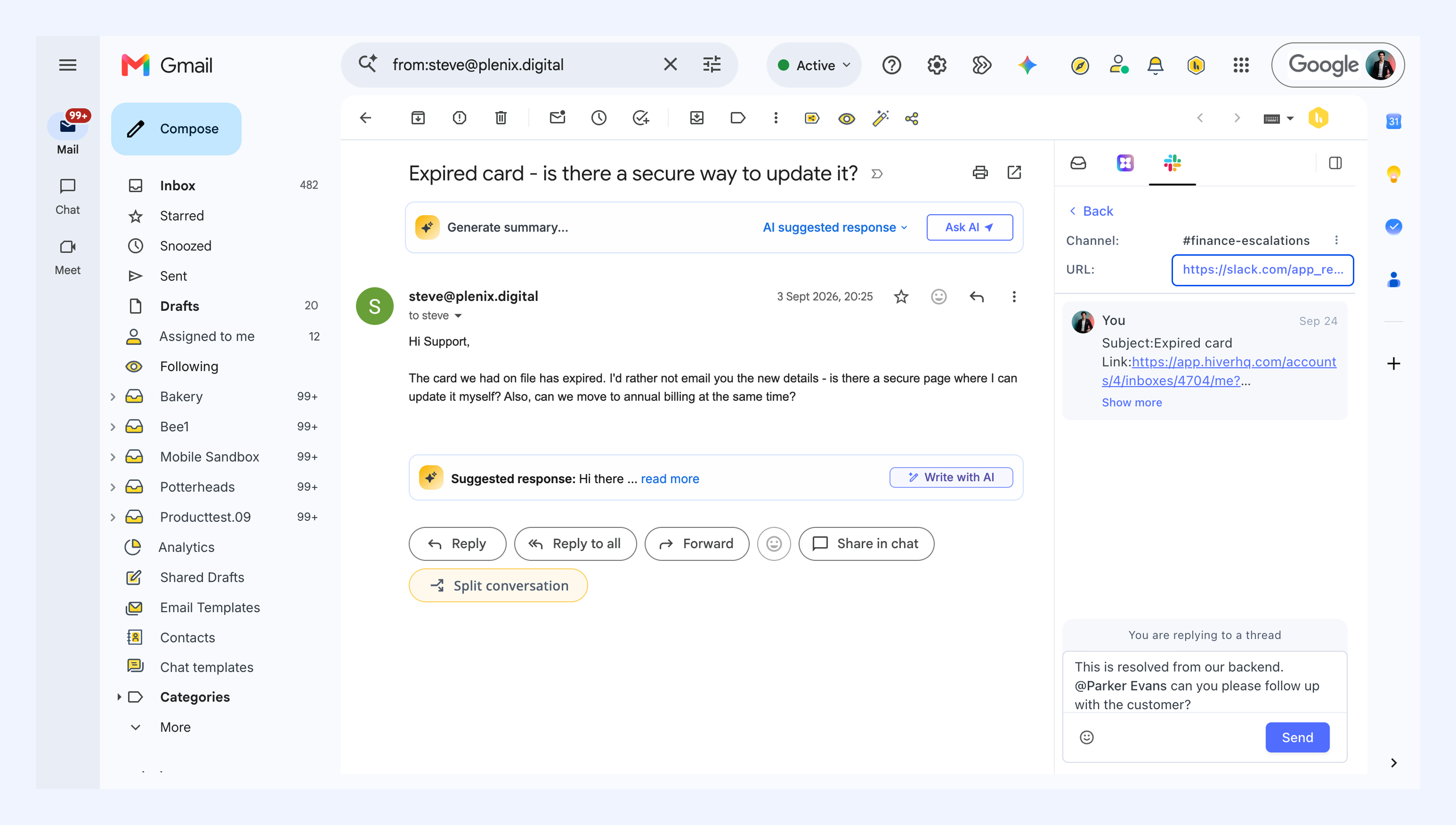
To continue the discussion directly in Slack, click the URL in the right panel.
Next steps
How to collaborate on a conversation in Hiver