Hiver Contact Directory
The Contact Directory in Hiver gives your team a complete, unified view of every customer you interact with. It automatically pulls in contact information and past conversations from email and WhatsApp, so you don’t need to search across threads or switch between tools. At a glance, you can see who the customer is, when they last reached out, and the context of previous discussions. This helps your team respond quickly, stay aligned, and offer a more personalized experience.
Managing your Contact Directory
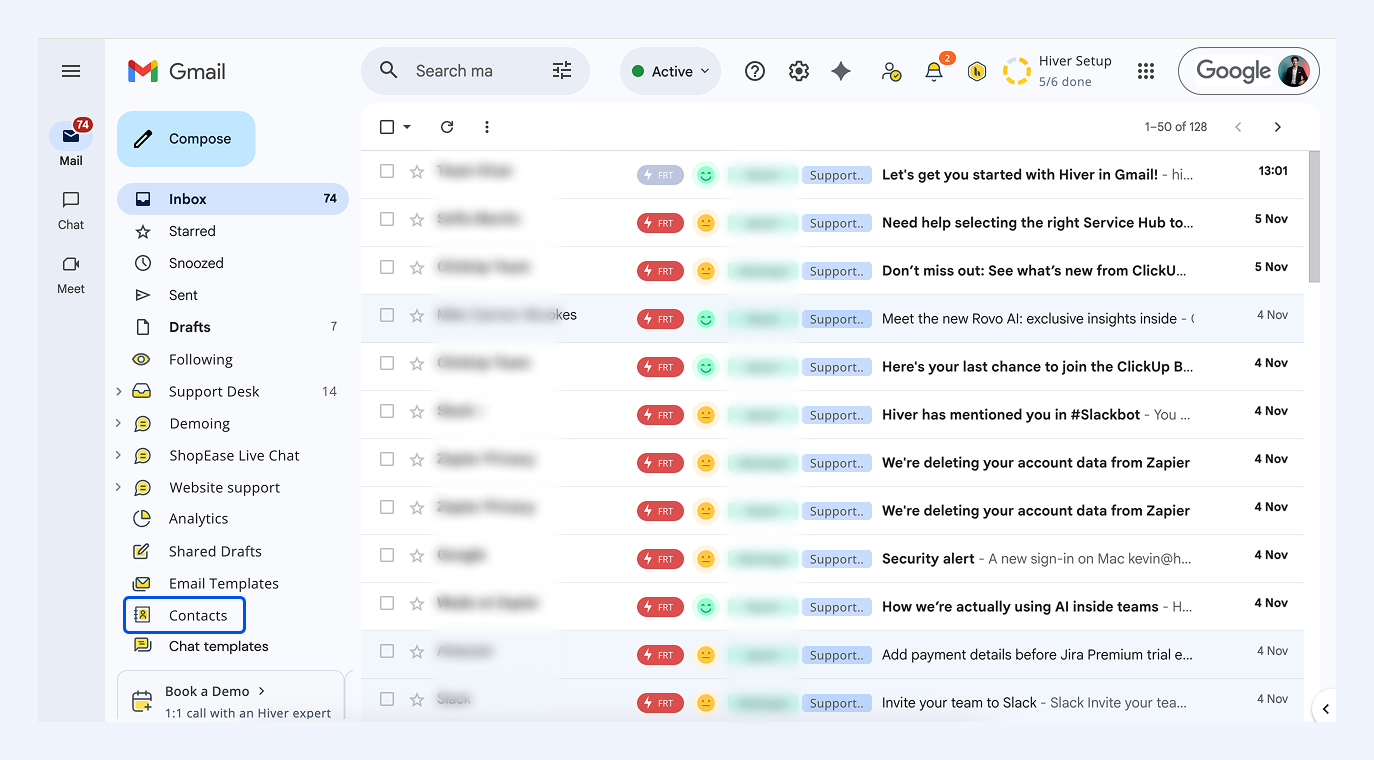
To access your Contact Directory, in your Gmail Activity panel, click Contacts. You’ll land in the Contact Directory, where all your customer contacts are listed alphabetically.
Searching for contacts
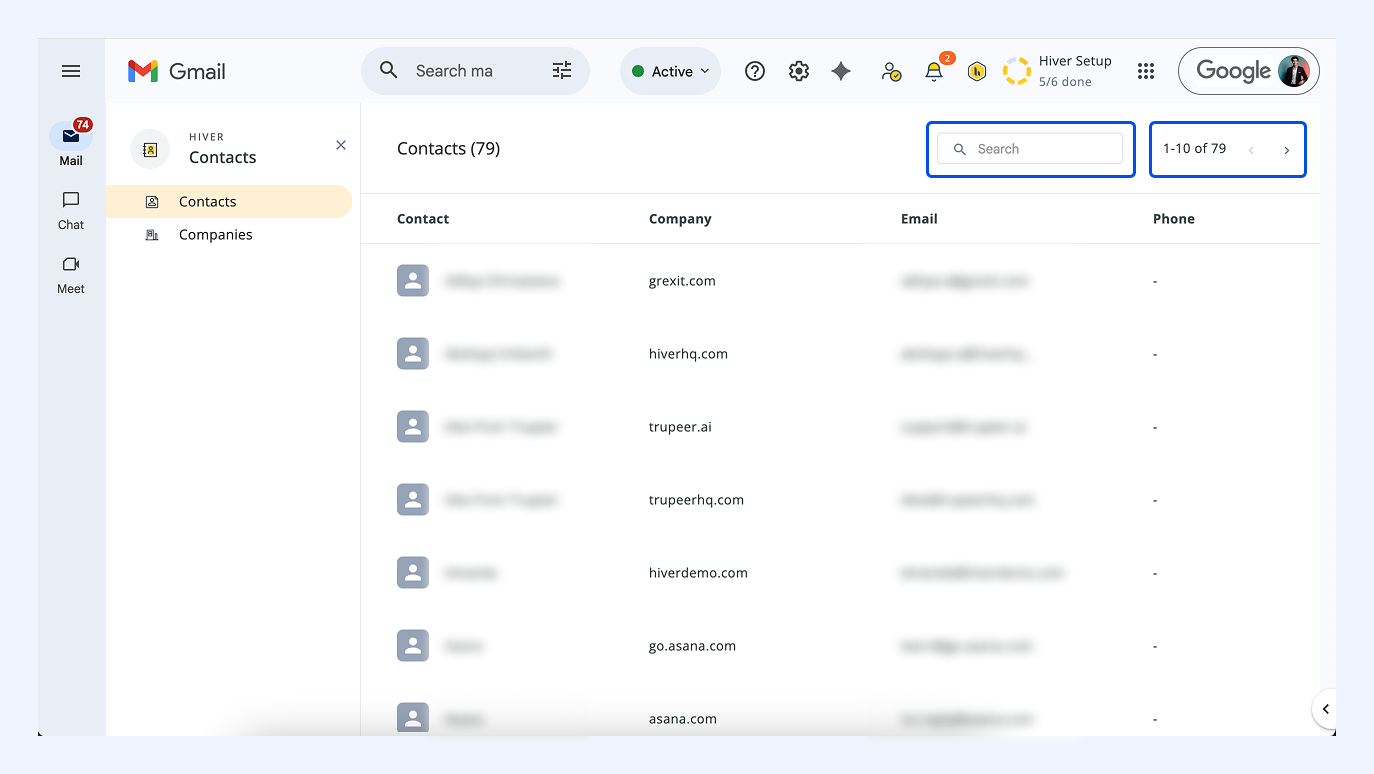
In the directory, you can:
- Search for contacts by their name, email, or company.
- Use the navigation arrows in the top-right corner to navigate through the list of contacts.
Viewing a contact’s profile
Once you find the contact you’re looking for, click their name to open the profile.
Here, you’ll see:
- The contact’s name, email, company, and any notes added.
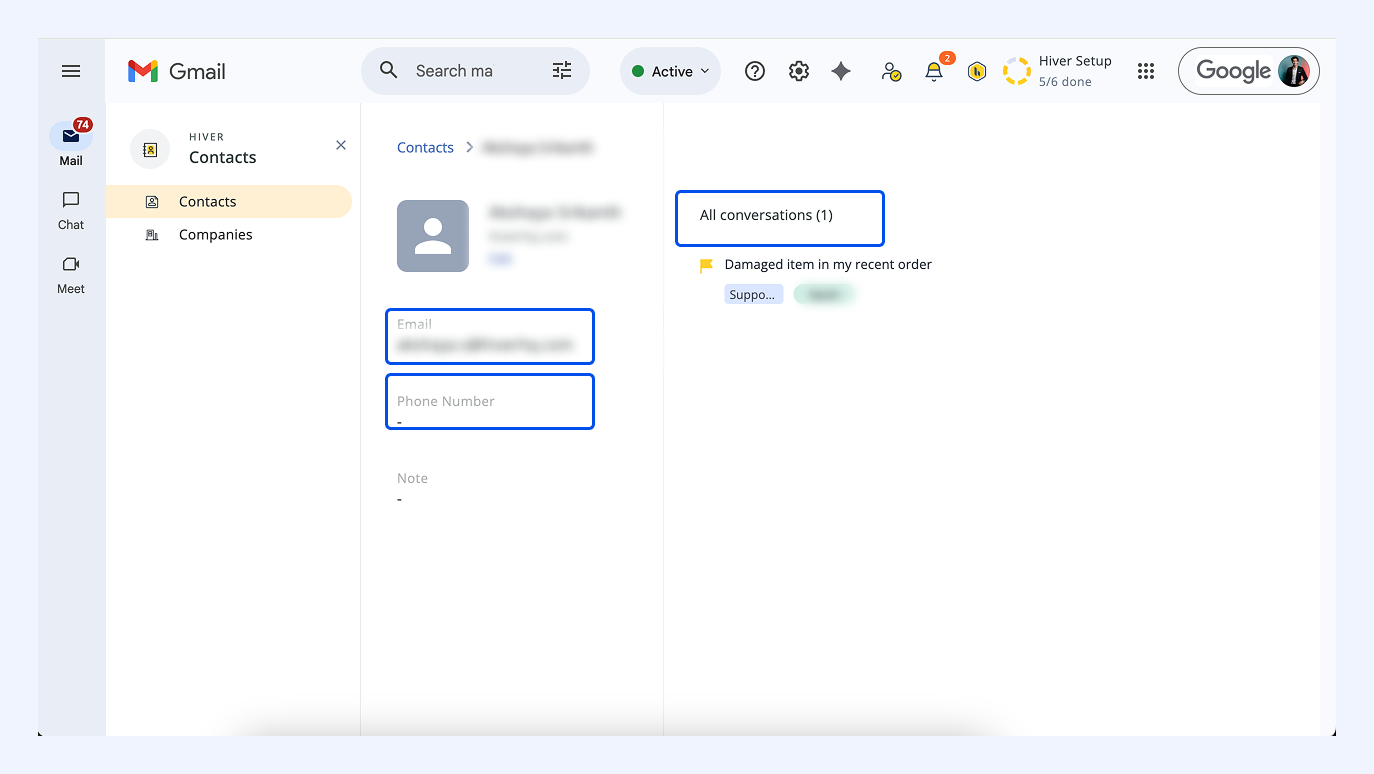
- A complete list of recent conversations with that contact across Shared Inboxes. Each conversation shows:
- Subject
- Shared Inbox it belongs to (hover to see others if it’s part of multiple inboxes)
- Conversation status (shown with color flags)
- Assignee handling the thread
- Last CSAT rating, if available
If you want to explore a particular conversation, simply click it to open it in a new tab.
Note: Some conversations may belong to Shared Inboxes you’re not part of. These will appear greyed out, however, you can still view the inbox name and assignee if you need to reach out to the right teammate offline.
Editing contact details
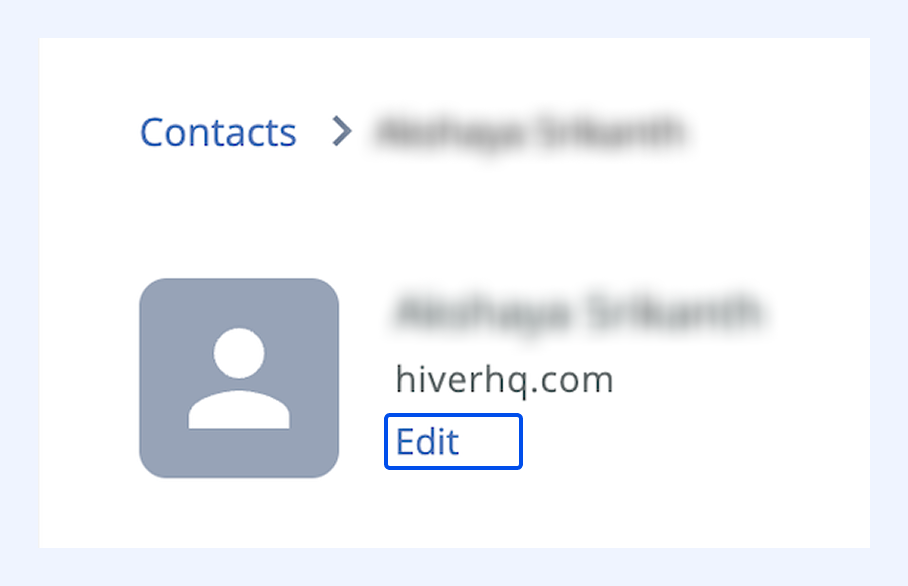
- Click Edit under the contact’s name.
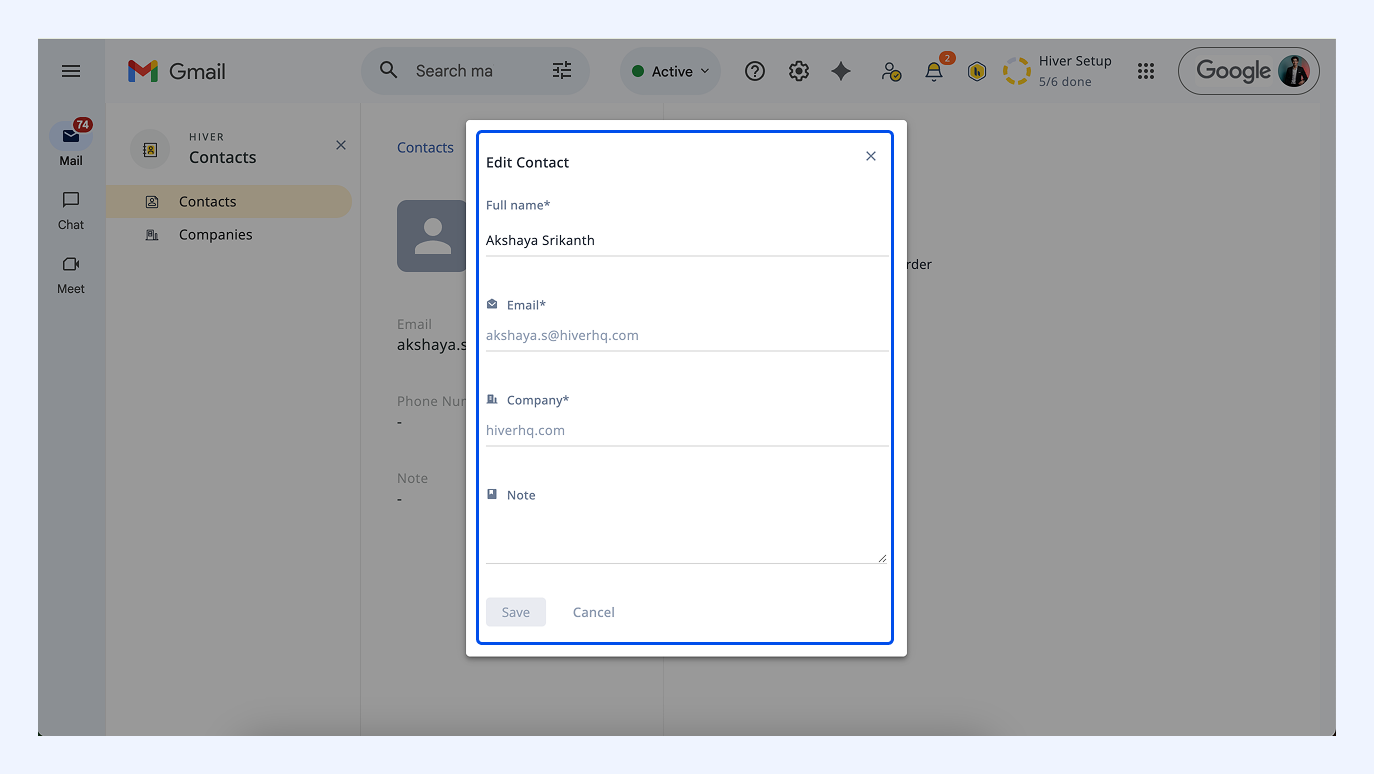
- Update contact’s name, company, or notes, and click Save.
Viewing all companies
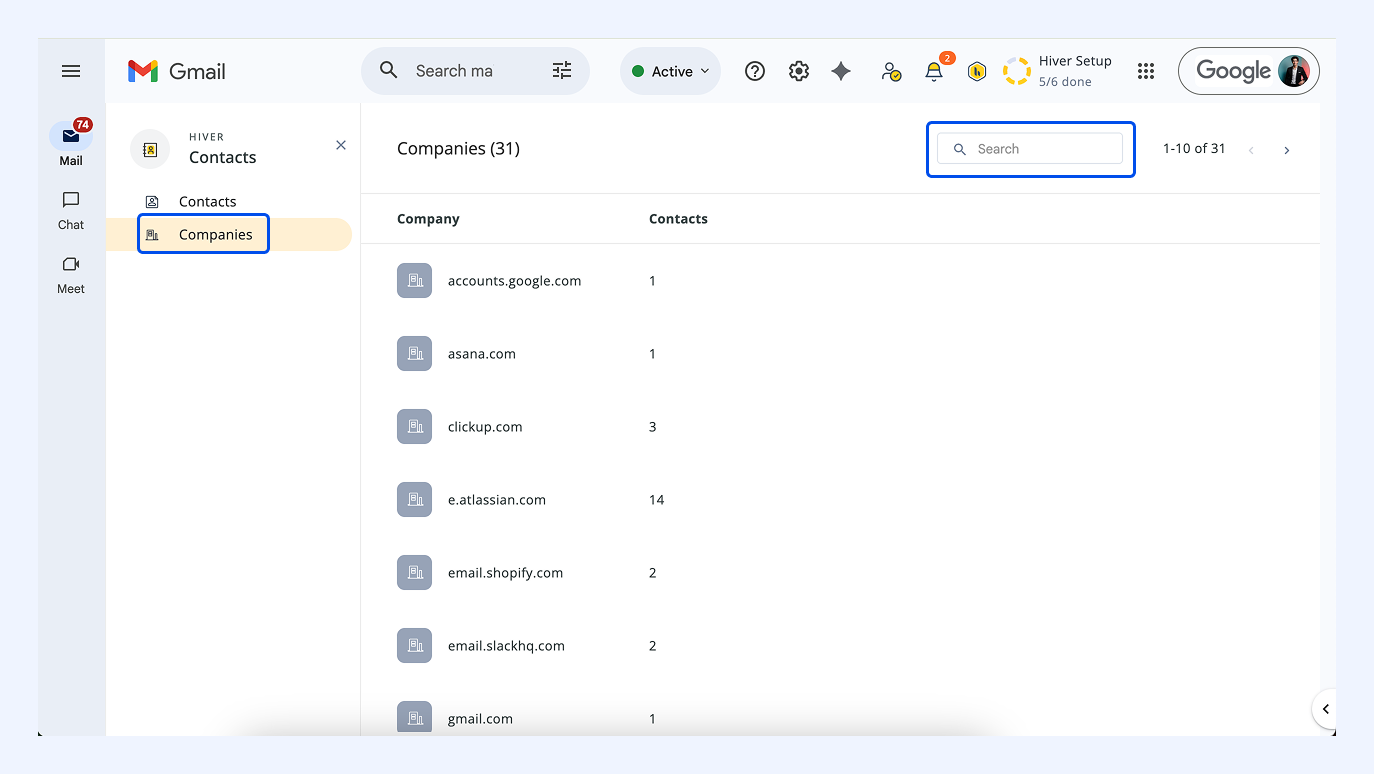
Switch to the Companies tab in the left panel to see a list of all companies stored in Hiver. Here, you can:
- Search by company name.
- See the number of associated contacts.
- Click any company to open its profile.
- Each company profile displays its name, domain, linked contacts, and complete conversation history.
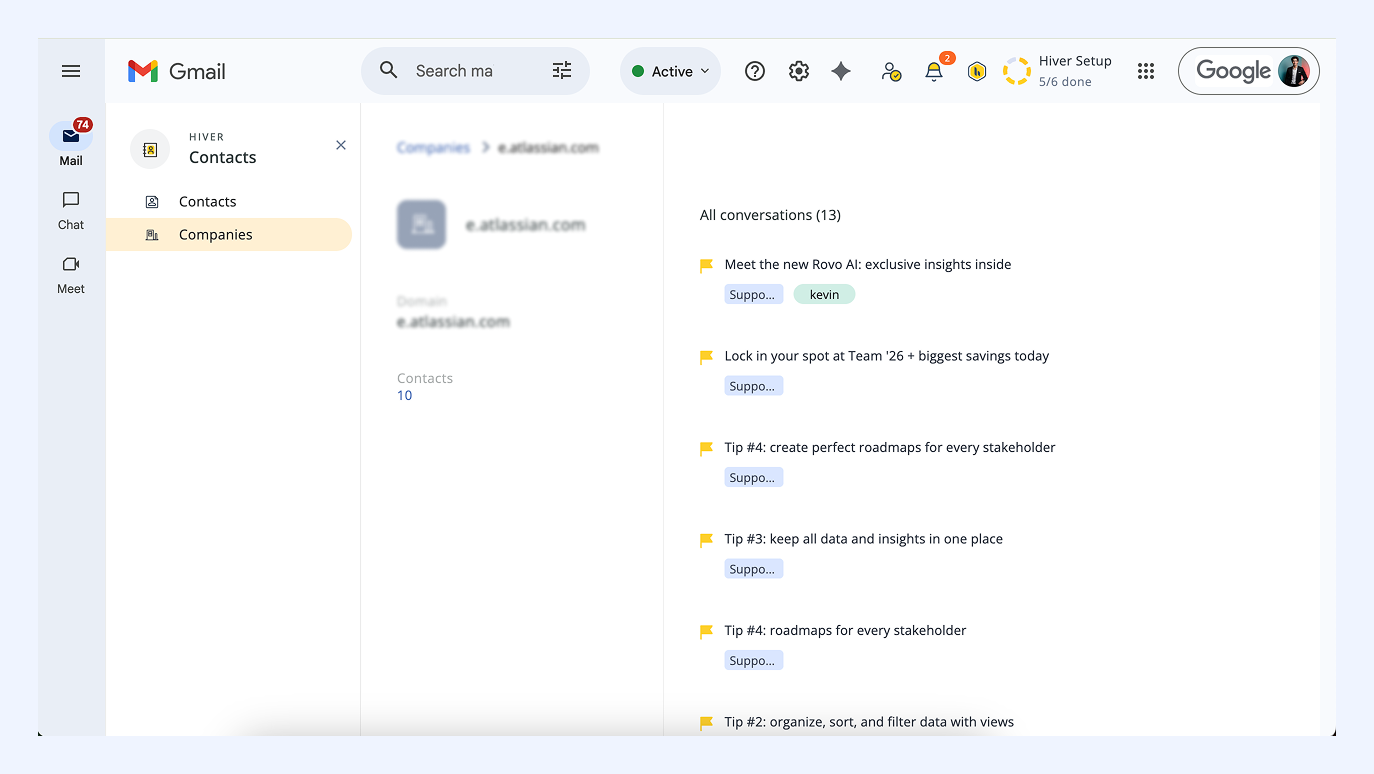
- Click any conversation to open it in a new tab.
Using Contact Directory across channels
Your Contact Directory works seamlessly with both email and WhatsApp.
Email Shared Inboxes
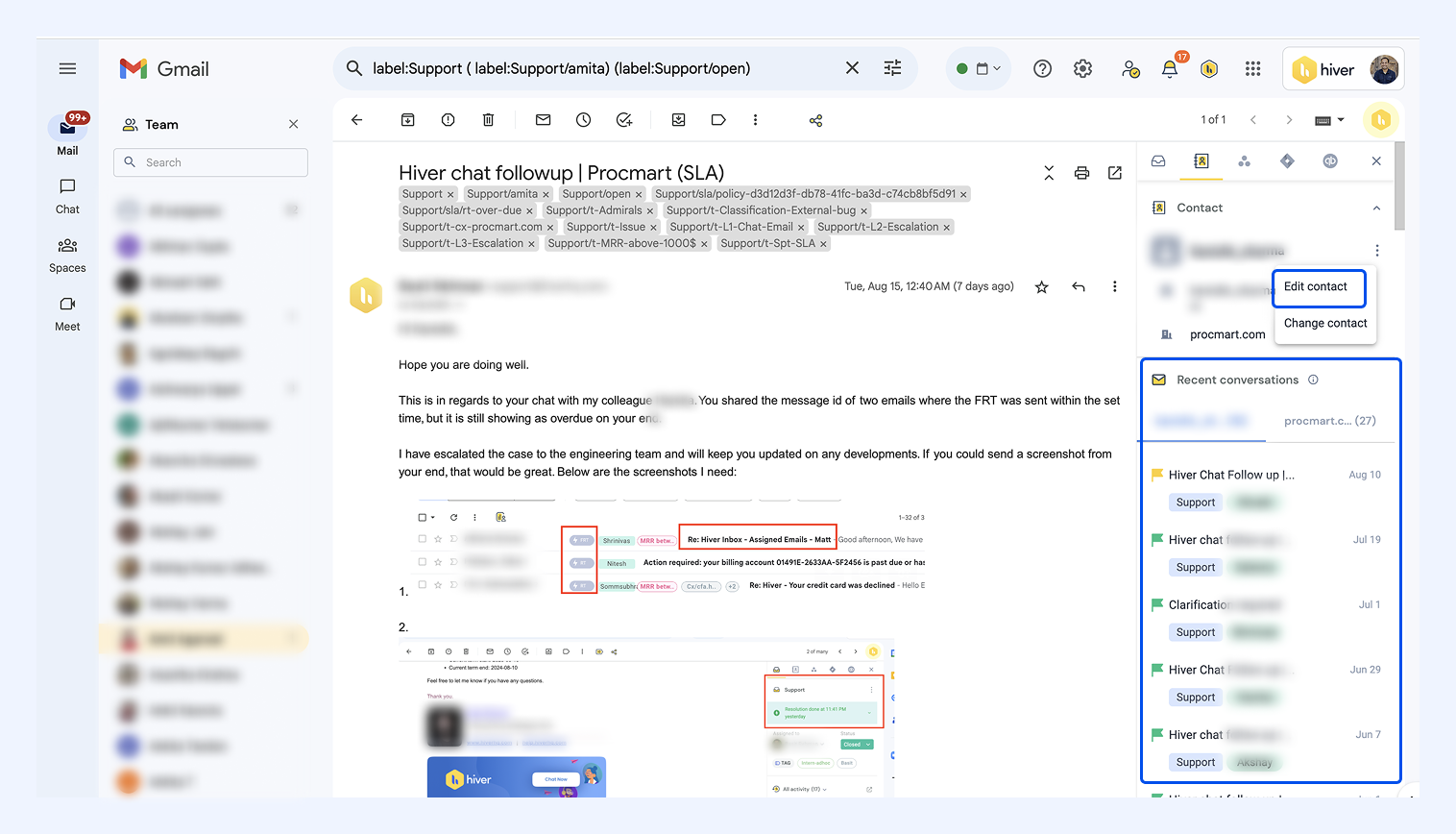
Inside your email Shared Inbox, the right panel shows both email and WhatsApp conversations linked to the same contact or company.
- See all related activity: The panel displays the contact’s email, company, and recent conversation history, including WhatsApp messages, under Recent Conversations.
- Edit or update contact information: Use the three-dot menu beside the contact name to Edit or change the contact’s name, company, phone number, or, and click Save.
WhatsApp Chat Inbox
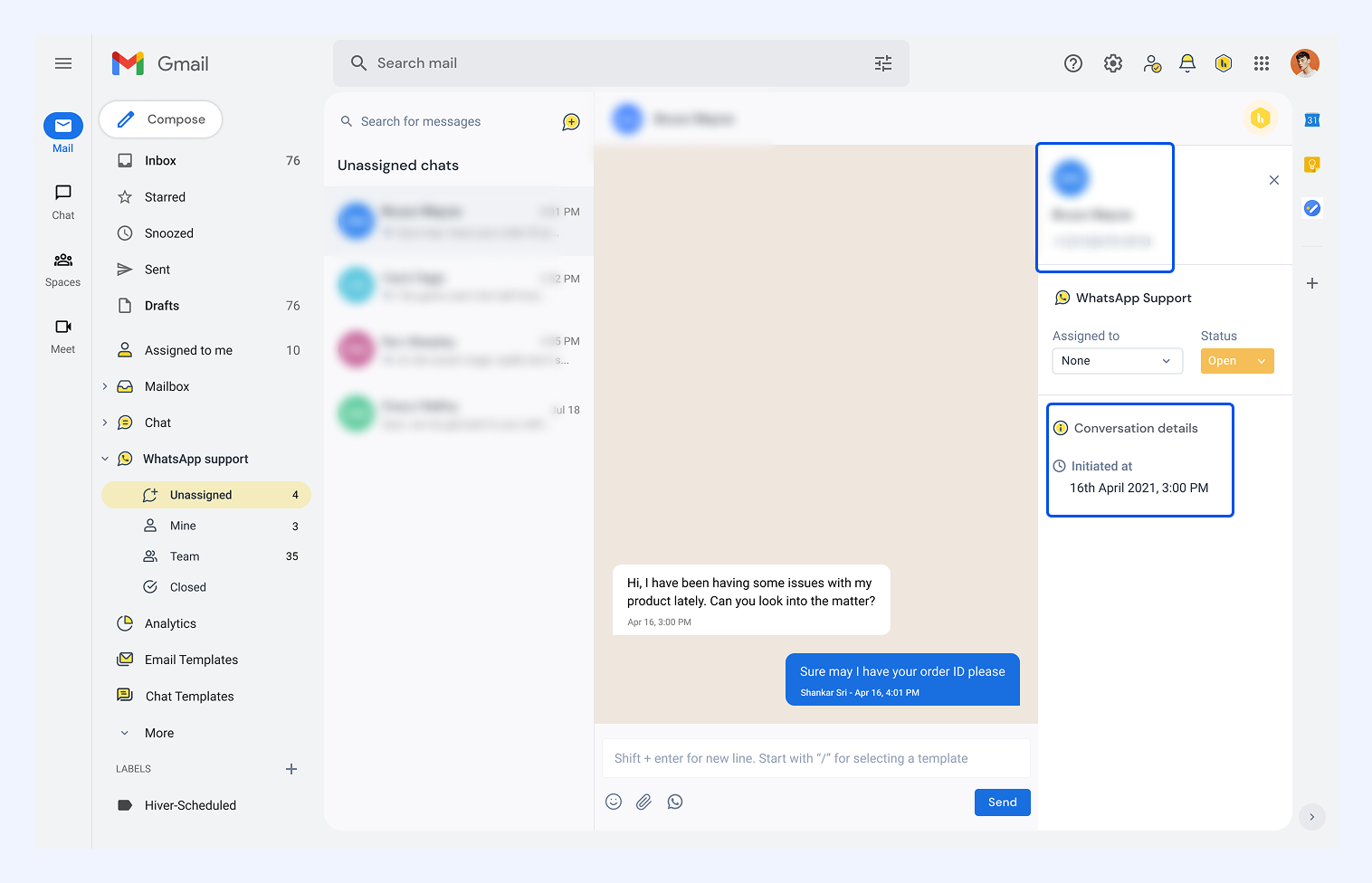
When you chat with customers on WhatsApp, Hiver automatically pulls up their existing contact details from the Contact Directory.
- Access the chat view: Open a customer chat from your WhatsApp inbox in Gmail.
- See contact details instantly: Hiver shows the customer’s name, phone number, and company on the right panel.
- View recent interactions: Email and WhatsApp conversations for the same contact appear side by side, giving full context without switching tabs.