Setting up the sender ID for your Shared Inbox
A sender ID is the email address that appears in the 'From' field when you send an email. In this guide, we’ll explore how you can set up your Shared Inbox ID as your sender ID.
Using the Shared Inbox email address
Step 1: Set up Gmail’s Send As feature
This lets you send emails from your Shared Inbox address. The steps vary depending on your type of account:
✅ If your Shared Inbox address is a Google Workspace account (e.g., support@mycompany.com)
Hiver takes care of this for you automatically, so no setup is needed. You can go straight to Step 2.
Note: Using different domains?
Gmail might block automatic setup if your primary email (e.g., jack@mycompany.com) is on a different domain from the Shared Inbox (e.g., support@yourcompany.com). In that case, we recommend contacting Google Workspace Support to help configure cross-domain 'Send As' permissions.
✅ If your Shared Inbox is a Gmail account (e.g., account@gmail.com)
You’ll need to do a quick one-time manual setup:
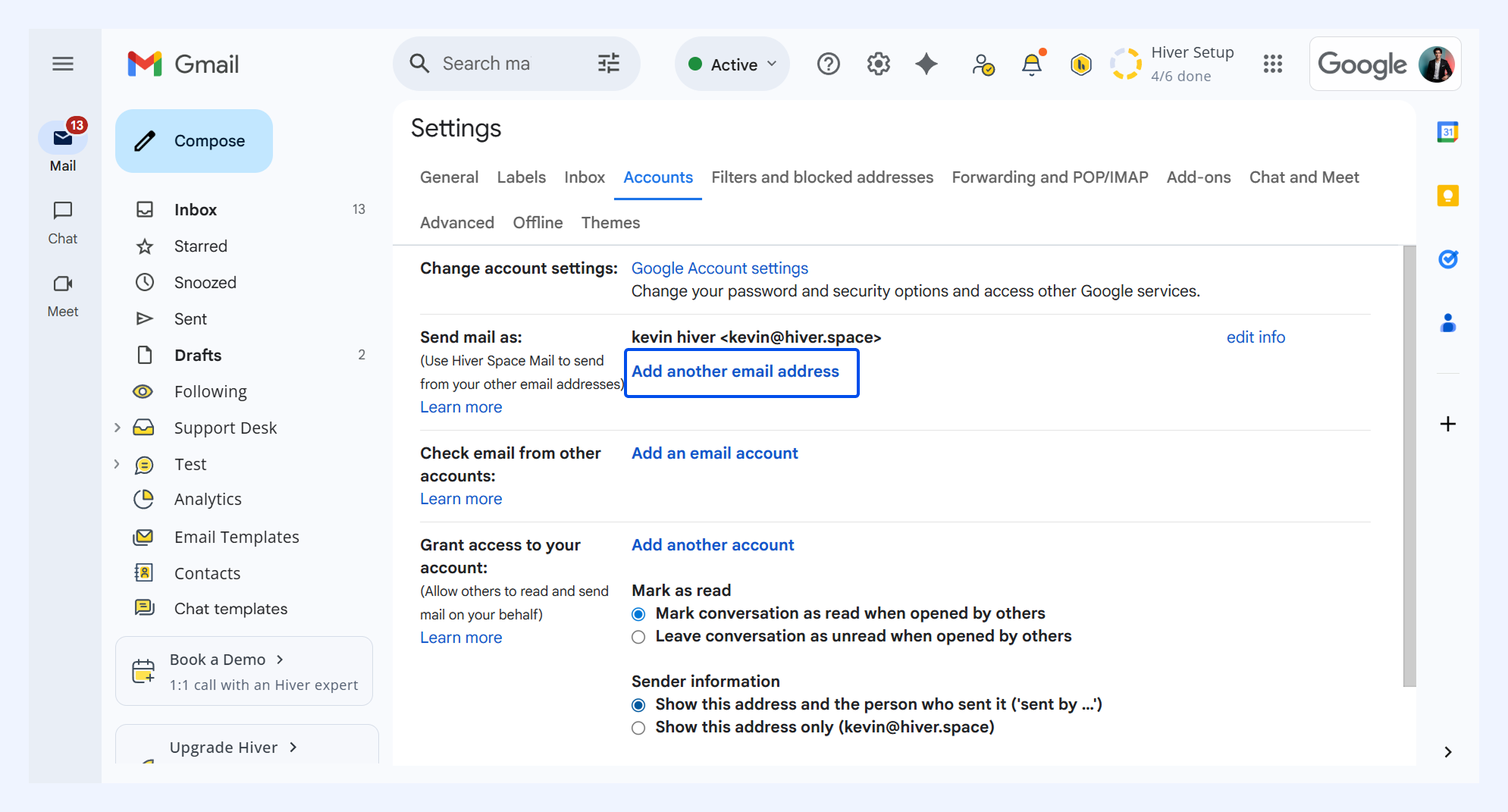
1. Go to Gmail Settings → Accounts tab.
2. Under Send mail as, click Add another email address.
3. Enter your name and the Shared Inbox address (e.g., account@gmail.com), and make sure ‘Treat as an alias’ is checked
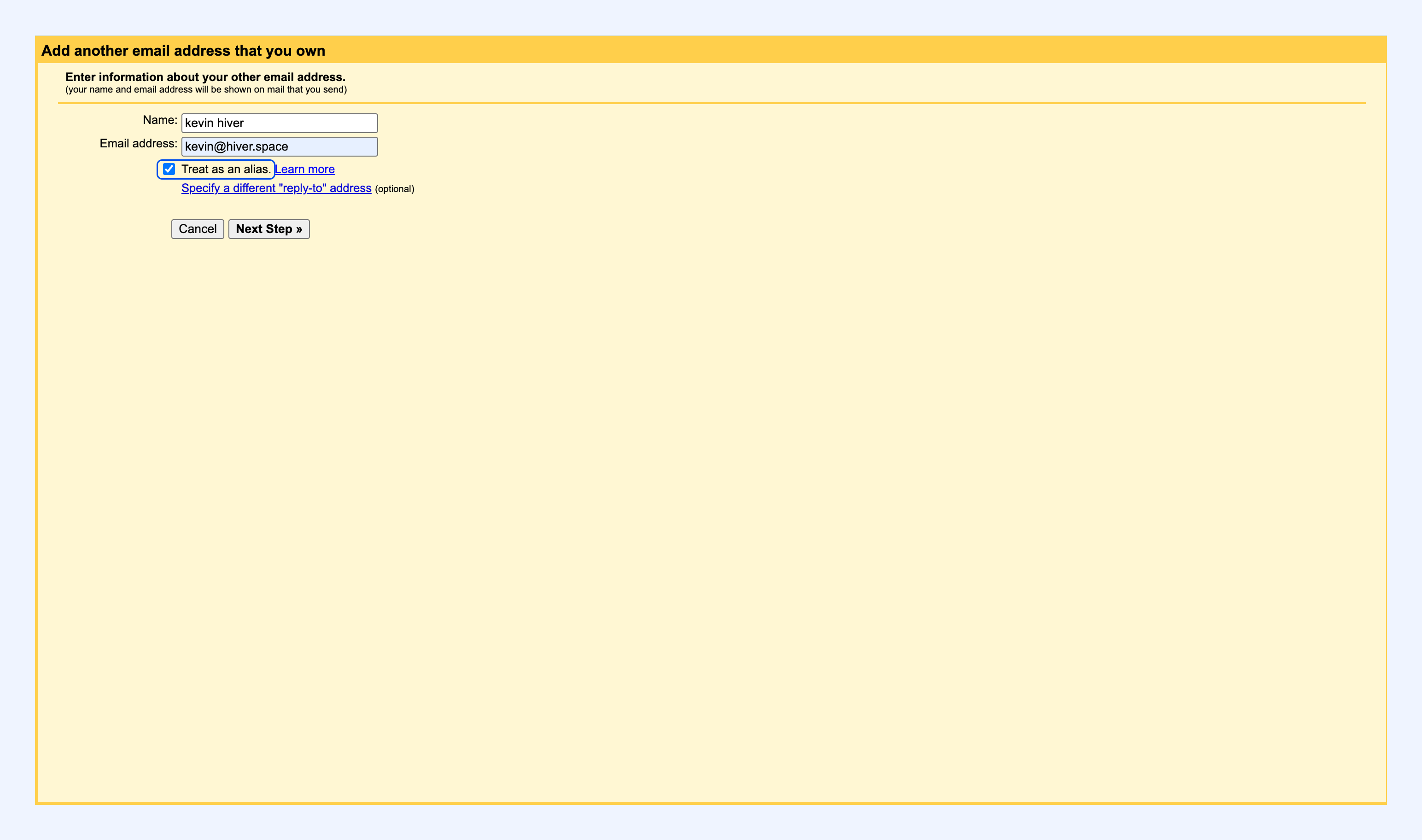
4. Click Next Step → Send Verification
5. Look for the verification email from Gmail and complete the process via the link or code.
Step 2: Enable ‘Reply from the same address the message was sent to’
Go to the Accounts tab in your Gmail settings and enable this option: ‘Reply from the same address the message was sent to’.
This setting is essential as it ensures replies to customer emails go out from the Shared Inbox address, not your personal ID.
Step 3: Auto-select the Shared Inbox address on Compose
Now that Gmail can send replies from the Shared Inbox, Hiver can go one step further and automatically pick the correct ‘From’ address when you reply or compose.
To enable this:
1. Go to Hiver settings → Admin Panel → Shared Inboxes → Choose an inbox → Settings
2. Toggle on ‘Auto-select shared mailbox email on Compose’
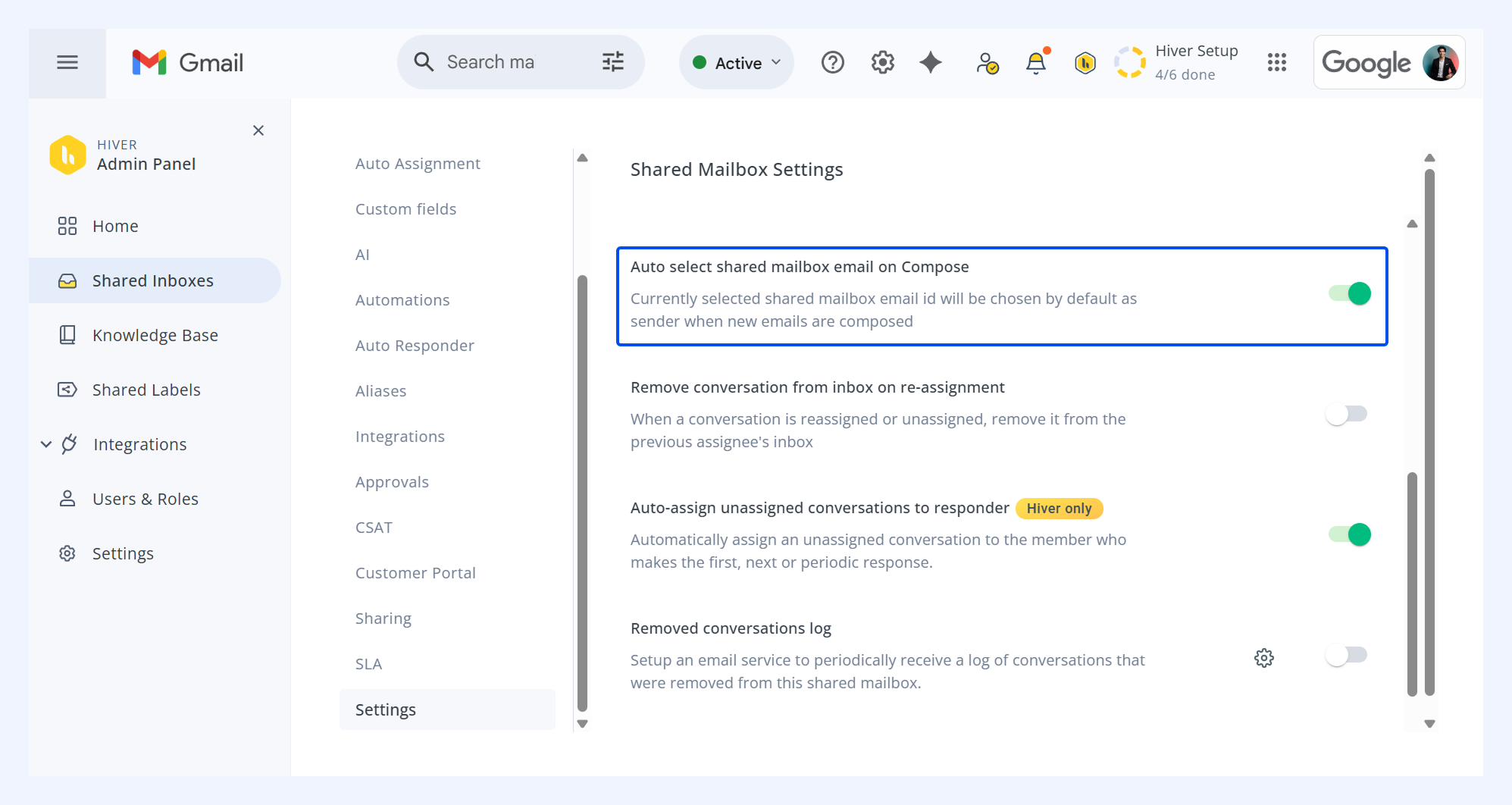
Tip: You can still manually select the Shared Inbox ID or any alias as the sender ID from the FROM dropdown when composing an email, regardless of the default setting.
Note: Emails sent from the Shared Inbox address or its aliases are automatically marked as ‘Unassigned’ and ‘Closed’. Replies to these emails appear as unread in the ‘Unassigned’ view.
Configure email signatures
Add email signatures to your sender identities to give your emails a professional finish, build trust with customers, and share important details like your name, role, and contact information.
To set up an email signature,
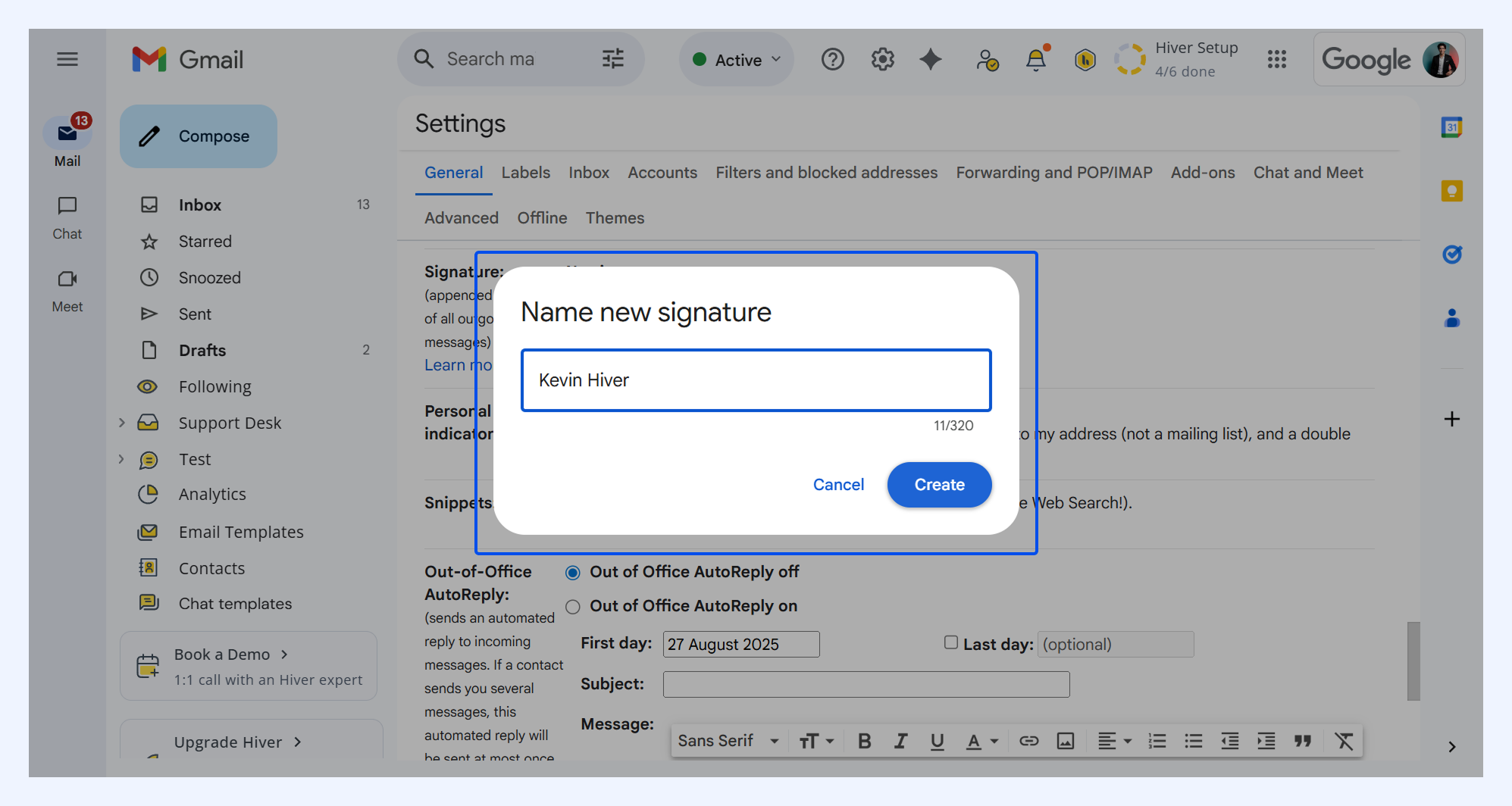
- Open Gmail Settings → General → Signature section.
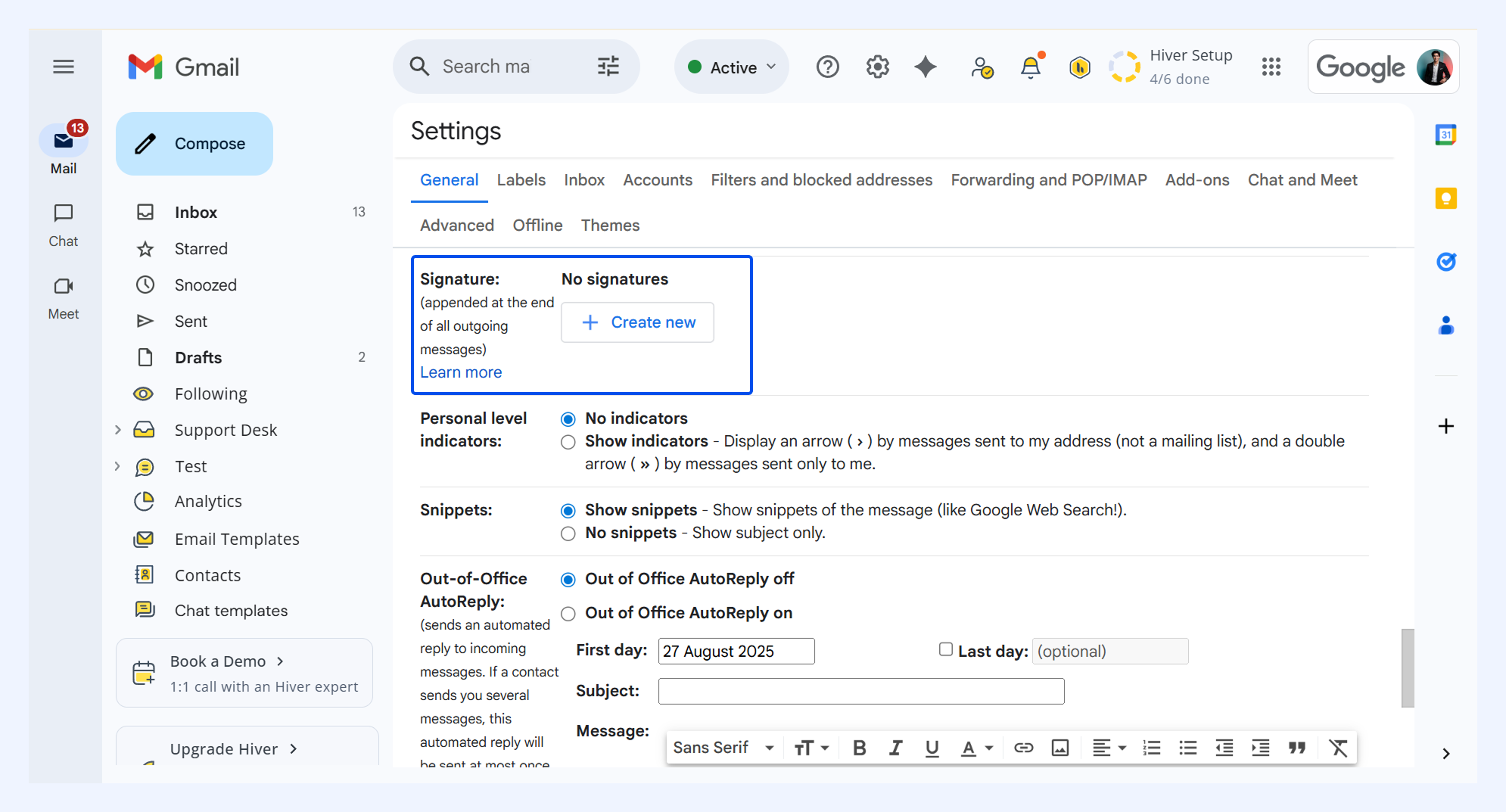
- Click on Create new to add an email signature.
- Enter the signature name and click Create.