Enabling features in Hiver
Hiver lets you turn features on or off depending on what your team needs. This helps keep things simple, remove tools that are not used, and make sure everyone works with the same set of features.
Note: Only Admins can manage feature access.
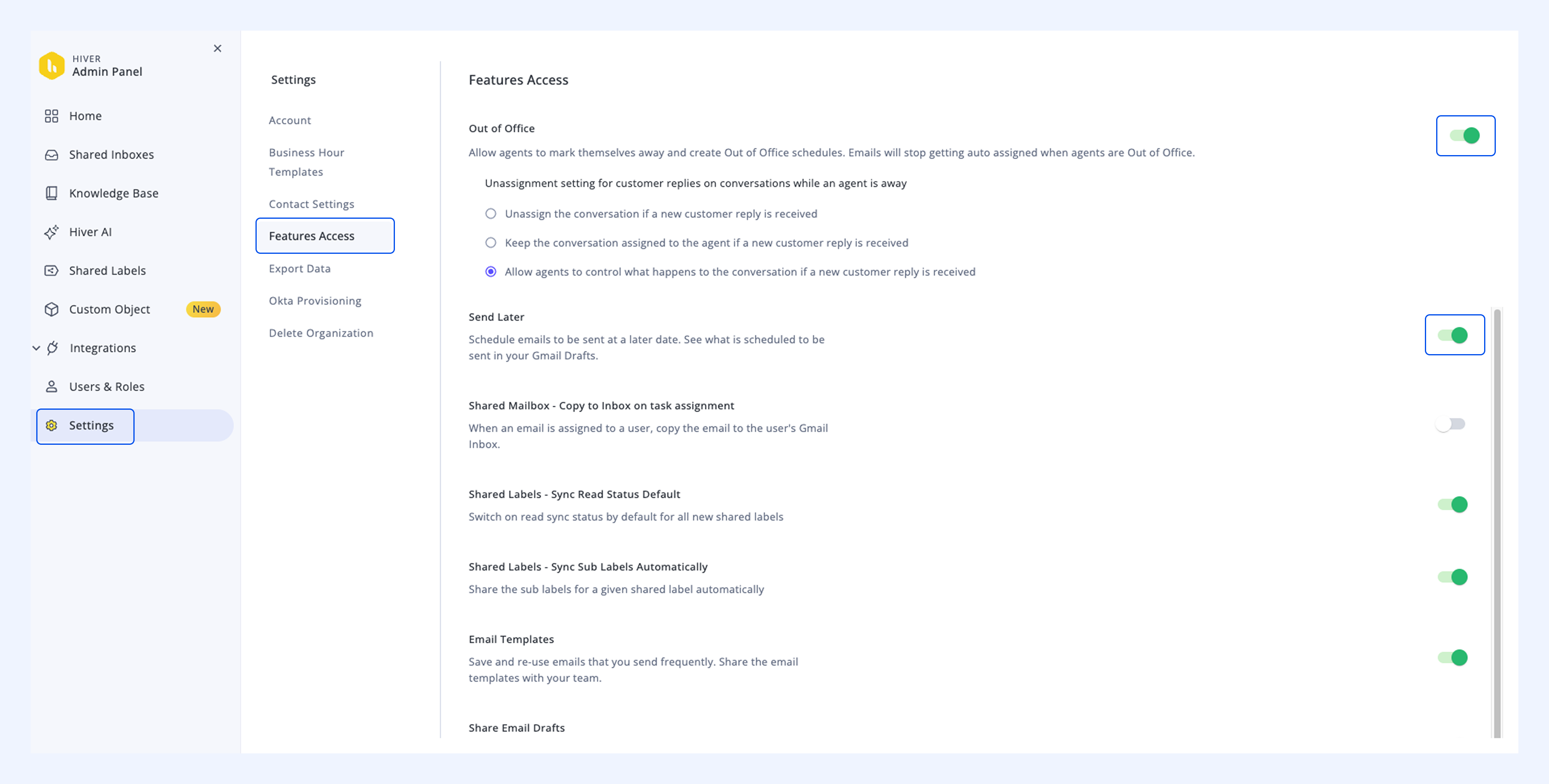
Go to Hiver settings → Admin Panel → Settings → Features Access. You'll see a list of available features, each with a toggle button. Use the toggle button to enable or disable any feature for your entire account.
Email footer
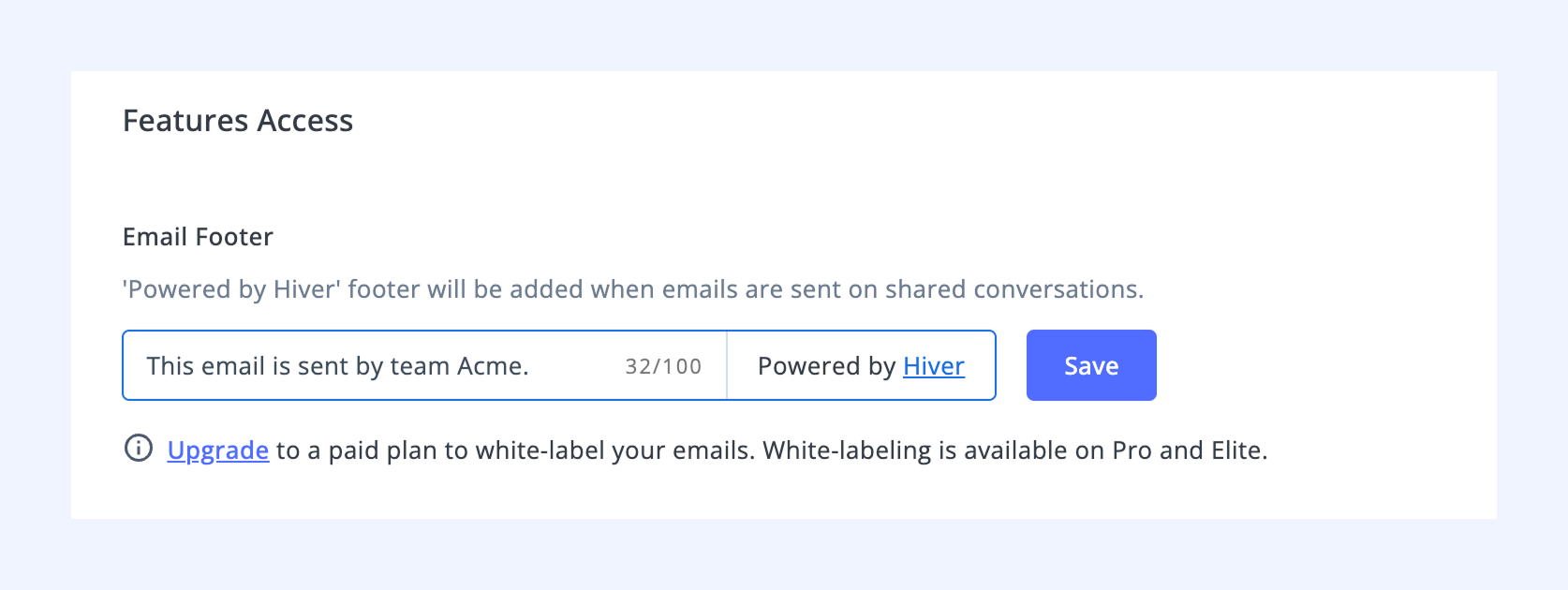
Emails sent with Hiver include a footer that only Admins can customize.
Note: This feature is available on the Free plan. Pro and Elite plans can white-label the footer.
Out of office
Agents can mark themselves as away and set an Out of Office schedule. Learn more about Out of office schedules.
When a customer replies while an agent is away, you can also configure how you respond. You can choose to:
- Unassign the conversation and return it to the queue.
- Keep it with the same agent until they return.
- Allow agents to pick their own preference.
Send later
You can schedule emails to be sent at a later date and time. Scheduled emails remain visible in your Gmail Drafts folder until they are delivered, so you can make edits or cancel them if necessary. Learn more about sending emails later.
Copy to Inbox on task assignment
When an email is assigned to a user, a copy is also sent to their personal Gmail Inbox. This makes it easier to notice assigned emails without having to check the Shared Inbox.
Email templates
Save emails that are sent often, like common replies or follow-ups, and insert them in a click. You can also share the templates with your team to ensure consistency in tone and messaging. Learn more about email templates for Shared Inboxes.
Shared Drafts
Team members can share an email draft with other team members before sending a response to a customer. This allows teammates to review the draft, suggest changes, and provide feedback before the email is sent. Learn more about Shared Drafts.
Public links
You can create a shareable link of an email conversation that anyone can view, even without a Hiver account. Learn more about sharing conversations.
Note: After enabling this feature at the account level, you can also allow or block it for individual inboxes.
Auto-join account
Automatically add users to Shared Inboxes based on their email domain.
When enabled, anyone who signs up with a matching email domain (for example, @acme.com) will be added to selected shared inboxes without requiring a manual invite. This helps new team members get access to the right inboxes from day one.
You can choose which Shared Inboxes users are automatically added to.
Note: This setting only applies to new users who join after it is enabled.