Managing Out of Office and availability
Availability controls whether Hiver can assign you new conversations via auto-assignment or other Automations configured. When you're unavailable, you can mark yourself as Away or schedule Out of Office for planned time off. This helps route new work to available members of your team.
Prerequisites
Before you start, make sure Out of Office is turned on for your account. An admin can enable it by following the steps below.
Enabling Out of Office
1. Go to Admin Panel → Settings → Features Access.
2. Turn on Out of Office.
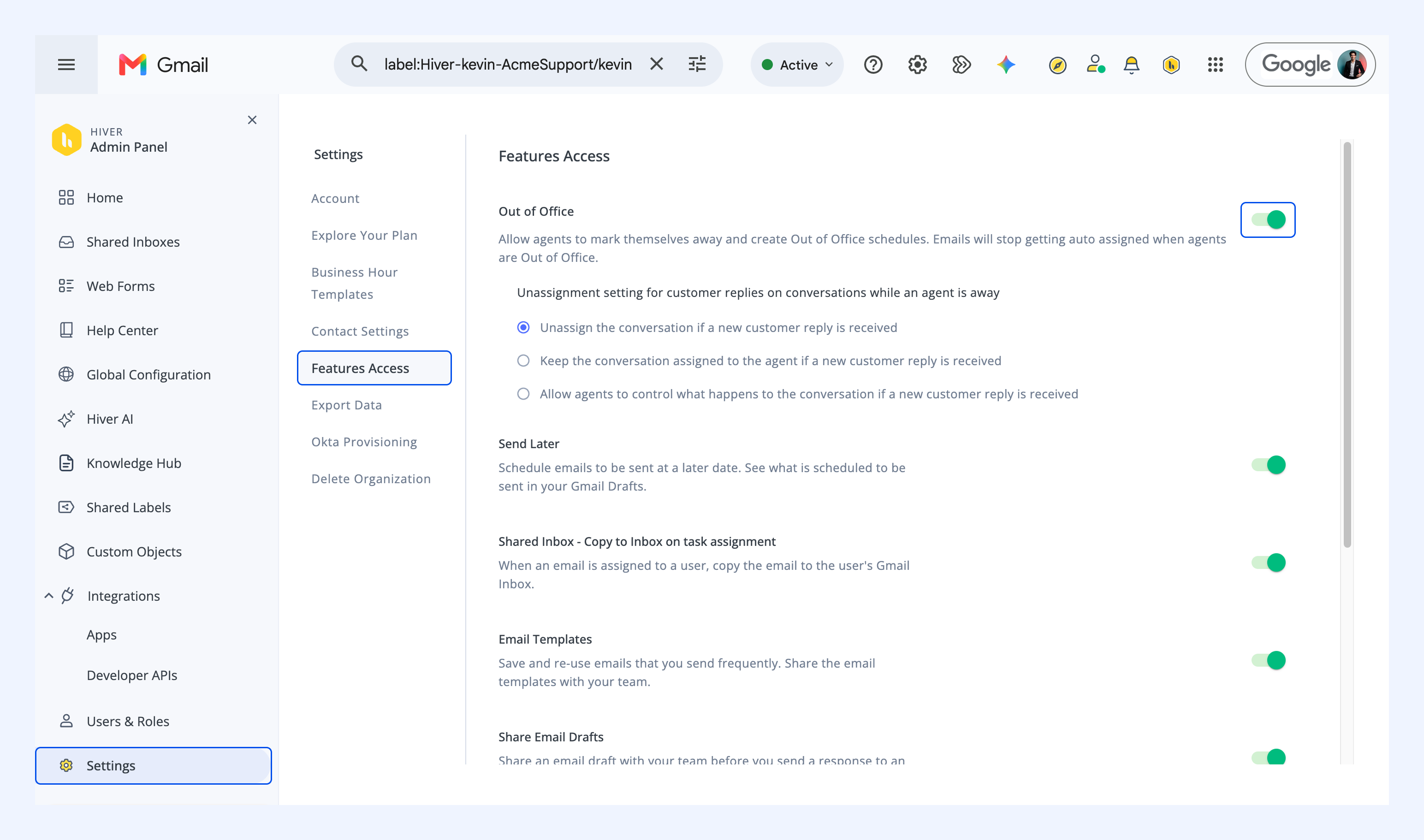
3. Choose what happens to a conversation when a team member is away:
- Unassign the conversation if a new customer reply is received.
- Keep the conversation assigned to the agent.
- Let agents decide what happens for each conversation.
Setting your availability
Mark yourself as available or away
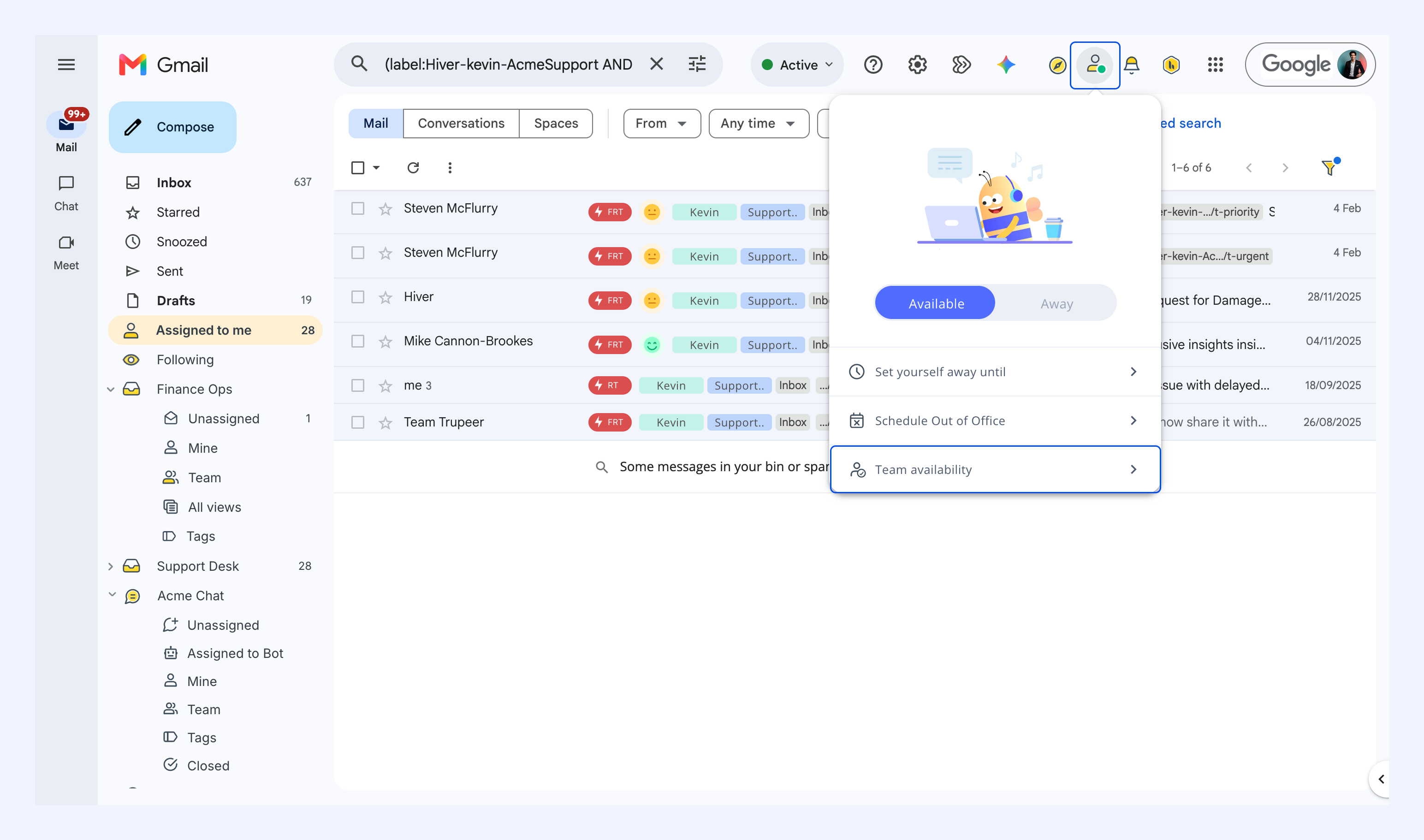
Click the availability icon and switch between Available and Away.
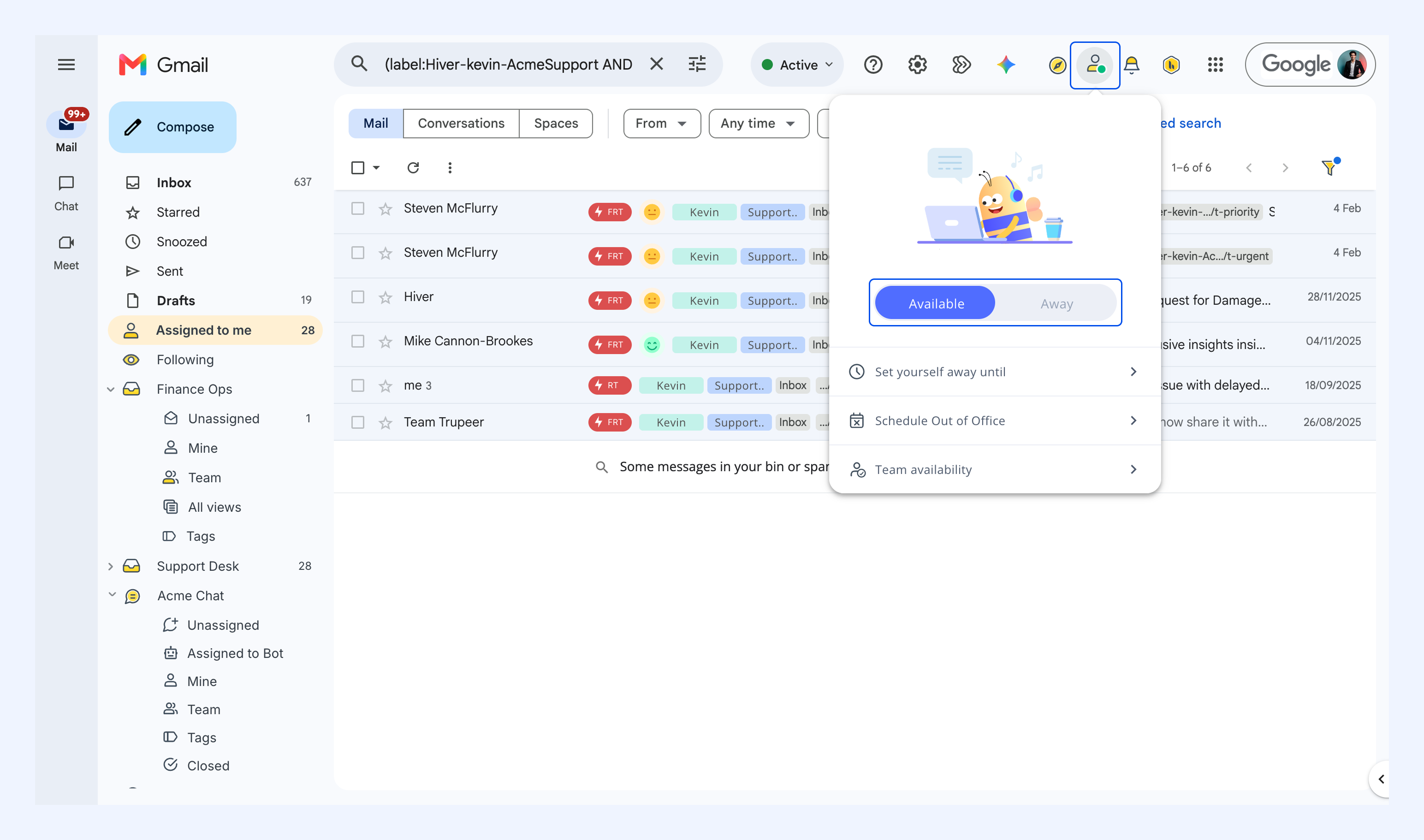
When you're away, your open conversations follow the rule your admin set, so a new customer reply may unassign the conversation from you or keep it with you.
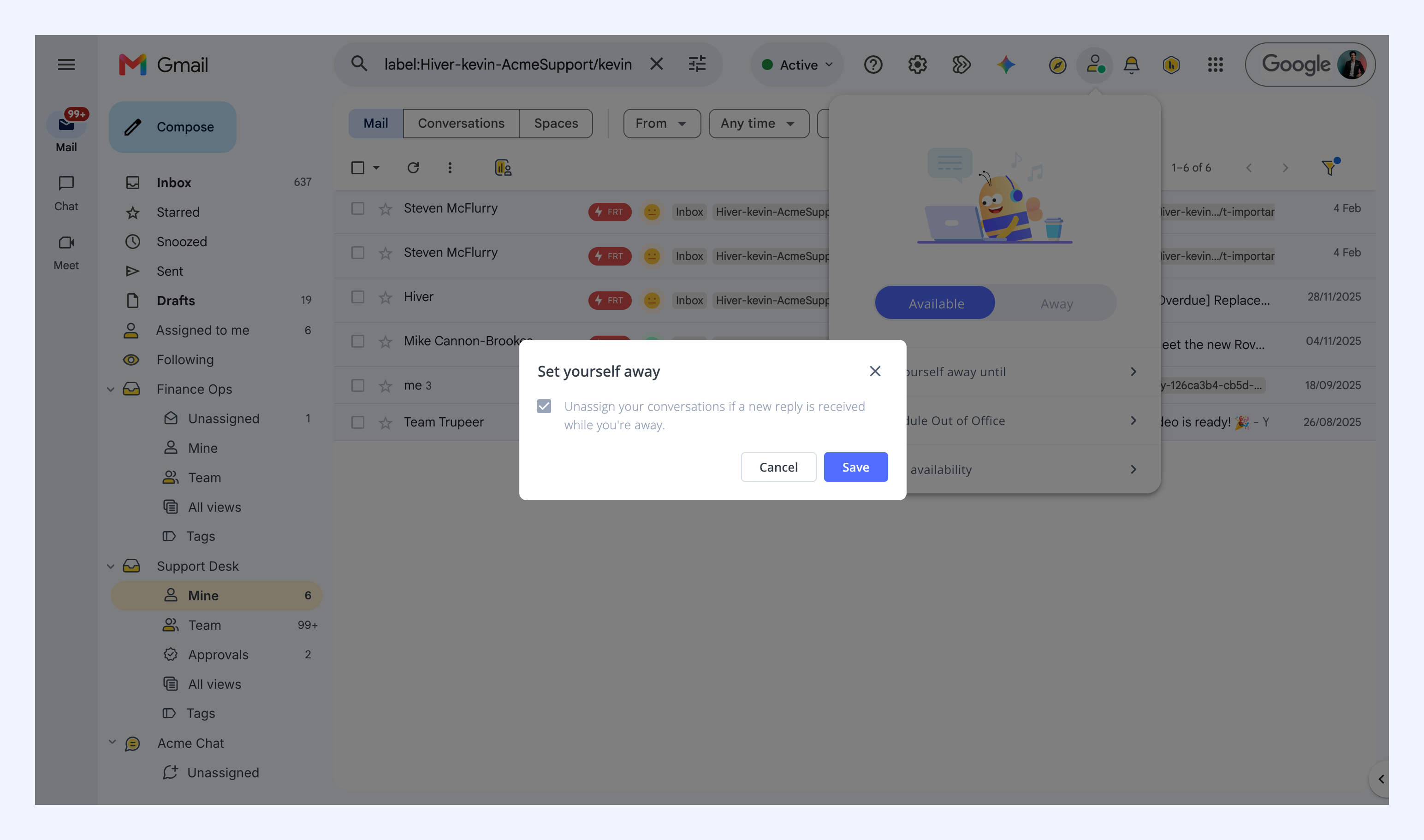
Set yourself away until a specific time
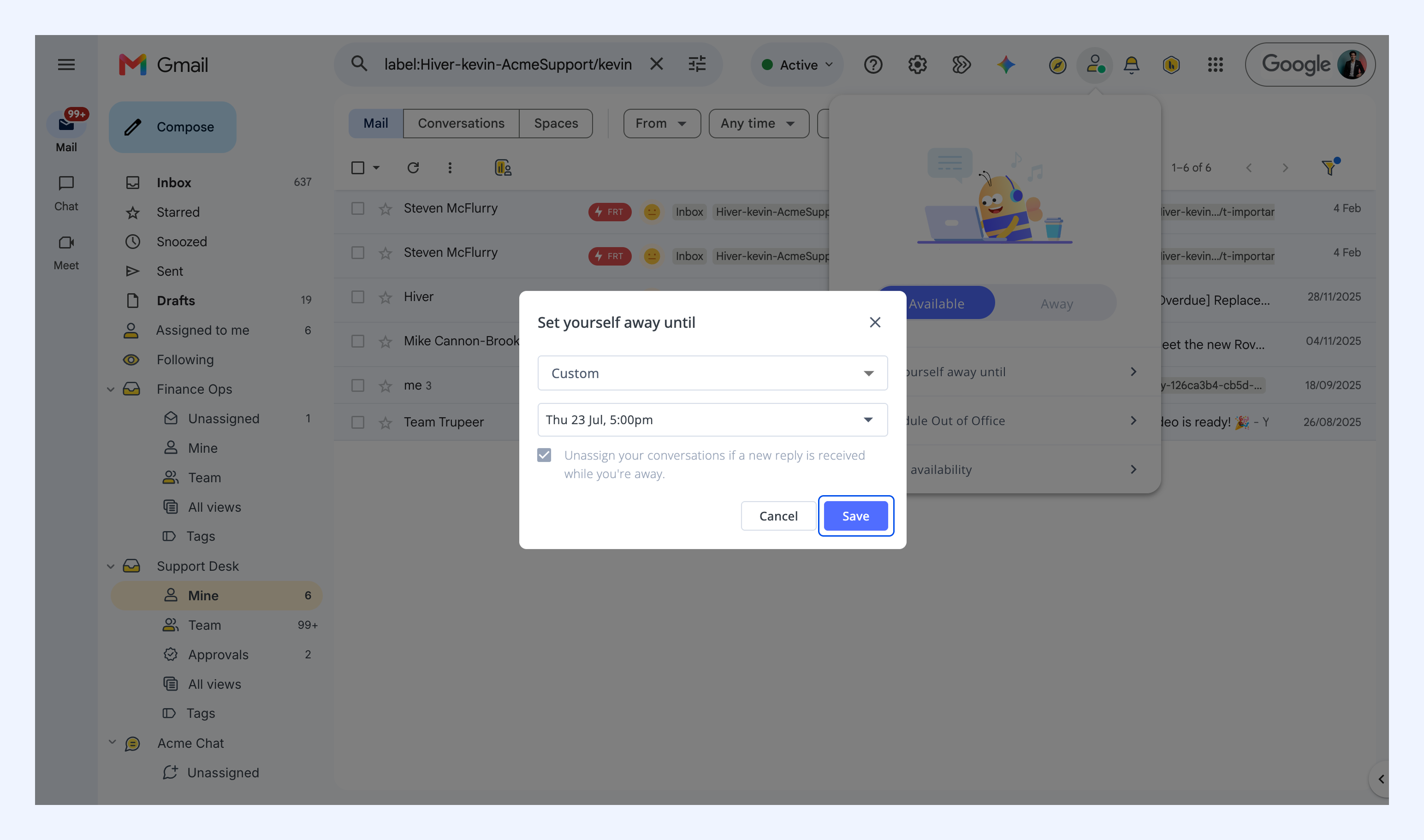
If you'll be away for a period, you can set when you'll be back.
1. Open the availability icon and select Set yourself away until.
2. Choose a preset time or set a custom date and time.
3. Click Save.
Schedule Out of Office
Use Out of Office for planned time away:
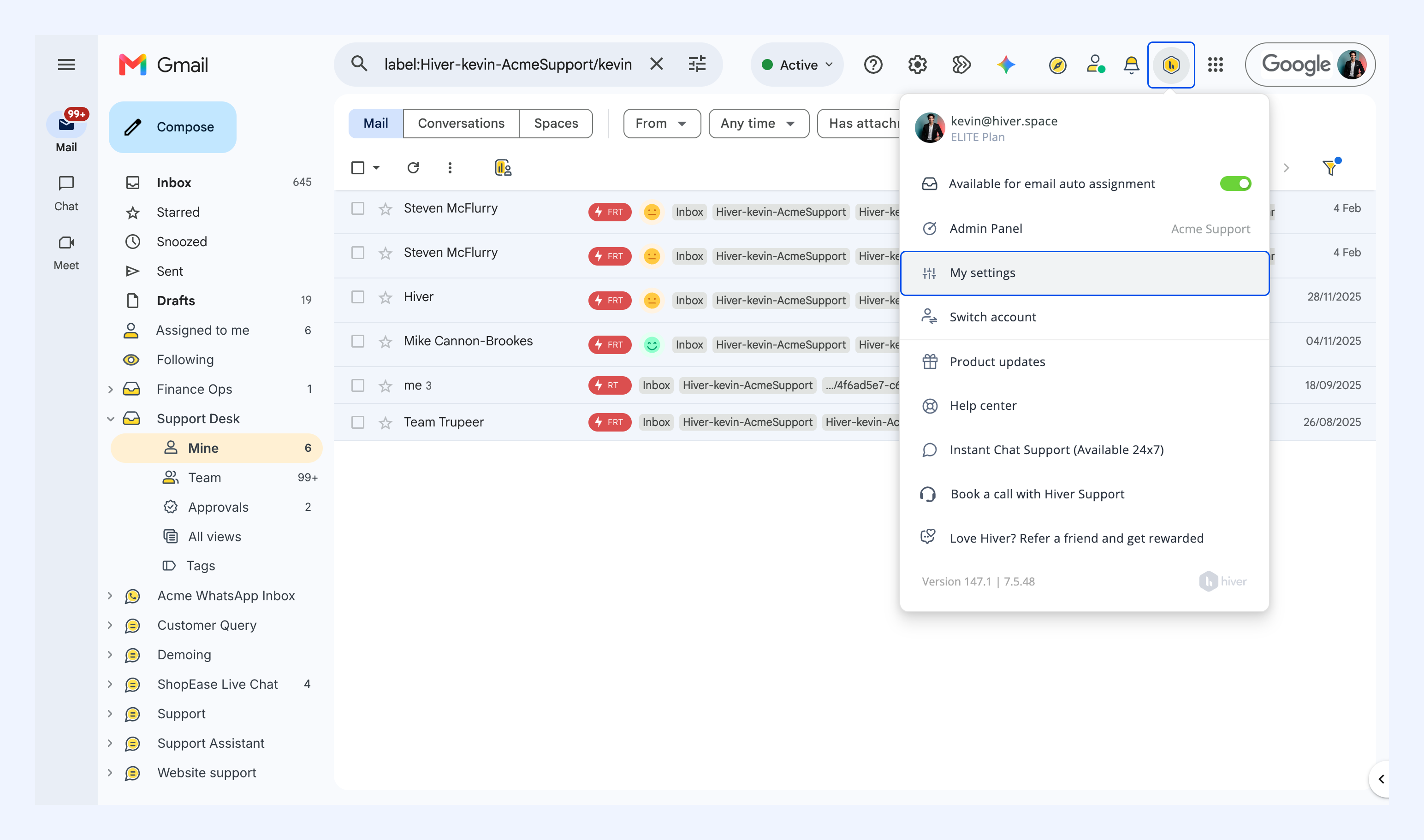
1. Click your profile icon and select My Settings.
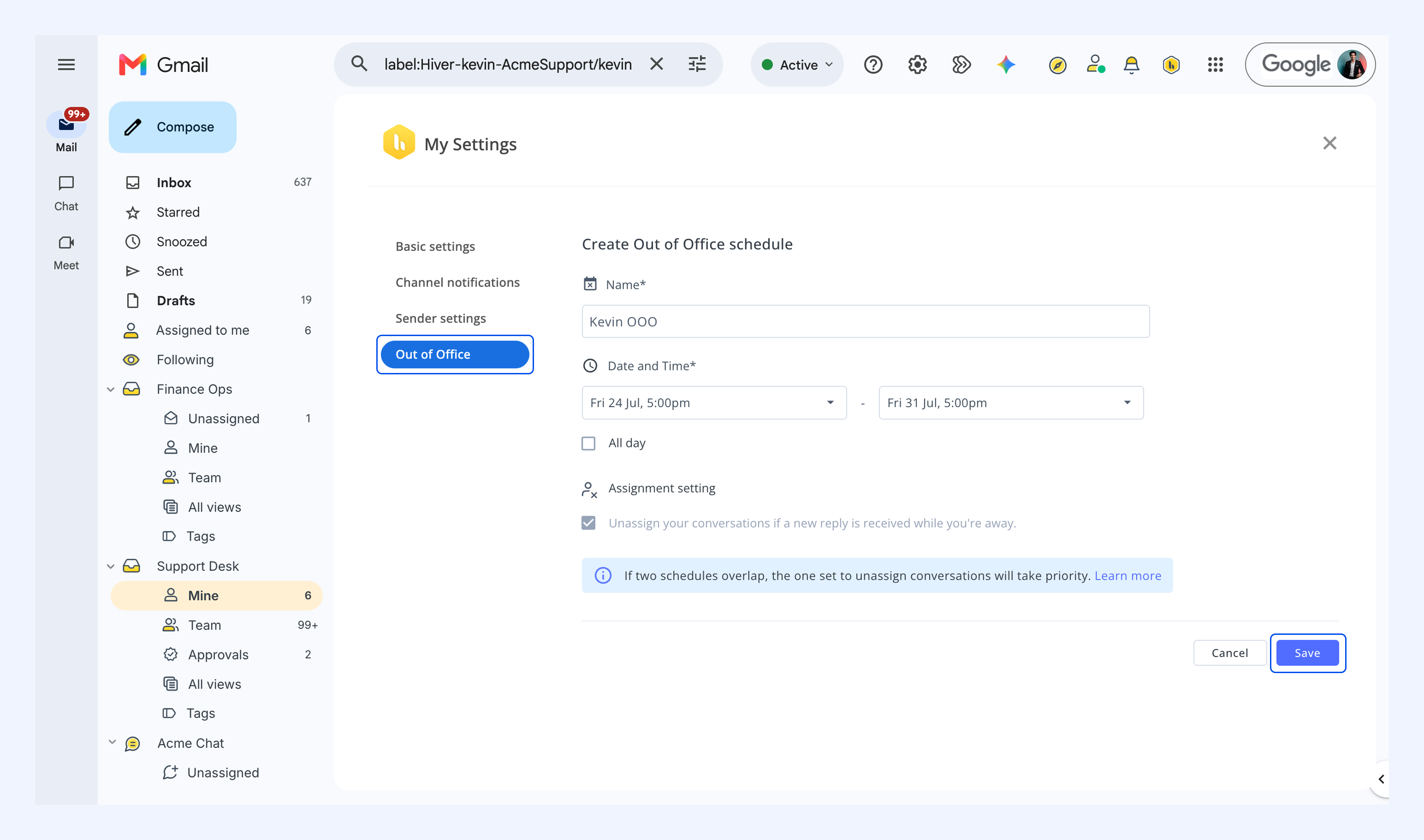
2. Go to Out of Office and click to create a schedule.
3. Add a name, then set the date and time, or turn on All day.
4. Choose what should happen to conversations assigned to you while you’re away.
5. Click Save.
Note: If two Out of Office schedules overlap, the one that unassigns conversations takes priority.
Managing your team’s availability
Admins can set availability for individual team members and see who has Out of Office scheduled.
Update a team member’s availability
1. Click the availability icon and select Team availability.
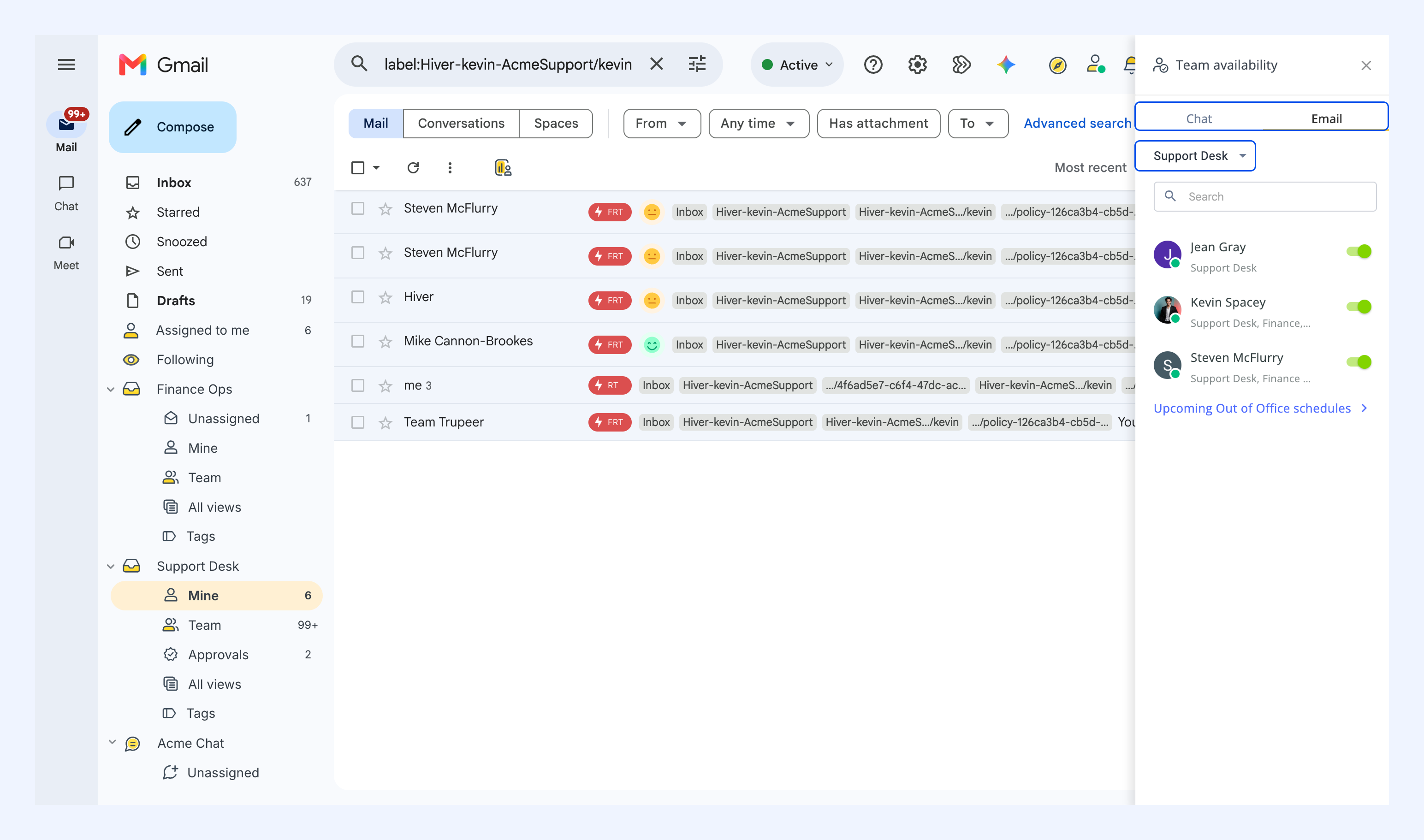
2. Select a channel, then choose a Shared Inbox.
3. Toggle availability on or off for each team member.
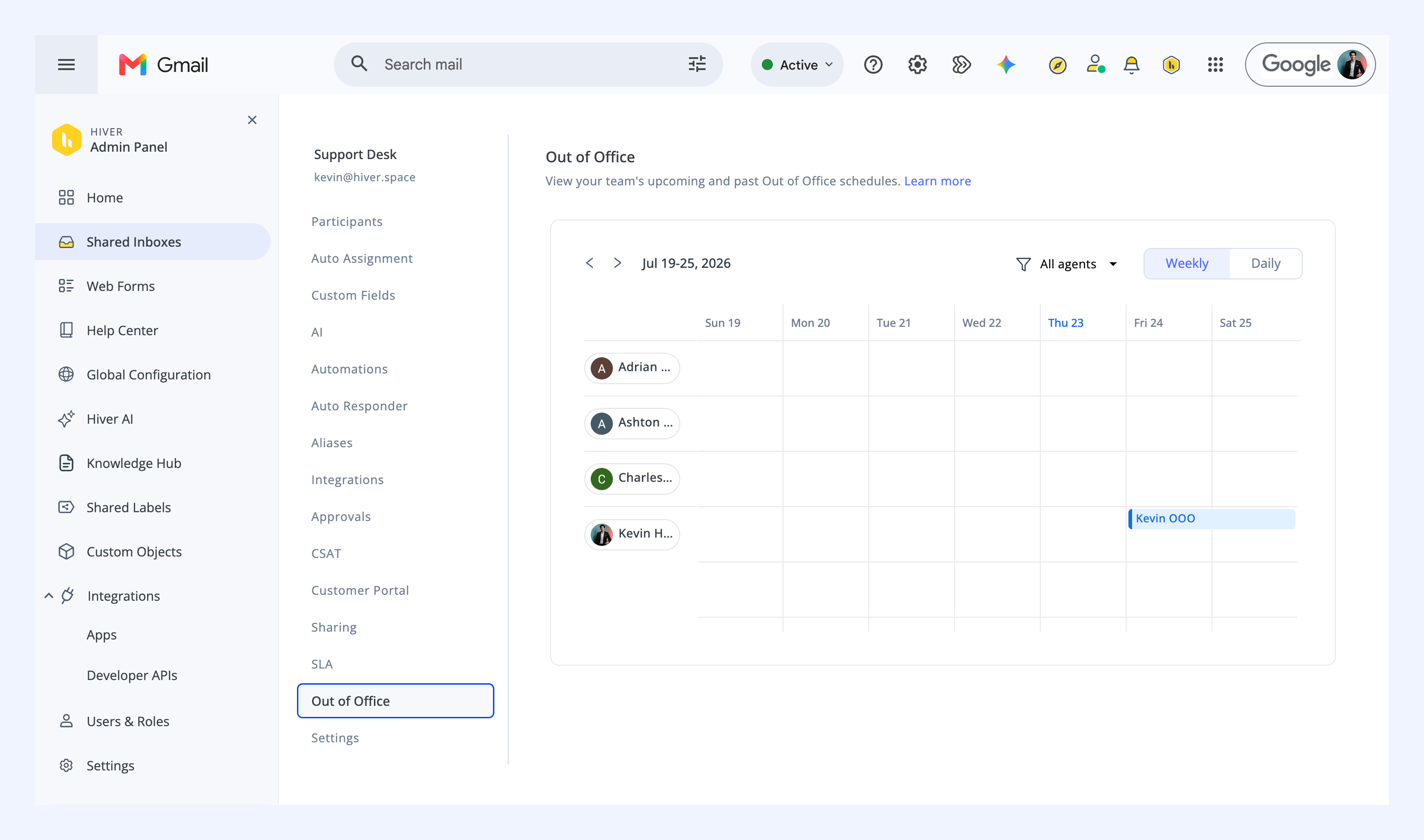
View team Out of Office schedules
1. Go to Admin Panel → Shared Inboxes, and select an inbox.
2. Open Out of Office to see your team's past and upcoming schedules.
Next steps
Setting up Round Robin Assignment
Monitoring workload distribution across your team