Replying to live chats
Learn how to access, respond to, and manage customer conversations in real time using Hiver’s Live Chat Inbox. This guide walks you through everything from locating your active chats to closing them once resolved and helping your team deliver faster, more personal support right from Gmail.
Note: Chat Inbox is a legacy feature and is only available to customers who signed up before May 18, 2026.
Access your live chats
1. Click the Chat Inbox you want to open in Gmail's left panel.
2. Go to Mine view to see chats assigned to you.
3. Navigate to the Assigned to field in the right panel. You can assign the Chat Inbox to yourself or to a team member.
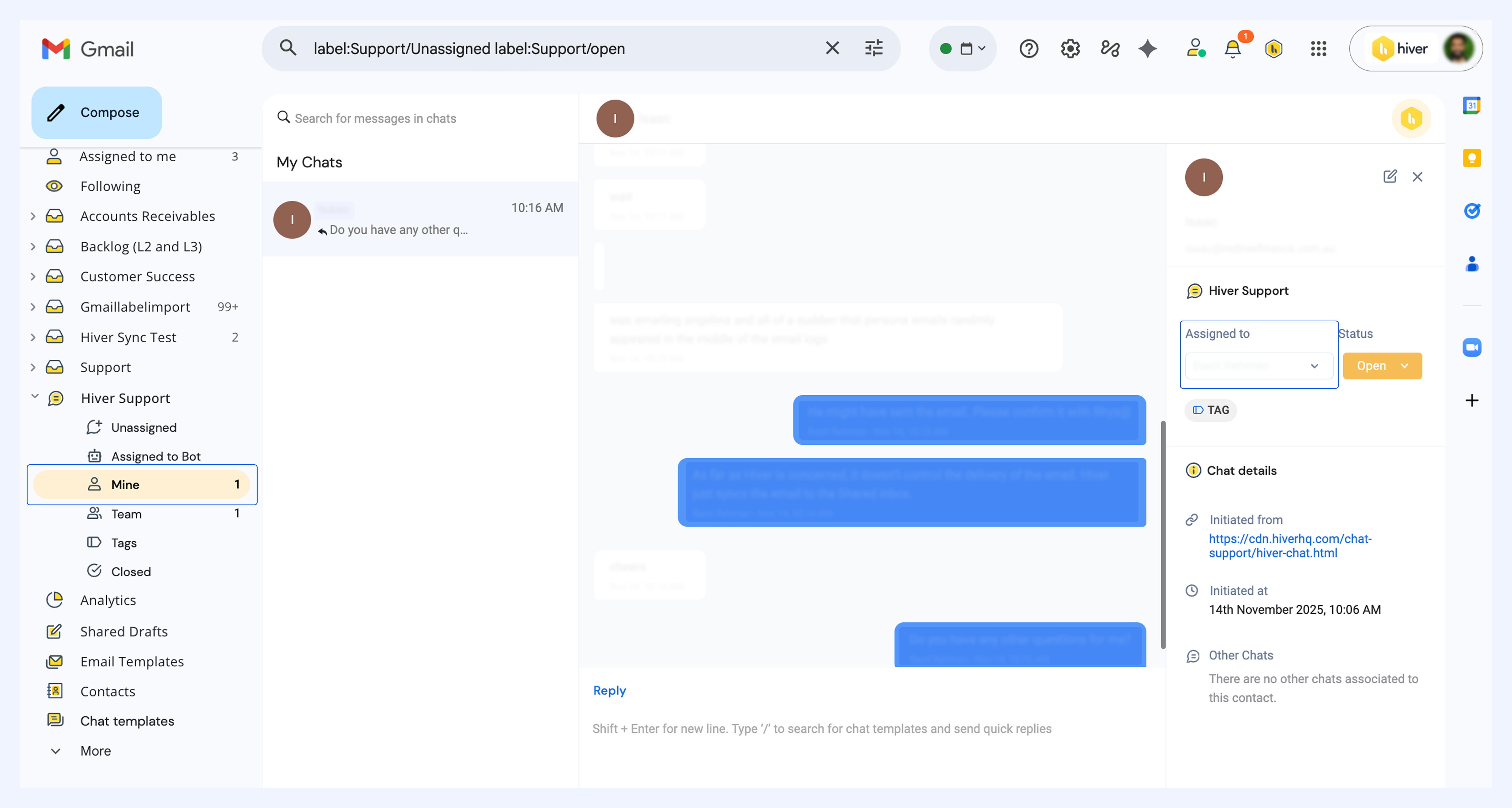
4. A red dot appears on the chat icon or beside Mine whenever there are unread messages.
5. Click a visitor’s name under Mine to start responding.
6. If Email Capture is enabled, you’ll see the visitor’s name and email.
Send responses
Use these tools to reply effectively during chats:
1. Templates: Insert pre-saved replies for quick responses.
2. Emojis: Add emojis to make your message more personal.
3. Attachments: Send files up to 40 MB. Supported types include:
- Images: bmp, jpg, png, gif, tiff
- Documents: doc, pdf, xlsx, csv, zip
- Videos: mp4, mov, avi
- Audio: mp3, wav, ogg
4. Auto-saved drafts: Drafts are saved automatically when switching between chats. Drafts are private and visible only to you.
Check visitor status
- A green dot beside the visitor’s profile means they’re online.
- The dot disappears about 60 seconds after the visitor leaves or disconnects.
Manage chat status
1. Each chat starts as Open by default.
2. To close a chat, change the Status dropdown to Closed in the right panel.
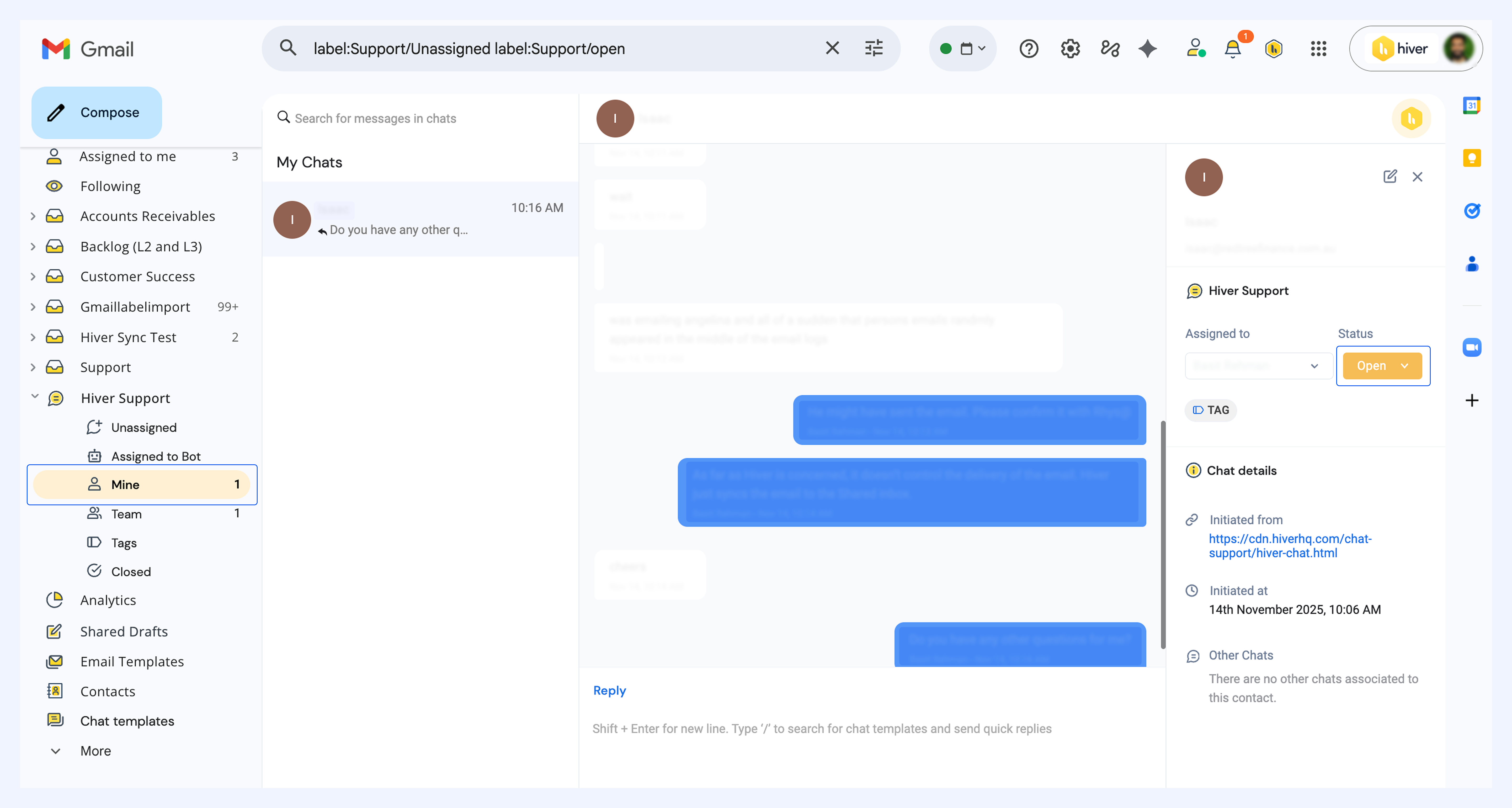
3. If CSAT is enabled, a feedback form is automatically sent when a chat is closed.
Note: Closed chats can’t be reopened since live chat is a real-time interaction.
View chat details
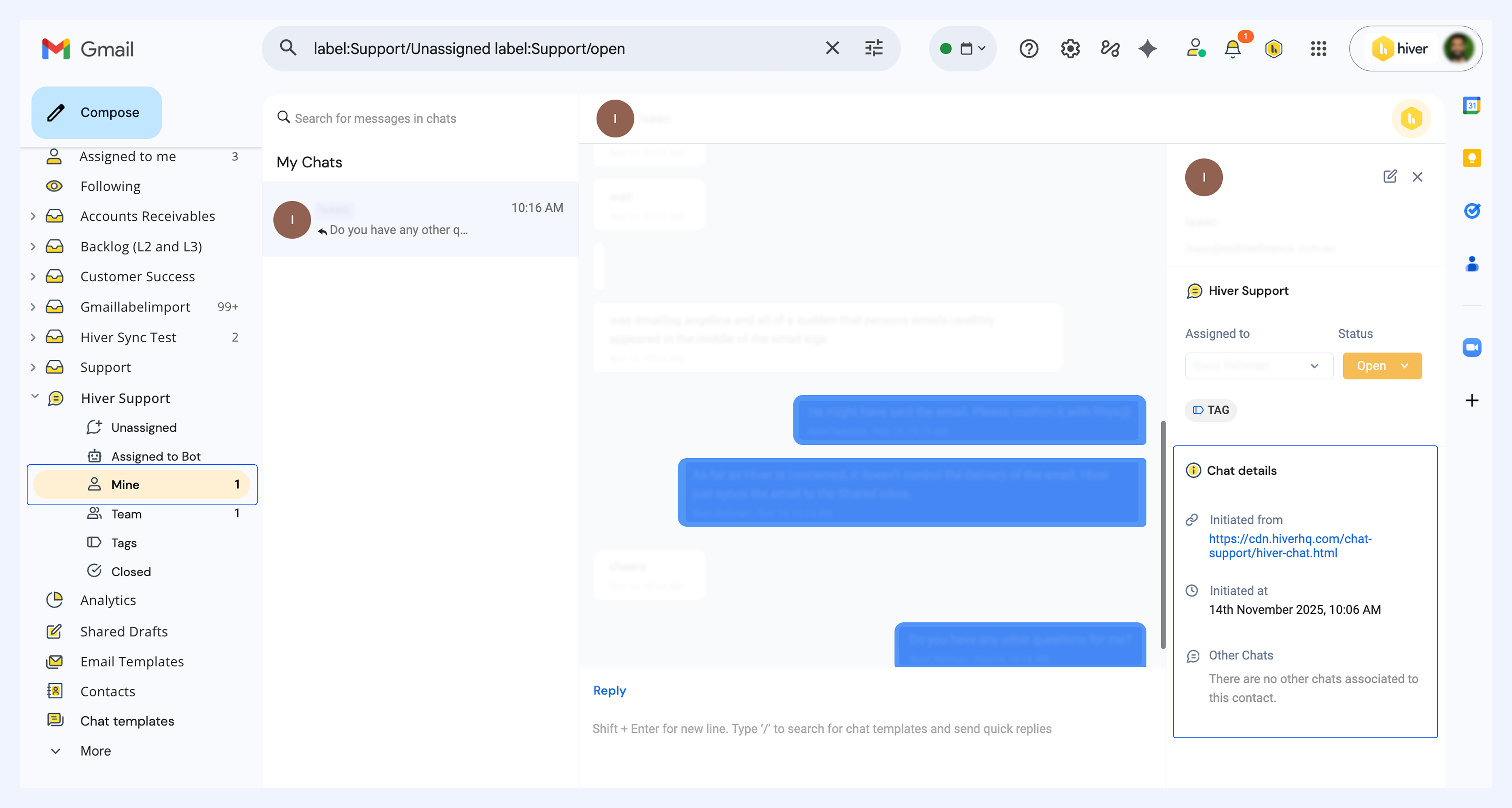
The Chat details section provides quick context about the visitor:
- Initiated from: The page URL where the chat started.
- Initiated at: The timestamp of the chat’s start.
- Other Chats: Past conversations with the same visitor (shown only if Email Capture is enabled).
Related articles