SLA report
The SLA report in Hiver lets you track how well your team meets the response and resolution deadlines defined in your SLA policies. It gives you a view of compliance, violations, and trends across your inbox.
Use this report to:
- Track conversations that missed SLA deadlines.
- Measure how often your team meets response and resolution targets.
- Identify inboxes, tags, or agents that need attention.
- Export insights for audits or team reviews.
How to access the SLA report
In Gmail, click Analytics → Reports → select your Shared Inboxes → SLA. All metrics are calculated based on the selected date range. You can adjust the date range or switch to Business Hours if needed.
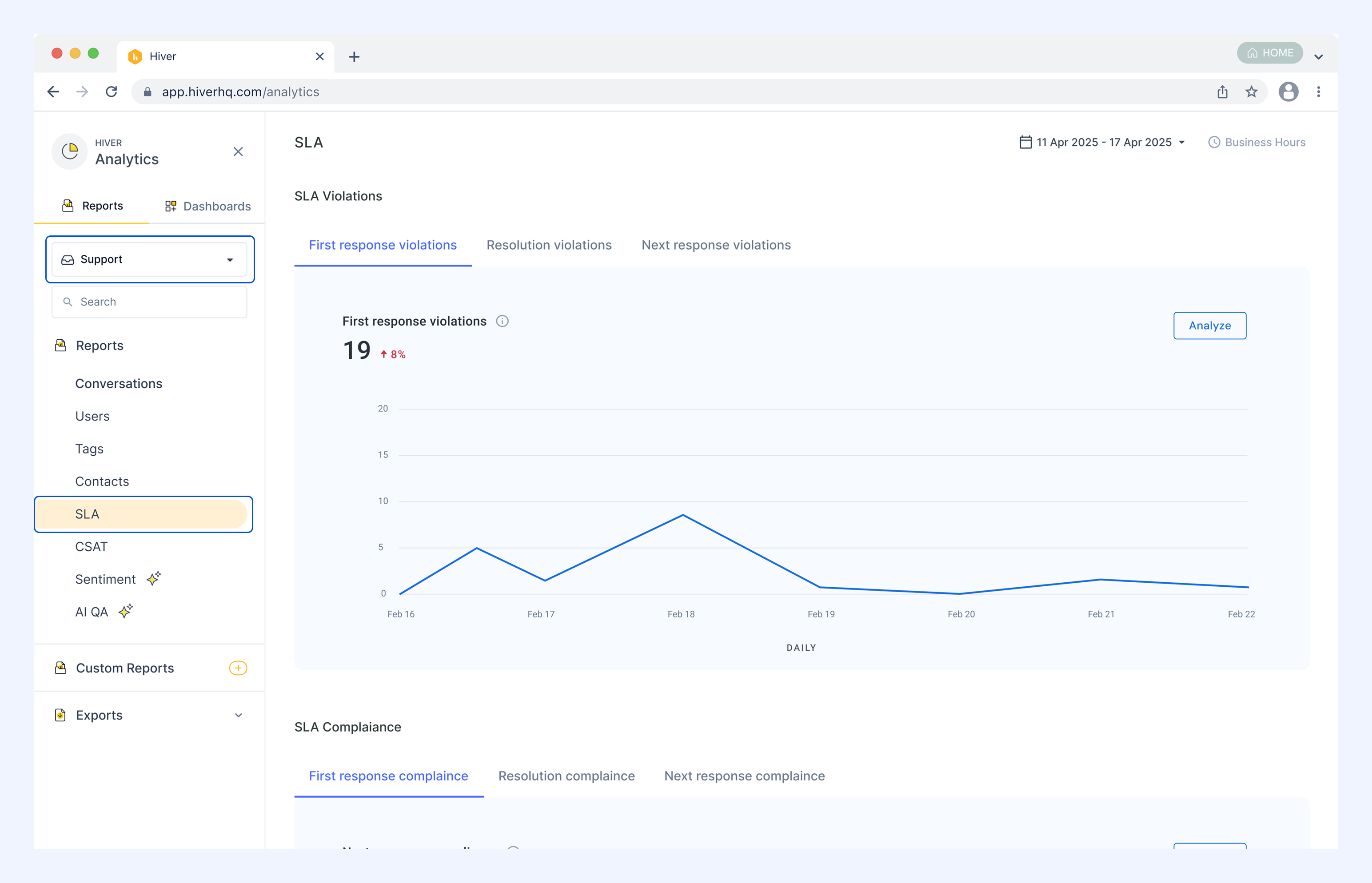
How to explore the report
The SLA report is split into two sections:
- Violation metrics: First response violations, Resolution violations, Next response violations.
- Compliance metrics: First response compliance, Resolution compliance, Next response compliance.
Each metric contains:
1. Overview graph: Shows how many conversations missed or met SLA targets over time.
2. Analyze view: Lets you filter and group data by assignee, tag, SLA policy, status, conversation type, or which SLA target was violated.
3. Export data: Download results for offline analysis.
Understanding SLA metrics
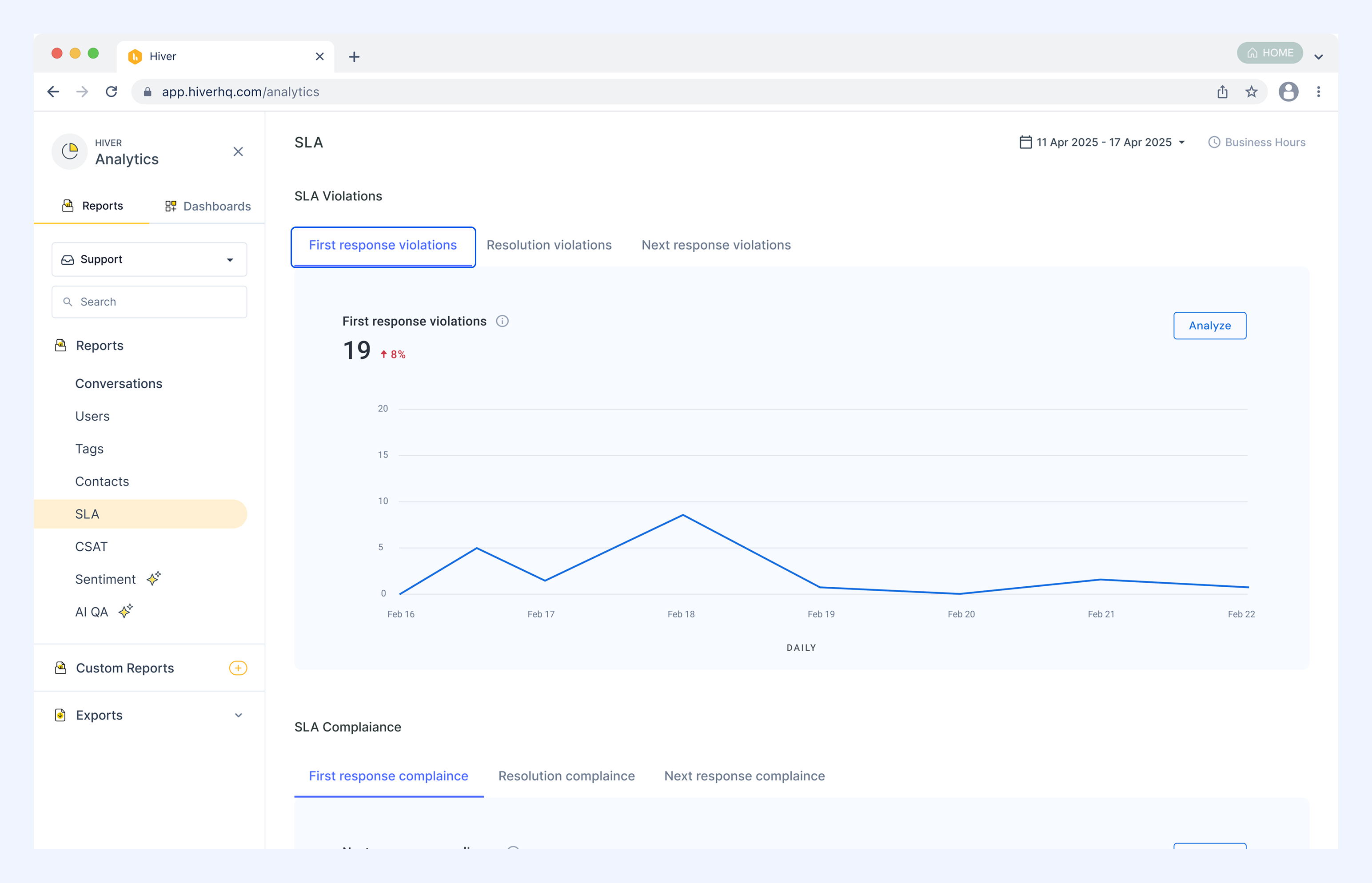
1. First response violations
Shows the number of conversations where the first response was not sent within the First Response Time (FRT) deadline.
Note: You can filter and group data by First responder to identify who sent the first reply in delayed conversations.
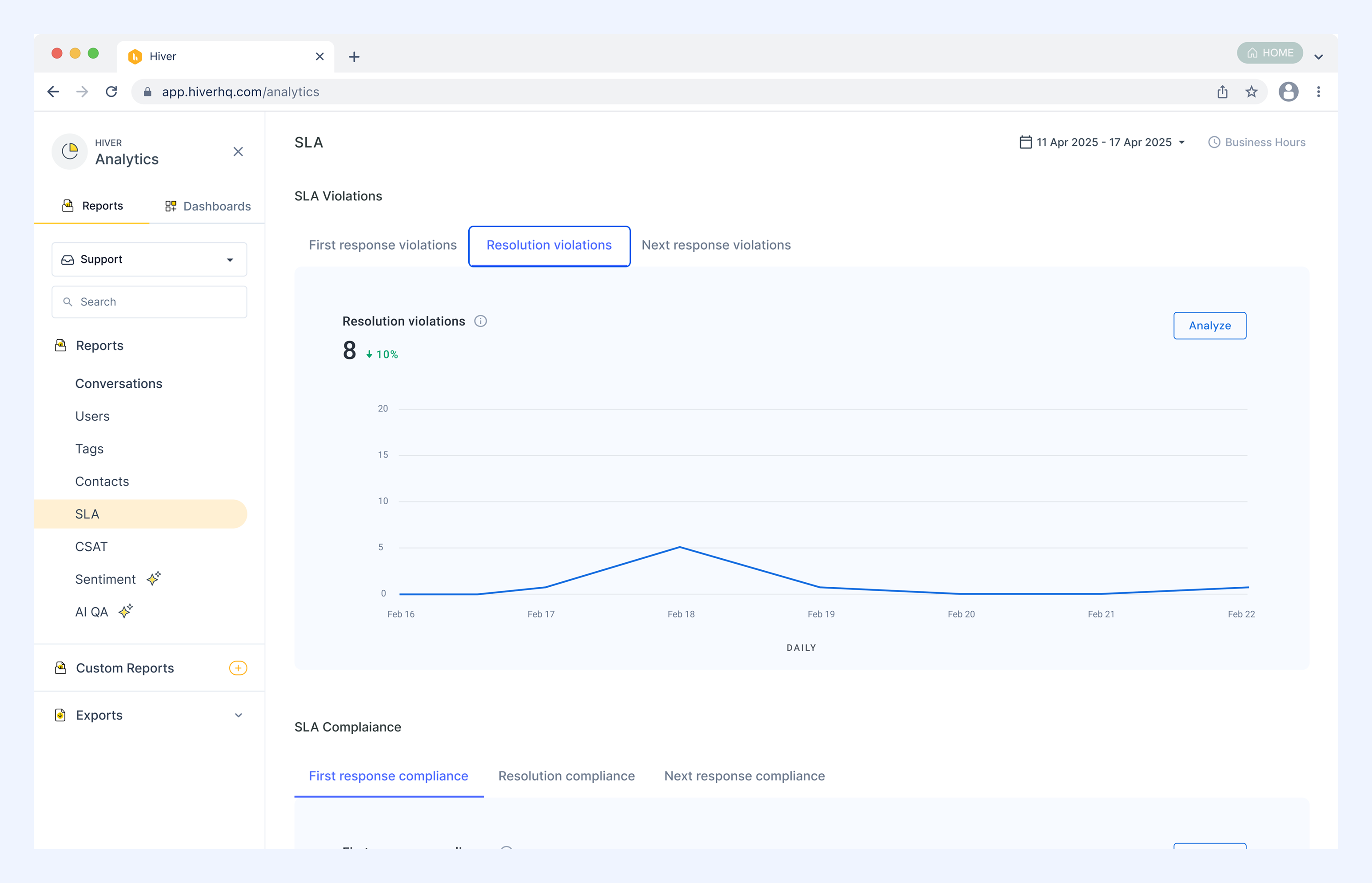
2. Resolution violations
Shows the number of conversations that were not marked as Closed within the Resolution Time (RT) deadline.
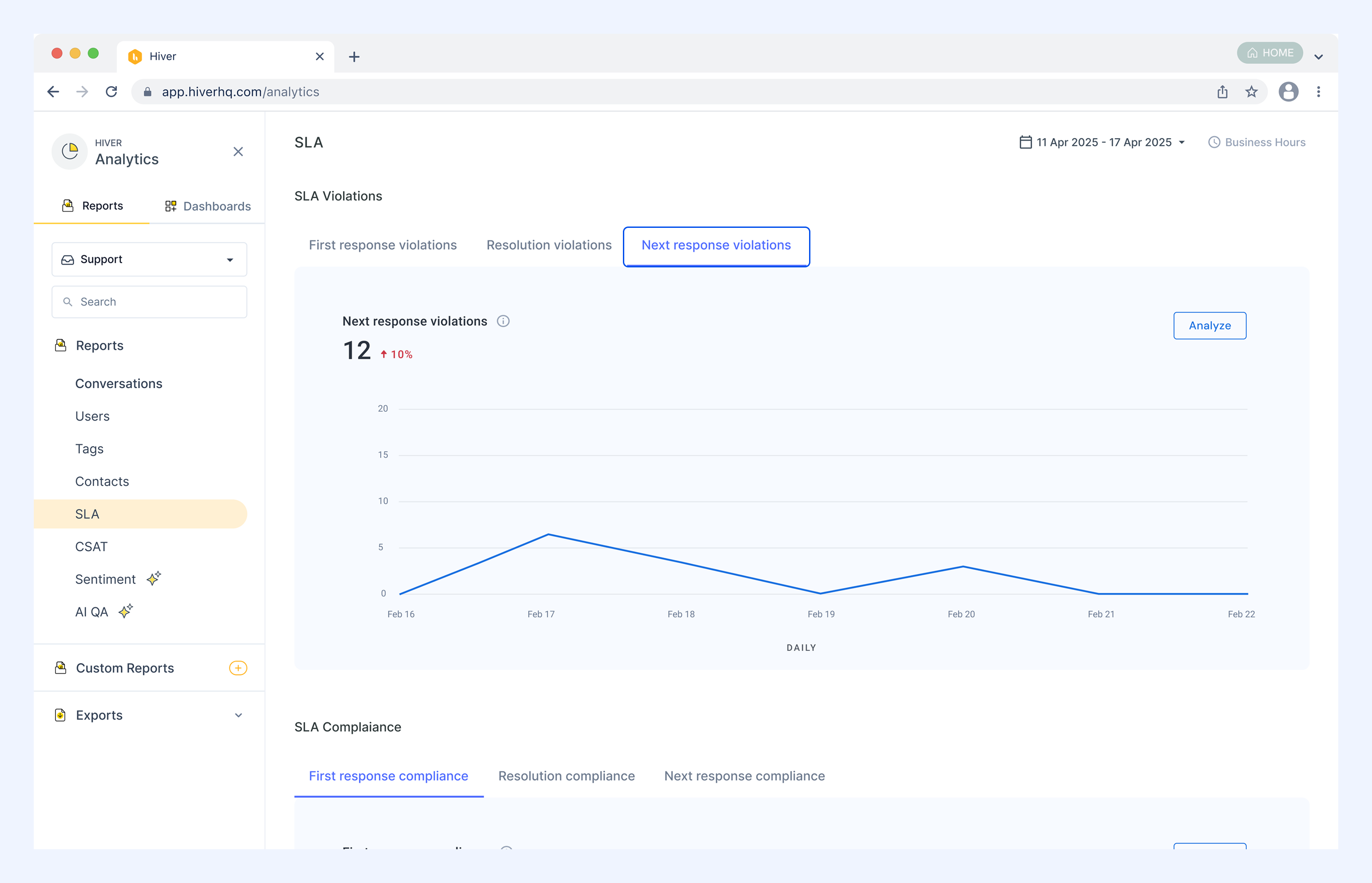
3. Next response violations
Shows the number of conversations where an agent did not reply within the Next Response Time (NRT) deadline after a customer responded.
Note: The NRT violation is measured from the first unanswered customer message in each conversation thread, not the most recent one.
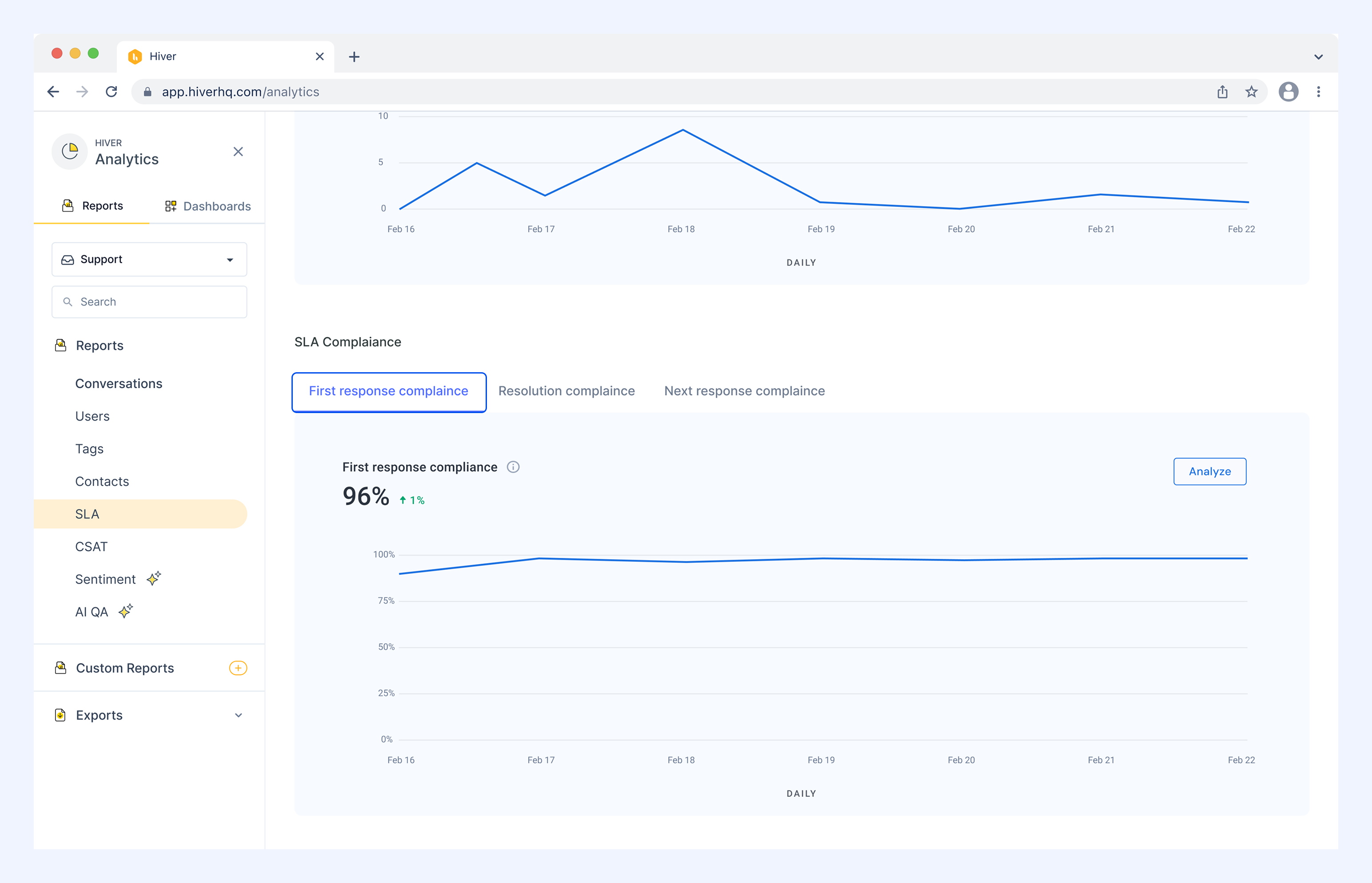
4. First response compliance
Shows the percentage of conversations where the first response was sent within the FRT deadline.
Note: You can filter by First responder to see which agents consistently meet first-response SLAs.
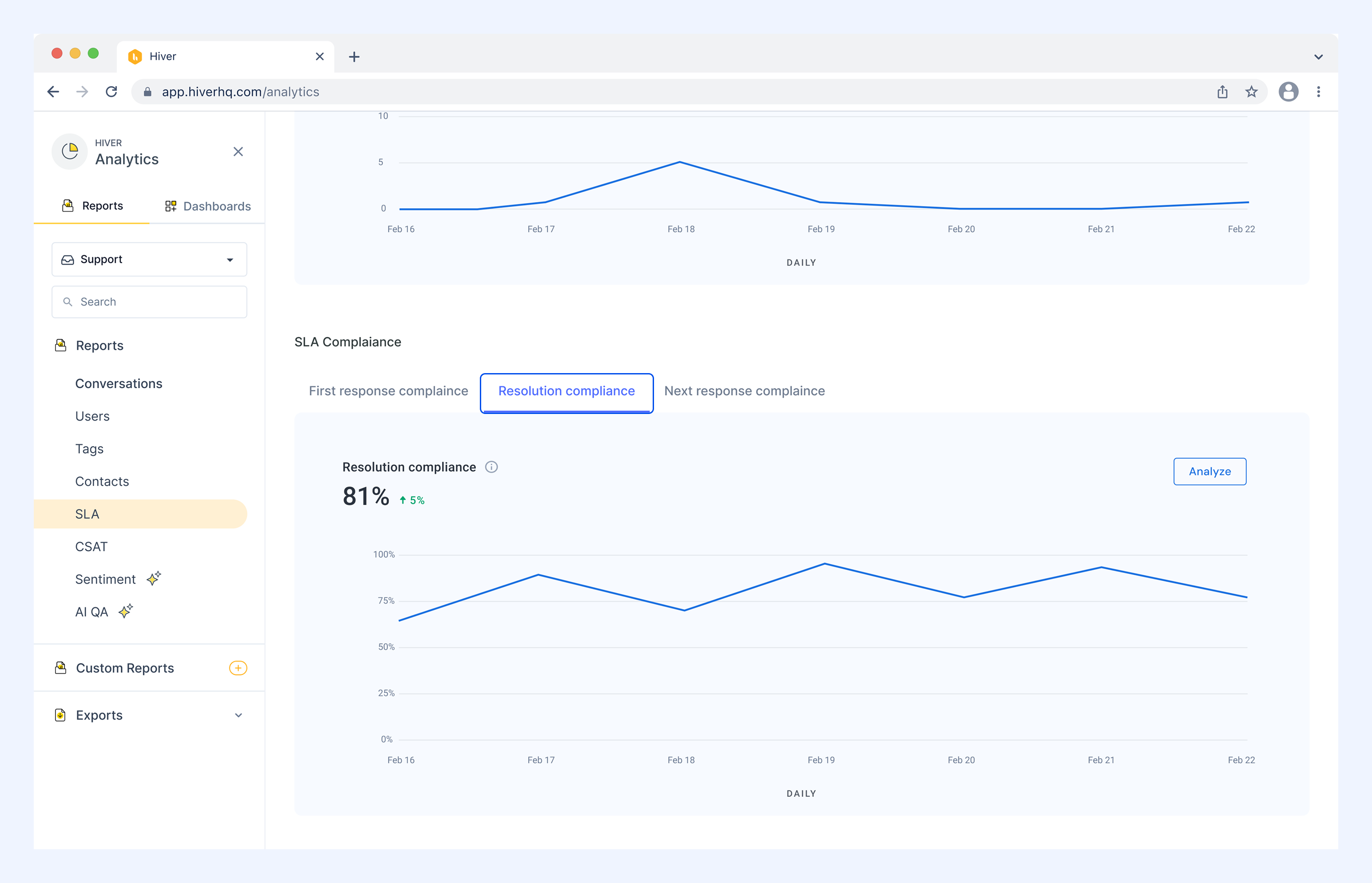
5. Resolution compliance
Shows the percentage of conversations resolved within the RT deadline.
Note: You can also group data by Company to track SLA performance for specific customers or accounts.
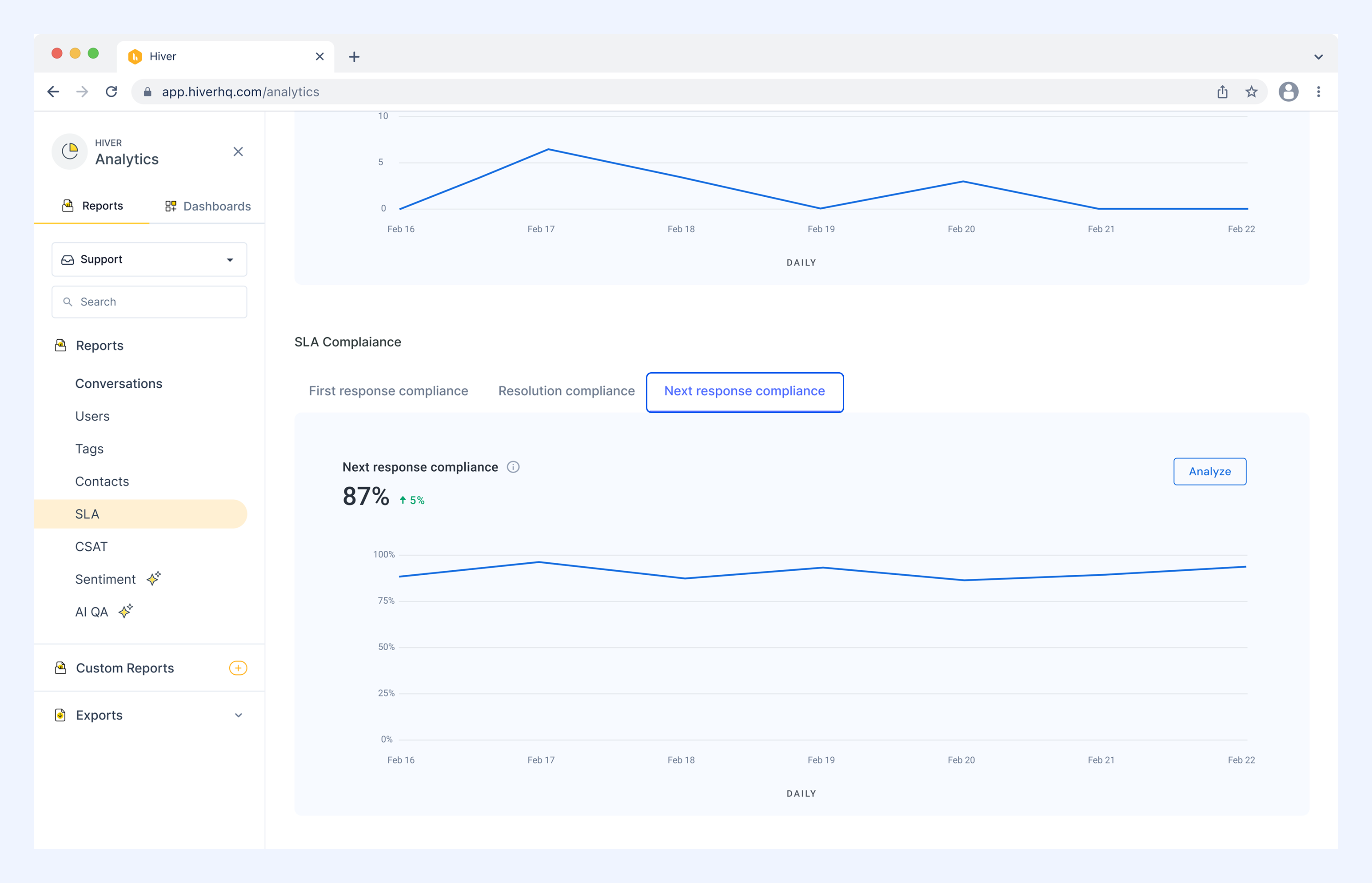
6. Next response compliance
Shows the percentage of conversations where agents replied within the NRT deadline across all conversation threads.
Accessing SLA data offline
You can download the SLA report for quick analysis or export in-depth data for deeper review and team sharing.
How to download the report
1. Select a metric and click Analyze.
2. Apply filters if needed and click Download.
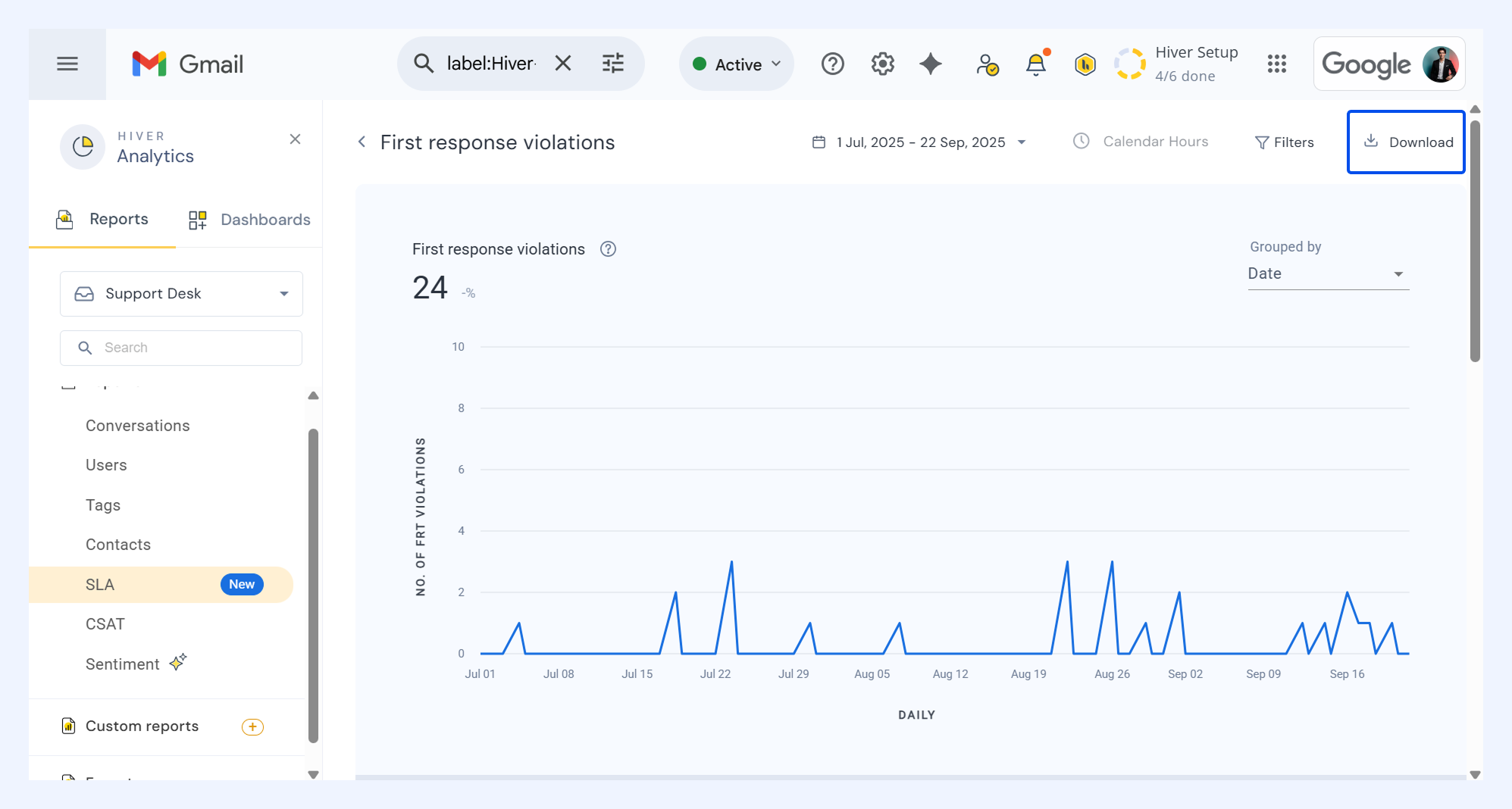
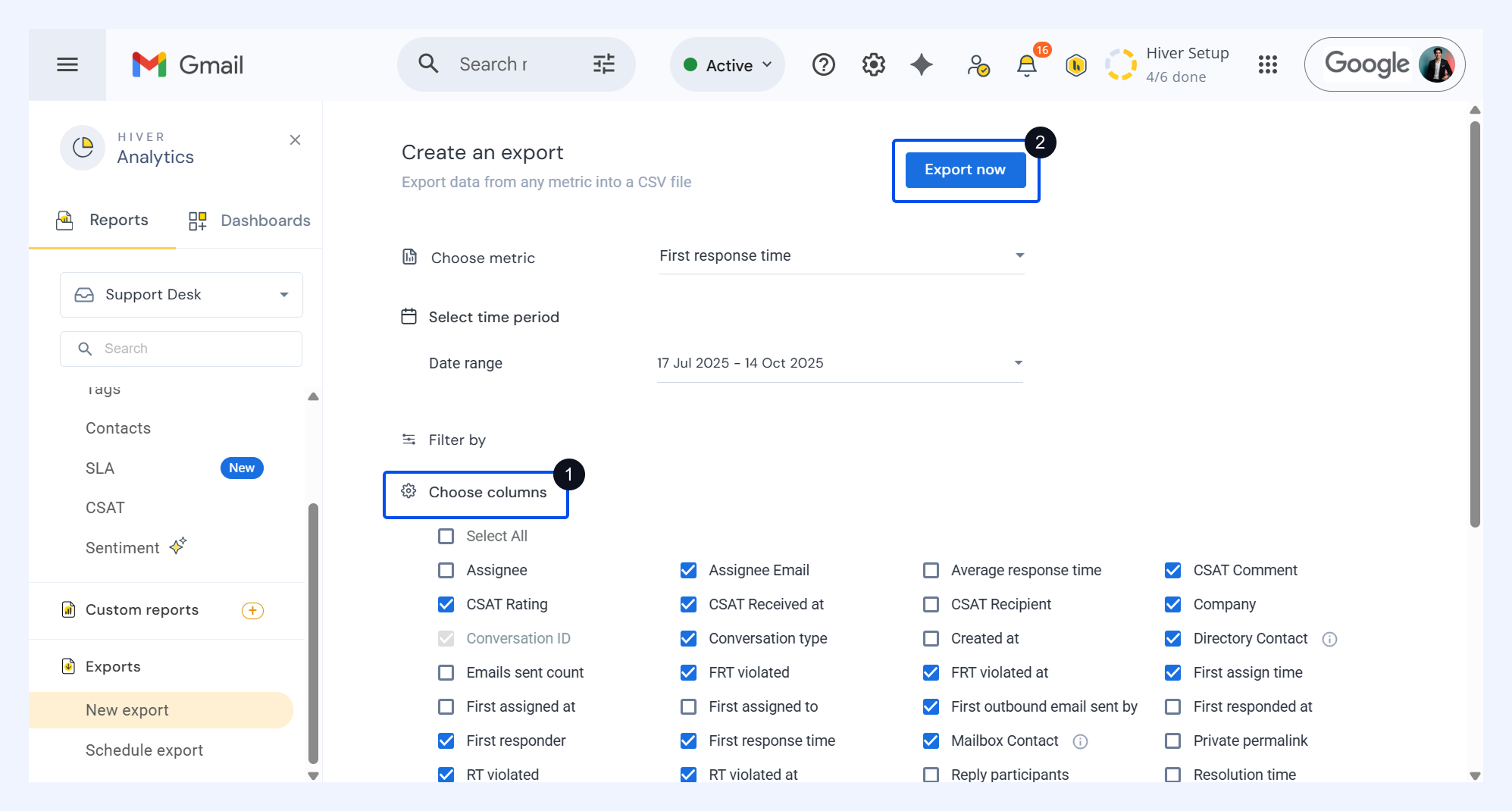
How to export SLA data
1. Go to Exports → New export
2. Select a metric and choose the time period.
3. Use Filter by to narrow down your data.
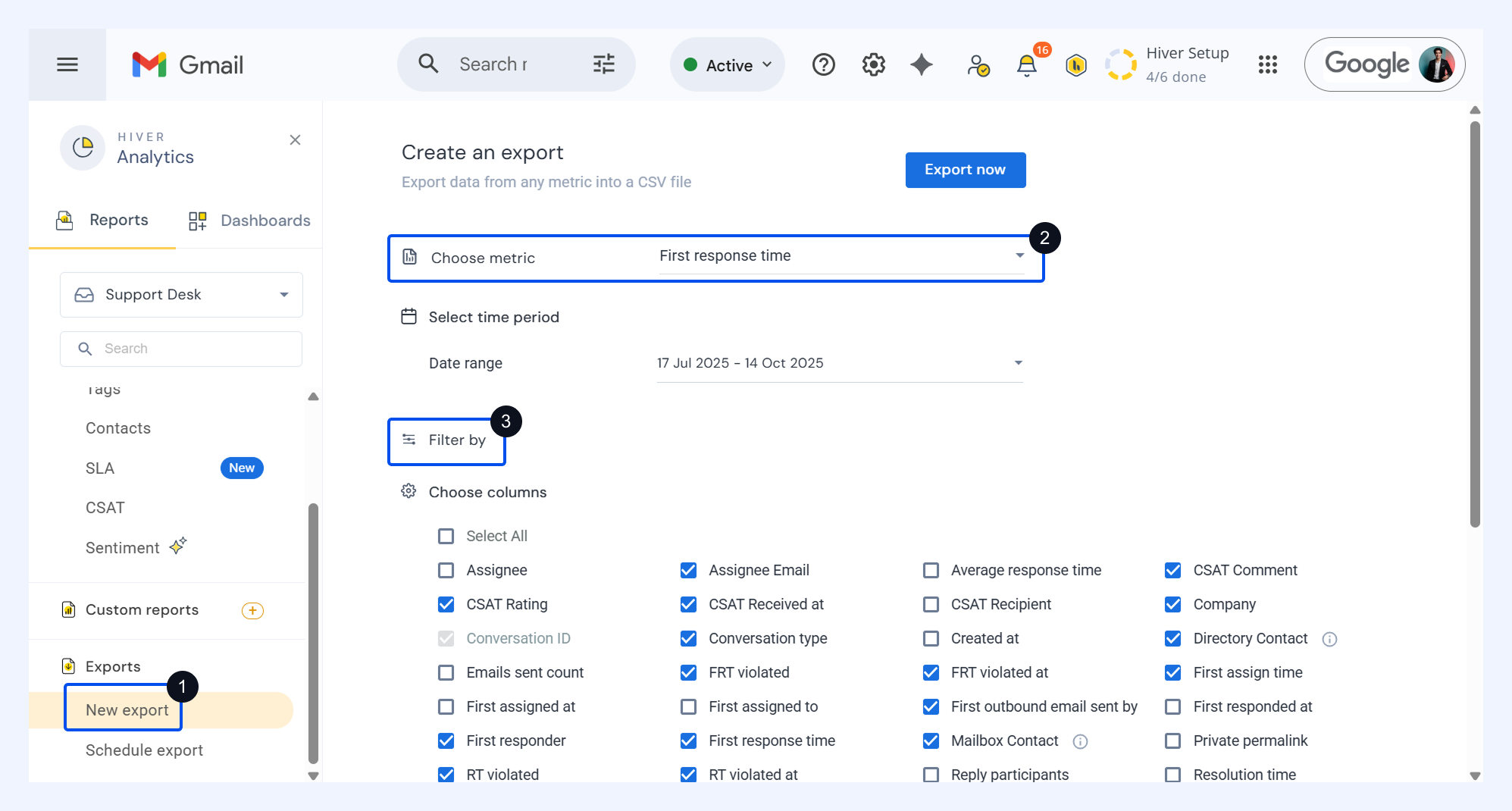
4. Under Choose columns, select the fields you want your report to contain.
5. Click Export now.