Getting started with Shifts
Shifts let you plan your team's working hours, see who is covering each Shared Inbox, and keep support running when customers need it.
In Hiver Omni, you create shifts for a Shared Inbox to record when members are working. Hiver marks the members on a shift as Available when it starts and as Away when it ends, so new conversations don't go to someone who has already signed off.
Each shift can carry its own hours, members, and time zone, so you can run morning, evening, and overnight shifts in the same Shared Inbox and cover the full day.
This article explains how to set up shifts for a Shared Inbox.
Prerequisites
Before you begin, make sure you have:
- The Elite plan in Hiver.
- Admin access in Hiver.
Setting up a shift
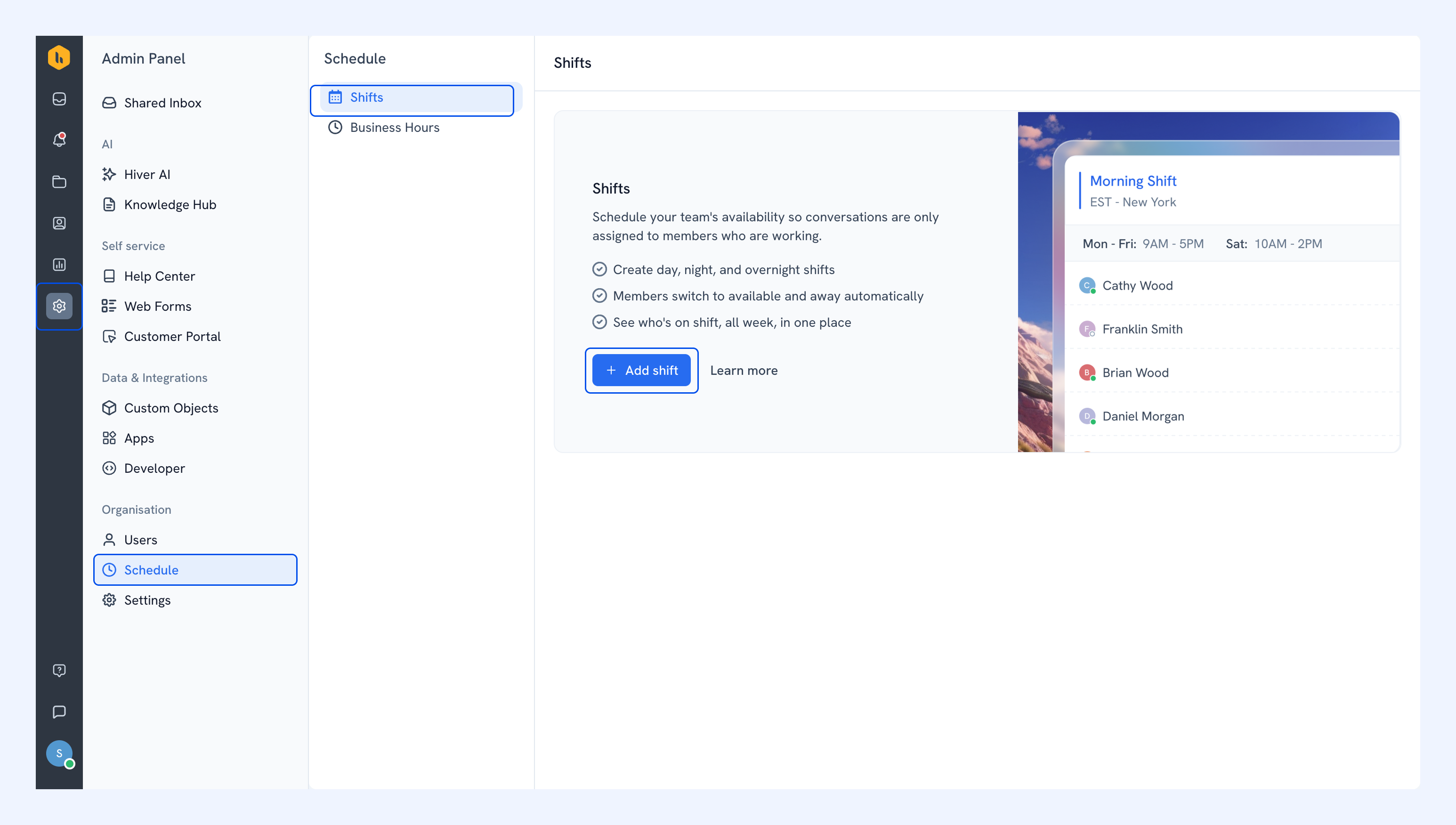
1. Go to Admin Panel → Schedule → Shifts and click Add shift.
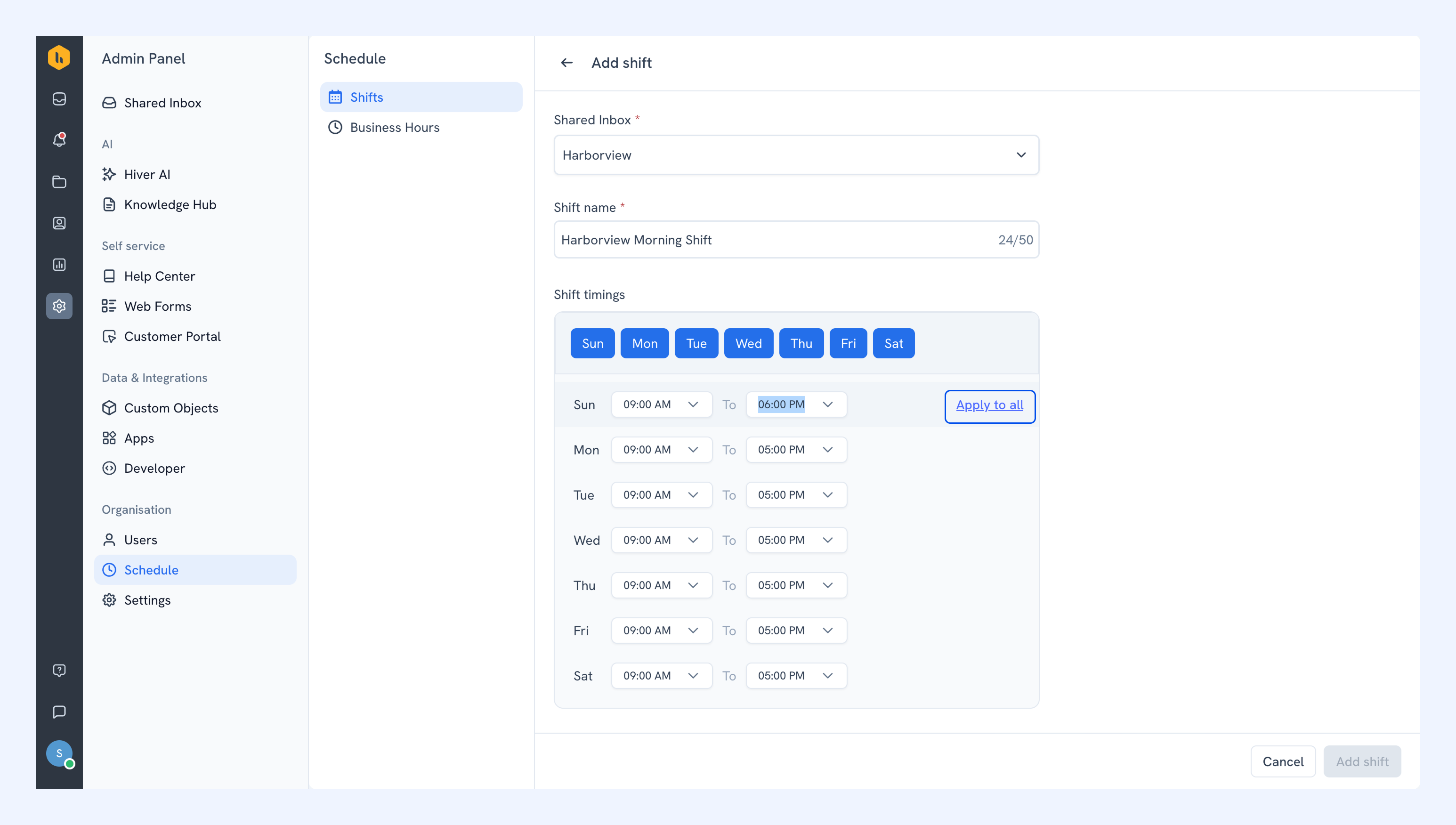
2. Select the Shared Inbox this shift runs in.
3. Enter a Shift name.
4. Under Shift timings, select the days the shift runs on.
5. Set the From and To time for each day. To apply one day's hours to all of them, hover over that day and click Apply to all.
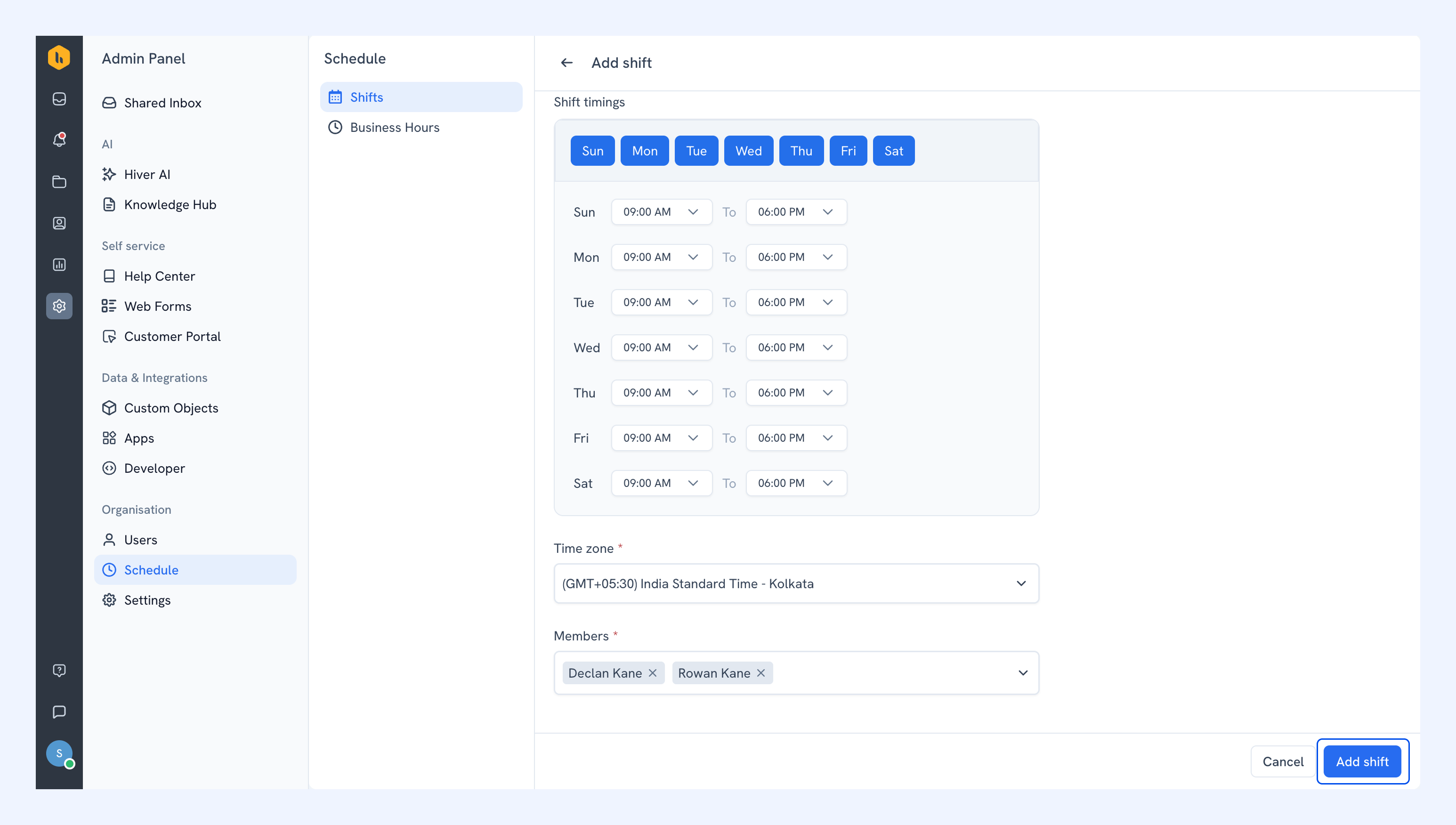
6. Select the Time zone the shift runs in.
7. Click Members, select the people on this shift, and click Add.
8. Click Add shift.
Note:
- You can set shift times in 15-minute intervals.
- Each shift follows its own time zone, and Hiver adjusts its timings for daylight saving automatically.
- A shift starting does not make a member available if they are marked Away or have scheduled Out of Office. They stay unavailable until they clear their Away status or the Out of Office ends, so new conversations are not assigned to them.
Setting up overnight shifts
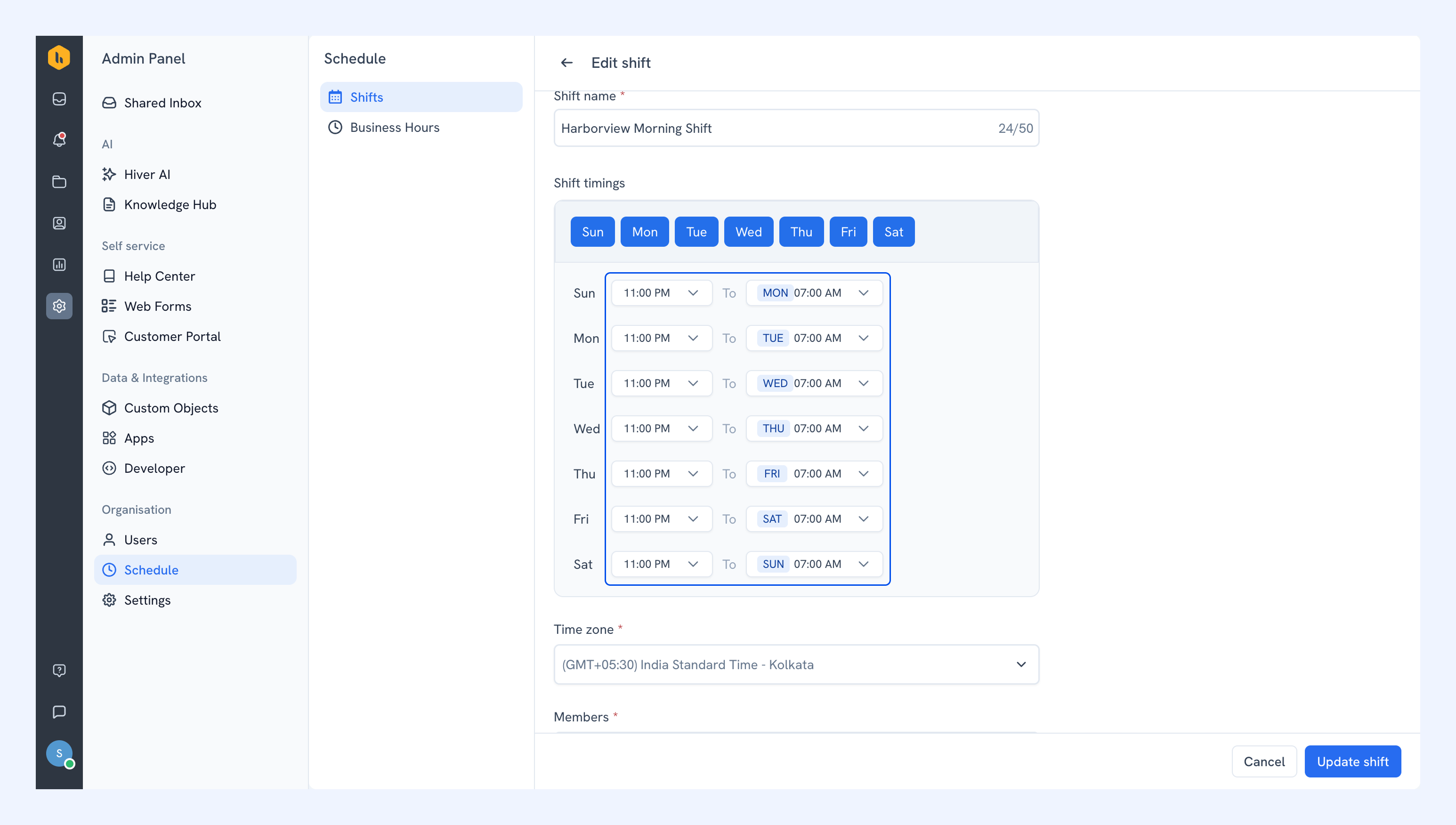
To run a shift that continues past midnight, set a To time that is earlier than the From time. Hiver reads it as a single shift that carries over into the next day.
For example, a shift set from 11:00 PM to 7:00 AM begins at 11:00 PM on the day you selected and finishes at 7:00 AM the following morning.
Note: The daily hours within a shift can't overlap. If an overnight shift runs into the hours set for the next day, end it earlier or move the remaining hours into a separate shift.
Viewing your team's schedule
Go to Admin Panel → Schedule → Shifts to see who is covering each Shared Inbox.
From here, you can:
- See each shift, the hours it runs, and the members on it.
- Check whether a member is Available or Away.
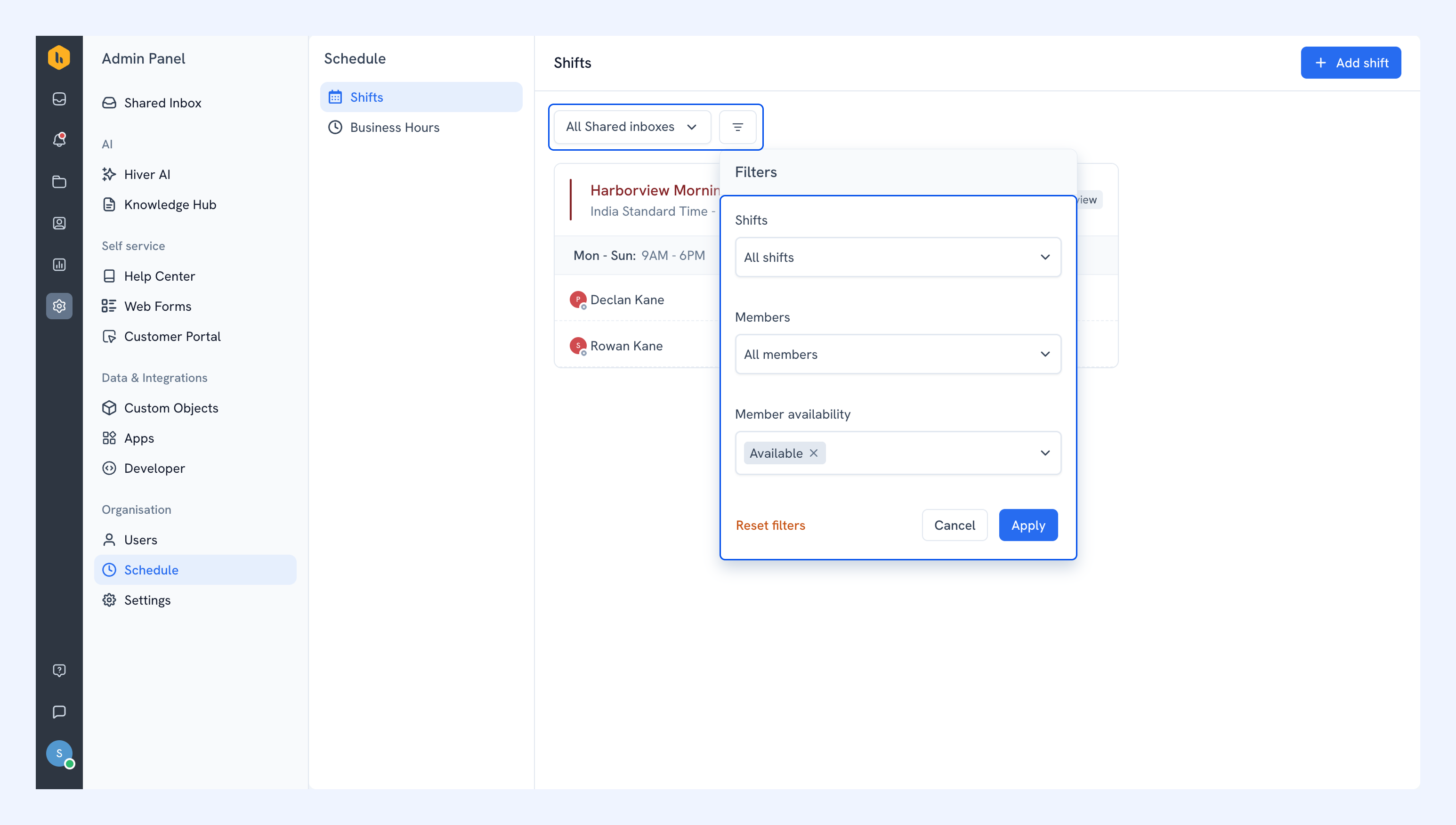
- Use the All Shared inboxes dropdown to filter by Shared Inboxes.
- Filter by Shifts, Members, or Member availability.
Managing shifts
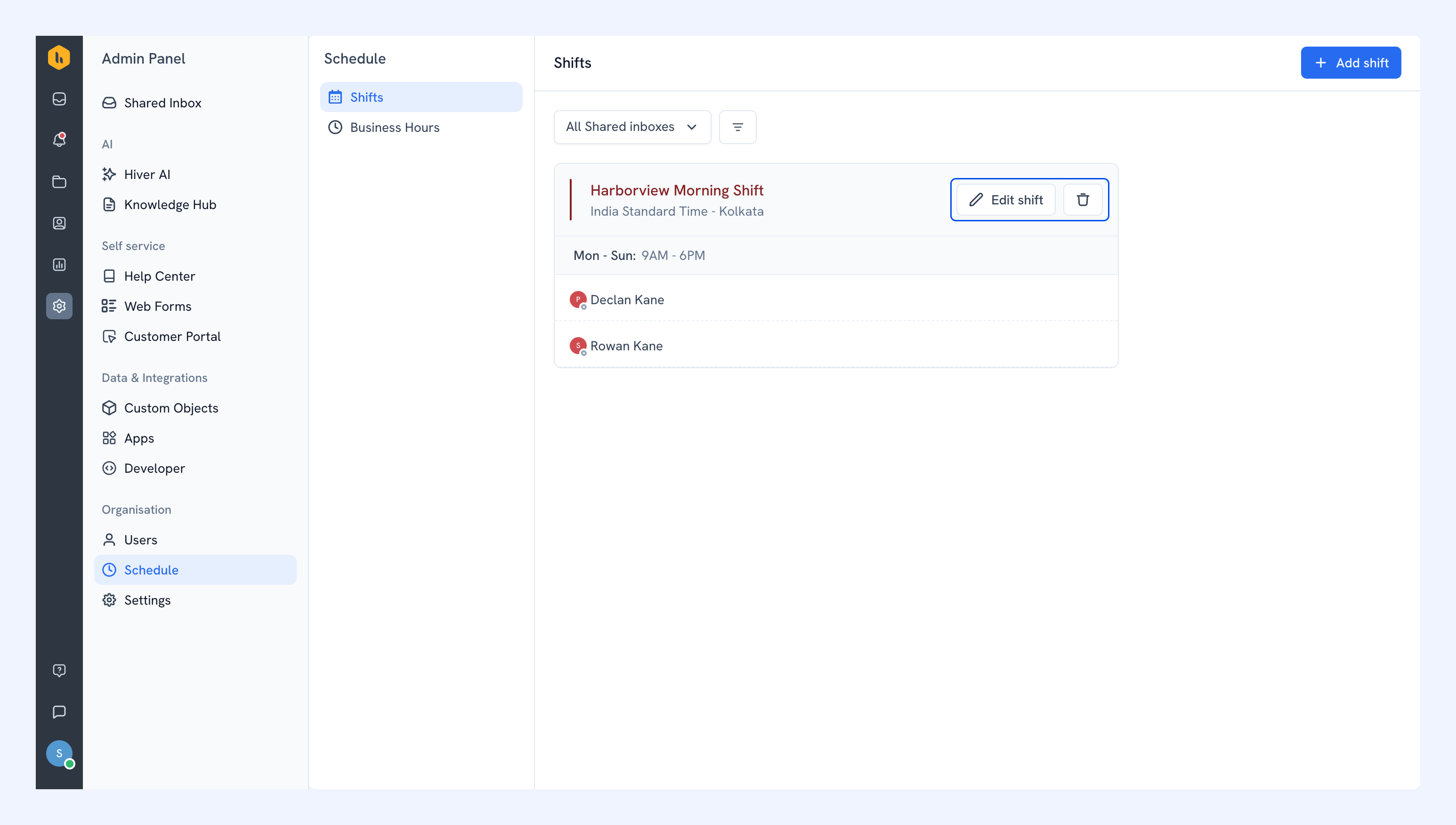
Hover over a shift to edit or delete it.
To make changes, click Edit shift, update the name, days, hours, time zone, or members, then click Update shift.
To remove the shift, click the delete icon and confirm.
Note:
- Deleting a shift takes all its members off that shift. It doesn't remove them from the Shared Inbox.
- Changing an ongoing shift can affect when its members are marked available:
- If you change the shift timings, you can choose to keep its members available until the current shift ends.
- If you remove a member, Hiver marks them Away immediately unless you choose to keep them available until the shift ends.
Checking for overlapping shifts
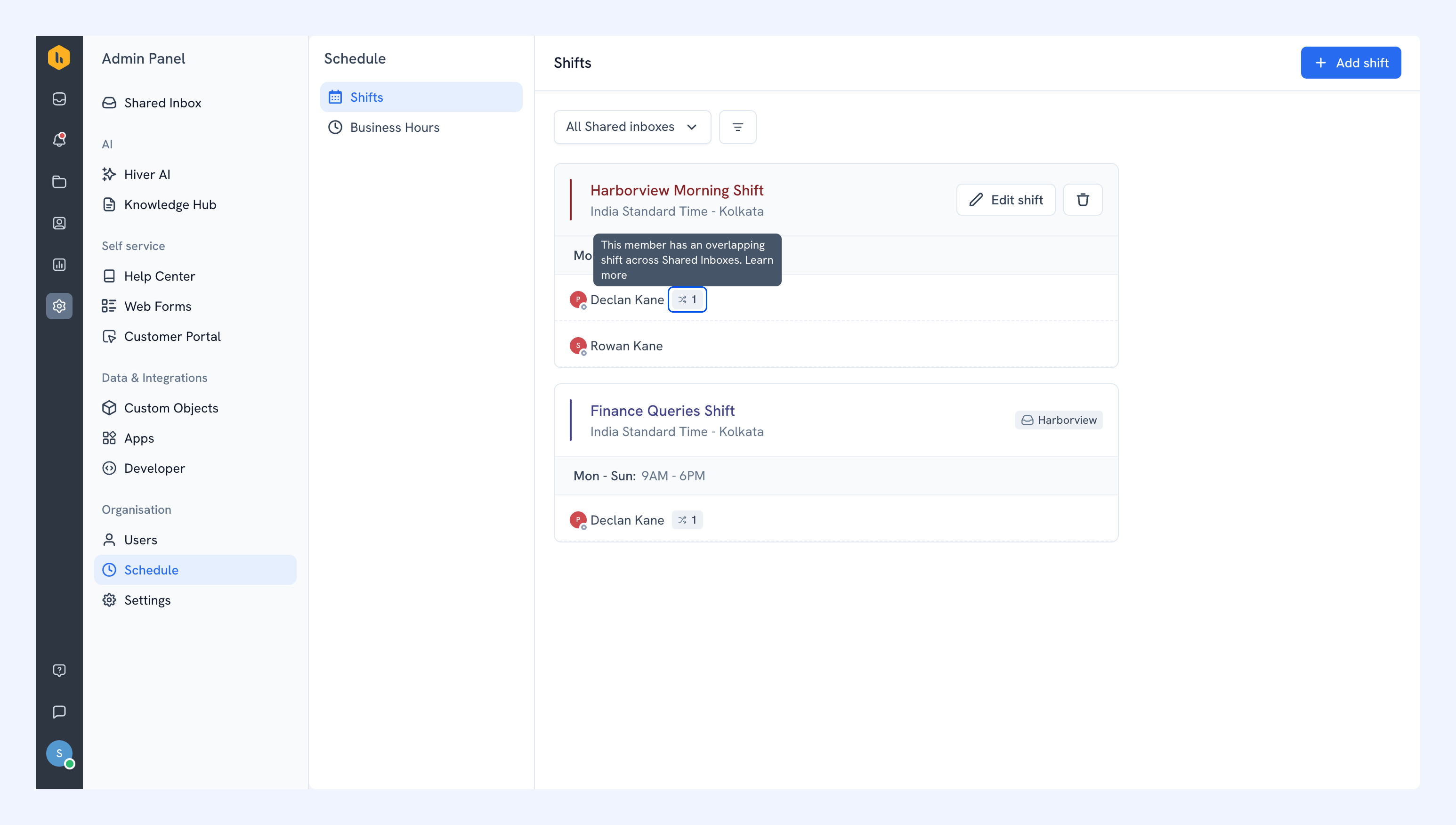
When a member is on shifts in more than one Shared Inbox, Hiver shows an icon next to their name. Hover over it to see how many of their shifts overlap.
A member with overlapping shifts stays available until every one of those shifts has ended. For example, if one shift runs from 9:00 AM to 5:00 PM and another from 2:00 PM to 10:00 PM, a member on both stays available from 9:00 AM to 10:00 PM.
FAQs
Can a team member be on more than one shift?
Yes, both within the same Shared Inbox and across different ones. When those shifts overlap, the member stays on shift until the last of them ends.
Is there a limit to how many shifts I can create?
No. You can create as many shifts as a Shared Inbox needs.
Can one shift cover more than one Shared Inbox?
No. A shift belongs to one Shared Inbox. To run the same schedule elsewhere, create the shift again in that inbox.
Can I set different hours for different days in the same shift?
Yes. Every day you select has its own start and end time, so a single shift can run 9:00 AM to 5:00 PM on weekdays and 10:00 AM to 2:00 PM on Saturday.
Do my shifts have to stay inside my Business Hours?
No. Shifts and Business Hours are configured separately, so a shift can begin before or end after your Business Hours.