WhatsApp Integration Prerequisites
Before you can integrate WhatsApp with Hiver, Meta requires a Meta Business Manager account and a Meta Developer account. This article walks you through the three prerequisites for connecting WhatsApp to Hiver.
Prerequisite 1: Set up a Meta Business Manager account
Meta Business Manager (formerly Facebook Business Manager) is the central hub where you'll manage your WhatsApp Business Account and other Meta business tools.
How to create your account
1. Go to business.facebook.com and sign in, or create a new account.
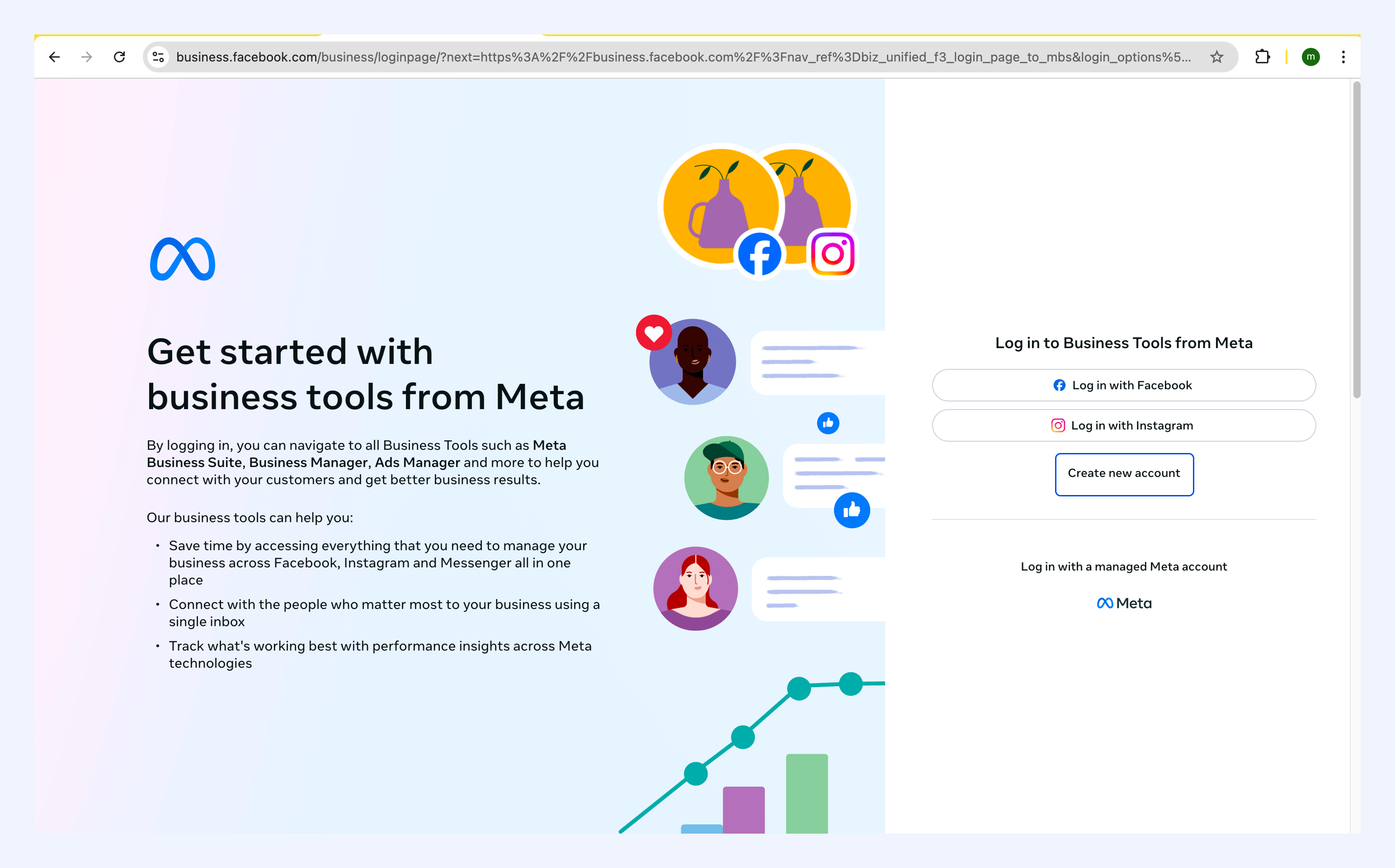
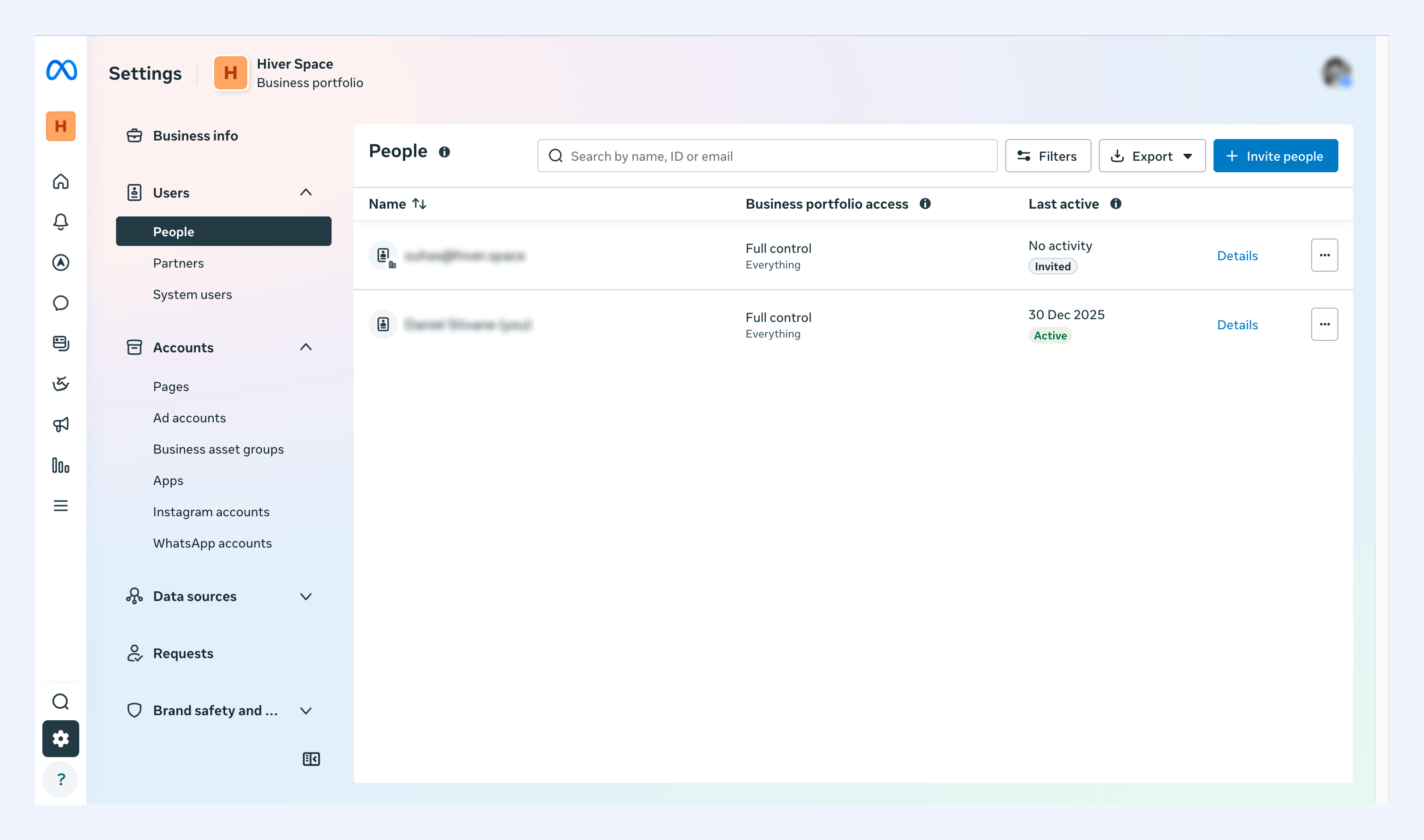
2. Once you're signed in, you'll land on your Business Manager dashboard.
Prerequisite 2: Use an eligible phone number
Your phone number is your business identity on WhatsApp, so it needs to meet Meta's requirements.
Phone number requirements
Your number must meet both of these:
- Not currently in use: it can't be linked to any personal WhatsApp account, the WhatsApp Business App, or another WhatsApp Business API account.
- Able to receive verification codes: it must be able to get an SMS or voice call for OTP verification.
If the number is currently on WhatsApp Personal or the WhatsApp Business App, delete that account before you continue.
Scenario 1: Your number is on WhatsApp or the WhatsApp Business App
If this number is on the personal WhatsApp app or the WhatsApp Business App, delete that account before you connect it to Hiver.
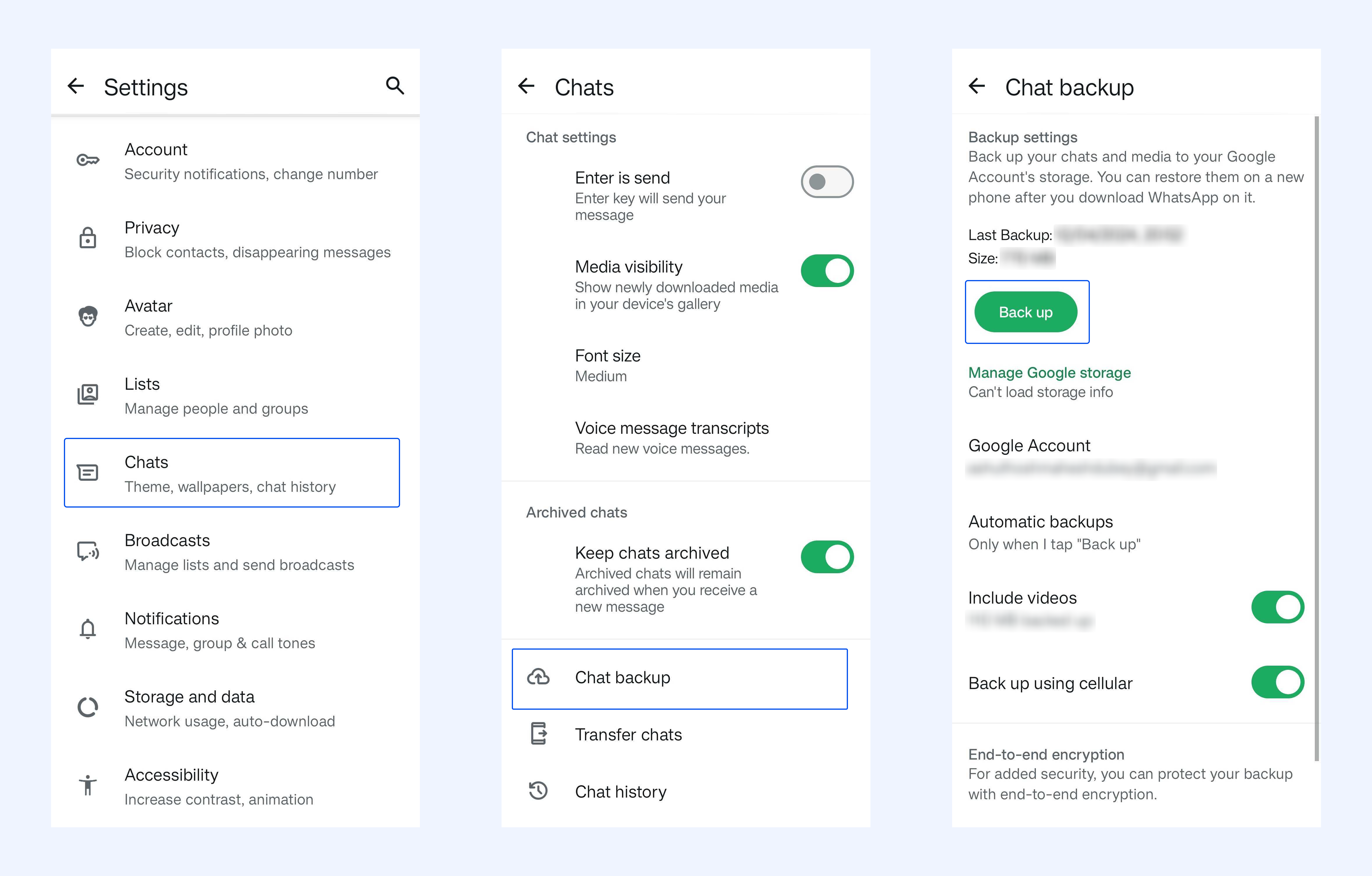
Step 1: Back up your chats (optional)
1. Open WhatsApp on your device.
2. Go to Settings → Chats → Chat backup.
3. Tap Back up to save your conversation history.
Step 2: Delete your account
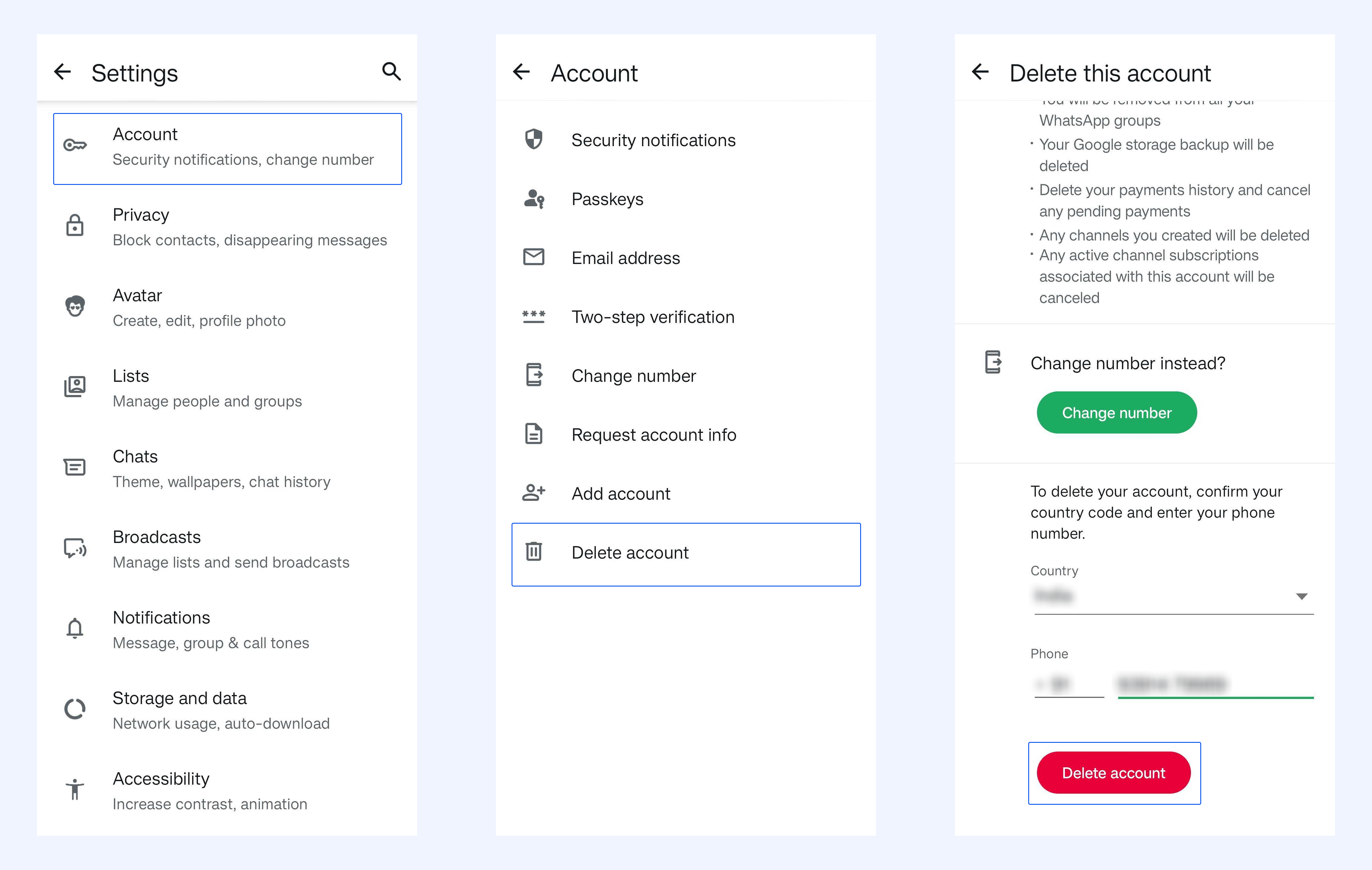
1. Open WhatsApp or the WhatsApp Business App.
2. Go to Settings → Account.
3. Tap Delete account.
4. Enter your phone number when prompted.
5. Tap Delete account again to confirm.
Scenario 2: Your number is connected to another helpdesk or tool
If this number is connected to another platform, like a different helpdesk or WhatsApp solution provider, follow these steps.
Step 1: Disconnect the third-party provider
1. Go to business.facebook.com.
2. Open Settings and click the Partners tab.
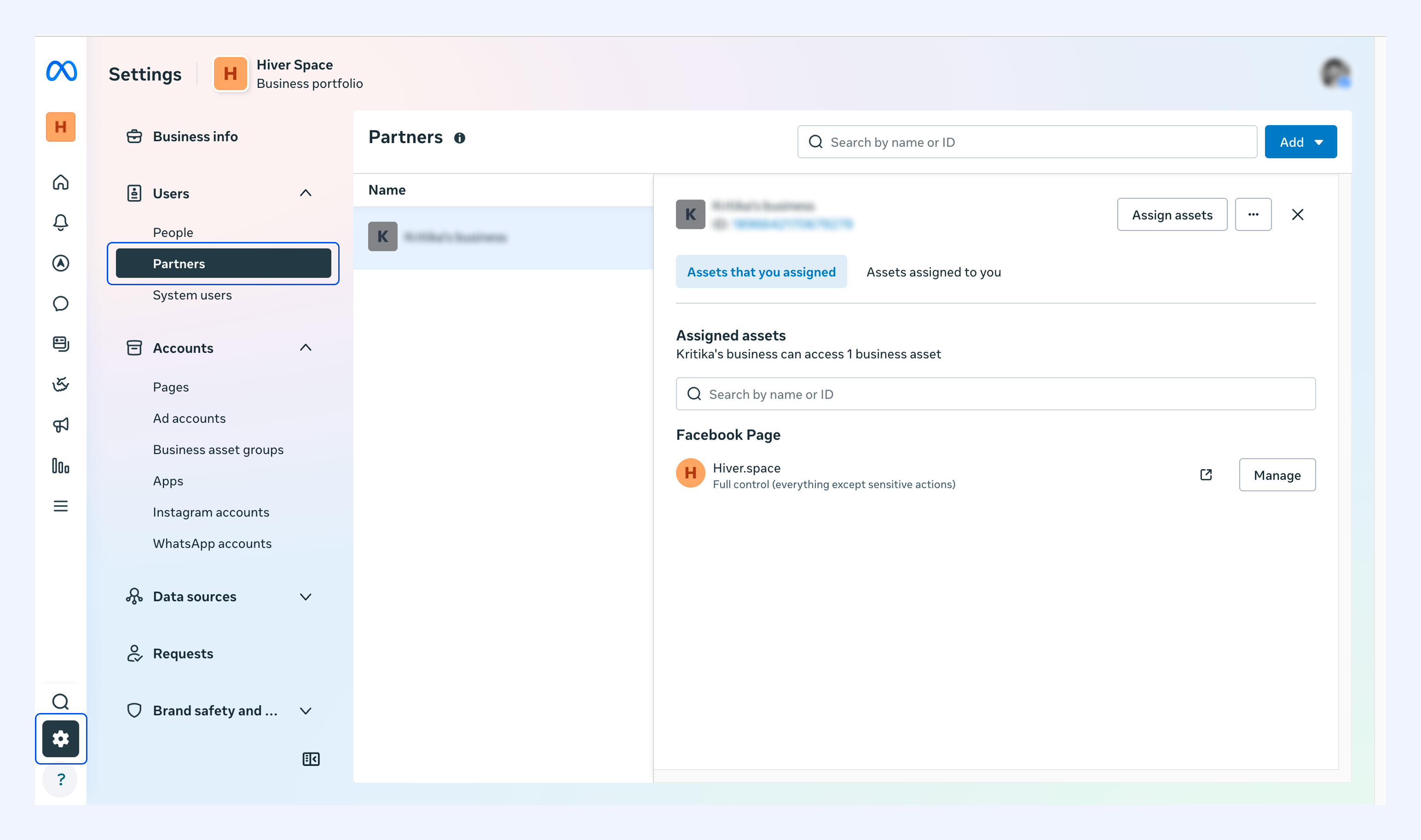
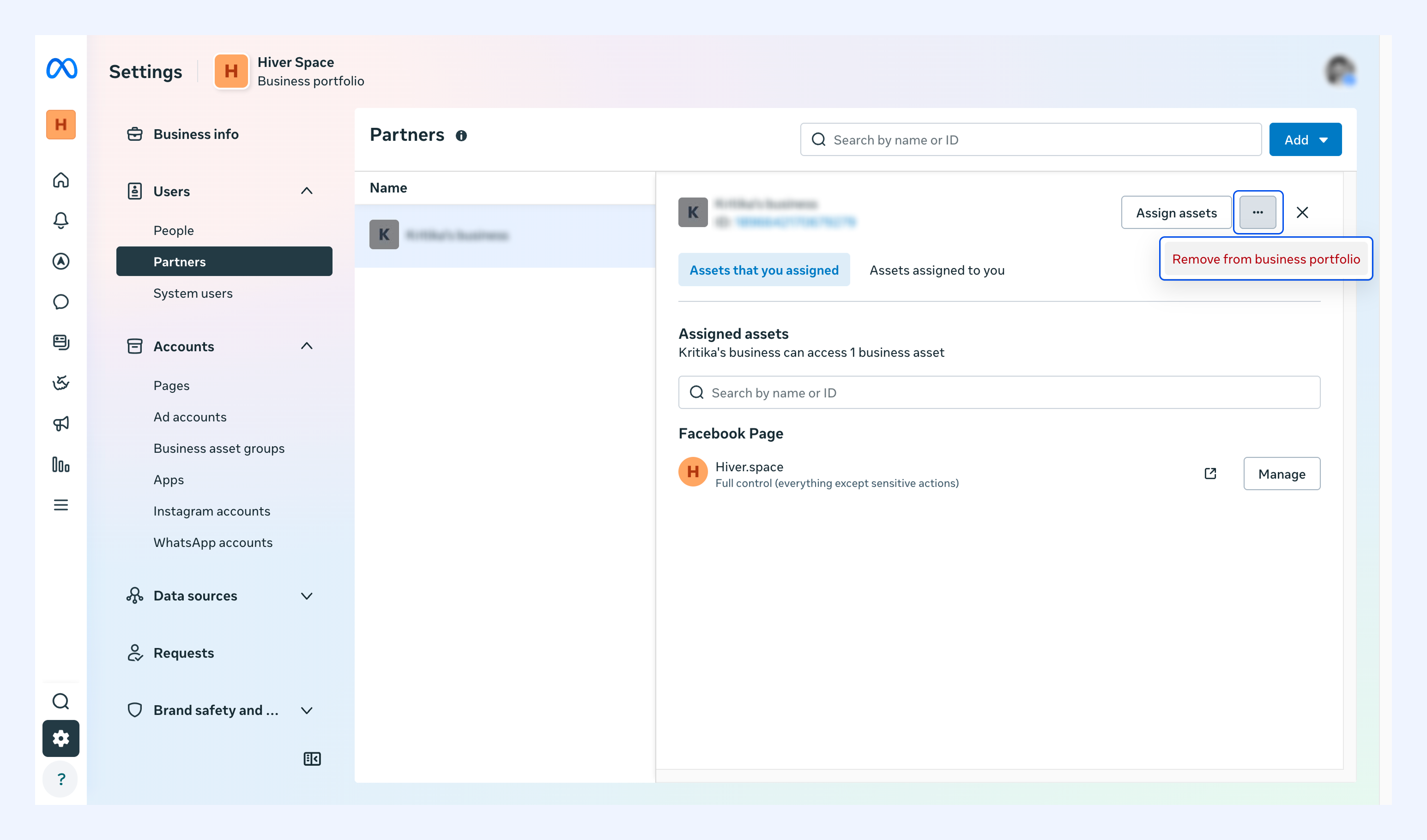
3. Find your current provider and click Remove from business portfolio.
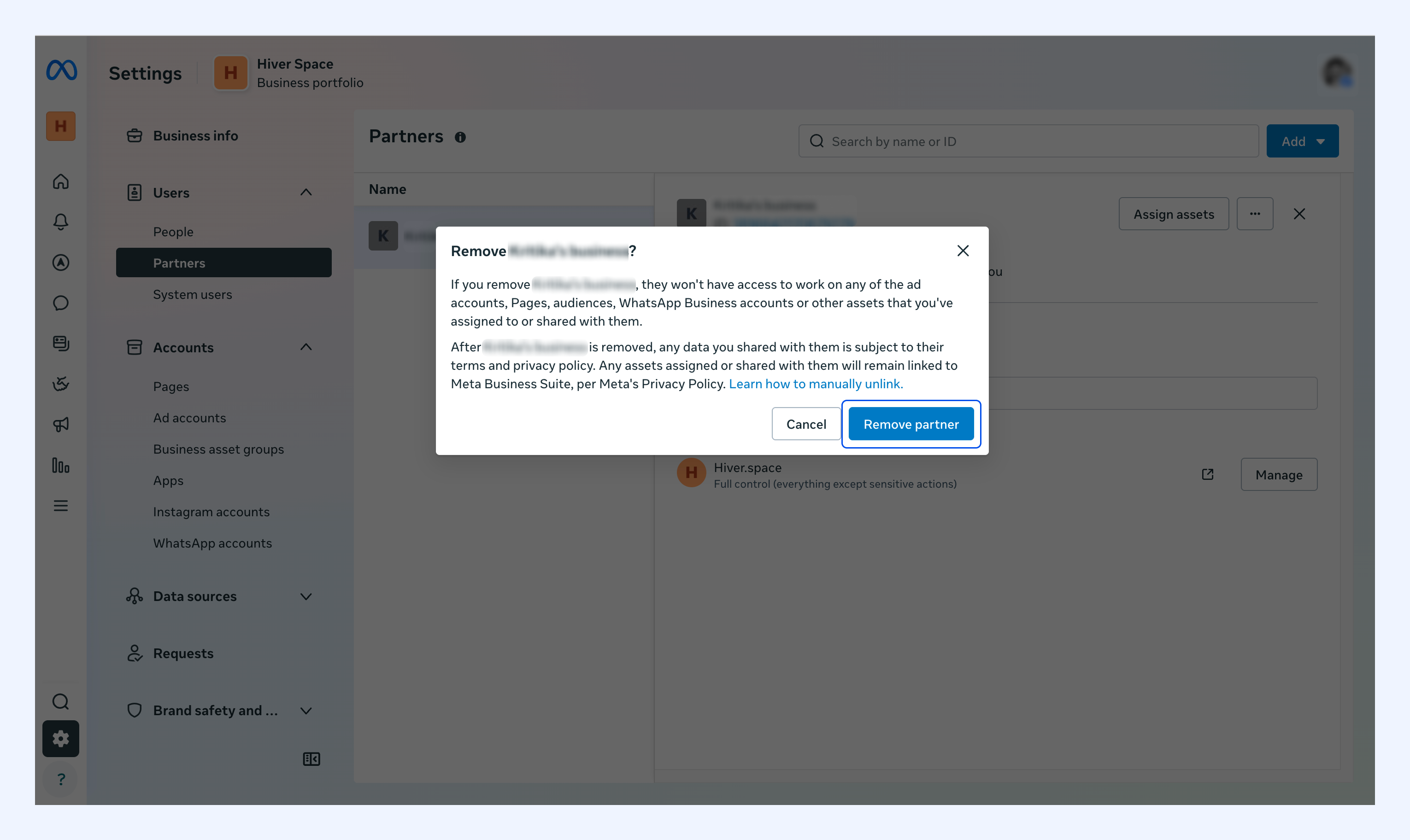
4. Confirm by clicking Remove partner.
Step 2: Delete the number from your current provider
1. Contact your current provider and ask for a backup of your chat history if you need it.
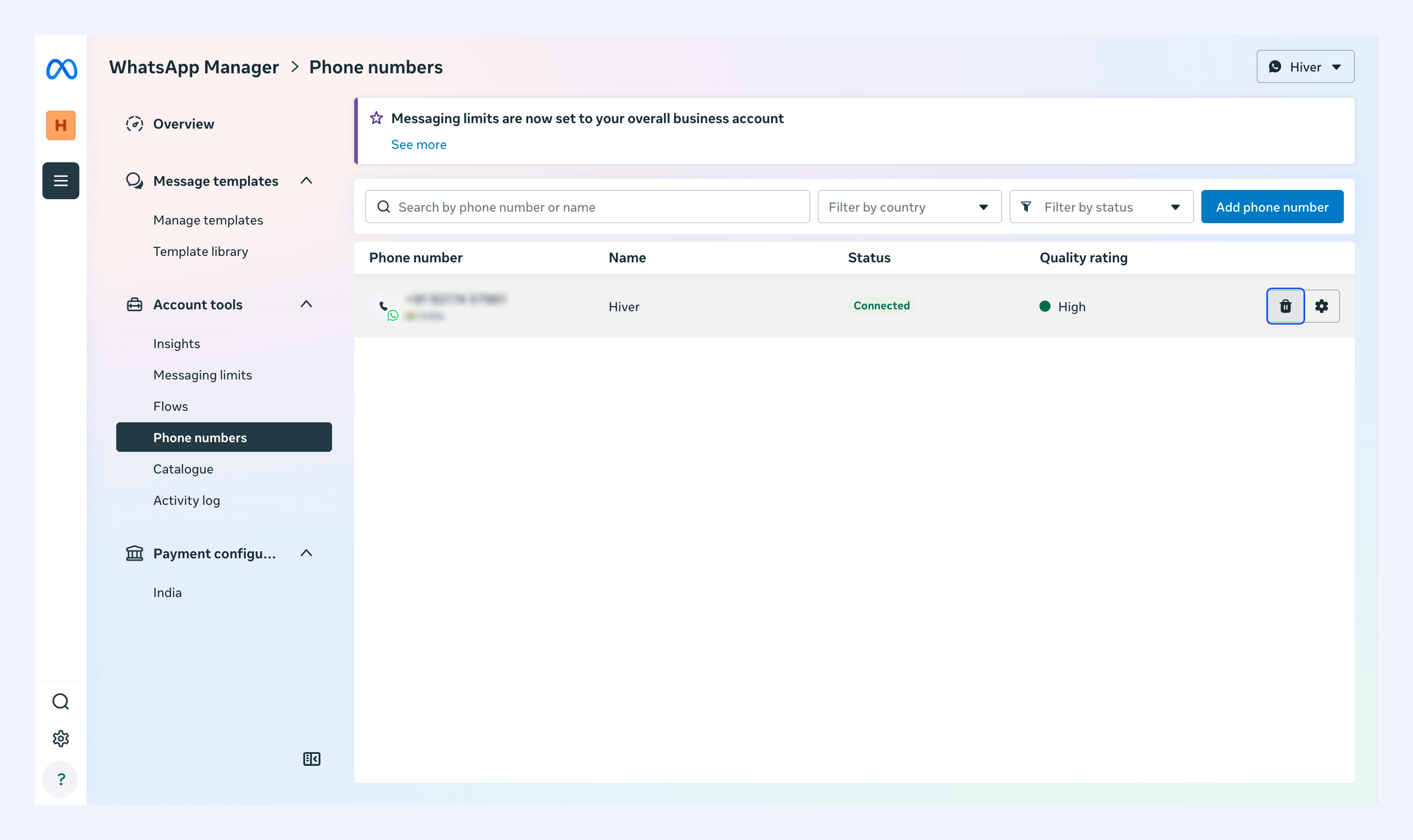
2. Go to WhatsApp Manager → Phone numbers.
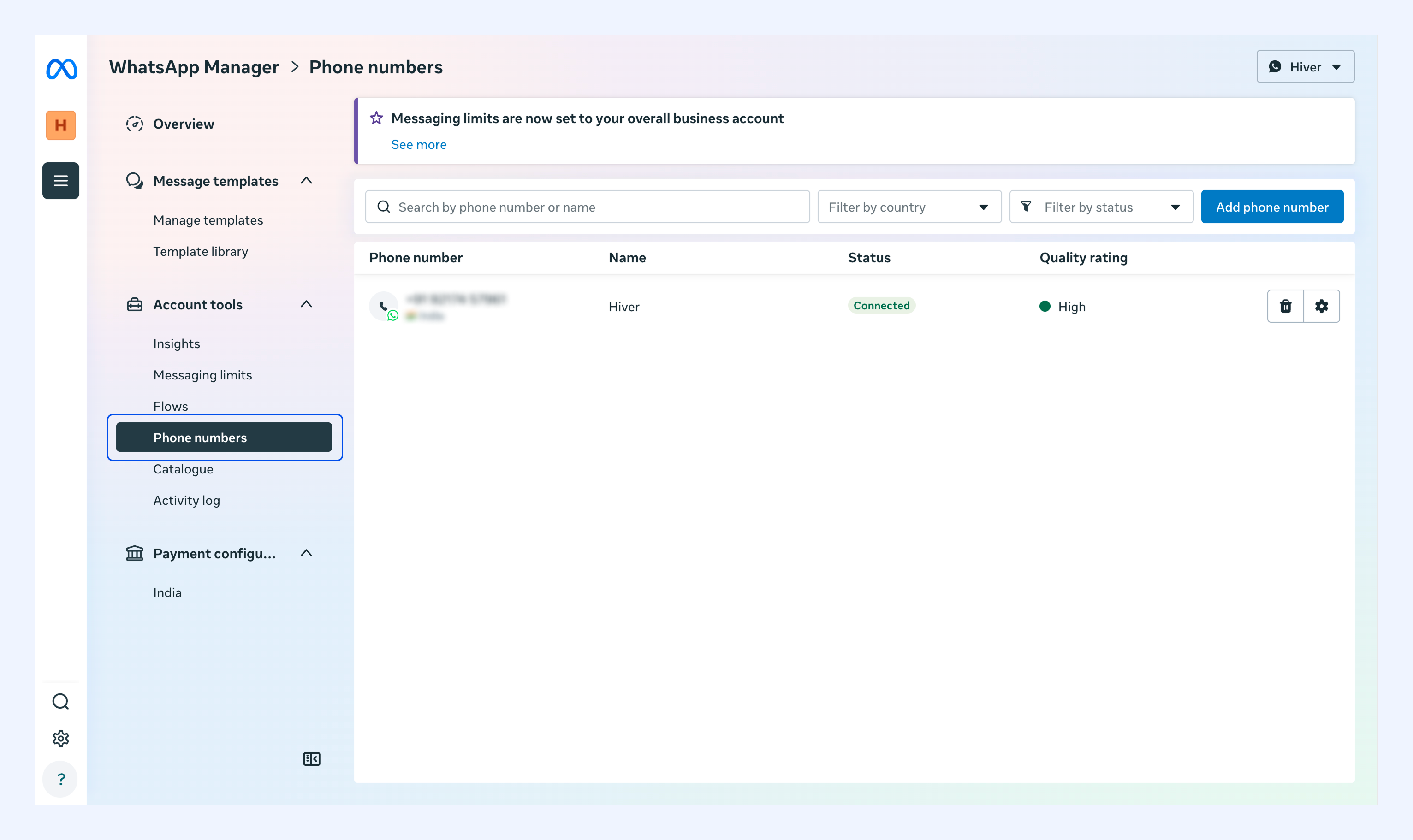
3. Click the delete icon.
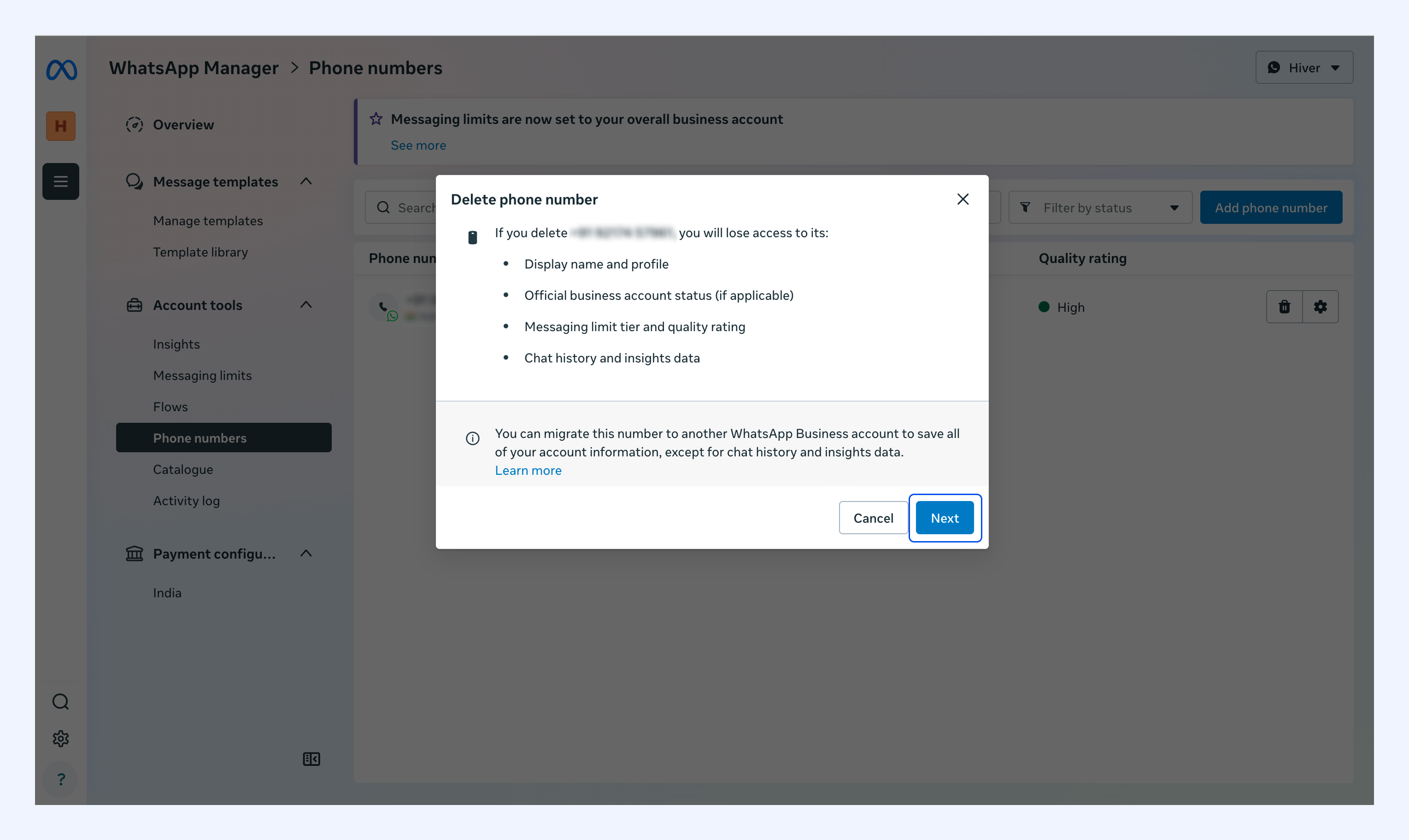
4. Click Next.
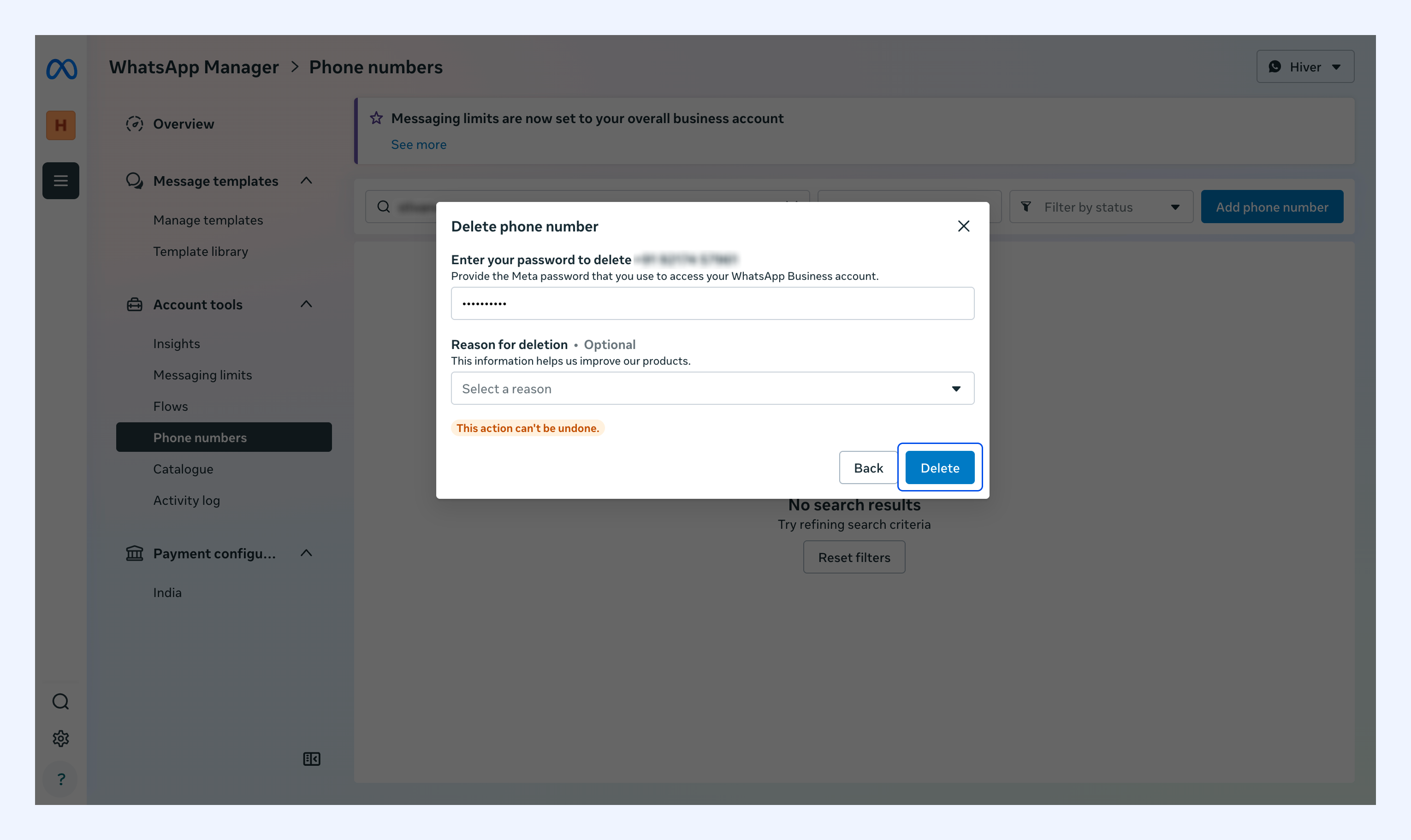
5. Enter your Meta password and click Delete to confirm.
Once you're done, your number is ready to connect through a Meta Business account.
Prerequisite 3: Create a Meta Developer account
The final prerequisite is a Meta Developer account. It gives you access to WhatsApp's APIs and lets you authorize Hiver to connect to your WhatsApp Business Account.
How to create your developer account
1. Go to developers.facebook.com and click Login.
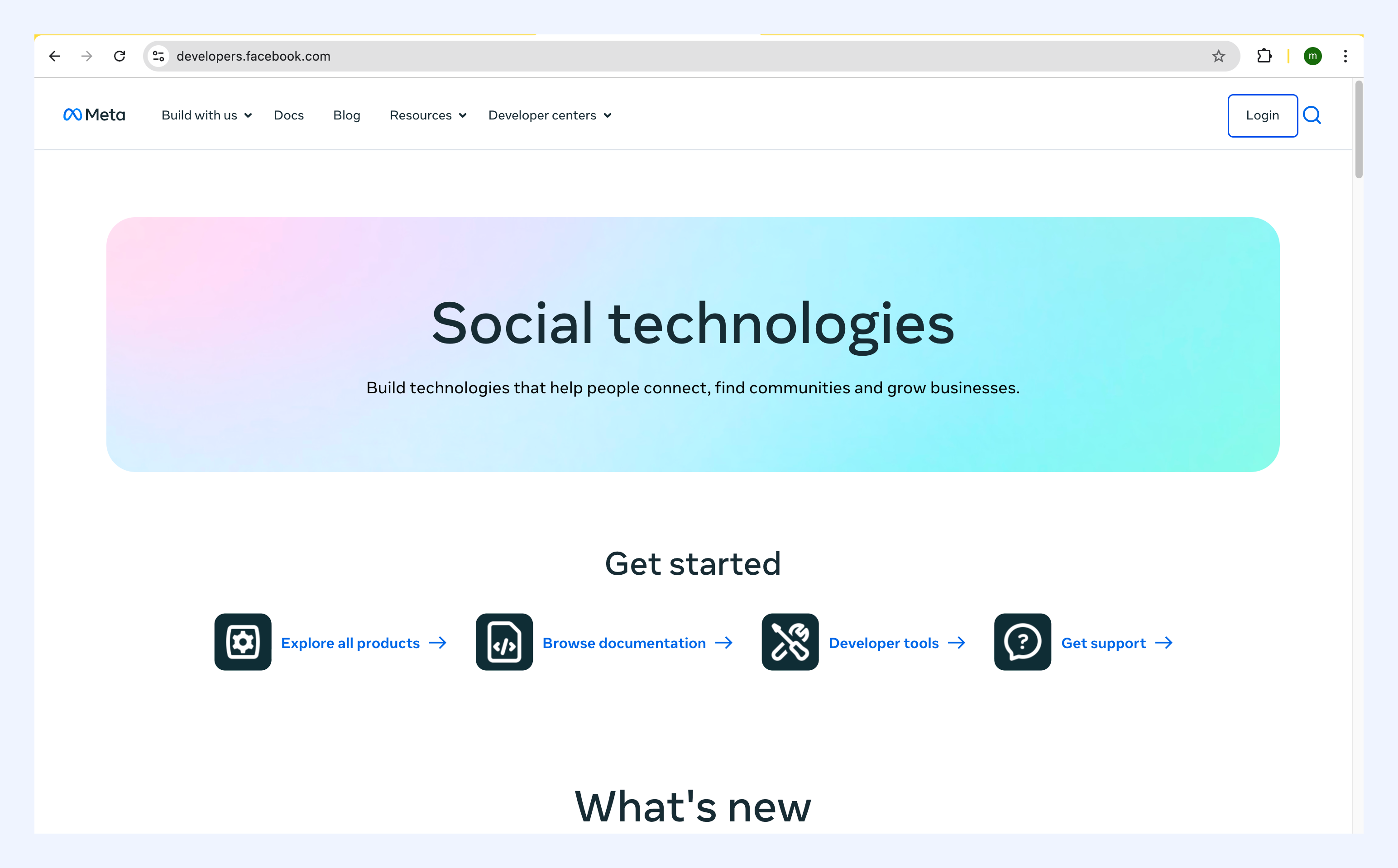
2. Log in with your Facebook account.
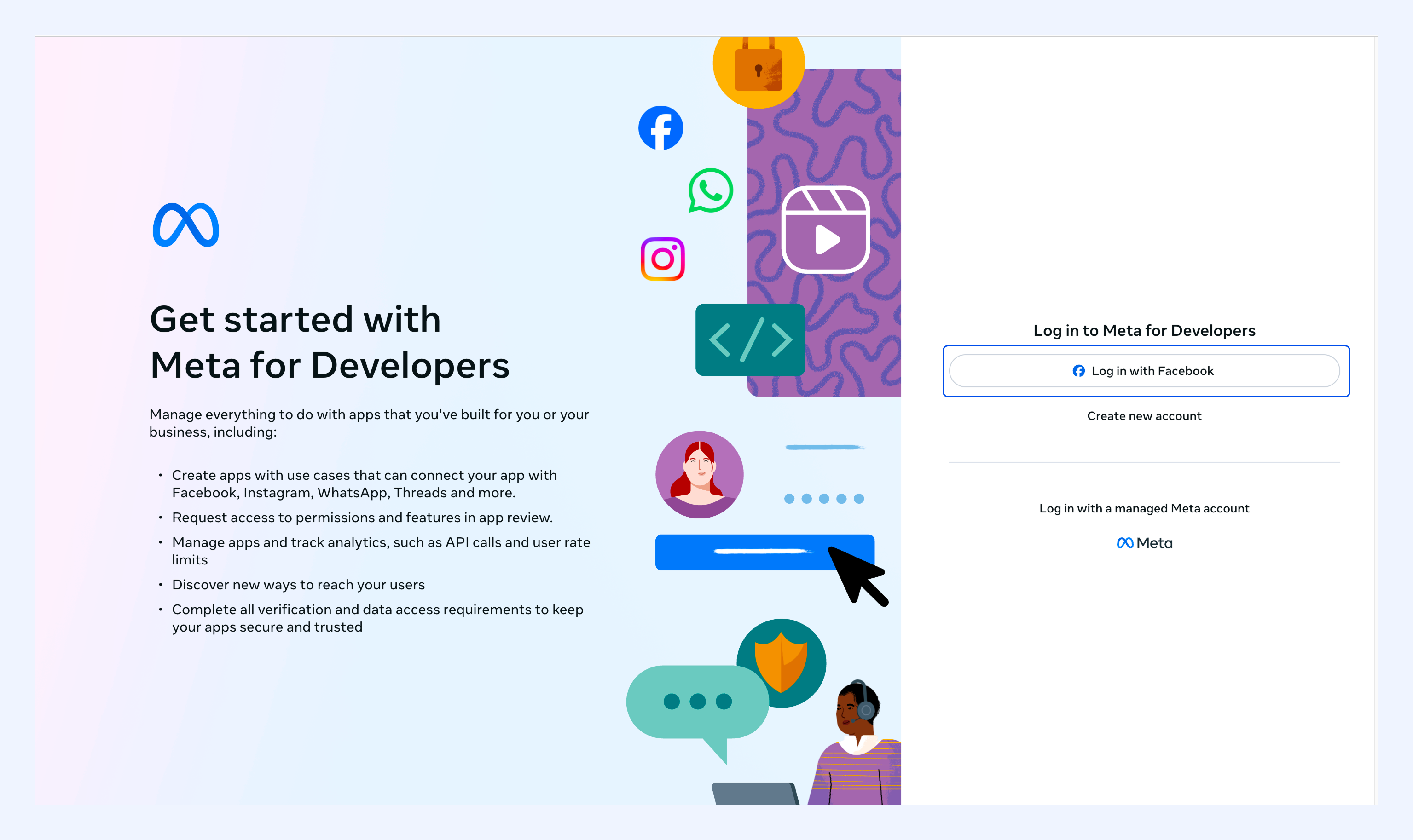
Note: Use the same account you used for Business Manager.
3. Verify your phone number:
- Enter your mobile number when prompted.
- A verification code is sent to you by SMS.
- Enter the code to finish verifying.
Your Meta Developer account is now ready.