Getting started with AI Tagging
Tagging conversations manually takes time, and it often gets skipped when things get busy. AI Tagging handles this for you by automatically adding the right Tags based on what the conversation is about. This keeps your inbox organized, makes routing easier, and saves your team a lot of time.
This guide shows you how to set up and use AI Tagging in Hiver Omni.
What is AI Tagging
AI Tagging automatically sorts your conversations by adding Tags like Billing Issue, Feature Request, or Bug Report. You train Hiver AI once with your existing tagged conversations, and then it learns the patterns and starts tagging new conversations for you.
Here's what that looks like:
- Someone emails about a payment problem → AI tags it Billing Issue.
- A customer reports something broken → AI tags it Bug Report.
- Someone suggests a new feature → AI tags it Feature Request.
This means less manual work for your team, faster triaging, and cleaner reporting.
How AI Tagging works in Hiver Omni
Here's how the AI decides what to tag:
- It only looks at the first message in a conversation, not the replies.
- It compares that message to all your manually tagged conversations to find patterns.
- If there's a good match, it applies the best-fitting Tag.
- Each conversation only gets one Tag from AI.
- If the message is too vague or the AI hasn't been trained on similar content, it leaves it untagged.
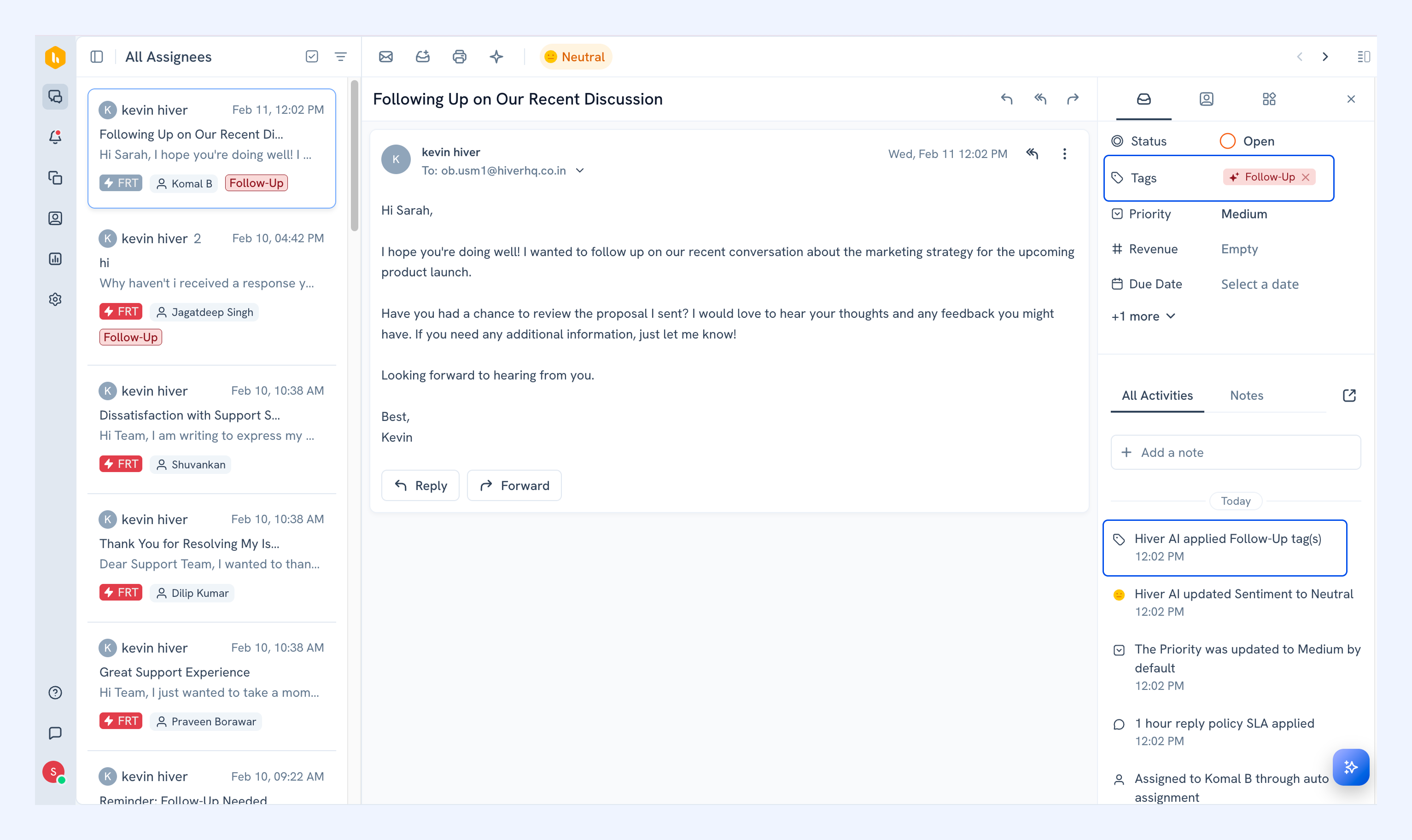
Note: Your customer conversations stay private. The AI only trains on data within your Hiver account; nothing gets shared outside.
Requirements
Before setting up AI Tagging, verify these conditions:
- Plan: AI Tagging is available on Pro and Elite plans for accounts created after December 22, 2025.
- Access: You must be an Admin or Shared Inbox Admin in Hiver Omni.
- Tag usage: The Tags you want to train are already being used. Each Tag needs to be mapped to at least 10 conversations before the AI can learn from it. If you're not there yet, just have your team tag conversations manually until you hit that number.
Setting up AI Tagging
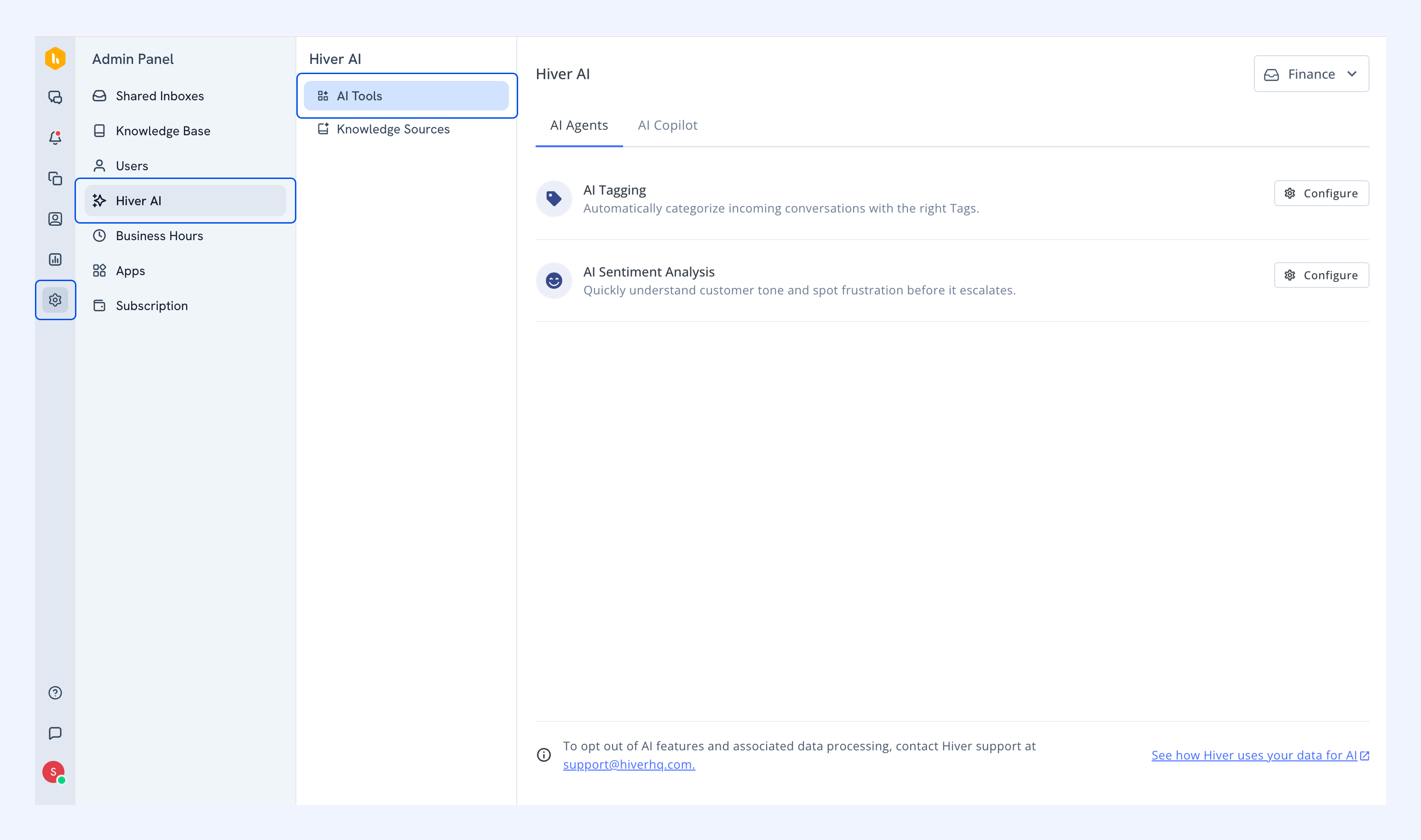
1. Go to Admin Panel → Hiver AI → AI Tools.
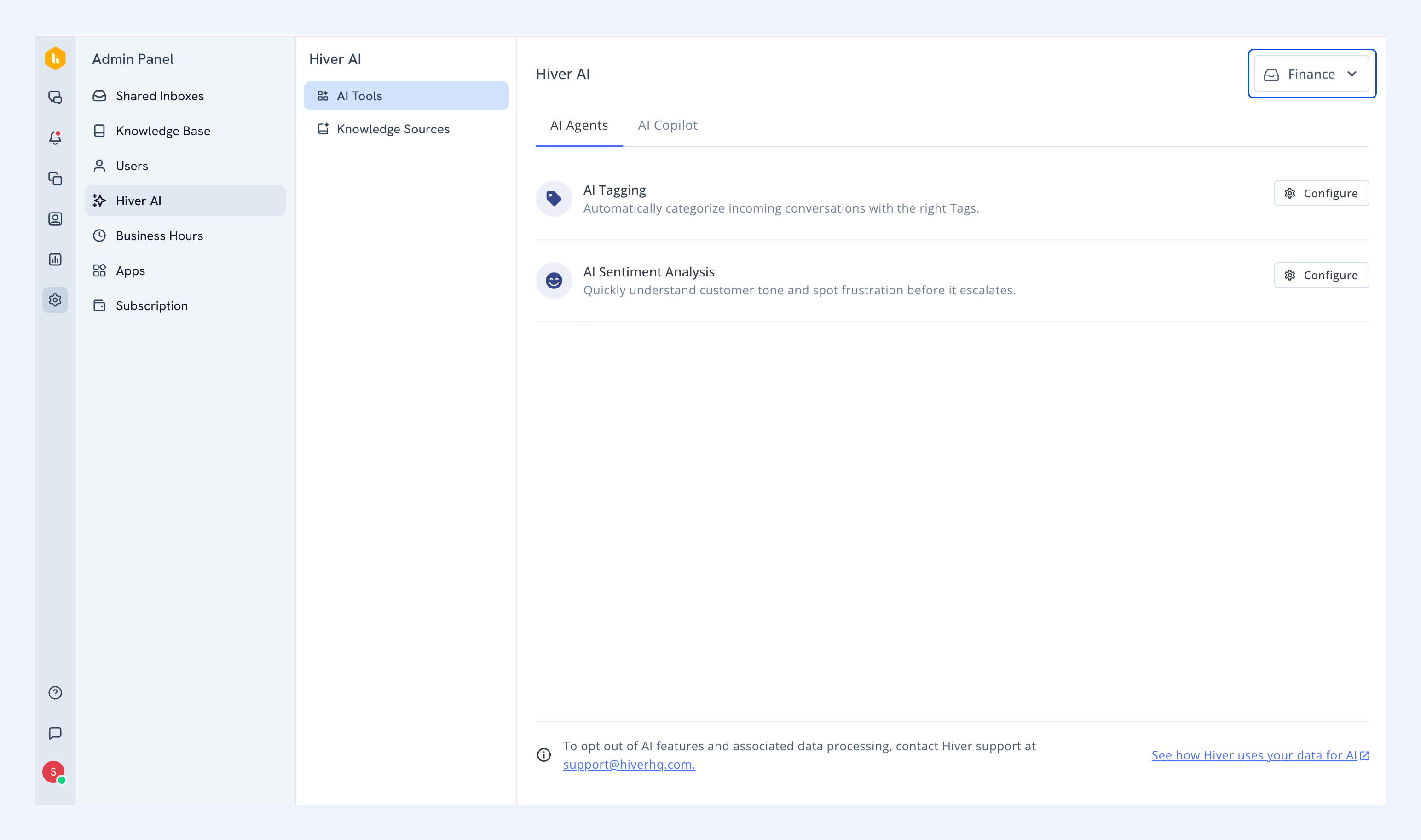
2. Pick the Shared Inbox you want to use AI Tagging for from the dropdown.
3. Find AI Tagging and click Configure.
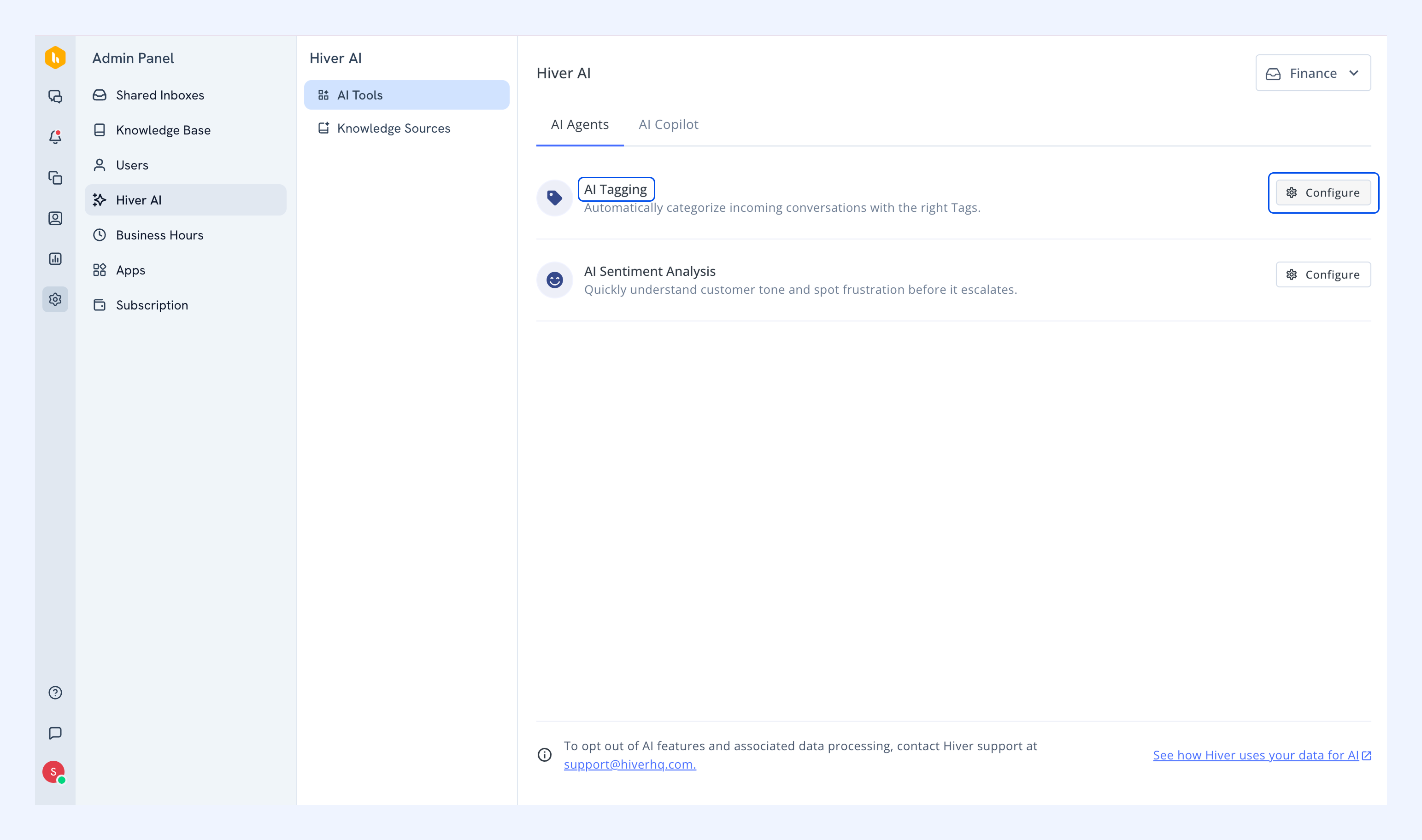
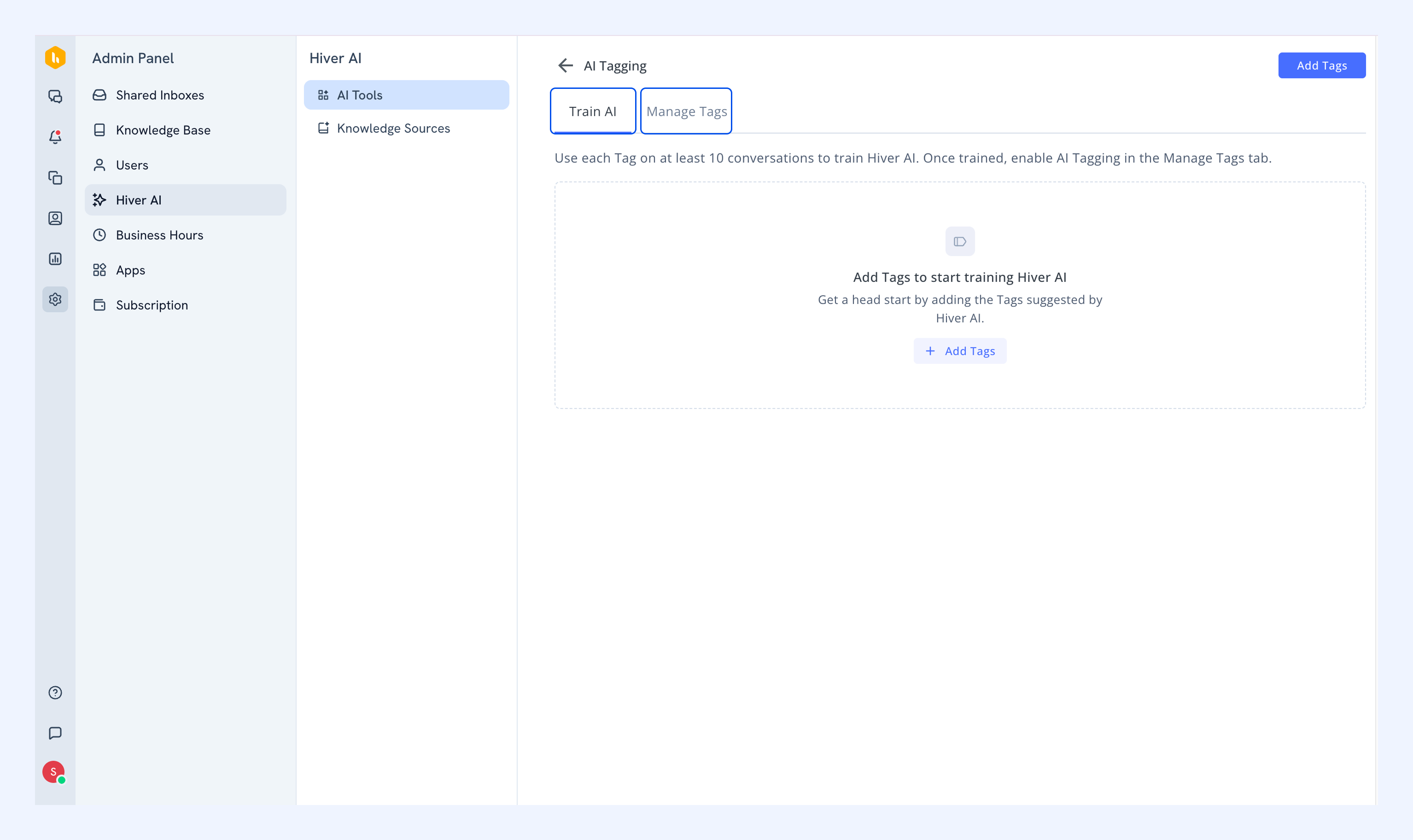
4. You'll see two tabs:
- Train AI: This is where you add Tags and build your training data.
- Manage Tags – This is where you turn AI Tagging on or off and check your training data.
Training the AI
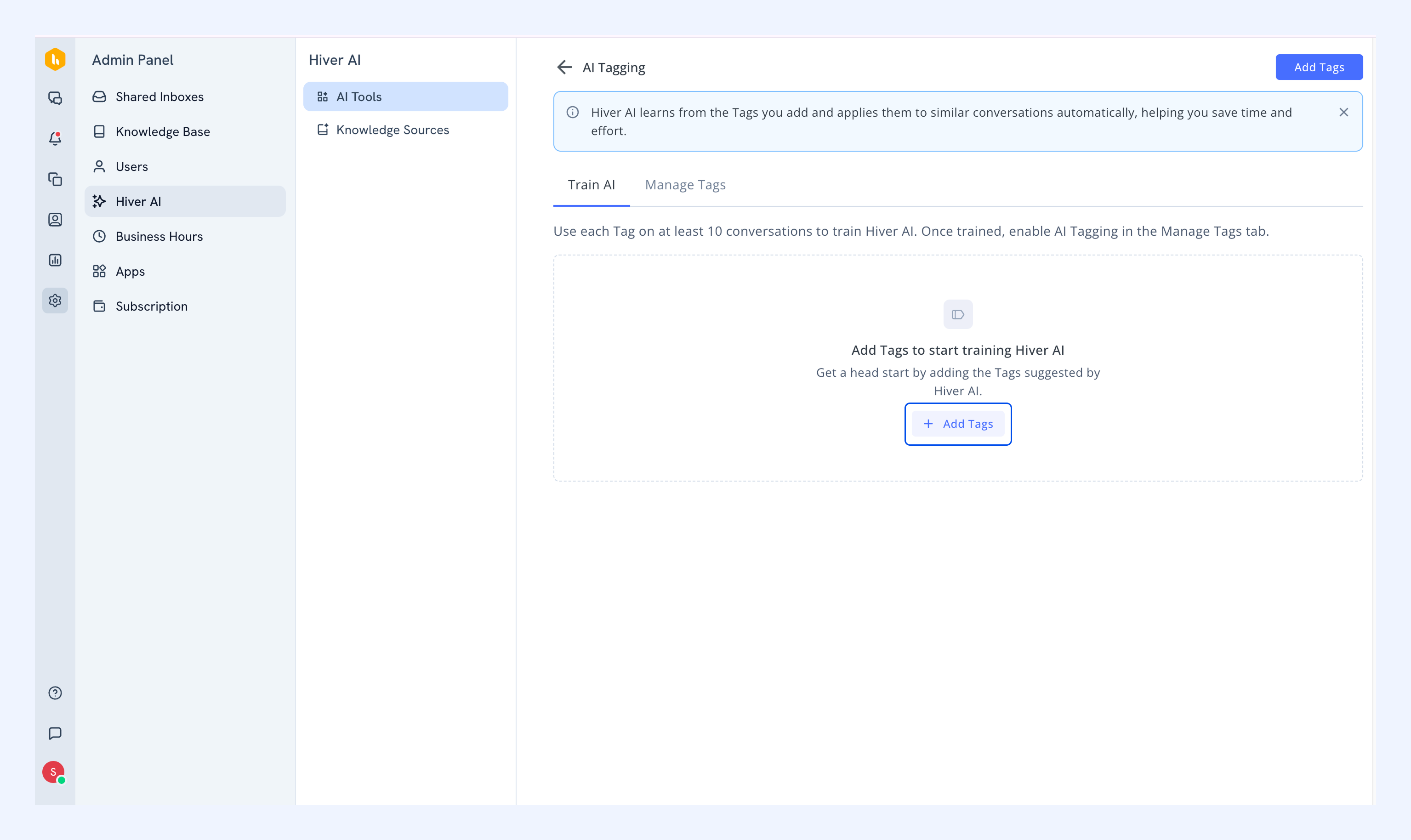
1. In the Train AI tab, click + Add Tags.
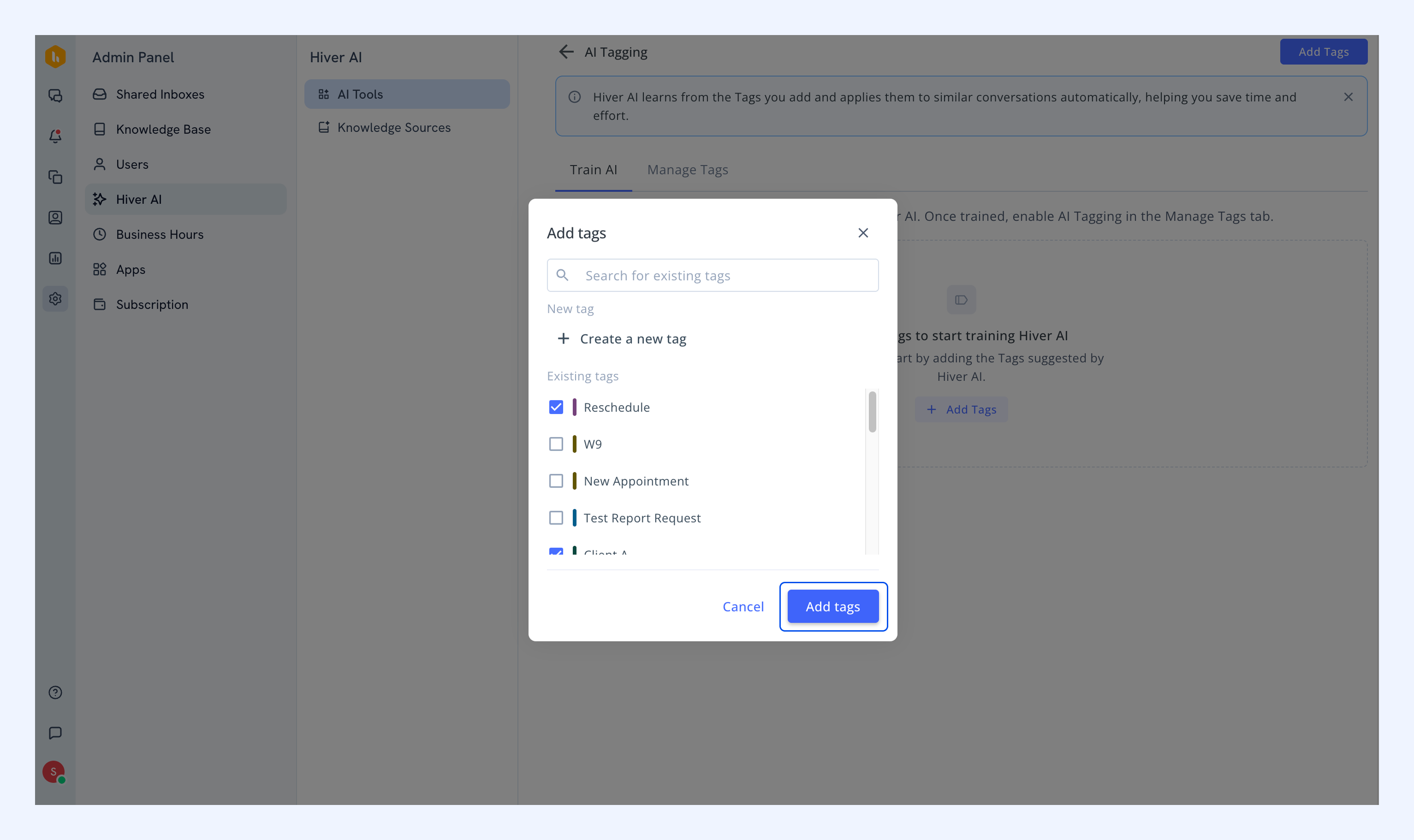
2. In the dialog that appears, either pick an existing Tag or create a new one.
3. Click Add tags.
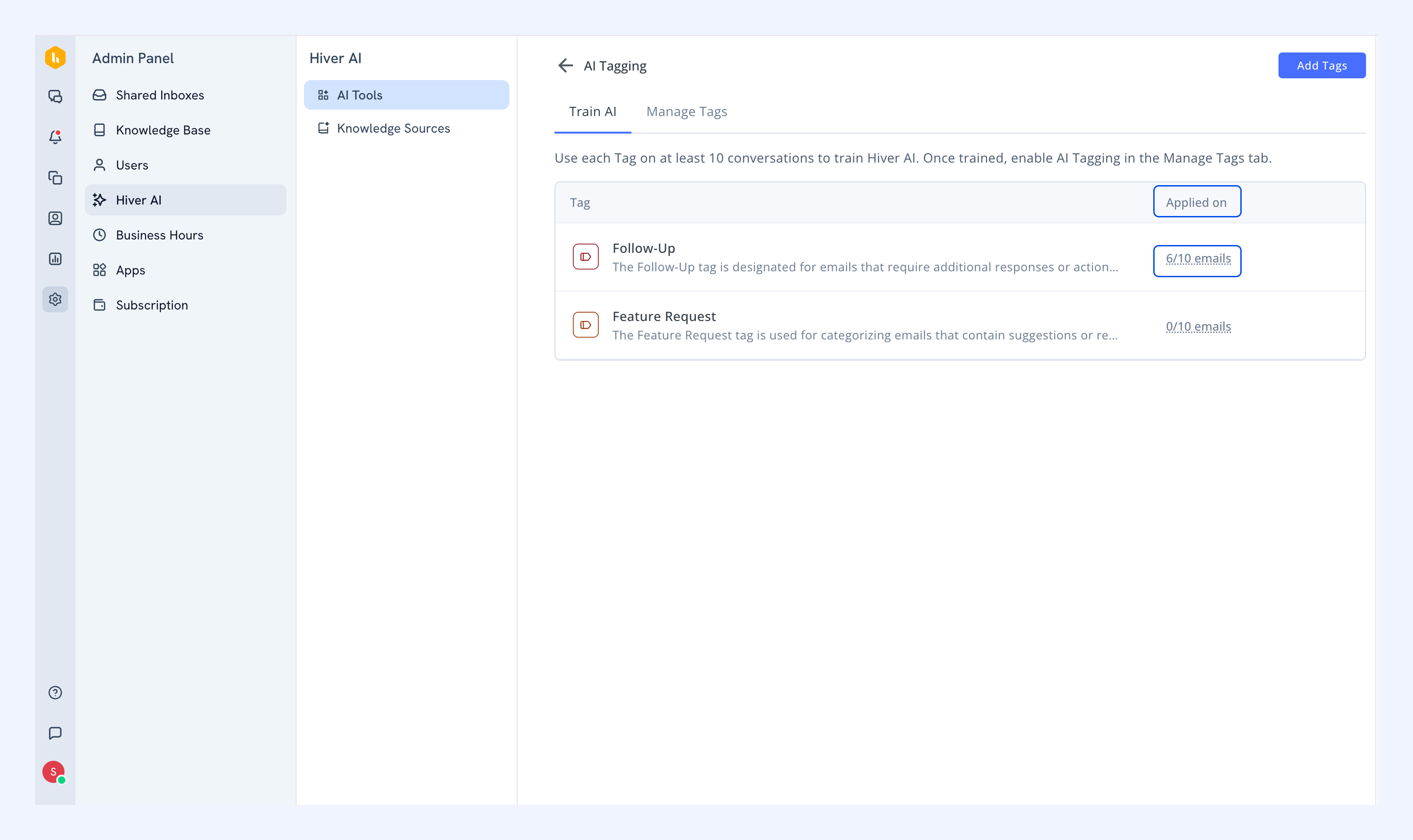
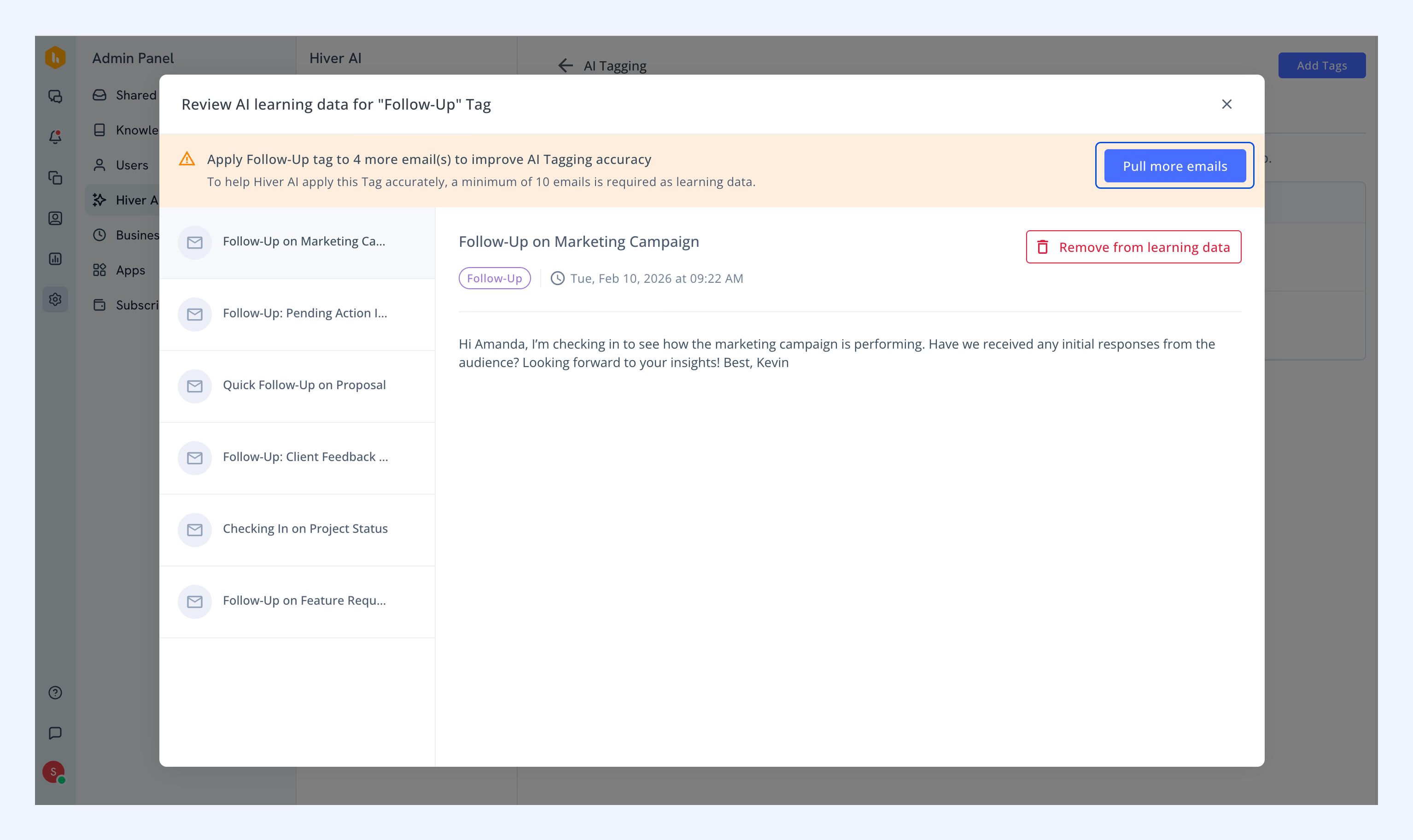
4. Now manually tag at least 10 conversations that fit this Tag. Every time you tag one, the AI learns a little more about when to use it.
5. Check your progress in the Train AI tab. The Applied on column shows how many conversations you've tagged.
5. After you've tagged the conversations, click Pull more emails to sync them from your inbox.
Tips for setting up your Tags
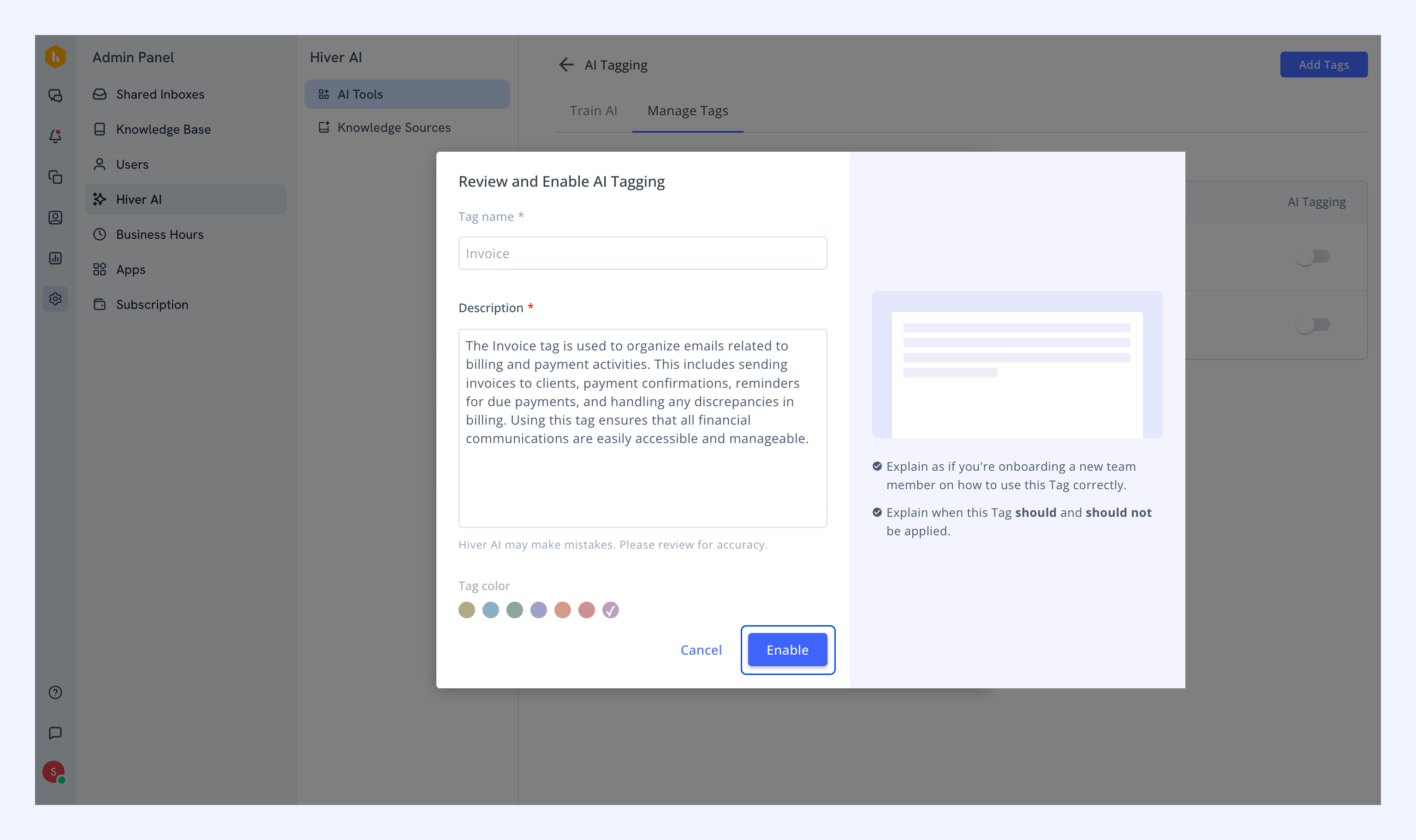
- Tag name: Keep it clear and topic-focused (like Account Access Issue).
- Description: Explain when to use this Tag and when not to.
- Color: Pick a color if you want to spot it quickly in your inbox.
Enabling AI-ready Tags
Once a Tag has 10 or more conversations, you can turn on AI Tagging for it.
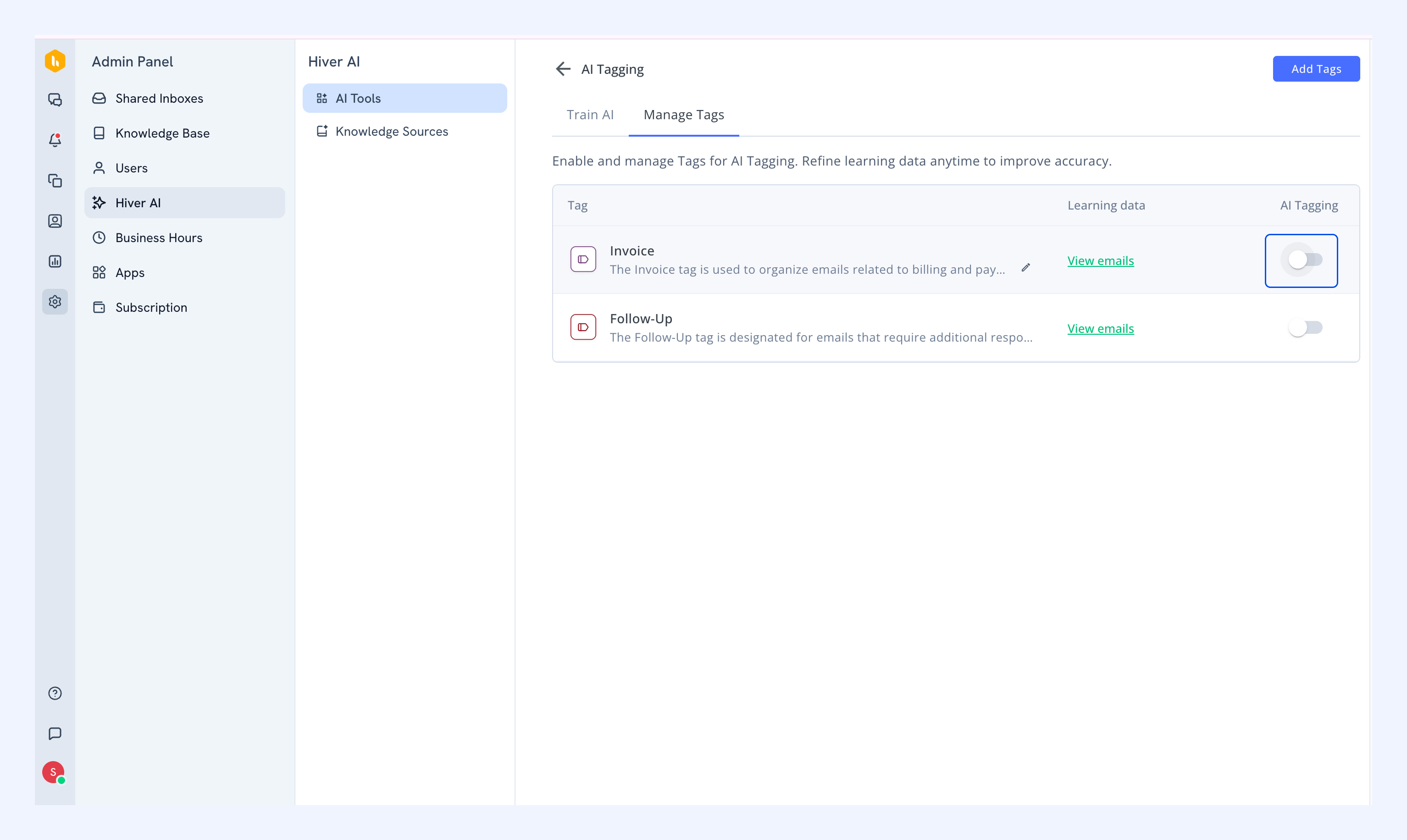
1. Go to Manage Tags.
2. Toggle AI Tagging on for the Tag you trained.
3. Click Enable.
Making the AI smarter
Every time someone on your team manually tags a conversation, the AI gets better at understanding when to use that Tag. Once you hit 10 tagged conversations, it starts making predictions on its own.
To help it learn better:
- Tag similar conversations the same way every time.
- Use normal customer language in your examples.
- Don't create Tags that overlap or mean similar things.
- Include a few unusual cases so the AI can handle edge scenarios.
Checking and improving your training data
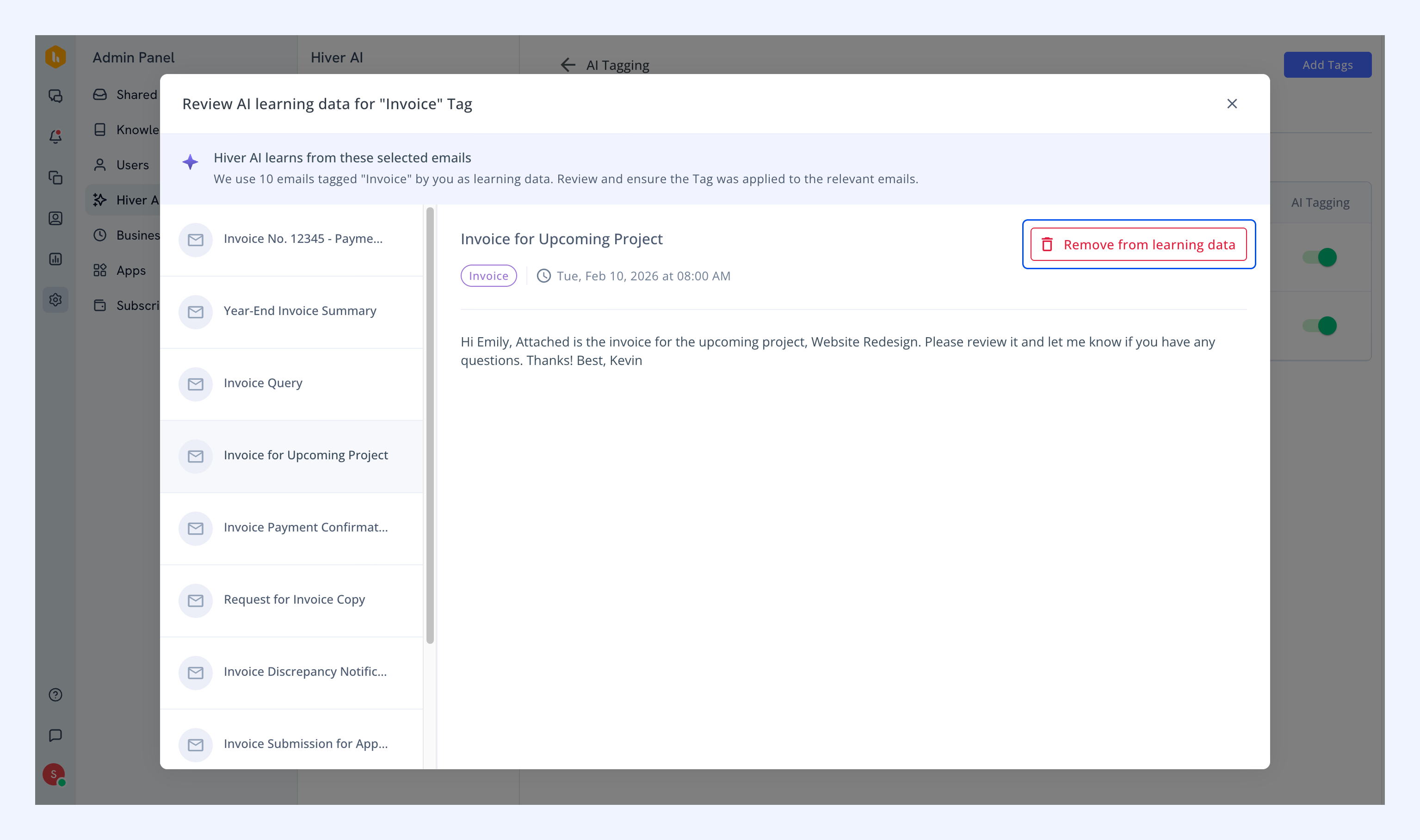
To check or improve the training dataset for a Tag, click View emails in the Manage Tags tab.
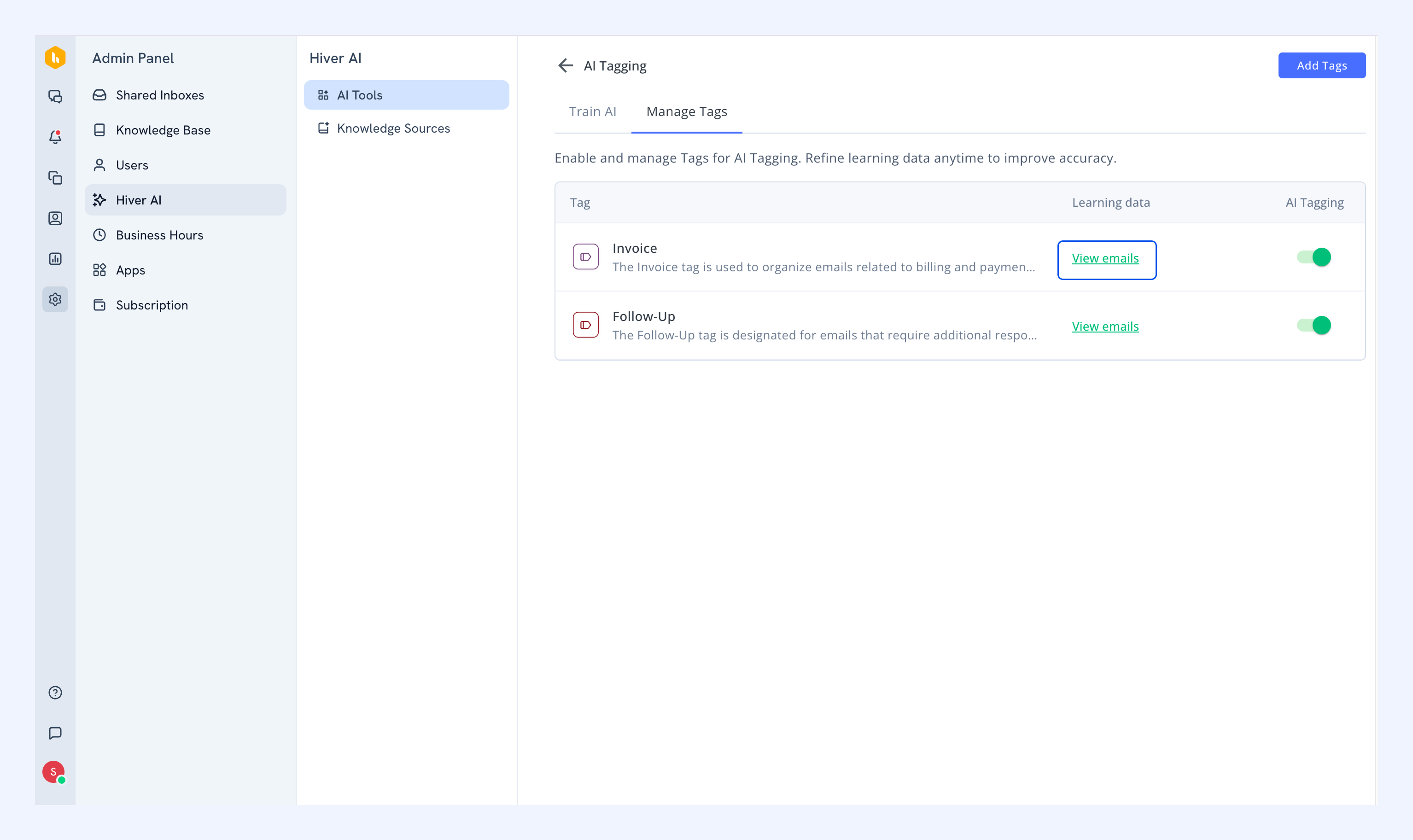
From here, you can:
- See all the conversations being used for training.
- Click Remove from learning data if you find one that doesn't fit.
- Make sure the examples accurately show when the Tag should be used.
What happens if training data drops below 10 conversations?
If you remove too many examples and fall below the 10-conversation minimum:
- You'll see a warning notification.
- The Tag stays on but might not work as well.
- Just tag a few more relevant conversations to get back on track.
Frequently Asked Questions
Q: What kind of Tags work with AI?
A: Tags that describe what the conversation is about, like Refund Request or Login Trouble. Don't use Tags for priority, workflow status, or customer type.
Q: How many examples does each Tag need?
A: At least 10 to get started. The more you add over time, the better it gets.
Q: Does disabling AI Tagging delete the training?
A: No. You can turn it on and off whenever you want. All your training data stays saved.
Q: Can I change Tag names or descriptions after training?
A: Yes. Updating the description can help the AI work better. Changing the name won't mess anything up.
Q: Can I use AI Tagging across multiple Shared Inboxes?
A: Yes, but keep in mind the AI might perform differently depending on what types of conversations each inbox gets. You might need to adjust the training for each one.