Getting started with AI Compose
AI Compose helps your team write impactful emails effortlessly. It refines grammar, adjusts tone, and improves clarity so every email you send looks polished and professional, without needing external tools.
With AI Compose, your team can:
- Save time: Automate writing tasks and focus on customer experience.
- Enhance clarity: Send emails that are clear, concise, and professional.
- Streamline workflow: Write directly in your inbox without switching tools.
Disclaimer: Hiver does not store your data while enhancing text. AI Compose utilizes the Azure OpenAI Service as a sub-processor to analyze and improve your content securely. Learn more.
Table of contents
Availability and prerequisites
Key capabilities of AI Compose
Availability and prerequisites
- AI Compose is available in the Growth, Pro, and Elite plans.
- Only admins can enable AI compose from the Admin panel.
Daily limits per user
Plan | Limit per user per day |
Growth | 20 |
Pro | 200 |
Elite | 200 |
For questions or help with AI Compose, contact us at support@hiverhq.com.
Key capabilities of AI Compose
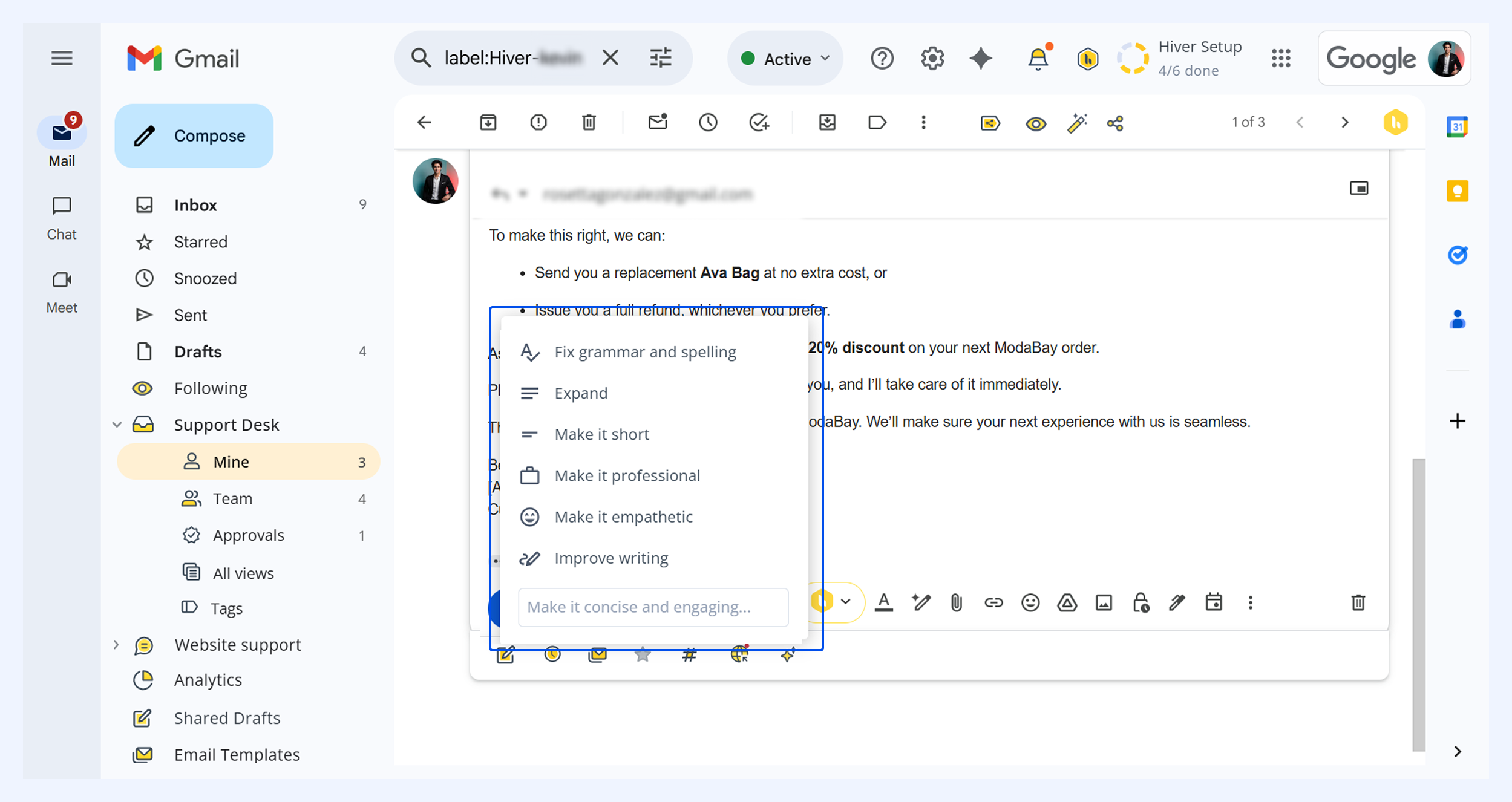
AI Compose gives you six ways to improve your emails:
- Fix grammar and spelling: Corrects errors while keeping your original tone and style.
- Expand: Adds detail to make your message more complete and informative.
- Make it short: Simplifies content for a direct, concise message.
- Make it professional: Adjust your email for formal or business communication.
- Make it empathetic: Softens formality to create a warm, approachable tone.
- Improve writing: Optimizes sentence structure for better flow and readability.
How to enable AI Compose
Go to Admin Panel → Hiver AI → AI Copilot → select a Shared Inbox → toggle on Agent assistance.
Once enabled, AI Compose integrates directly into your email workflow.
How to use AI Compose when writing emails
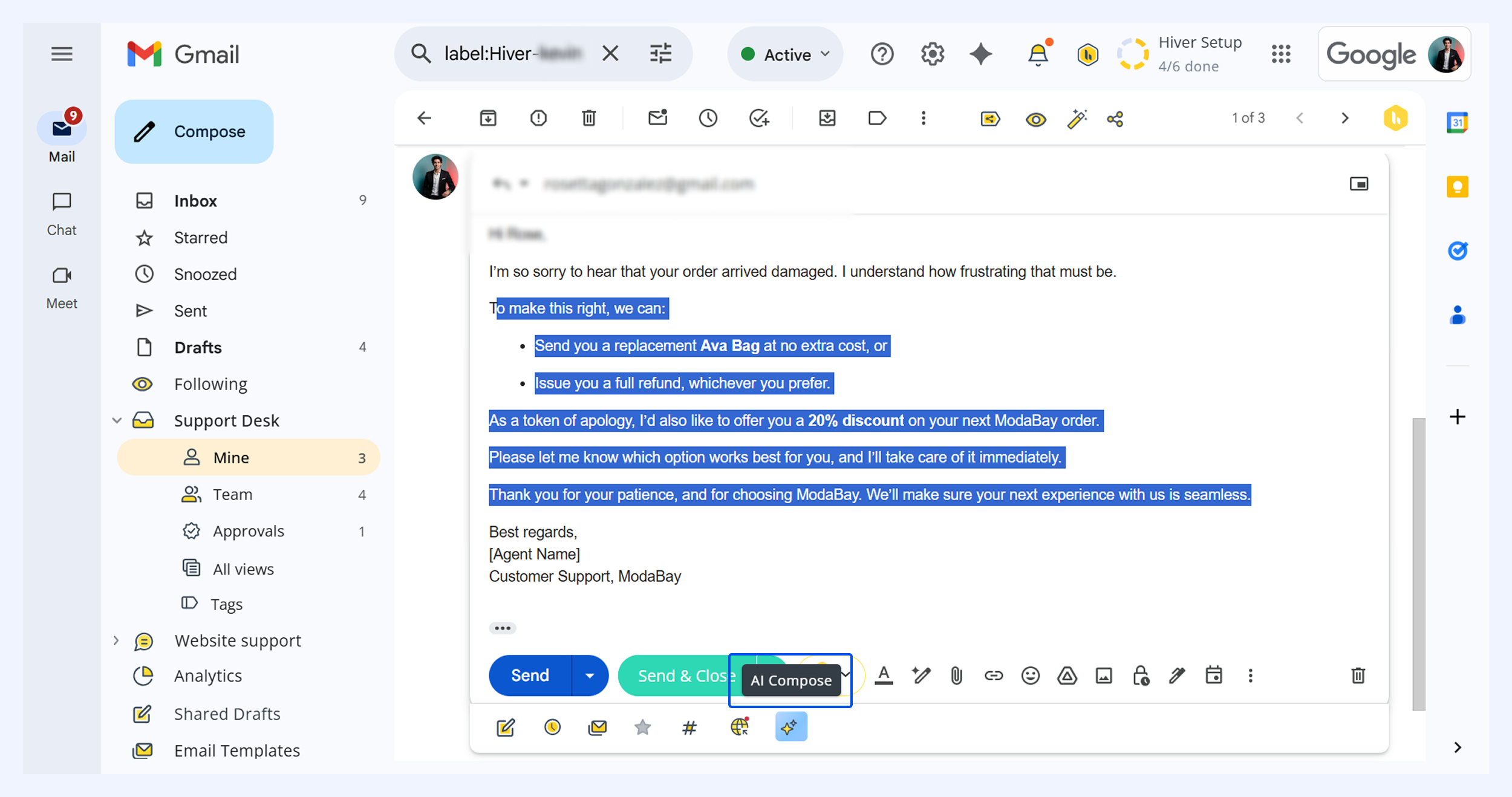
1. Select the text you want to enhance and click AI Compose. Choose from the available options (for example, Fix grammar and spelling, Make it professional, or Improve writing).
2. Review the suggestions. You can apply changes directly or try another option on top of the new suggestion.
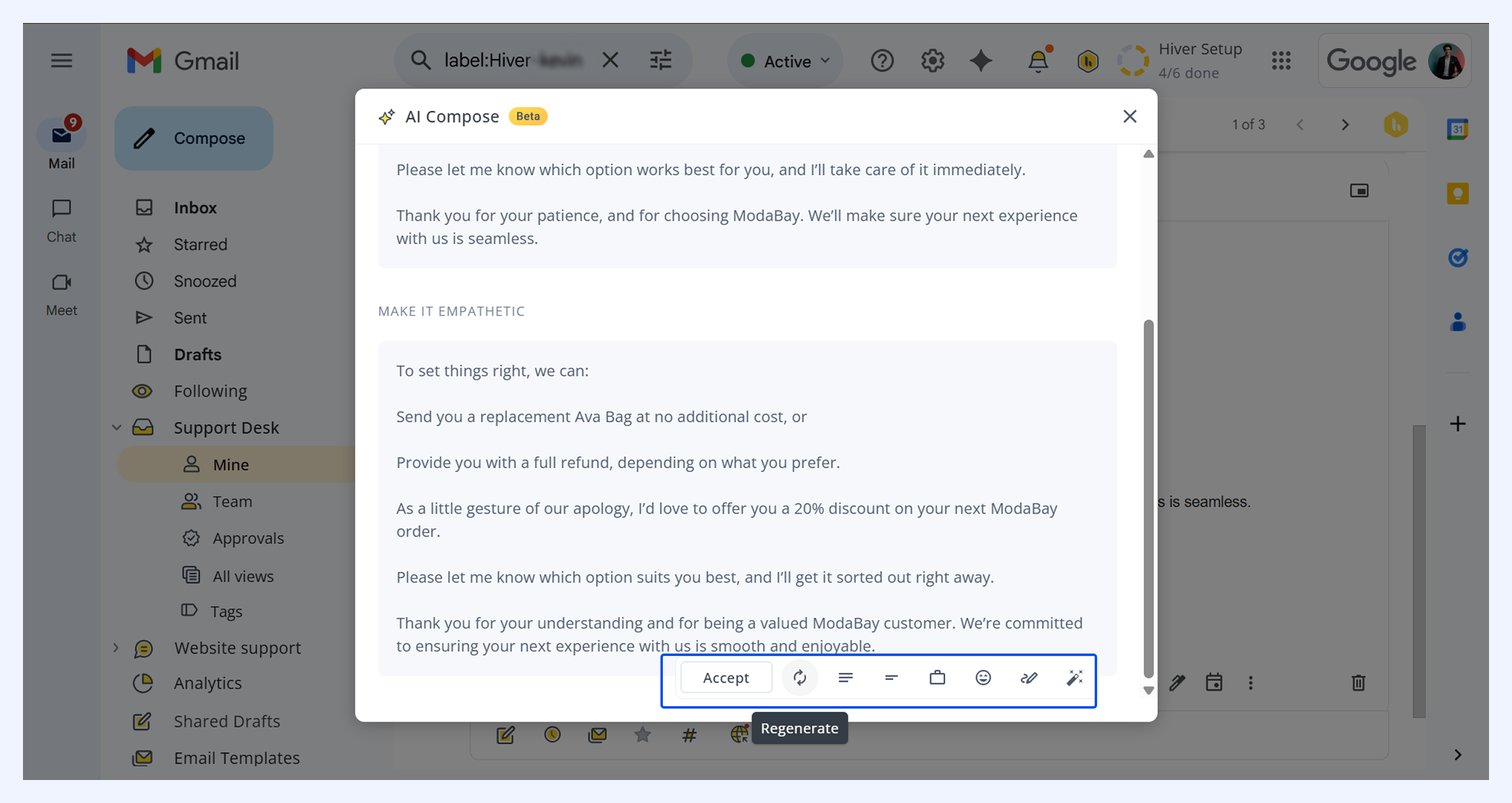
3. Click Accept to apply the final version to your draft.
Note: If you don’t select text before running AI Compose, it will replace everything in the email body (including images and attachments).