Getting started with AI Sentiment Analysis
Understanding customer emotions helps your team respond more effectively to support requests. Hiver's AI Sentiment Analysis automatically detects the tone of incoming conversations and categorizes them based on different emotions. This allows your team to prioritize better, act quickly to help frustrated customers, and spot patterns over time.
Availability and prerequisites
To access AI Sentiment Analysis, you need to meet the following requirements:
- You need Admin or Shared Inbox Admin permissions.
- This feature is available on the Pro and Elite plans for customers who signed up on or after December 22, 2025.
Understanding AI Sentiment Analysis
AI Sentiment Analysis examines the emotional tone of every conversation automatically, including follow-ups. It reads the language and phrasing in messages to determine whether the customer sounds appreciative, neutral, or frustrated. The system then assigns sentiment scores on either a 3-point or 5-point scale based on your preference.
Here’s how it works:
- A message like 'Why hasn't this been fixed yet?' gets marked as Negative
- 'Appreciate the quick help!' becomes classified as Positive
- A typical check-in like 'Just following up on this' receives a Neutral tag
You can view the Sentiment score directly inside the conversation list and conversation view. The detected Sentiment is also stored in a Custom Field, which you can use to trigger Automations and power Analytics.
Note: The Sentiment Custom Field is automatically created when enabled. This special field is used for automation and analytics, so it appears only when setting up automation rules or viewing conversation data, not in the regular Custom Fields list.
Viewing sentiment updates
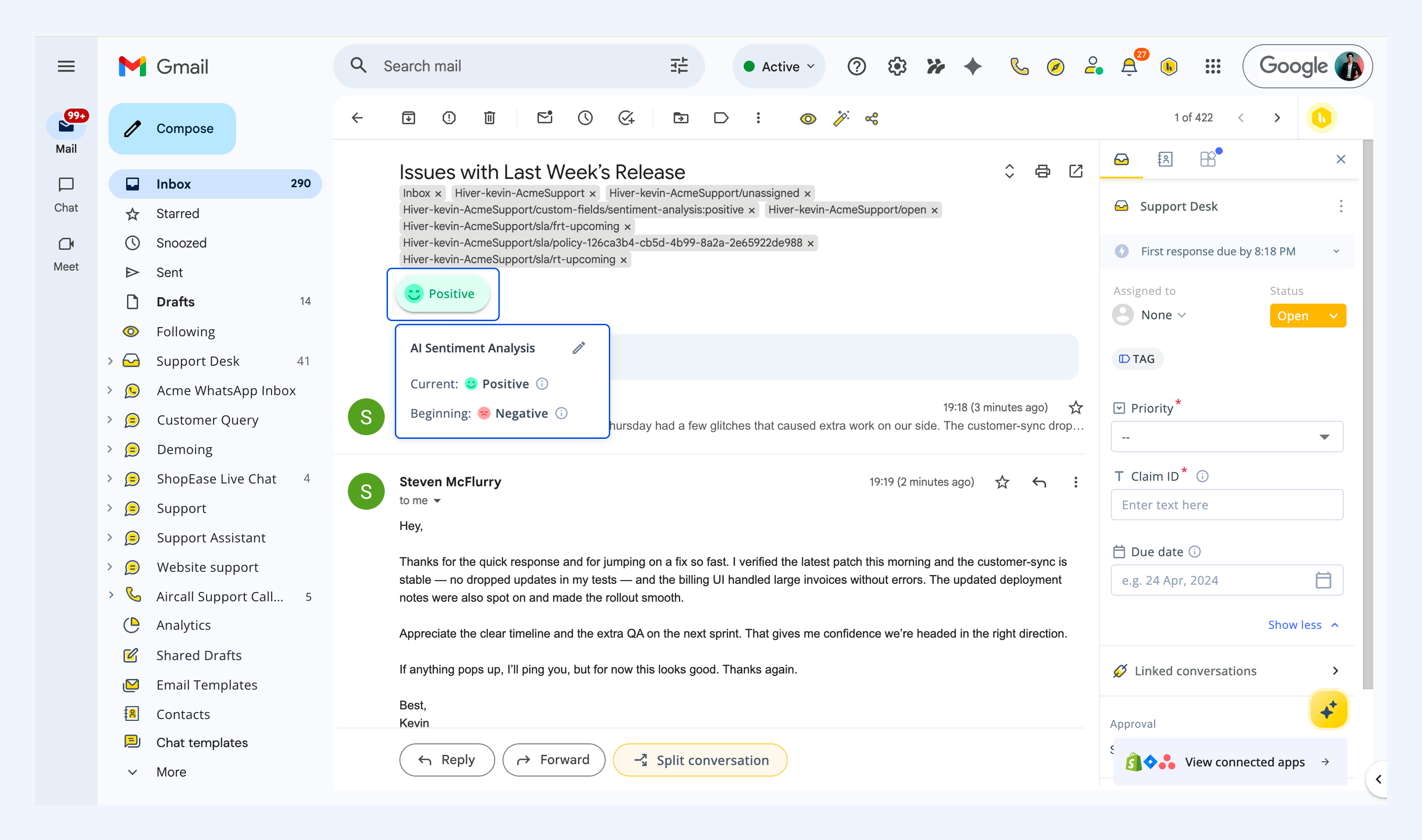
The AI actively tracks your conversation thread as it evolves. When new messages arrive, the sentiment refreshes automatically to capture the most recent emotional tone:
- Beginning sentiment: Reflects the tone when the conversation first started.
- Current sentiment: Displays the current emotional state based on the most recent message.
Simply click on the sentiment indicator to view both the initial and latest sentiment readings.
How to efficiently use AI Sentiment Analysis
- Start with the 3-point scale for more precise results and easier AI training.
- Write detailed descriptions for each sentiment level during setup.
- Review high-volume conversations regularly to check prediction quality.
- Encourage agents to correct sentiment when it feels wrong - this improves future accuracy.
- Use the AI Console to review all reported changes and refine descriptions.
How to set up and manage AI Sentiment Analysis
This enables you to trigger automations and track emotional trends over time.
Setting up sentiment analysis
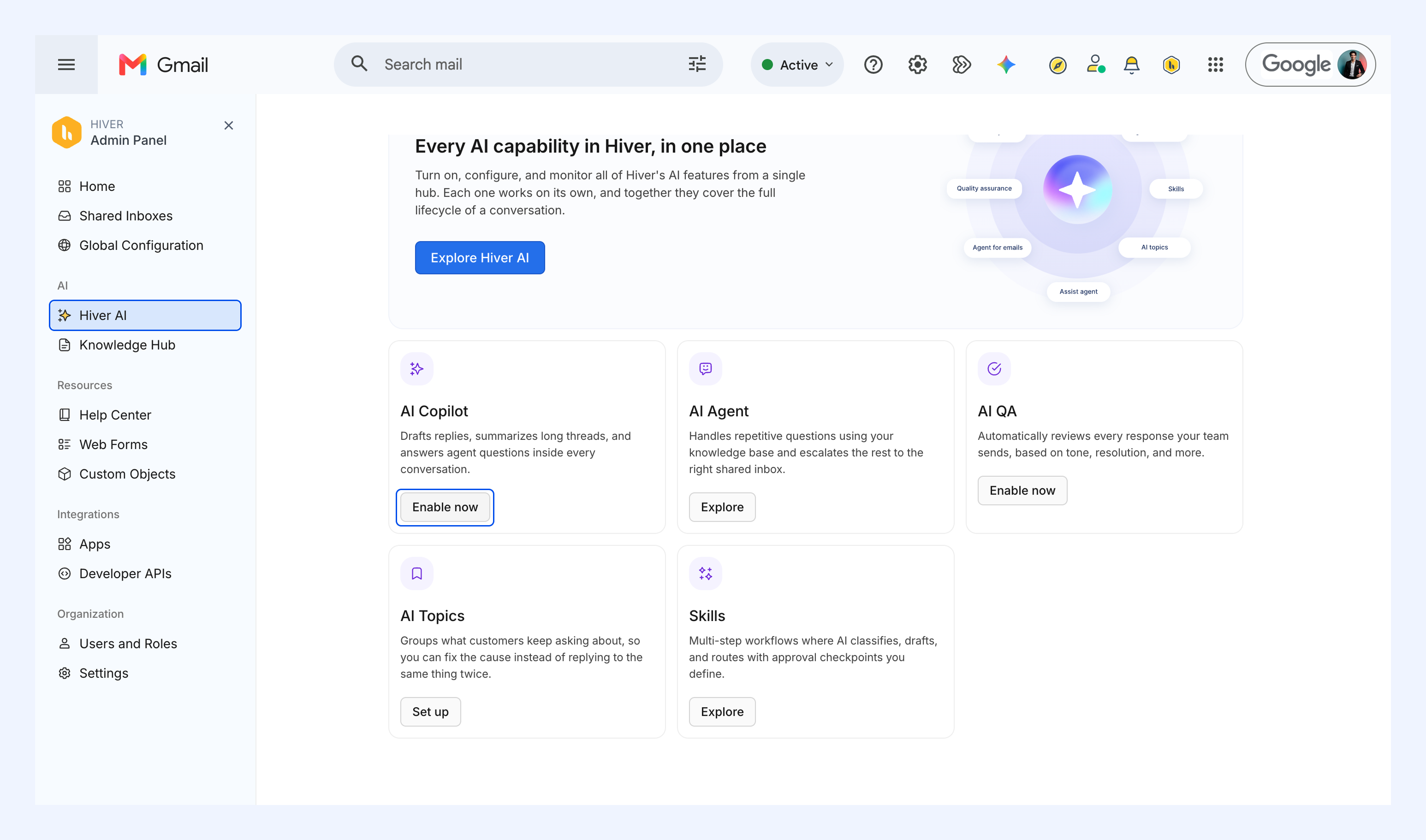
1. Go to Admin Panel → Hiver AI, click Enable now under AI Copilot.
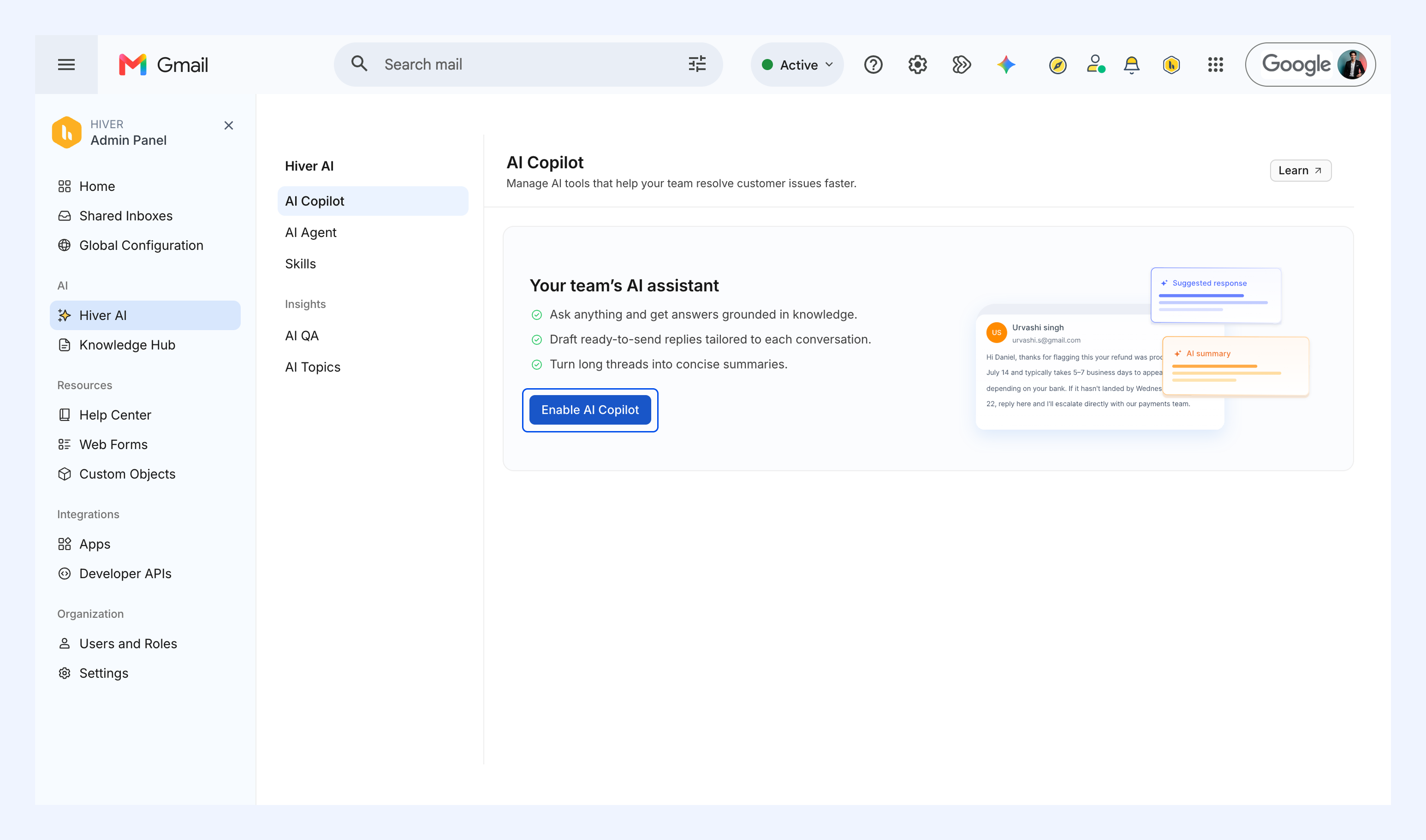
2. Click Enable AI Copilot.
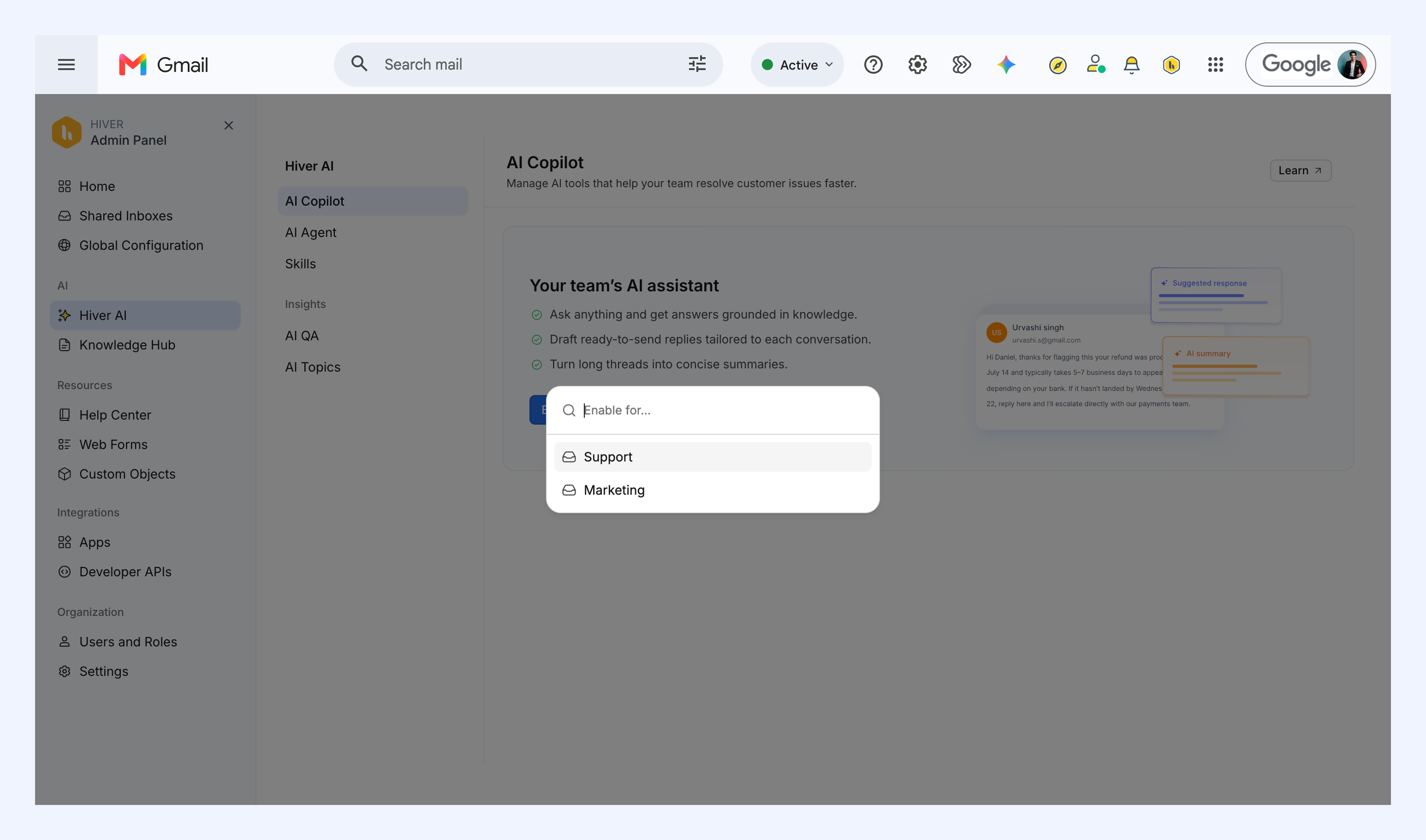
3. Select the Shared Inbox where you want to enable AI Sentiment Analysis.
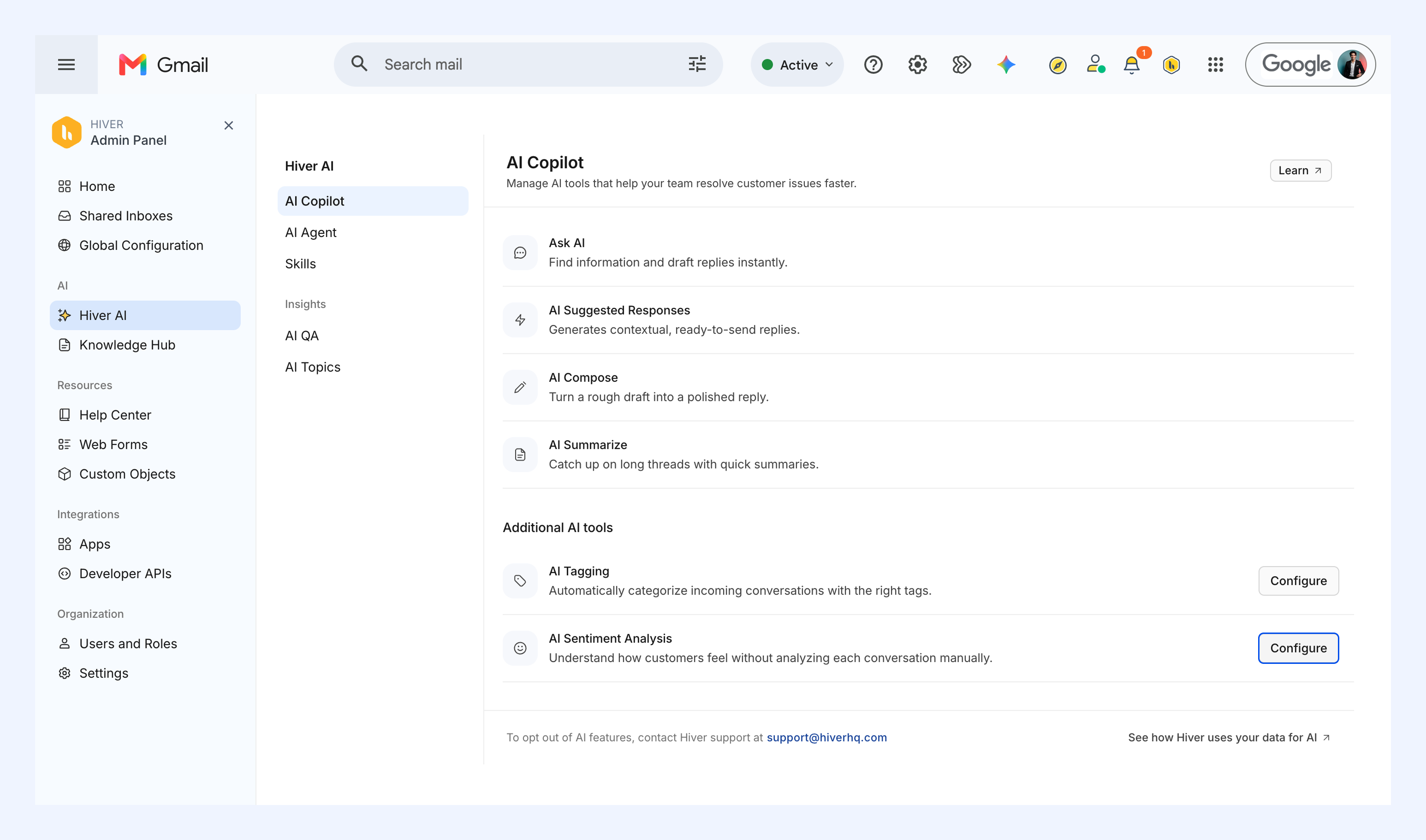
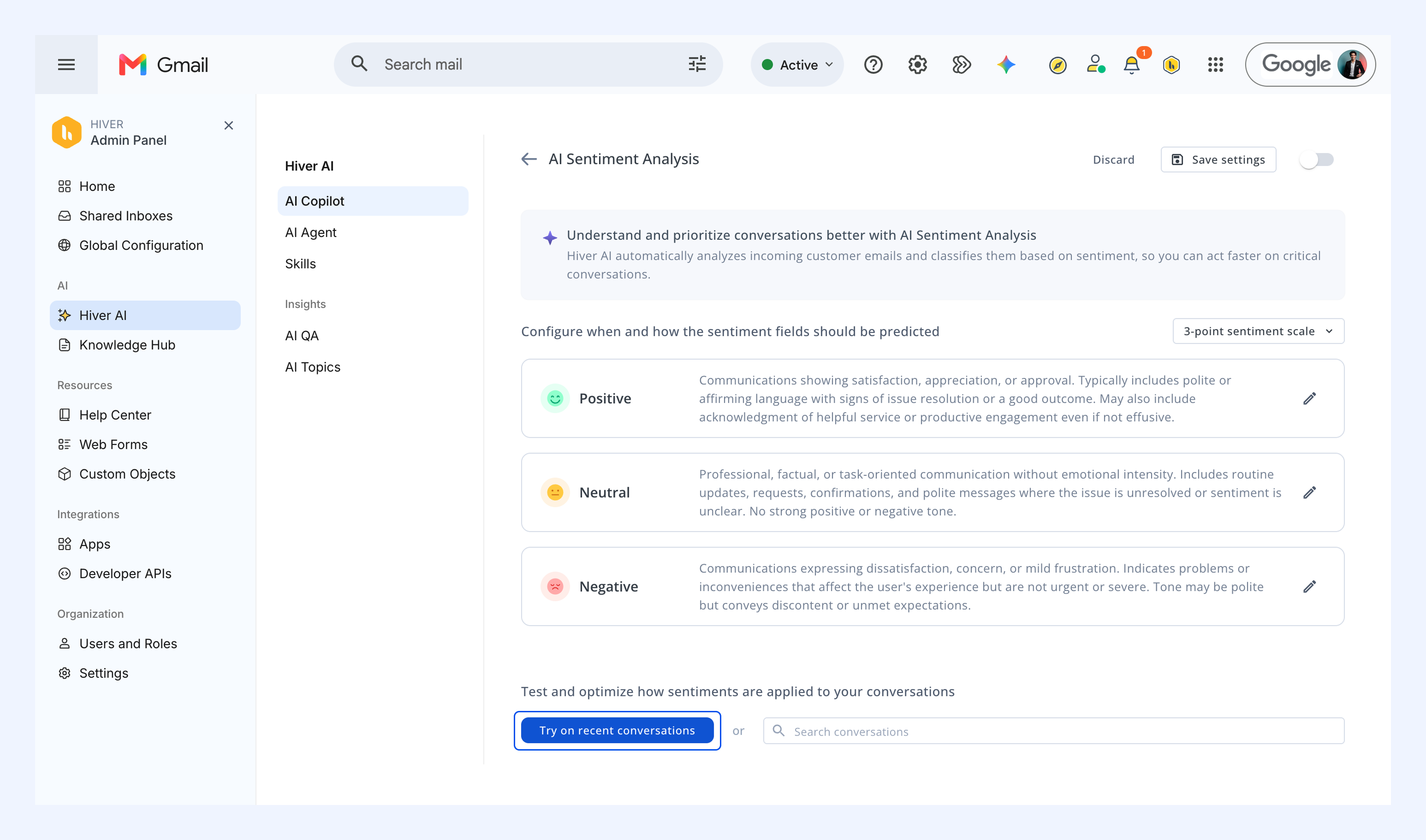
4. Under Additional AI tools, go to AI Sentiment Analysis and click Configure.
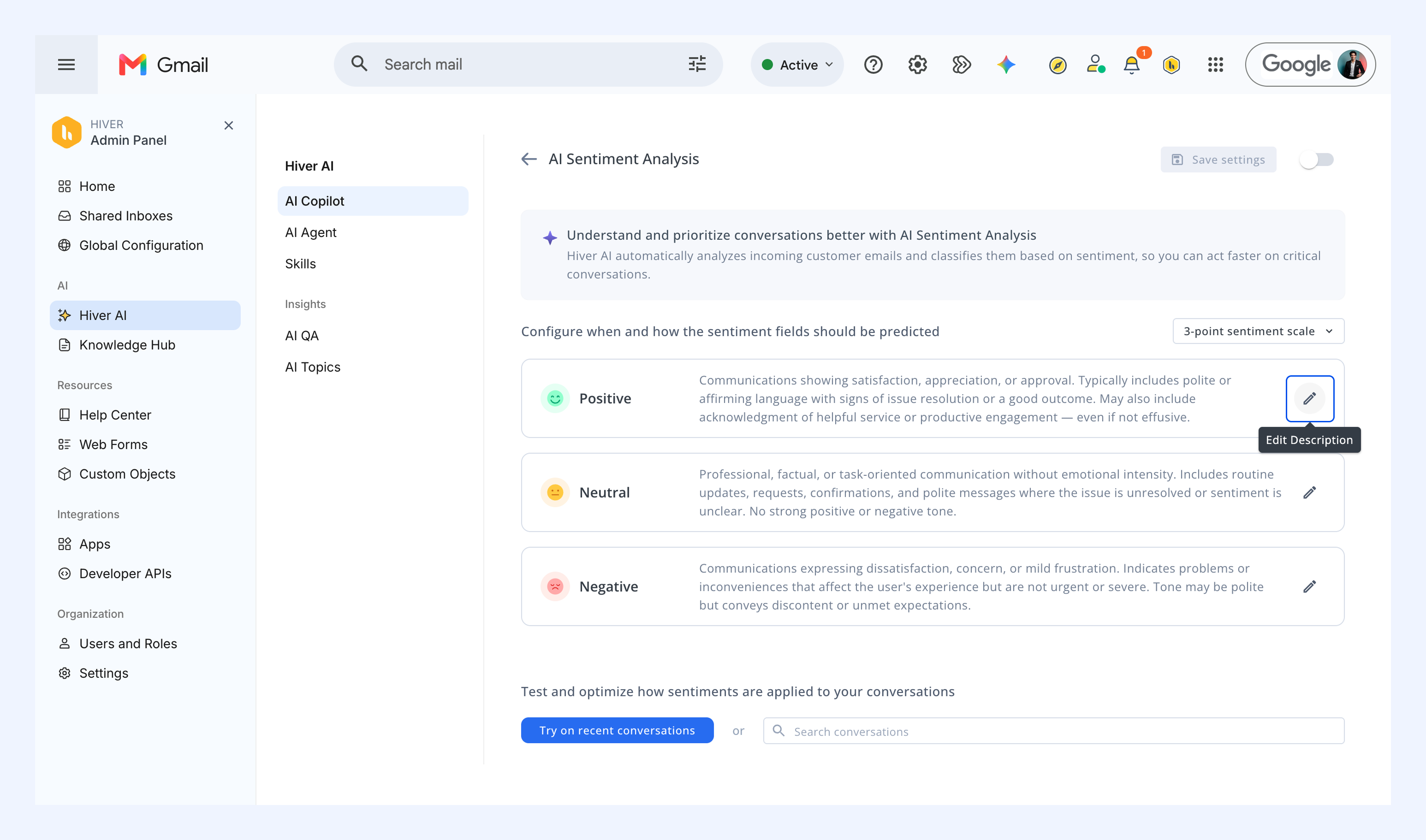
5. Pick between a 3-point (Positive, Neutral, Negative) or a 5-point (Very Positive to Very Negative) scale.
6. Add your own descriptions by selecting the pencil icon beside each sentiment field.
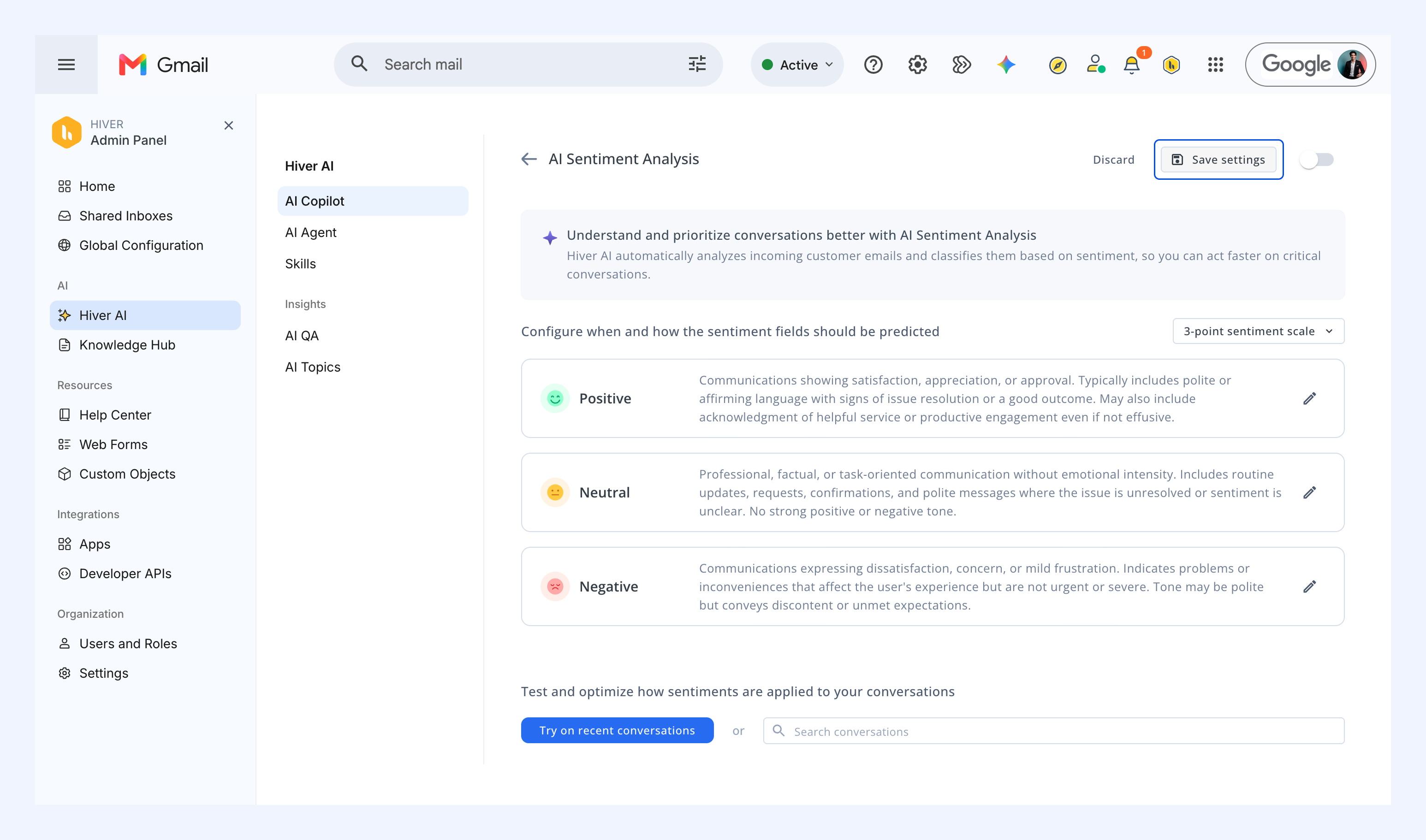
7. Click Save settings.
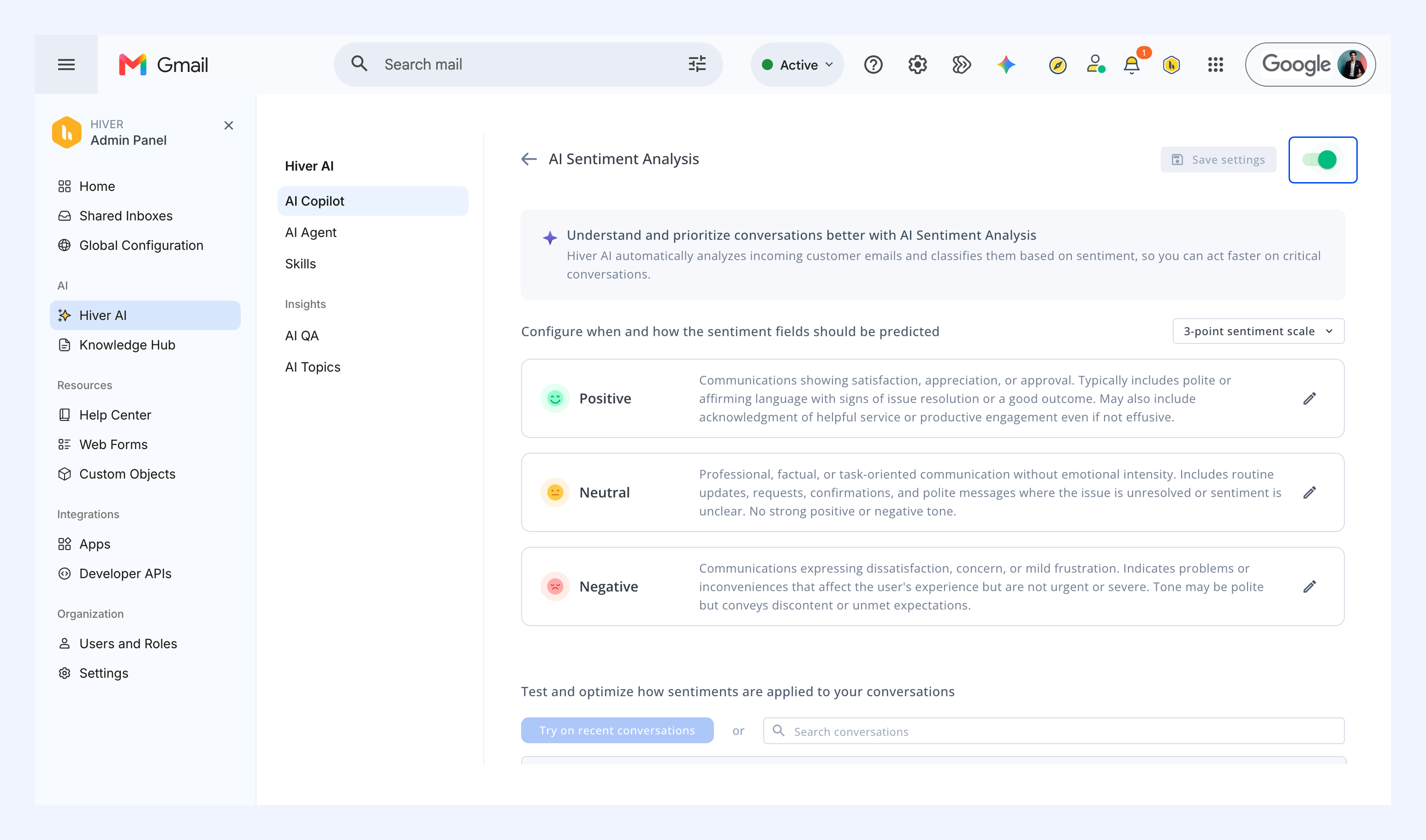
8. Turn on the toggle to enable AI Sentiment Analysis.
Testing AI sentiment analysis
1. Click Try on recent conversations to validate your setup.
2. Check the last few emails listed in the test panel and see their sentiment to understand how it applies.
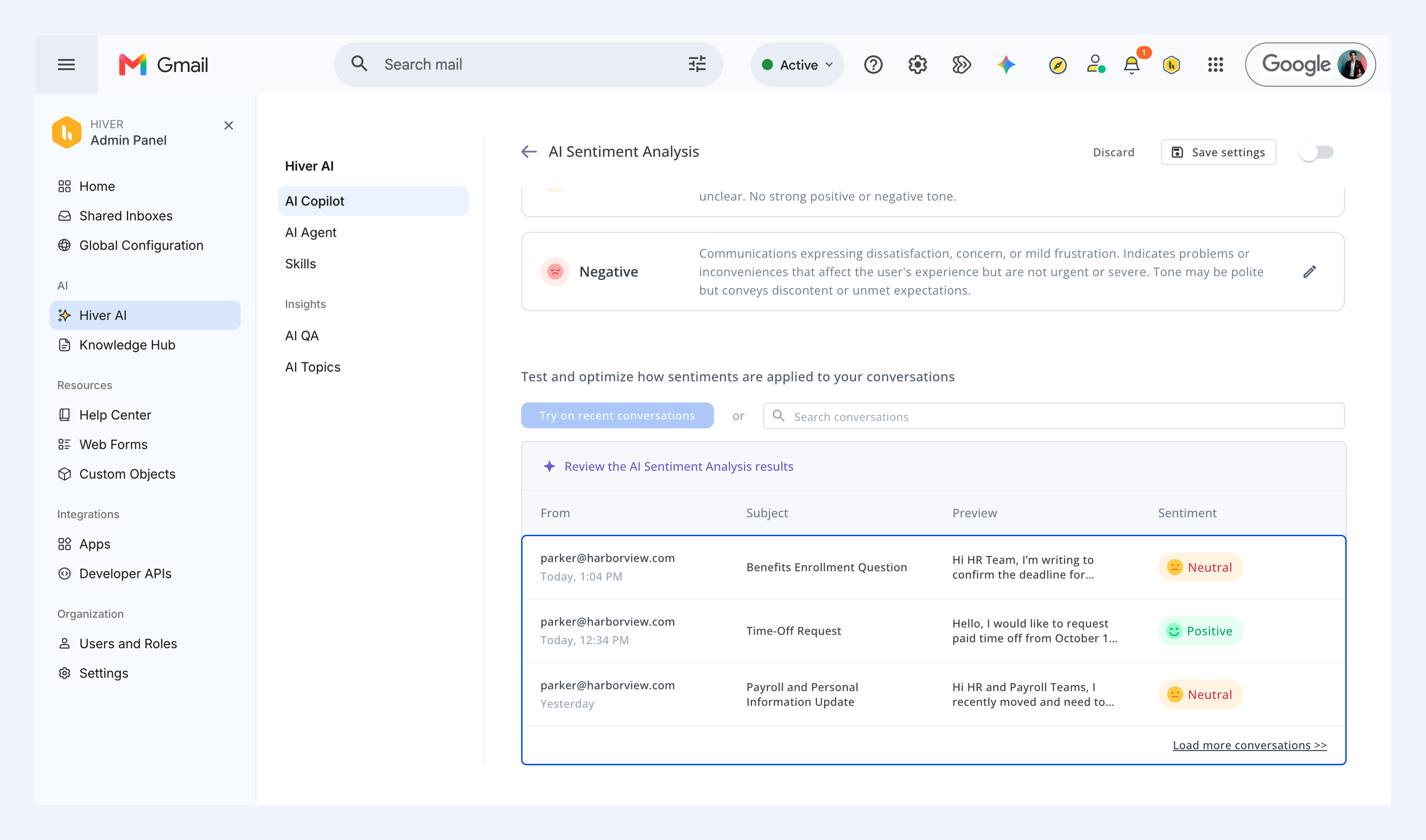
3. If it's not marking the emails correctly, go back to the pencil icon to edit your descriptions and make them clearer.
4. Once done, test again to verify accuracy.
5. When tests return accurate results, save your settings and enable Sentiment Analysis again for all future emails.
Viewing emails with Sentiment Analysis
Once the feature is active, sentiment indicators appear in two ways within your inbox:
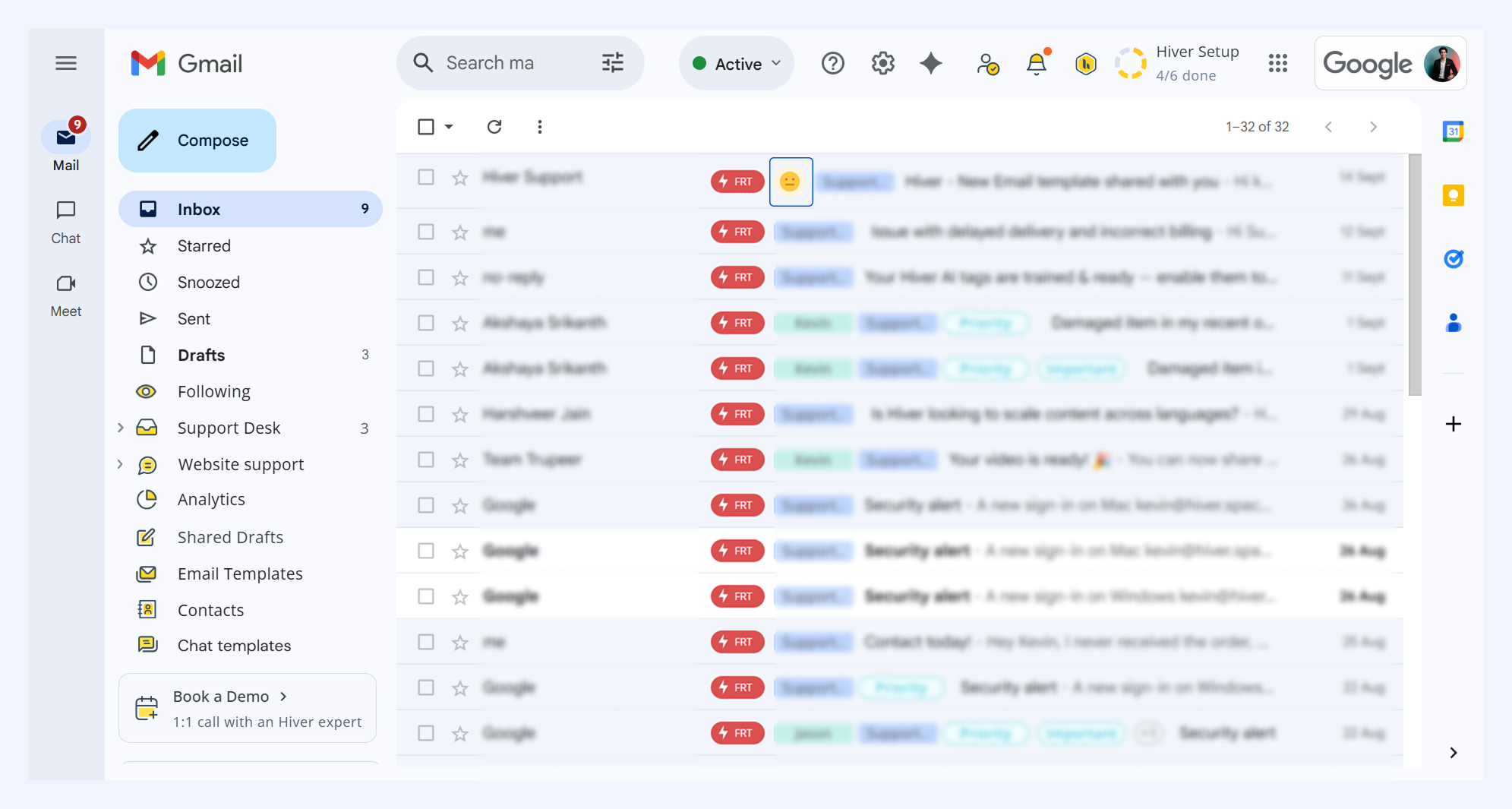
- Conversation list view: Each conversation displays an icon or smiley representing its detected sentiment score.
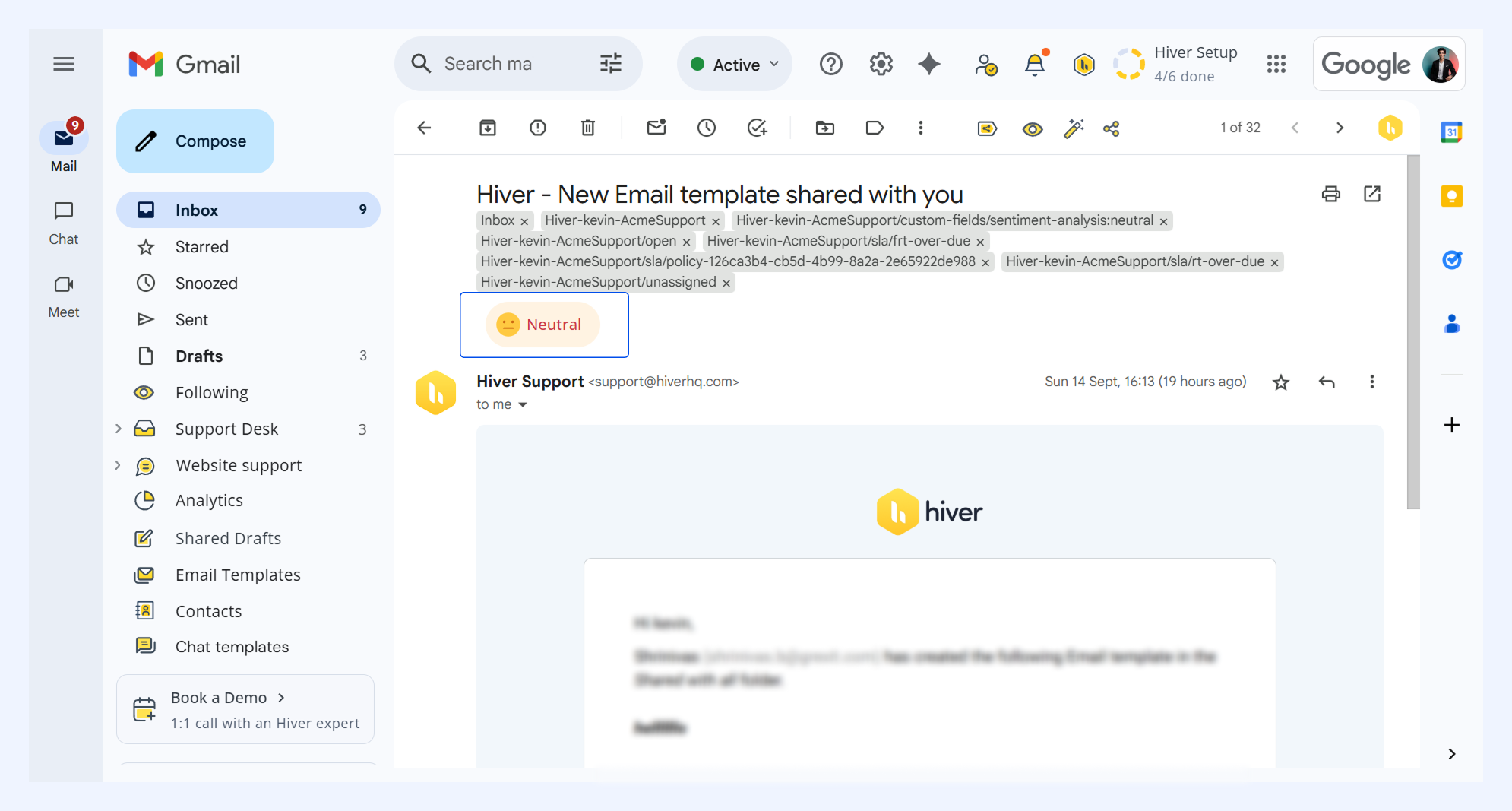
- Individual conversation view: The assigned sentiment appears with hover details, and agents can update it if needed.
You can also filter conversations by sentiment in custom list views, sort from very negative to very positive, and view sentiment trends in Analytics.
Correcting sentiment
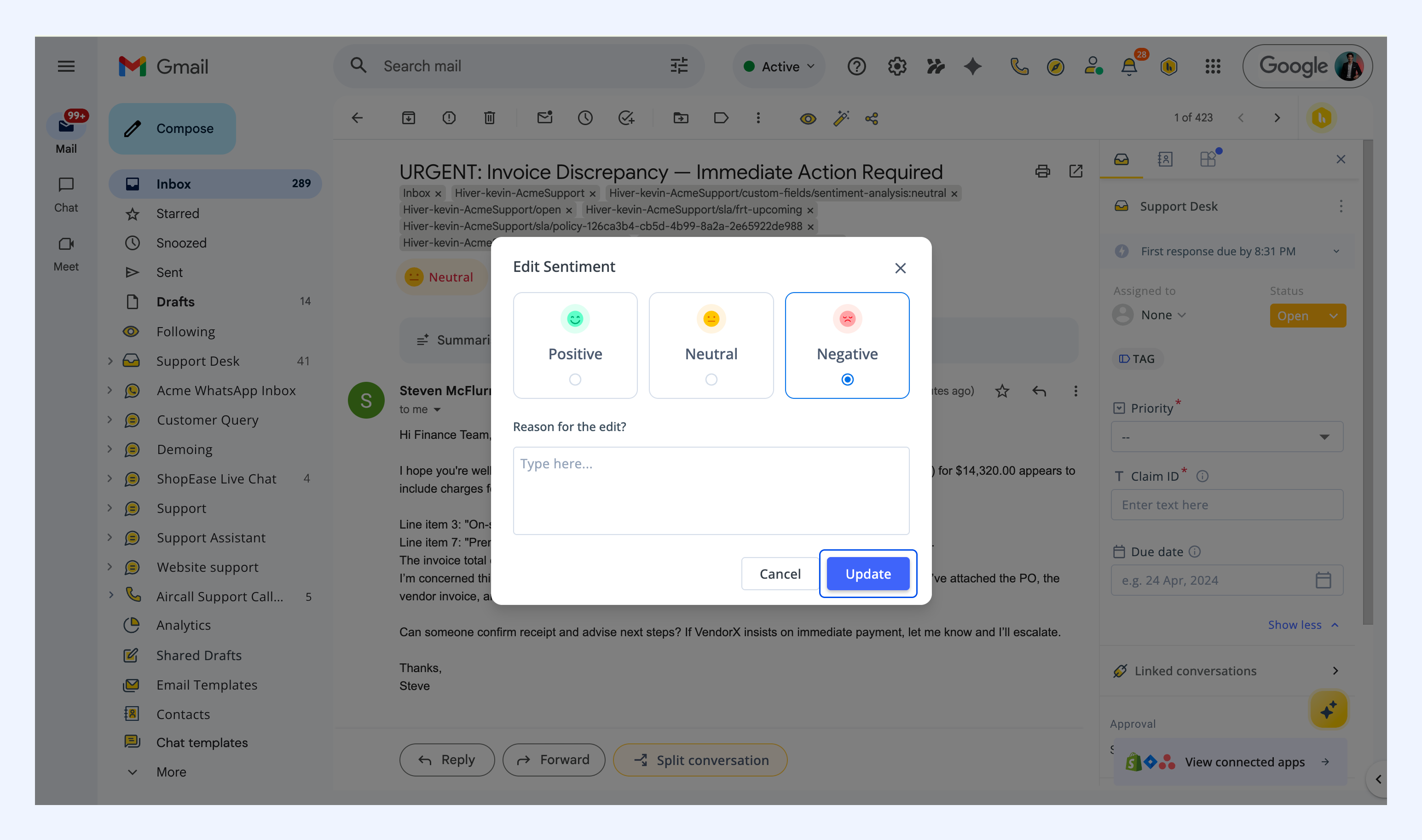
When the AI misidentifies a sentiment, you have the ability to manually adjust it:
1. Locate the sentiment indicator and click the tick icon.
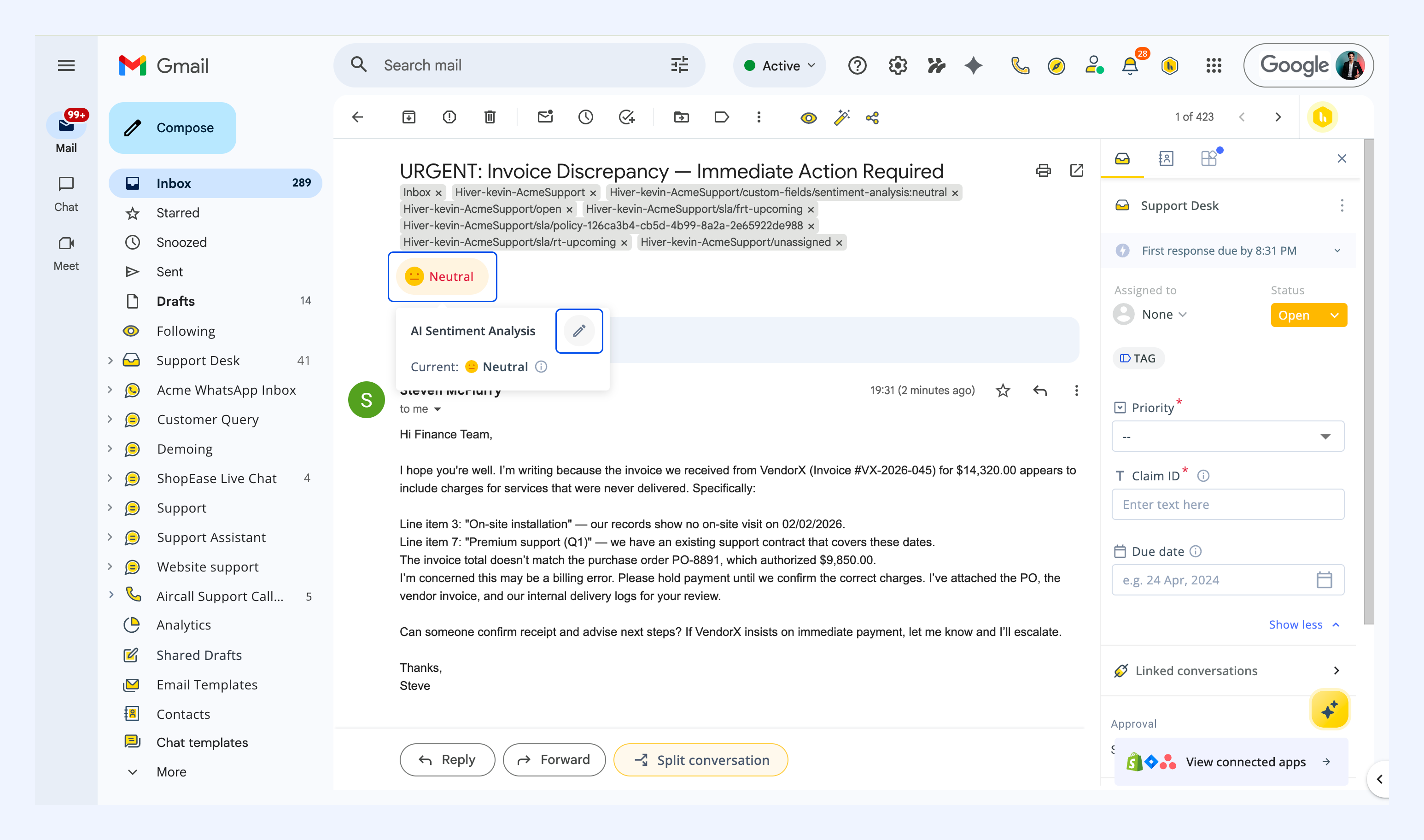
2. Choose the appropriate sentiment from the menu.
3. (Optional) Provide a reason for your change under Reason for this edit?.
4. Click Update.
How to set up Automations using Sentiment Analysis
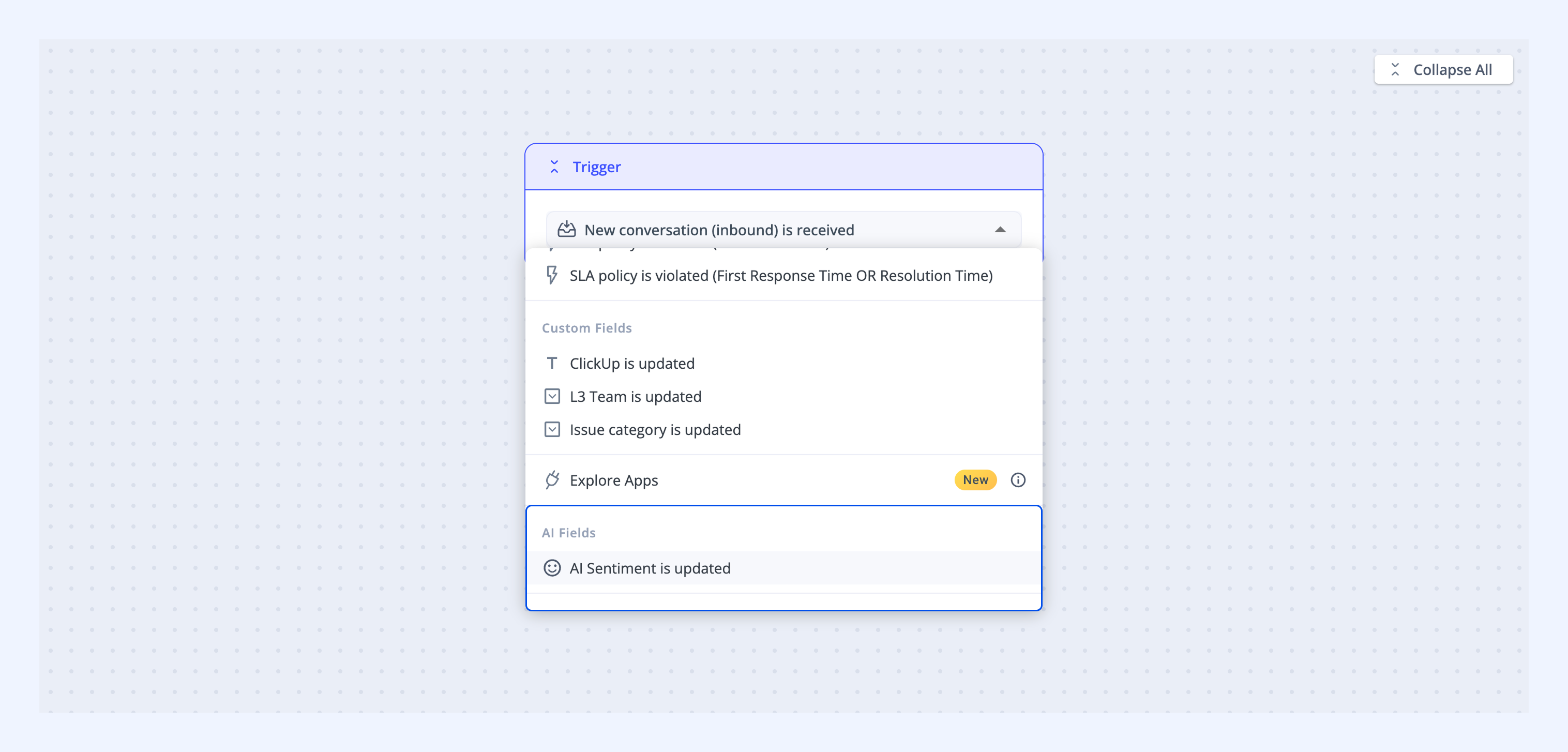
Once sentiment analysis is active, Hiver stores the detected sentiment for each conversation in a dedicated Custom Field. This enables you to create automated workflows that trigger based on customer tone, allowing your team to prioritize urgent cases and capture positive feedback.
To set up Automations based on customer sentiments,
- Go to Admin Panel → Automation → Create Automation.
- Choose Sentiment is updated as your Trigger.
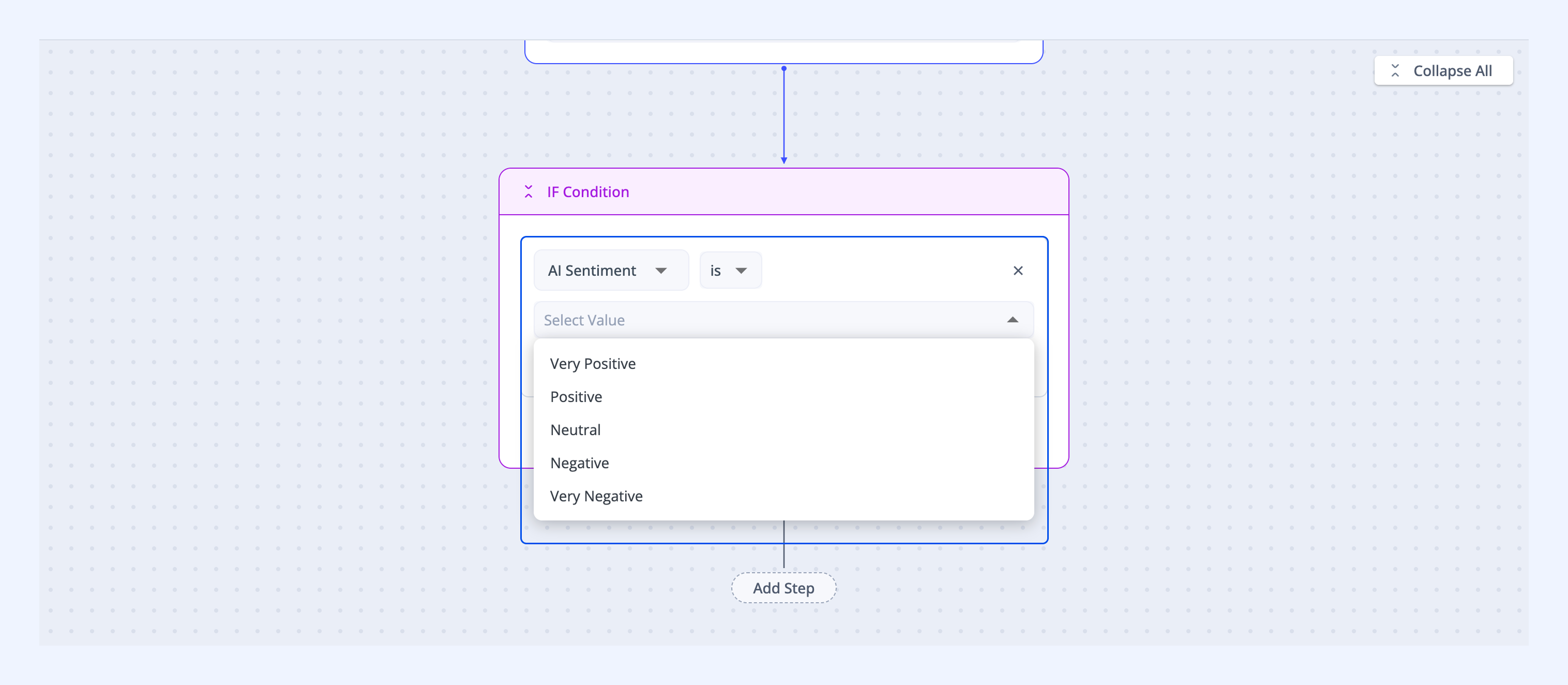
- Click Add step → IF Condition, and select AI Sentiment and values like Negative or Very Positive based on what you want your Automations to run on.
- Click Add step → Action, and select the action Hiver should execute such as assigning conversations, tagging teammates, adding internal notes, and more.
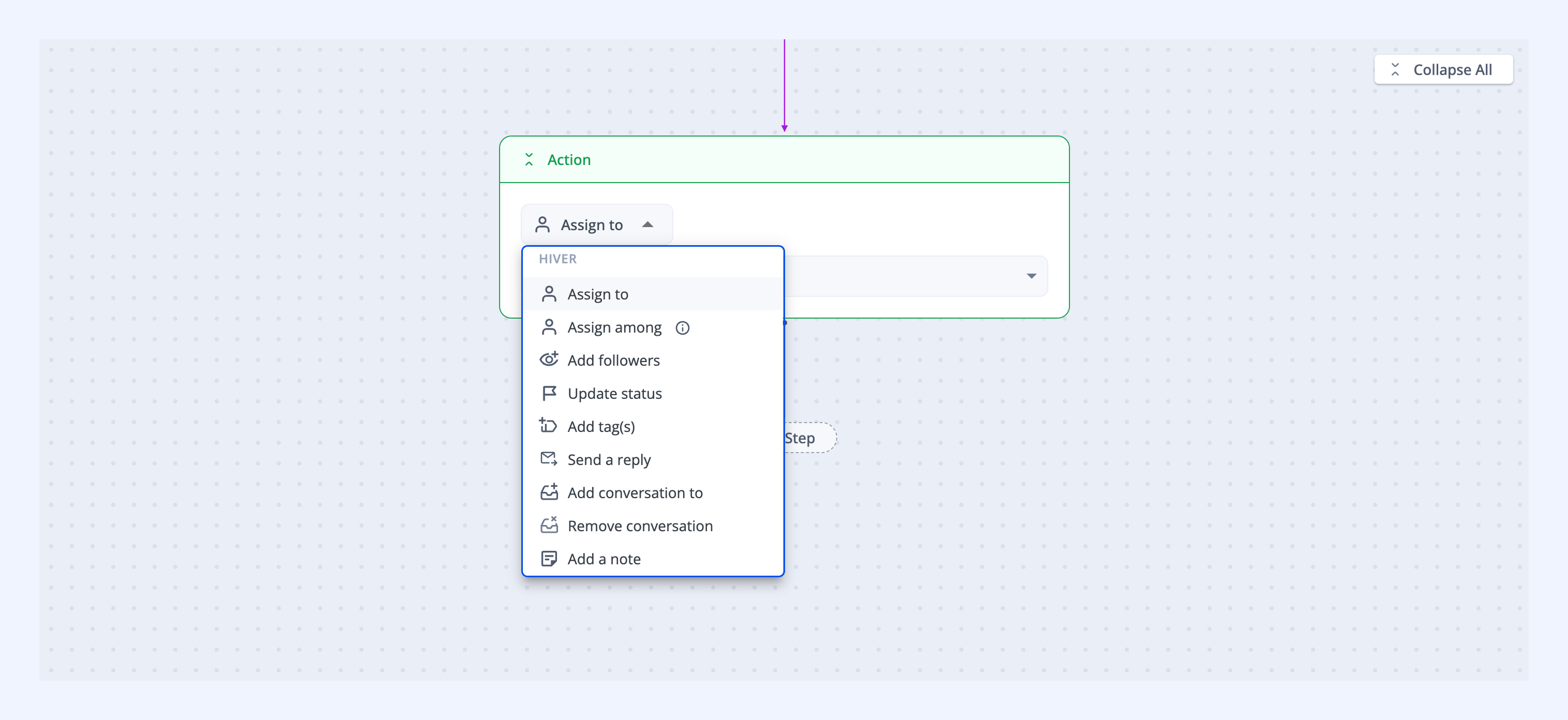
- Click Save and enable to activate your Automation.
FAQs
Will sentiment be applied to replies and follow-ups, too?
Yes, AI Sentiment Analysis detects tone for every incoming message in the entire conversation, including all follow-up emails and replies.
Can I use sentiment to trigger automation rules?
Yes, sentiment data is stored as a Custom Field, so it works seamlessly with all existing Hiver automation workflows and triggers.
Can agents update the assignment sentiment?
Yes, agents can change the assigned sentiment directly from the conversation view and optionally provide a reason for the correction.
What happens if the AI gets the sentiment wrong?
Agents can correct incorrect sentiment predictions, and these changes help improve the AI's accuracy for future conversations.
Can I use sentiment data with analytics?
Yes, you can now view sentiment data in Analytics through the new Sentiment report. This report provides insights into customer experience trends across your Shared Inboxes, helping you understand sentiment patterns and improve customer interactions.
Learn more about the Sentiment report in Analytics.
How many sentiment levels can I choose from?
You can select either a 3-point scale (positive, neutral, negative) or a 5-point scale (very positive, positive, neutral, negative, very negative).
Next steps
Refer to our guide on AI Summarizer