Introduction to AI Copilot
AI Copilot is your personal AI assistant in Hiver. You can use AI Copilot to find answers, get guidance on how to resolve an issue, summarize conversations, and generate ready-to-send replies.
This guide gives you an overview of how you can use AI Copilot across different parts of your customer service workflows to resolve issues faster.
Find answers to questions
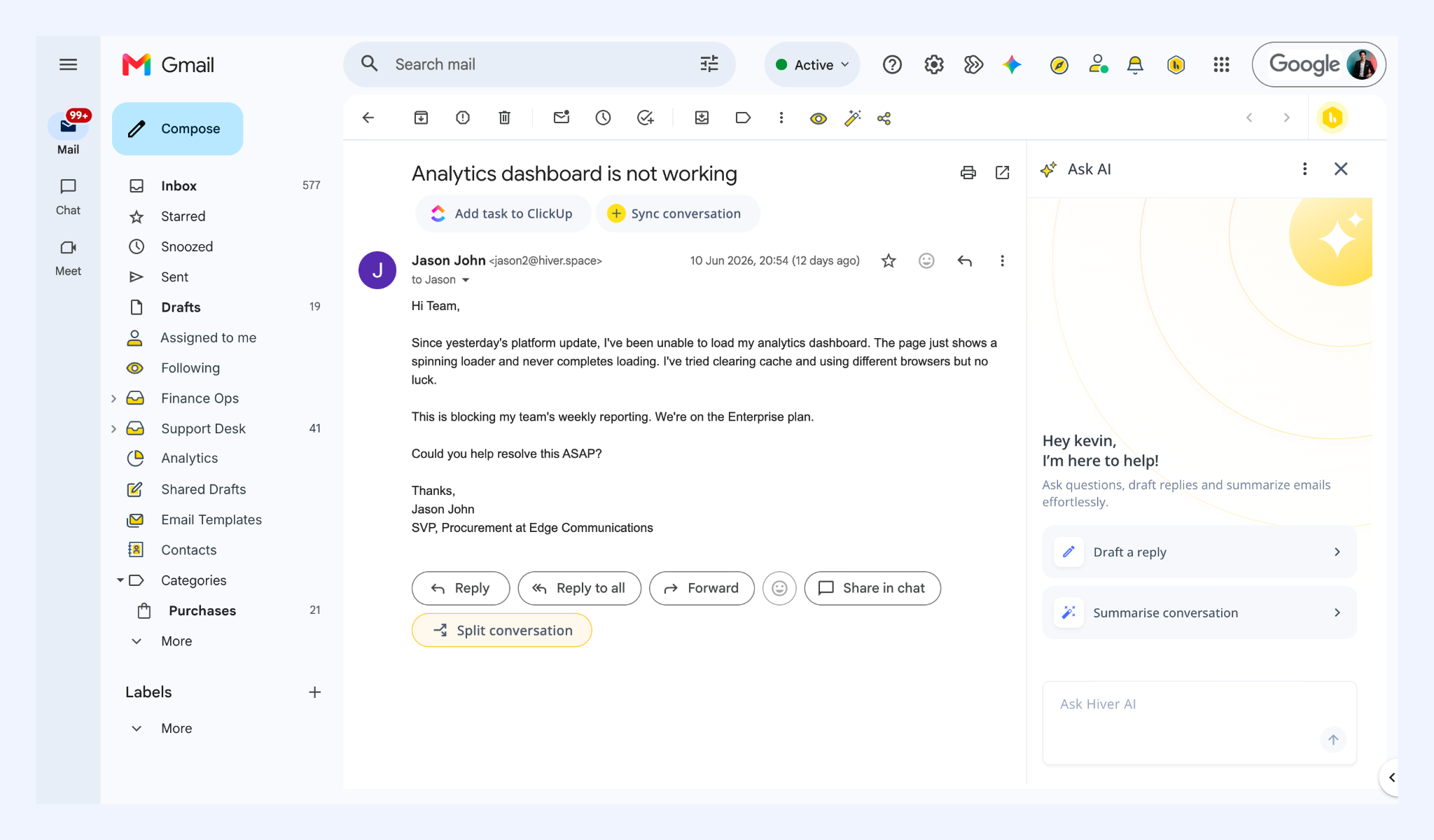
You can ask questions in natural language, and Ask AI will look up answers from your connected knowledge sources to help you find what you need.
For example, you can ask:
- “What is our refund policy?”
- “What are the troubleshooting steps for this issue?”
- “How do I handle this type of request?”
Use this when you need quick answers from your team’s product documentation, policies, processes, or internal help content. You can also use Ask AI to dive deeper into customer requests, find relevant troubleshooting steps, and decide what to do next.
.png)
Tip: If your team stores customer details, order information, account data, or workflow records in Google Sheets, you can ask Ask AI to look up information from connected sheets. For example, you can use it to find:
- Account details
- Renewal dates
- Order status
- Customer-specific information
- Internal workflow records
.png)
Get ready-to-send replies
You can use Ask AI to generate a response based on the customer conversation and available knowledge.
For example, you can ask:
- “Draft a reply.”
- “Write a response using our cancellation policy.”
- “Explain these troubleshooting steps to the customer.”
You can review and edit the response before sending it.
Learn more about drafting replies with Ask AI
.png)
Catch up on long conversations quickly
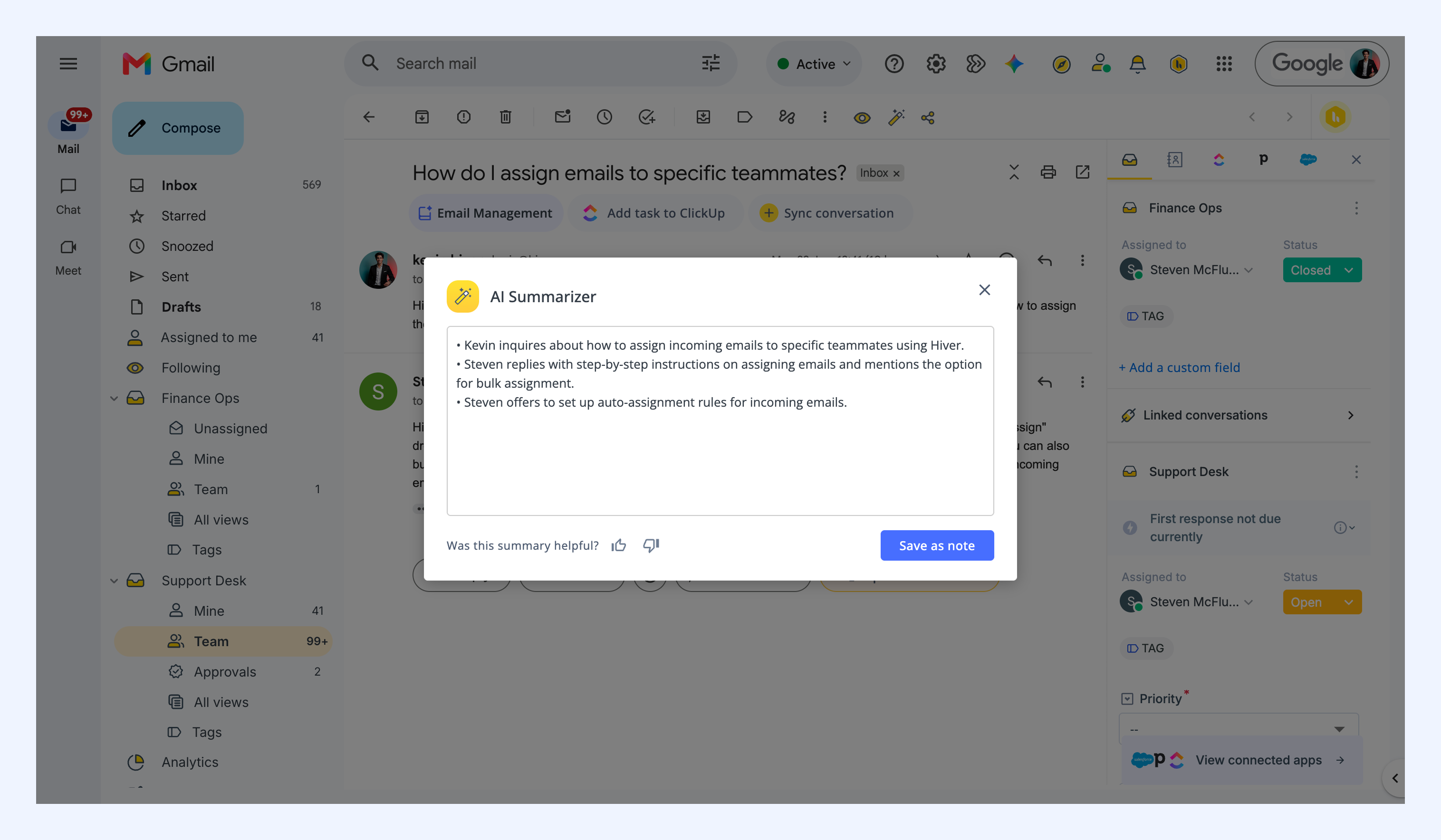
You can use AI Summarizer to understand a long or complex conversation without reading every message in the thread.
It gives you a quick summary of the customer’s issue and previous context, so you can see what has happened before you reply.
Use it when you want to:
- Catch up before responding
- Review a reassigned conversation
- Understand what has already been discussed
- Avoid asking the customer to repeat information
Learn more about AI Summarizer
Polish your responses
You can use AI Compose to refine a reply you’ve already written. Use it to:
- Make a reply clearer
- Shorten a long response
- Expand a brief response
- Fix grammar and readability
- Make the tone more professional, friendly, or empathetic
- Rephrase a message before sending
Use trusted knowledge sources
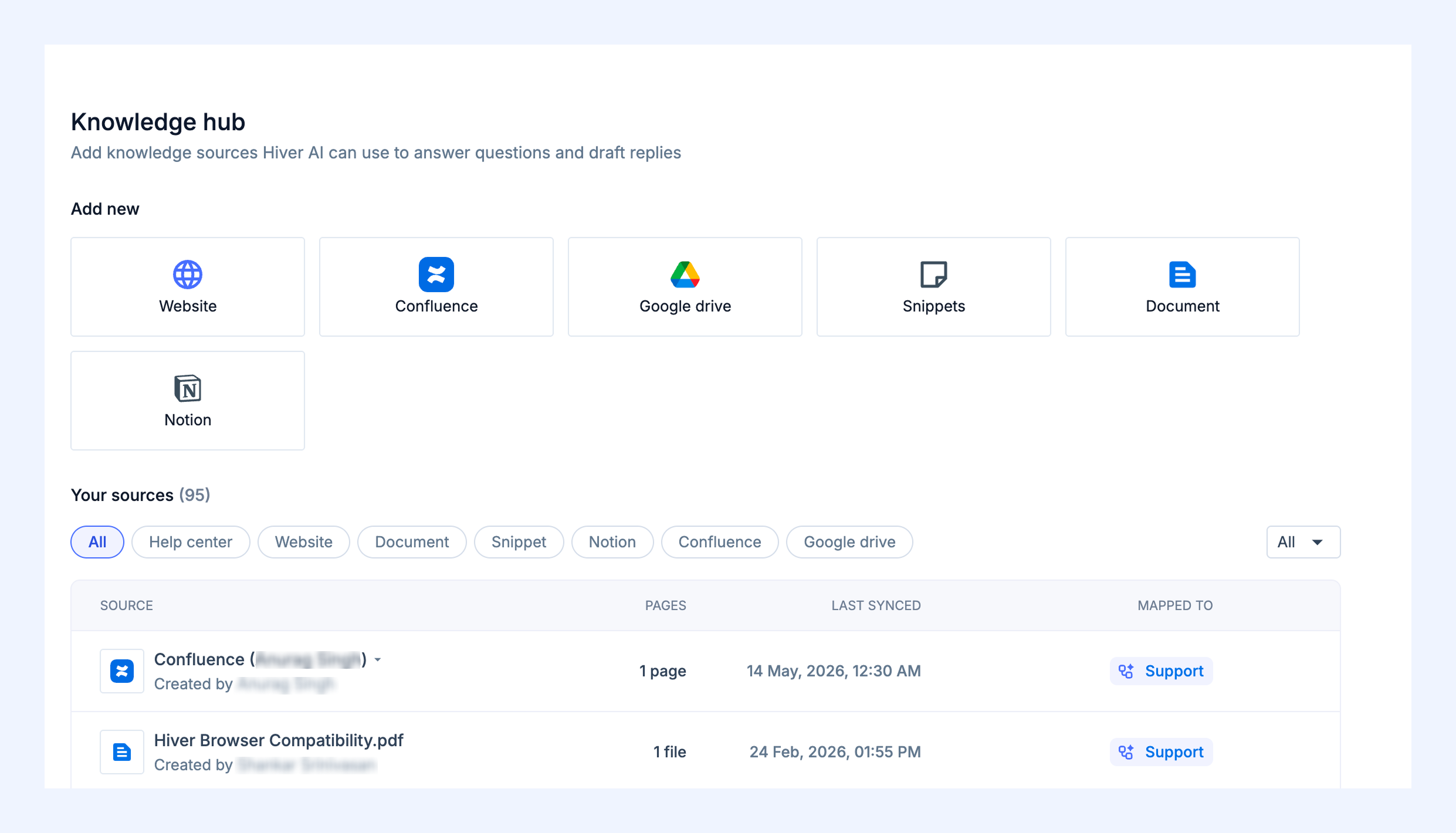
AI Copilot answers questions using the knowledge sources connected to Hiver. You can connect your Hiver Help Center, use existing knowledge from tools like Notion, Confluence, and Google Drive, add snippets, or upload documents.
All knowledge sources are managed from one central place, so your team has better control over what AI Copilot can access and use.
Learn more about managing knowledge sources
How to access AI Copilot
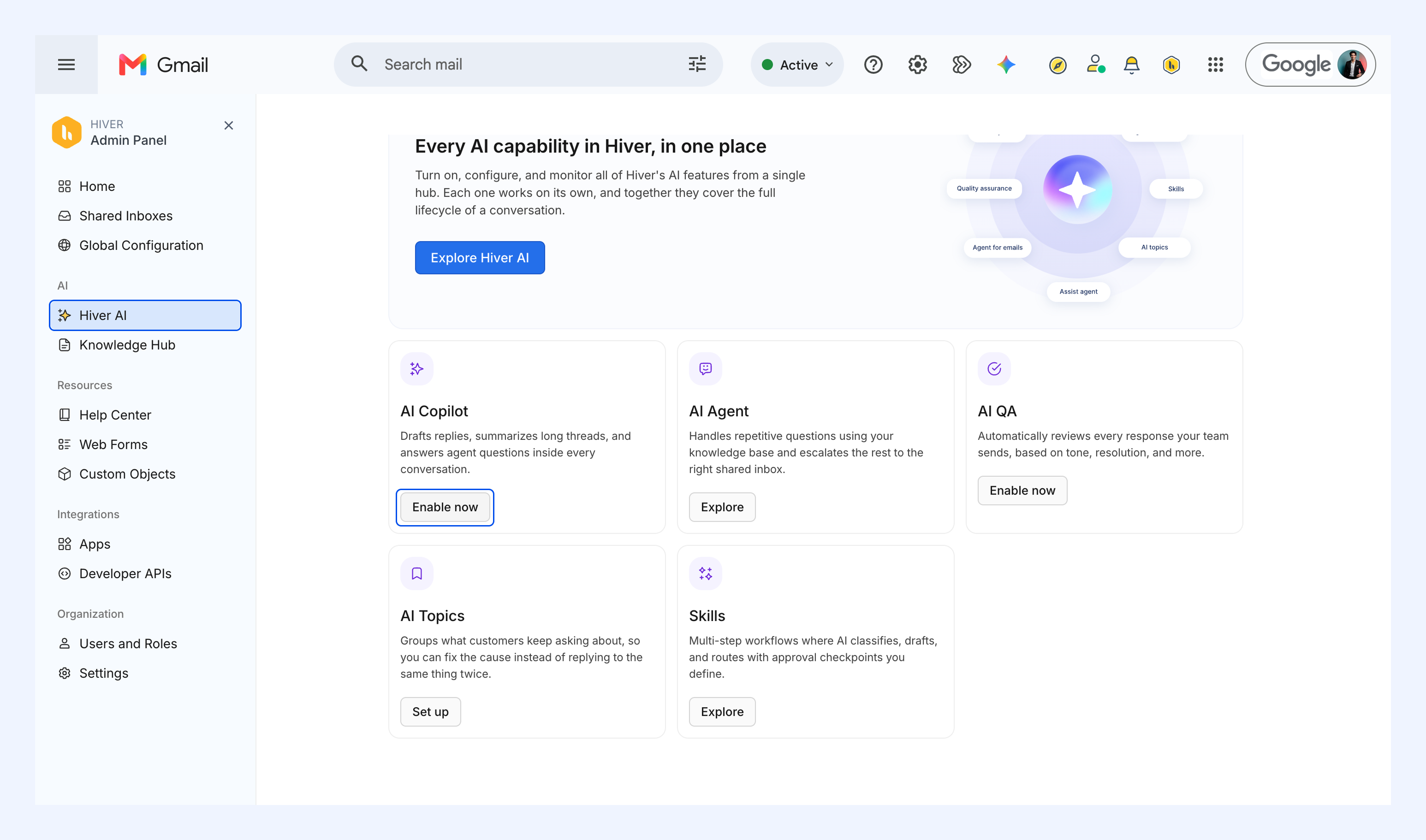
1. Go to Admin Panel → Hiver AI, click Enable now under AI Copilot.
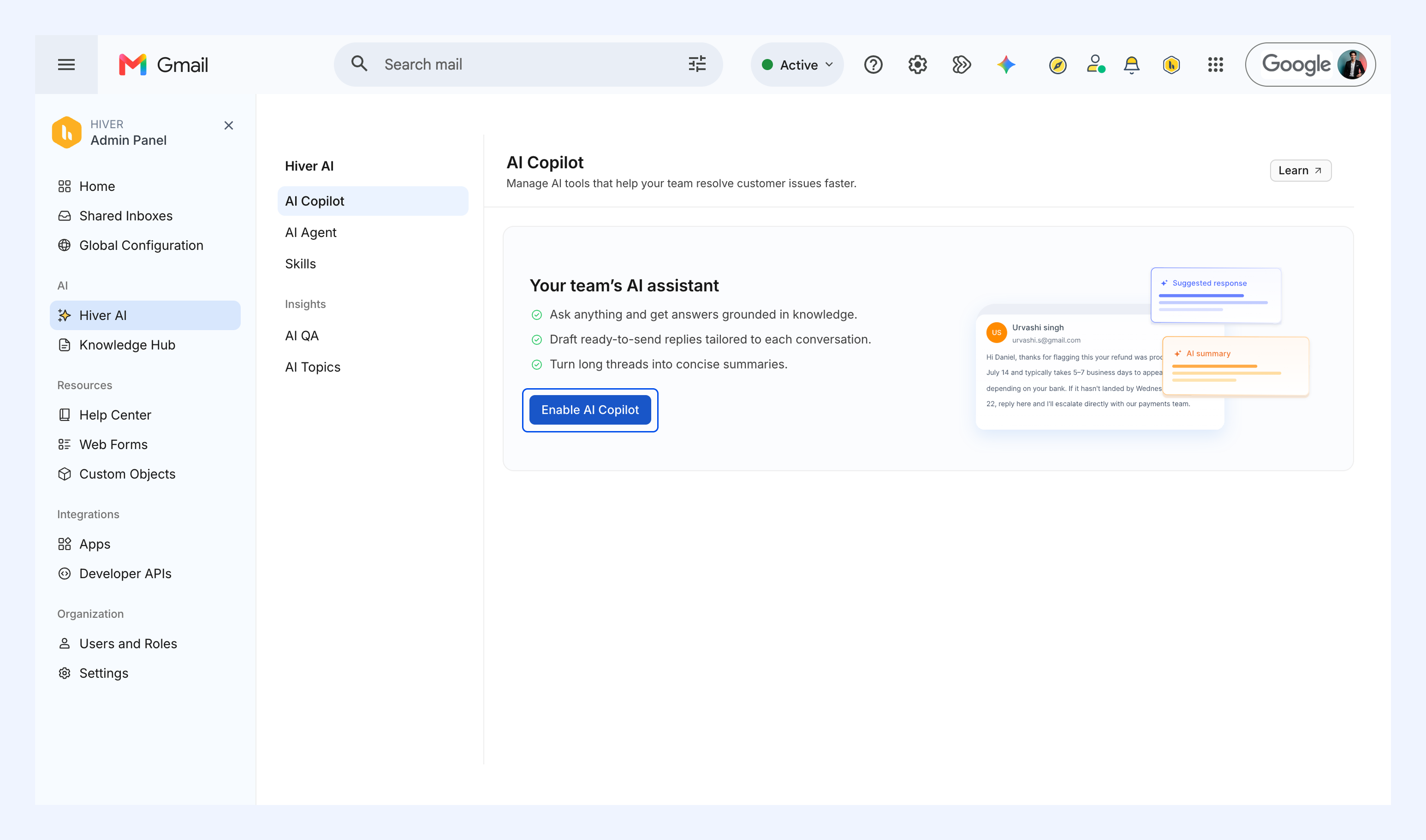
2. Click Enable AI Copilot.
3. Select the Shared Inbox where you want to enable AI Copilot.
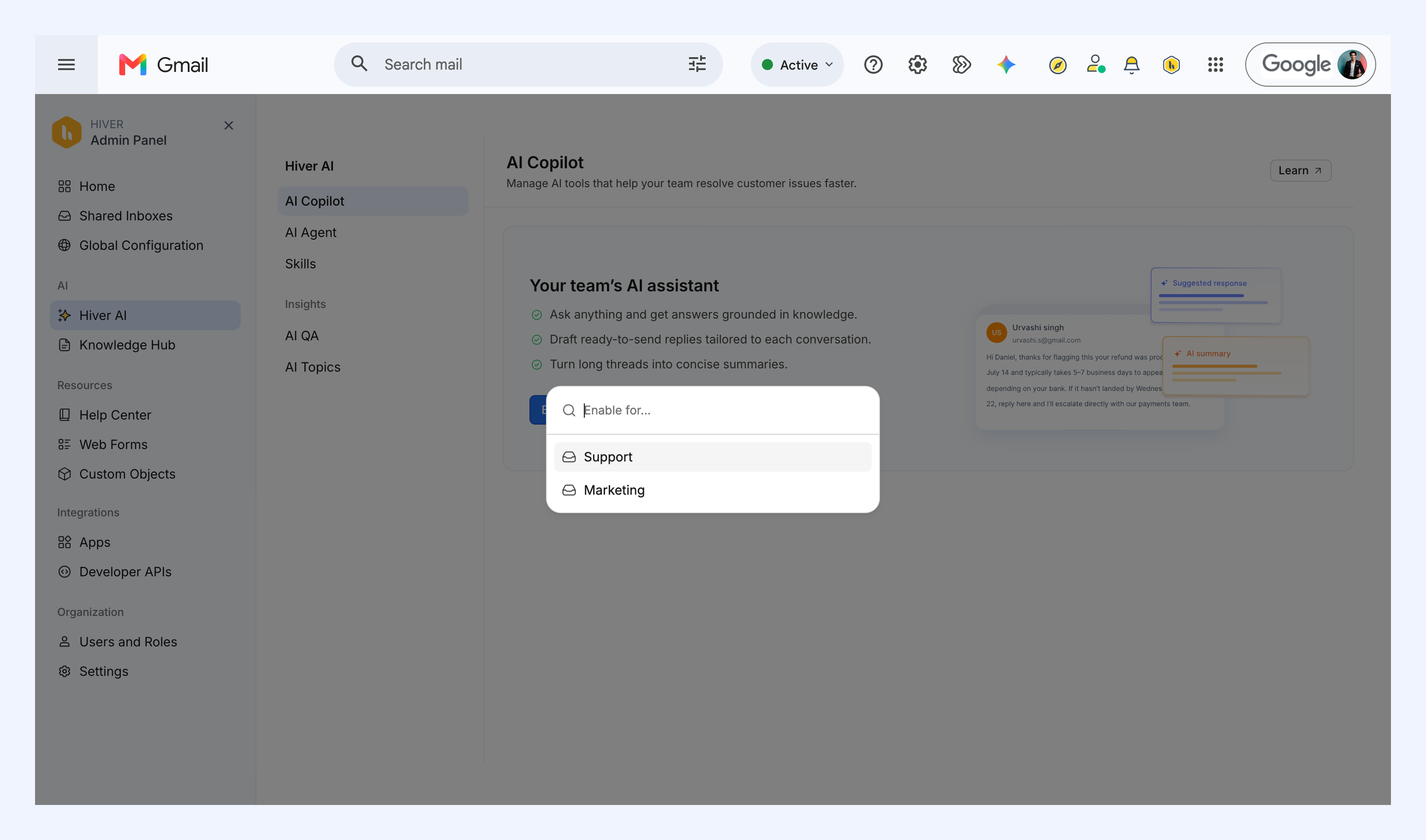
4. Once enabled, click the icon to ask questions, summarize the conversation, or draft a reply.
FAQs
Q: Can Copilot be enabled for individual users?
No. Copilot is enabled at the Shared Inbox level and is available to all members of that inbox.
Q: Does Copilot work in all inboxes automatically once enabled?
No. You need to enable Copilot for each Shared Inbox where you want to use it.
Next steps
Managing knowledge sources for Ask AI