Creating CSAT-based Automations
A CSAT rating tells you how a customer felt about the support received. You can create a CSAT-based automation to take action when a customer submits a rating, helping your team respond to feedback promptly.
For example, you can:
- Add a priority tag and assign the conversation to a team lead when a customer selects Not satisfied.
- Add an internal note prompting the assignee to review a dissatisfied customer’s comment and follow up with a resolution.
- Notify the account owner when a priority customer leaves an Okay or Not satisfied rating.
- Tag and route feedback containing keywords such as “slow,” “confusing,” or “unresolved” to the appropriate team.
- Identify satisfied customers who may be open to sharing a testimonial.
Prerequisites
Before you begin, make sure:
- CSAT is enabled in the Shared Inbox.
- You have Admin permissions in Hiver.
Setting up the automation
1. Go to Admin Panel → Shared Inboxes, and select an inbox.
2. Click Automations → Create Automation and give it a name.
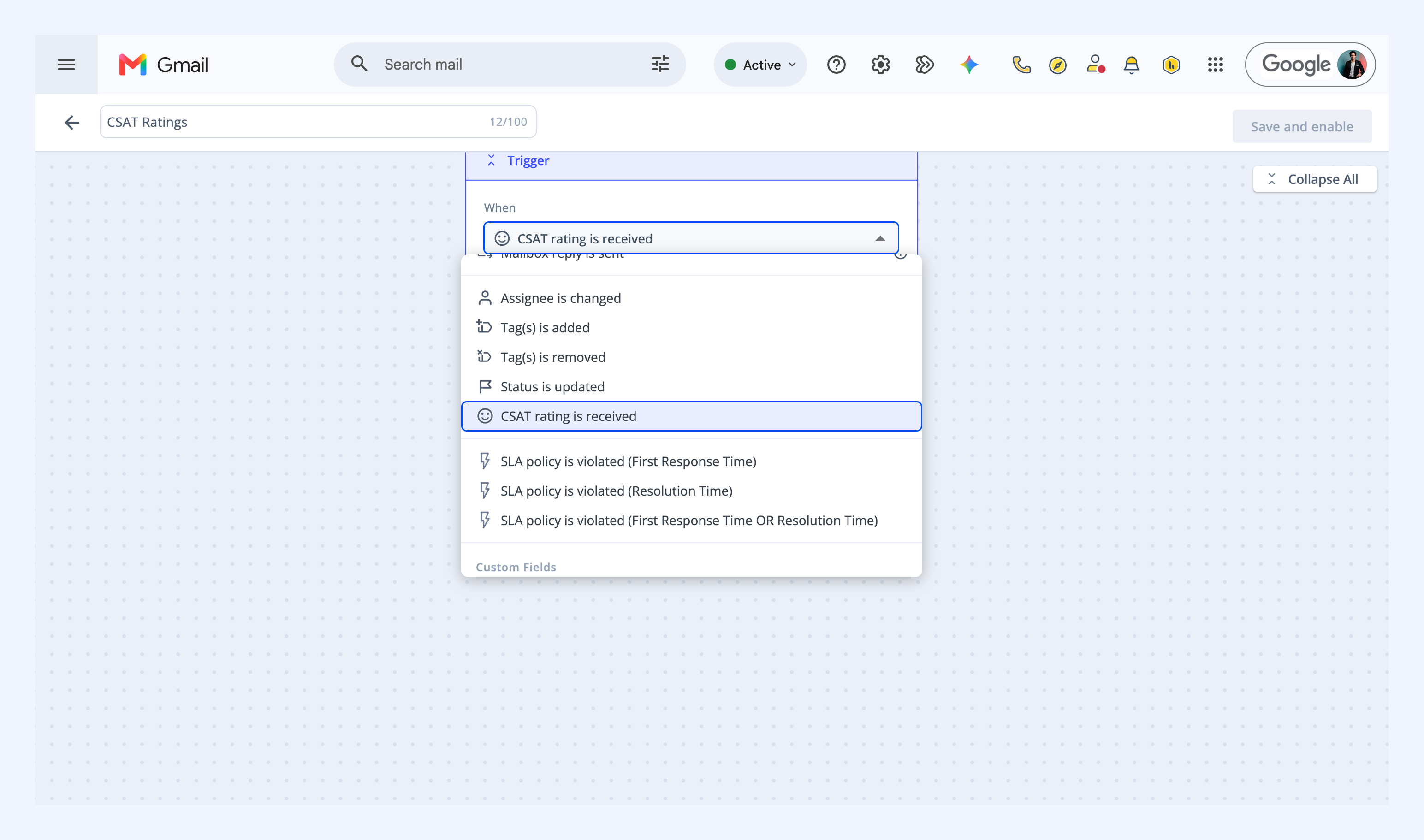
3. From the trigger dropdown, select CSAT rating is received.
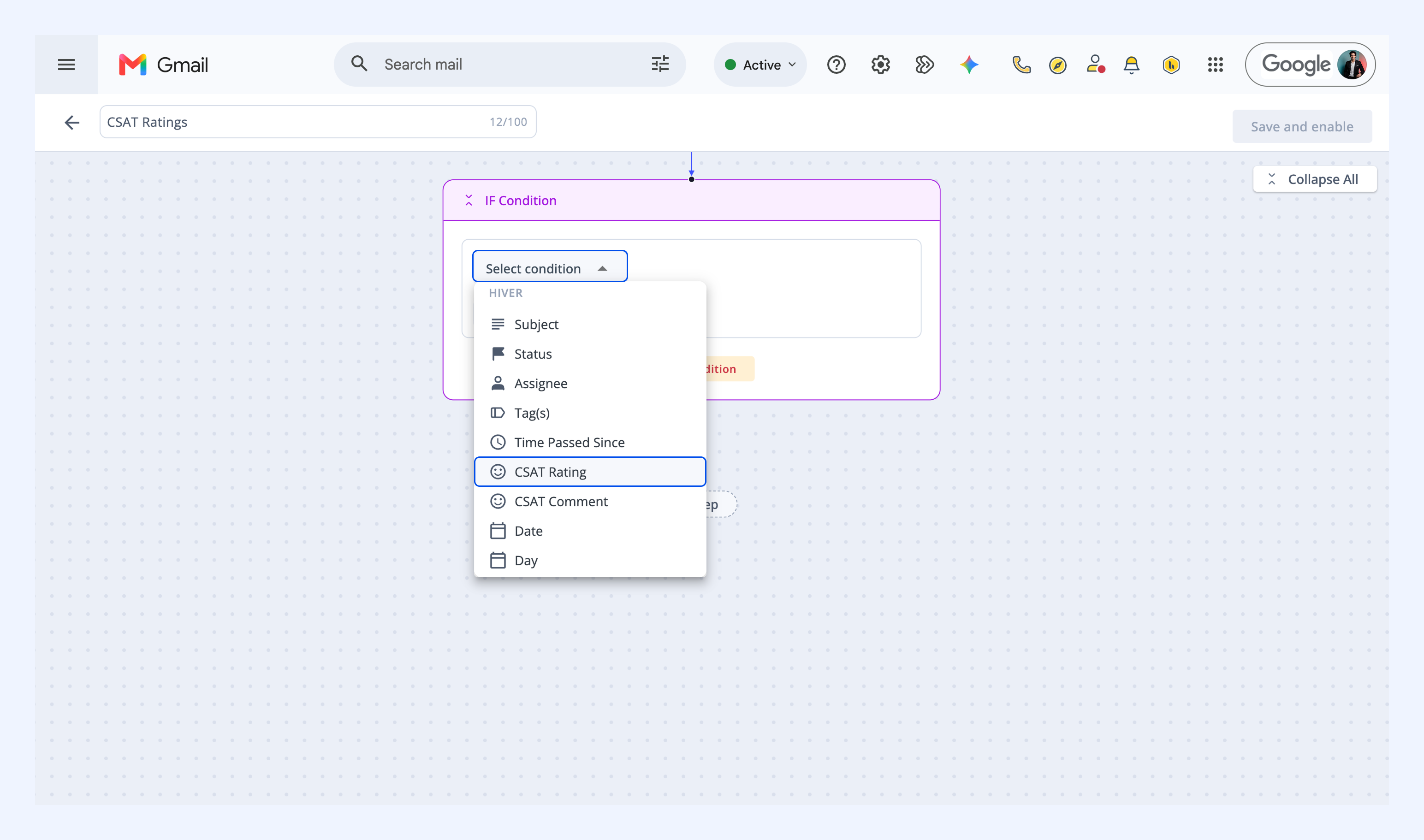
4. Click Add step → If Condition.
5. Set the condition to CSAT Rating or CSAT Comment, then choose an operator and value.
Note: You can set the value to Satisfied, Okay, or Not satisfied.
Operators for CSAT Rating
| Operator | Description |
| is | Matches the selected rating |
| is not | Does not match the selected rating |
| is any of | Matches any of the selected ratings |
| is not given | The customer didn't leave a rating |
Operators for CSAT Comment
| Operator | Description |
| contains any of | The comment includes one of the added keywords |
| does not contain | The comment includes none of the added keywords |
| is not given | The customer didn't leave a comment |
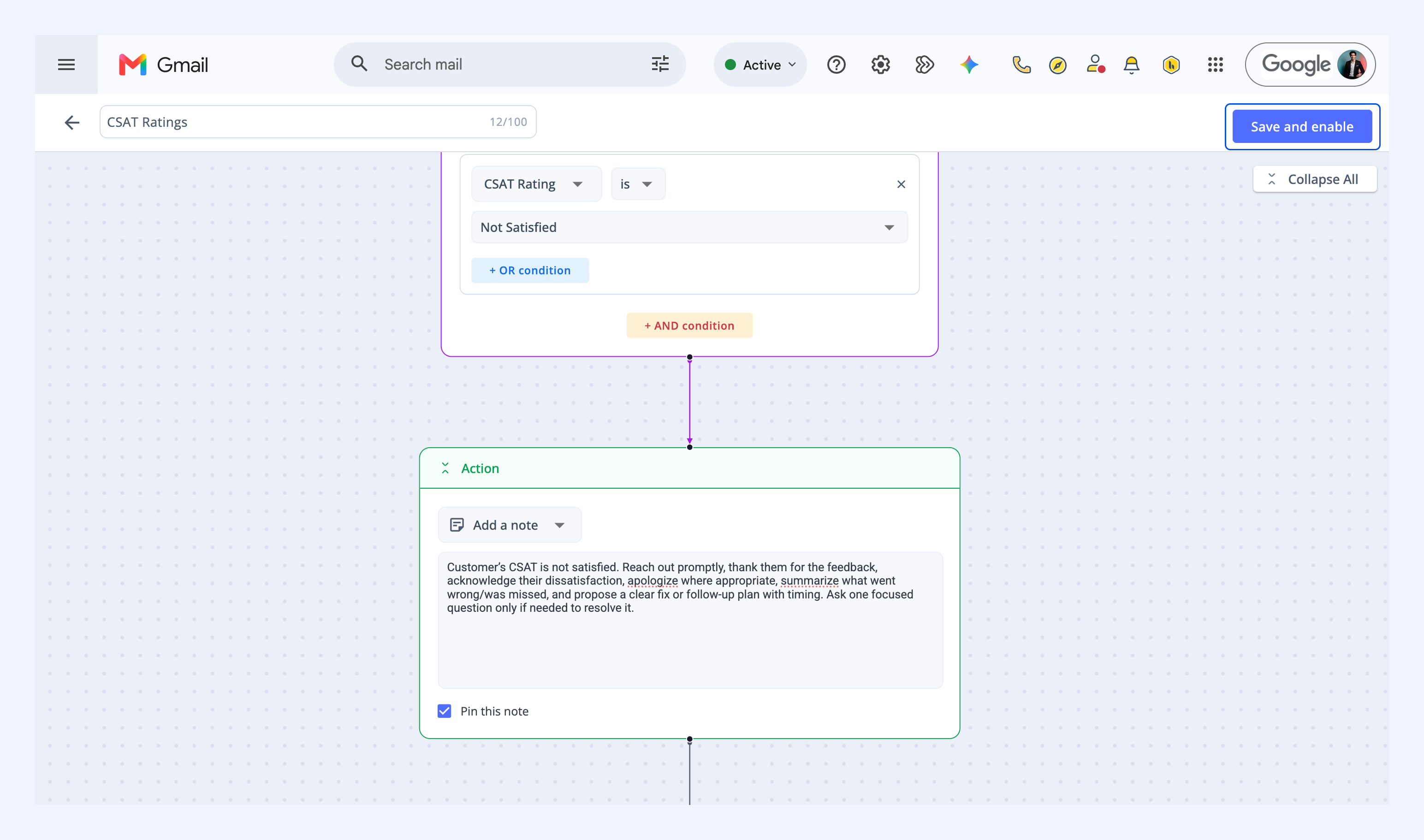
5. Click Add step → Action, then select what the automation should do. For example, you can add a tag, reassign the conversation, add an internal note, notify a teammate, or send a reply.
6. Click Save and enable.
Related articles
Set up AI Sentiment automations