Creating SLA-based automations
SLA policies define how quickly your team is expected to respond to and resolve conversations. You can create an SLA-based Automation to take action when one of these targets are missed, helping your team identify and address breaches promptly.
For example, you can:
- Notify the assignee and their team lead when a first response target is missed.
- Add a priority tag and reassign a conversation to an escalation specialist when its resolution target is missed.
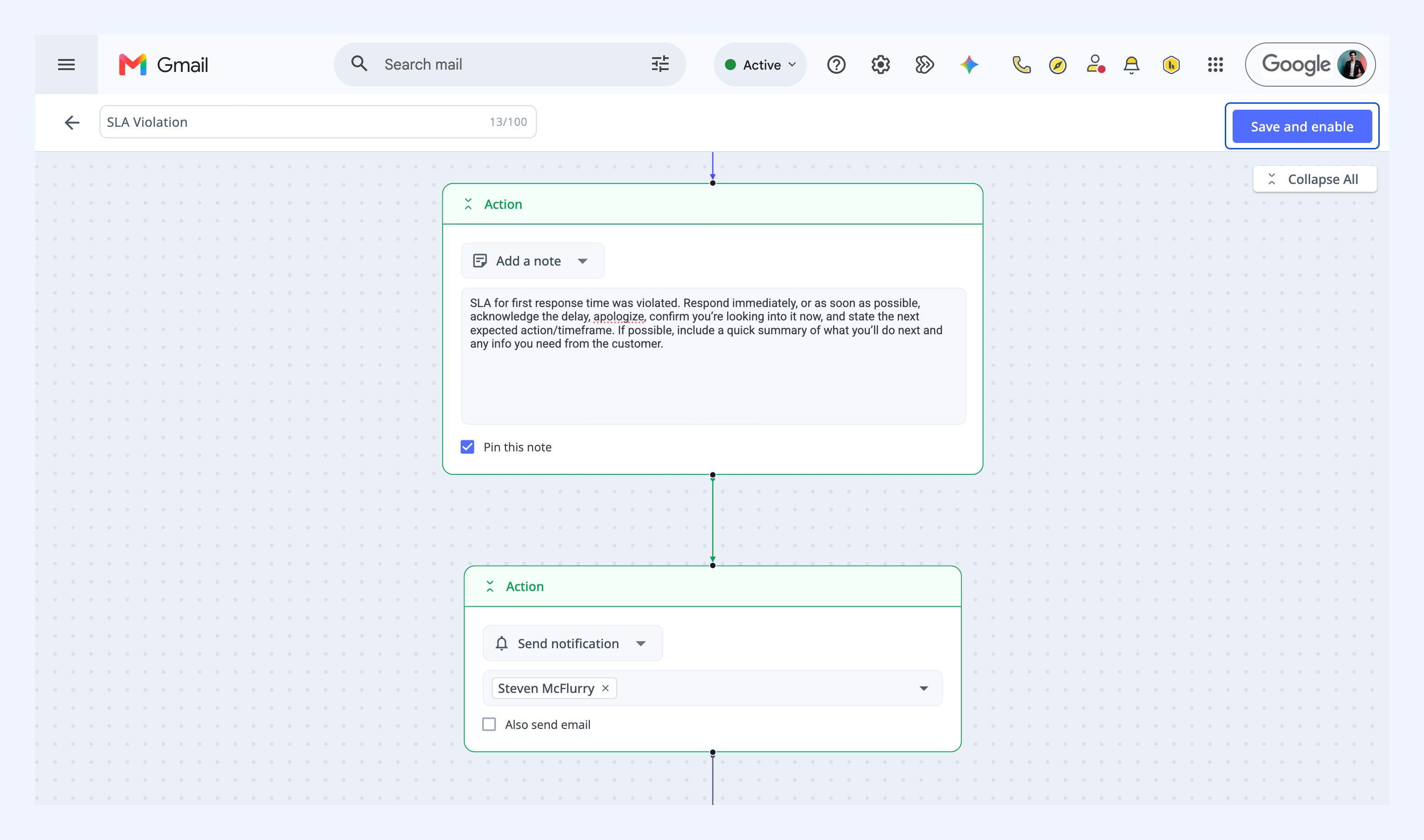
- Add an internal note prompting the assignee to acknowledge the delay and tell the customer when to expect an update.
- Escalate breaches from high-priority customers to the account owner.
Prerequisites
Before you begin, make sure:
- At least one SLA policy is set up in the Shared Inbox.
- You have Admin permissions in Hiver.
Setting up the automation
1. Go to Admin Panel → Shared Inboxes, and select an inbox.
2. Click Automations → Create Automation, and give it a name.
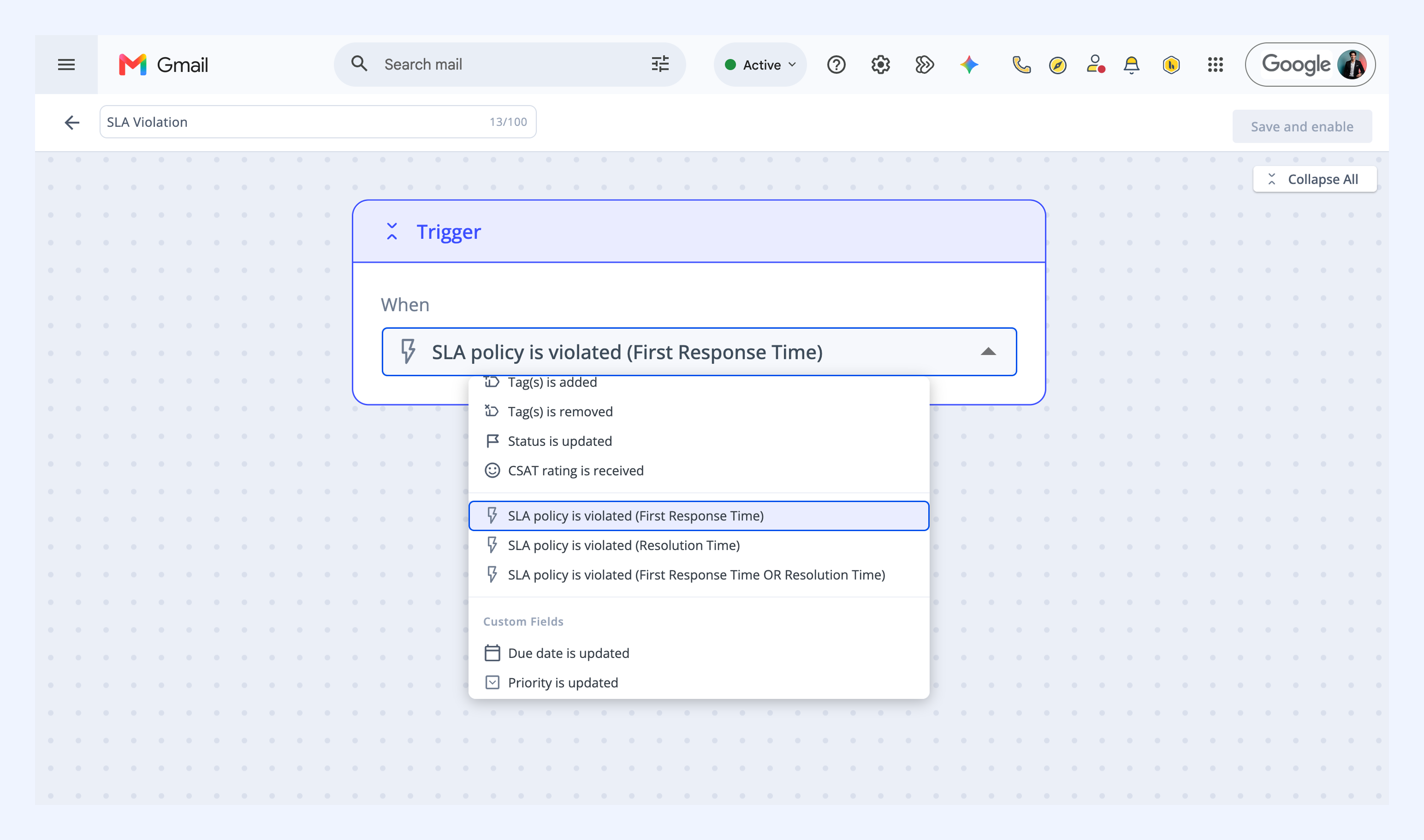
3. From the trigger dropdown, select the SLA trigger you want to use.
| Trigger | Event |
| SLA policy is violated (First Response Time) | The first response target is missed |
| SLA policy is violated (Resolution Time) | The resolution target is missed |
| SLA policy is violated (First Response Time OR Resolution Time) | Either the first response or the resolution target is missed |
4. Click Add step → Action, and choose an action. For example, you can add an internal note, notify a team member, send a reply.
5. Click Save and enable.
Note: To run the automation only in certain cases, add an If condition step before the action.
Related articles
Set up AI Sentiment automations