Creating Shared Drafts
Shared Drafts let teammates in a Shared Inbox work on the same email in real time, reviewing, refining, and ensuring replies are accurate and on-brand. This helps your team send faster, more accurate, and consistent replies.
Create a Shared Draft
Note: Shared Drafts are only available in the Shared Inbox. If you want to add people to edit an email in your personal mailbox, add the email to the Shared Inbox first. Learn more about adding your personal email to your Shared Inbox.
1. Start a new draft
Once you have an email in your Shared Inbox, follow these steps:
- Open the and click Reply, Reply All, or Forward.
- Type your message in the compose window.
2. Share the draft
- Click the Share Draft button in the compose window.
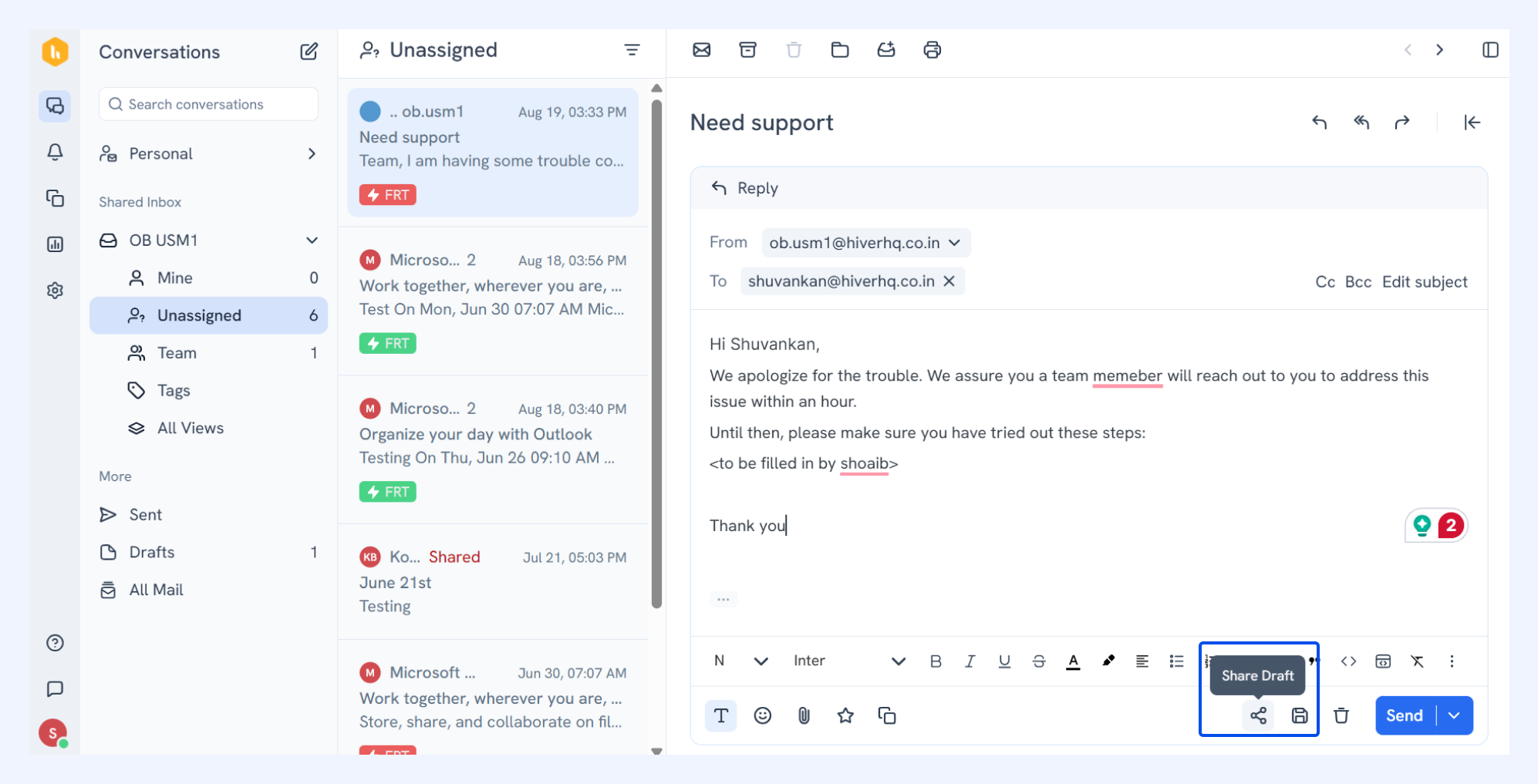
Once shared, the draft is visible to all members of the Shared Inbox so they can review and edit together.
Important: Only one shared draft can exist per email per mailbox. If there’s already a shared draft, you’ll need to send or discard it before creating a new one.
Open and edit a Shared Draft
Step 1: In the left panel, go to the Drafts folder.
This folder helps you keep track of both personal and shared drafts. It’s divided into two sections:
- My drafts: Personal drafts you’ve saved (visible only to you)
- Team drafts: Shared drafts created by you or your teammates
The draft count shown next to the Drafts folder reflects only the number of conversations in My drafts.
Step 2: Select the Team Drafts tab to view all shared drafts created by others and you, in the shared inboxes you’re part of.
- Click Edit & Send on the draft you want to open.
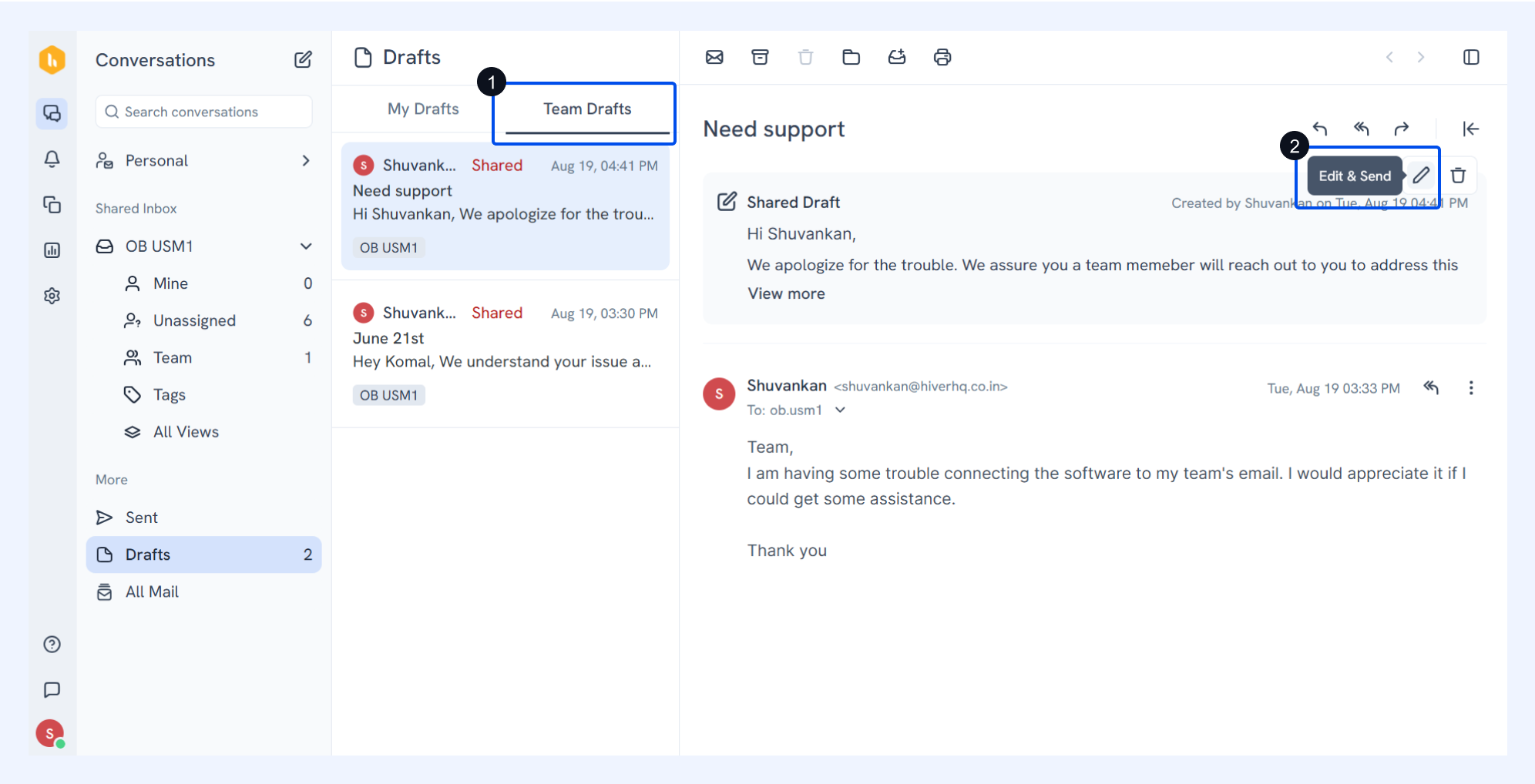
- Update the email body, recipients, or attachments as needed, then hit Save to keep your changes.
Note: In case you forget to hit Save, the draft will automatically be saved if you leave the compose window.
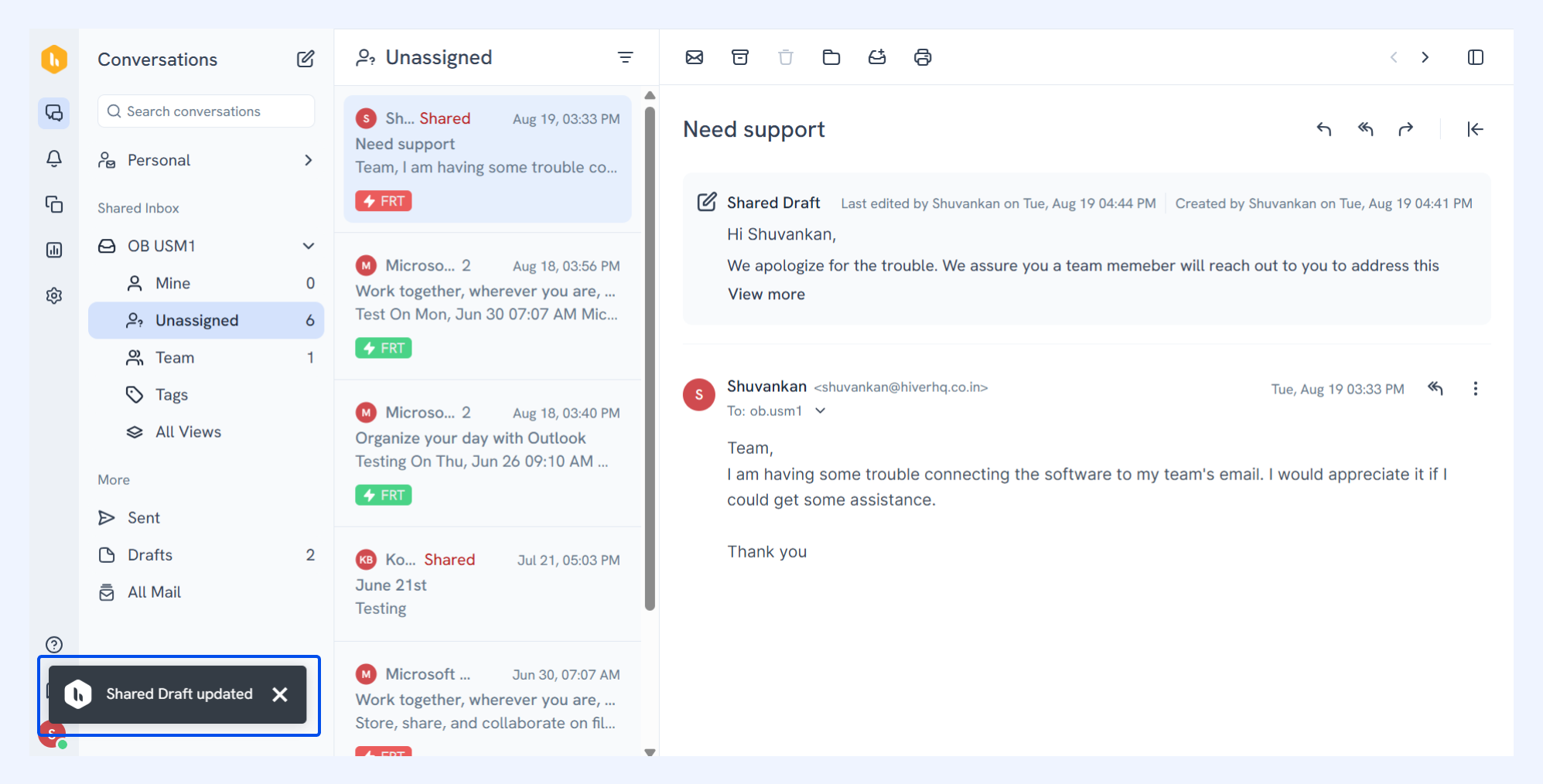
Pro tip: The Last edited by timestamp updates whenever a teammate saves changes. Only the latest saved version of a shared draft is retained. If multiple teammates open the same draft at once, only the latest saved version will be saved.
Step 3: Once everyone has reviewed and refined the content, make any last adjustments and hit Send.
Note: Once sent, the shared draft is removed from the conversation in Drafts, but the sent reply appears in the email thread.
Discarding a Shared Draft
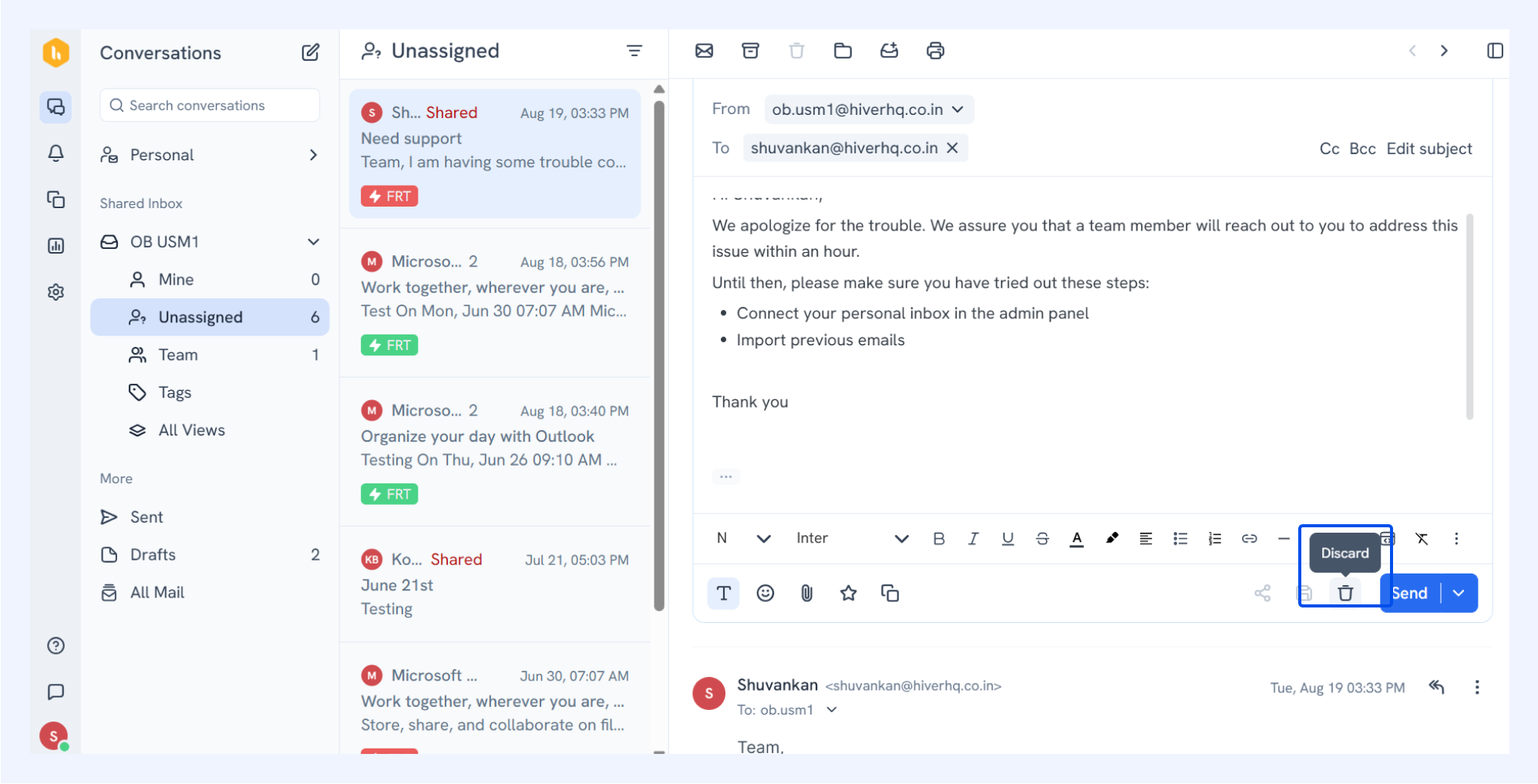
Note: Deleting a shared draft removes it for everyone in the Shared Inbox.
Step 1: Go to the Drafts folder and open the Team Drafts tab.
Step 2: Click Discard next to the draft you want to remove and confirm the action in the pop-up window.
Next steps
Collaborate on a conversation with Hiver
Manage emails in Hiver Shared Inbox
Create SLA Policies in Hiver to stay on top of every response
FAQs on Shared Drafts in Hiver
1. What are Shared Drafts in Hiver?
Shared Drafts let multiple teammates edit the same email within a shared inbox. This ensures accuracy, brand consistency, and faster replies without endless forwarding.
2. How do I create a Shared Draft in Hiver?
Open an email in your Shared Inbox, click Reply, Reply All, or Forward, compose your message, then click Share Draft so your teammates can review and edit the same conversation.
3. Can multiple people edit a Shared Draft at once?
Yes, but only the latest saved version is retained. If several teammates edit at once, the version saved last will be the one that gets sent or retained.
4. What happens when I send a Shared Draft?
Once sent, the shared draft is removed from the Team Drafts folder for all team members. The sent email appears in the conversation thread like any other reply.