Connecting a personal inbox to Hiver
Connecting your personal inbox lets you send replies from your personal email address, and use that address in Automations to automatically move relevant emails to your Shared Inbox. Optionally, you can also choose to view and manage all emails sent to your personal inbox right from Hiver Omni.
Steps to connect your personal inbox
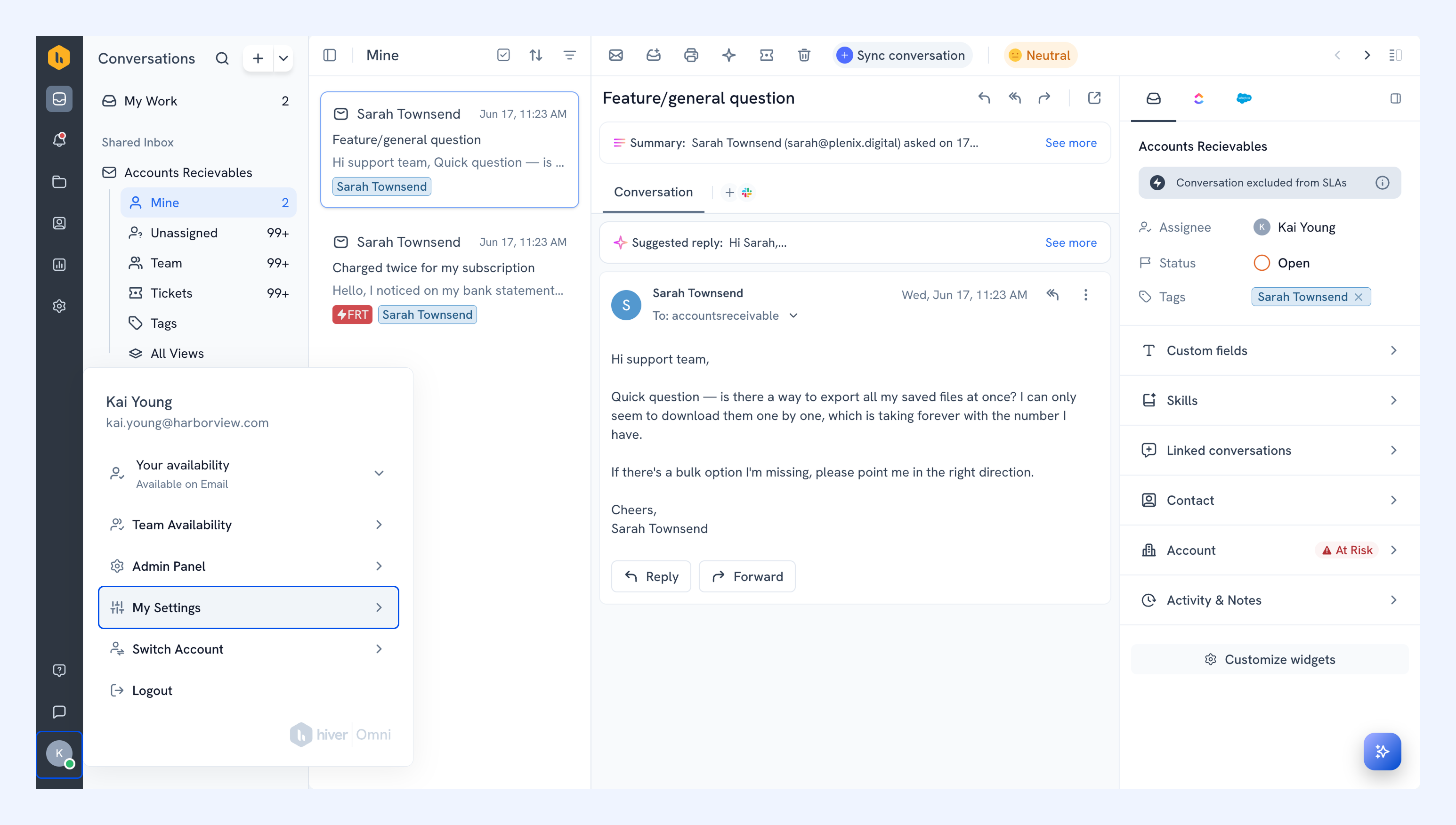
1. Go to your profile icon and select My Settings.
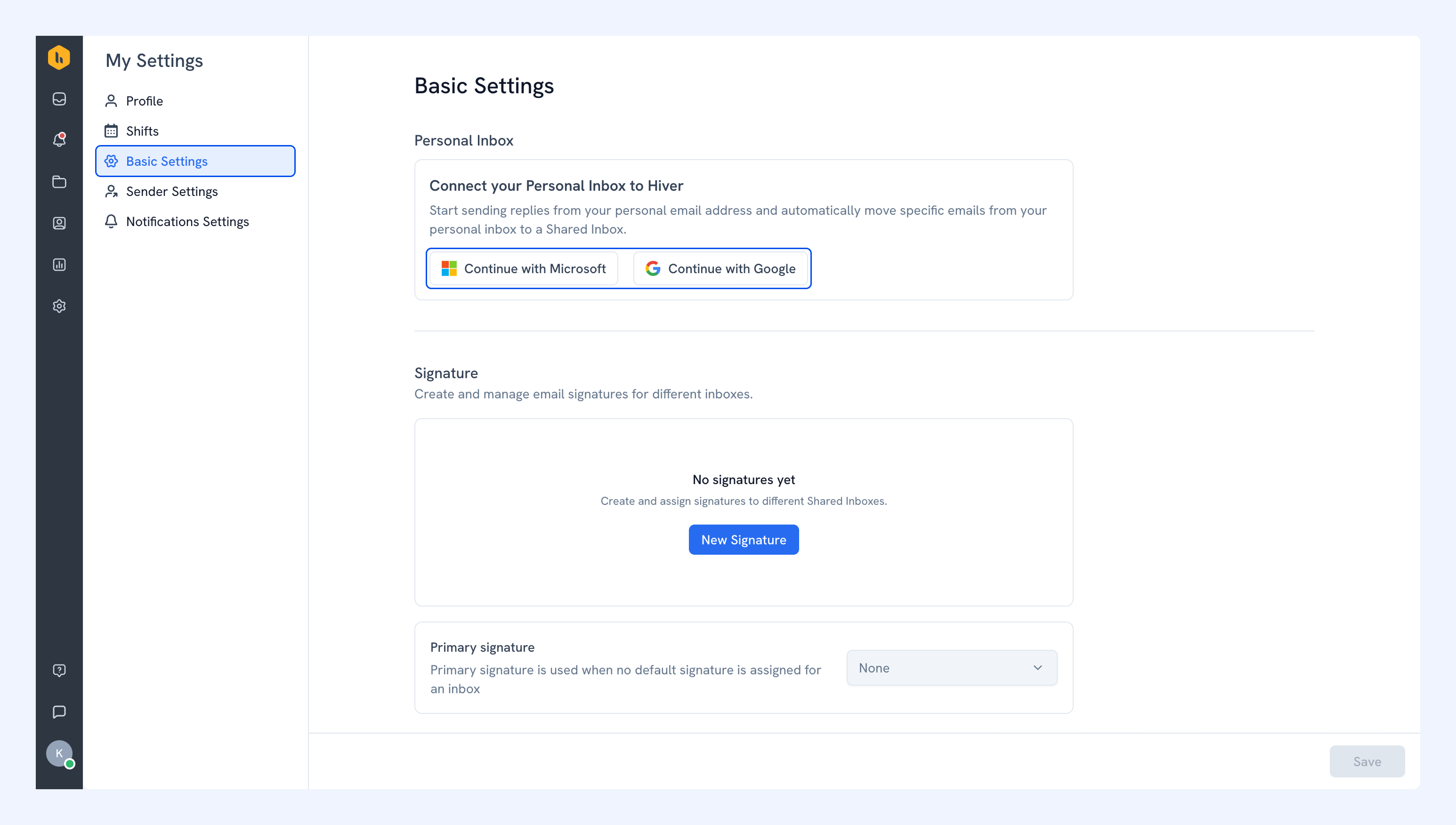
2. Under Personal Inbox, click Continue with Microsoft or Continue with Google, then sign in.
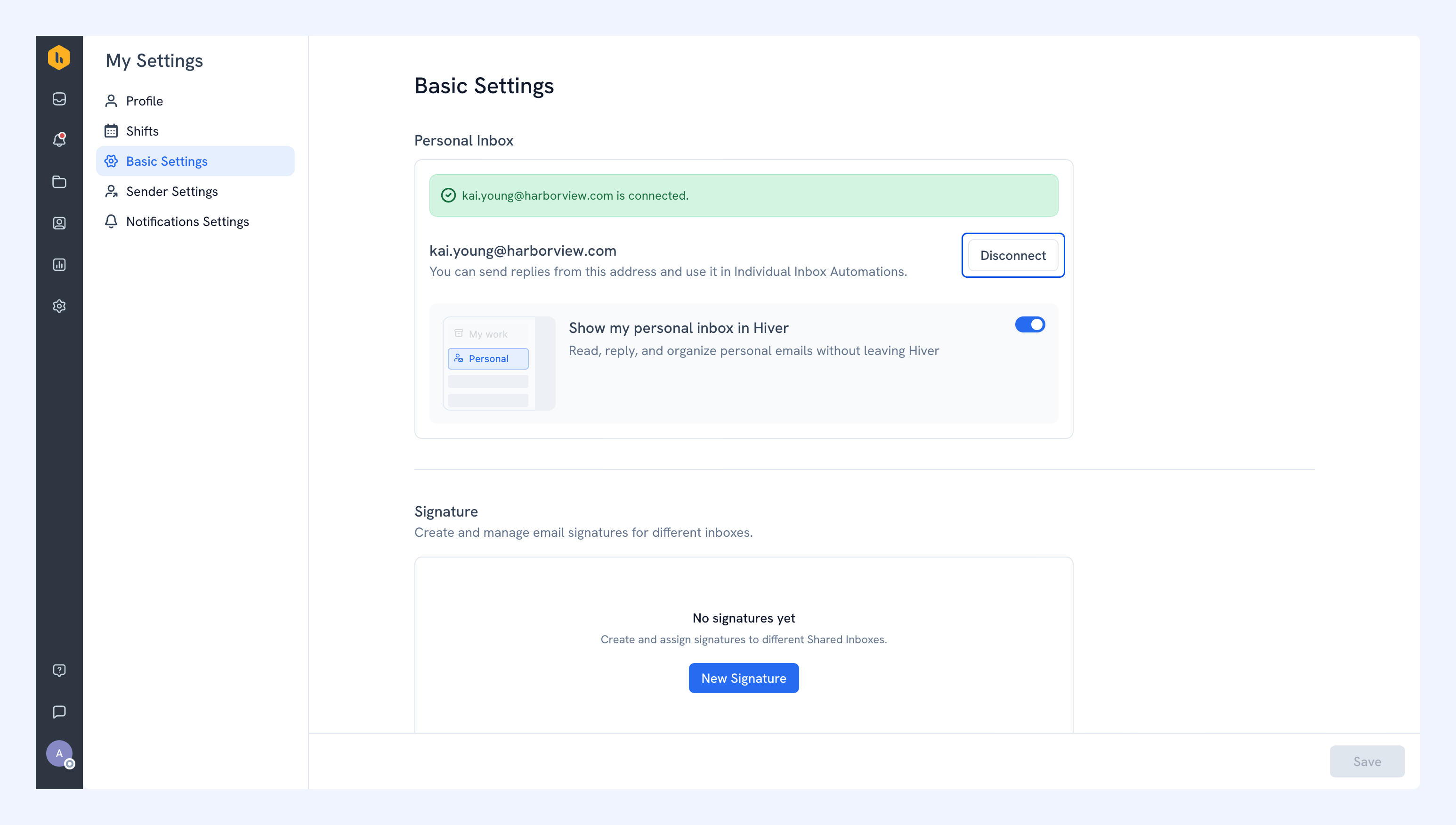
Once connected, you can send emails from your personal address and use it in Individual Inbox Automations.
Show your personal inbox in Hiver
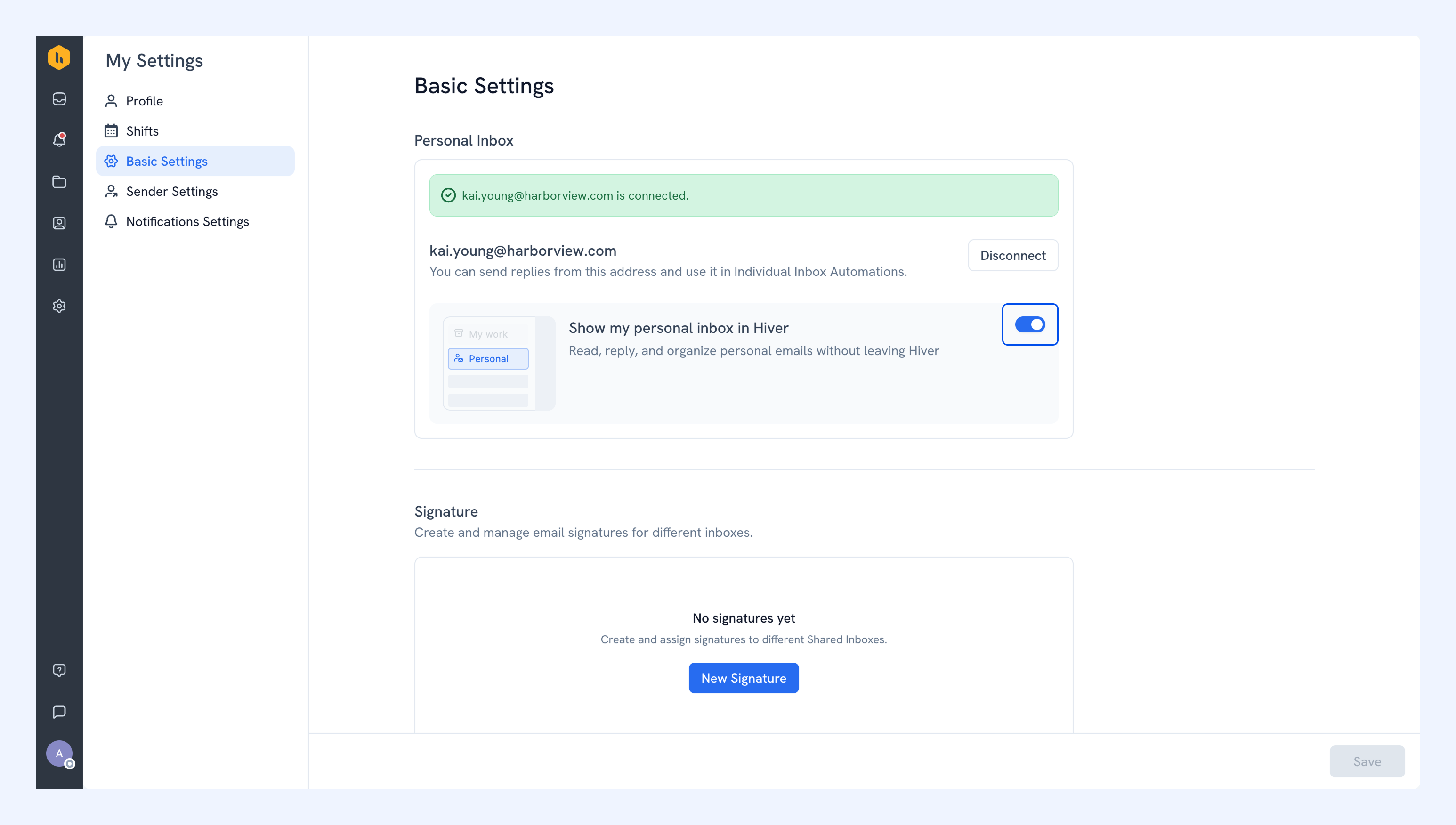
To read, organize, and respond to emails in your personal inbox from Hiver, enable the Show my personal inbox in Hiver toggle. Once enabled, your personal inbox will appear in Hiver Omni, along with your other Shared Inboxes.
Set your default sender
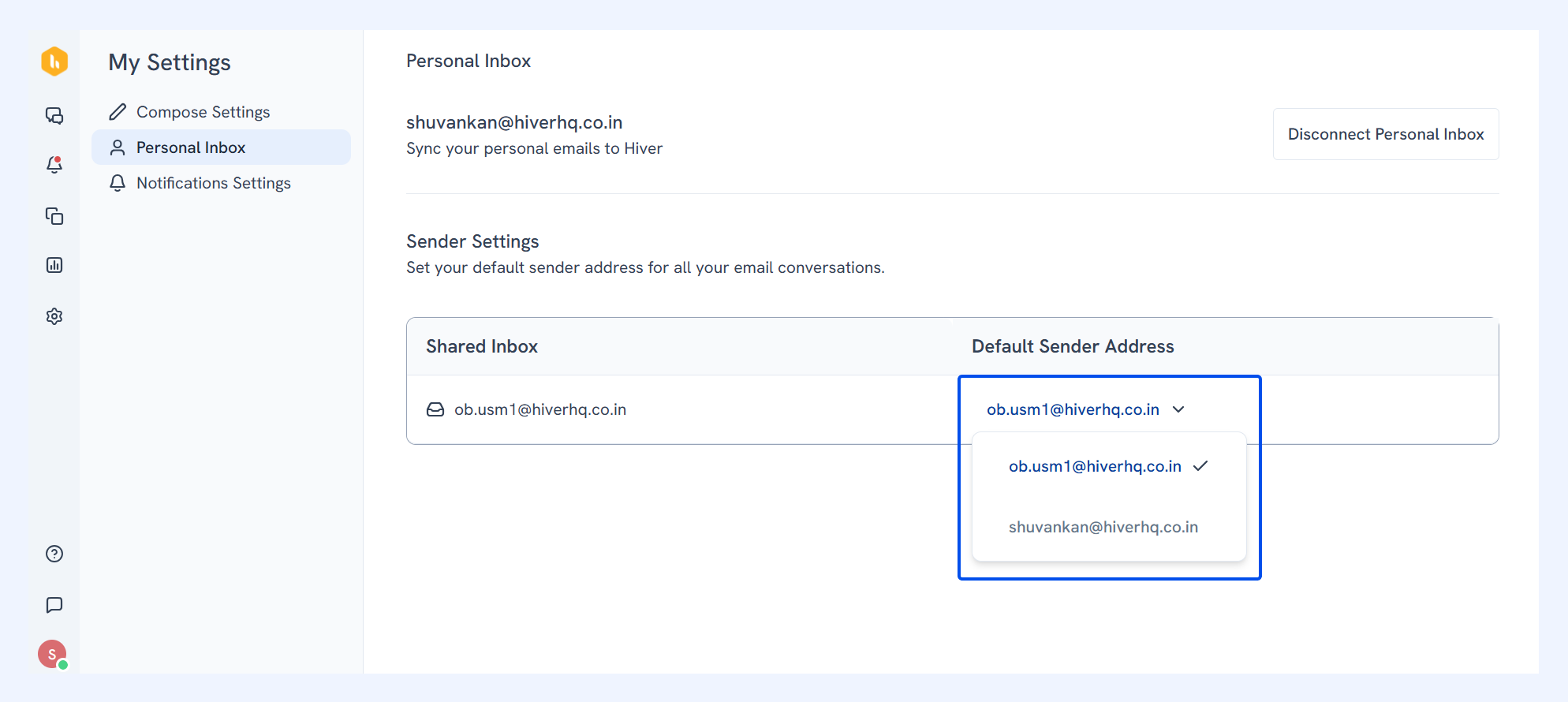
Once you add your personal email account to Hiver, you can change the default sender of all the emails you send out.
- Go to My Settings → Sender Settings.
- Pick your personal email as the default sender for any Shared Inbox.
Add emails to the Shared Inbox
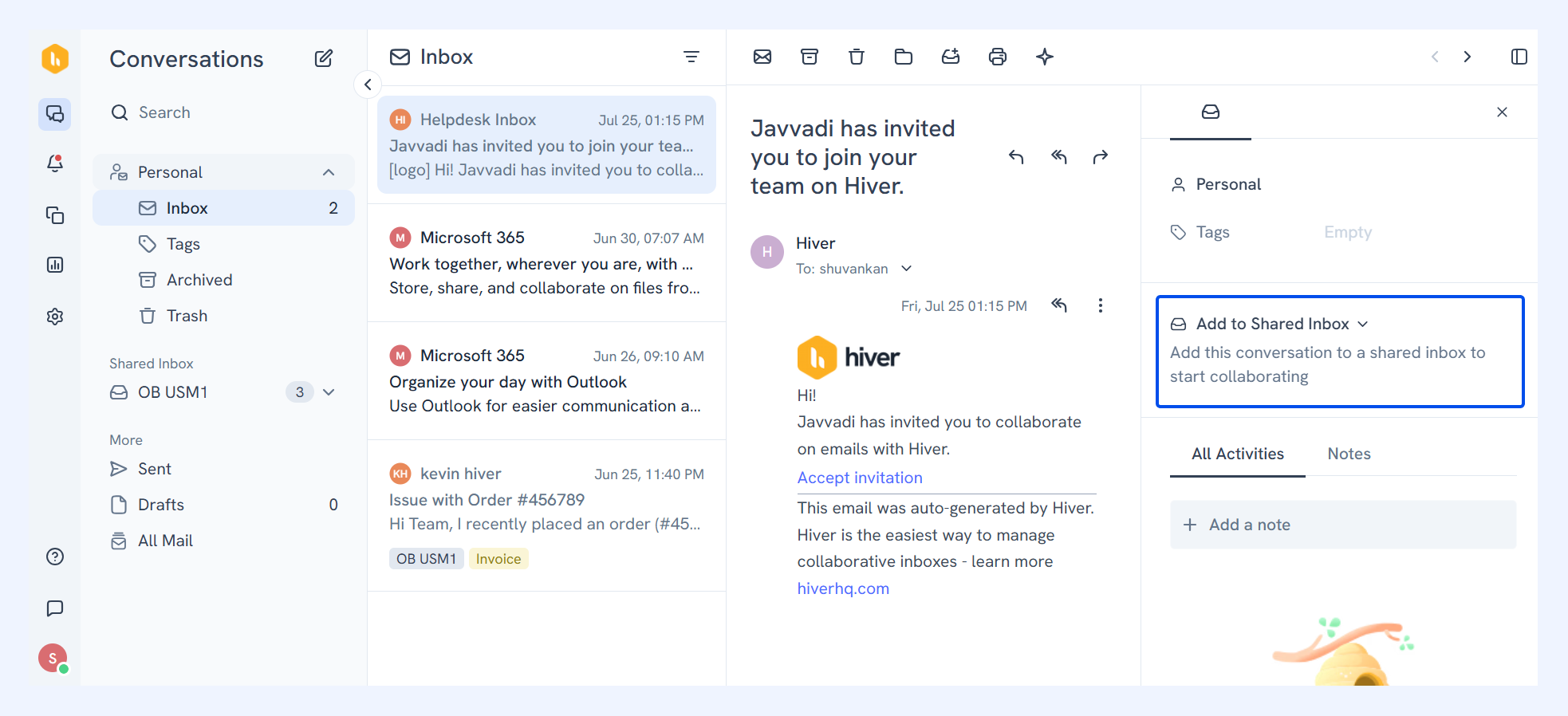
1. Open the email and click Add to Shared Inbox.
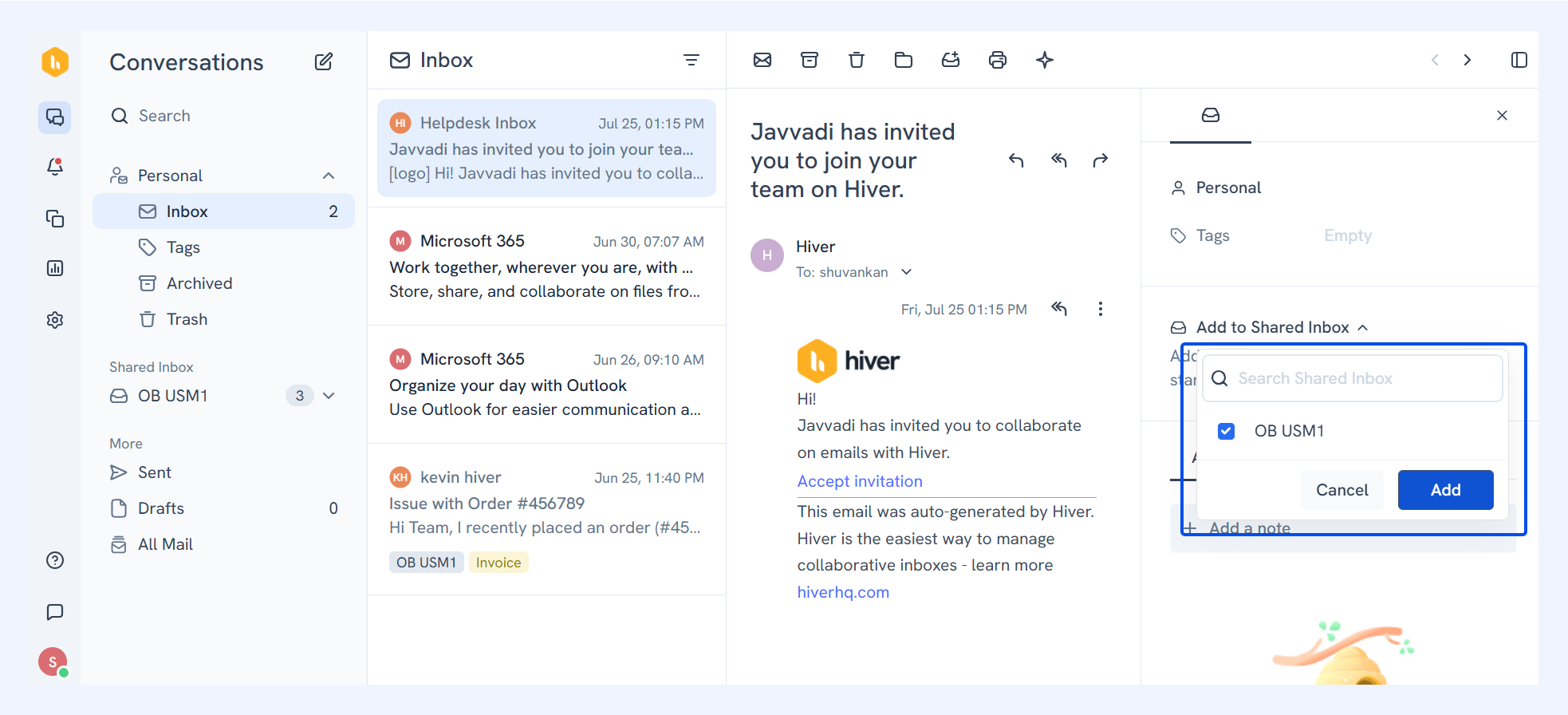
2. Choose an inbox, then click Add.
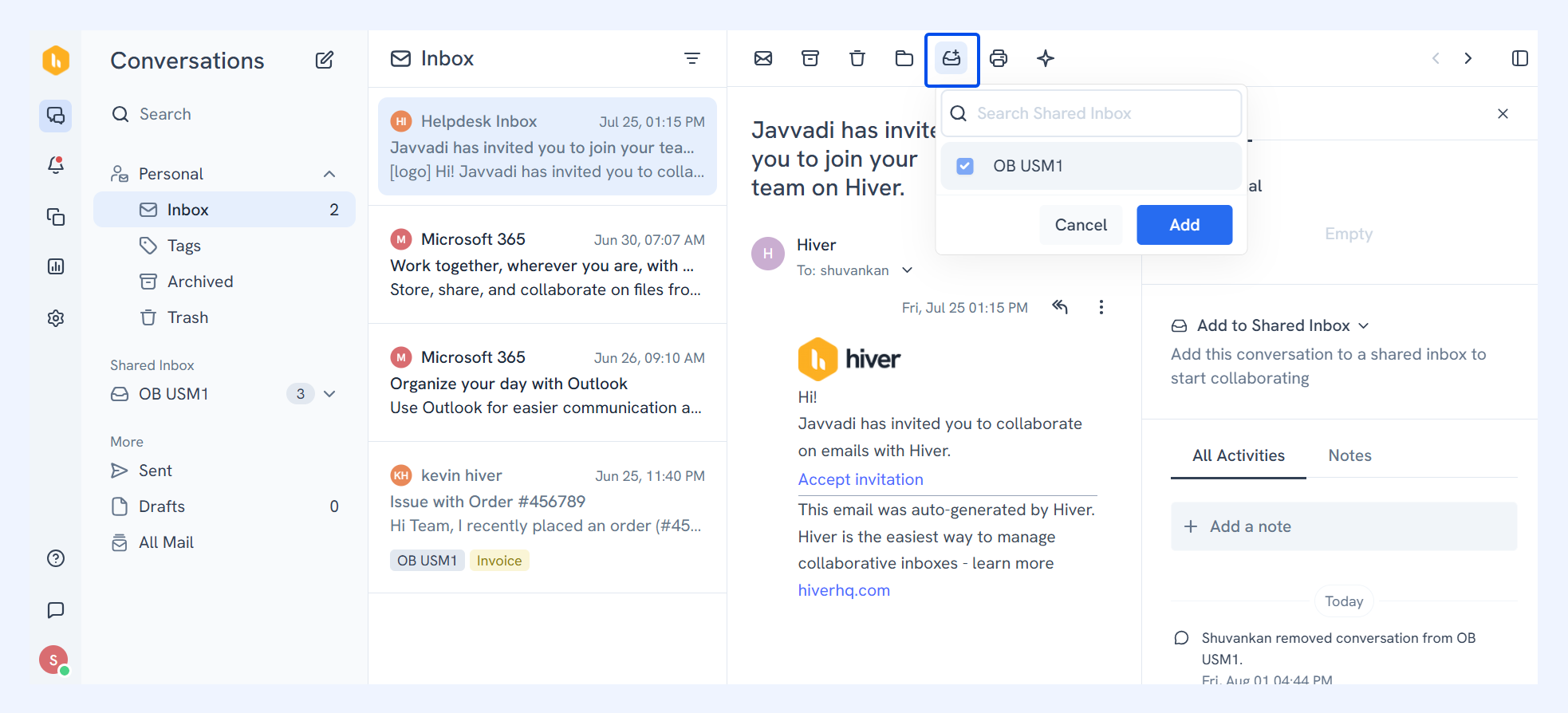
Alternatively, you can use the Add to Shared Inbox icon at the top of the email.
Tip: An Admin can set up an Individual Inbox Automation to move relevant emails from your personal inbox into a Shared Inbox.
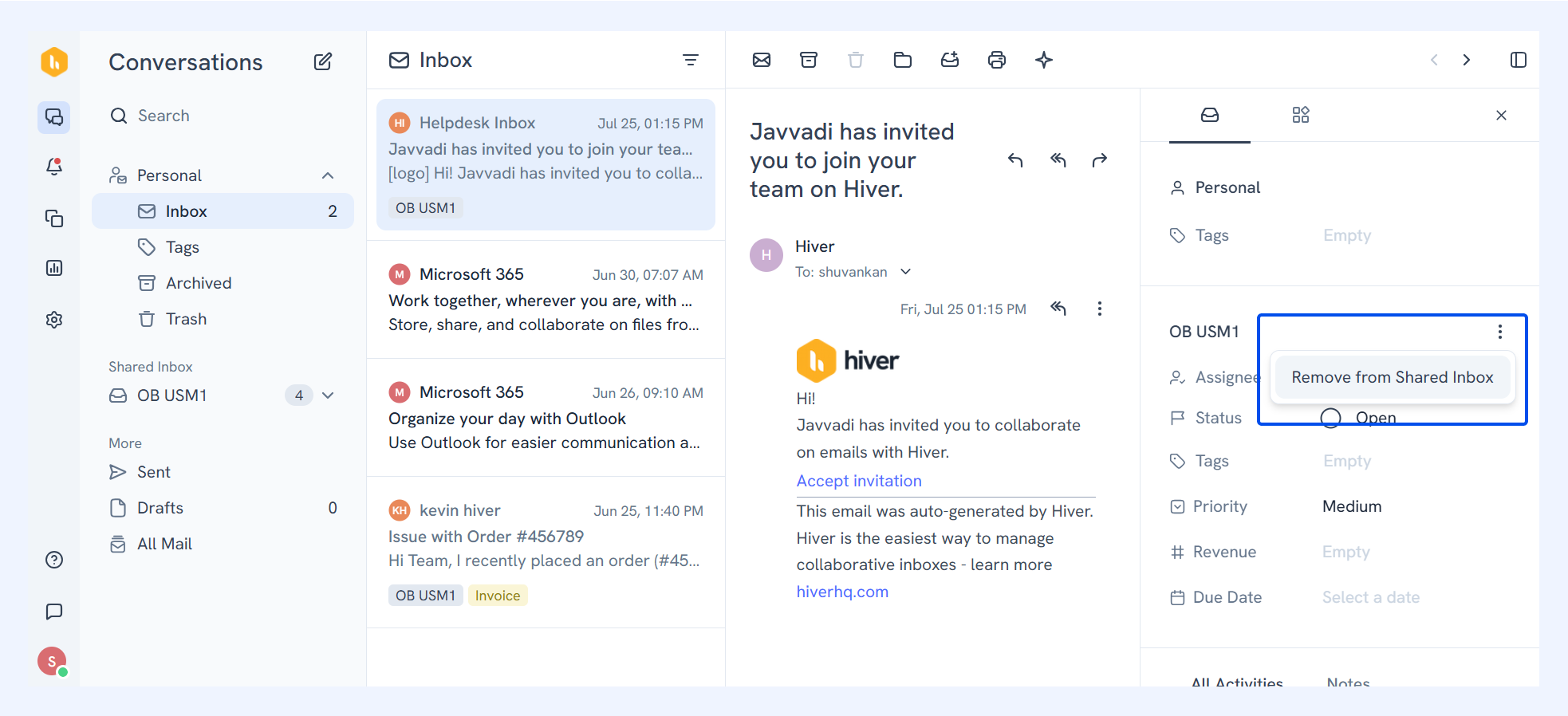
To remove an email from Shared Inbox, click the three-dot icon next to the Shared Inbox label and select Remove from Shared Inbox.
Tag personal emails
You can use tags to organize your personal emails the same way you do in a Shared Inbox.
Learn more about categorizing conversations with tags.
Disconnect your personal inbox
To disconnect your personal inbox, click Disconnect and confirm. Once disconnected, you won't be able to send emails from your personal email address in Hiver, or run Individual Inbox Automations that use it.