Approving Hiver Omni in Microsoft Admin Center
Before you start setting up Hiver with your Outlook shared mailbox or distribution list, your Microsoft admin needs to allow Hiver to connect to your Microsoft account. After this one-time step, anyone in your team can sign in to Hiver with their Microsoft account.
If you're not a Microsoft admin, share this article with the person who manages Microsoft 365 for your team. They'll need to follow one of the two options below.
Granting access to Hiver in Entra as a Microsoft admin
Option 1: Allow Hiver when you sign in
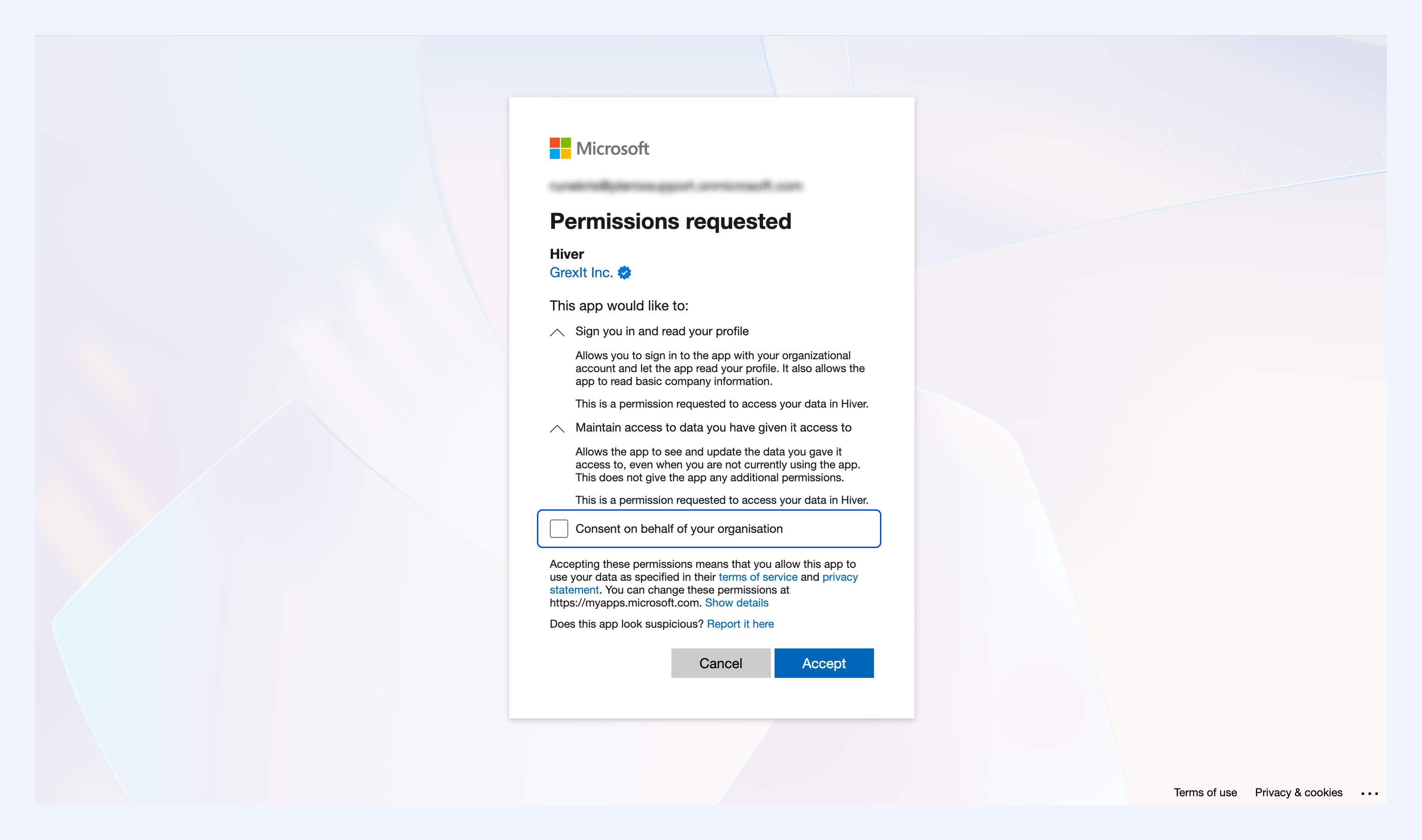
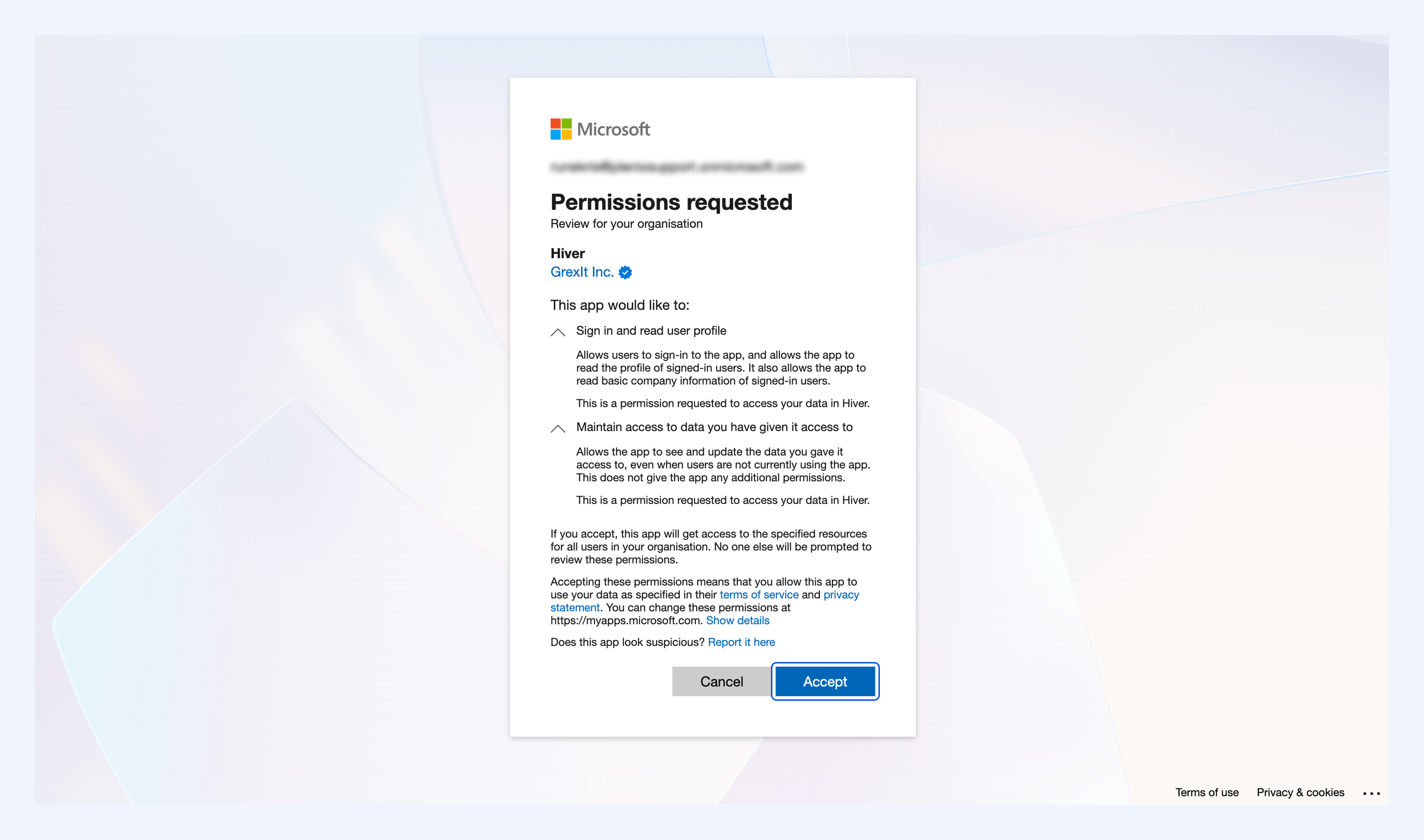
When you sign in to Hiver as a Microsoft admin, you'll see a Consent on behalf of your organization checkbox. Select this checkbox and click Accept to allow Hiver for everyone in your team.
Note: If you leave it unchecked, only your account will have access and the rest of your team will be blocked when they try to sign in.
Option 2: Set up an approval workflow
Setting up an approval workflow in Microsoft Entra lets you review and approve access when requested by any user in your organization.
Note: Once you approve a request for Hiver access, you’ll be granting access to all users in your organization signing into Hiver with your company’s domain.
To set up an approval workflow,
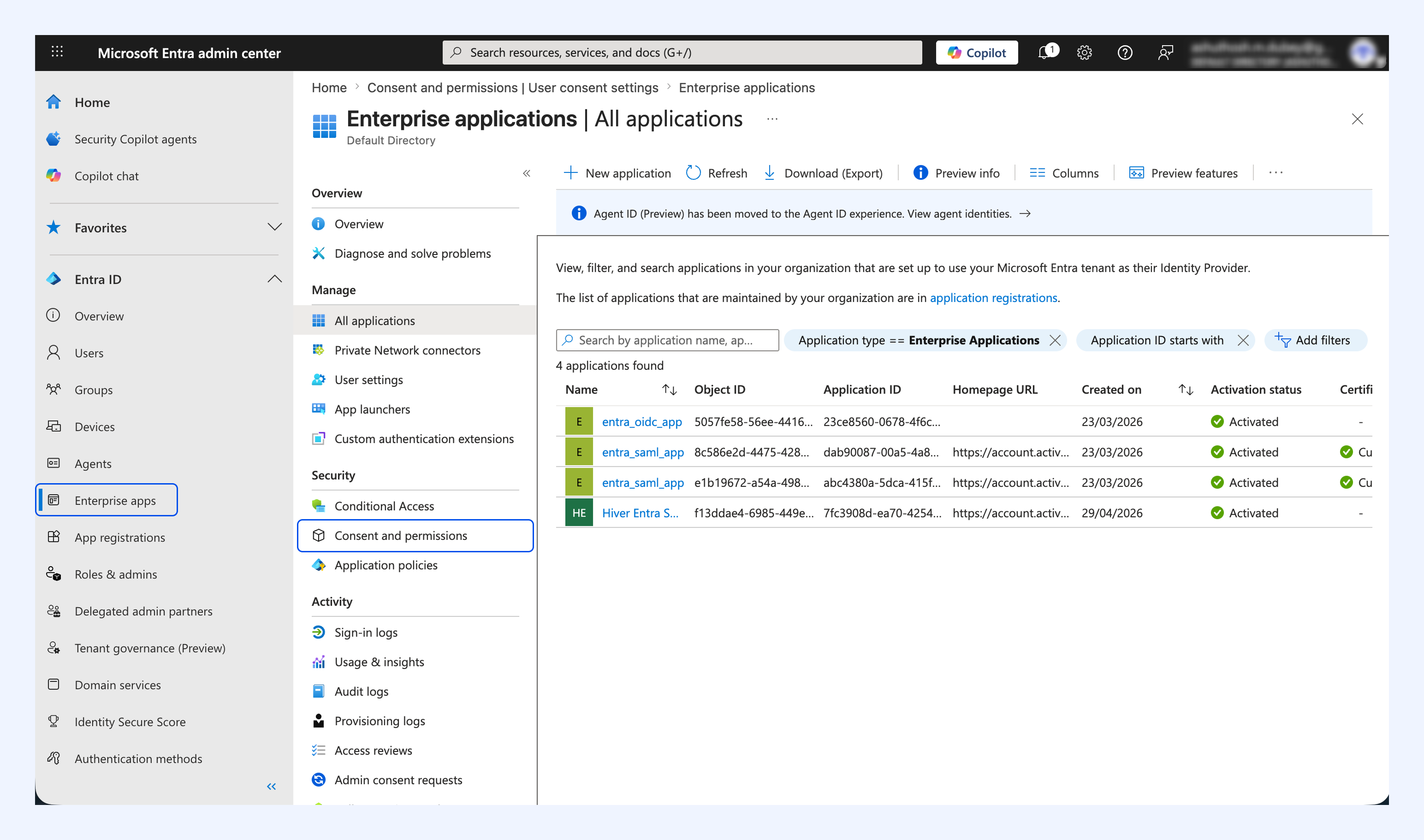
1. In Microsoft Entra ID, go to Enterprise apps → Consent and permissions.
2. Under Admin consent settings, set the Admin consent requests toggle to Yes.
3. Under Reviewers, add at least one user, group, or role.
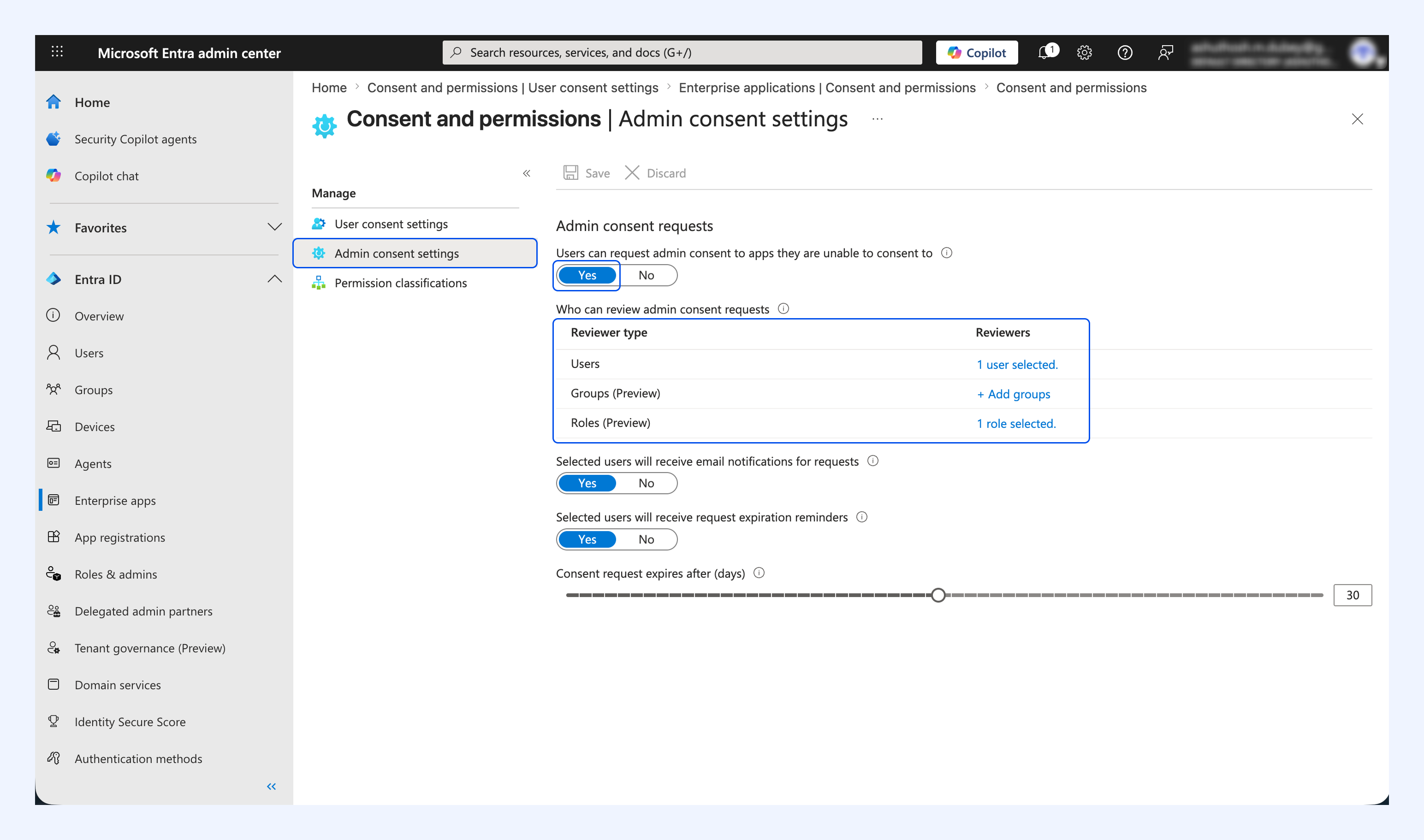
4. Click Save.
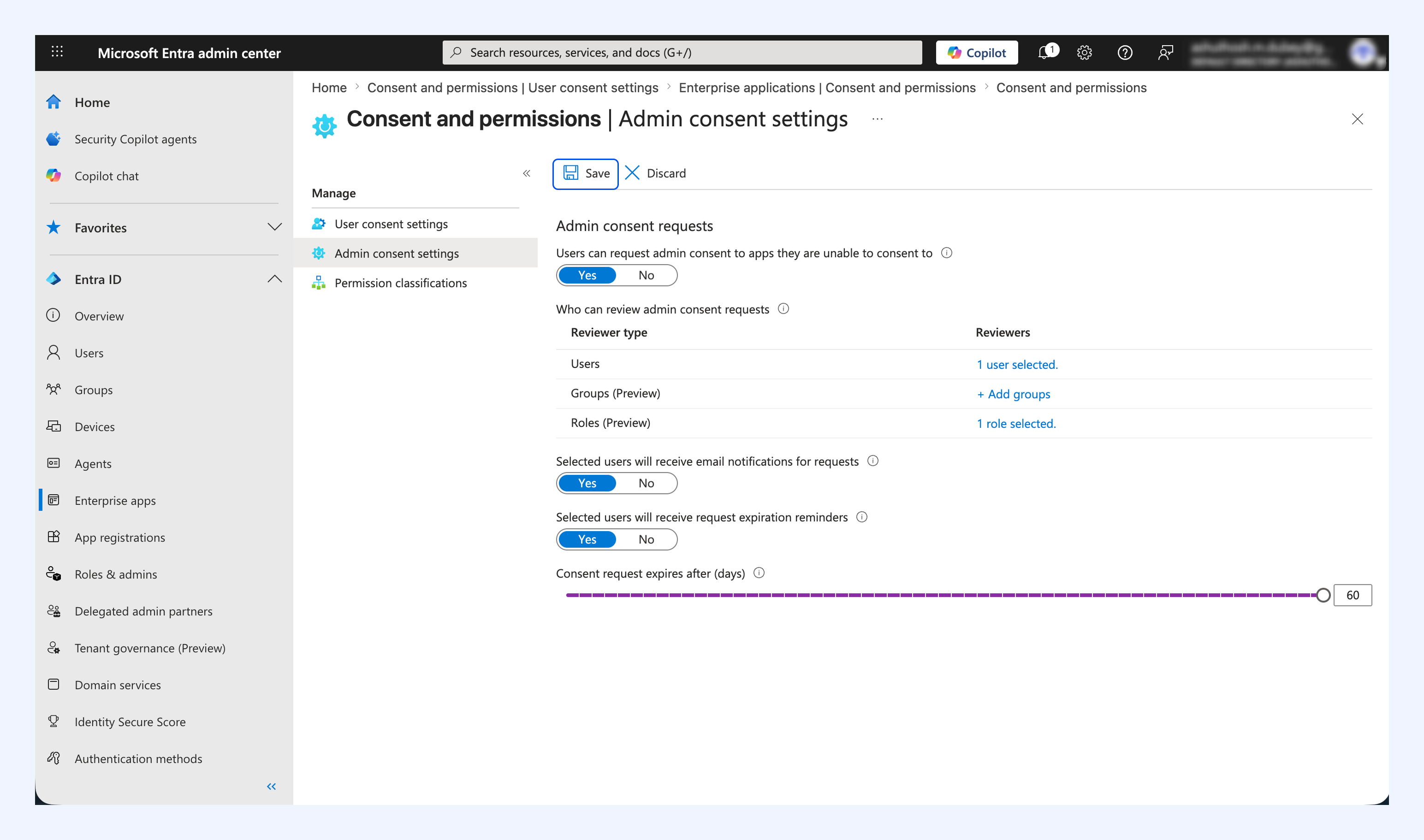
Once saved, users can send an approval request when they try to connect to Hiver.
Next steps
Once your Microsoft admin has granted access to Hiver, set up the required permissions on your shared mailbox or distribution list.
If permissions are already set up, follow our guides to create a Shared Inbox in Hiver:
Troubleshooting Microsoft sign-in errors for Hiver Omni
This section lists common error scenarios you may run into when signing in to Hiver with your Microsoft account.
These errors are often due to how settings are configured in Microsoft Entra. Depending on your role, you may be able to resolve this yourself or will need to contact your Microsoft admin.
Approval required
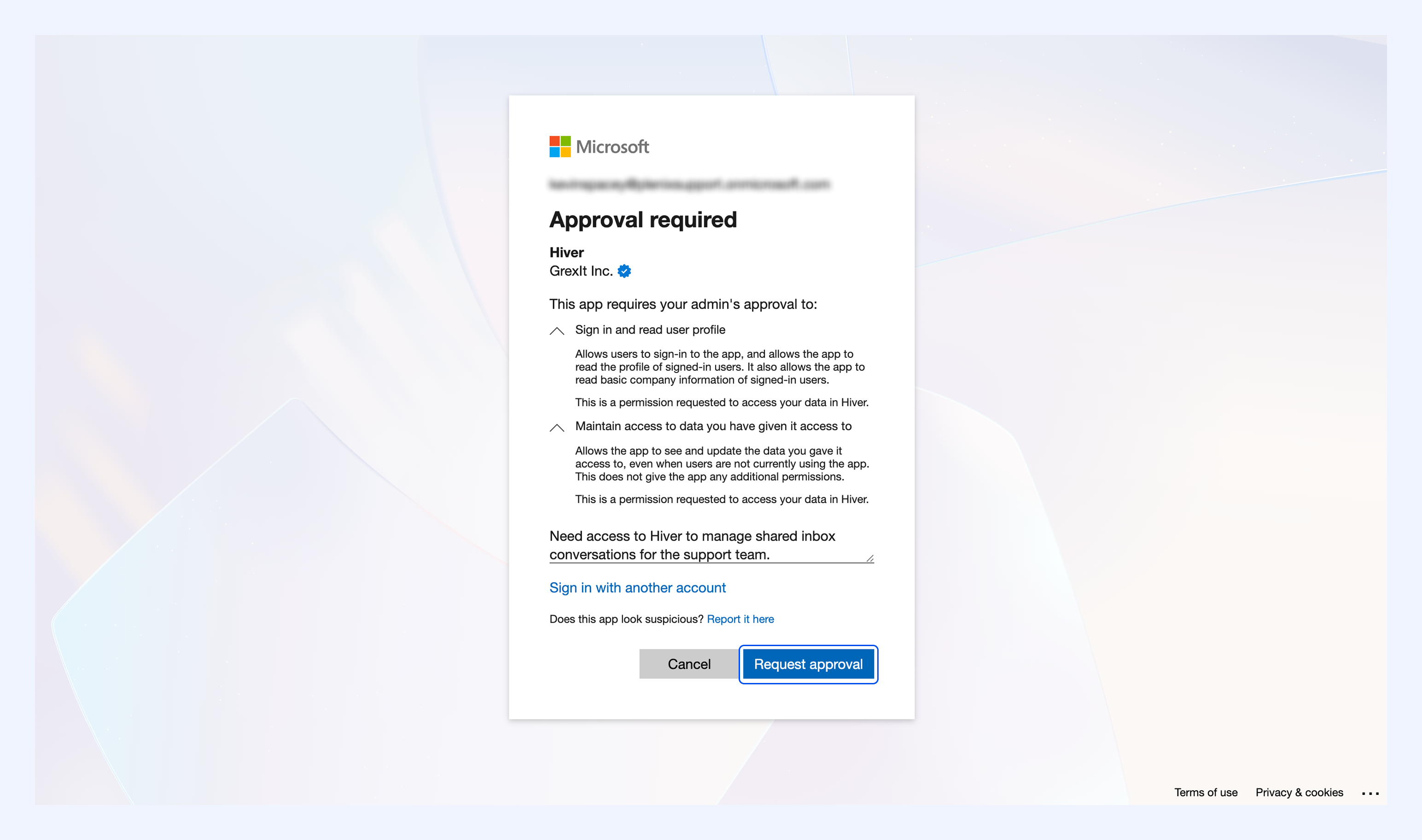
Your admin has enabled the approval workflow for third-party apps.. You can request access to Hiver and your admin will be notified to review it.
1. Add a justification for the request and click Request approval.
2. Retry connecting to Hiver once your admin approves. You'll receive an email from Microsoft when approval is granted.
Admins can approve the request from the Microsoft Entra admin center by following these steps:
1. Go to Enterprise apps → Admin consent requests.
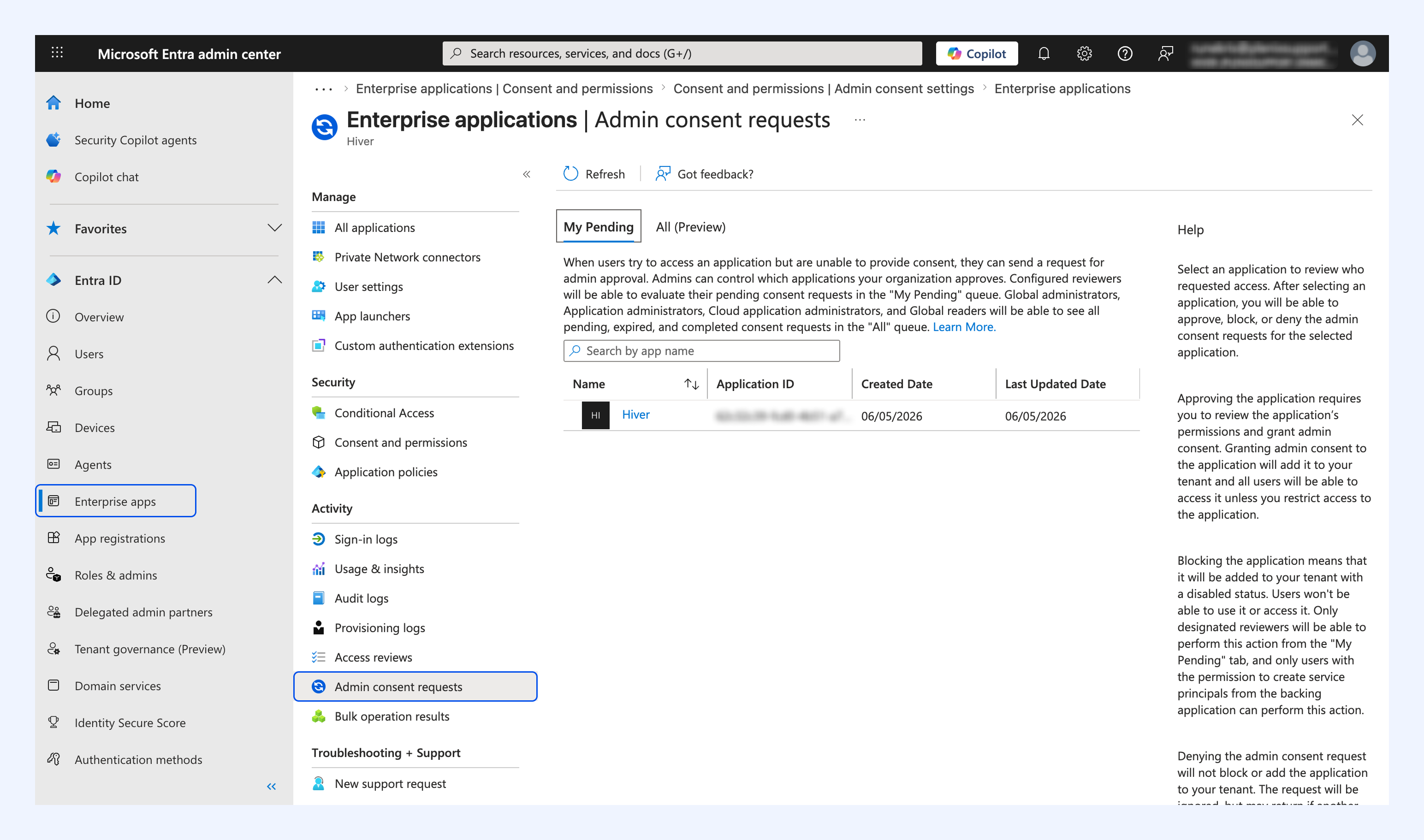
2. Open the pending Hiver request and click Review permissions and consent.
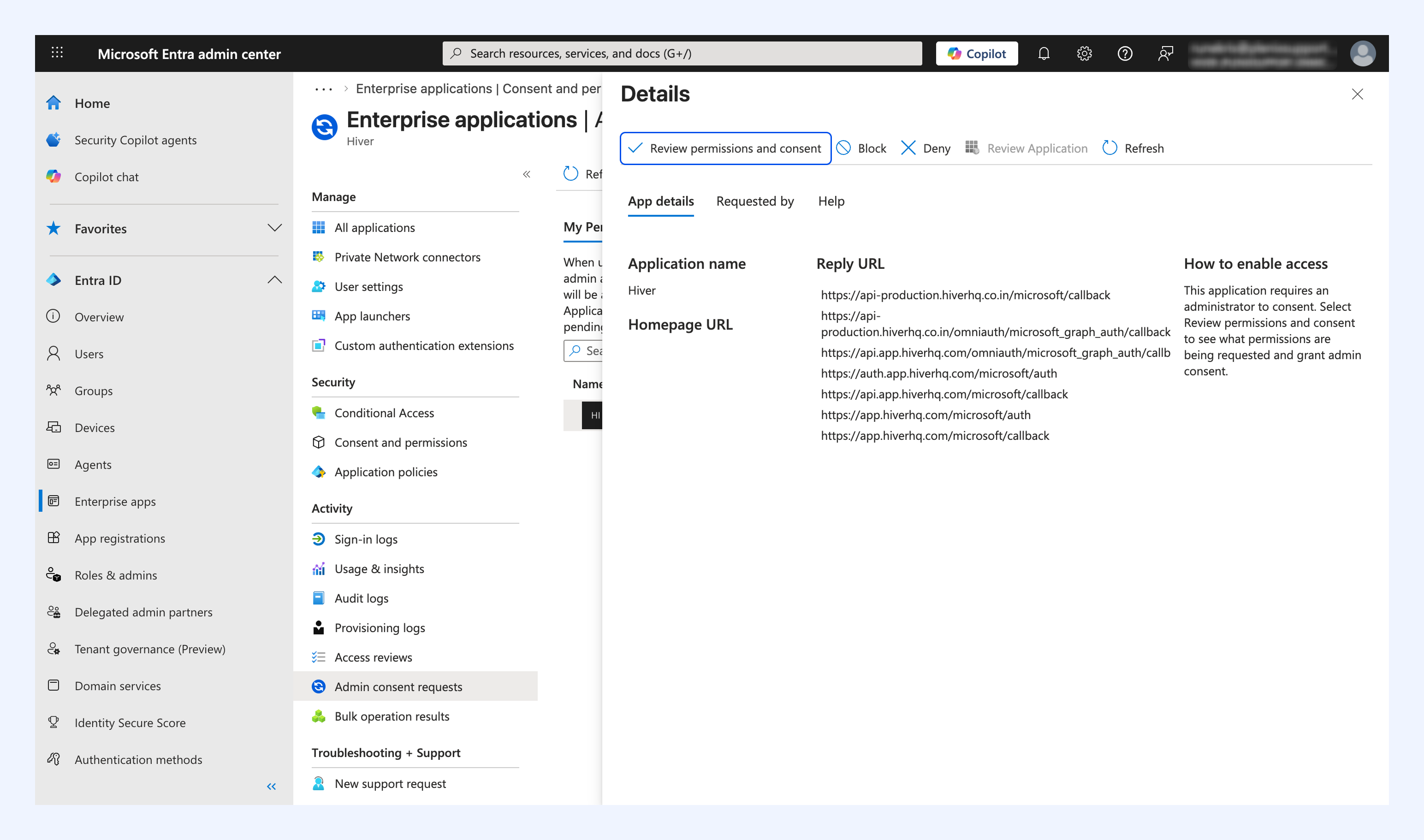
3. Review the permissions and click Accept.
Need admin approval
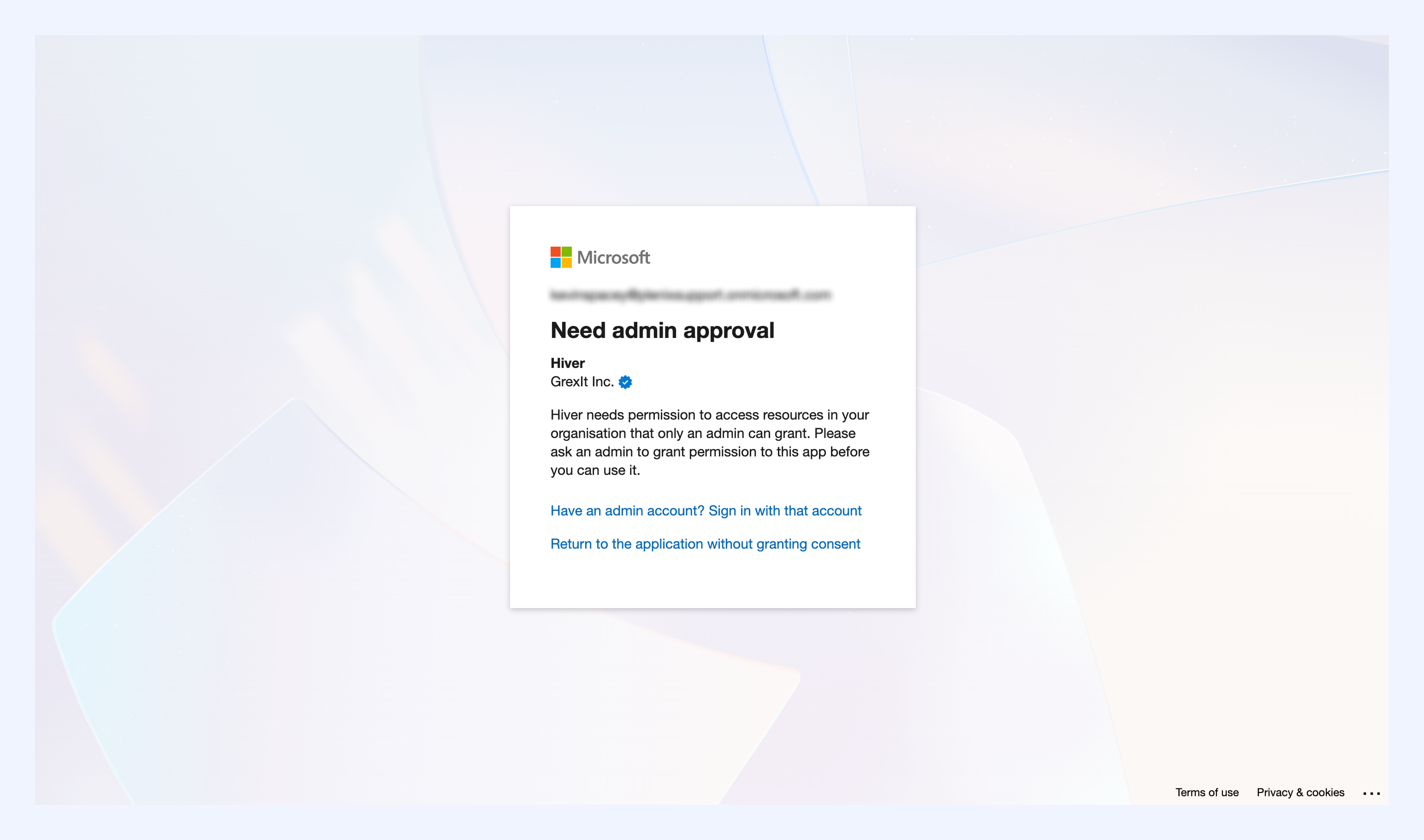
Your admin has turned off user consent for third-party apps in Microsoft Entra. Share this error with your Microsoft admin and ask them to use one of the options below:
- Grant access during sign-in: Follow the steps in Option 1 above.
- Require admin approval: Follow the steps in Option 2 above.
User assignment required
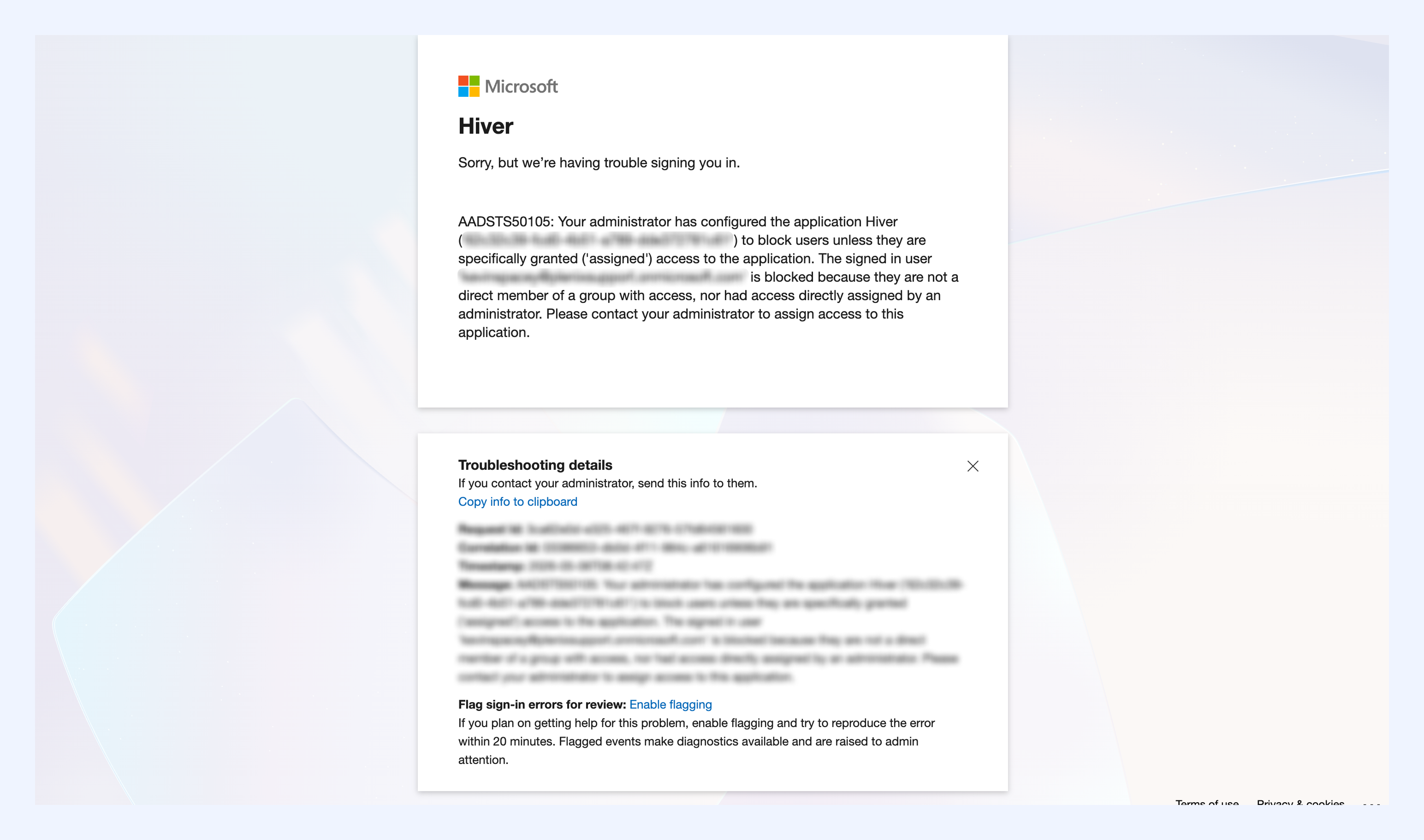
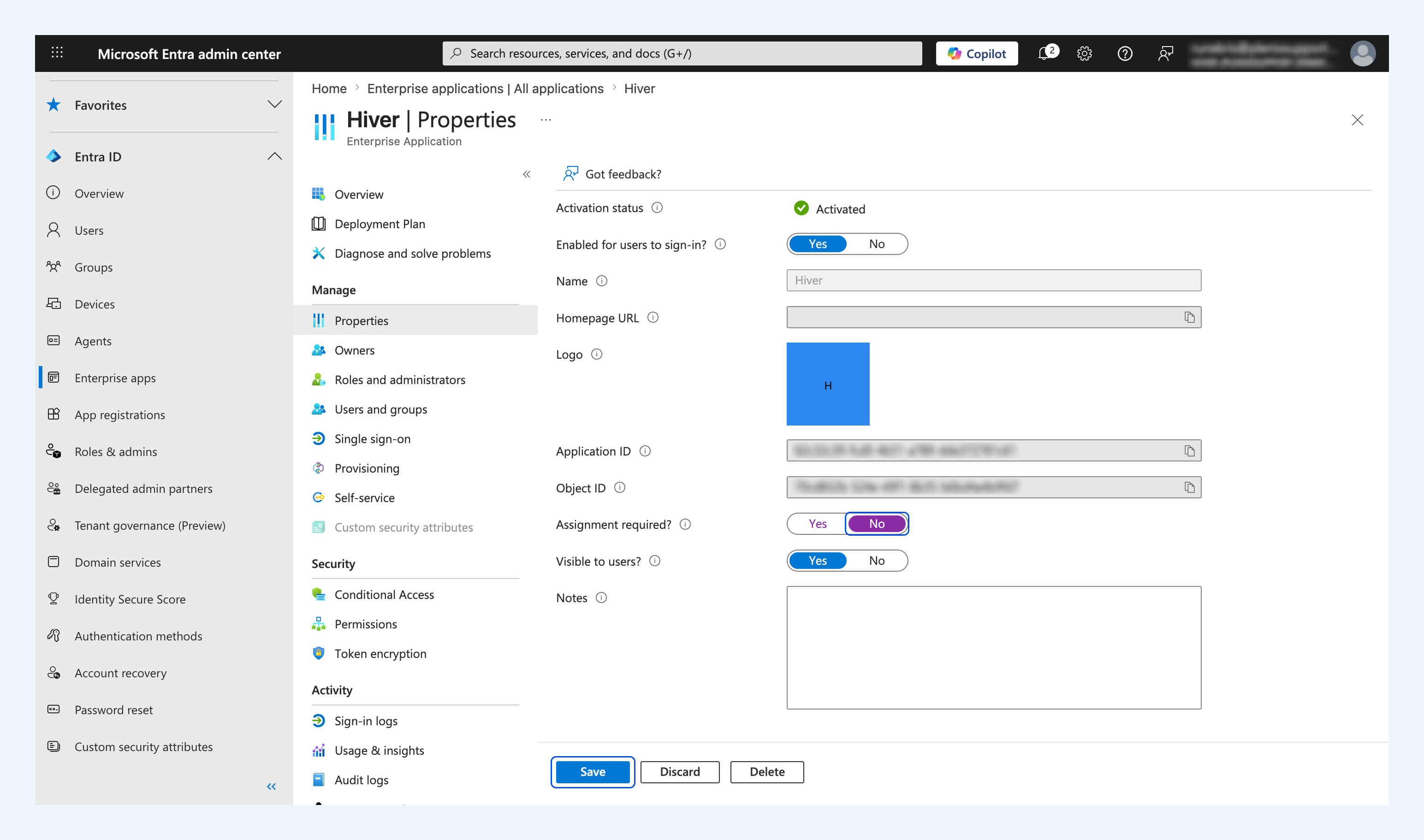
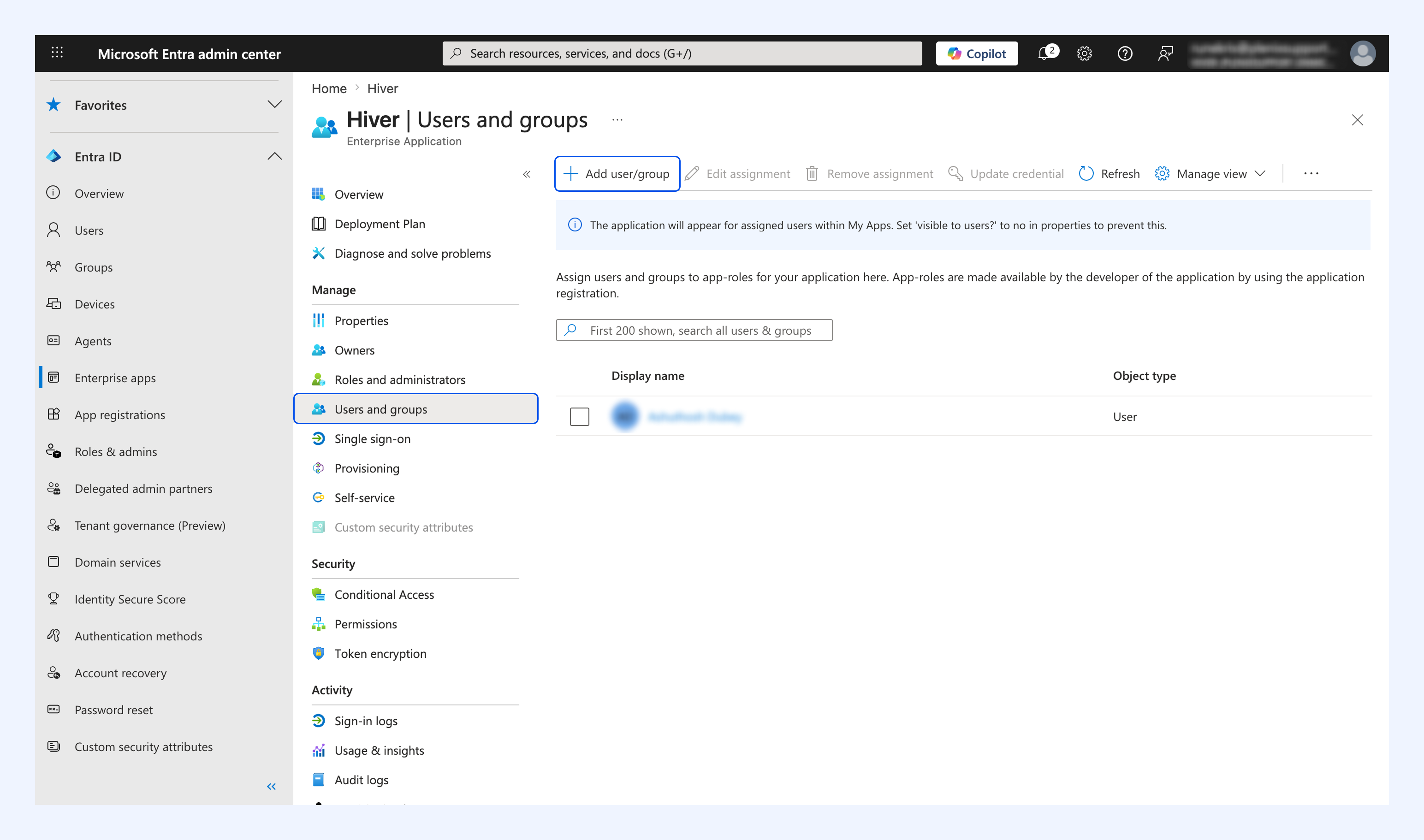
Your organization has restricted Hiver to specific users or groups. Ask your Microsoft admin to grant you access from Microsoft Entra admin center → Enterprise applications → Hiver in one of these two ways
1. Set User assignment required to No under Properties and click Save.
2. Assign you directly under Users and groups → Add user/group.
MFA or device verification prompt
Some organizations require multi-factor authentication (MFA) or device verification during sign-in. Follow the on-screen prompt to verify, then try connecting to Hiver again.
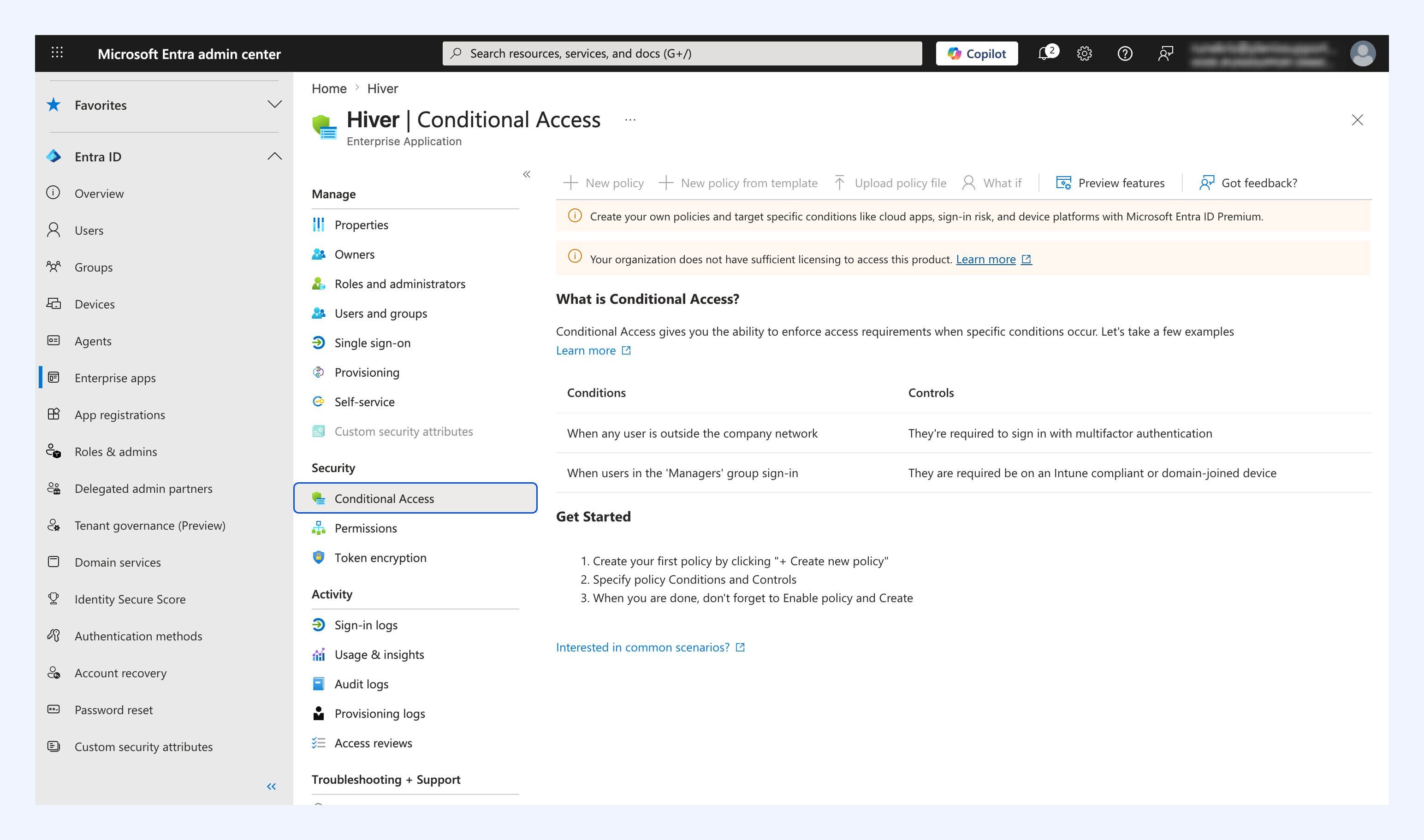
If you're still blocked, ask your admin to review the Conditional Access policy for Hiver in the Microsoft Entra admin center.