Creating chat nudges
Chat nudges are messages that appear on your website after visitors spend a set amount of time browsing. Use them to start conversations, increase engagement, and offer support when customers need it.
Note: Chat Inbox is a legacy feature and is only available to customers who signed up before May 18, 2026.
Setting up chat nudges
Create a nudge
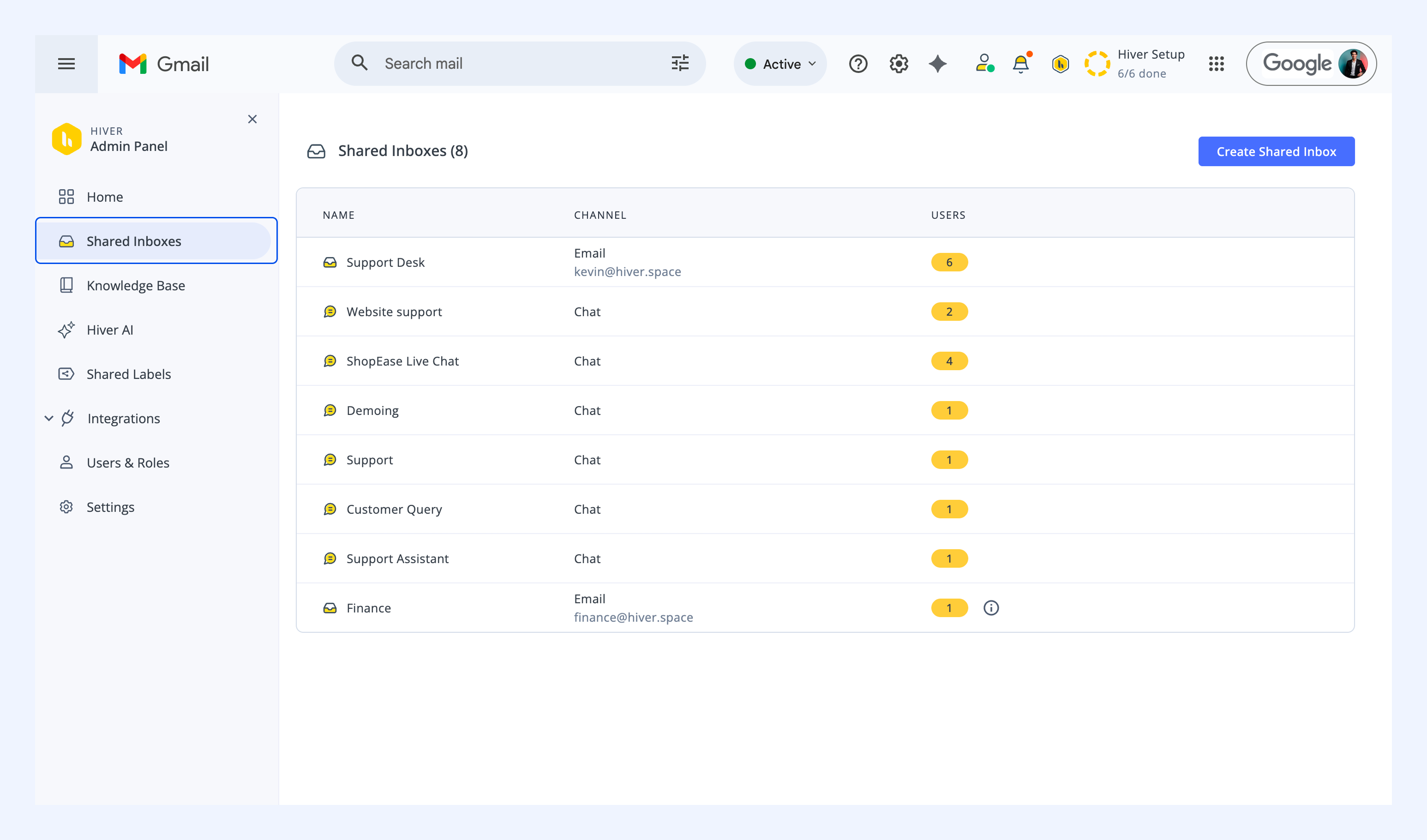
1. Open the Hiver Admin Panel and select your Chat Inbox.
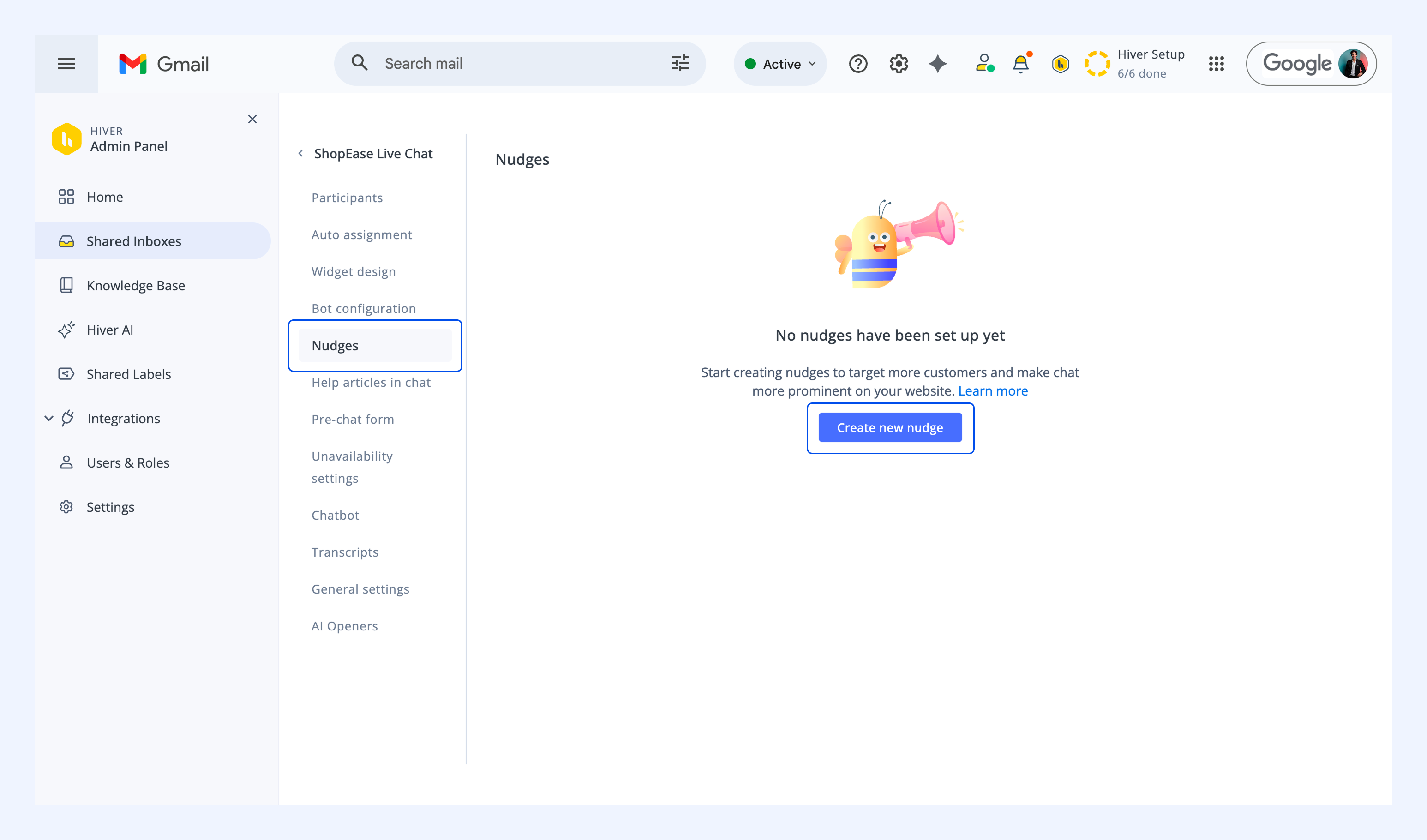
2. Navigate to Nudges.
3. Click Create new nudge.
Configure nudge settings
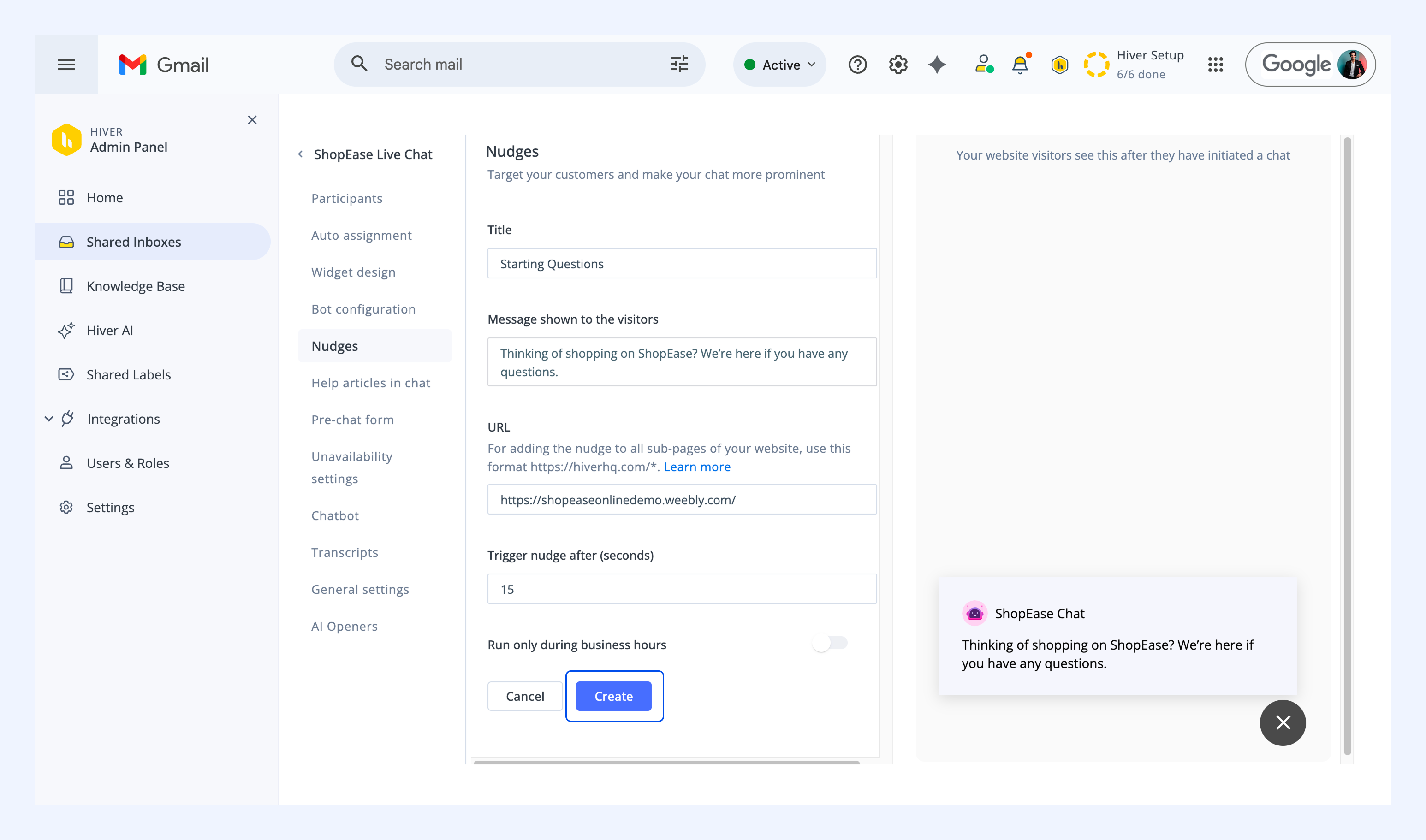
1. Define the following details:
- Title: Internal name for your reference, website visitors will not see this.
- Message shown to the visitors: Text that visitors will see.
- URL: Specific page where the nudge should appear.
- Trigger nudge after: How many seconds visitors must be on the page before the nudge appears.
- Run only during business hours: Choose between always active or business hours only. Learn more about setting up a business hour template.
Tip: To display the nudge across all subpages on your website, add an asterisk (*) at the end of your URL. For example, https://shoponlinedemo.weebly/com/*
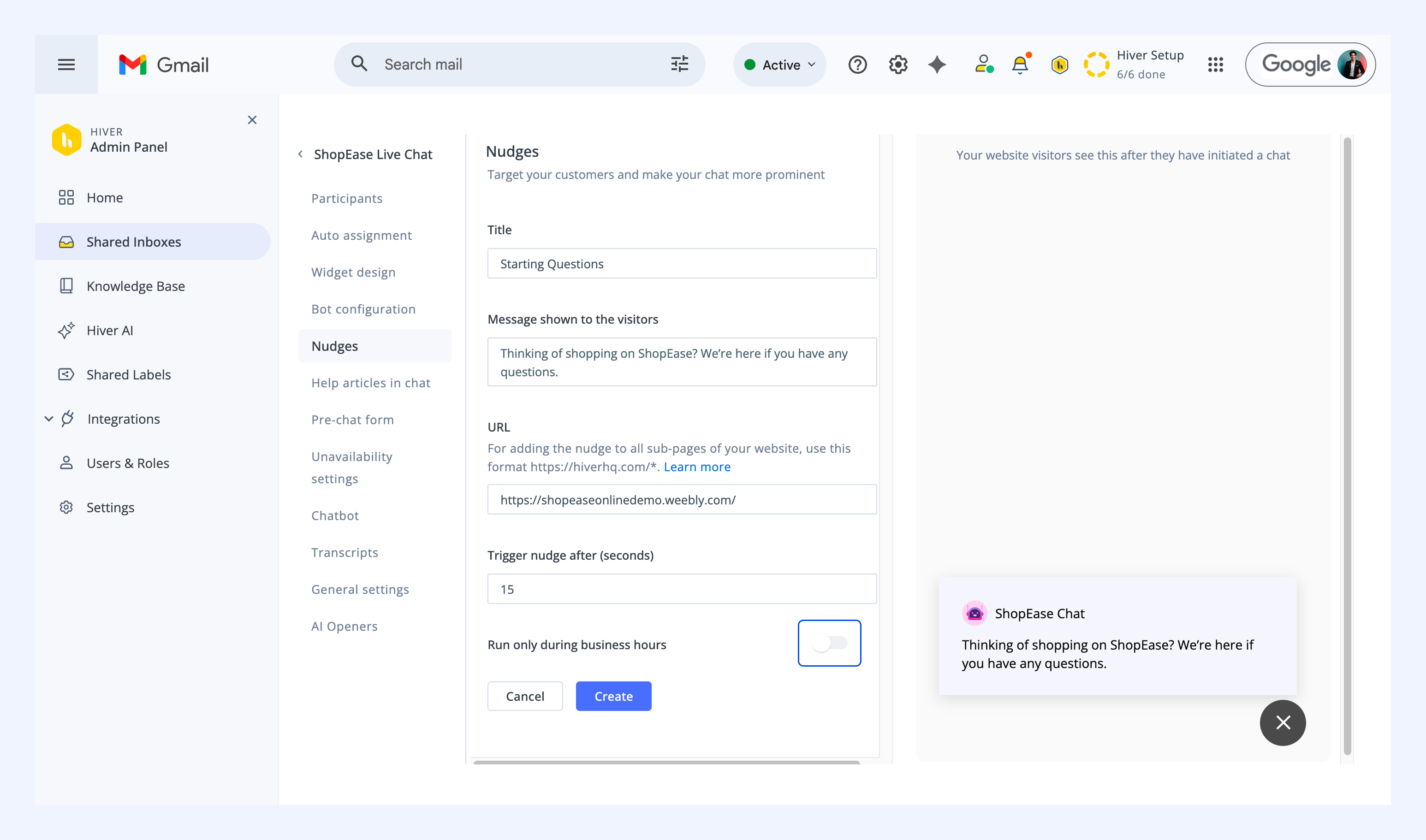
2. Click Create.
What your visitors see
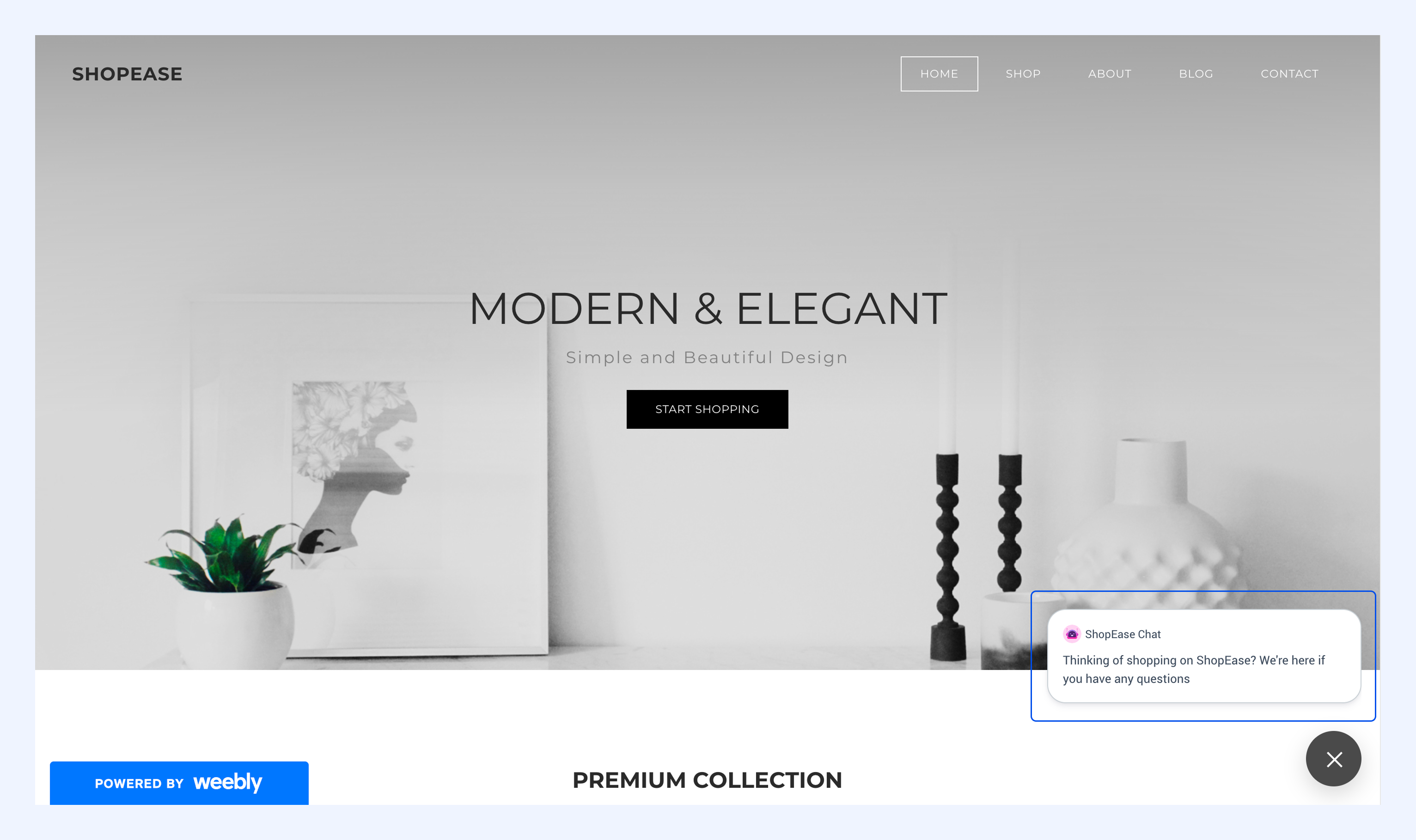
First time visitors
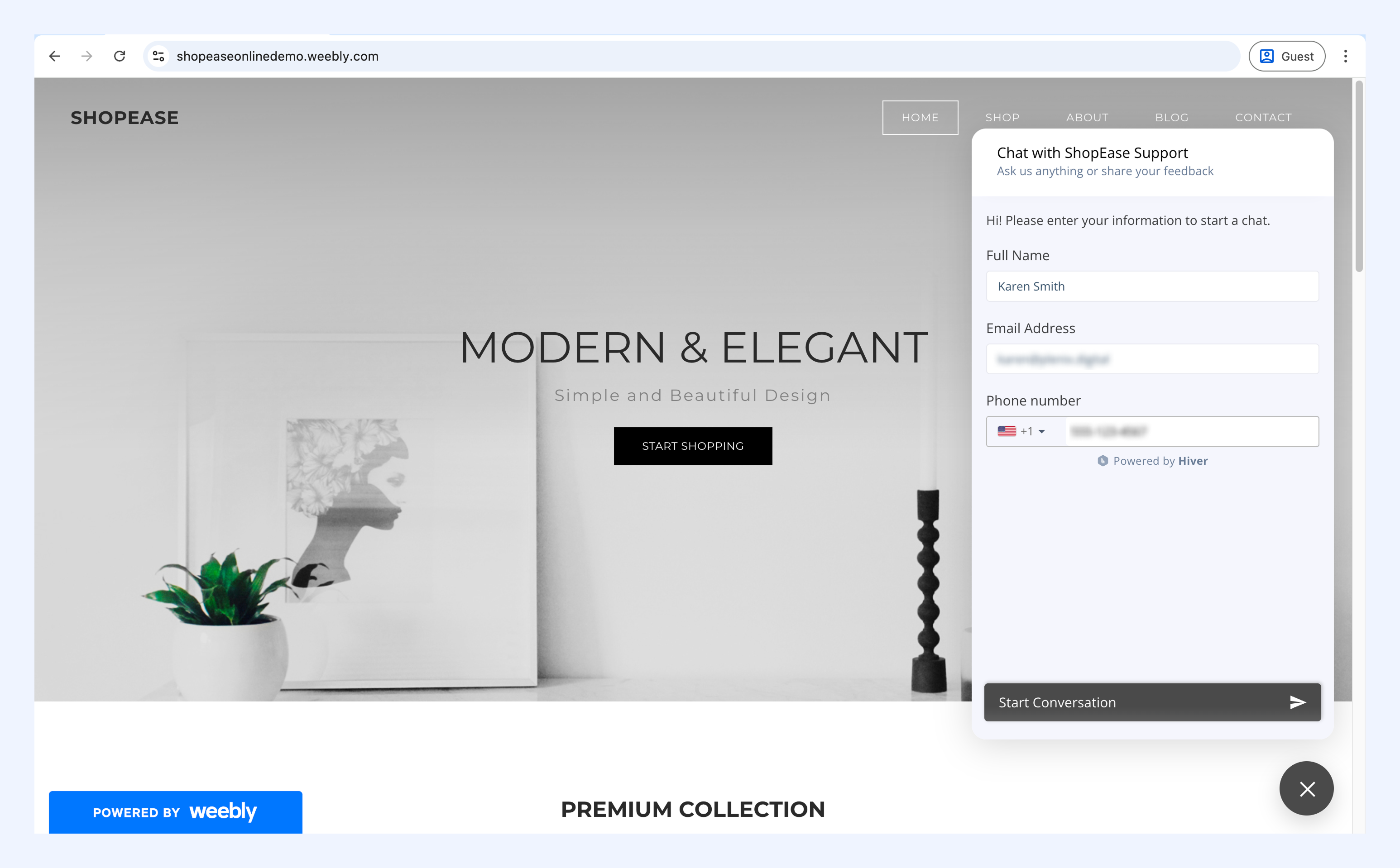
When a first-time visitor clicks the nudge, they'll see your pre-chat form (if enabled) to capture their contact details before starting the conversation. Learn more about pre-chat forms.
If the pre-chat form is disabled, visitors can start chatting immediately.
Returning visitors
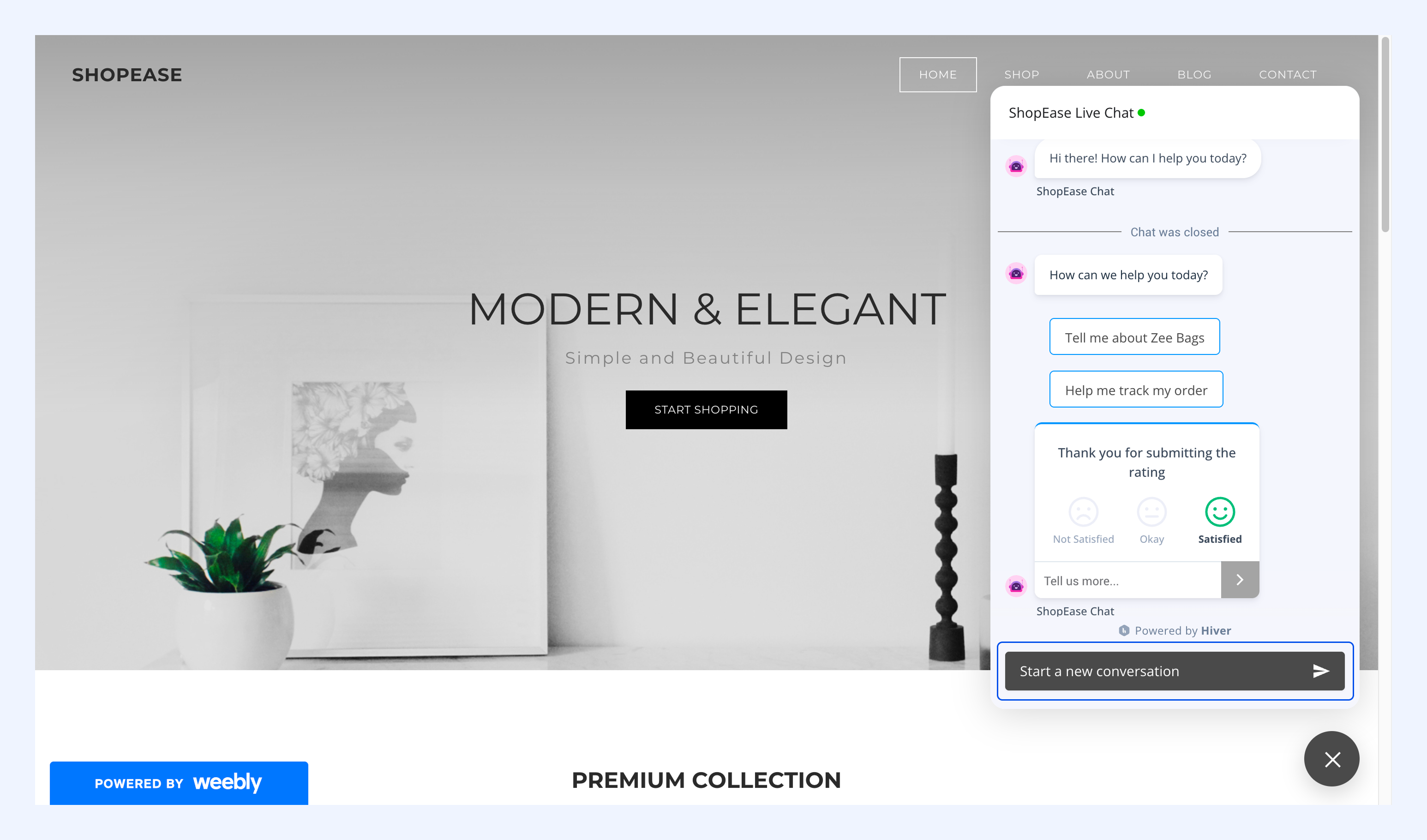
Returning visitors will see their previous chat history and a Start a conversation button to begin a new chat.