Reporting and analytics FAQs
FAQs for Conversations reports
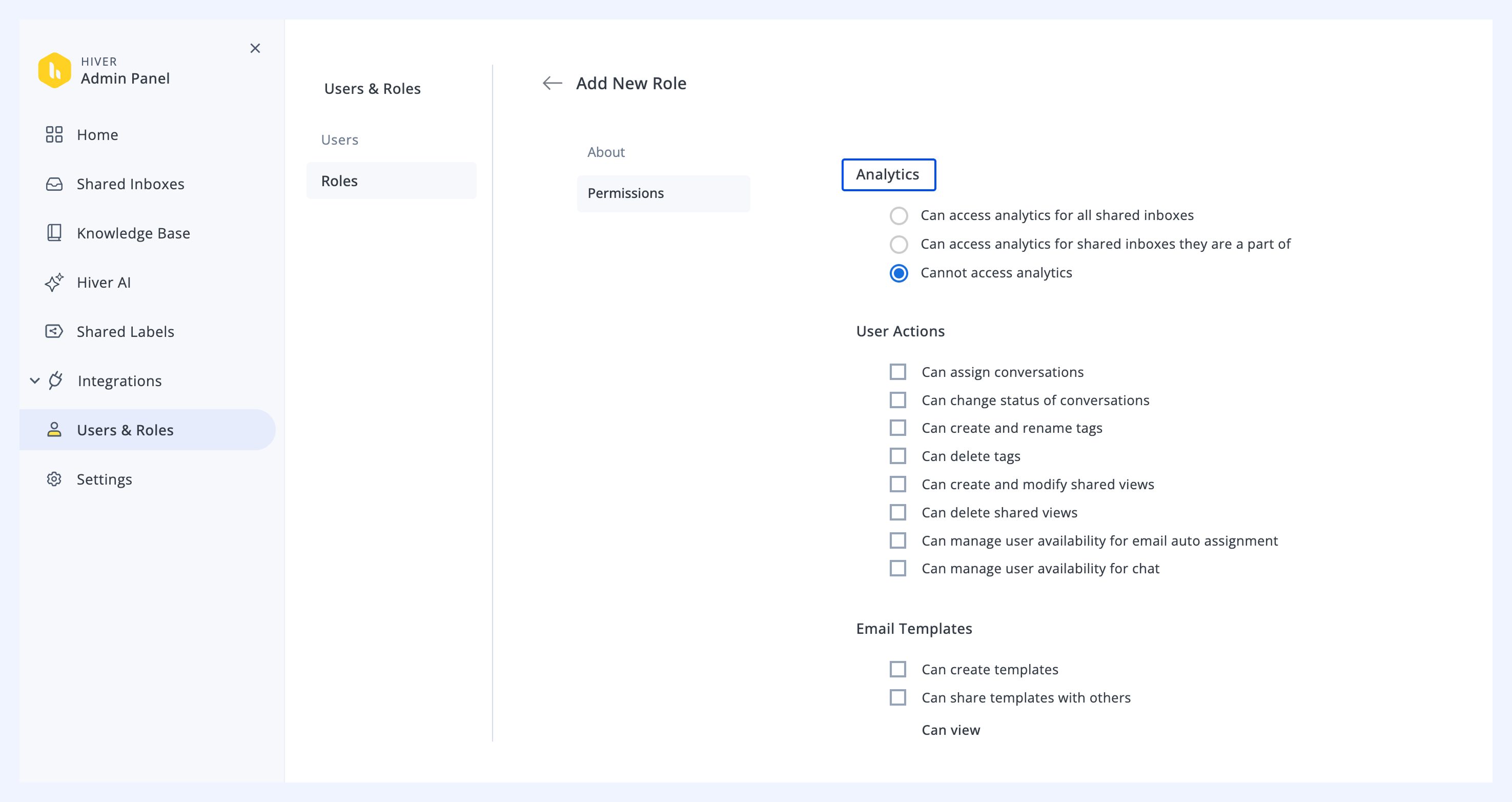
1. Do I need to be an admin to access Reports?
Yes. To access Reports in Hiver in Gmail, you either need Admin access or the right permissions granted through a custom role. If you can’t see analytics, ask your admin to update your role so you have access to Analytics.
2. How is First response time calculated?
First Response Time is the time from when a new conversation lands in your Shared Inbox until the first team reply is sent.
It is calculated separately for each inbox, and replies from autoresponders aren’t taken into account. To improve this metric, consider implementing auto-assign rules.
3. What is the Average first response time?
This is the average of all first response times within the selected date range. It indicates how quickly your team responds to new conversations overall. If the number looks high, Analyze the report and filter or group by assignee or SLA policy to check for bottlenecks.
4. What is Time to Close?
Time to Close is the duration it takes to resolve a conversation, measured from when it’s Open until it’s marked as Closed. Time spent in the Pending status doesn’t count toward this metric, since that duration depends on the customer’s response time. Faster closures usually come from clear ownership and tagging urgent conversations.
5. How is Resolution time different from First response time?
First response time is about how quickly you acknowledge a new conversation. Resolution Time measures how long it takes to fully close a conversation.
6. Why do Active conversations sometimes look higher than New conversations?
Active conversations includes all conversations worked on during the selected period, including new ones, plus ongoing ones from earlier.
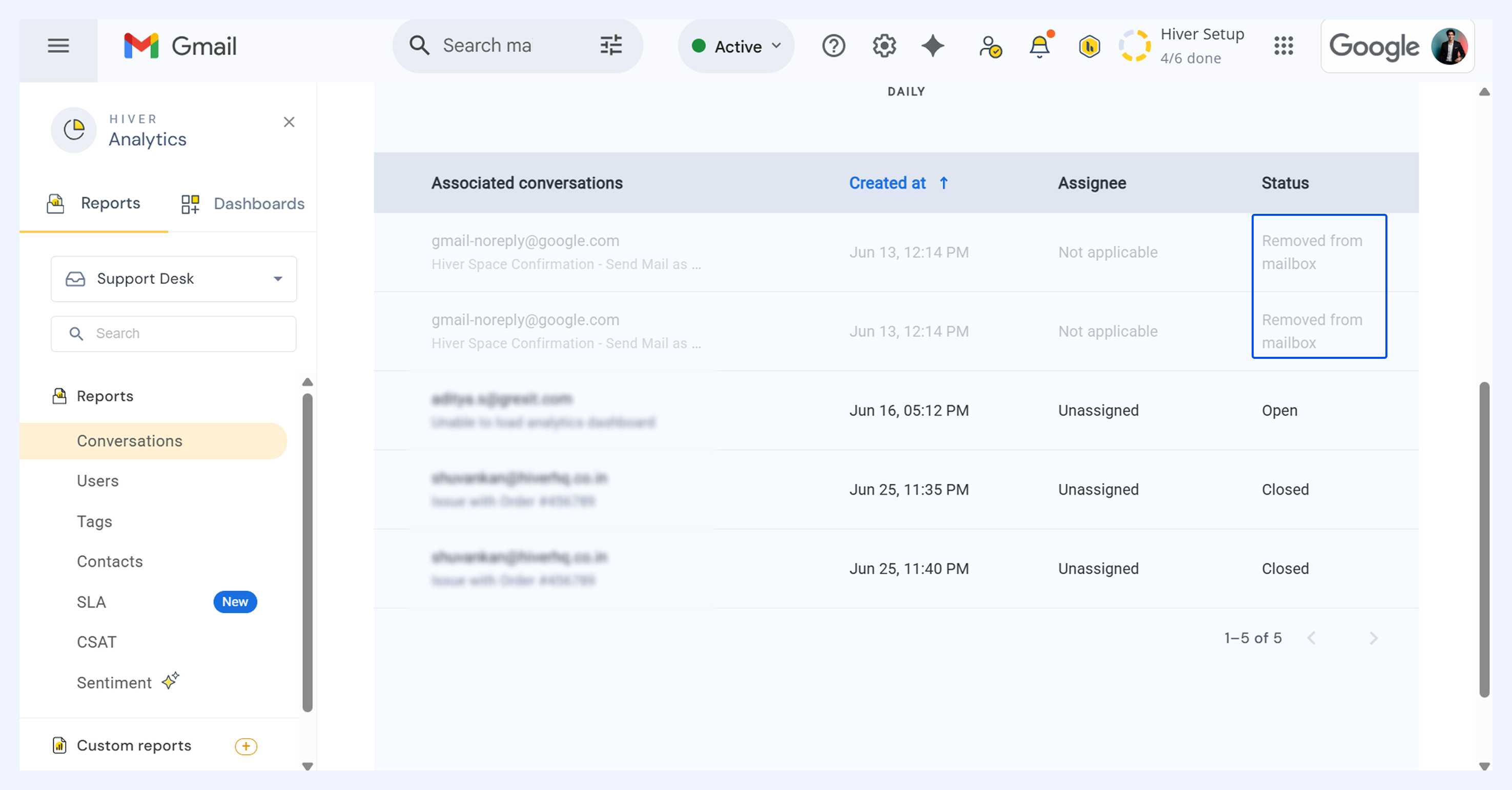
7. What happens to conversations that are removed or deleted?
Conversations removed from the inbox will have a Removed from mailbox status in reports. They don’t count toward the Active workload but remain visible under Analyze for historical context.
FAQs for Users reports
1. Why does a user show Assigned conversations but 0 Emails Sent?
That means the user was assigned conversations but didn’t send any replies, and someone else likely responded instead. To address this, review assignments rules to make sure work isn’t being misrouted.
2. Can I use the Users tab to track individual performance?
Yes. In the Users tab, the Performance section shows each team member’s average first response time, resolution time, average response time, and CSAT scores. This makes it easy to compare workload distribution and see who’s handling conversations quickly and effectively.
FAQs for Analytics tracking
1. Why does Hiver show 'Unidentified' as the sender in my analytics?
In rare cases, Hiver can't identify who sent a reply from a Shared Inbox. This happens when:
- Hiver has lost authentication for your Gmail account.
- You sent an email using an alias that isn't linked to your Hiver profile.
To avoid gaps, set up automation rules to automatically assign new conversations.
2. How do I fix the unidentified sender issue?
You can try:
- Re-authenticating your Gmail account in Hiver.
- Making sure all your email aliases are properly linked to your Hiver account.
3. Can I see analytics for old emails after upgrading from Growth?
Yes. When you upgrade from Growth to Pro, or Elite, you'll be able to see analytics data for all emails that were in your account while you were on the Growth plan.
FAQs for Tags reports
1. Why do some tags show conversations but no performance data?
This happens when conversations with that tag didn’t get a reply or resolution during the selected time period. Try expanding the date range to capture activity.
2. Do tags need to be applied manually, or can I automate them?
You can do both. Apply tags manually for one-off conversations, or set up automation so Hiver applies them automatically when certain conditions are met. You can also enable AI tagging to automatically categorize incoming conversations.
FAQs for Contacts reports
1. What are Companies in Contacts Reports?
In Hiver in Gmail, the Companies tab shows which companies generate the most conversations with your team. This helps you see if priority accounts are getting timely support.
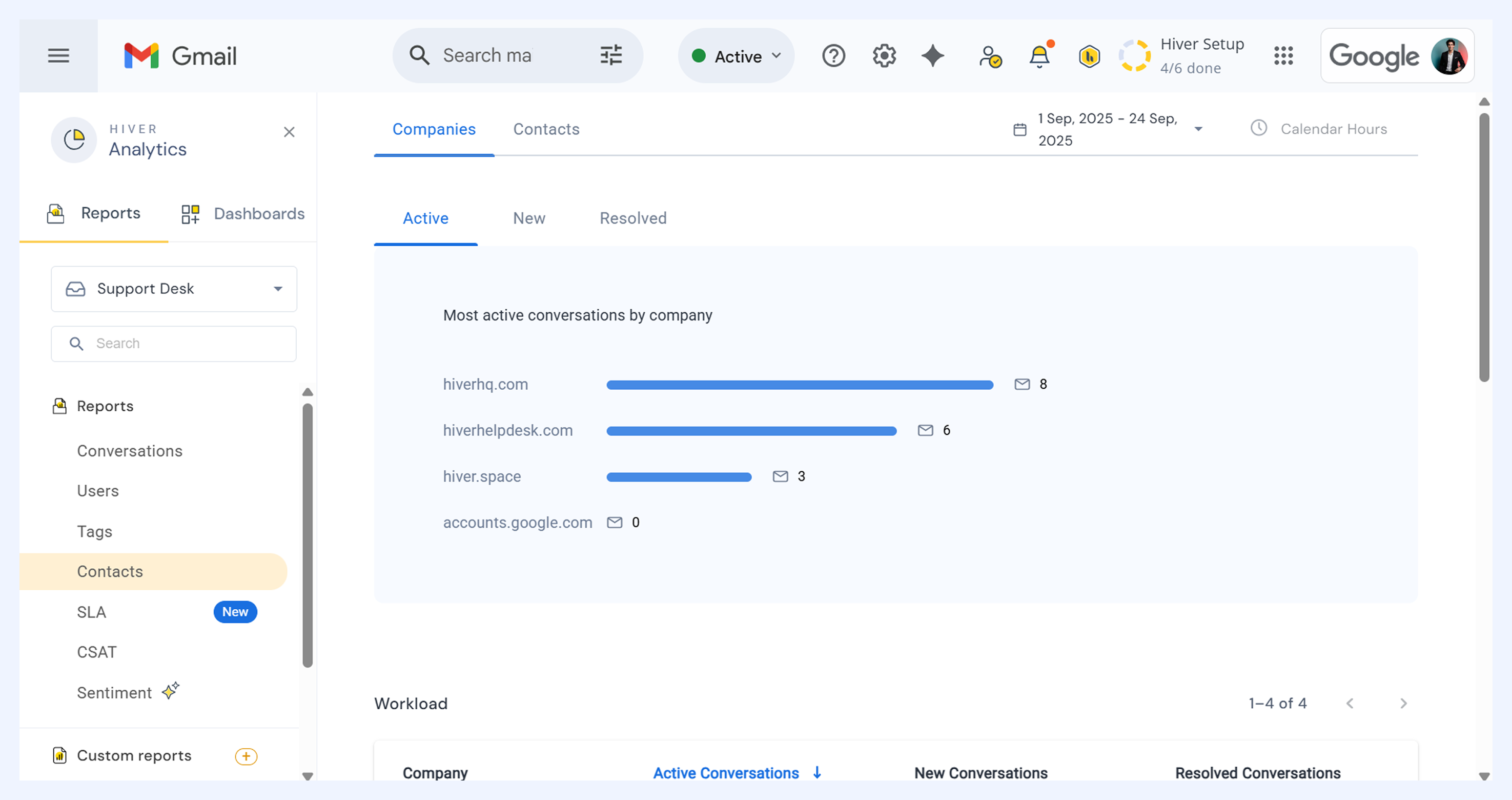
2. How can I use Contacts Reports to improve support?
Contacts reports help you spot where your team’s time is going. If one company or contact consistently has slow response times, you can adjust staffing or set up automation rules.
FAQs for SLA reports
1. Why do I see SLA violations but 0 compliance data (or vice versa)?
Violations represent conversations that missed SLA deadlines, while compliance tracks those that met them on time. If data appears only in one metric, it means all conversations during that period fell into that category.
2. Do SLA timers pause when a conversation is Pending?
No, SLA timers continue running until the first response is sent or the conversation is resolved. Conversations with a Pending status are only stopped for Time to Close reporting, not SLA countdowns.
FAQs for CSAT reports
1. Why do some users show ‘0’ under Total responses?
That means they didn’t handle any conversations that triggered a CSAT survey during the selected time.
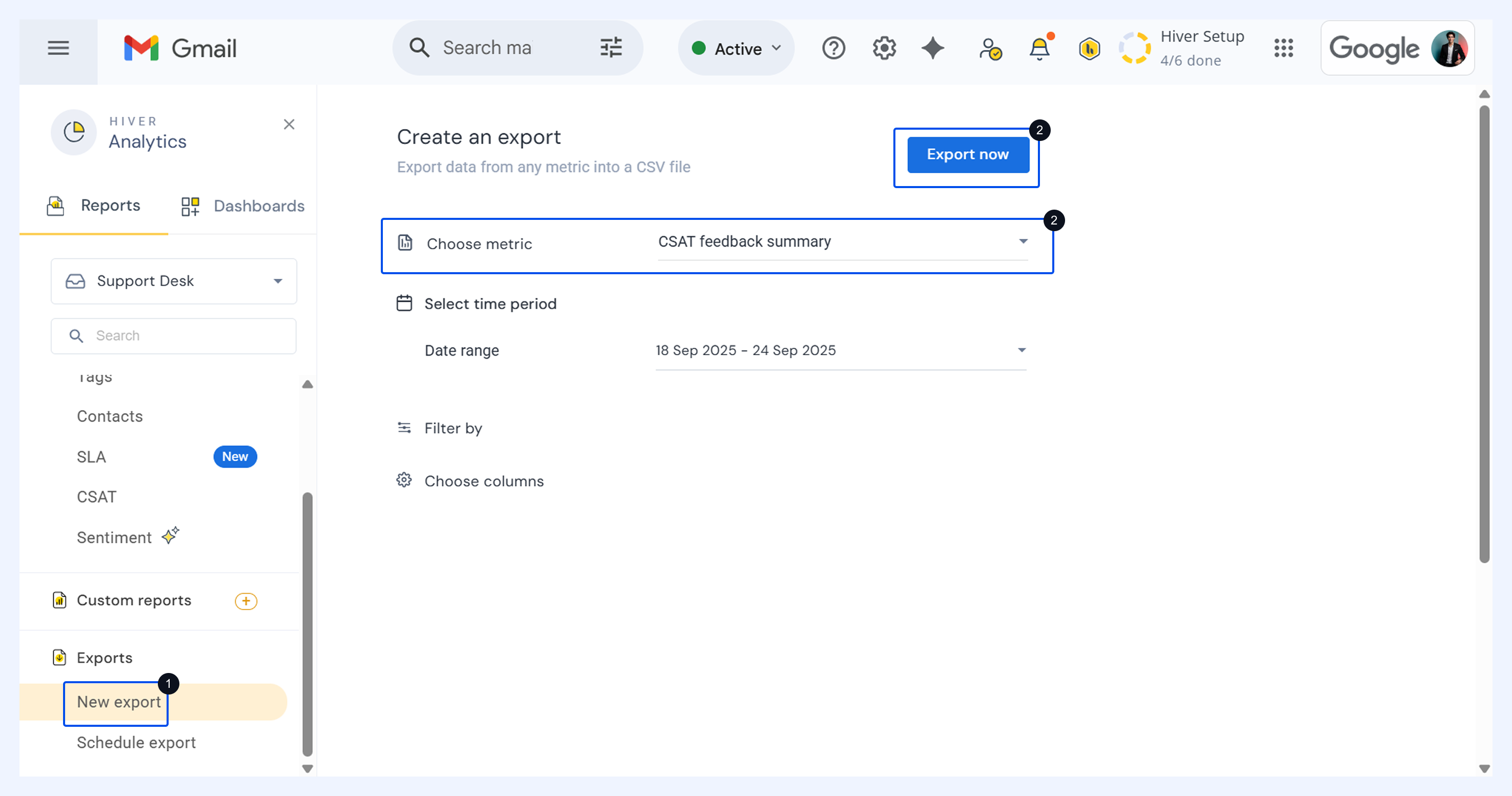
2. Can I export CSAT results for individual users?
Yes. You can export CSAT data in CSV format and filter it by user. This makes it easy to review satisfaction scores for specific team members or teams.
FAQs for Sentiment reports
1. How can I use Sentiment data to improve workflows?
You can set up automations based on sentiment. For instance, you can route negative conversations to a manager, trigger alerts for urgent follow-up, or send a feedback request when sentiment drops. This helps teams respond faster to unhappy customers and maintain service quality.
Learn more about how AI Sentiment Analysis works in Hiver.
2. Why do I see “Unassigned” in Sentiment Reports?
If a conversation wasn’t assigned to a specific user when sentiment was detected, it will show up under Unassigned. To avoid gaps, set up automation rules to automatically assign new conversations.
Next steps
Reporting and analytics overview