Exploring the Admin Panel in Hiver Omni
The Admin Panel is where you configure and manage Hiver Omni for your organization. From here, you can connect your support channels, define how conversations are handled, set up Hiver AI, manage self-service experiences, connect your tools, and control organization-wide access and settings.
This article gives you an overview of the main areas in the Admin Panel and links to detailed instructions for each.
Before you begin
You need admin access in Hiver to access and manage settings in the Admin Panel.
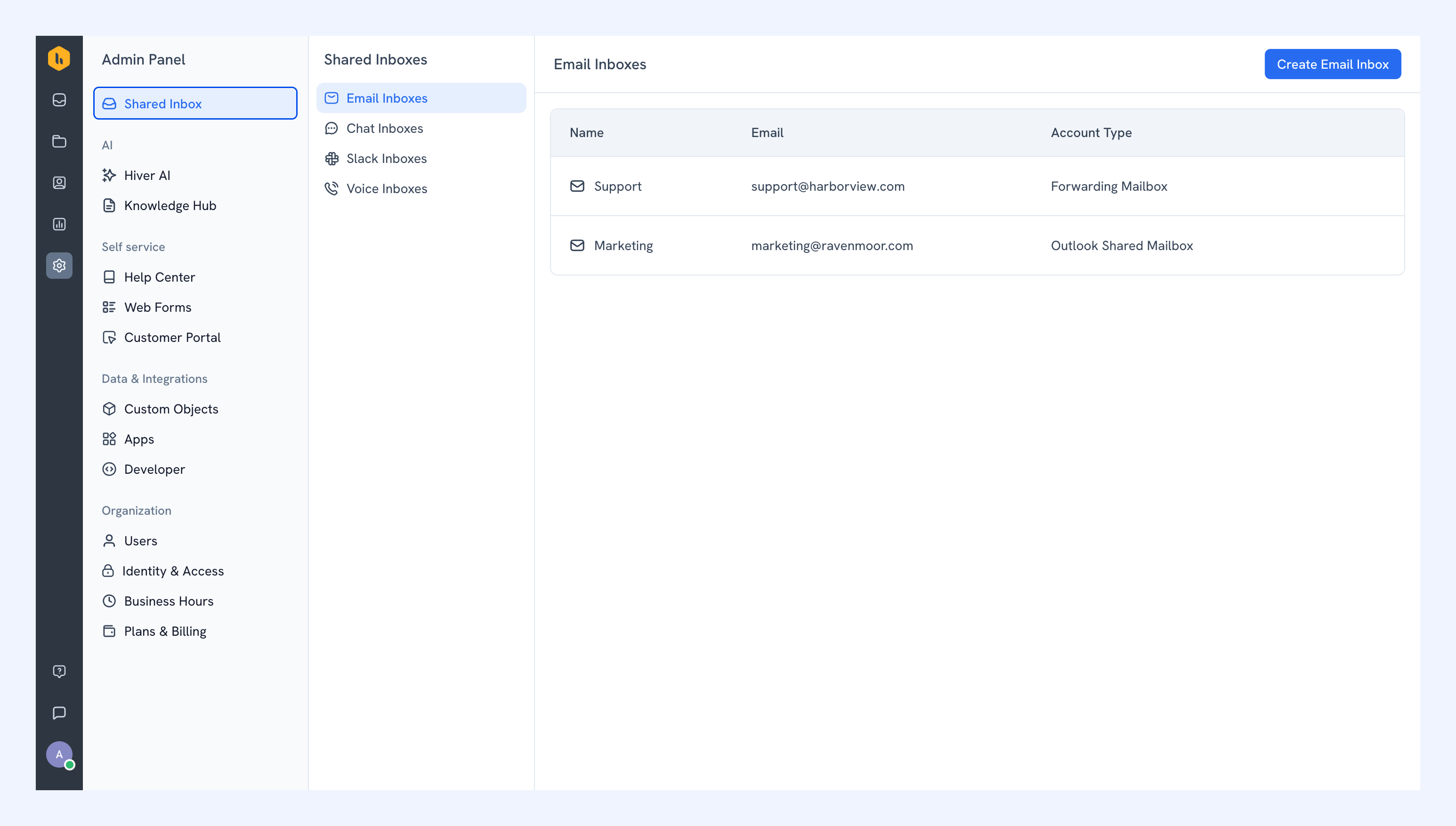
Shared Inboxes
Create the Shared Inboxes your team needs to manage customer conversations across channels.
From here, you can set up:
- Email Inboxes: Connect the email addresses your team uses for customer support.
- Chat Inboxes: Add live chat so customers can reach your team from your website and mobile or web app.
- Slack Inboxes: Bring customer conversations from Slack into Hiver.
- Voice Inboxes: Get a new phone number or connect an existing number so your team can make and receive customer calls in Hiver.
Once a Shared Inbox is created, you can configure how conversations are assigned and managed from Admin Panel → Shared Inbox.
Hiver AI
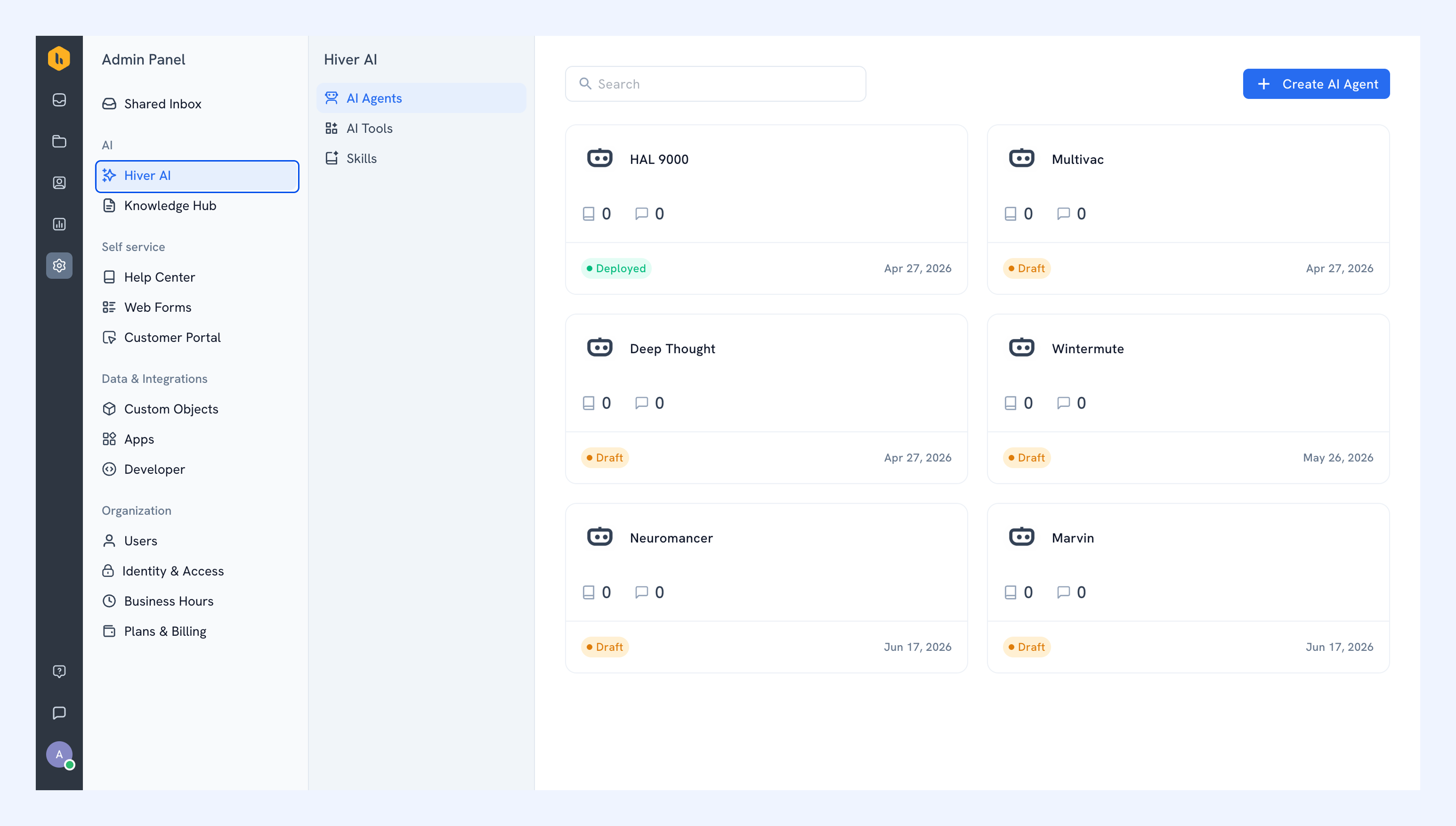
Set up and manage the AI capabilities that work with your team and customer conversations. Depending on your plan, Hiver AI can help automate customer support, assist your team, and handle multi-step customer requests.
Configure Hiver AI to automate customer support, assist your team, and guide how complex requests are handled.
From here, you can:
- Set up AI Agents: Automate customer support over chat and resolve requests end to end, with handoffs to your team when needed.
- Get started with AI Copilot: Help your team find information, summarize conversations, and draft responses.
- Create AI Operating Procedures: Define how Hiver AI should work through complex, multi-step customer requests.
Get started with Hiver AI.
Knowledge Hub
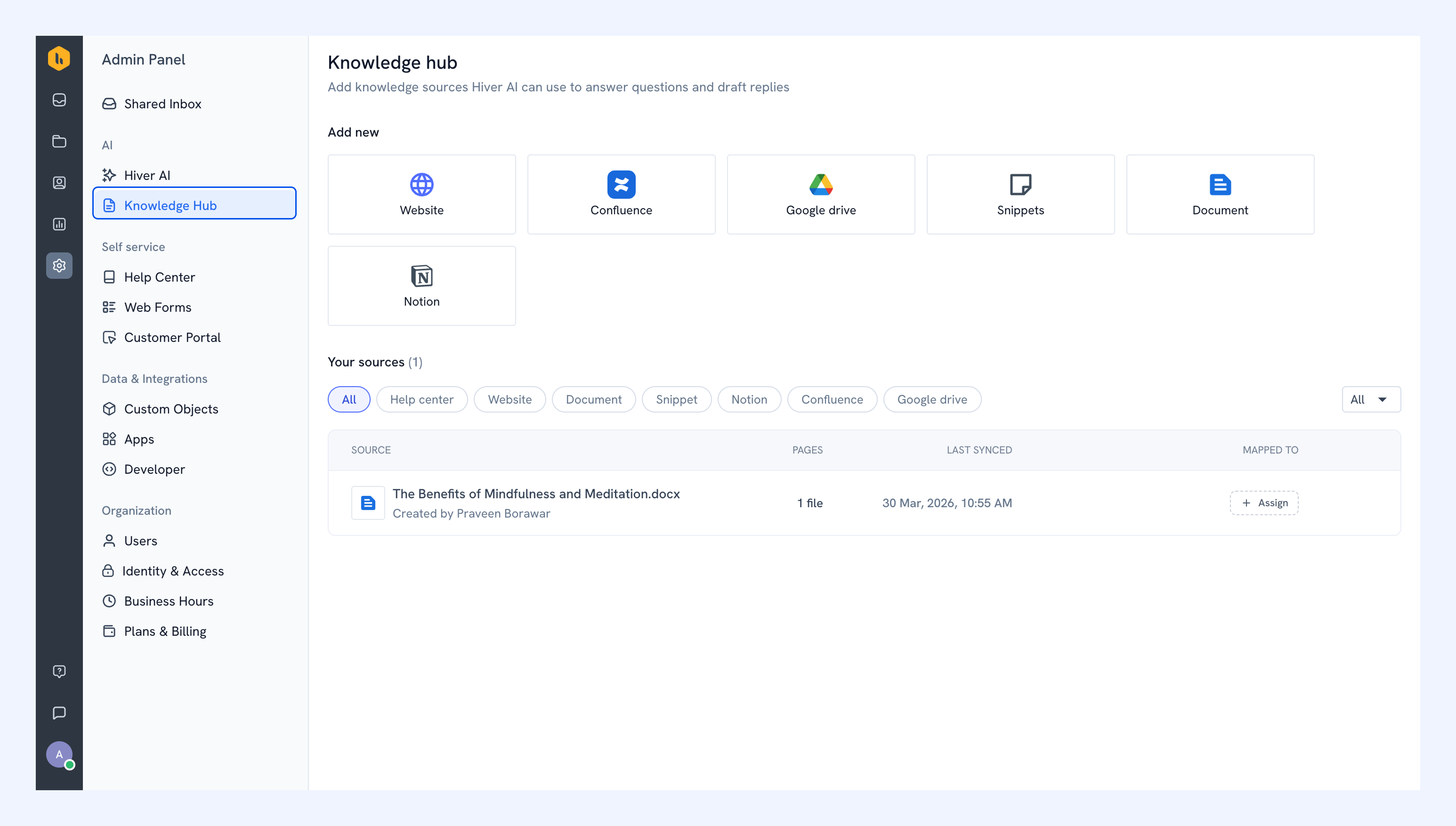
Bring the information Hiver AI needs into one place by connecting sources such as your Help Center, Google Drive, Notion, and Confluence. AI Agents and AI Copilot can use these sources when finding information and responding to customer requests.
Set up Knowledge Hub.
Self service
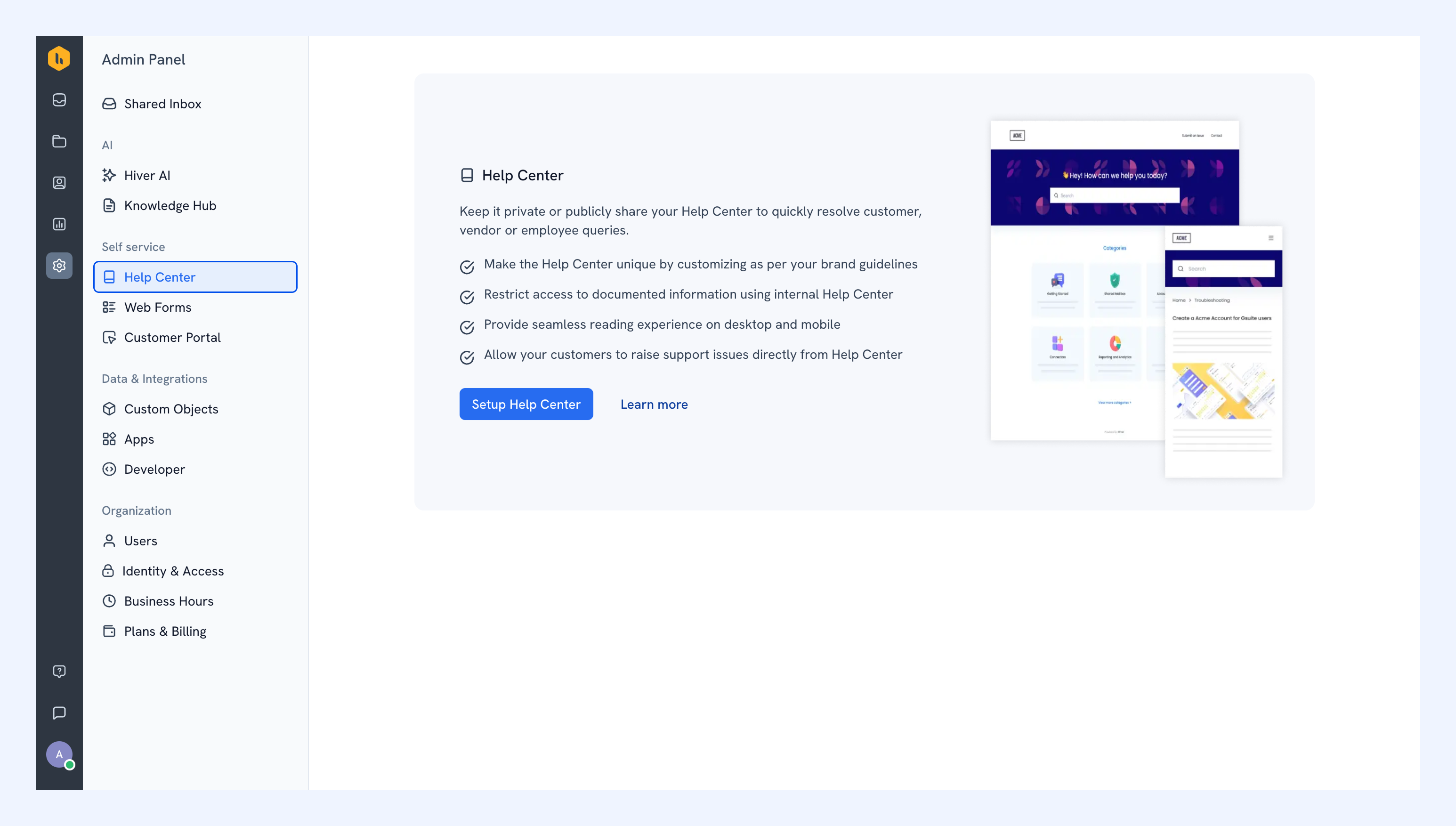
Help Center
Build and maintain a self-service Help Center where customers can find answers without contacting your team. You can organize your content and customize how the Help Center is presented to customers.
Set up your Help Center.
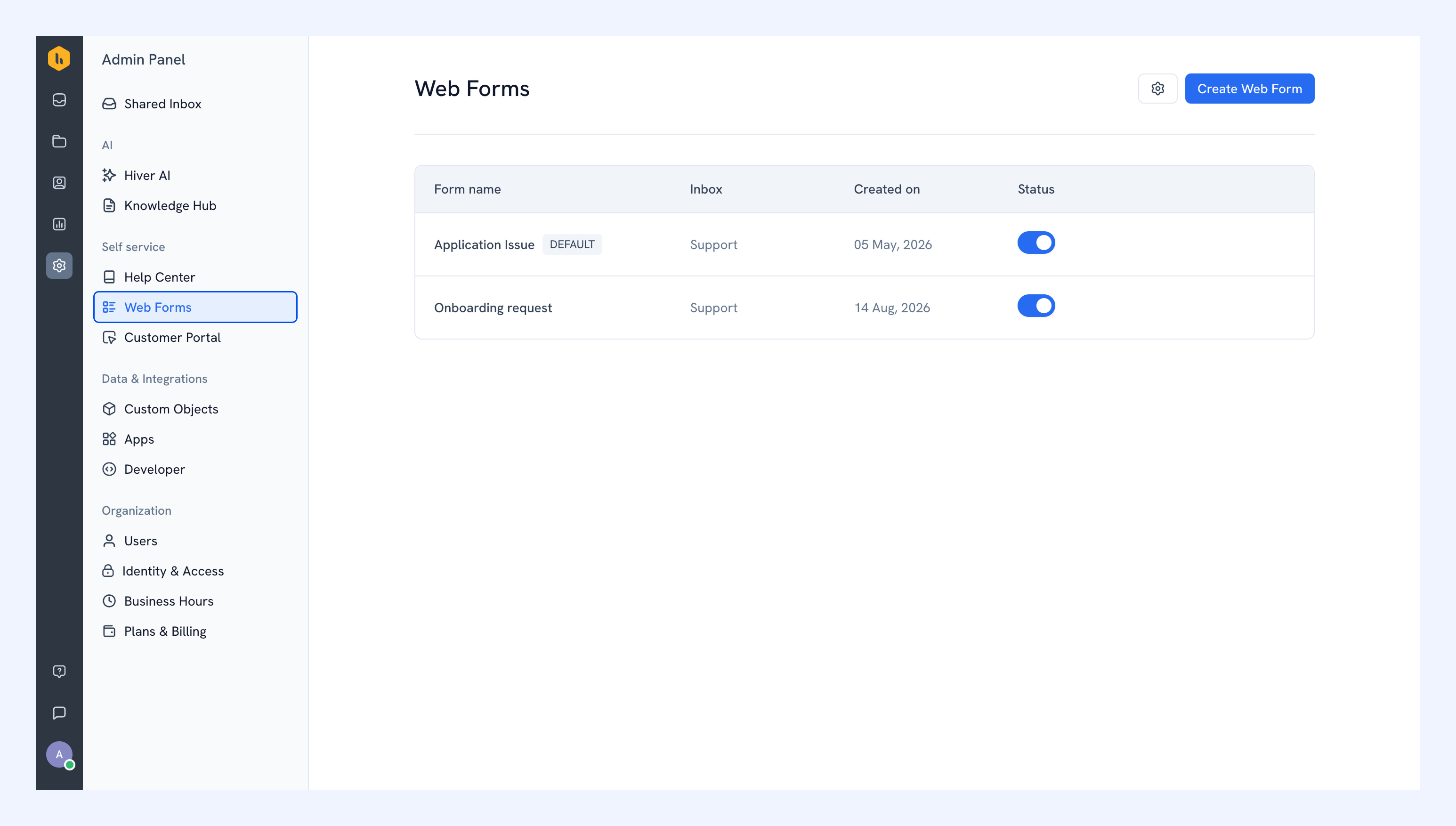
Web Forms
Create forms that collect the information your team needs when customers submit a request.
You can share forms directly or embed them on your website. Form submissions arrive in Hiver with the information provided by the customer into an Email Inbox.
Get started with Web Forms.
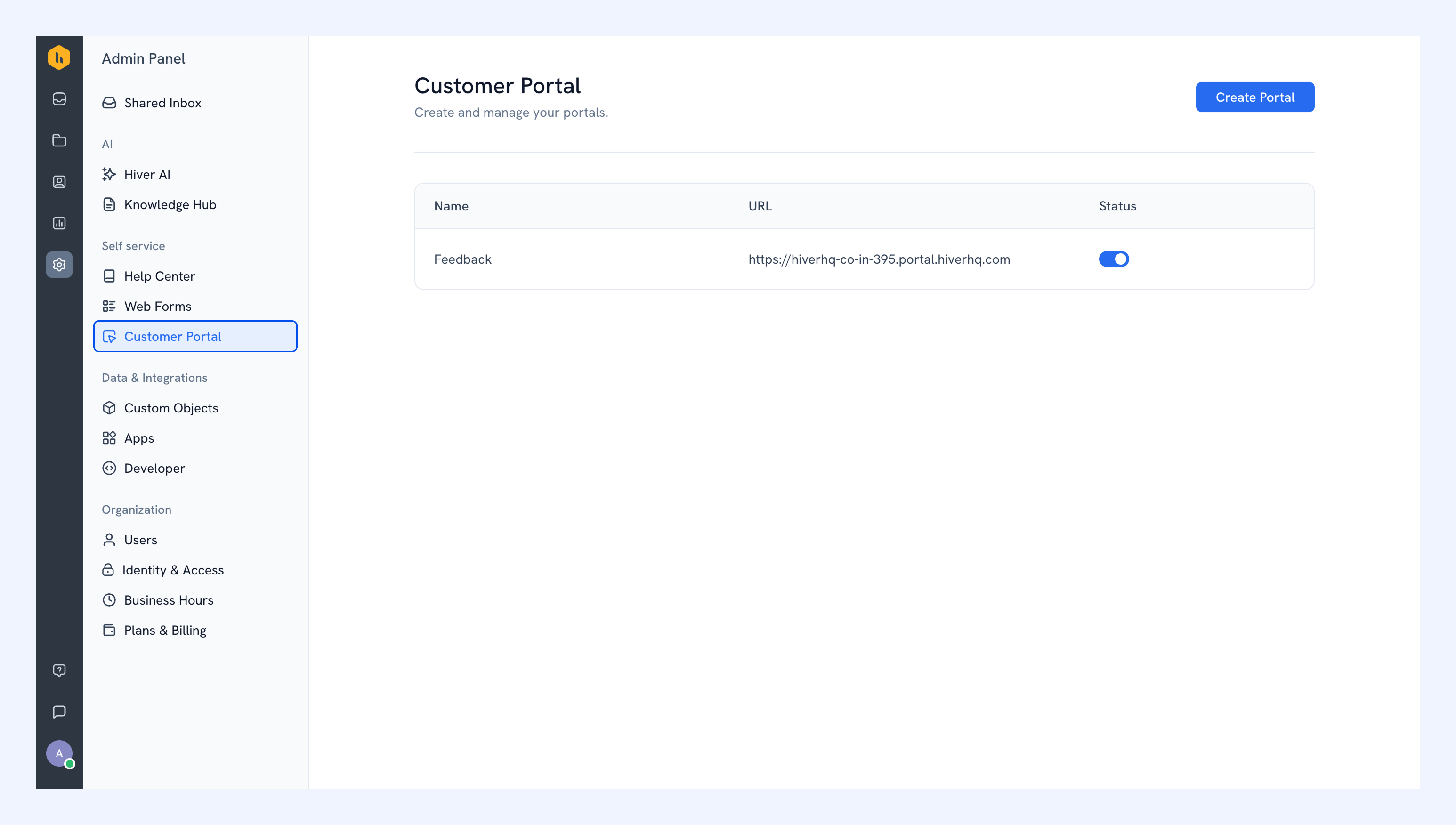
Customer Portal
Give customers a dedicated place to submit support requests and track the conversations they have raised with your team.
Set up Customer Portal.
Data and integrations
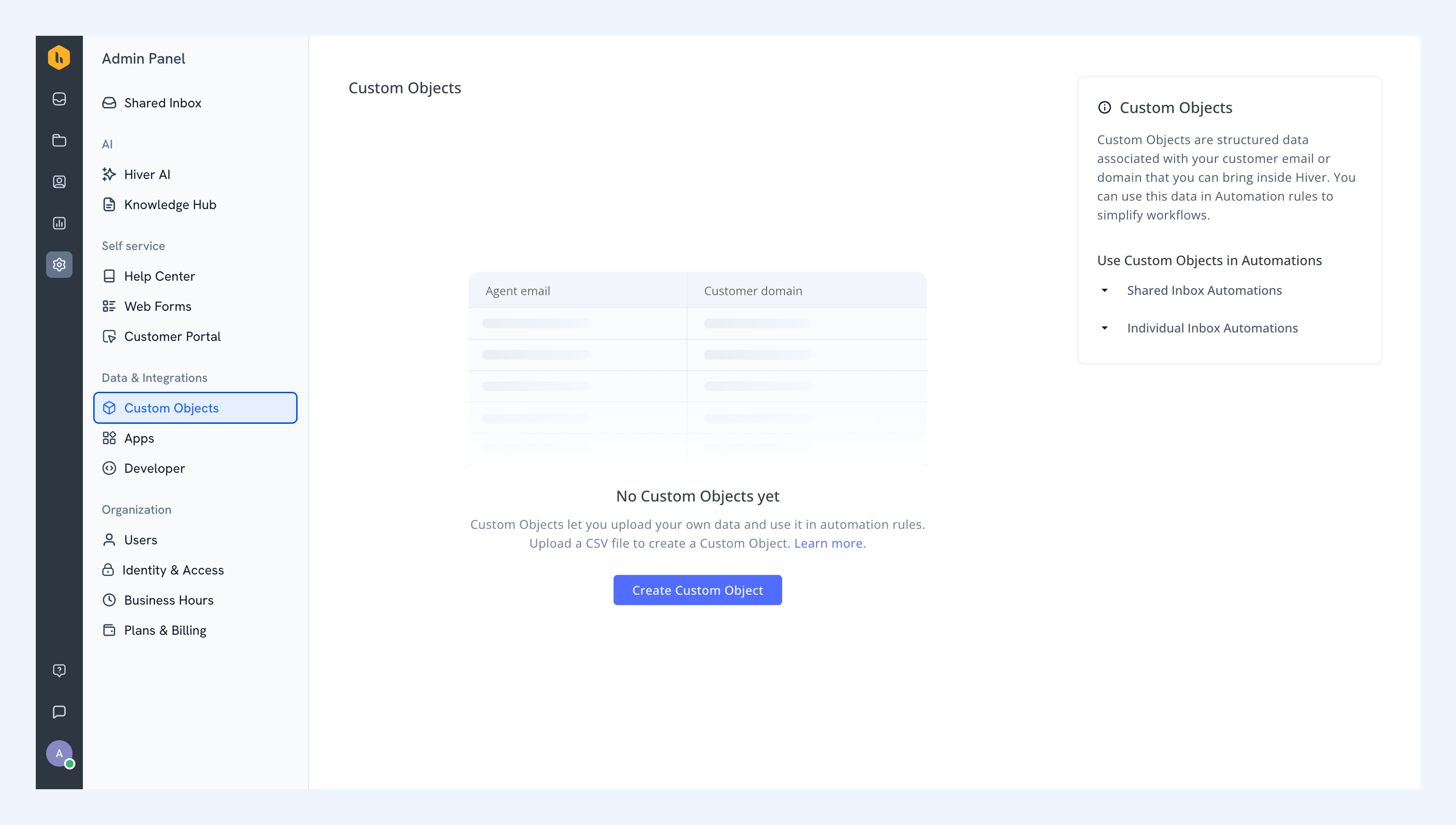
Custom Objects
Create and manage custom objects to represent business information and relationships specific to your organization. You can use this data in Automations, for example, to assign conversations based on the owner of the associated account.
Learn about Custom Objects.
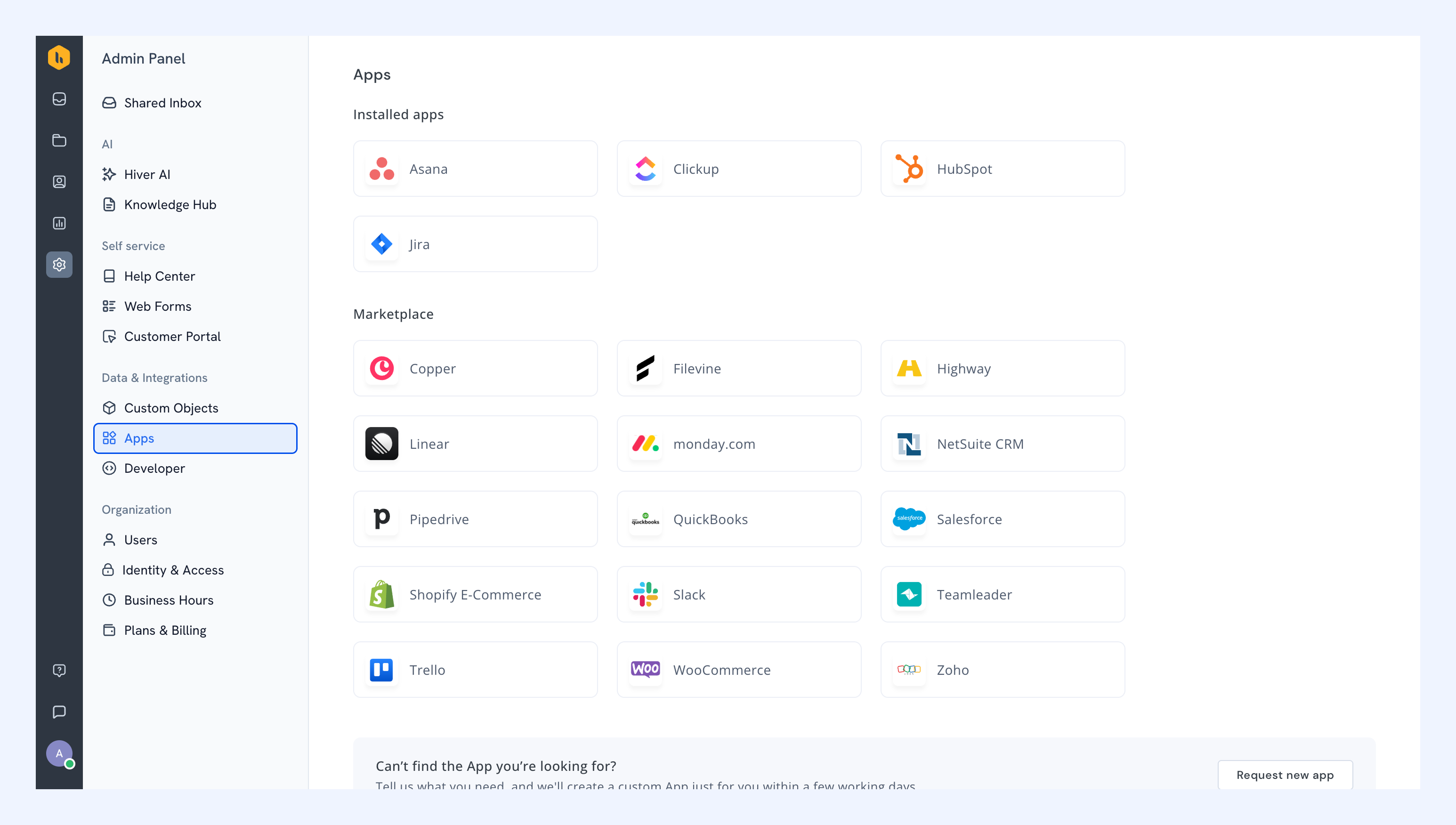
Apps
Connect Hiver with the tools your organization uses so your team can access information and move work between systems.
Explore Hiver apps.
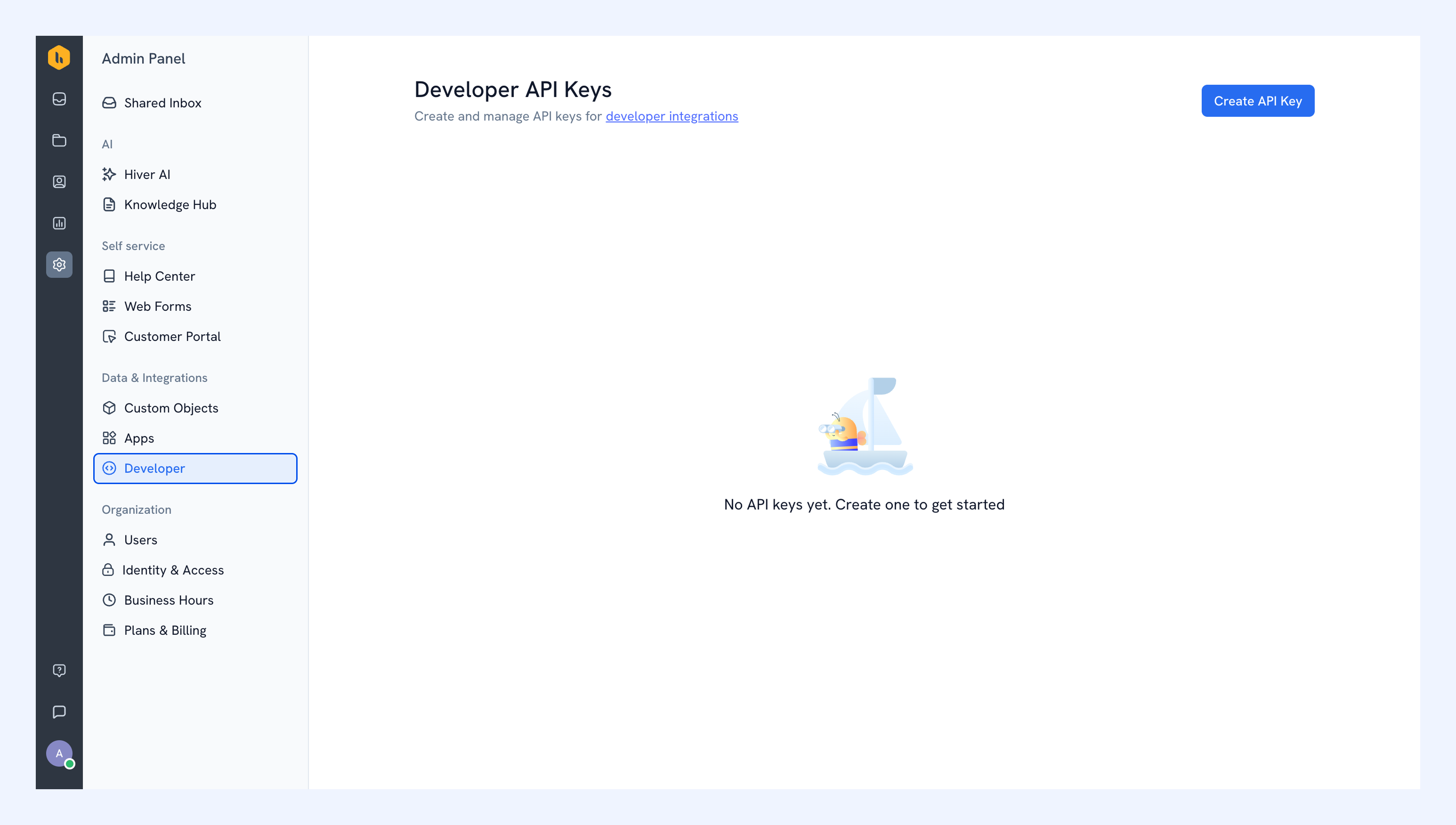
Developer
Use Hiver’s APIs to connect Hiver with your own applications and build custom integrations and workflows.
Explore Hiver APIs.
Organization
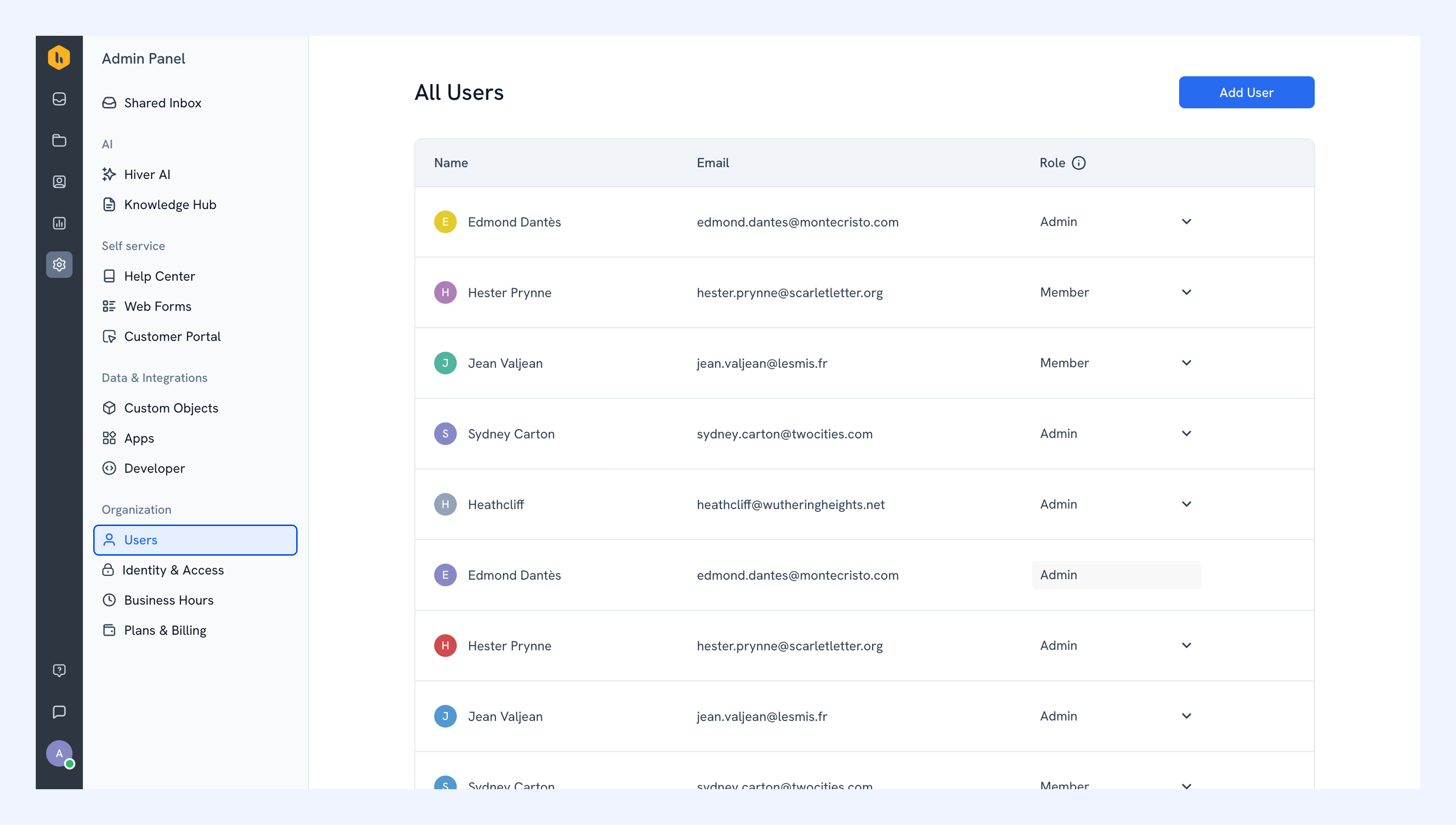
Users
Invite teammates to Hiver and manage the users who have access to your organization.
Learn how to manage users.
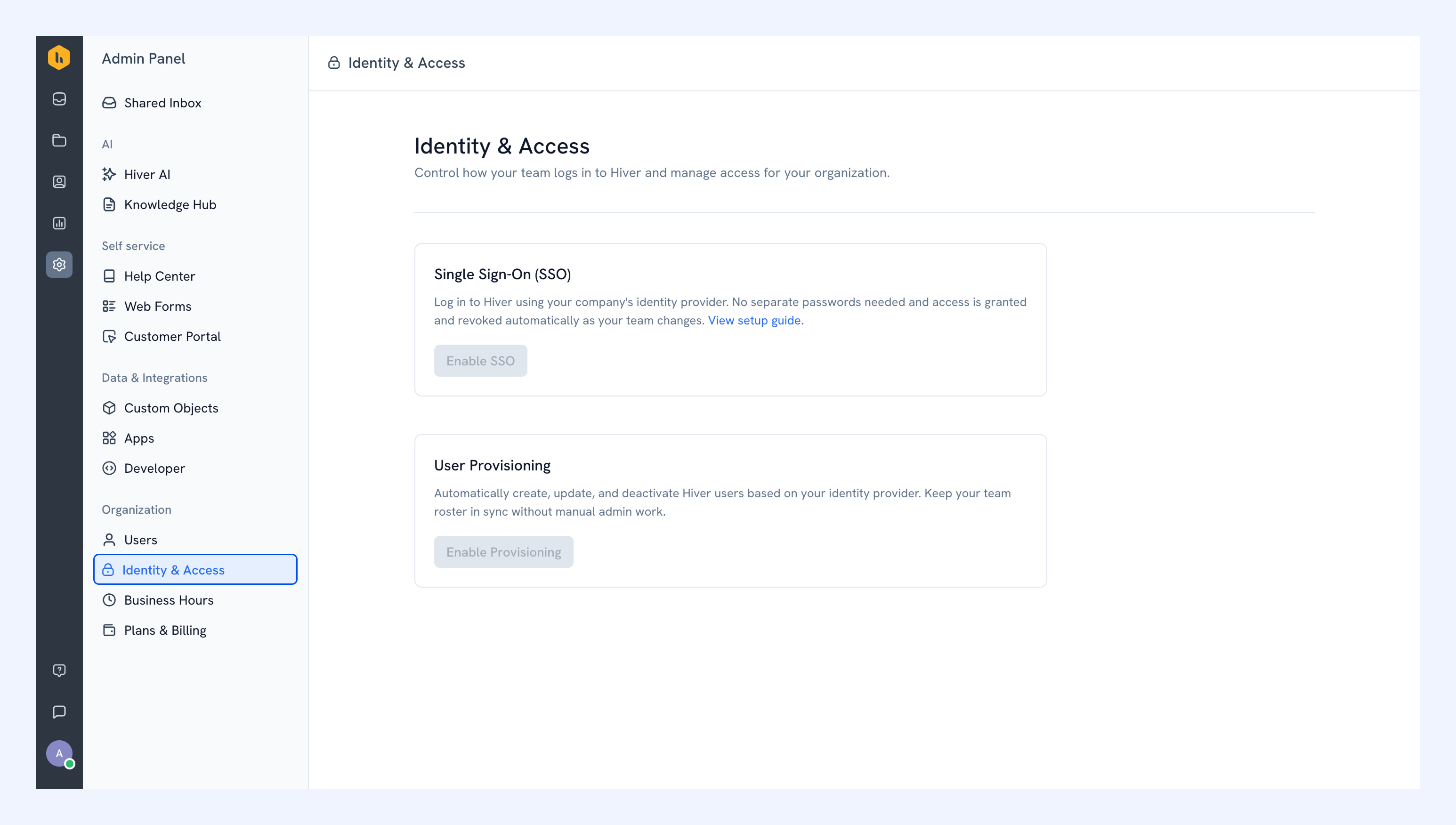
Identity and access
Manage how your team can sign in and Hiver across your organization.
From here, you can:
- Set up Single Sign-On (SSO): Let teammates sign in through your organization’s identity provider.
- Set up user provisioning: Automatically create, update, and deactivate Hiver users as your team changes.
Set up Identity & Access.
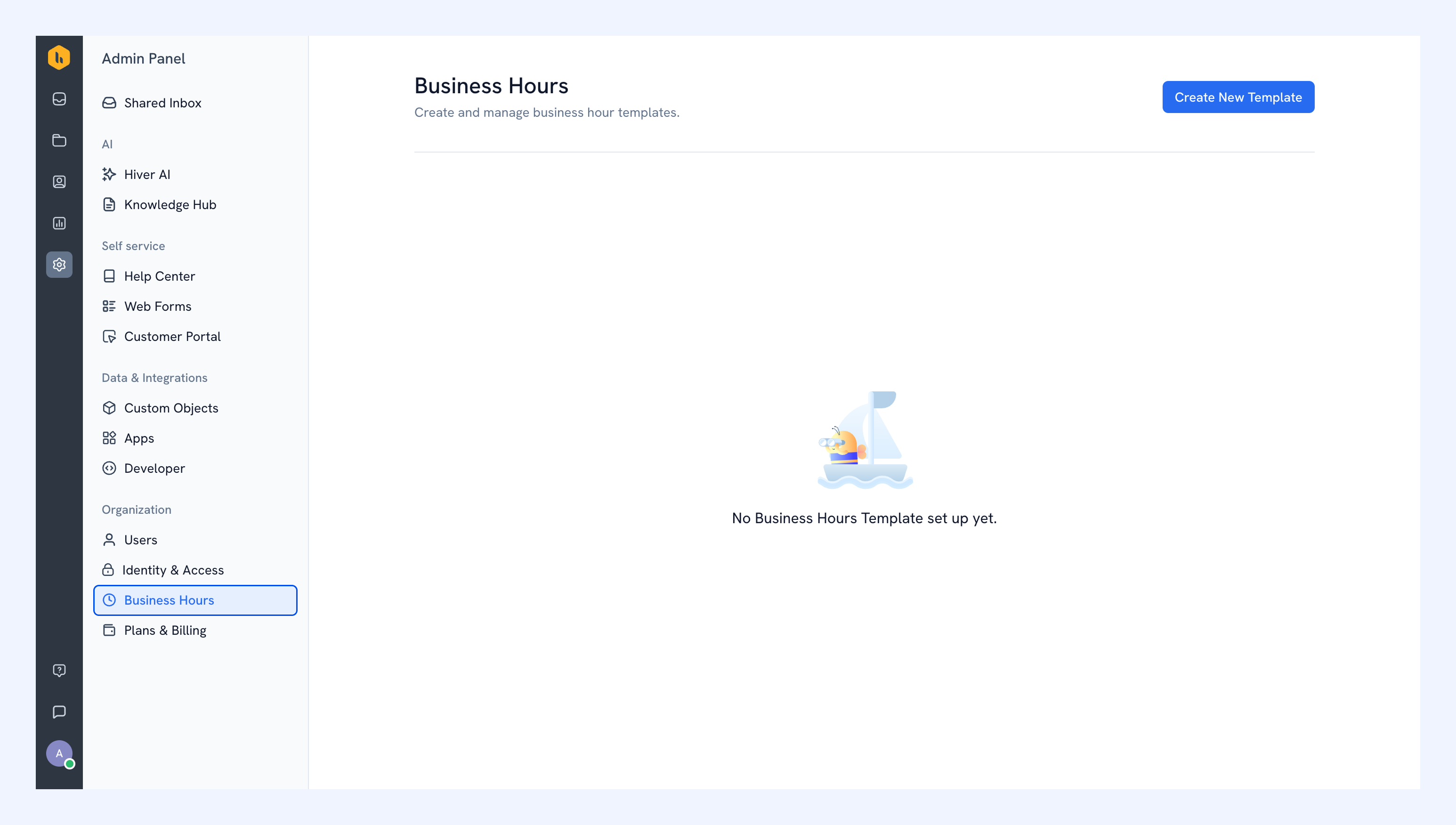
Business Hours
Define the hours your support team operates. Business hours can be used across Hiver to determine when your team is available and support workflows that depend on working hours.
Manage Business Hours.
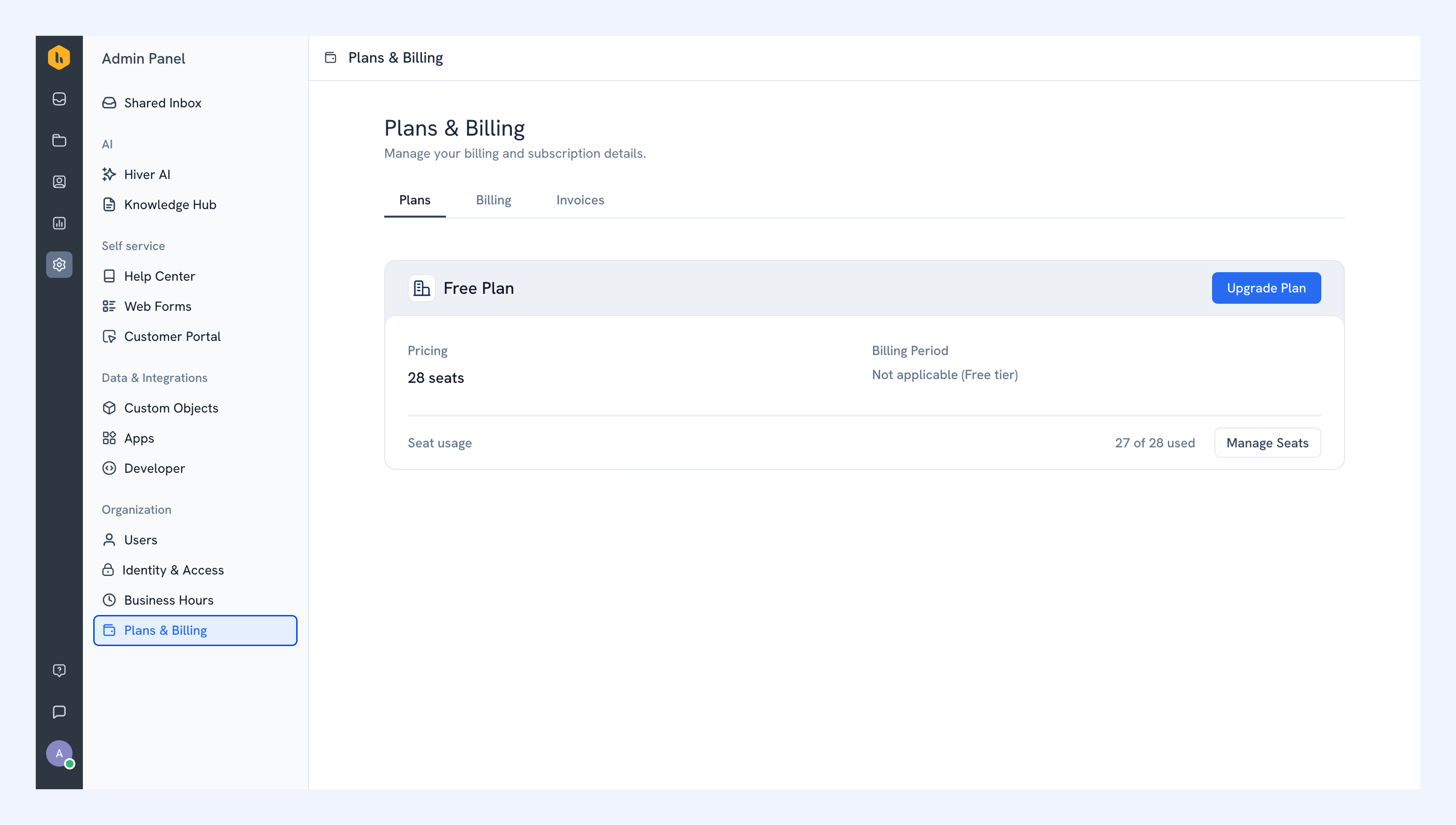
Plans & Billing
View your current Hiver plan and manage billing details for your organization.
Manage Plans & Billing.