Managing Slack Inbox
This guide covers everything you need to know about working with Slack conversations in Hiver Omni, including how to reply to messages, manage conversation details, configure inbox settings, and more.
Viewing conversations
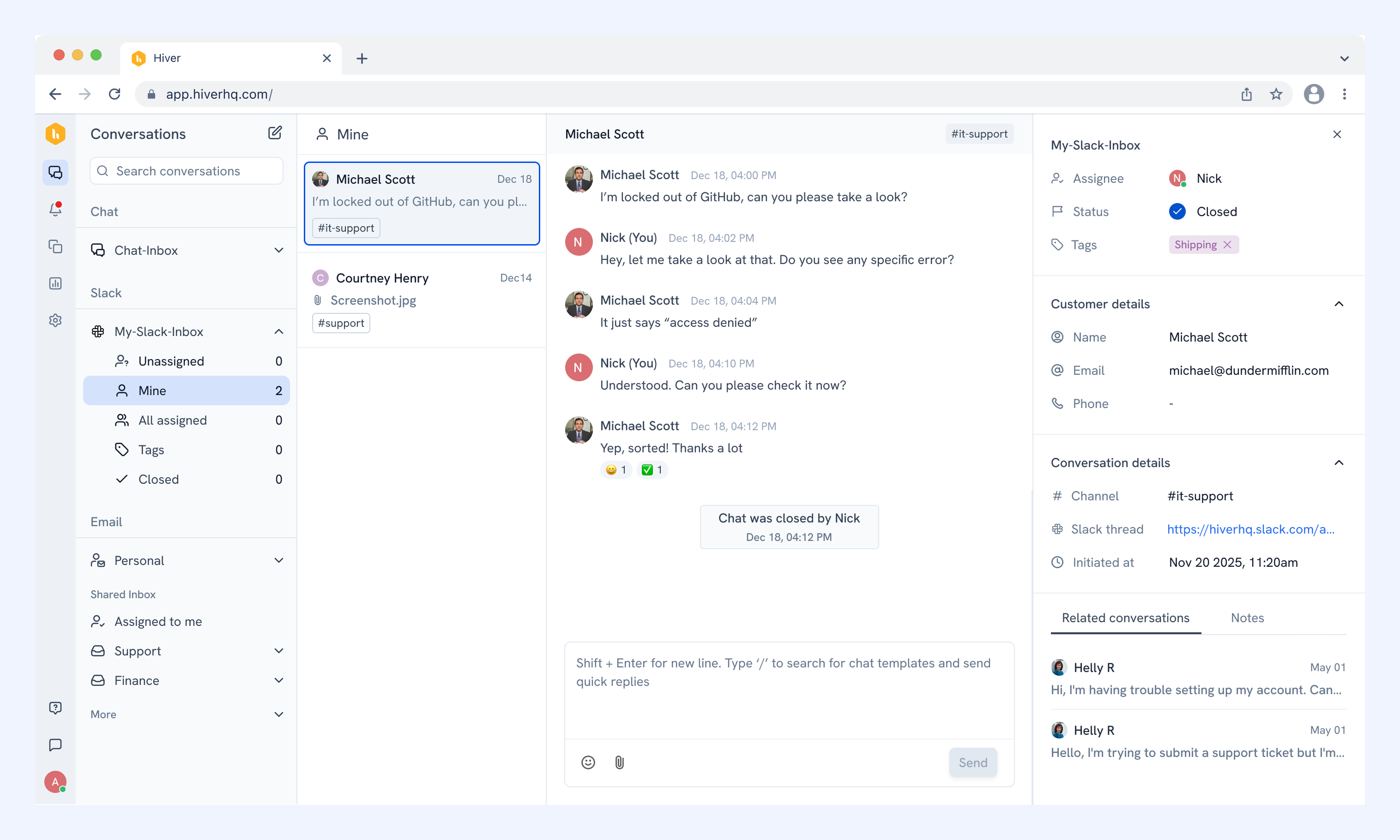
- Conversations in your Slack Inbox are grouped into these default views: Unassigned, Mine, All assigned, Tags, and Closed.
- Selecting a conversation opens the entire thread. In Hiver Omni, messages from Slack threads are shown as a single, chronological list, rather than in a nested thread view.
- The right panel contains details about the conversation and the customer.
Note: Contacts and accounts from Slack conversations also show up in the Customers tab. To learn more, see Viewing and managing customer details.
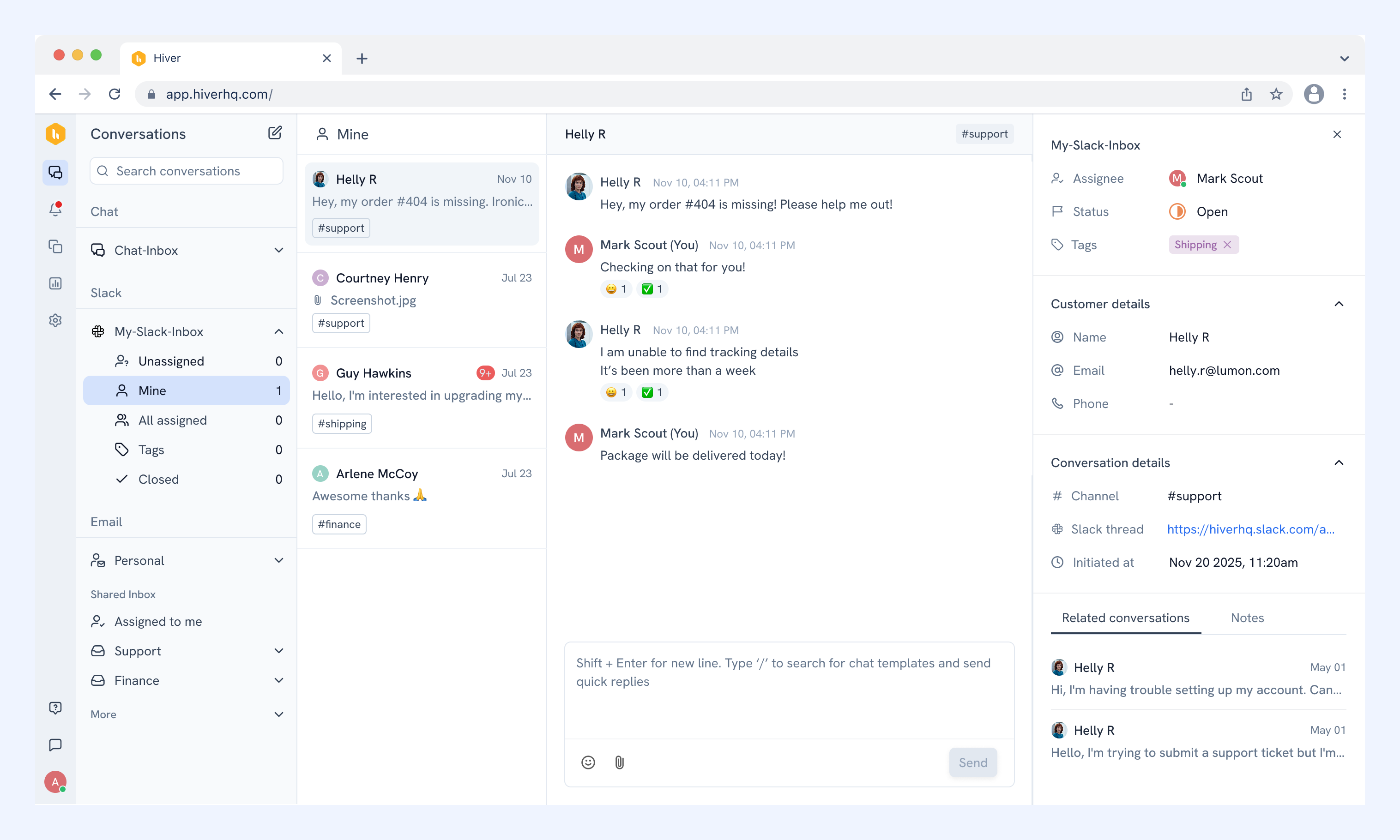
Replying to a conversation
To reply to a Slack message, simply compose your message in the reply box and click Send.
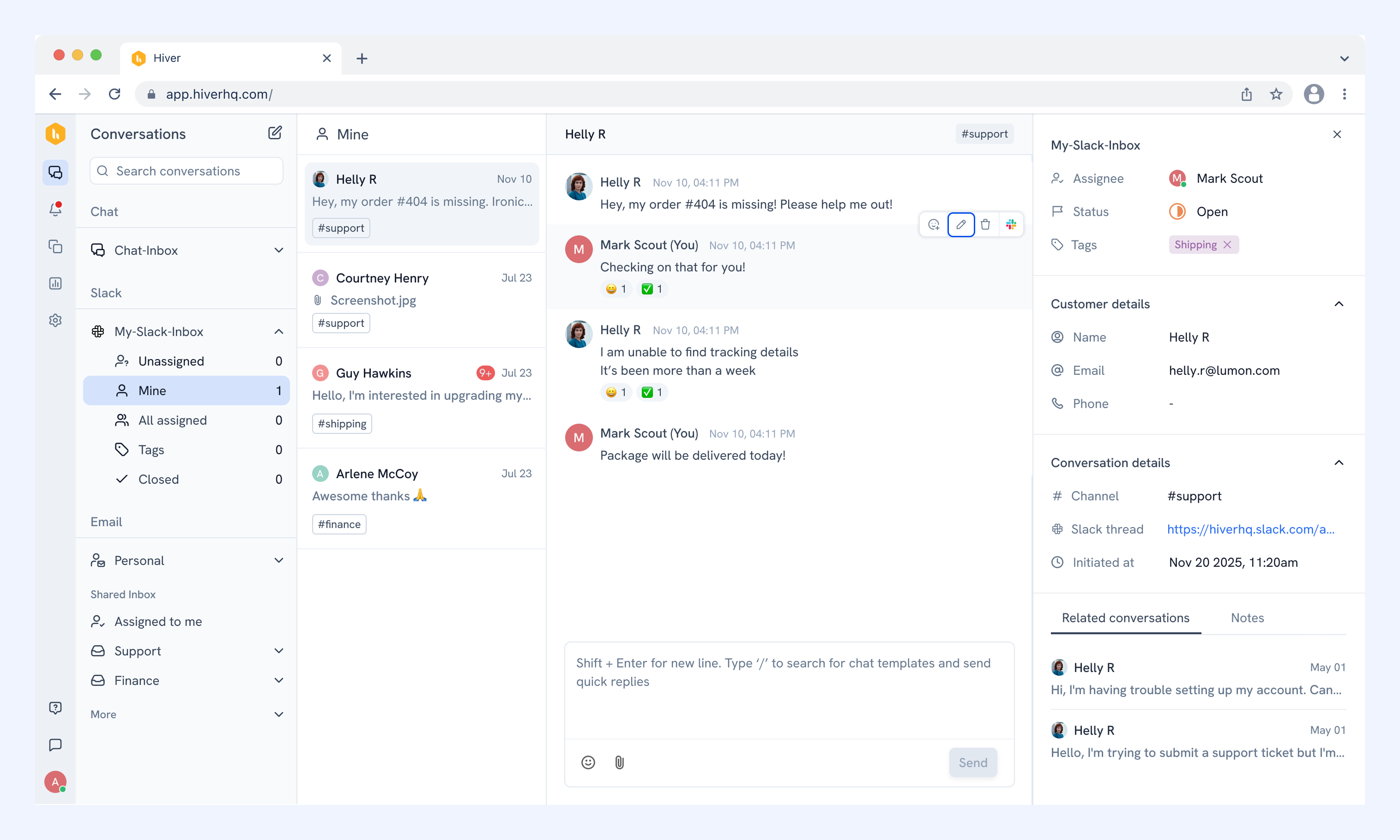
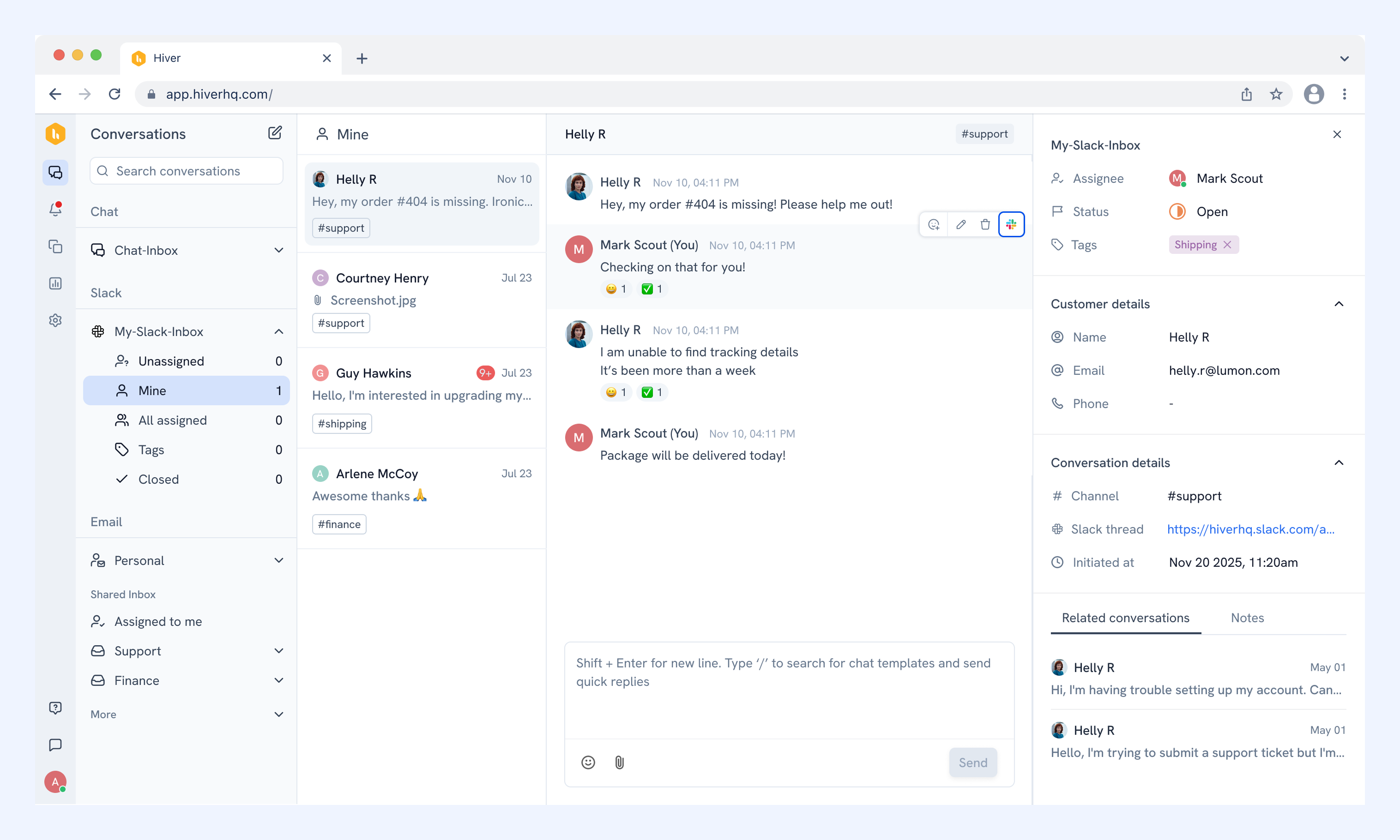
Additionally, you can hover over any message to use the following options:
1. Emoji reaction: Click the emoji icon and pick a reaction. It syncs to Slack in real time.
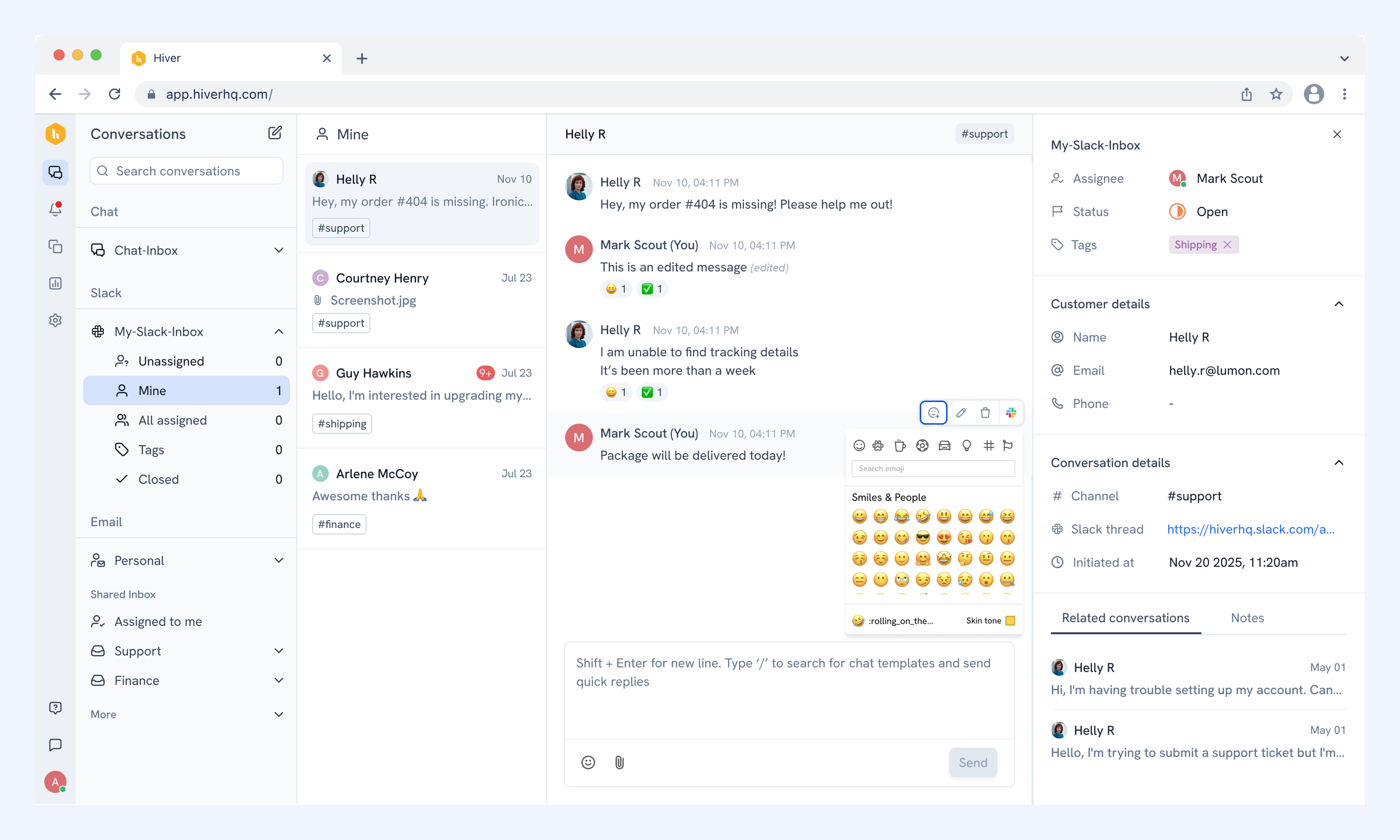
2. Edit: On messages you sent, click the pencil icon. Update the text and click Save. The edit syncs to Slack immediately.
3. Delete: On messages you sent, you can click the delete icon to delete it.
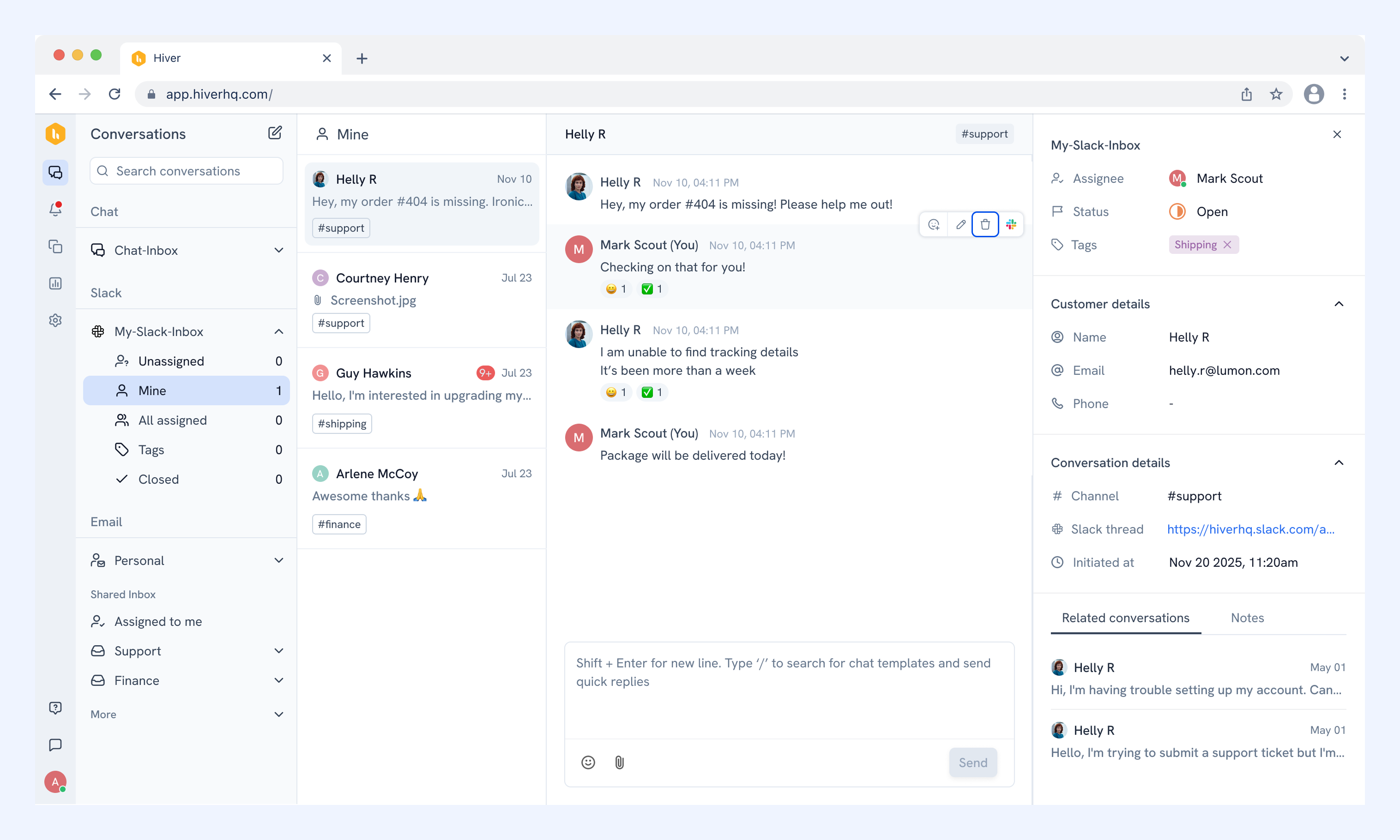
4. Open in Slack: Click the link icon on any message to open that thread in Slack in a new tab.
Assigning, closing, and tagging conversations
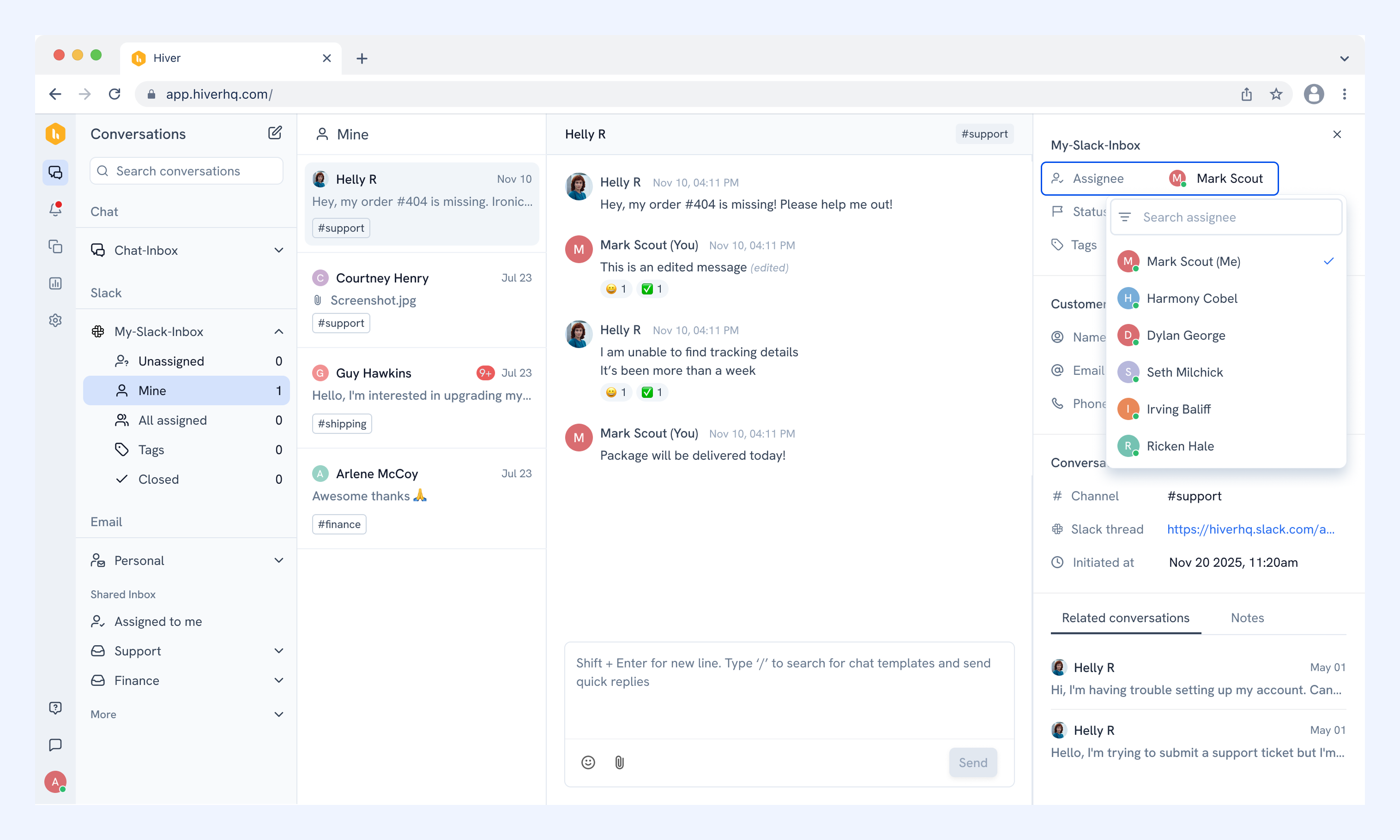
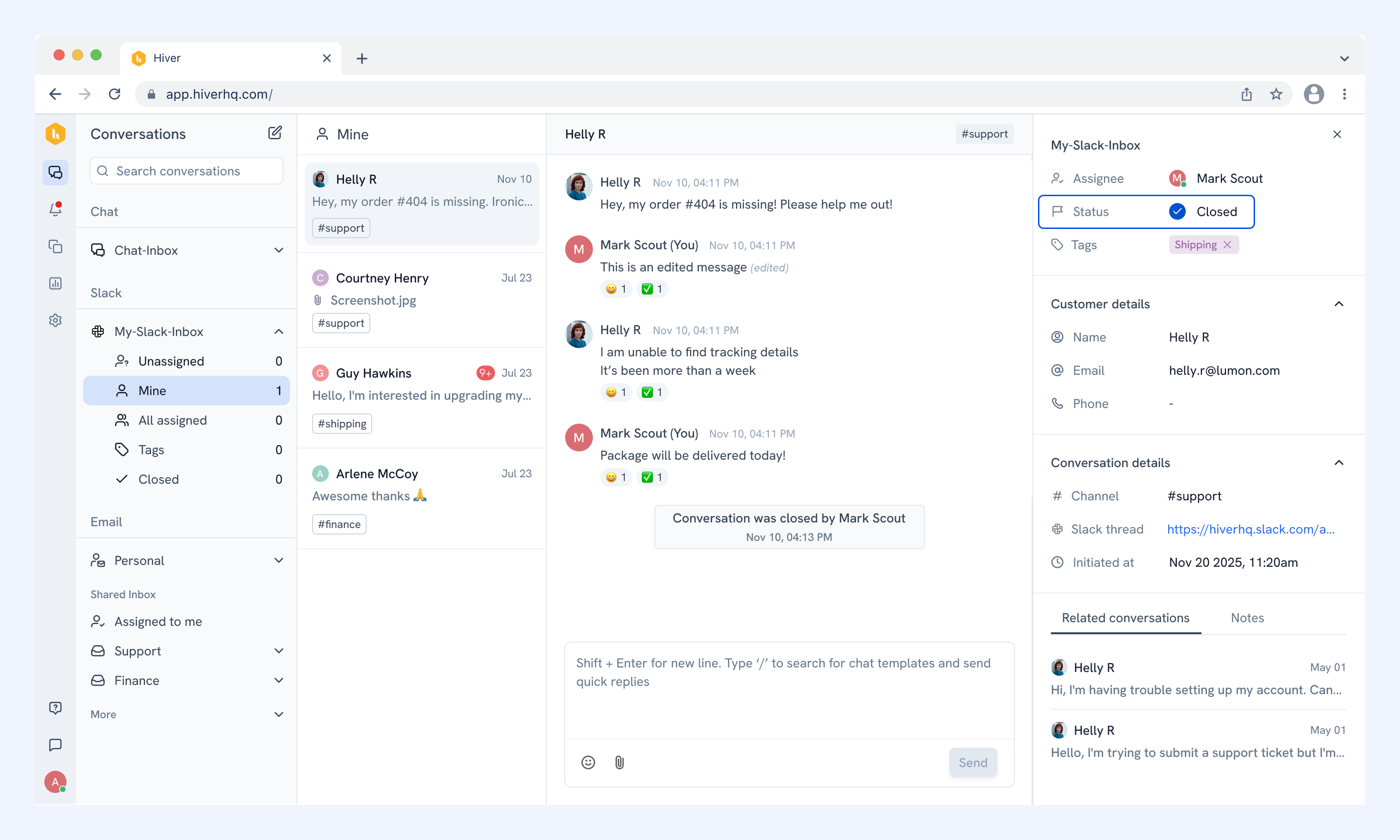
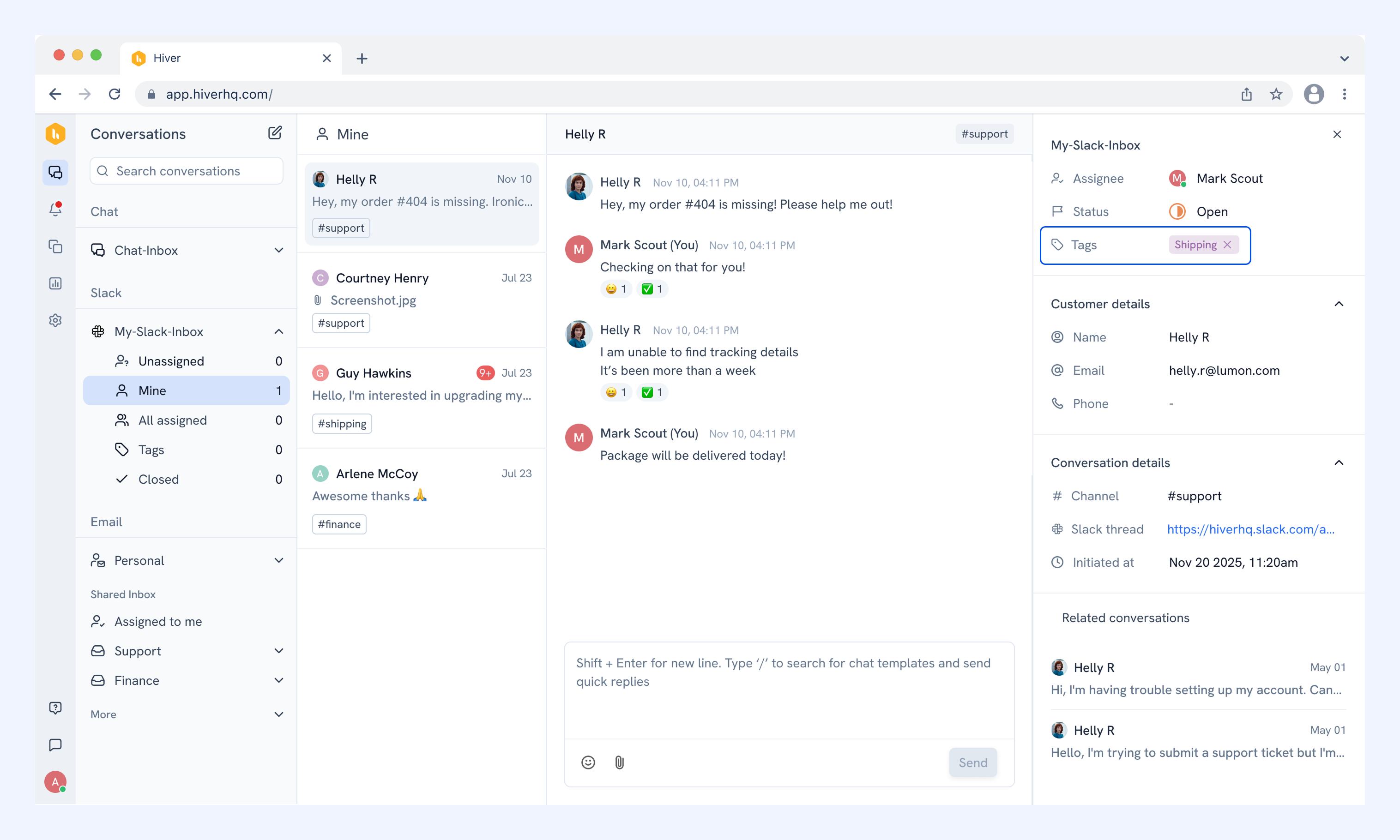
The right panel shows the assignee, status, and tags for each conversation.
- Use the Assignee dropdown to assign the conversation to yourself or a teammate.
- Use the Status dropdown to set a conversation to Open, Pending, or Closed. The status also updates automatically: a conversation moves to Pending when you reply and back to Open when the customer responds.
- Use Tags to categorise conversations for reporting and filtering.
Applying bulk actions
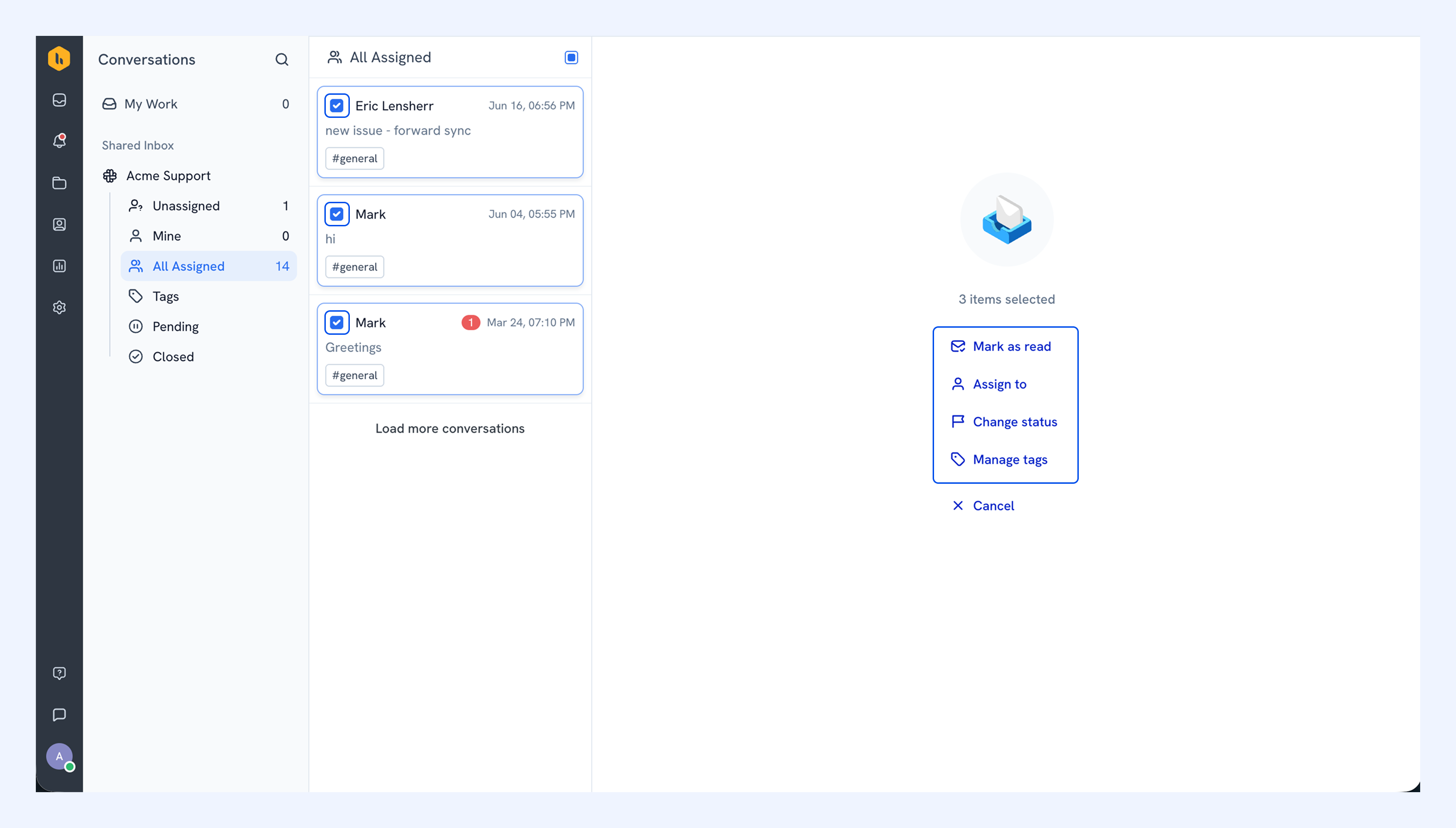
You can assign, close, or tag multiple conversations at once using bulk actions. To select a conversation, hover over it and select the checkbox that appears.
Then you can choose to
- Mark as read: Marks selected conversations as read.
- Assign to: Assigns selected conversations to a teammate. Select None to unassign conversations in bulk.
- Change status: Sets the status to Open, Pending, or Closed.
- Manage tags: Adds or removes tags across the selected conversations.
Using related conversations and notes
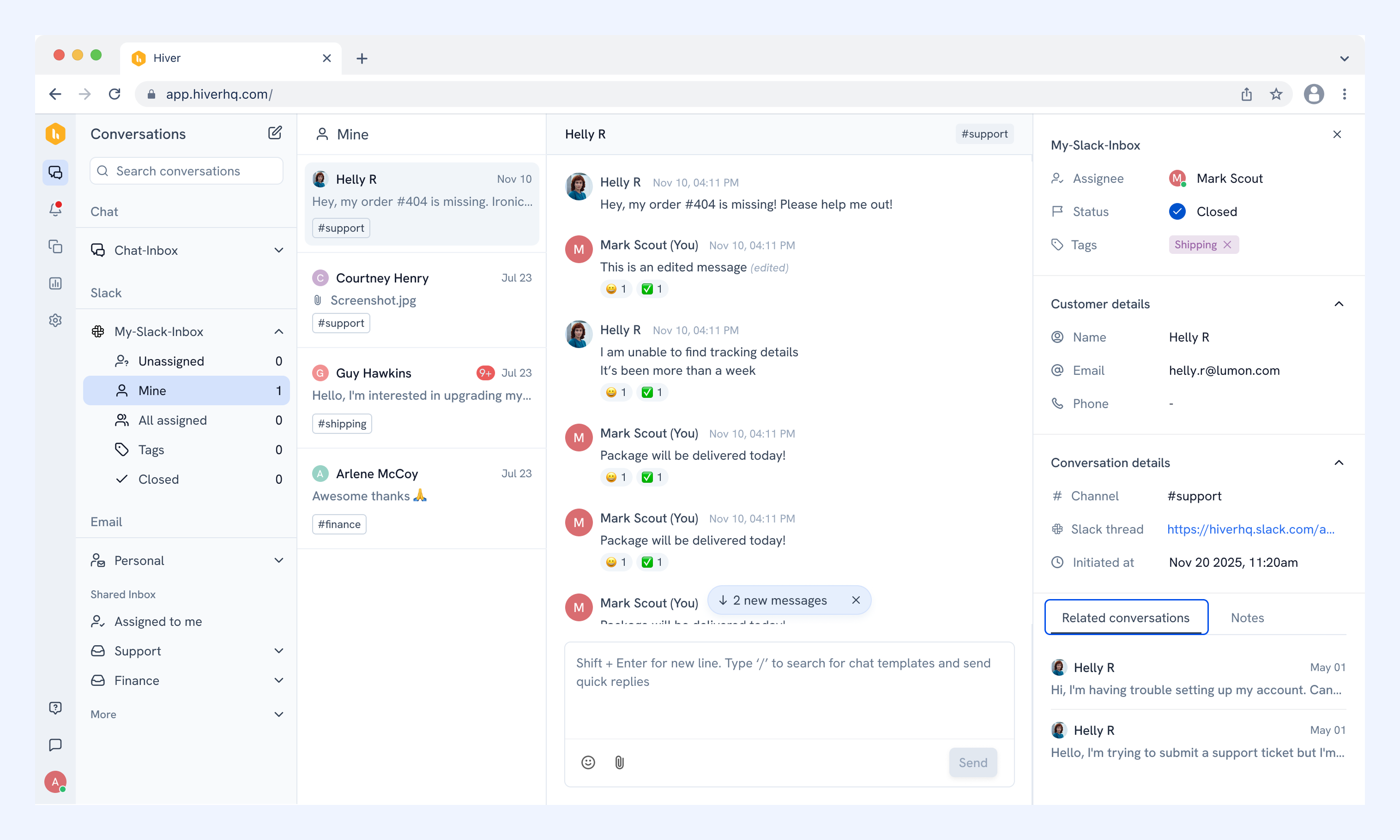
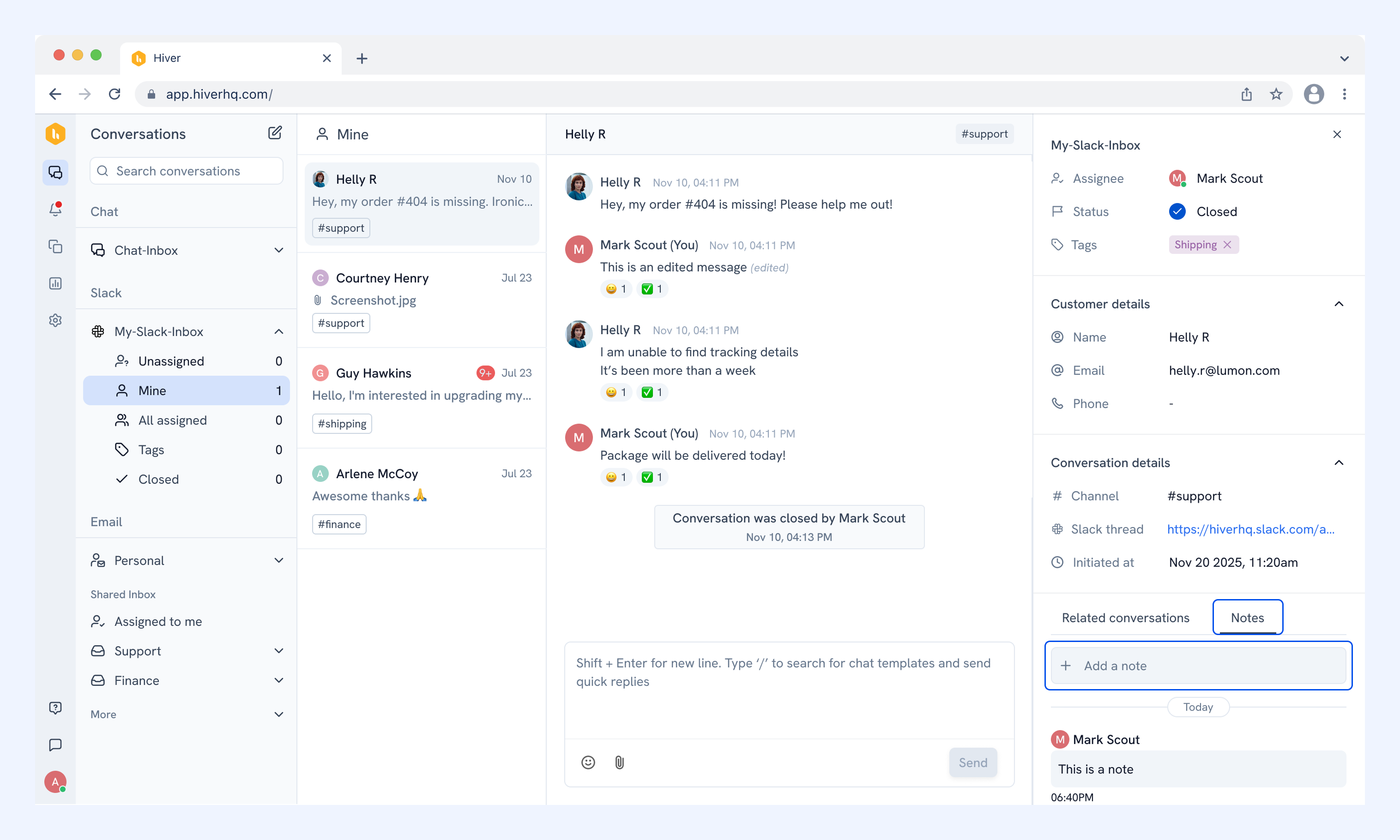
In the right panel, you’ll also find a dedicated tab for Related conversations and Notes.
- Related conversations shows previous conversations with the same customer across any channel in Hiver Omni.
- Notes shows comments where your team can collaborate and share context right inside Slack conversations.
How your Slack conversations look in Hiver Omni
Here's the same support conversation shown in both places. In Slack, it's a thread in a shared channel.
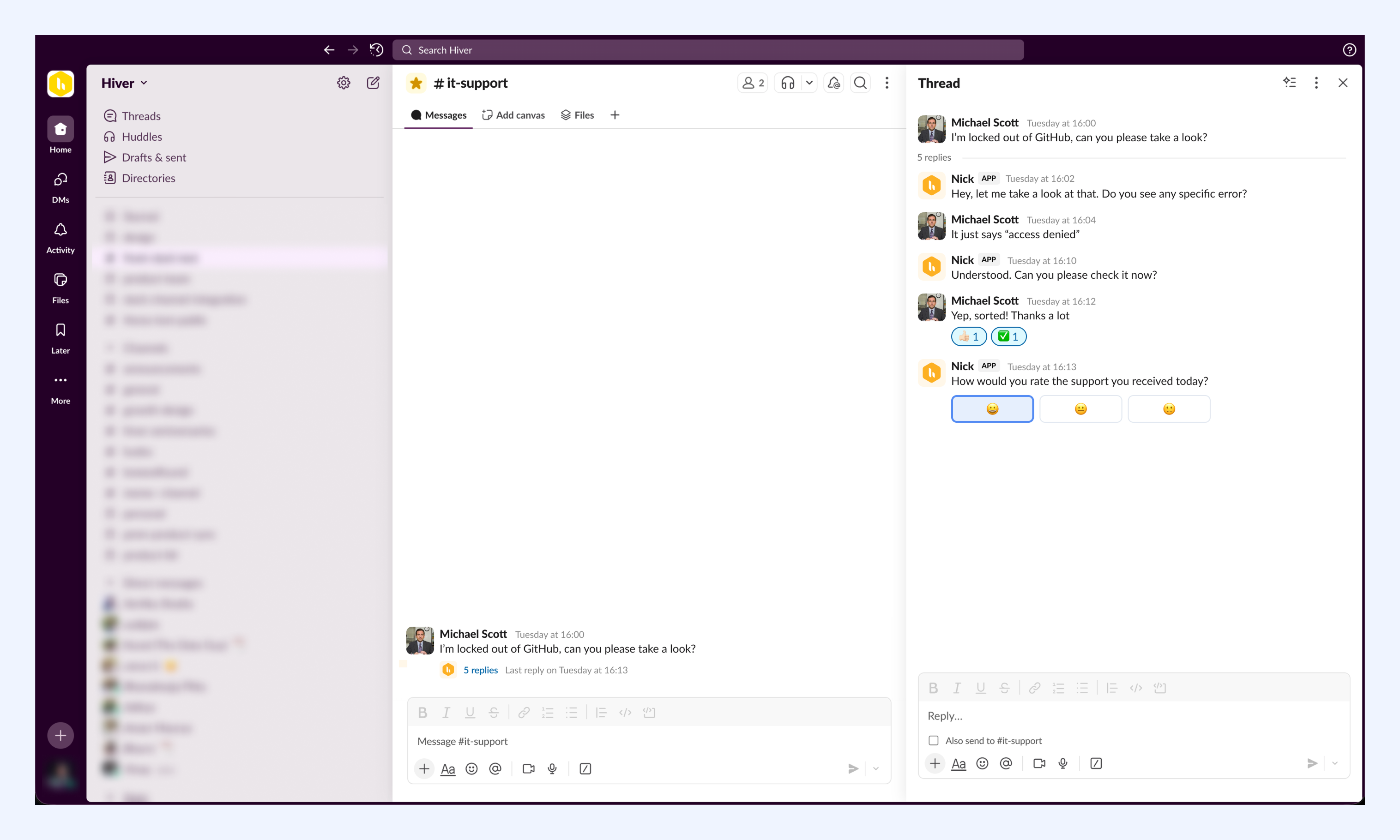
In Hiver Omni, those same messages come in as a tracked conversation with an assignee, status, and full customer context alongside the thread.
Managing availability
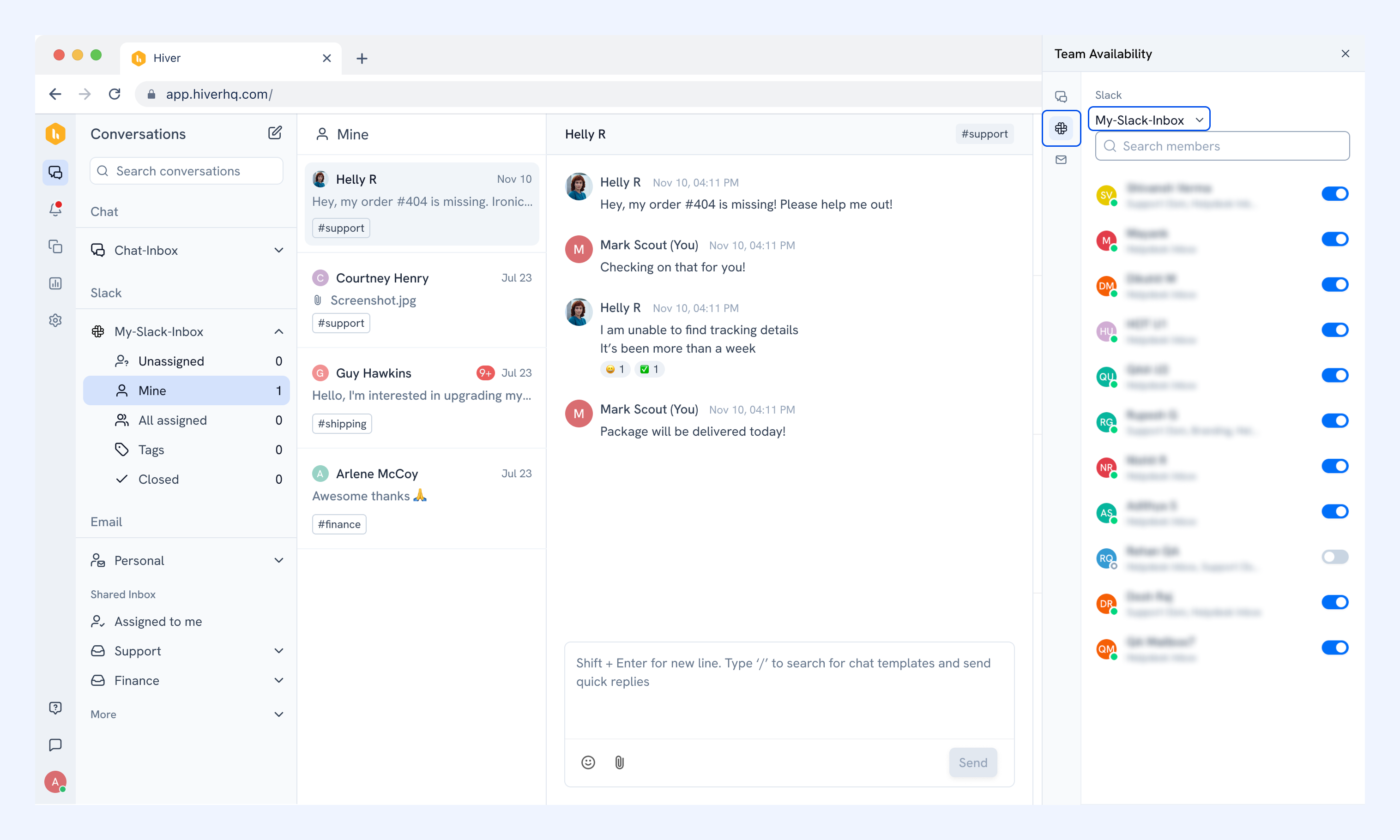
Availability determines which team members receive incoming Slack conversations when Auto Assignment is turned on. Each member can set their availability, and Admins can manage it for the whole team.
Setting your availability
1. Click your profile icon and select Your availability.
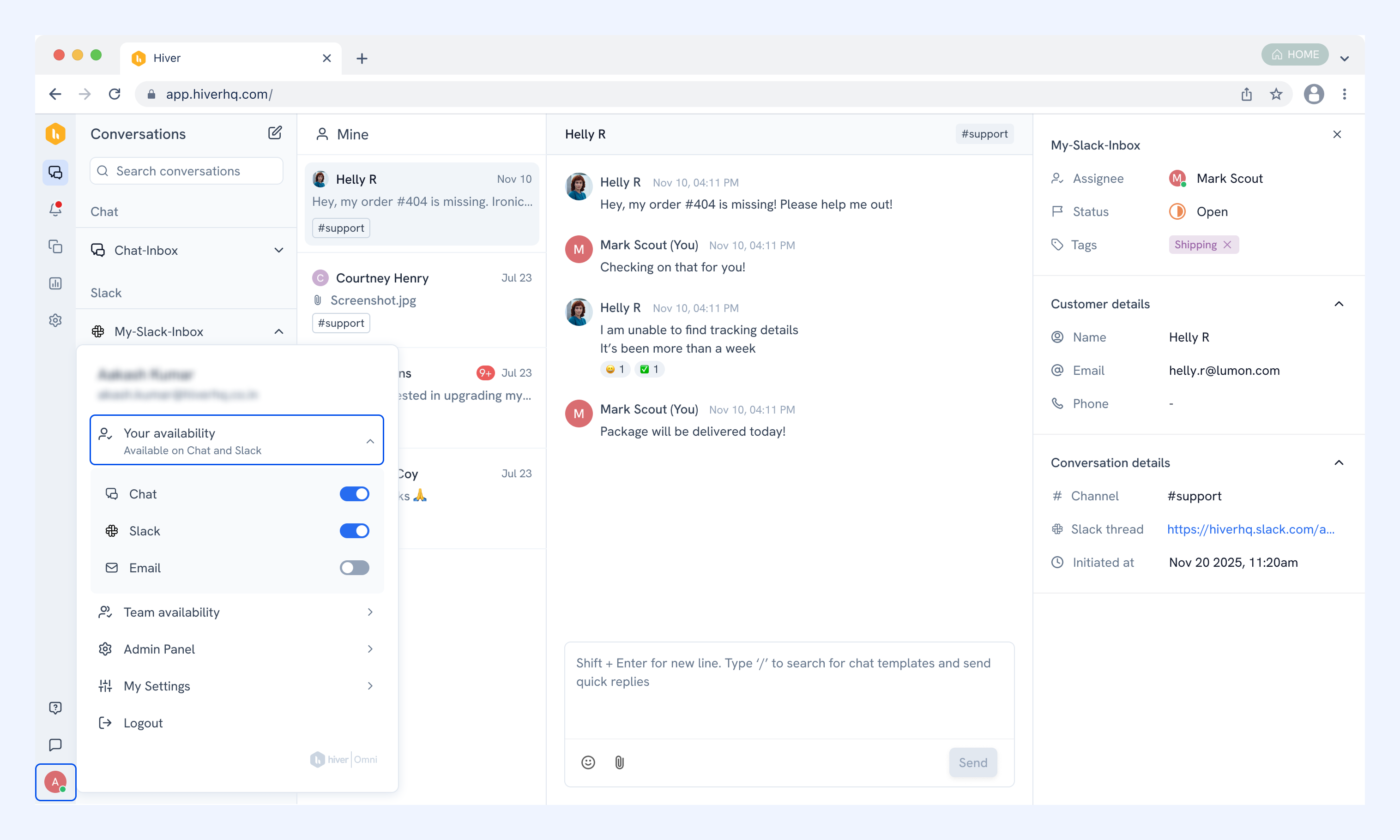
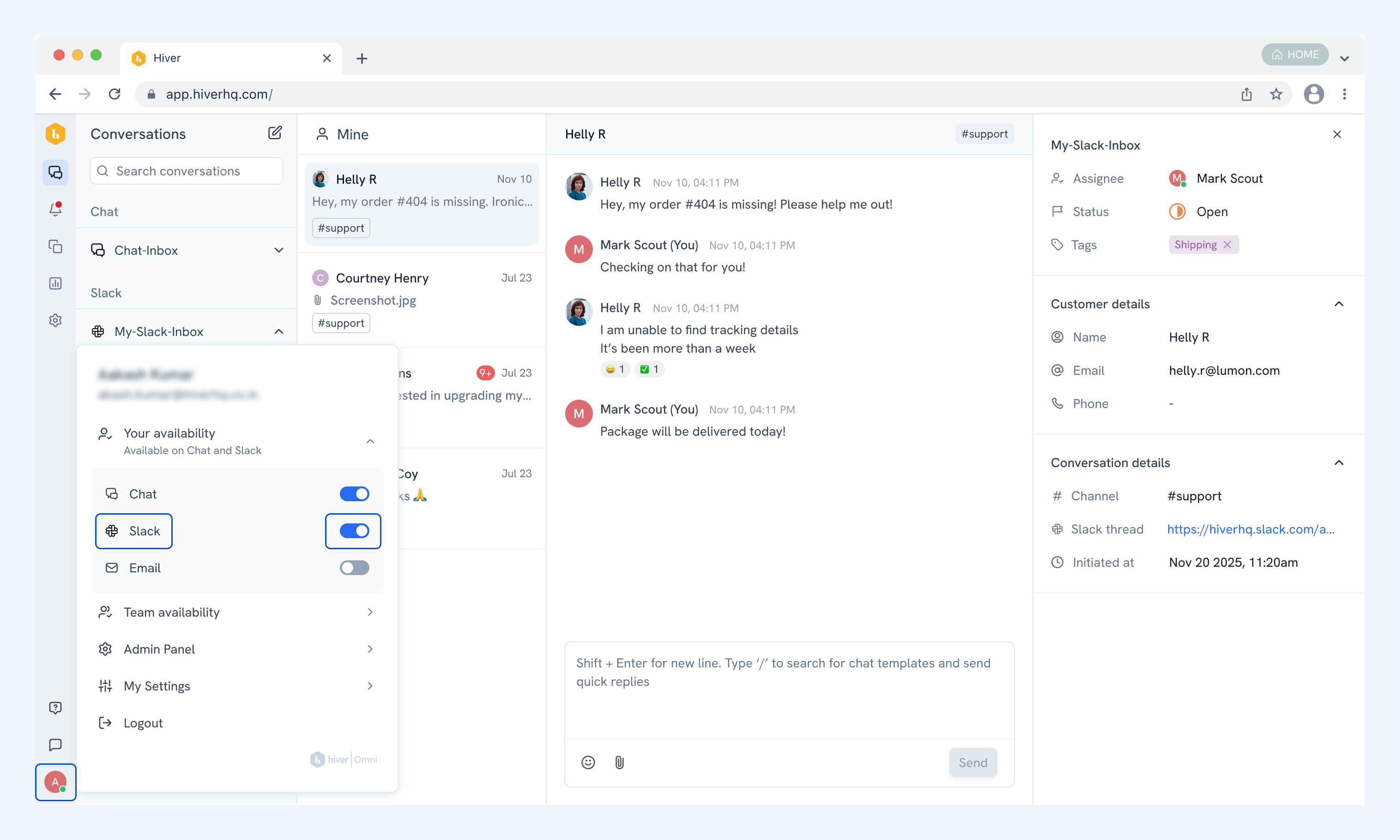
2. Toggle Slack on or off.
Note: Chat and email availability can also be managed from the same menu.
Managing team availability
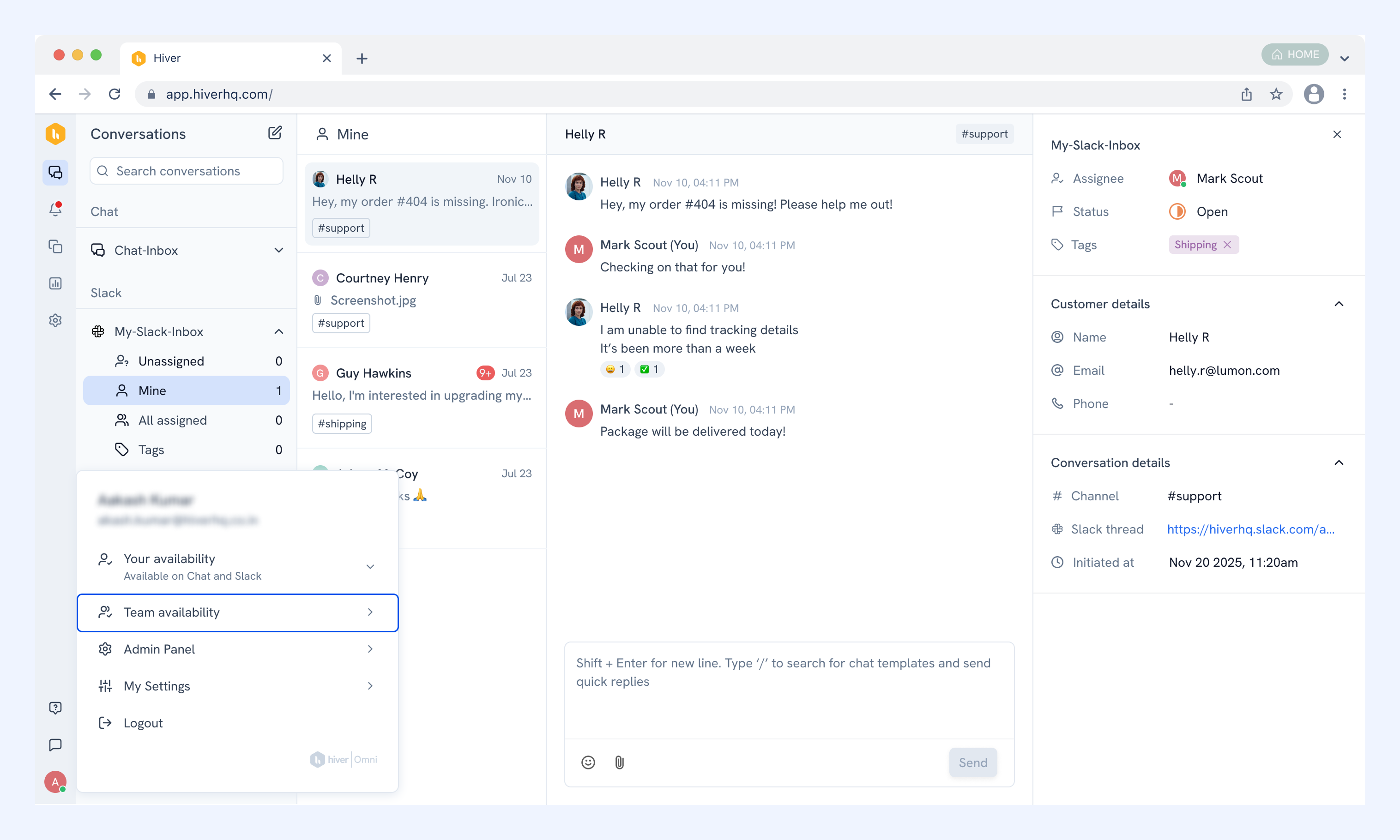
As an admin you can manage availability for individual team members.
1. Click your profile icon and select Team availability.
2. In the right panel that opens, switch to the Slack tab and choose an inbox from the dropdown. Toggle on or off each team member's availability.
Related articles
Setting up Auto Assignment for Slack Inboxes
How to add the Hiver Omni app to a private Slack channel
Slack reports in Hiver Analytics
Viewing and managing customer details