Managing Shared Inbox settings in Hiver
Use Shared Inbox settings to control who can access an inbox, how conversations are assigned and handled, and which features are enabled for it. This article gives you an overview of the settings available for Shared Inboxes.
Prerequisites
To manage Shared Inbox settings, you need:
- Admin access in Hiver.
- At least one Shared Inbox.
Accessing your Shared Inbox settings
Open the Admin Panel → Shared Inboxes, then choose the inbox you want to manage.
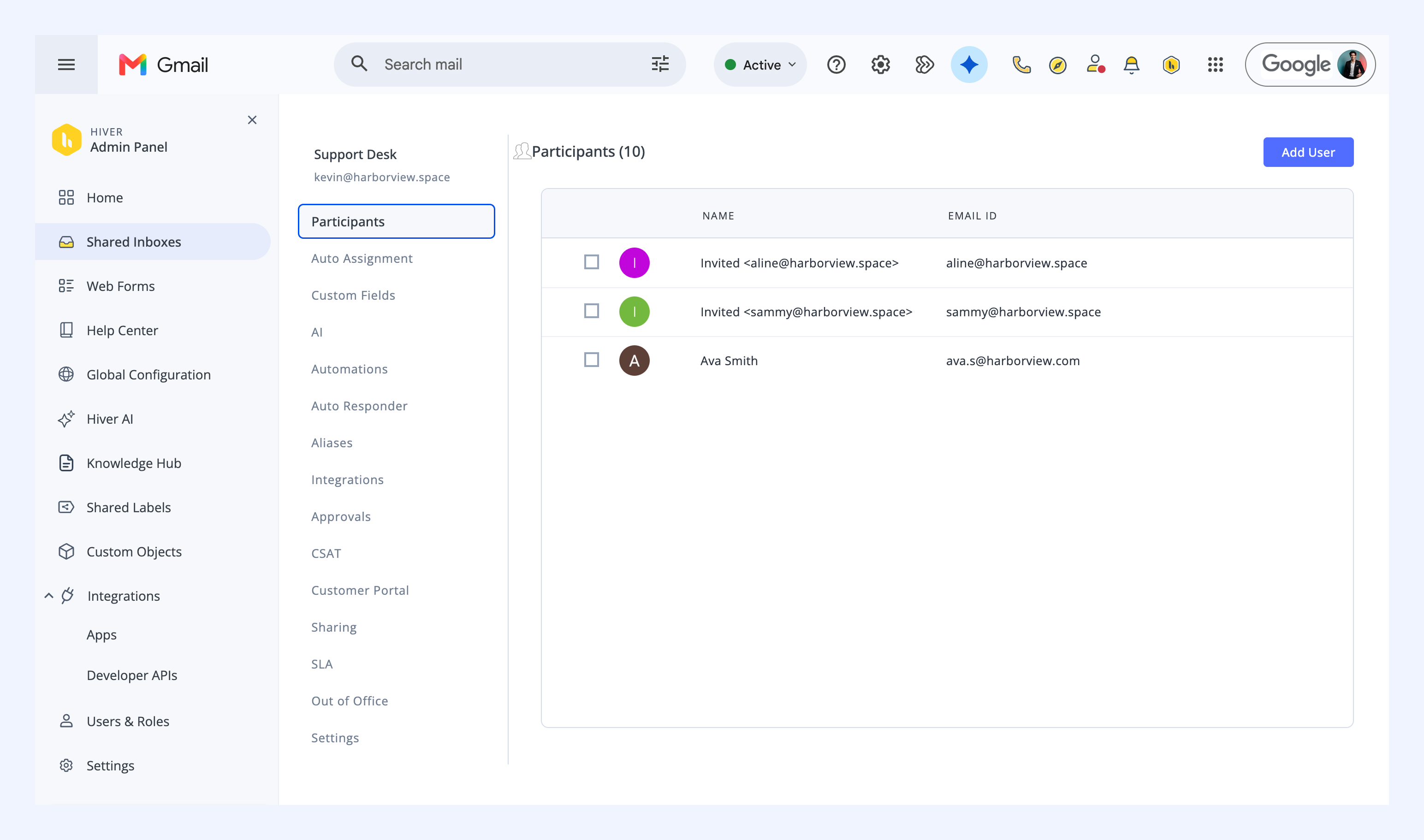
Participants
Add the teammates who can access this Shared Inbox. You can also remove team inbox members from here. Learn more about inviting your team and managing permissions.
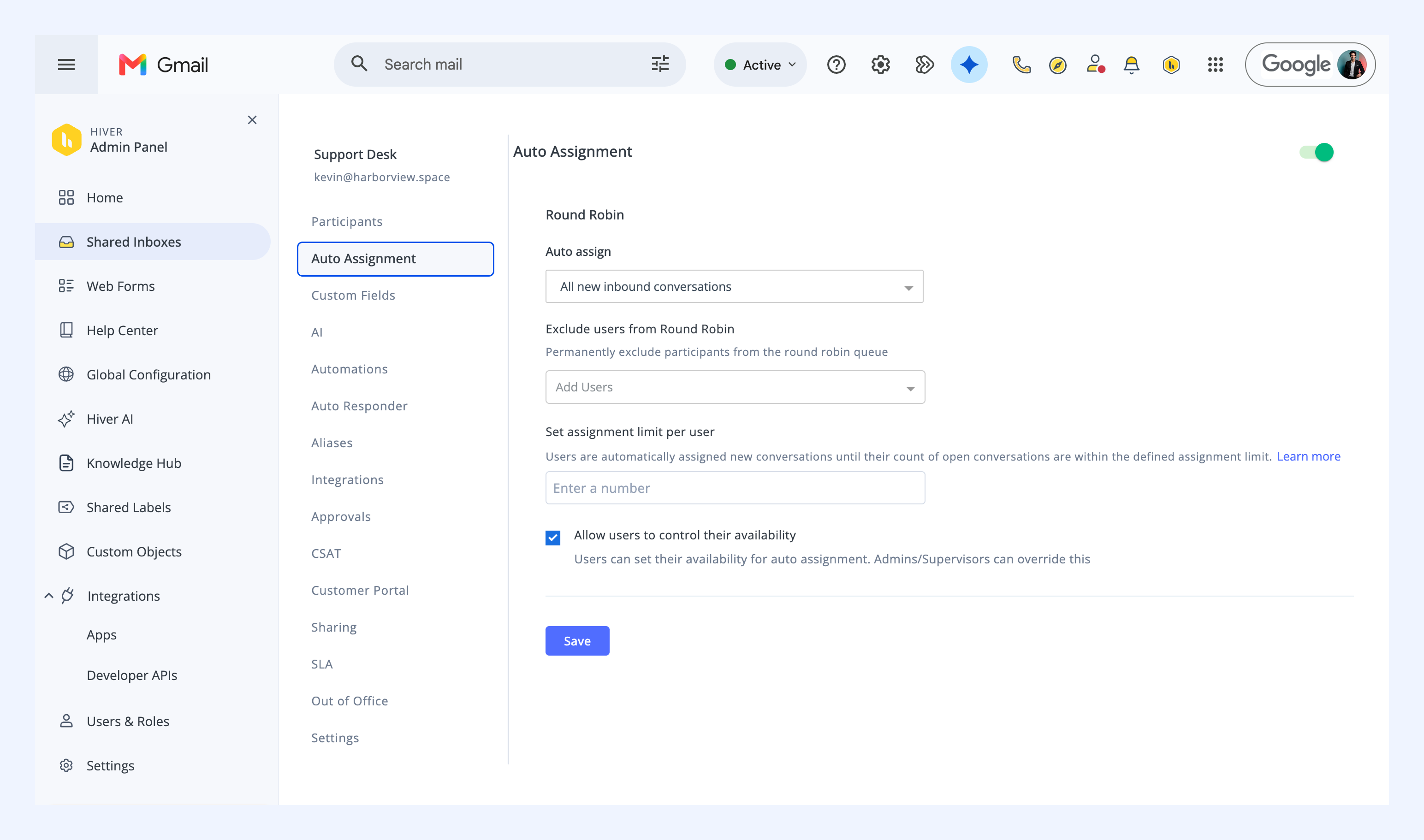
Auto Assignment
Distribute incoming conversations across your team automatically. Learn more about round-robin assignment.
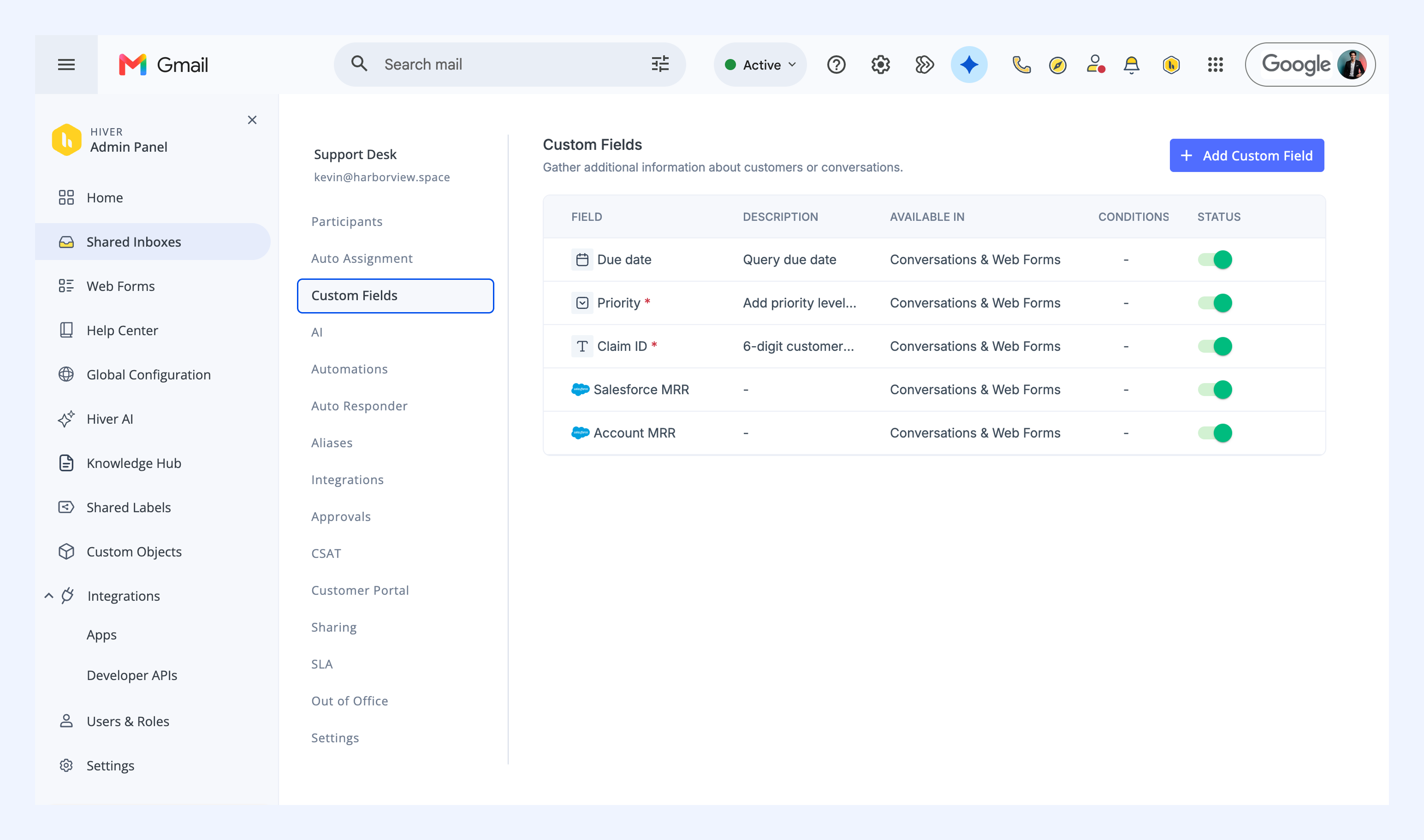
Custom Fields
Create fields to capture additional conversation details, such as priority, due date, or account ID. You can use the custom fields you create to capture details in your Web Forms too. Learn more about Custom Fields.
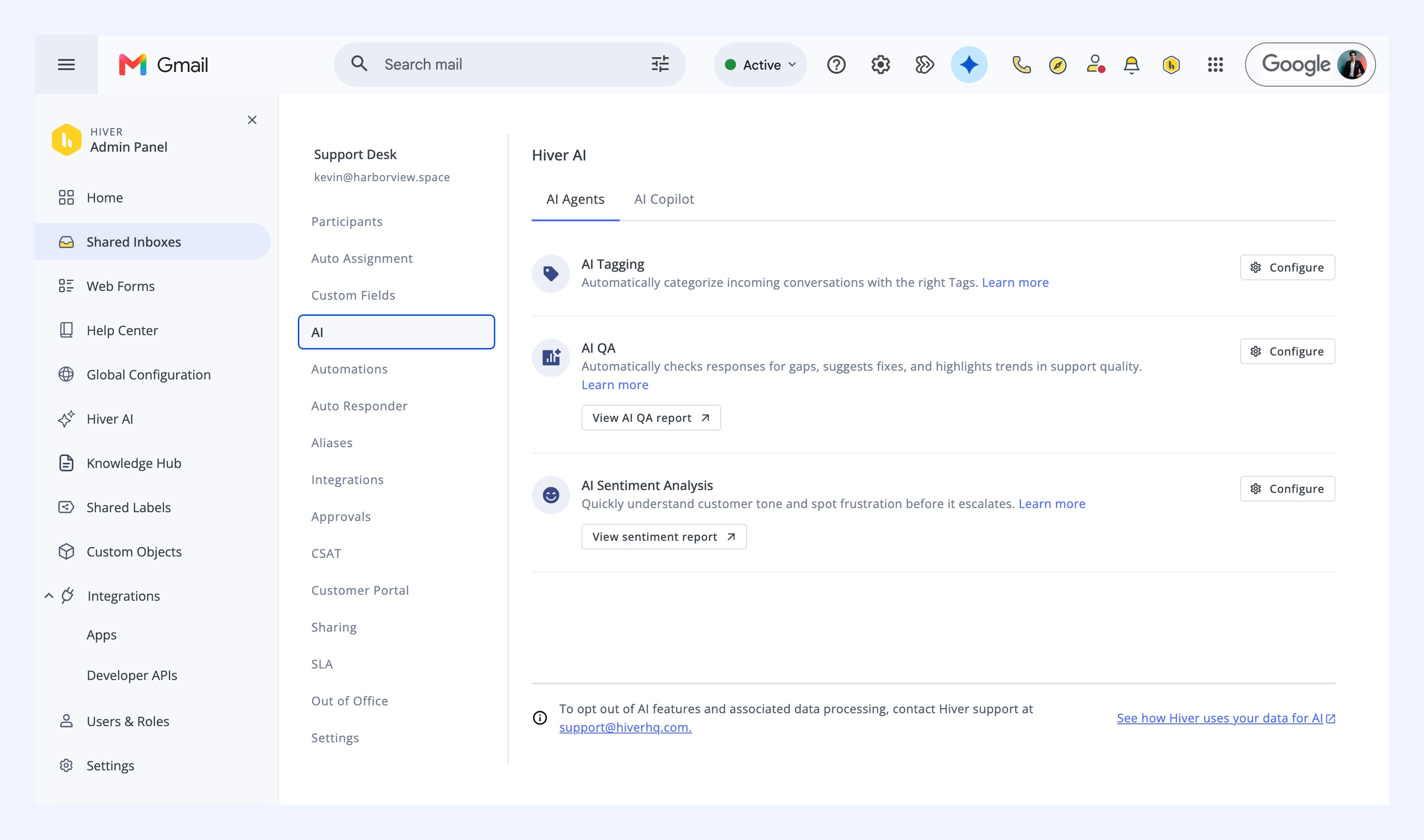
AI
Set up Hiver's AI features for this Shared Inbox. Use the AI Agents tab to manage AI Tagging, AI QA, and AI Sentiment Analysis, or open AI Copilot to configure Copilot. Learn more about Hiver AI.
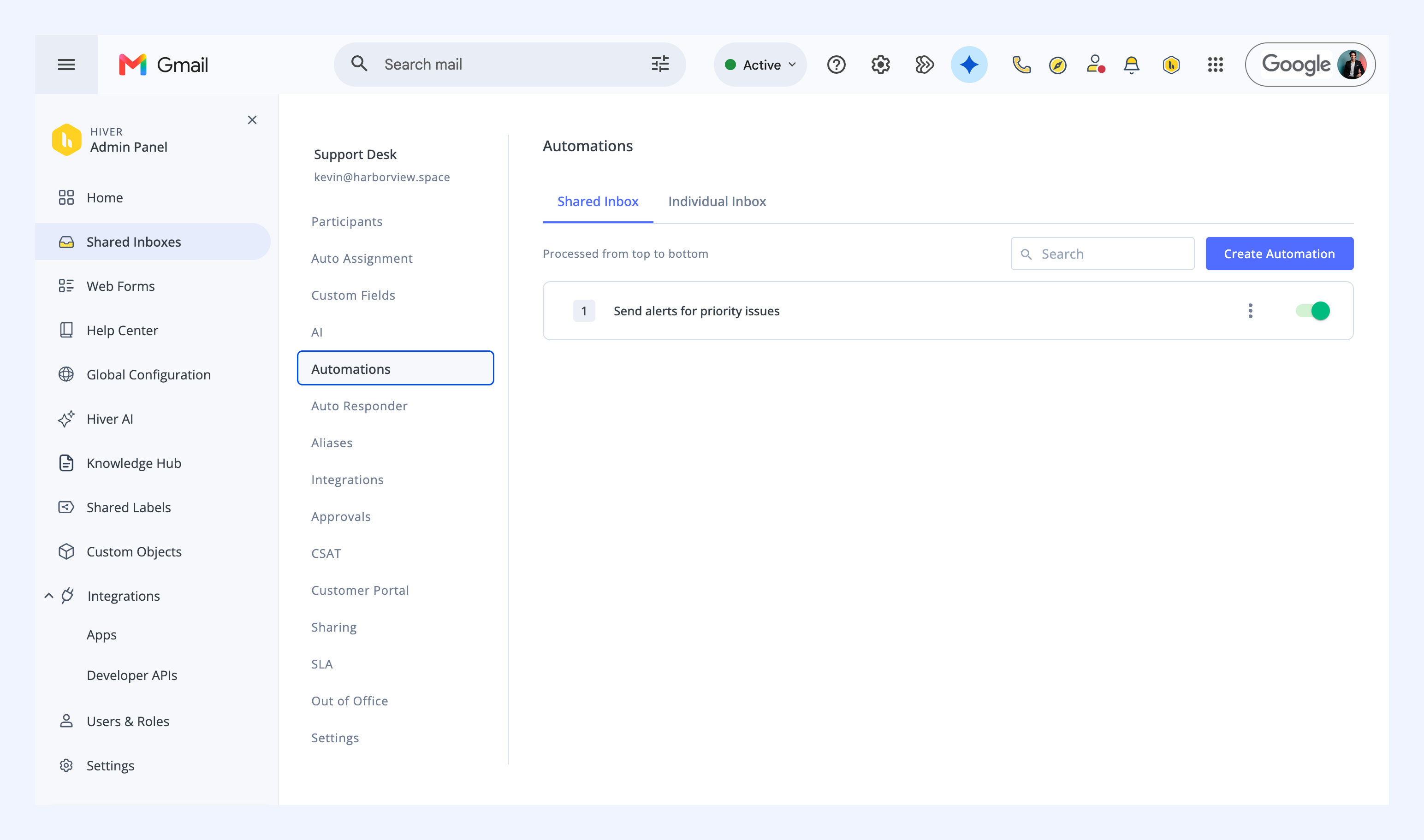
Automations
Create rules that automatically assign, tag, or take other actions on conversations when they meet the conditions you set. Learn more about using automations.
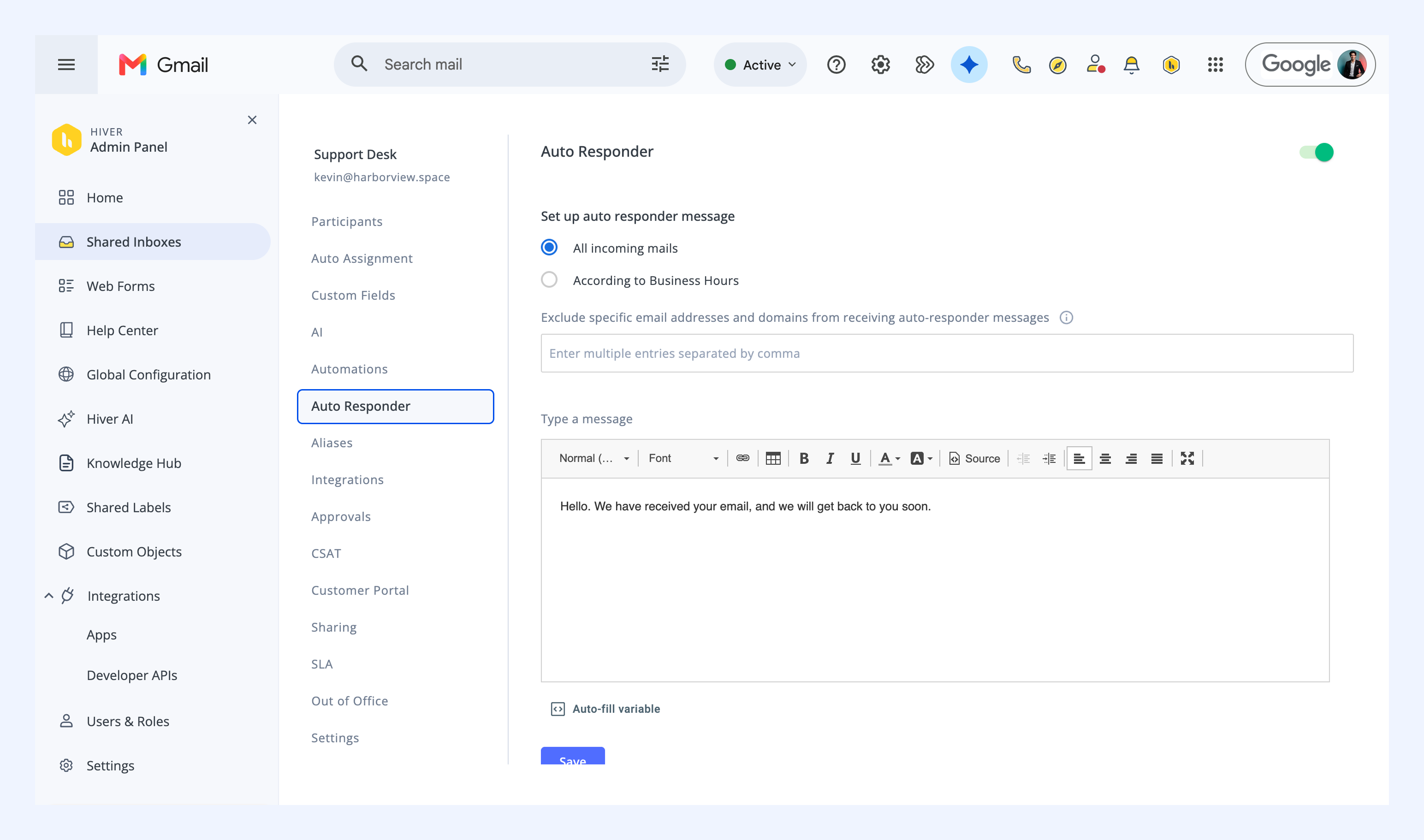
Auto Responder
Send an automatic reply to incoming conversations to acknowledge the request or let customers know your team is not available. Learn more about setting up an auto responder.
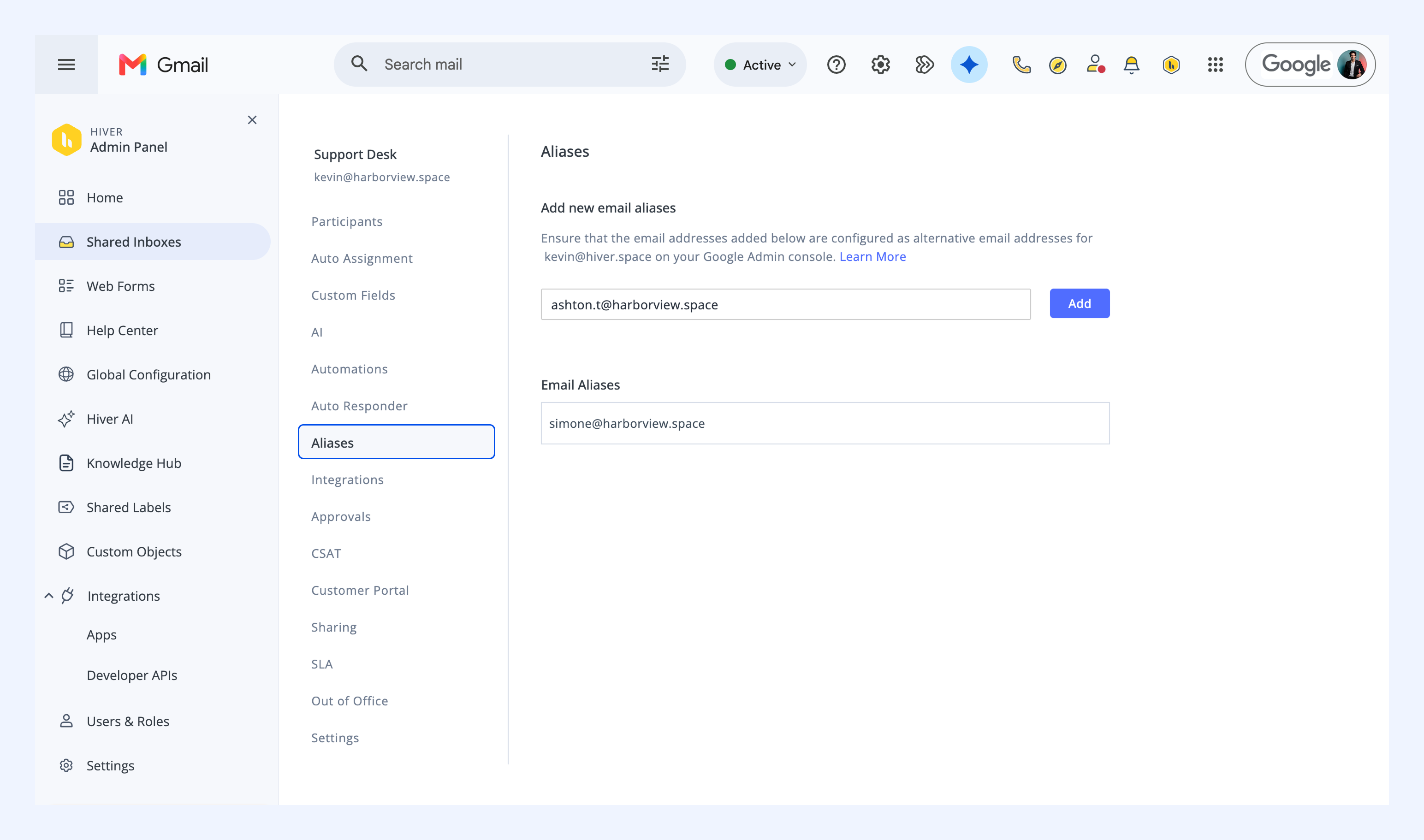
Aliases
Add alternative email addresses your team uses. You can track conversations sent to the aliases from the Shared Inbox and also send replies from an alias. Learn more about setting up the sender ID for your Shared Inbox.
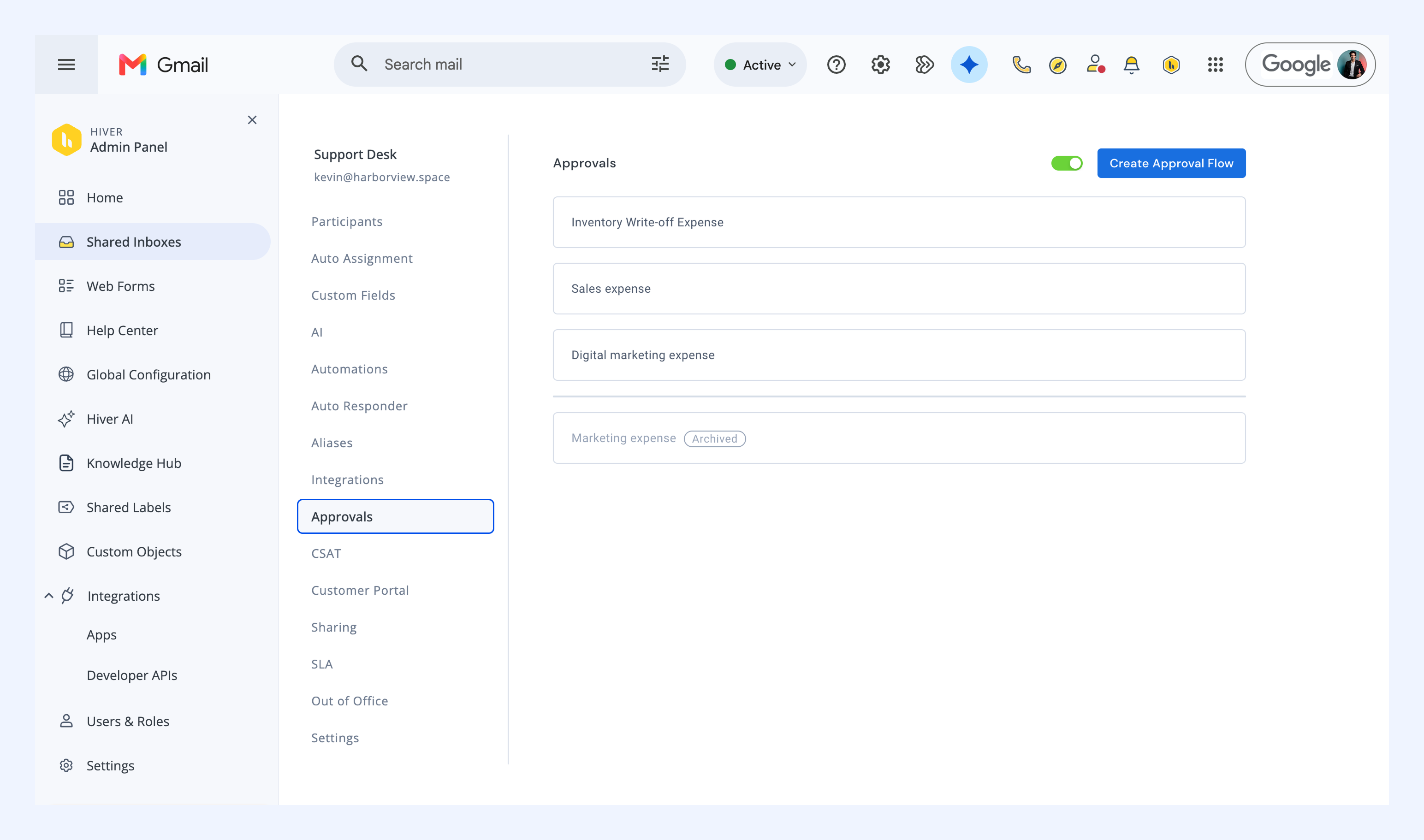
Approvals
Set up approval flows for requests that need a sign-off, such as refunds or expenses, to the right approver before your team acts on them. Learn more about creating approval flows.
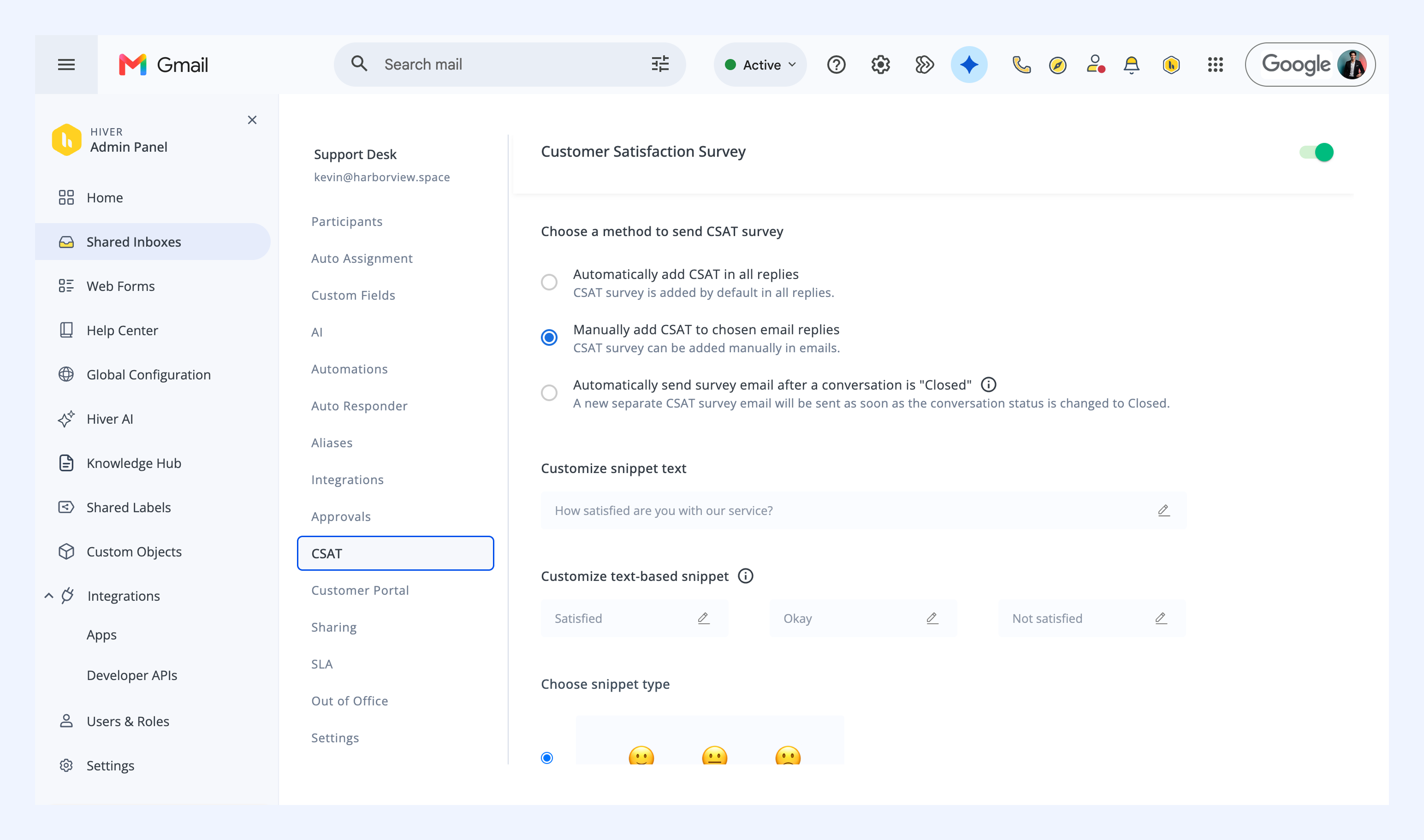
CSAT
Send a customer satisfaction survey (CSAT) to measure how happy customers are with your support. Learn more about customer satisfaction surveys.
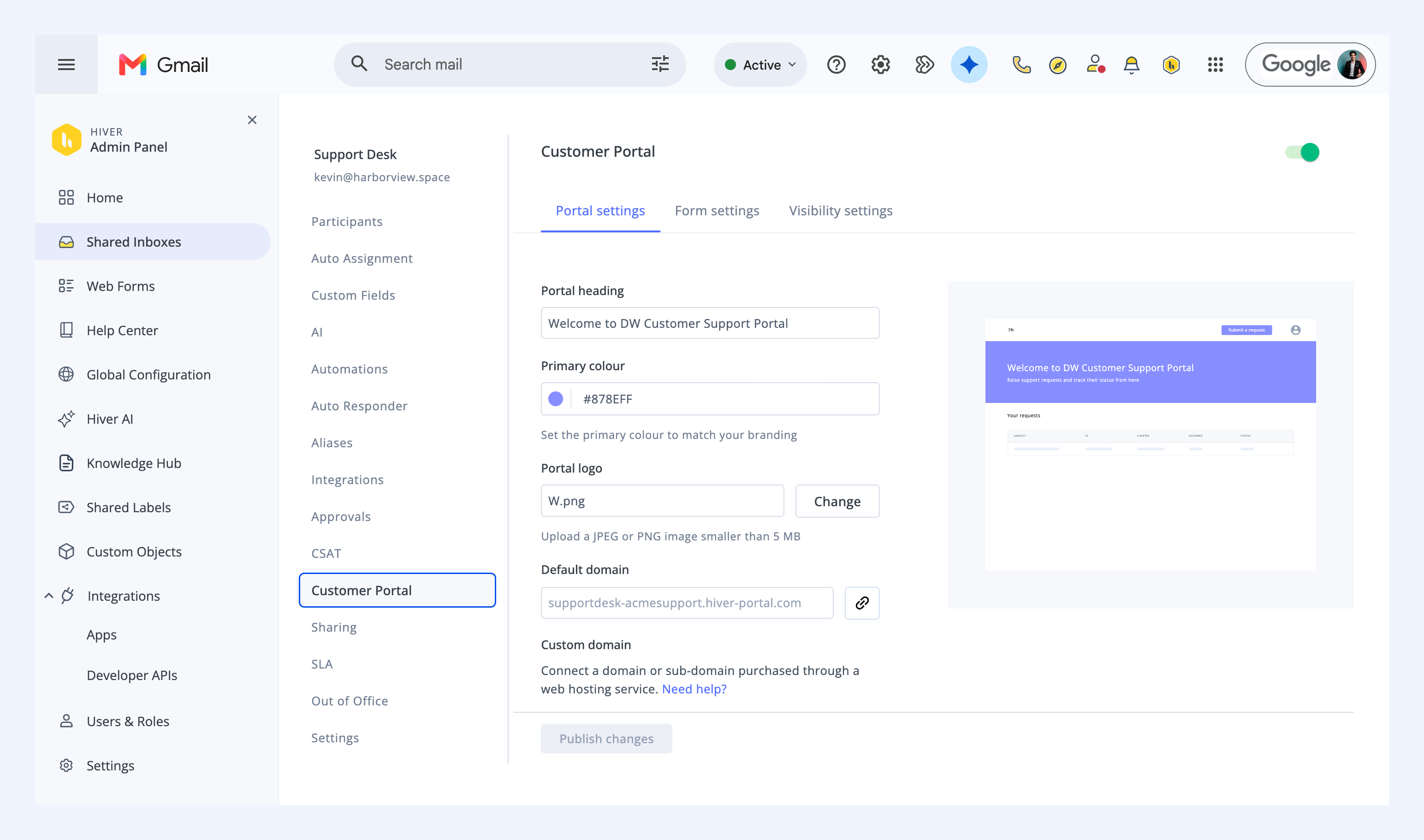
Customer Portal
Give customers a dedicated place to submit and track their requests. Learn more about setting up a Customer Portal.
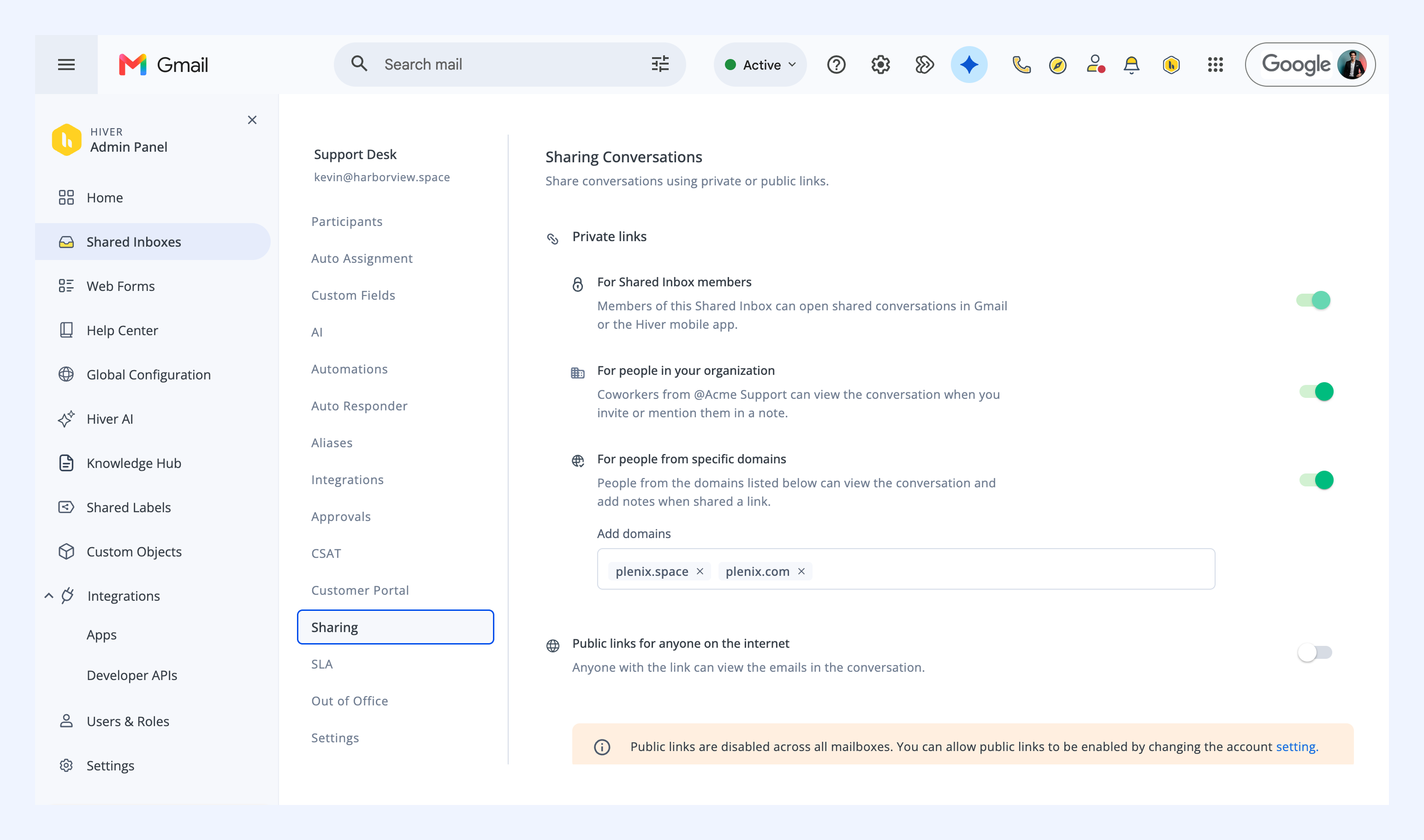
Sharing
Control how your team shares conversations using private or public links. You can limit access to Shared Inbox members, everyone in your organization, or people from specific domains. Learn more about sharing conversations.
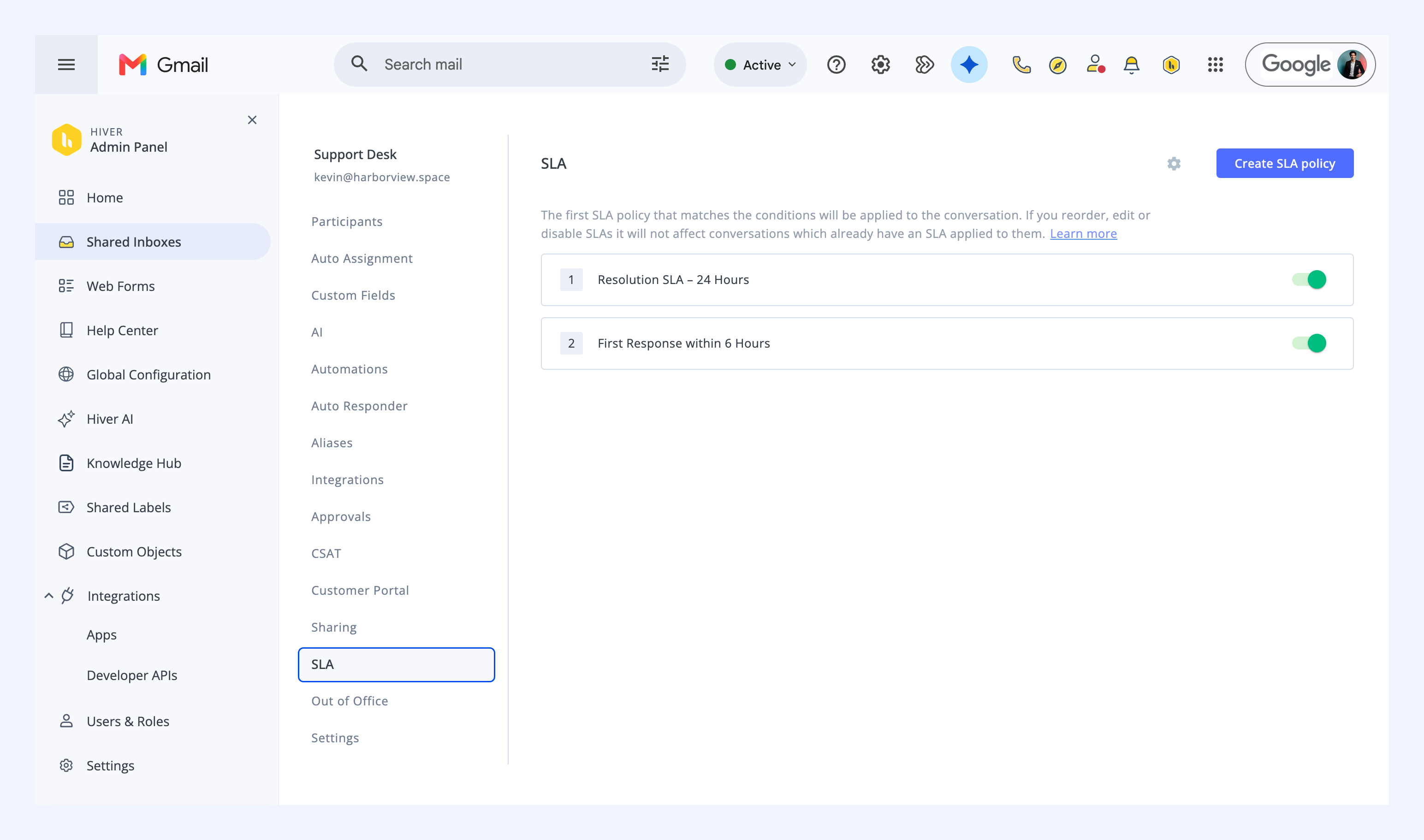
SLA
Set targets for how quickly your team sends the first response, responds after a customer replies, and resolves a conversation. Learn more about creating SLA policies.
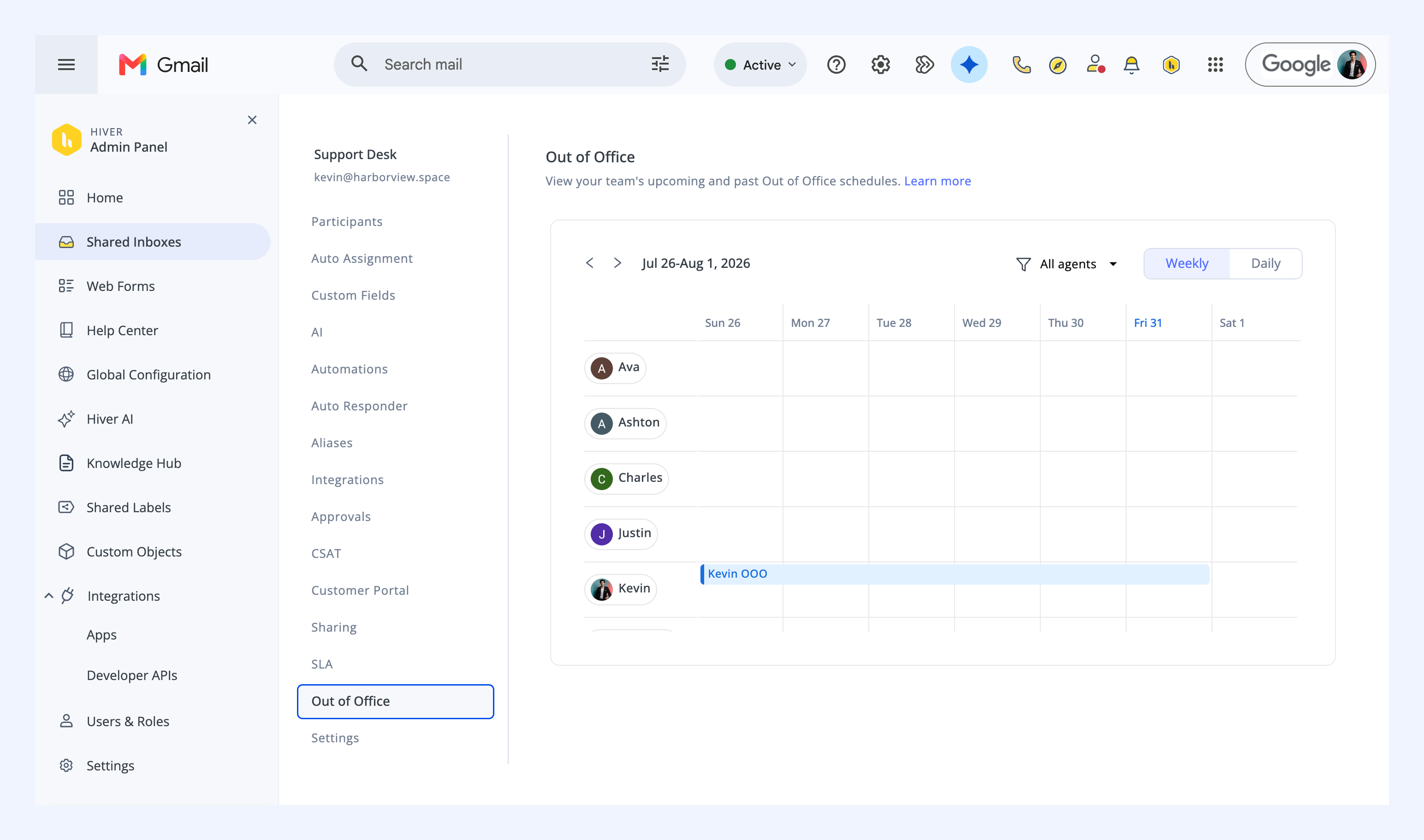
Out of Office
See your team's upcoming and past Out of Office schedules in one place. Learn more about Out of Office for your Shared Inbox.
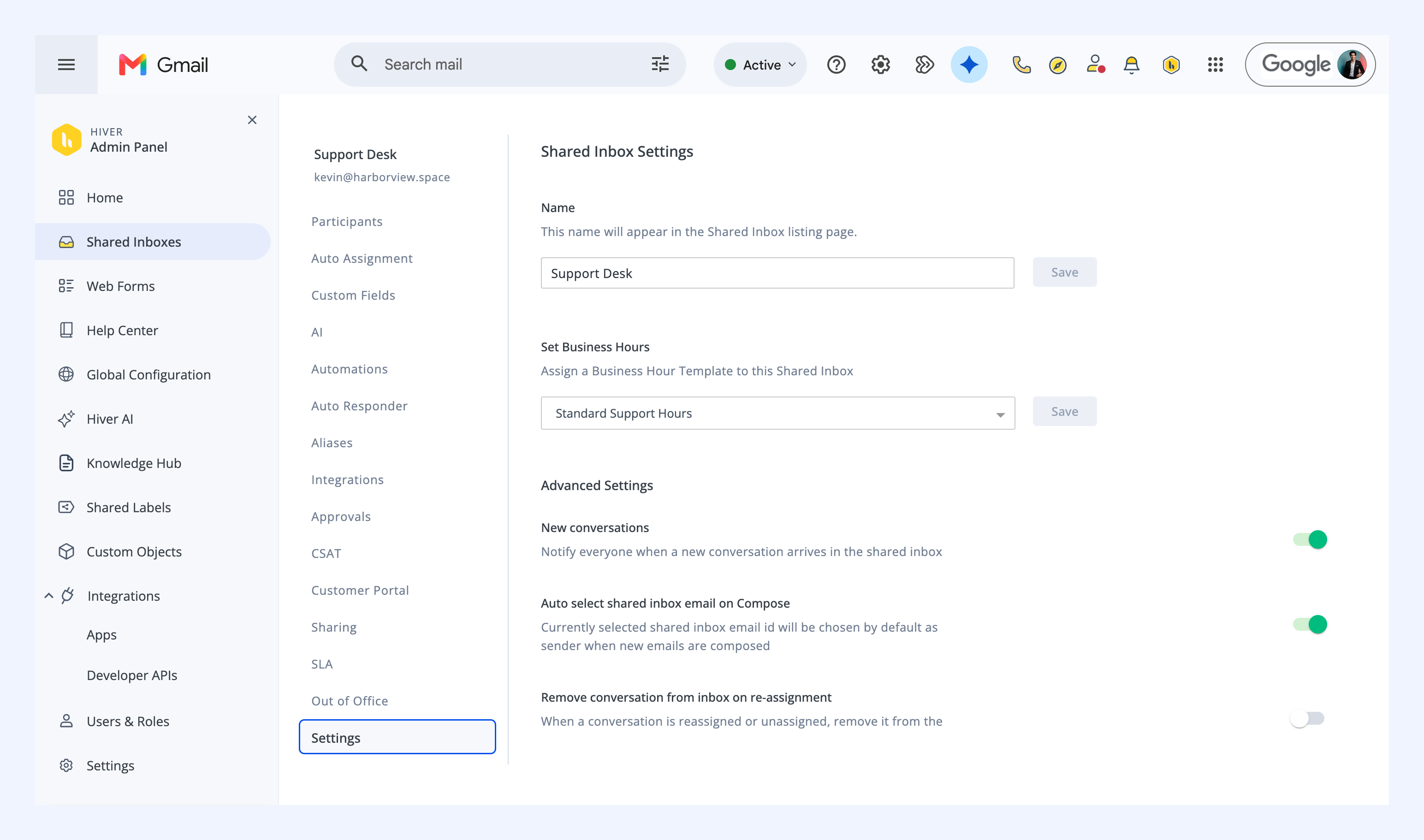
Settings
Rename the inbox, set its business hours, and manage advanced settings for the Shared Inbox.